N/A
Home » Guides » Organisation – Managing Users

Organisation – Managing Users

Introduction

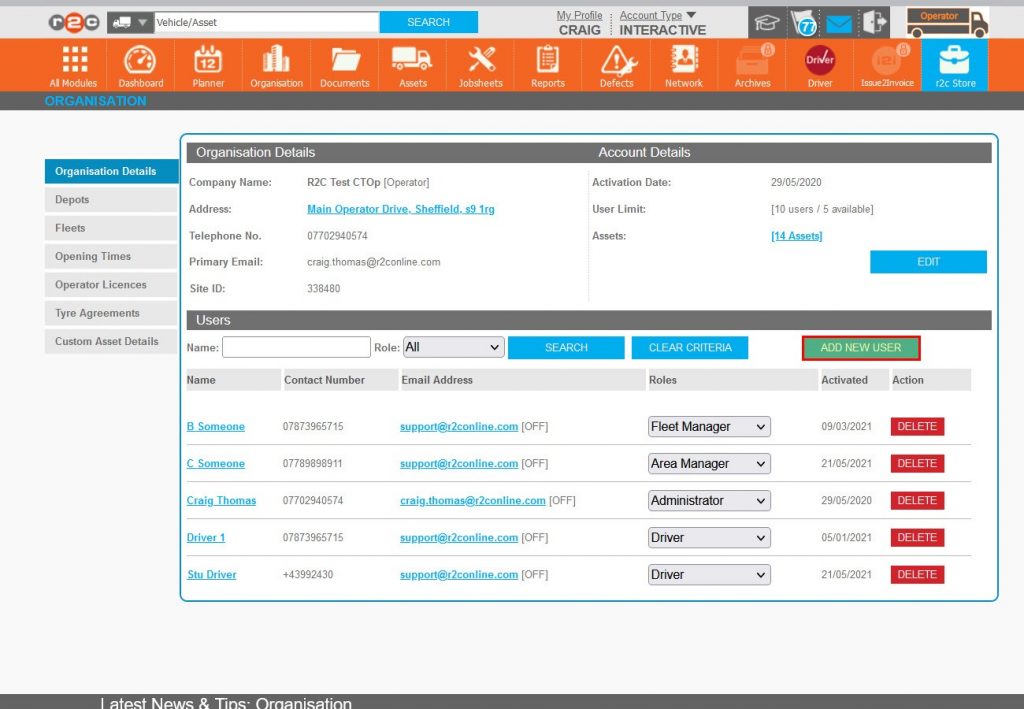
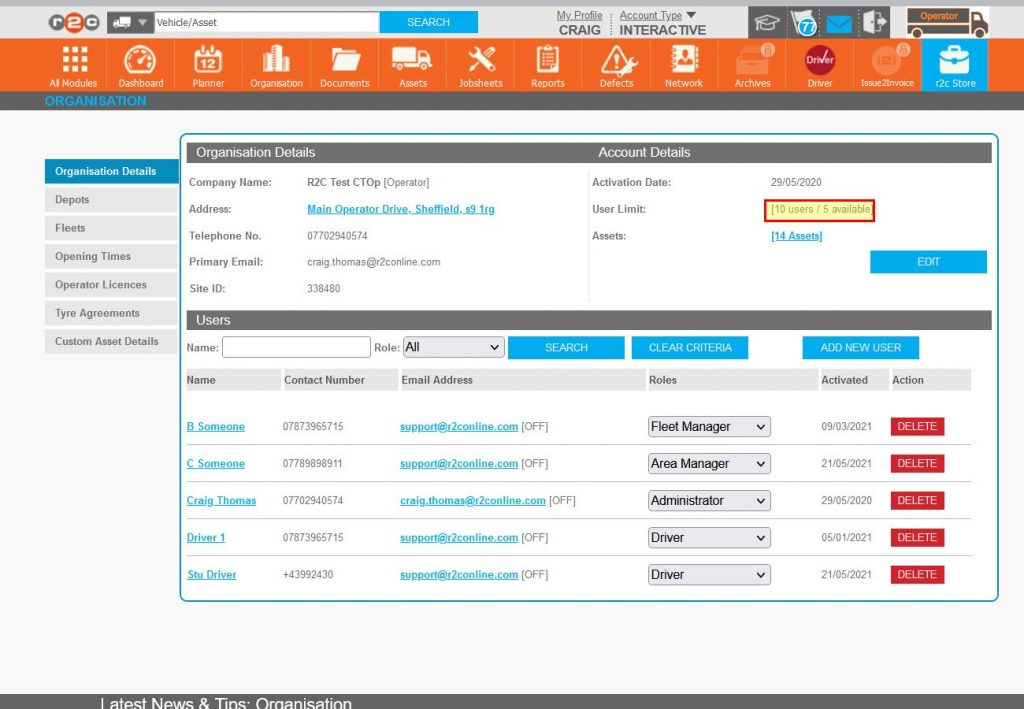
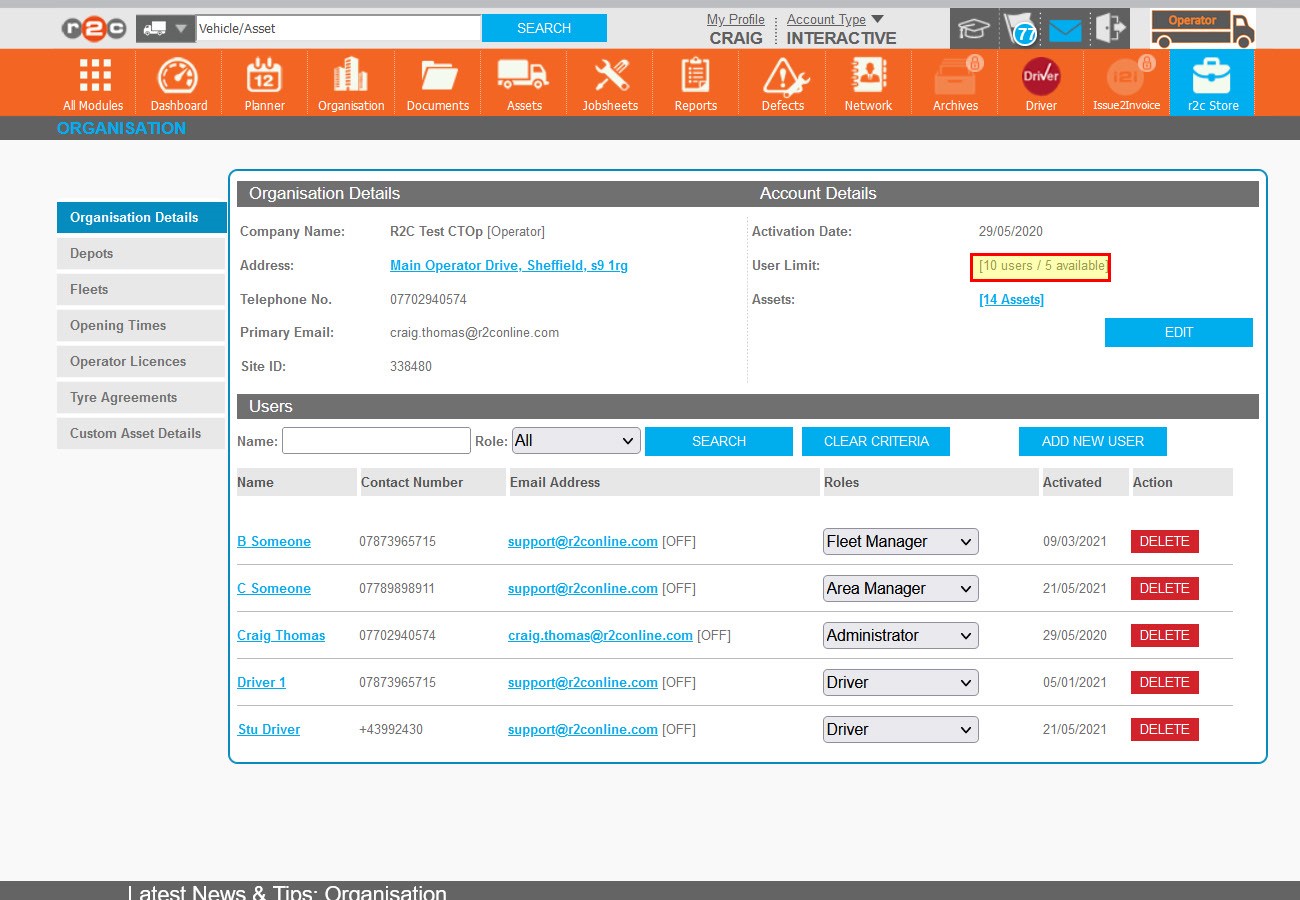
Individual users can access and update their details from the My Profile Link. However, the complete user list can be managed by local administrators from the organisation page . 

In order to add users to r2c, there must be an availability, if the ADD NEW USER button is not displayed it could be due to a zero availability. To resolve a zero availability, contact r2c support.

The Add New user button may not display depending on user role limitations, see Operator User Roles

All user accounts can be managed from here by clicking on the user name.

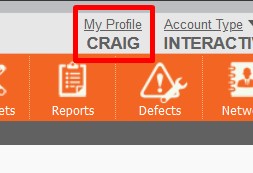
To manage your individual login details and preferences click 'My Profile' 
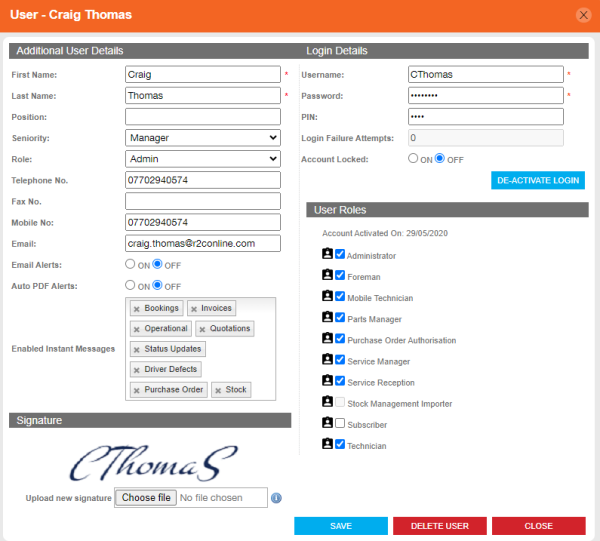
Step by Step

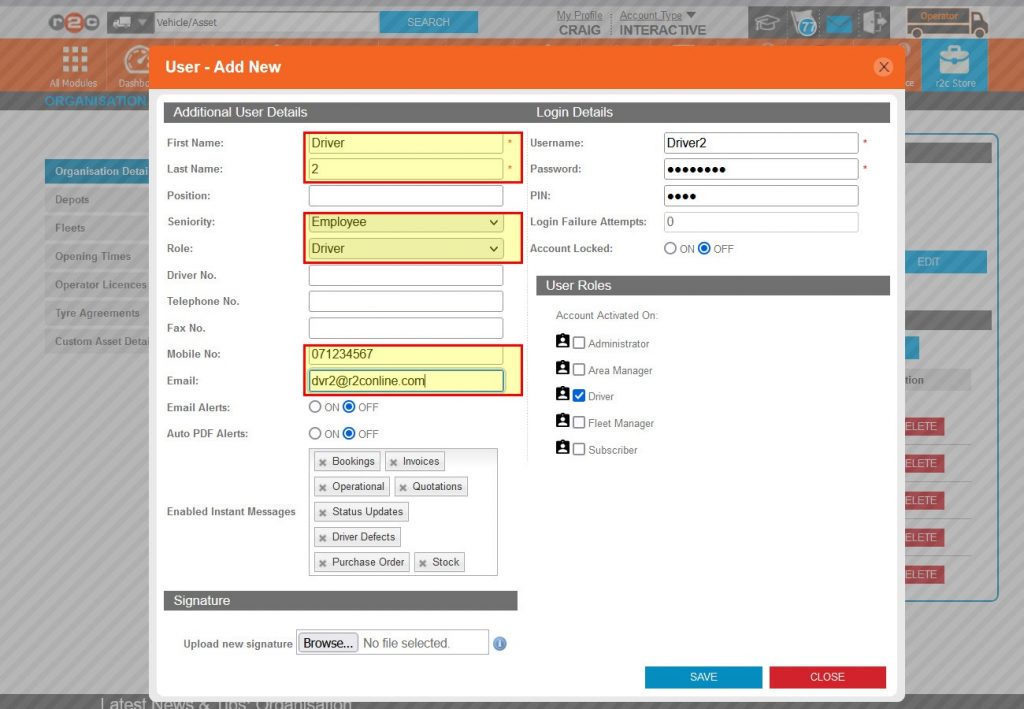
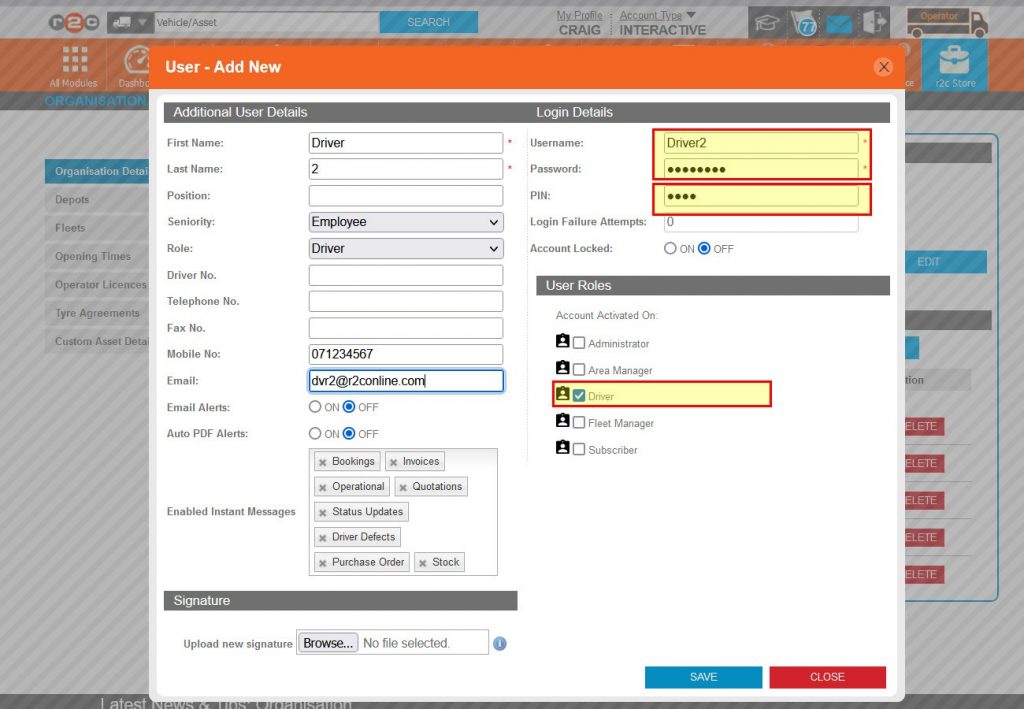
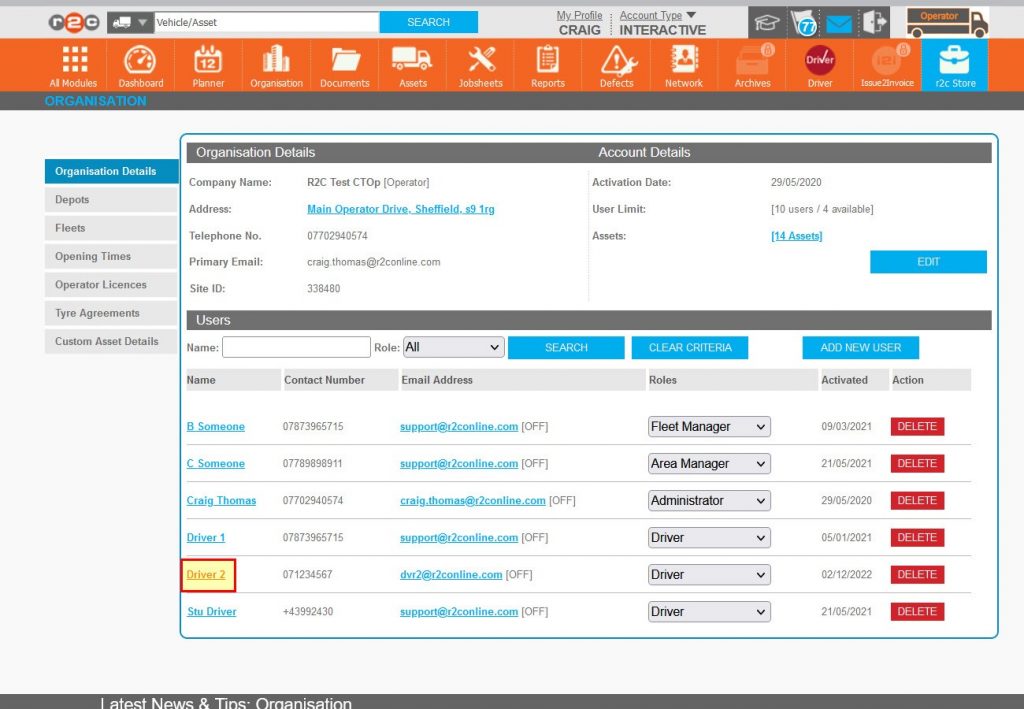
Add a New User – To see the steps taken to create a User Profile, click or swipe through the 3 steps below..

Amend an Existing User’s Details – To see the steps taken to amend a user’s profile, click or swipe through the 2 steps below.

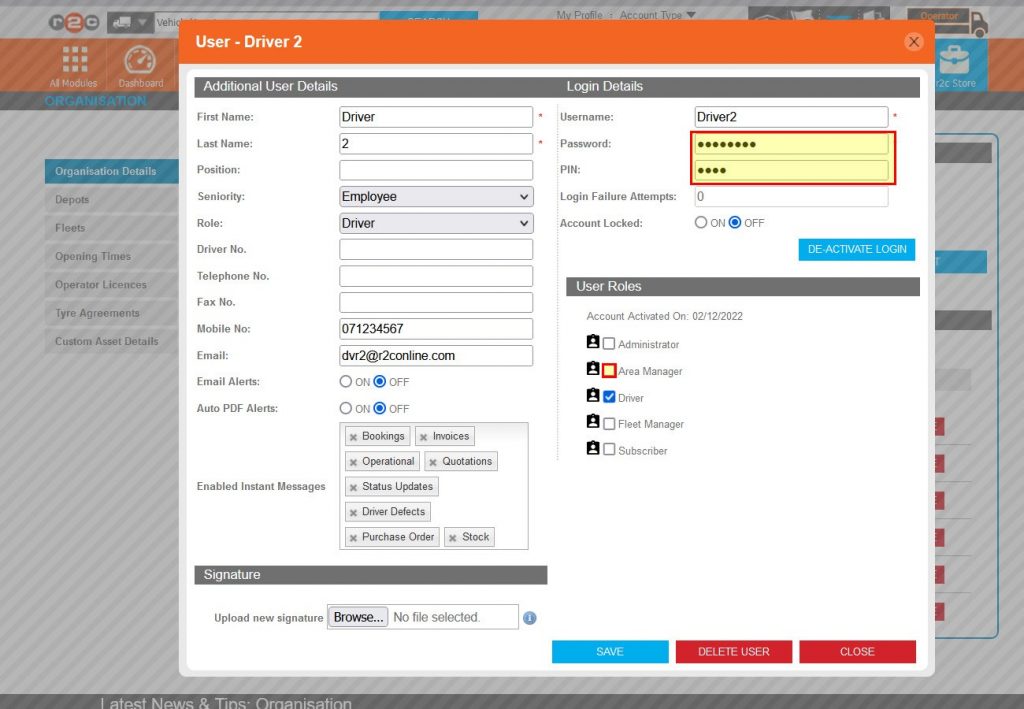
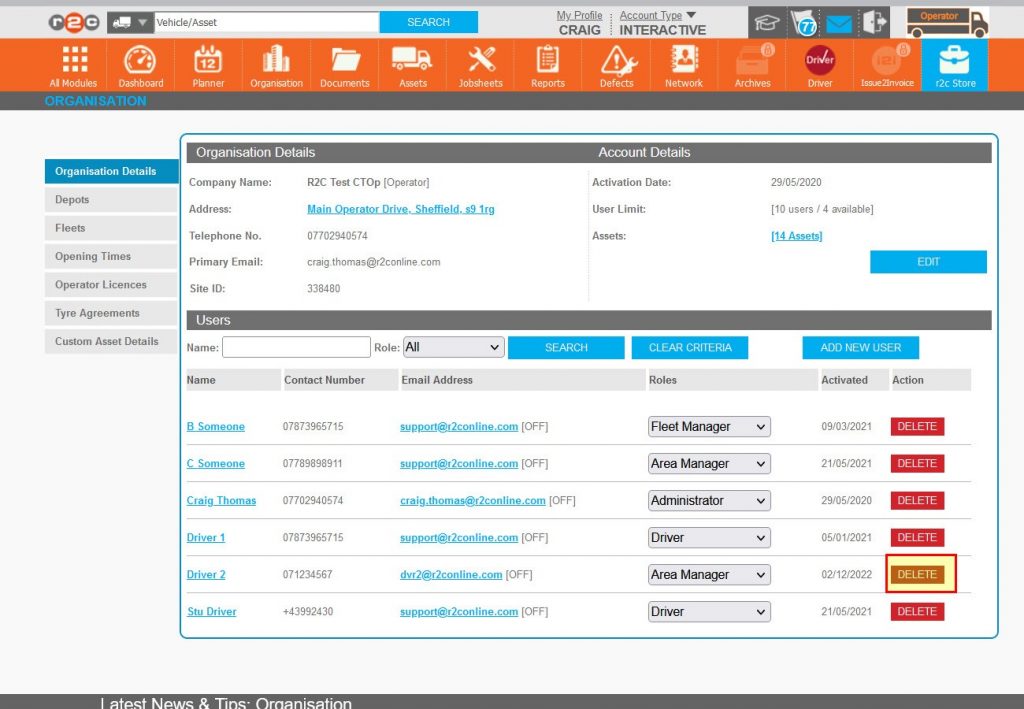
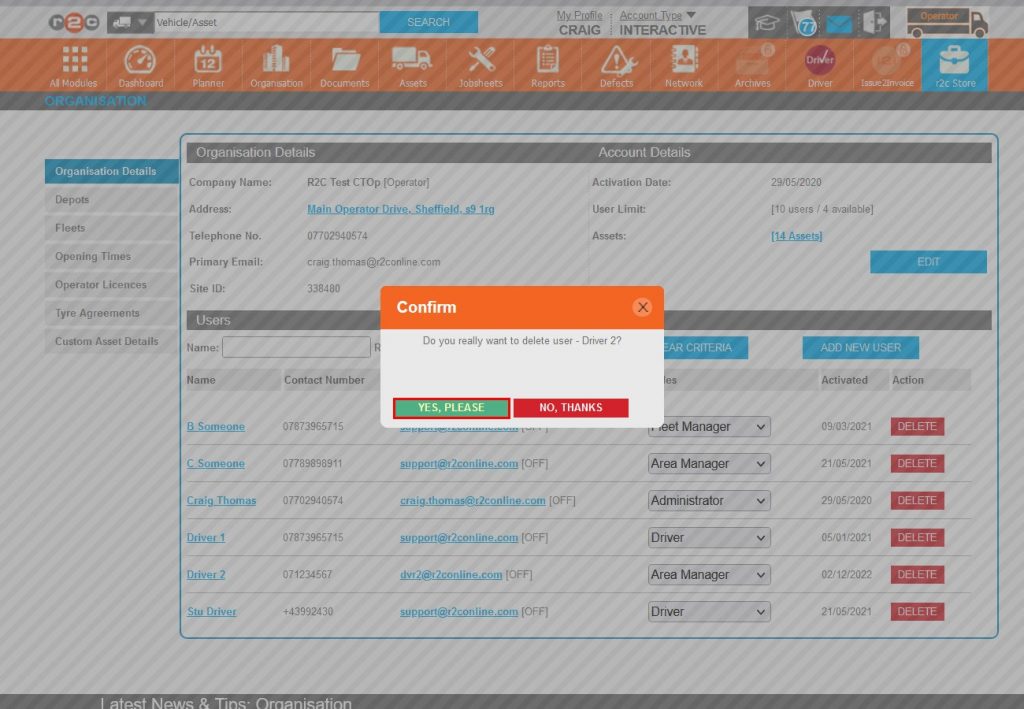
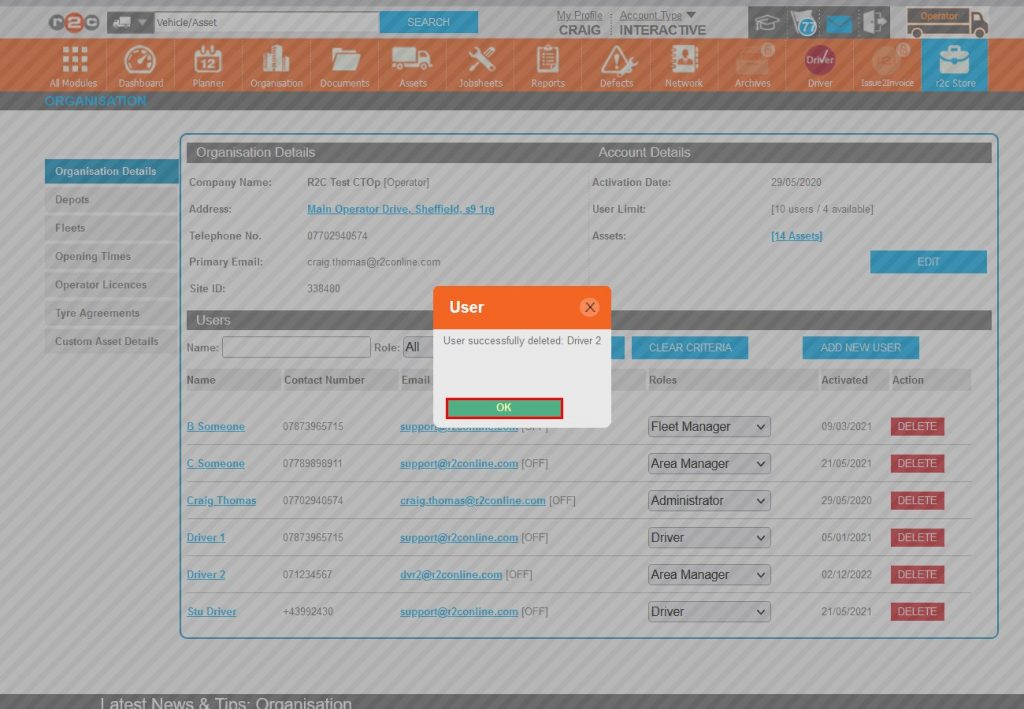
Removing an Existing Profile – To see the steps taken to remove a user’s profile, click or swipe through the 4 steps below.

Technical Info & Self Help

What User Role should I use?
How can I access my own profile?

My Profile – is available to all users of the platform, this allows them to update contact details, or amend their login information, users cannot give themselves additional role functionality unless they themselves are administrators.

How can I manage depot users?

Depot user lists can also be accessed from the organisation page by administrators. 

  1. Click on Organisation
  2. Click the depot tab from the left hand side
  3. Click on a specific Depot name, next in the pop-up you can update the user list in the same way. 
 

See more on managing Depots here ➜ 

Do my drivers need to log into portal to see their driver profile?

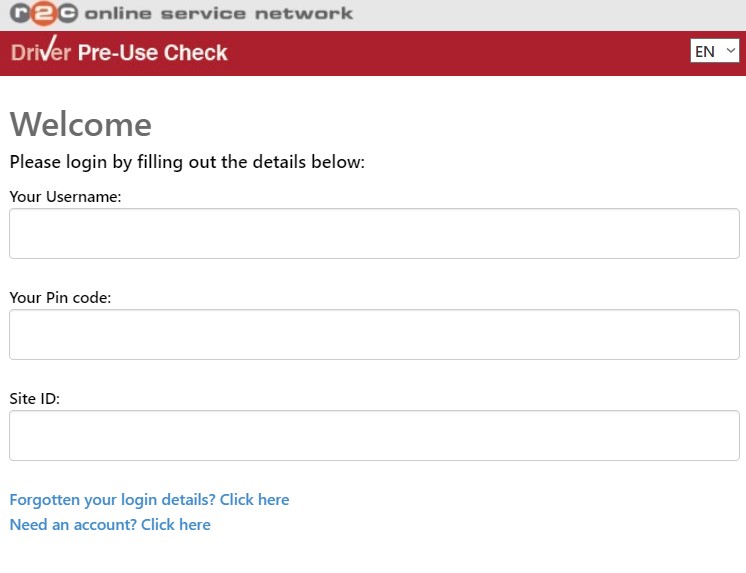
All users can access their main profile in portal. However, drivers only need their username, PIN, and site ID to log into the driver app itself. Should you wish for drivers to also manage their main profile you can share the full credentials/password so that they can also login to portal if required. Alternatively, their profiles can be managed by the administrator instead.

Did you find this page useful?

Overall did you find what you were looking for?

Page Rating
Radio Buttons

Account Icon Key

A green outline on the account type icon signifies the guide is applicable whereas a red outline signifies it is not applicable to the the respective account type.

Repair and Maintenance Provider

Operator

Workshop

Is something broken or missing?

Let us know here

Report an Issue Form