


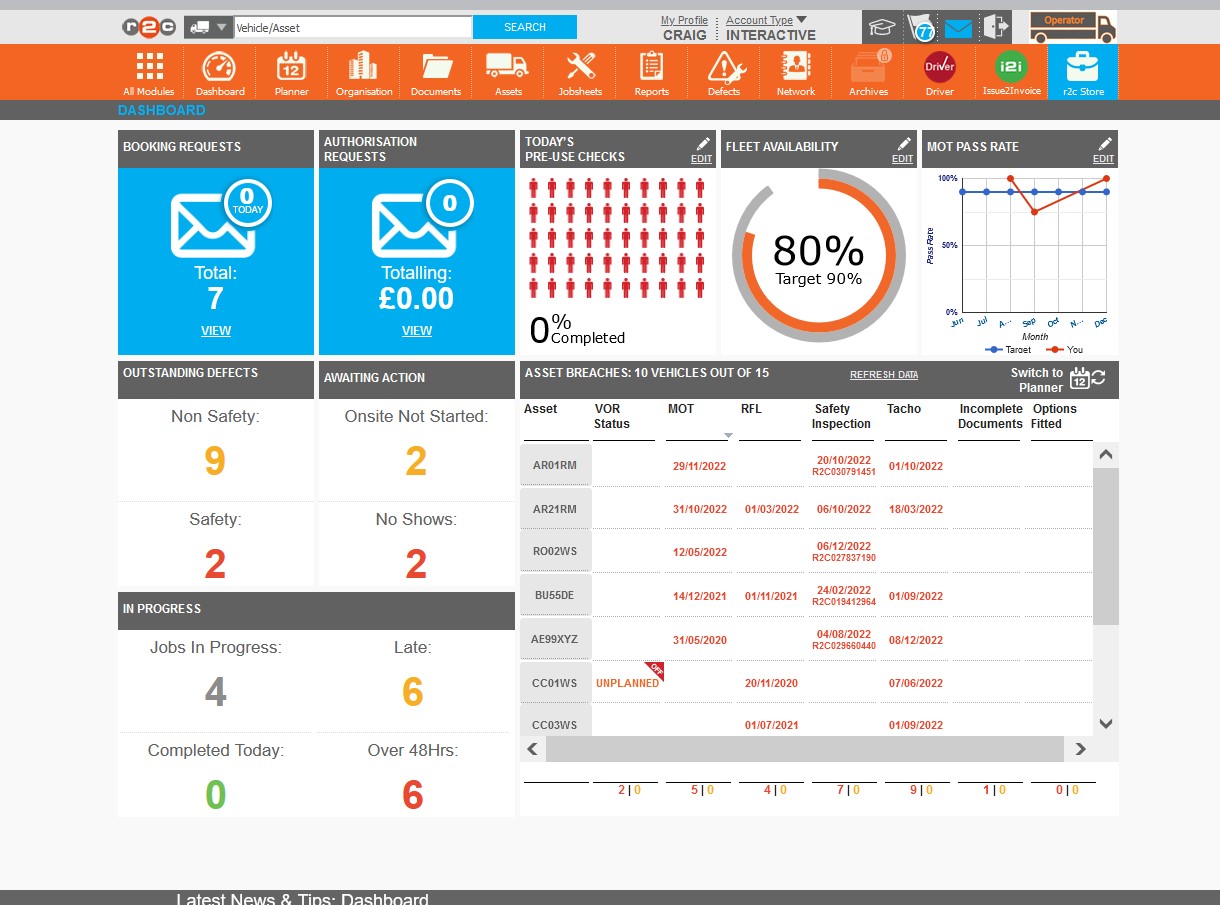
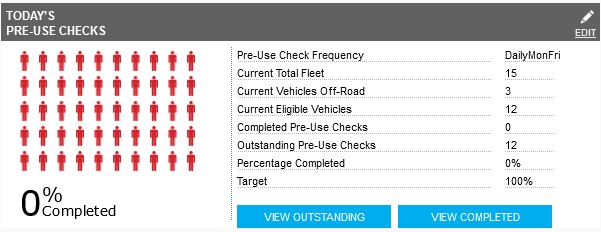
 Today's Pre Use Checks - Driver Module users only.
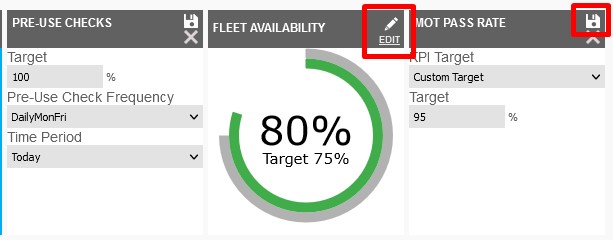
This tile will display the percentage of Driver users who completed a pre-use check.
Note: Selecting this tile will expand the tile to include the detail behind the result. Editing this tile will allow the user to customise the KPI target, the frequency of checks and the time period to display.
Note: Selecting VIEW OUTSTANDING or VIEW COMPLETED will direct the user to the Assets page with filters applied.
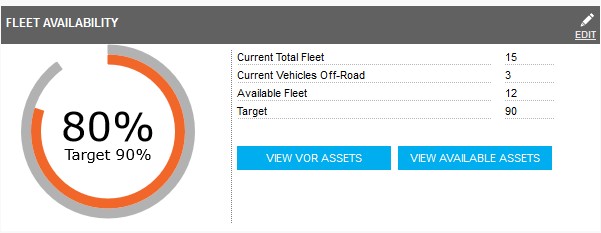 Fleet Availability - This tile will display the percentage of the fleet that is available for use.
Note: Selecting this tile will expand the tile to include the detail behind the result. Editing this tile will allow the user to customise the KPI target..
Note: Selecting VIEW VOR ASSETS or VIEW AVAILABLE ASSETS will direct the user to the Assets page with filters applied.
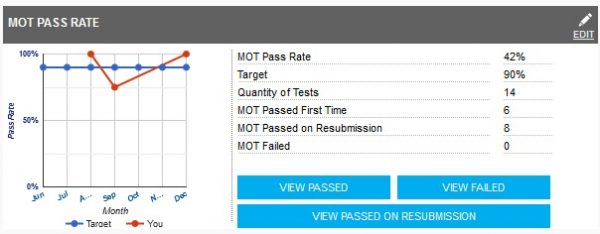 MOT Pass Rate - This tile will display the MOT first time pass rate for the current month and the previous 6 months..
Note: Selecting this tile will expand the tile to include the detail behind the result. Editing this tile will allow the user to customise the KPI target..
Note: Selecting any of the VIEW buttons will direct the user to the Assets page with filters applied.
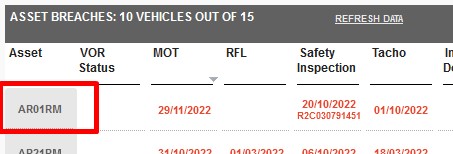
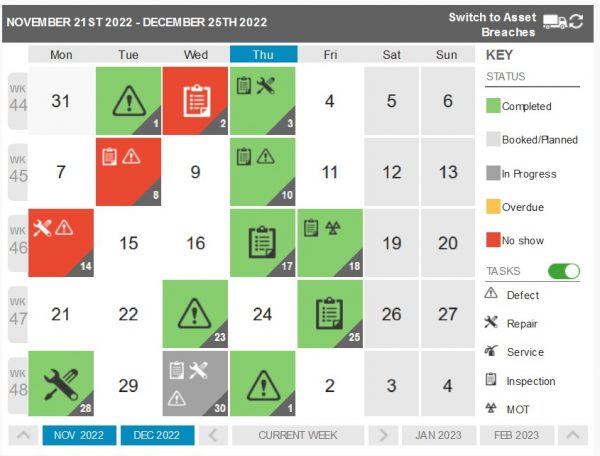 Asset Breaches - The breaches table displays a list of assets that contains a breach or potential breach on some key asset dates. The dates are linked to the asset file with the addition of a jobsheet number of any active Jobs with a breached task allocated to enable the user to manage the exceptions.
Note: This tile is rotatable with the use of the rotation icon in the upper right corner, this will display a preview of the planner. Click here to see the full Planner Guide
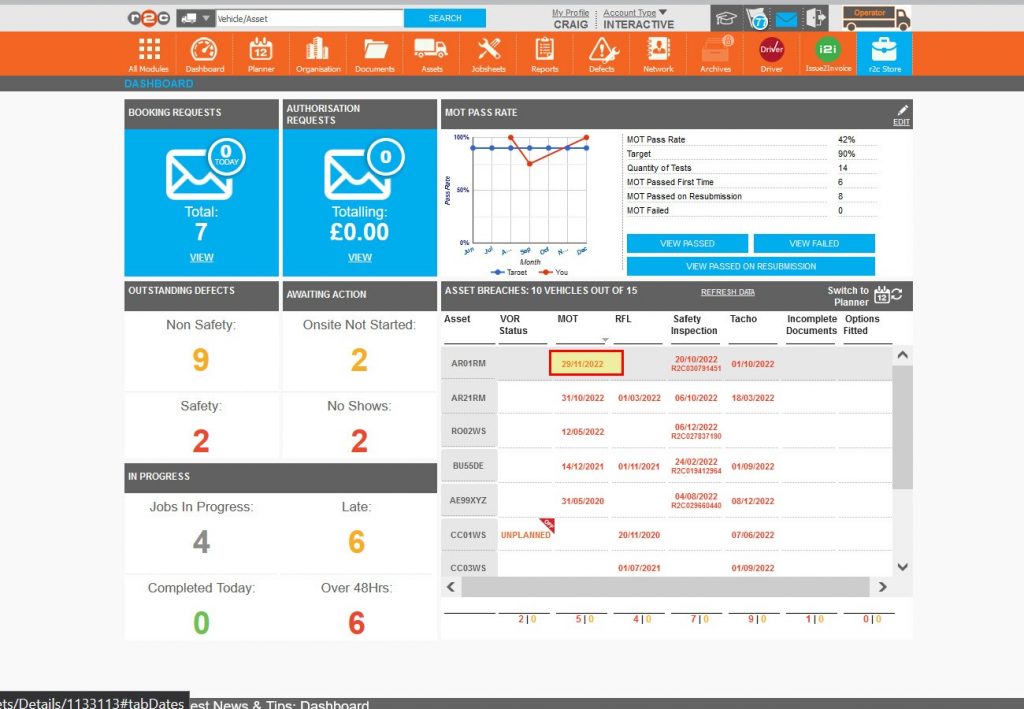
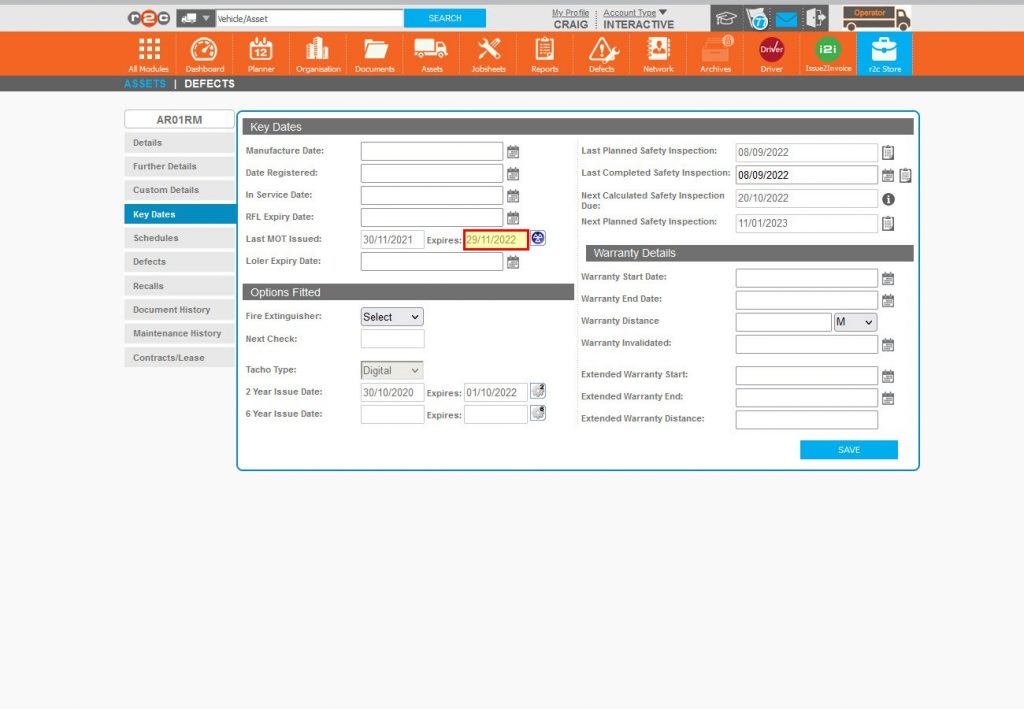
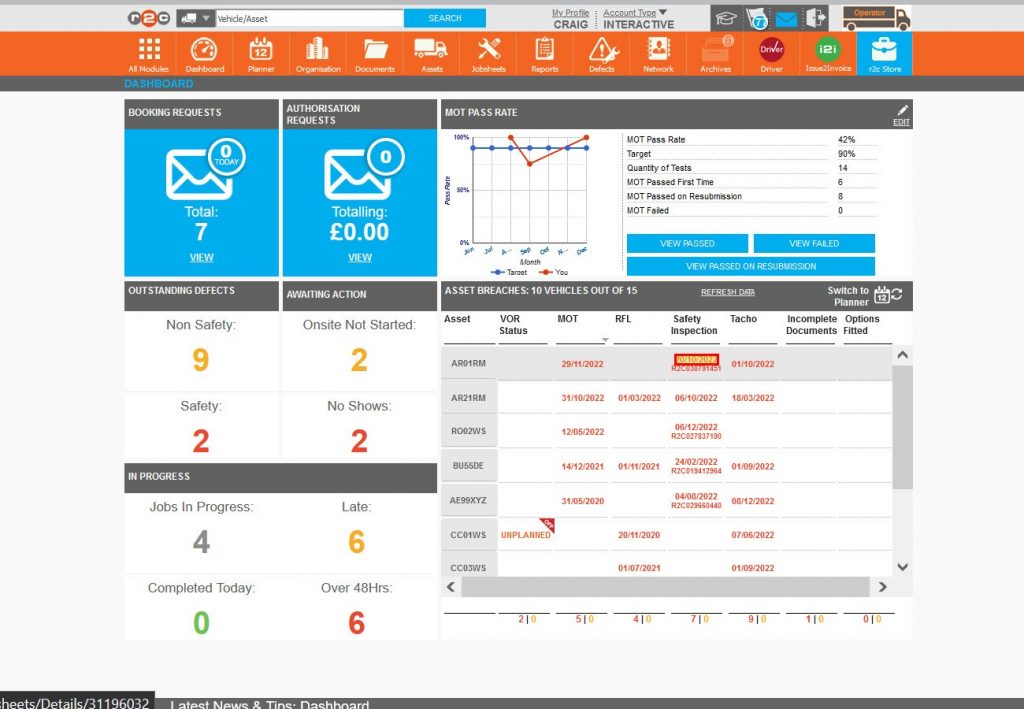
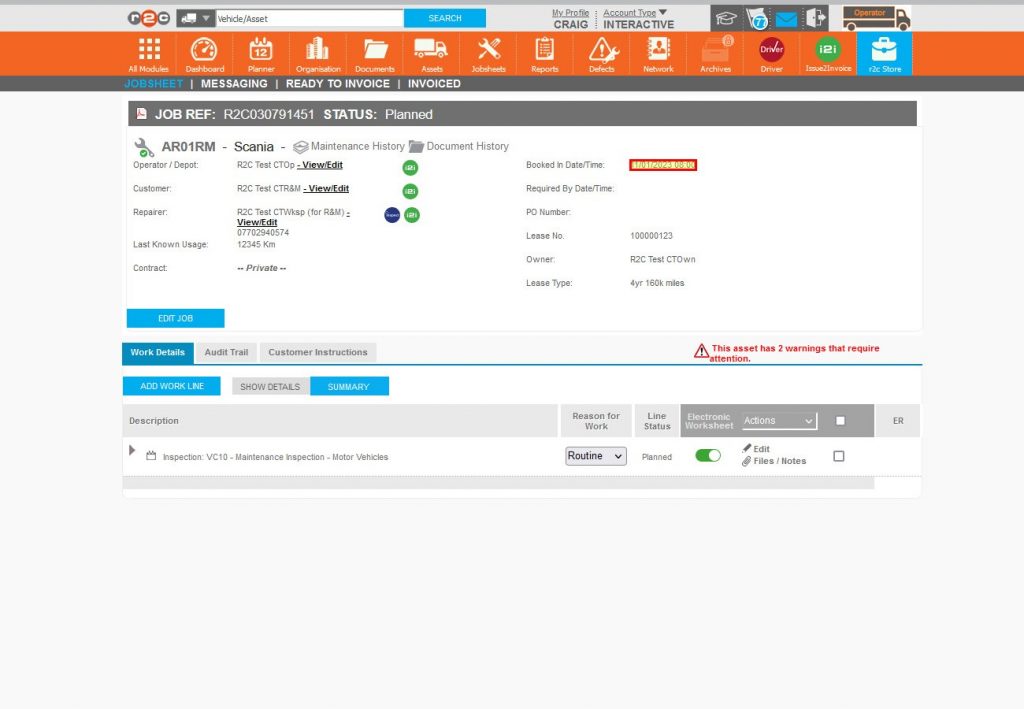
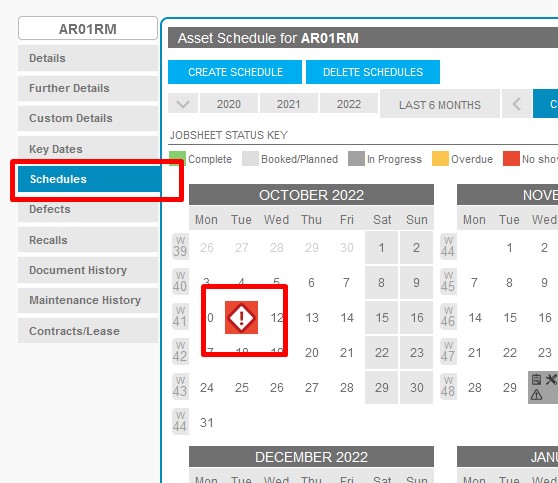
To find the missed job instead of the next due job when clicking a breached date, click the asset ID and then the schedules tab. From here the missed job can be located and opened.