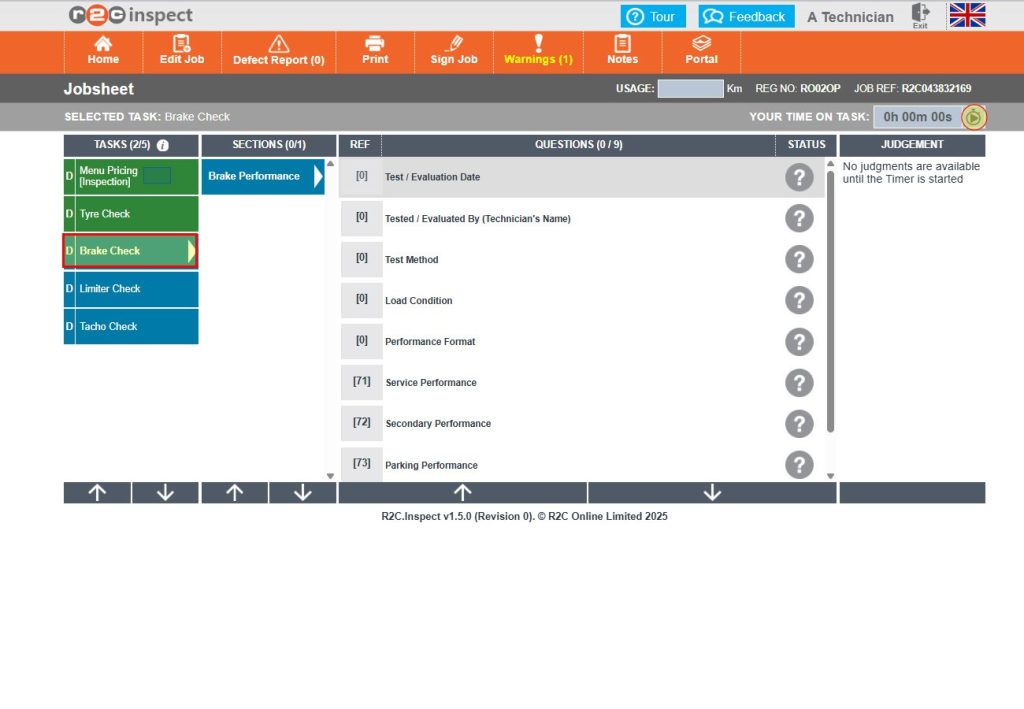
Time Recording can be used by workshop accounts only . This is an additional module and is not part of the core product. Please note, your r2c contract may affect this as well as user role permissions.
Time recording allows users to track the duration spent on tasks, either automatically or manually. These time logs can be accessed and reviewed through the portal and are subject to correction by admin users. While the use of i2i is not mandatory, any recorded times can be integrated into i2i for billing purposes if the module is in use.
Automatic Mode: Time is tracked automatically when a task is opened.
Manual Mode: Time tracking begins only when the technician manually starts the timer.
Manual Entry Mode: Time is not recorded by a timer; instead, technicians enter their work times manually.
Configuration – Prior to using Time Recording users must have the administrator role allocated. If they require permissions to manage the settings and record entries created by technicians.
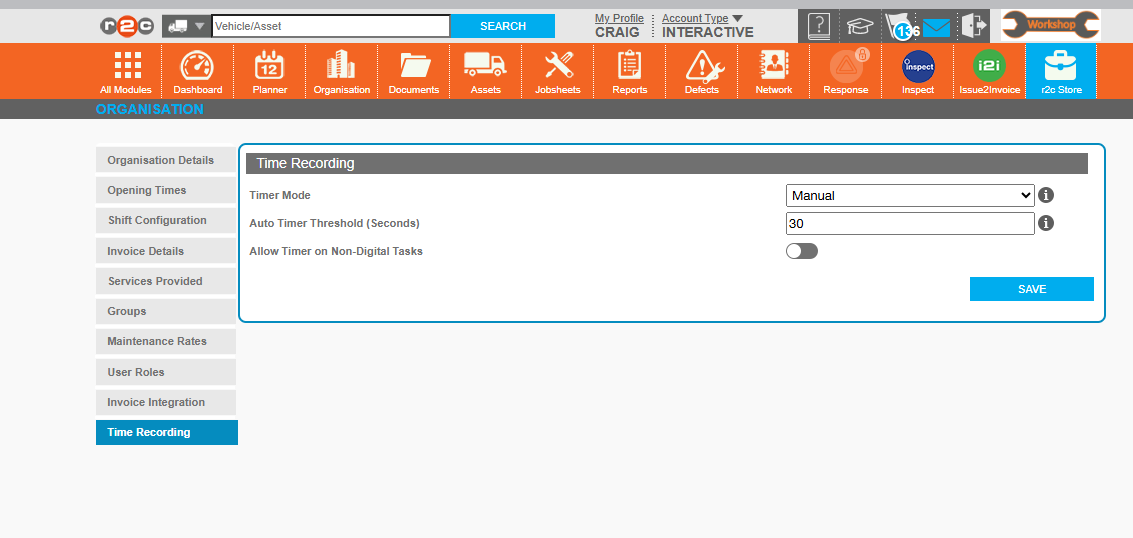
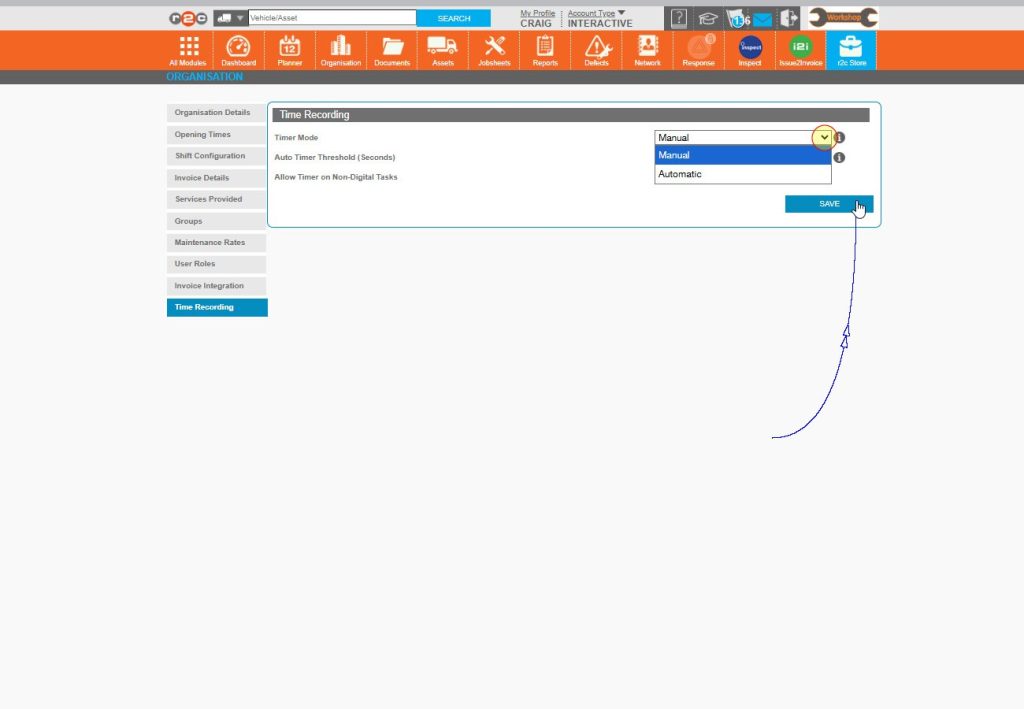
Click the tab, to access the Time Recording settings.
Choose between automatic mode, where the time is recorded once the threshold has been met. Or Manual mode, where the user chooses to start and stop the timer.
The Auto-timer will not begin saving the time recording until this threshold has been met.
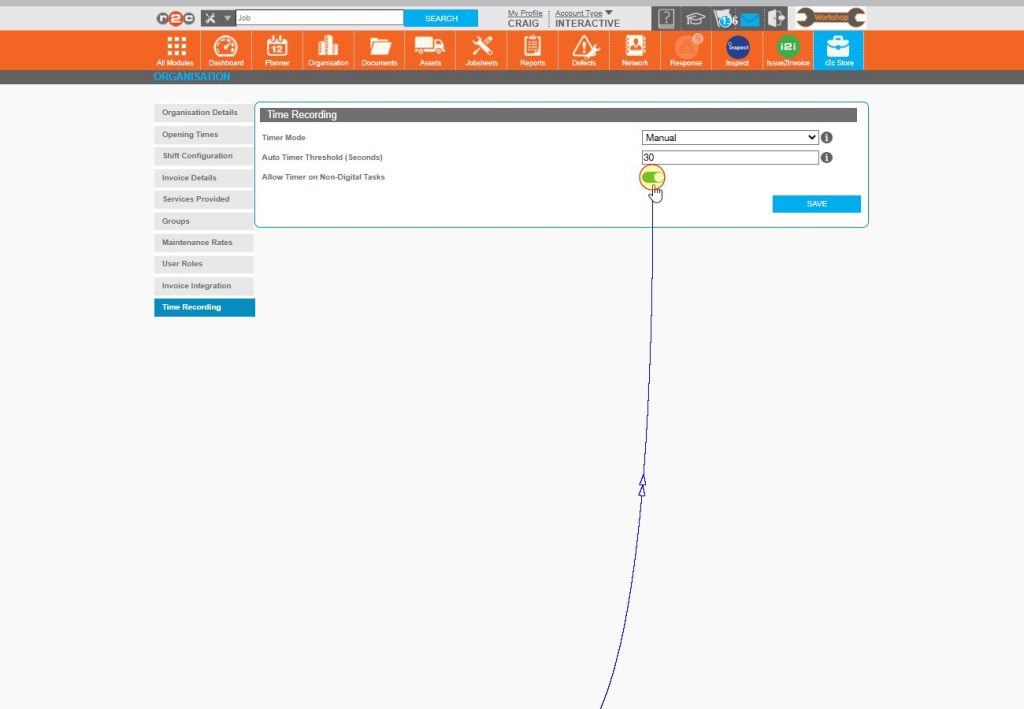
Choose to switch on the 'timer' option for non-digital tasks here.
Step by Step - Automatic Mode
Who is this mode useful for?
This is ideal for technicians who have individual devices allowing them to start tasks in real-time where possible. This also minimises the chance of users forgetting to start the manual timer when working.
How the Timer Works
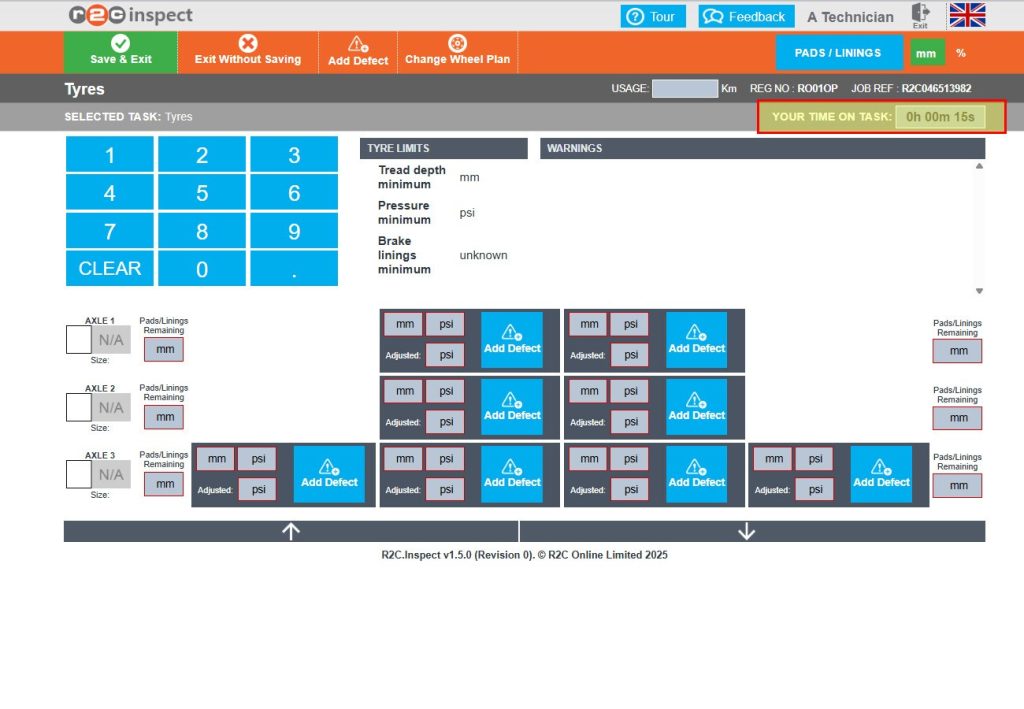
The timer runs continuously while a task is open.
When you switch to a different task, the timer resets for the new task.
A separate time record is created for each task and user.
When Time Is Logged Time is only recorded under one of the following conditions:
The threshold you set has passed (e.g., 30 seconds), or
The user takes an action, such as entering a tyre pressure or making a judgment.
Using Automatic Time Recording
Click or swipe through the 5 steps below to see how automatic timer mode applies to Jobsheets.
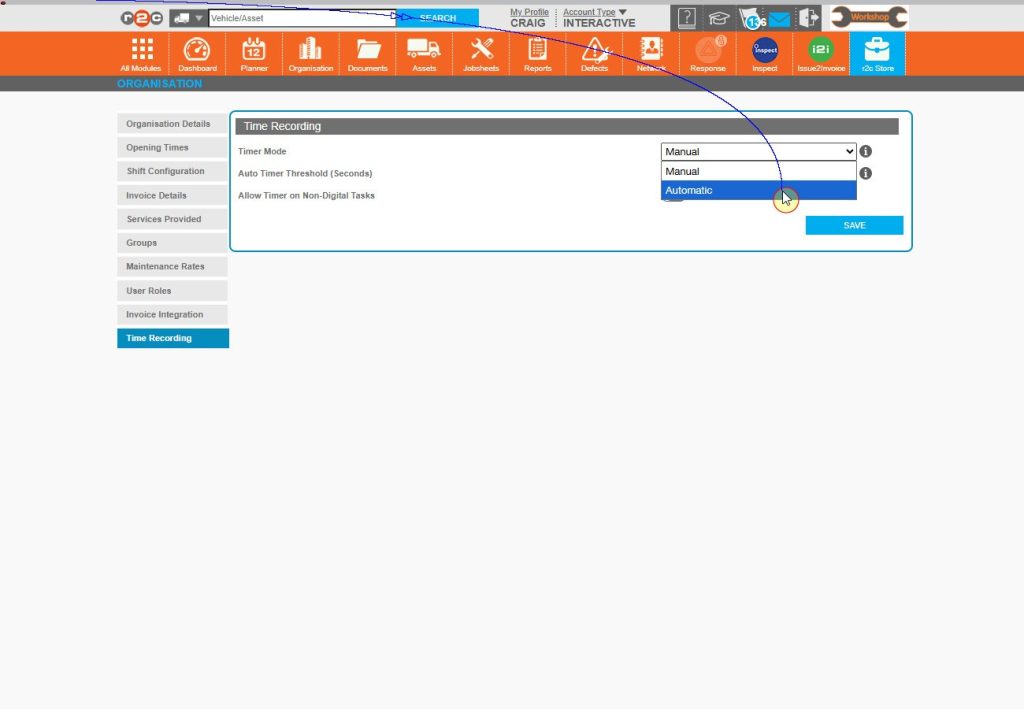
Step 1 - First, click on Organisation, then select Time Recording to access your timer settings. Under Timer Mode, choose ‘Automatic’ from the dropdown menu.
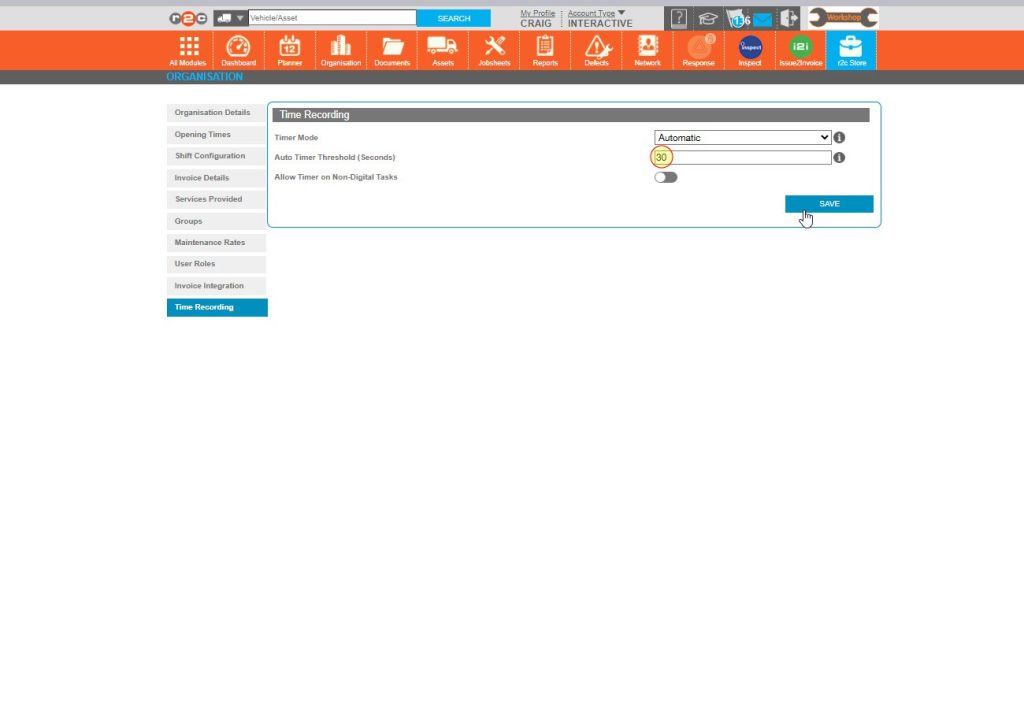
Step 2 – Next, select your preferred Auto Timer Threshold — this can be up to 60 seconds.
Step 3 - Click ‘SAVE’ to apply the changes.
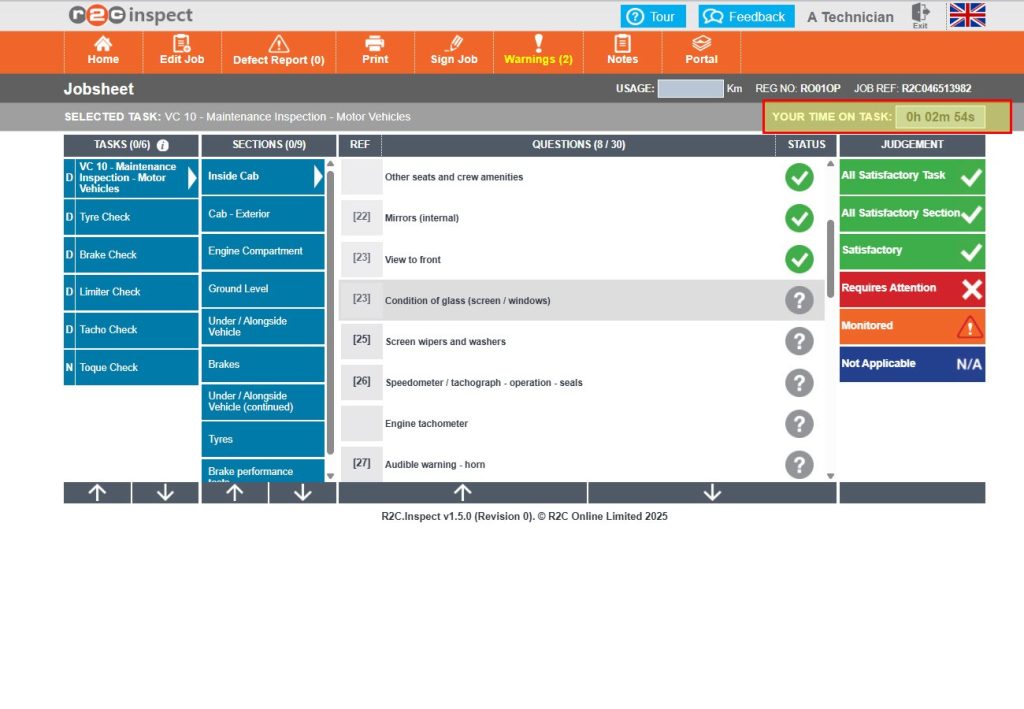
Step 4 – Go to Inspect and log in as usual. Once you select a job, the timer will automatically begin tracking the time spent on that task.
Step 5 – When a user moves to a different task, the timer will restart. As the user progresses through the job tasks, the automatic timer will continue to collate the time taken and add these as records.
Using Automatic Mode for Defects
Click or swipe through the 4 steps below to see how automatic timer mode applies to raising defects.
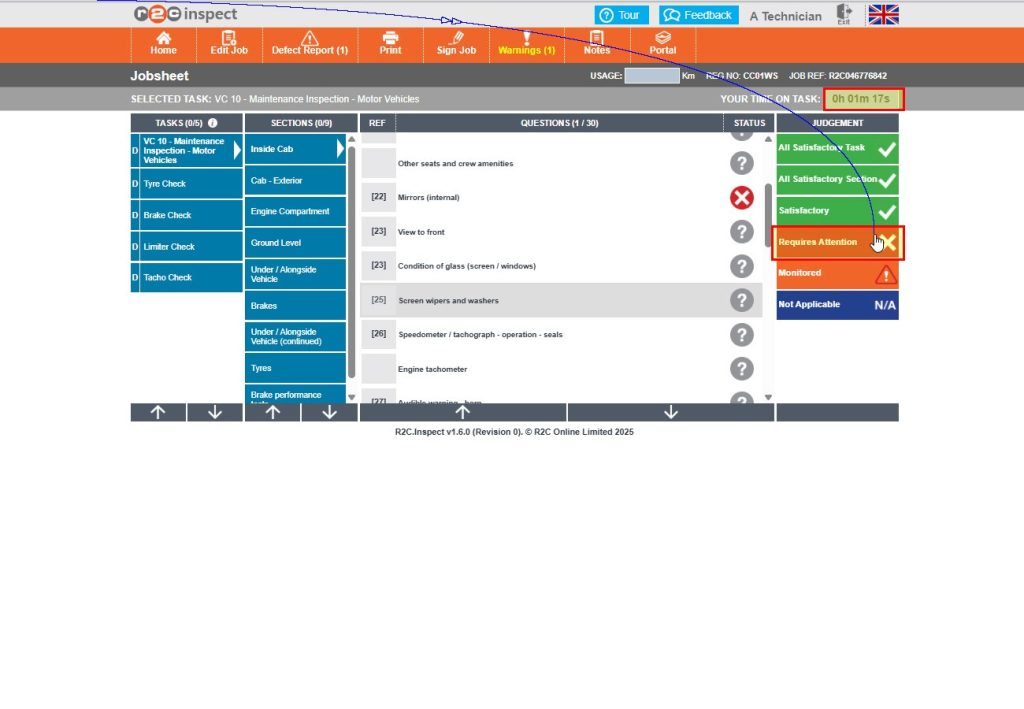
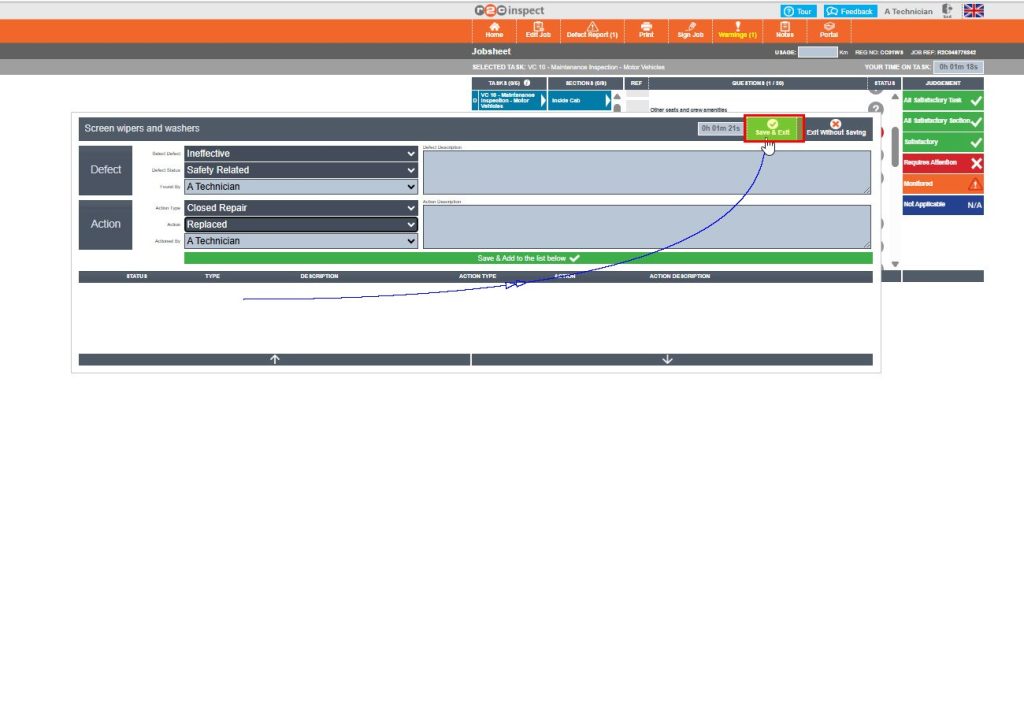
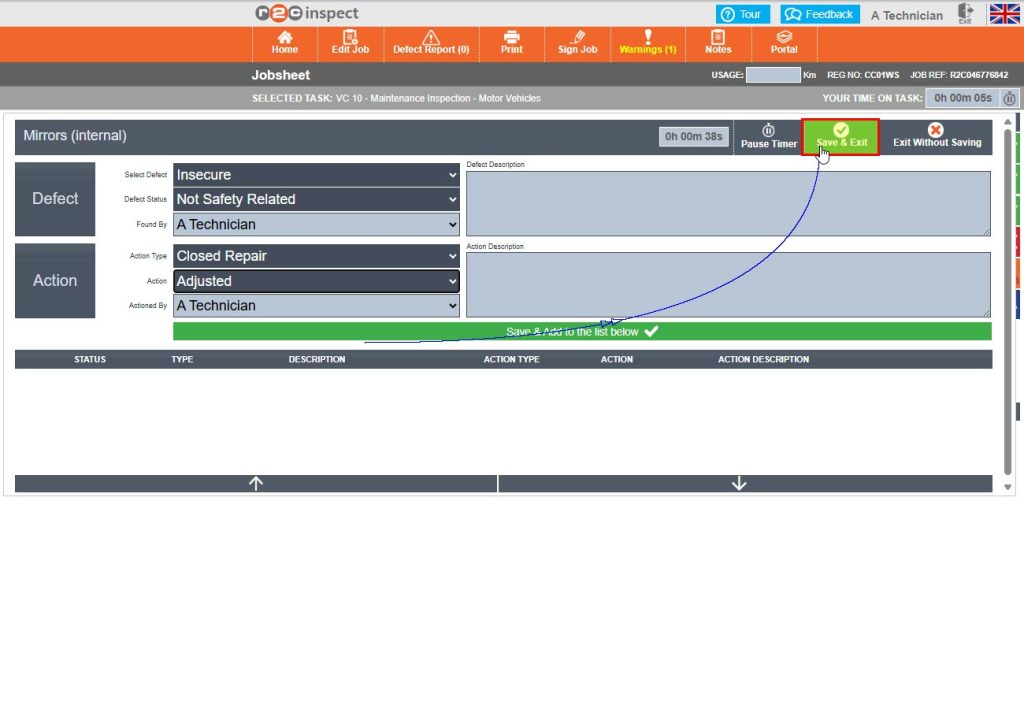
Step 1 - First, click the ‘requires attention’ button to open the defect pop-up box. The timer will start automatically once the task is opened.
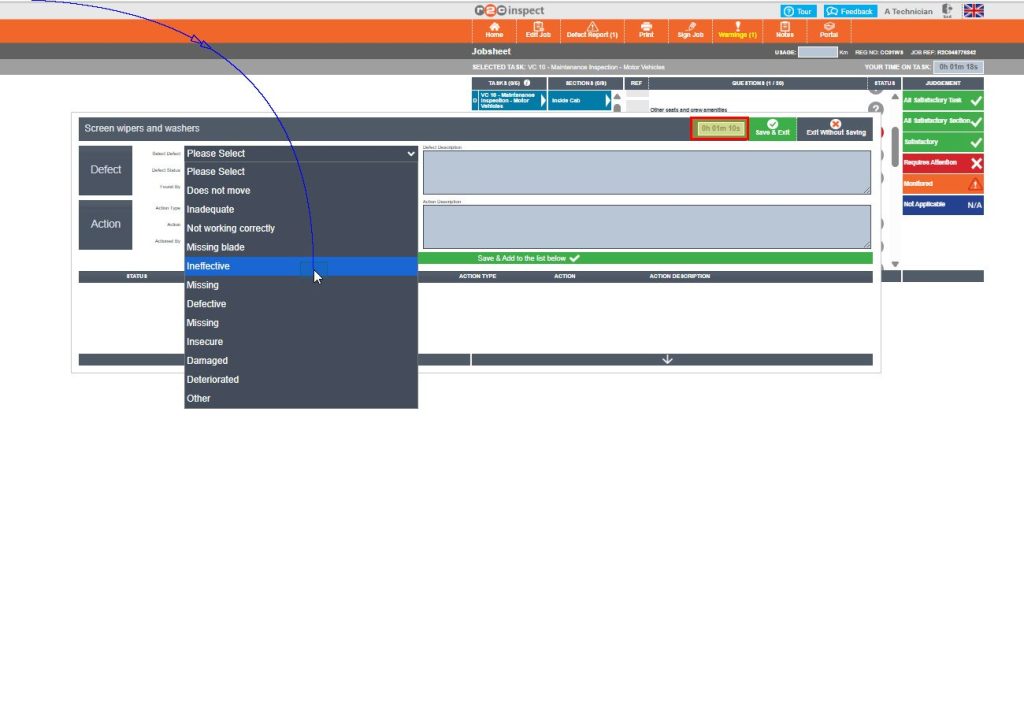
Step 2 - You can now begin entering the defect details for this question using the text boxes and the drop-down options. The timer will already be running when the defect box opens and will continue to do so whilst raising defects against the question selected.
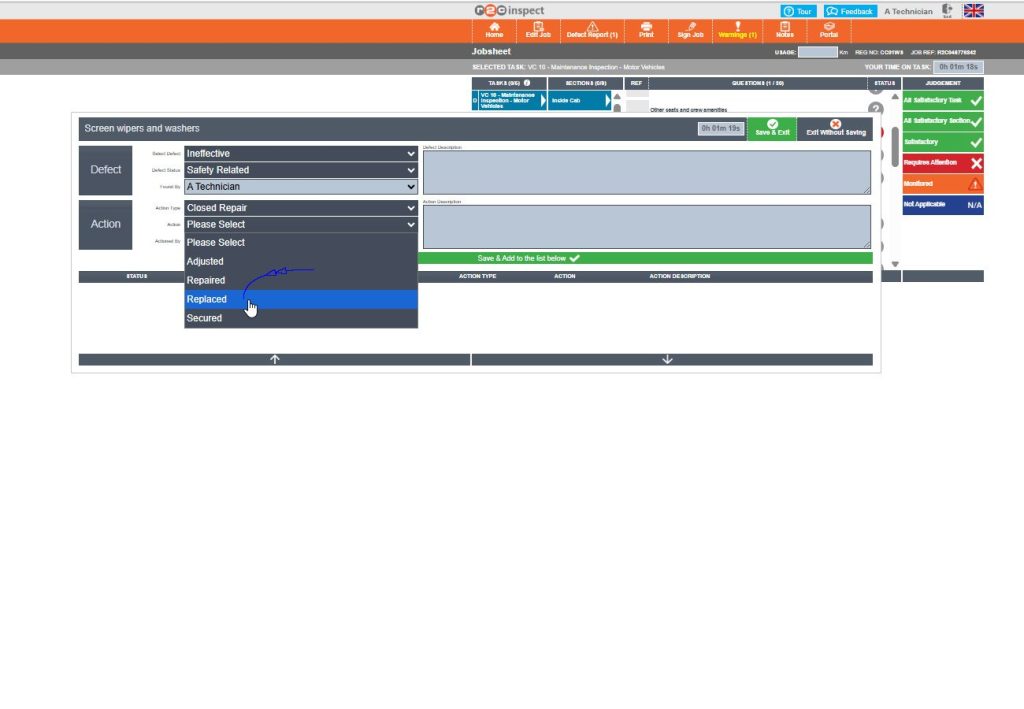
Step 3 - Use the drop-down options or text boxes to record the defect description and the action taken
Step 4 - Once done, click on ‘Save & Exit’ to save both the defect and the time record.
Step by Step - Manual Mode
Who is this mode useful for?
This process is ideal for technicians who need to manually control their time recording, especially in situations where tasks are recorded retrospectively or when real-time tracking isn’t practical. This provides greater flexibility and control, ensuring time can still be captured accurately—even if it wasn’t logged in real time.
How the Timer Works
Once a user chooses to start recording, the timer runs continuously while a task is open until it is manually stopped.
When you switch to a different task, the timer resets for the new task, the user needs to start the timer again as needed.
A separate time record is created for each task and user.
When Time Is Logged
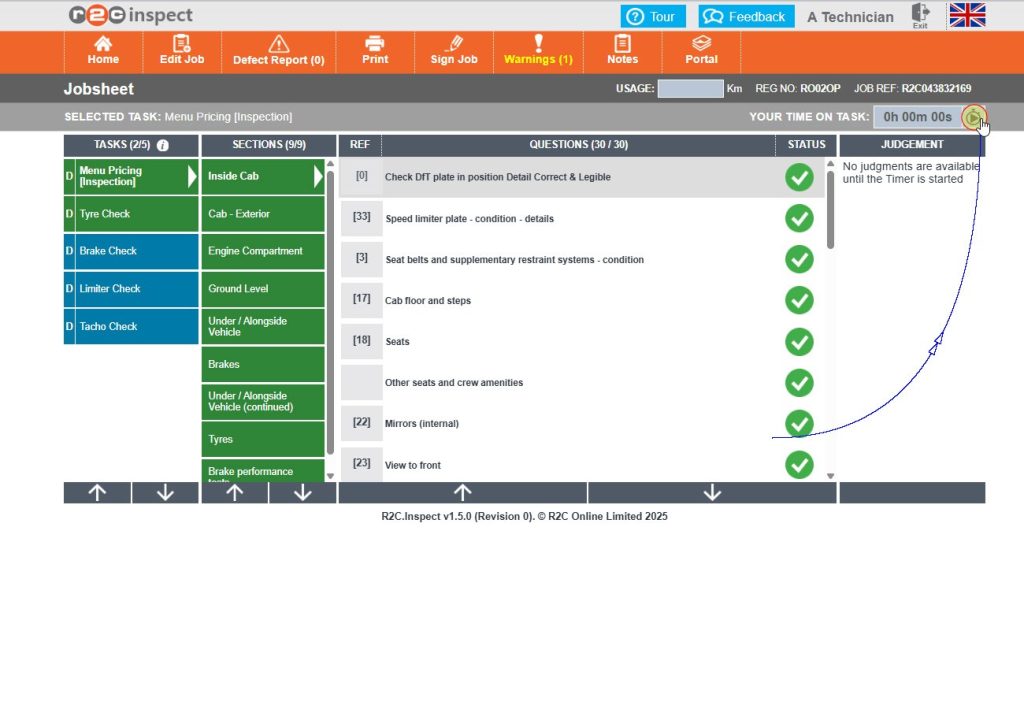
There is no threshold, the time recording begins when the user initiates this using the play button.
In order for the user to take an action, such as entering a tyre pressure or making a judgment the timer must be manually started first.
Using Manual Mode for Time Recording
Click or swipe through the 4 steps below to see how manual timer mode applies to Jobsheets.
Step 1 – First, click on Organisation, then select Time Recording to access your timer settings. Under Timer Mode, choose ‘Manual’ from the dropdown menu. Click Save to apply the changes.
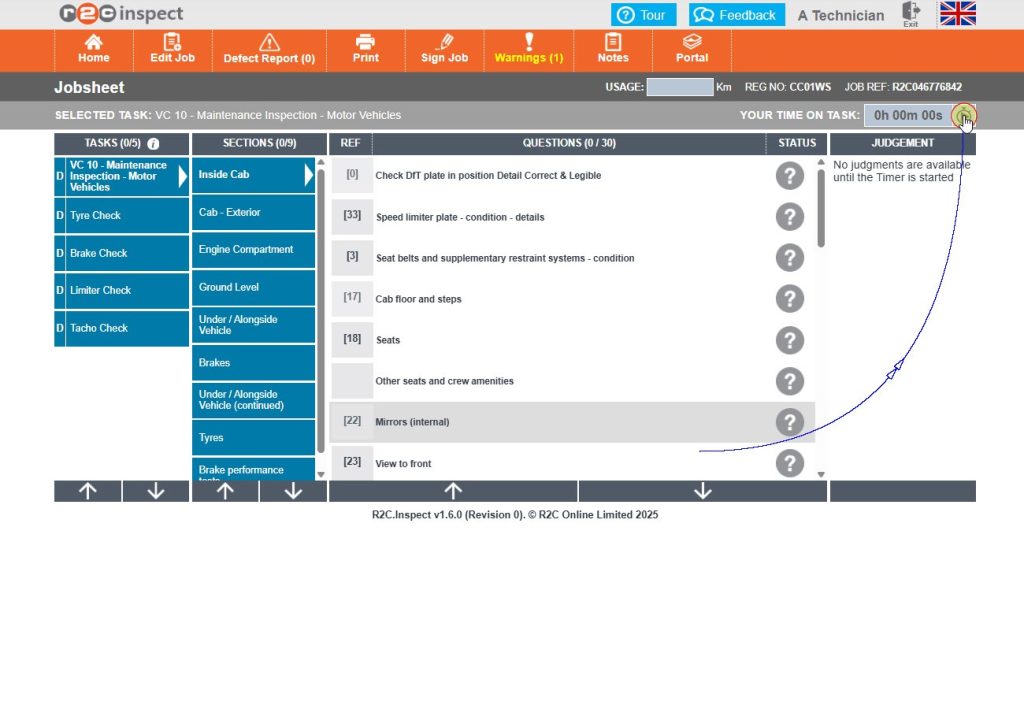
Step 2 - Go to Inspect and log in as usual. Once you select a job, the timer will show a Play button. Note, the judgment buttons will only become available once the timer has been started.
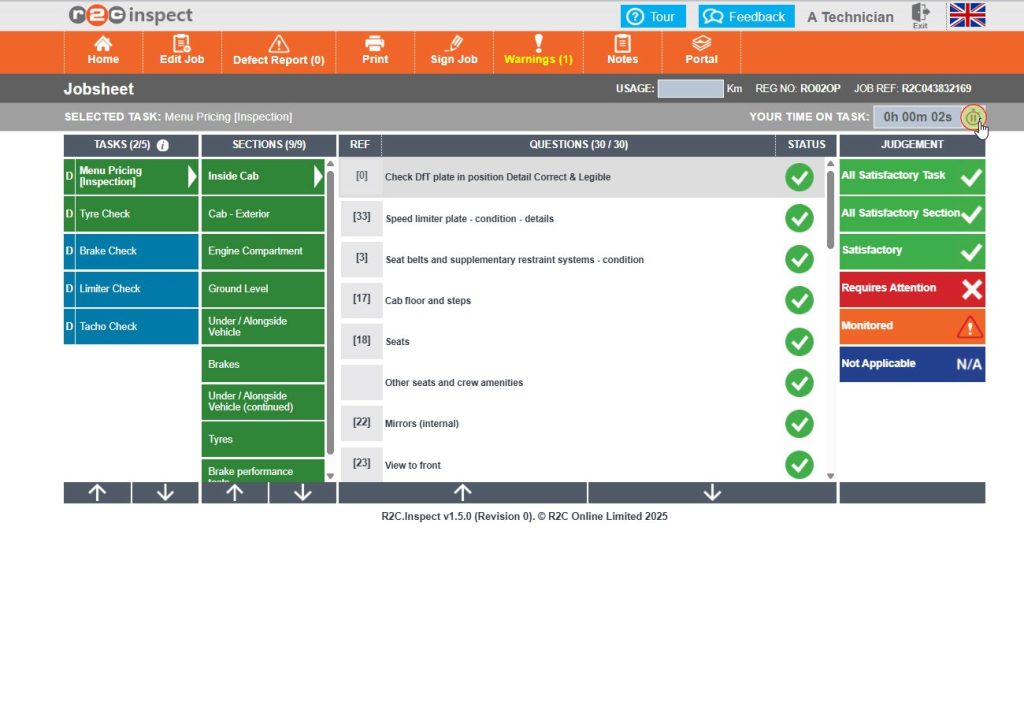
Step 3 - Click the play button to begin tracking the time for this specific task. Click Pause again to stop the timer when needed.
Step 4 - Next, move onto another task and click the Play button again once you are ready to start a time record. This process is repeated per task.
Using Manual Mode for Defects
Click or swipe through the 4 steps below to see how manual timer mode applies to raising defects.
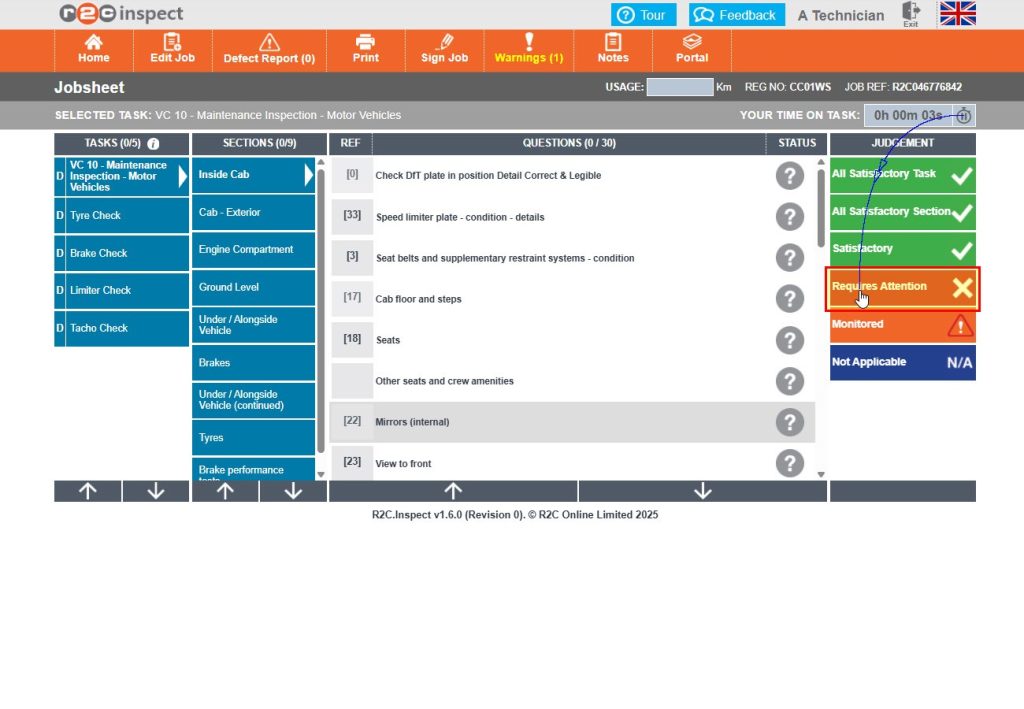
Step 1- Start by clicking the ‘play’ button to begin the timer and make the judgement buttons visible.
Step 2 - Next, click the ‘requires attention’ button to open the defect pop-up box.
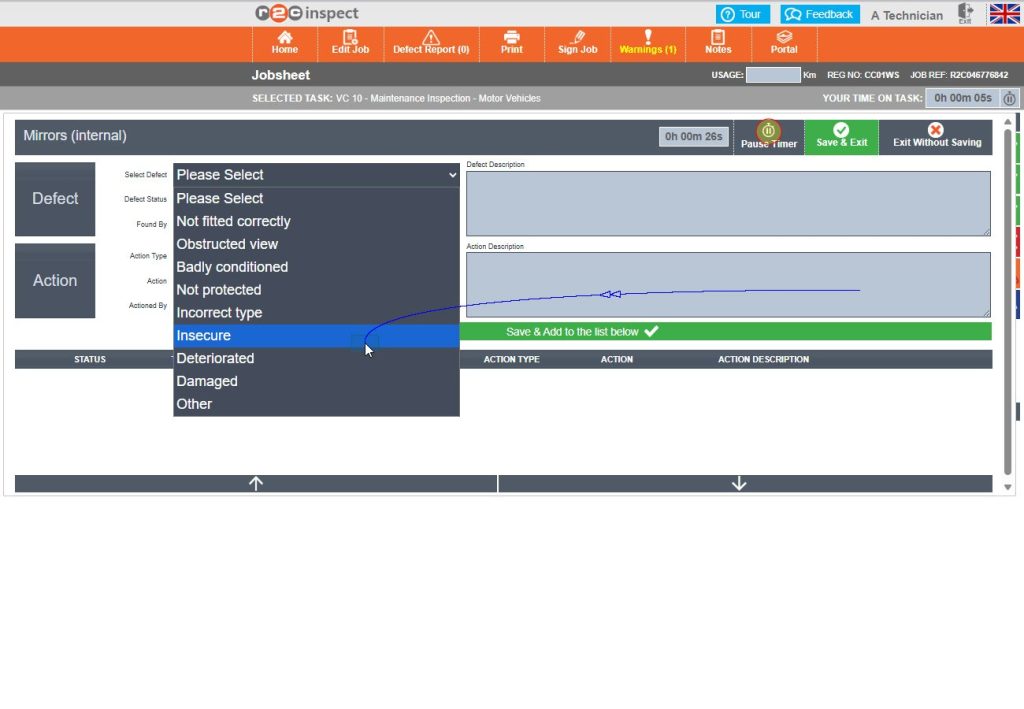
Step 3 - You can now begin entering the defect details for this question using the text boxes and the drop-down options. The timer will already be running when the defect box opens, you can click pause if needed.
Step 4 - Once the defect description and action have been recorded, click on ‘Save & Exit’ to save both the defect and the time record.
Step by Step - Non-digital worklines
This section provides a step-by-step overview of how to record time for non-digital tasks—identified by an ‘N’ code—within the Inspect system. Although these tasks are completed outside the digital workflow, it’s important to accurately log time for reporting and tracking purposes
Users have the option to record time either manually or using the automatic timer mode, depending on their preferences and system settings.
Follow the steps below to set up, enter, and manage time records for non-digital tasks efficiently.
Adding Manual entries for non-digital tasks
Click or swipe through the 4 steps below to see how to add time records for non-digital worklines.
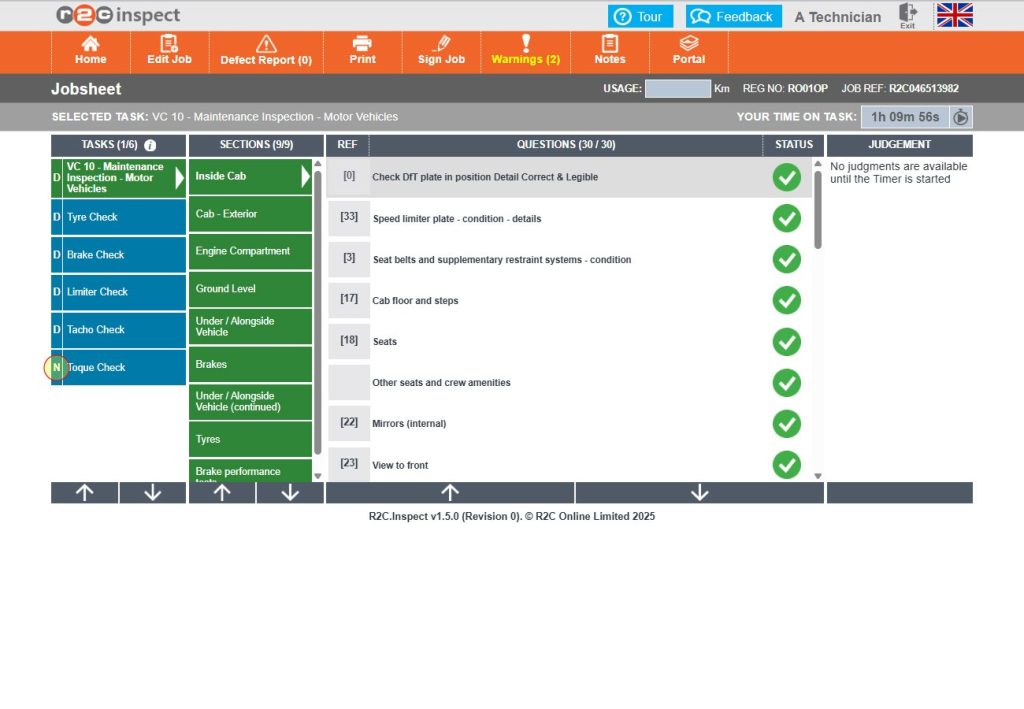
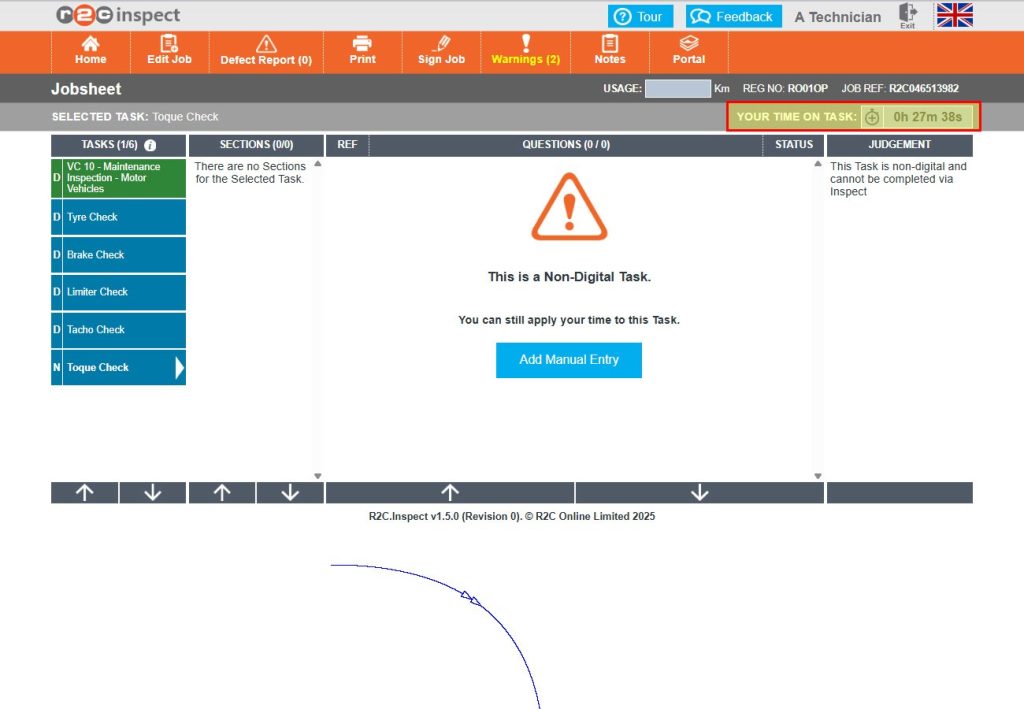
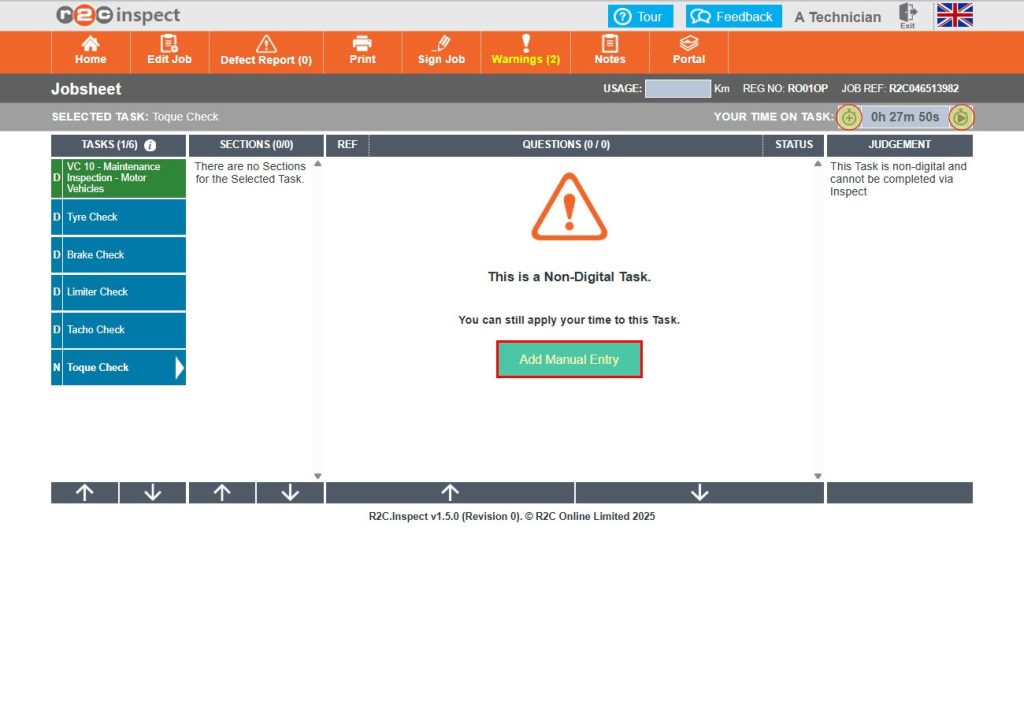
Step 1 - Tasks that have an ‘N’ code are non-digital tasks that need to be completed in portal. The time recording module can still be used within Inspect to add a time record.
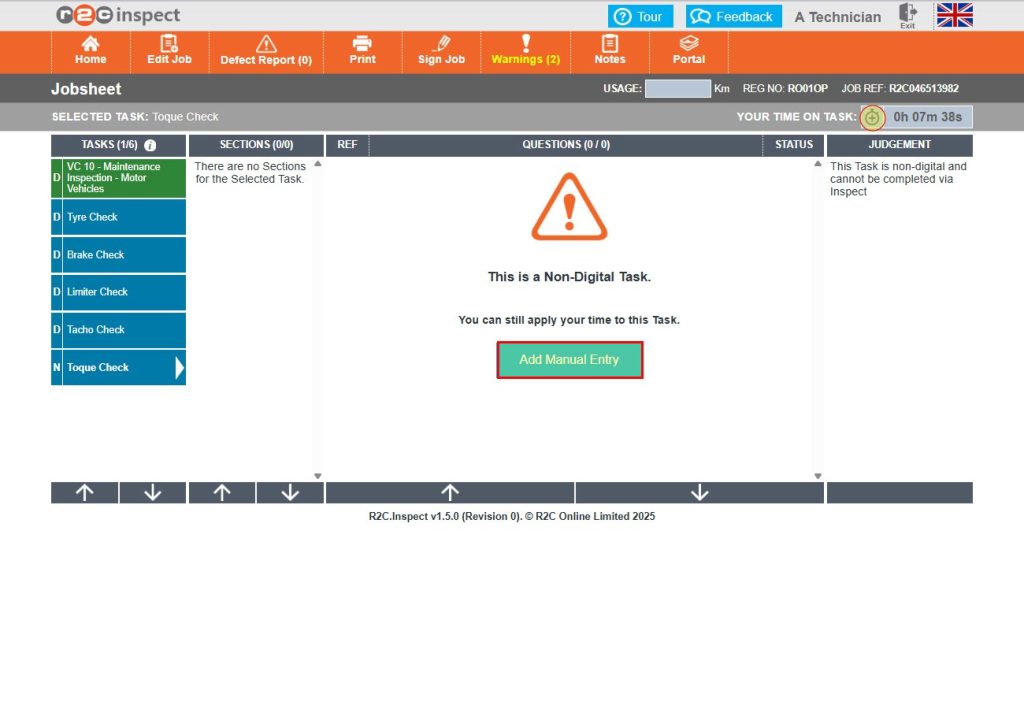
Step 2 – When in Manual mode, time records can be added using the ‘+’ symbol or using the ‘Add Manual Entry’ button
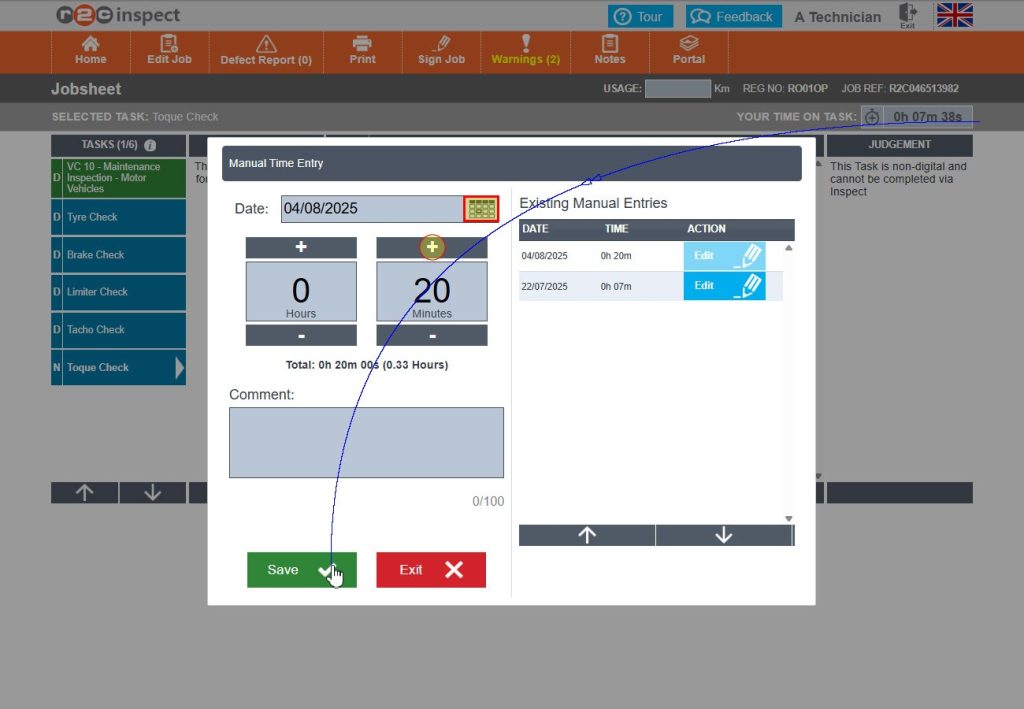
Step 3 - In the pop-up box, use the hour and minutes section to enter the time taken using the ‘+’ and ‘-’ button. You can also update the date, if this is a retrospective entry as well as add comments. Click ‘Save’ once done.
Step 4 - The updated entries will added to the overall time totals shown on the job.
Using the automatic timer mode for non-digital tasks
Click or swipe through the 5 steps below to see how to add time records for non-digital worklines.
Step 1- Click Organisation and then the Time recording tab to access the settings. Toggle the ‘Allow timer for non-digital tasks’ to on and save your settings.
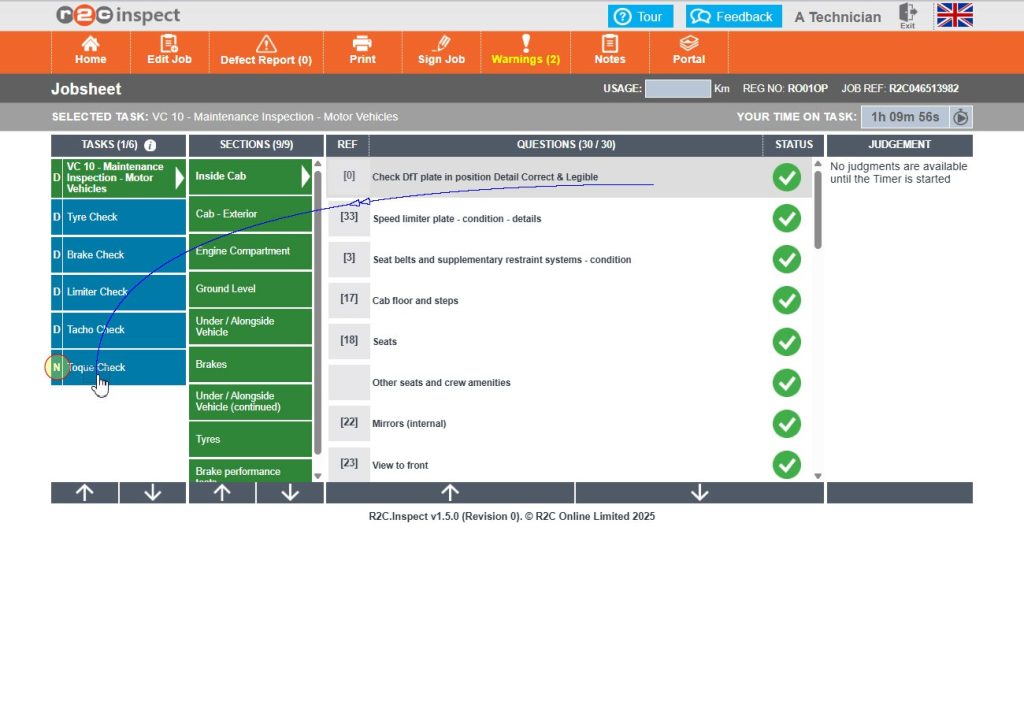
Step 2 - Go to Inspect and log in as usual. Tasks that have an ‘N’ code are non-digital tasks that need to be completed in portal. The time recording module can still be used within Inspect to add a time record
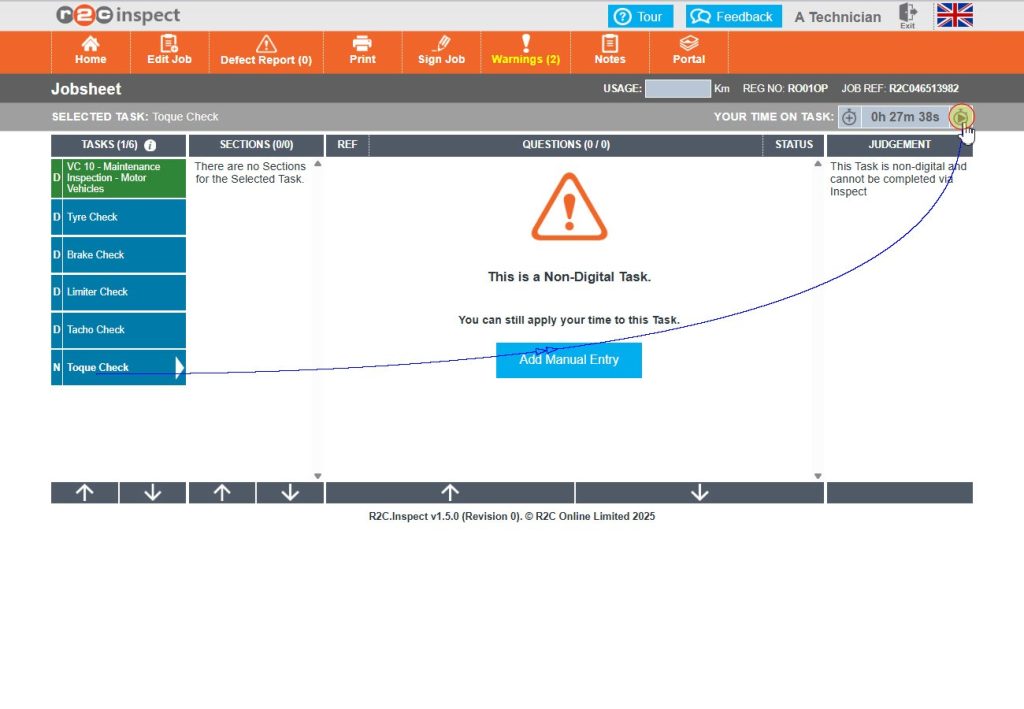
Step 3 - When the automatic timer mode has been enabled for non-digital tasks, the timer will show a ‘Play’ button to start the timer as needed.
Step 4 - The timer will continue recording until the user stops this. Click Pause to stop the timer again when needed.
Step 5 - Please note, non-digital tasks always show the option to add a manual time record entry alongside the automatic timer mode option.
Step by Step - Time Record Management
Users with the administrator role are able to review, add and correct time records on completed jobs within portal.
Adding a new time record
Click or swipe through the 7 steps below to see how to add a time record.
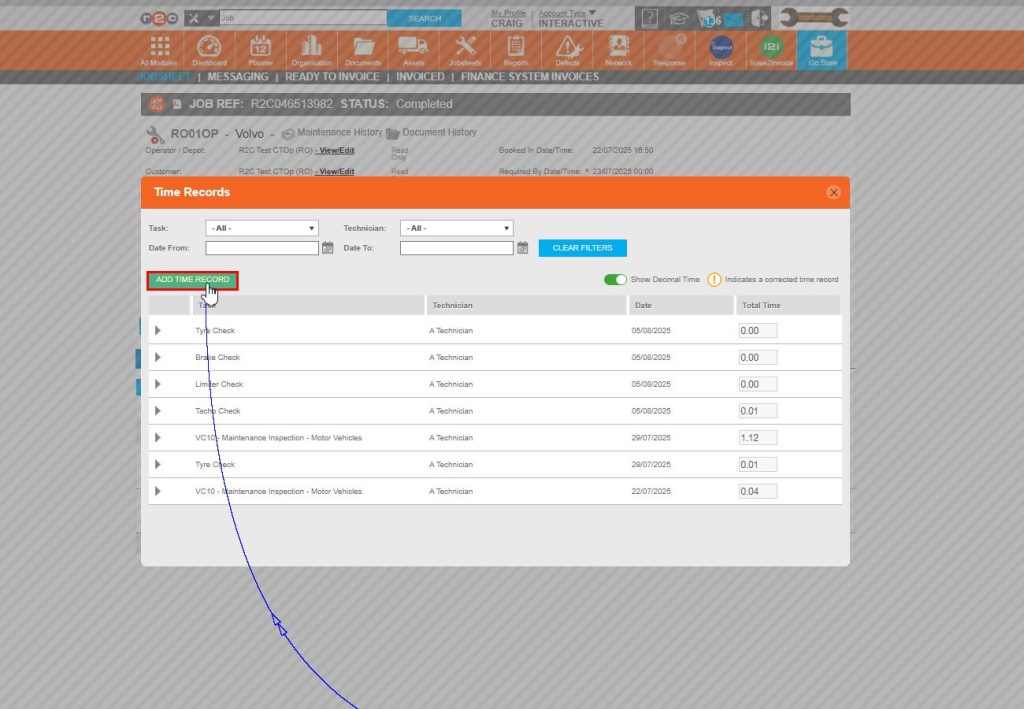
Step 1 – Click on the ‘Time Records’ link to open the list of entries.
Step 2 – Click on the ‘Add Records’ button to create a new entry. Step 1 – Click on the ‘Time Records’ link to open the list of entries.
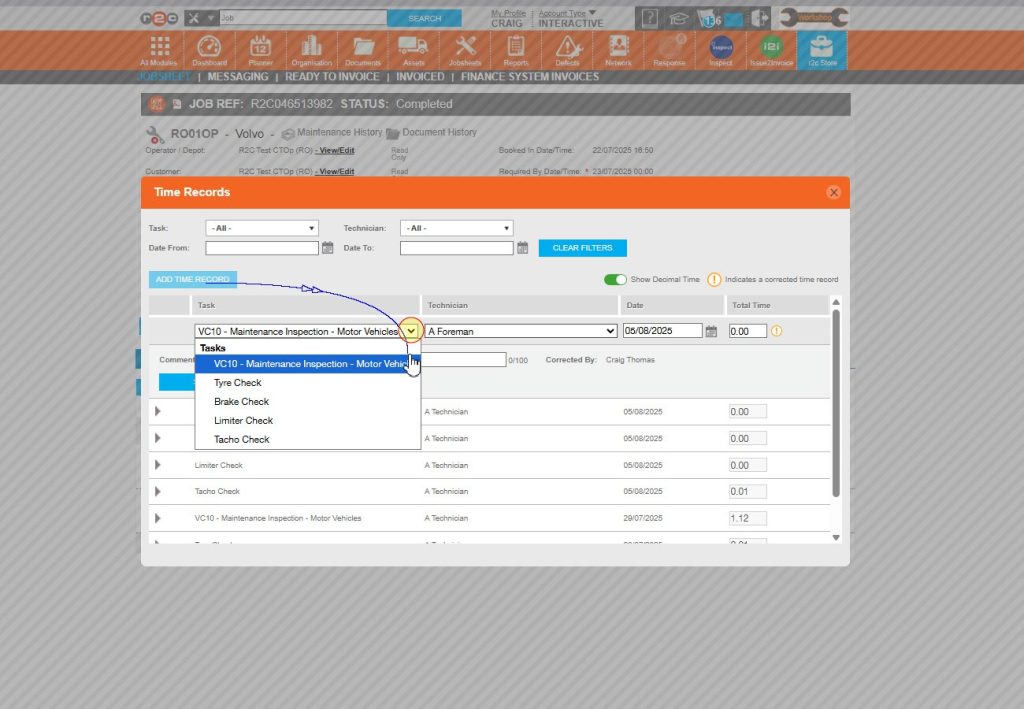
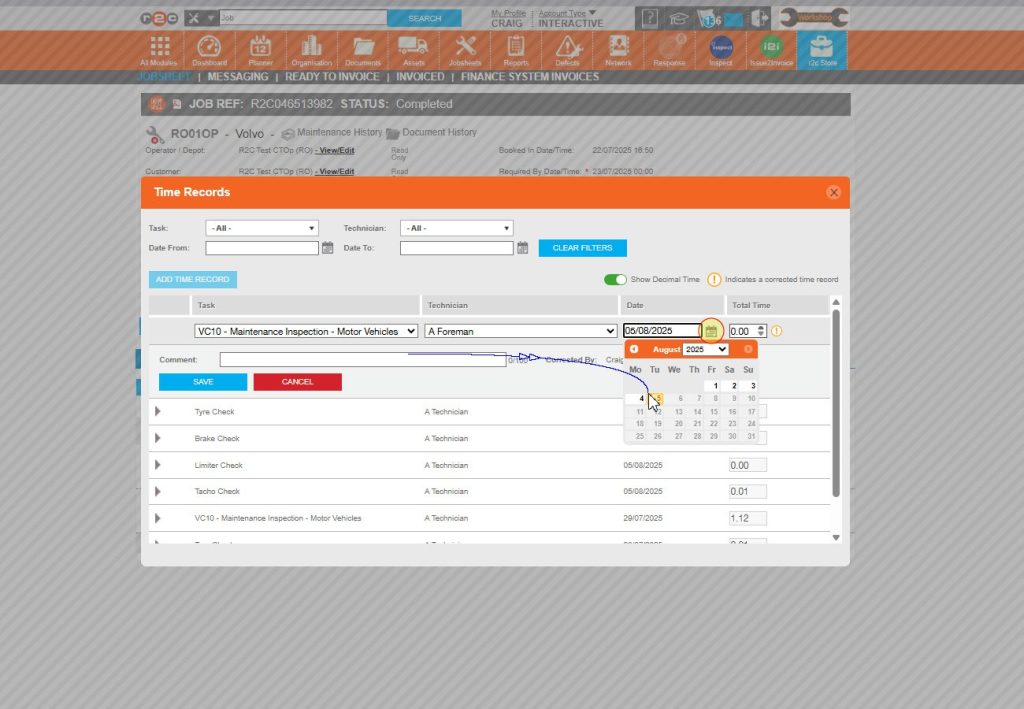
Step 3 – Start, by selecting the task you want to create a record for.
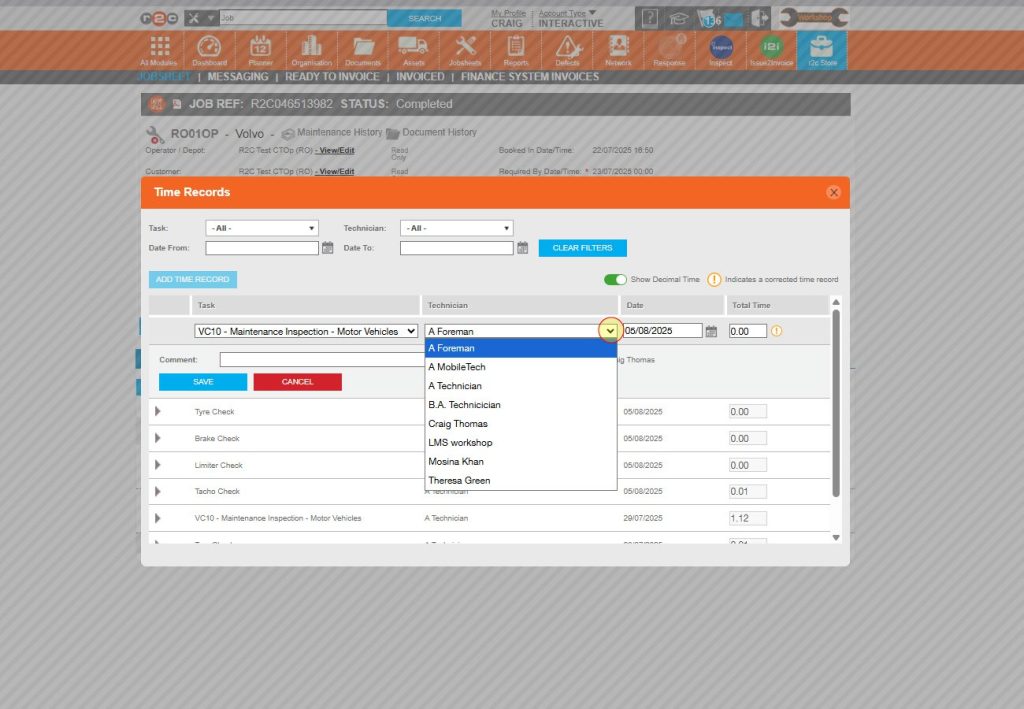
Step 4 – Now select the user that the record is for.
Step 5 – If the record is a retrospective correction, use the calendar icon to choose the correct date.
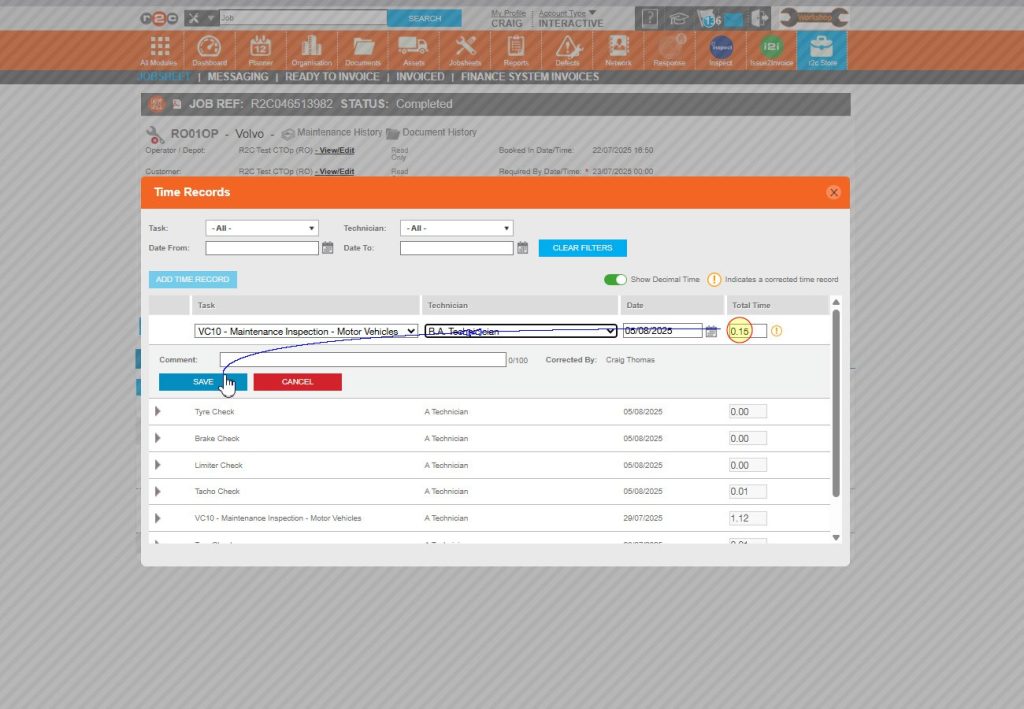
Step 6 – Enter the time and then click ‘SAVE’.
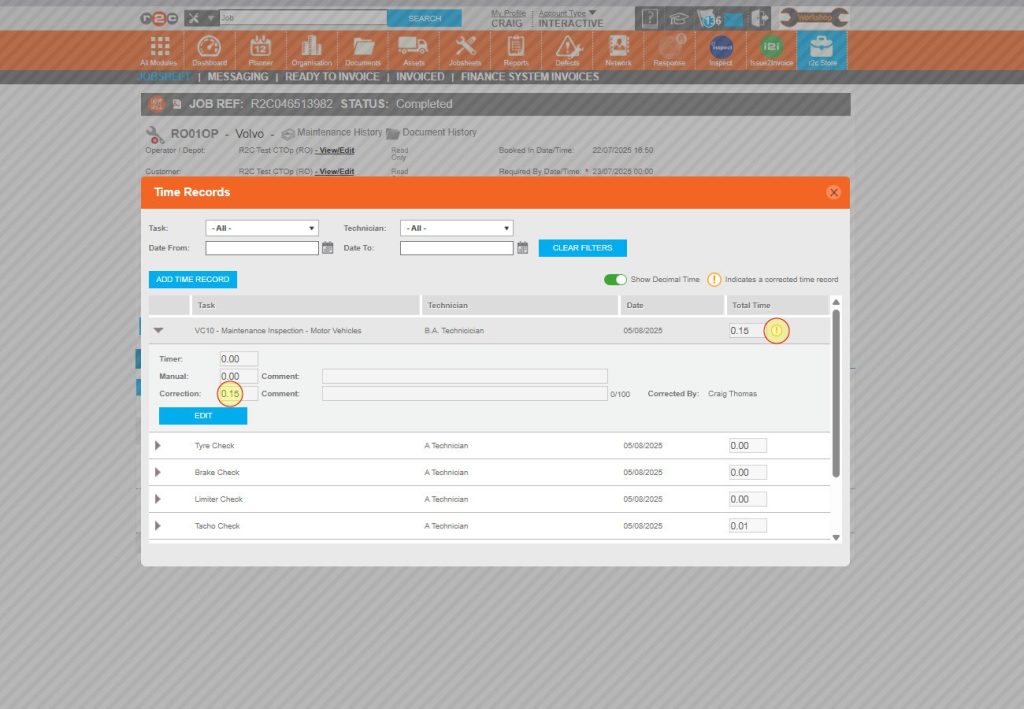
Step 7 – The time correction will be highlighted with an ‘!’ symbol on the record.
Correcting a time record
Click or swipe through the 5 steps below to see how to add a time record.
Step 1 – Click on the ‘Time Records’ link to open the list of entries.
Step 2 – Click on the ‘Add Records’ button to create a new entry. Step 1 – Click on the ‘Time Records’ link to open the list of entries.
Step 3 – Start, by selecting the task you want to create a record for.
Step 4 – Now select the user that the record is for.
Step 6 – Enter the time and then click ‘SAVE’.
Step 7 – The time correction will be highlighted with an ‘!’ symbol on the record.
Time recording and i2i costs
i2i is not required to use the Time recording module however, if you do use both modules together you will be able to use the times recorded for invoicing purposes.
Adding billable hours based on time records
Click or swipe through the 3 steps below to see how to use hours recorded via time-recording for i2i invoicing purposes.
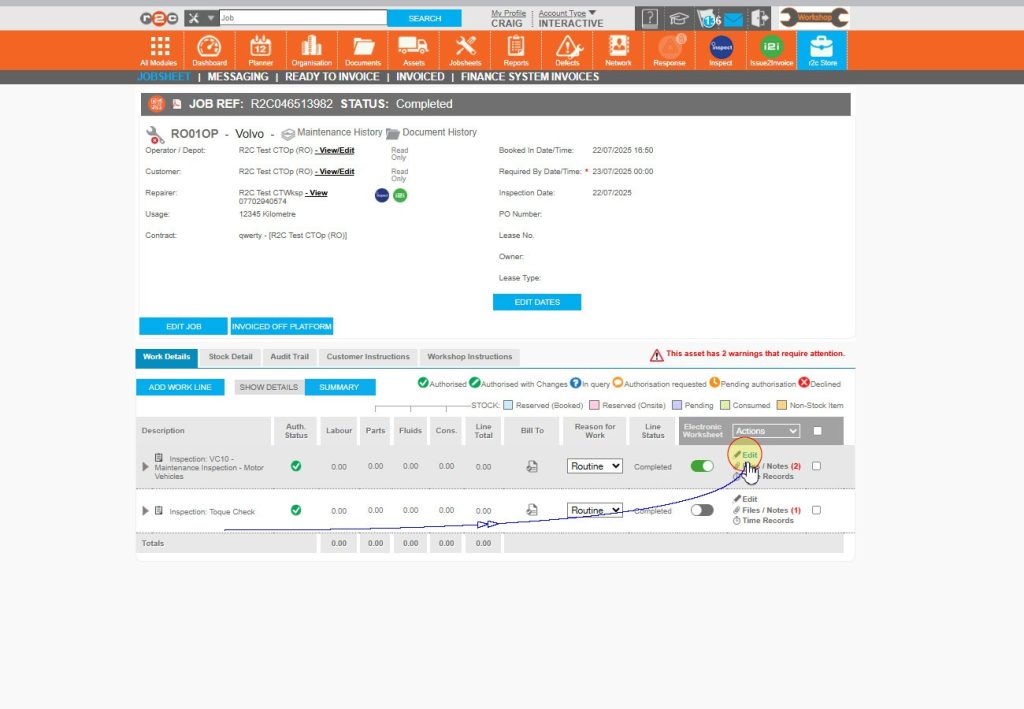
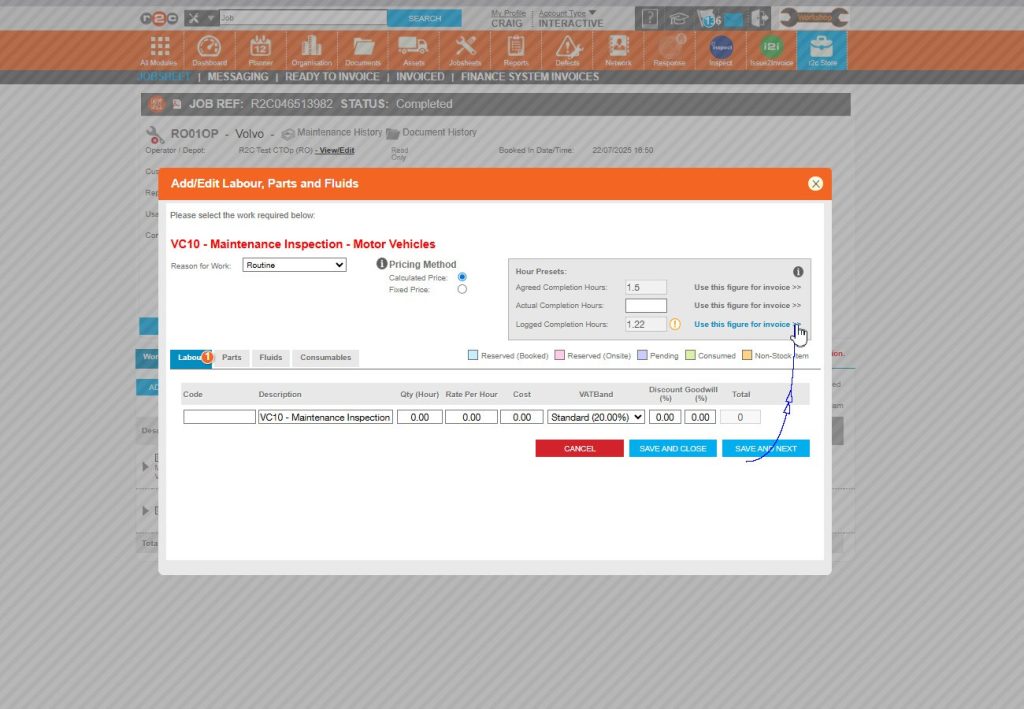
Step 1 - Time records can also be used for billing purposes with i2i. Click ‘Edit’ to open the workline.
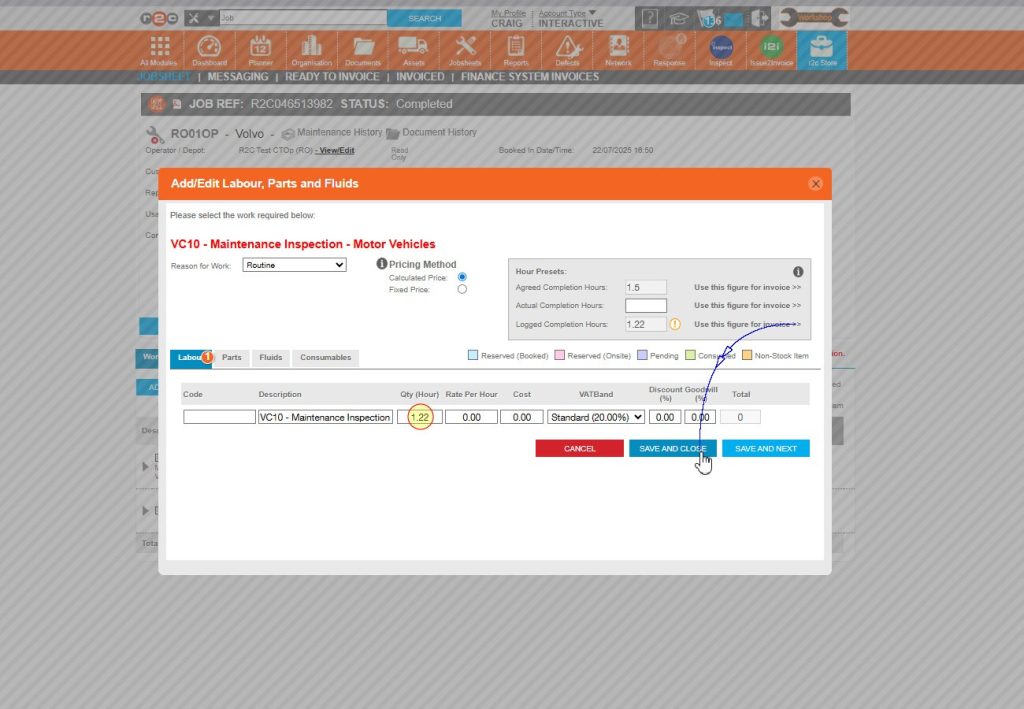
Step 2 - You will now see Agreed completion hours based on menu pricing information, actual hours which are entered manually by a user and logged hours which have come from time recording information. You can choose which of these 3 entries to use for billing by clicking ‘Use this figure...’ next to the corresponding time.
Step 3 - The figure selected will be added to the Qty (hour) field. Click ‘SAVE’ once done.
Technical Info & Self Help
How do 2 usersrecord time on the samejobsheet?
In Automatic mode, the first user is able to track their time using the automatic timer mode. If a task is still locked to them when a second user accesses the same job the timer is not available to both. Instead the second user can add in the time they have spent on the job using the manual entry ‘+’ icon. The jobsheet will collate time records per task, per user.
Why can't Iseethe judgment buttons on a jobsheet?
When in manual mode, the judgment buttons to begin completing an inspection only show once the timer has been started. Click the ‘play’ icon to start recording your time on the task, the buttons will then become visible for use.
Can Ieditmy time record?
Technicians cannot edit time records created using either the Automatic or Manual Timer modes. However, they can add additional manual time entries after the job has been signed off up until it is counter-signed by a foreman.
All overall corrections or time adjustments must be made by administrators through the portal and can only be done once the job has reached the Completed stage.
.
I am an administratorwhy can't I amend time records?
Time records can only be added to or corrected once the job has been signed off and reached completed status.
Can I runreports for time records?
Reports can be run to view time recorded by Jobsheet, task and technician. These reports are available in the standard reports section to view and export.
A green outline on the account type icon signifies the guide is applicable whereas a red outline signifies it is not applicable to the the respective account type.