The Driver Checks application is a new bolt-on module that can only be managed by users with Interactive Operator permissions.
This application is separate from the existing DDC App. Availability and access may vary depending on your r2c contract and the permissions associated with your user role.
The new Driver Checks application enables drivers to complete vehicle inspections and report defects through a streamlined, user-friendly interface.
Fleet managers can monitor checks as they are submitted, with automatic email notifications generated for reported defects and vehicles marked as unroadworthy
Please note: This is a new application. If you are currently using the previous Driver App, please refer to: Driver Module V1 Guide
The current release includes:
* Submission of driver checks * Automatic email notifications for defects and unroadworthy vehicle checks * The ability to view driver check forms currently in use
Phase 2 will introduce additional dashboard functionality and enhanced reporting capabilities.
Step by Step
Driver Checks – To see the steps taken to monitor completed driver checks, click or swipe through the 8 steps below.
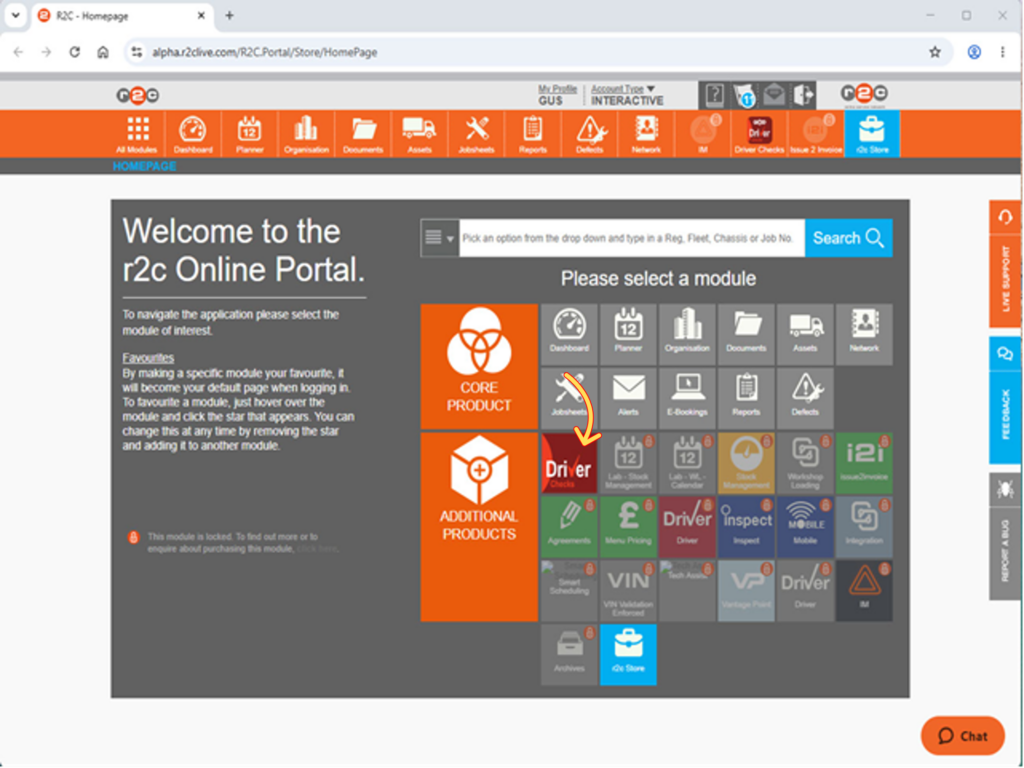
Step 1 – Click the Driver Checks Module icon from the welcome screen or the navigation bar.
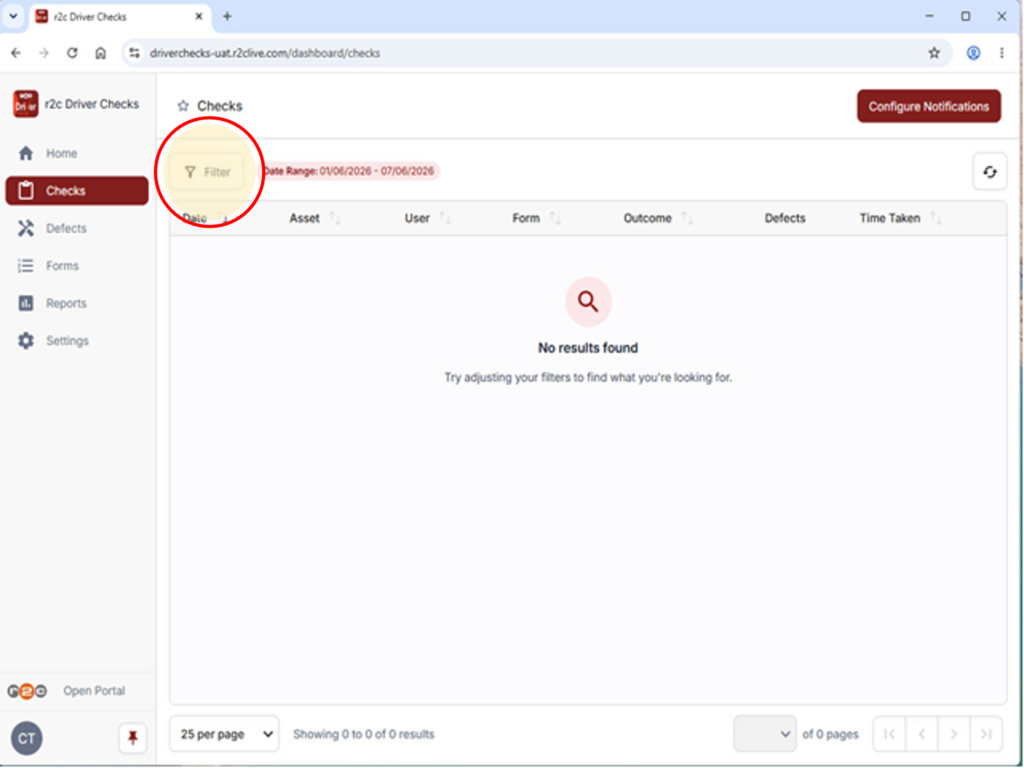
Step 2 – The checks list defaults to the current week. To refine your results, click the 'Filter' icon.
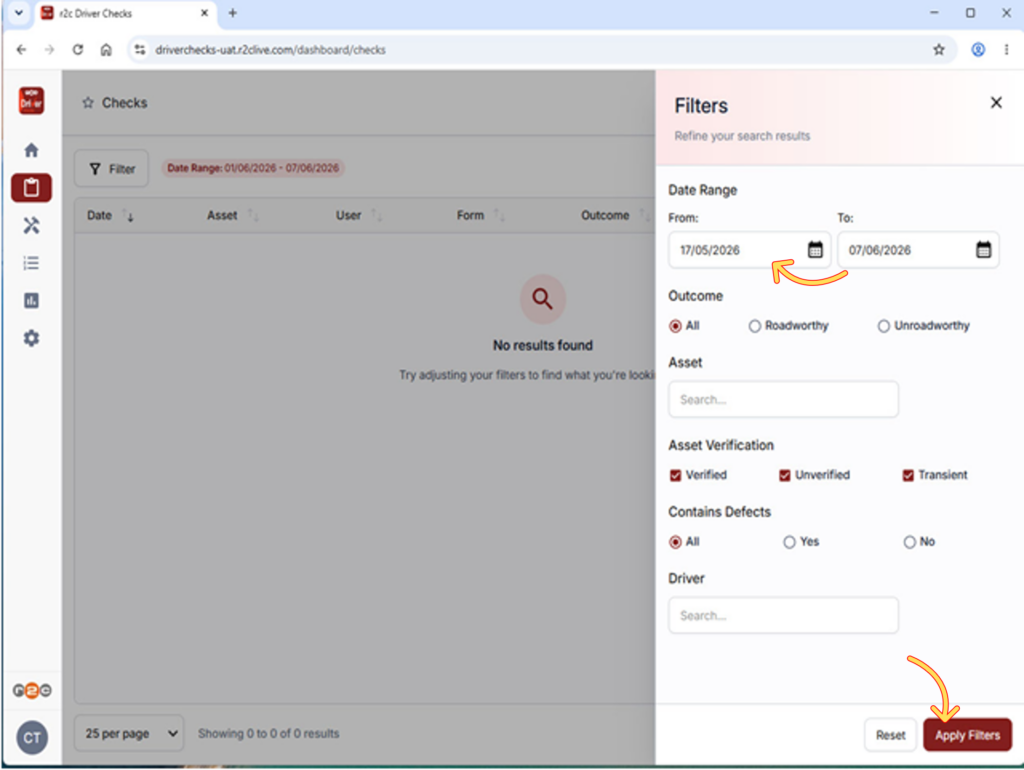
Step 3- From the filter panel, select additional criteria and then click 'Apply Filters'
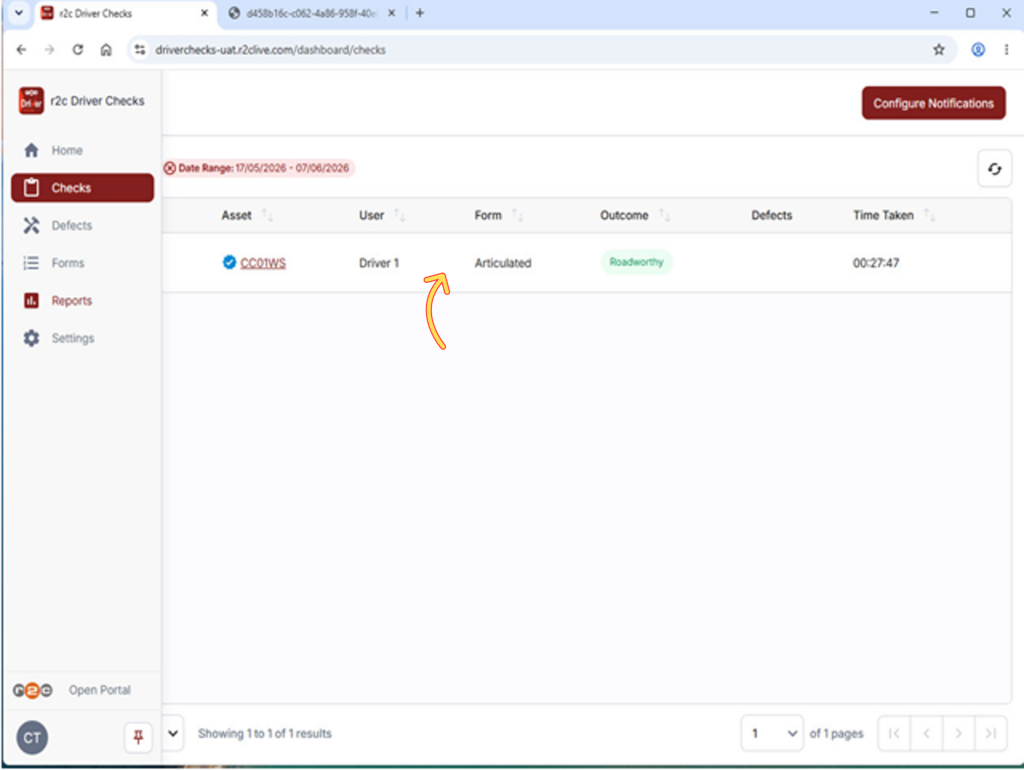
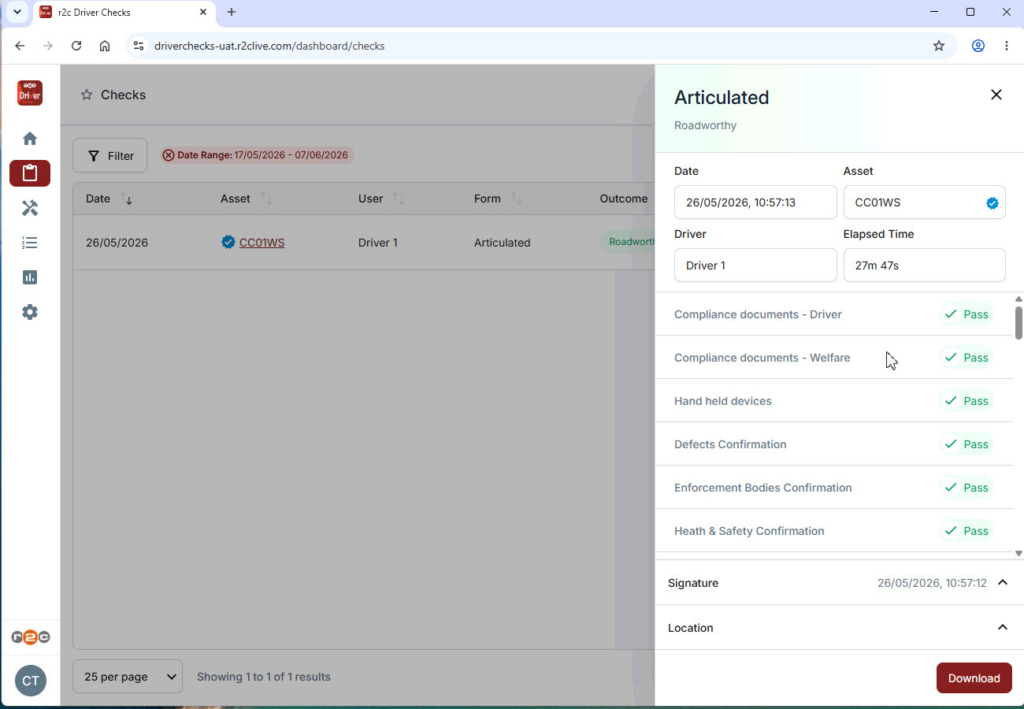
Step 4 - To view a completed check, click on the entry from the list.
Step 5- Here you can view the information submitted by the driver and any defects raised.
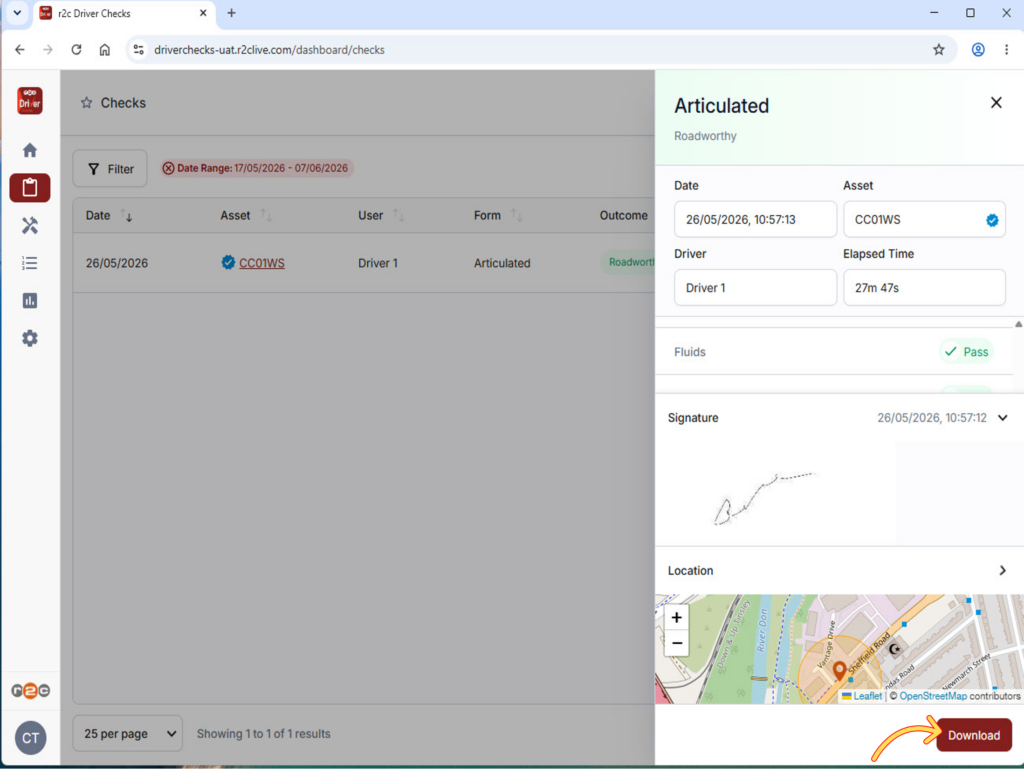
Step 6 - Expand the sections to see additional details such as location (if enabled) . Click 'Download' to view a PDF version of the completed check.
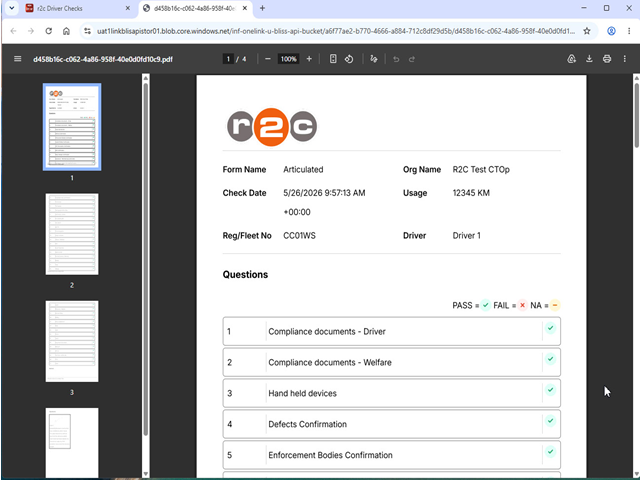
Step 7 - View/Save the PDF as required.
Reviewing completed checks
Driver checks can be completed against either:
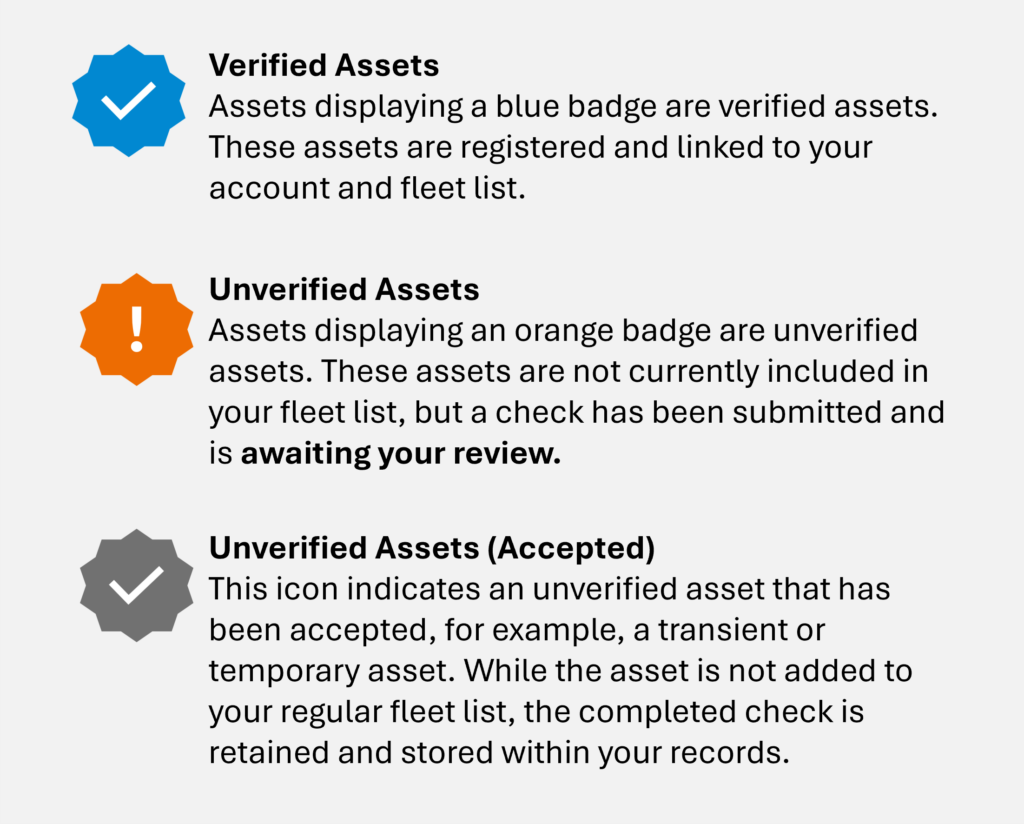
Verified assets – Vehicles or assets that are recognised and linked to your account and fleet list.
Unverified assets – Vehicles or assets that are not currently recognised within your fleet. When a check is submitted against an unverified asset, it can be reviewed and either corrected by assigning it to the appropriate asset record, or accepted if the asset is valid but not part of your fleet.
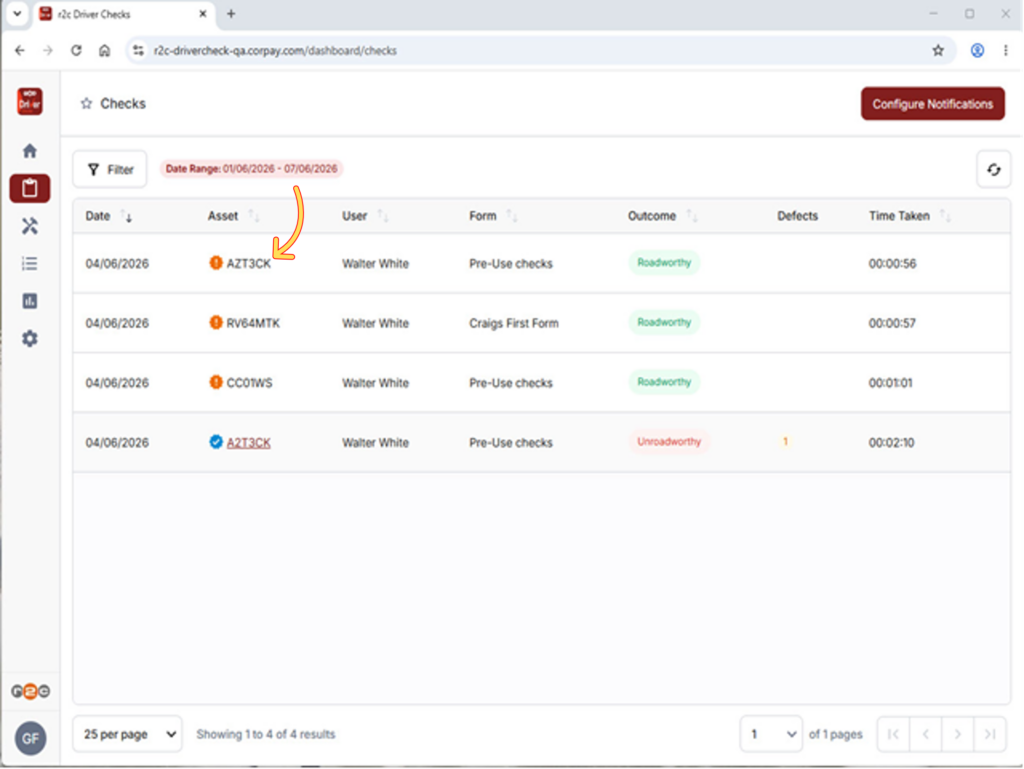
Rectifying unverified Assets – Updating a completed check by assigning it to the correct asset record.
Asset Staging Area
Step 1 - Tap the check from the list
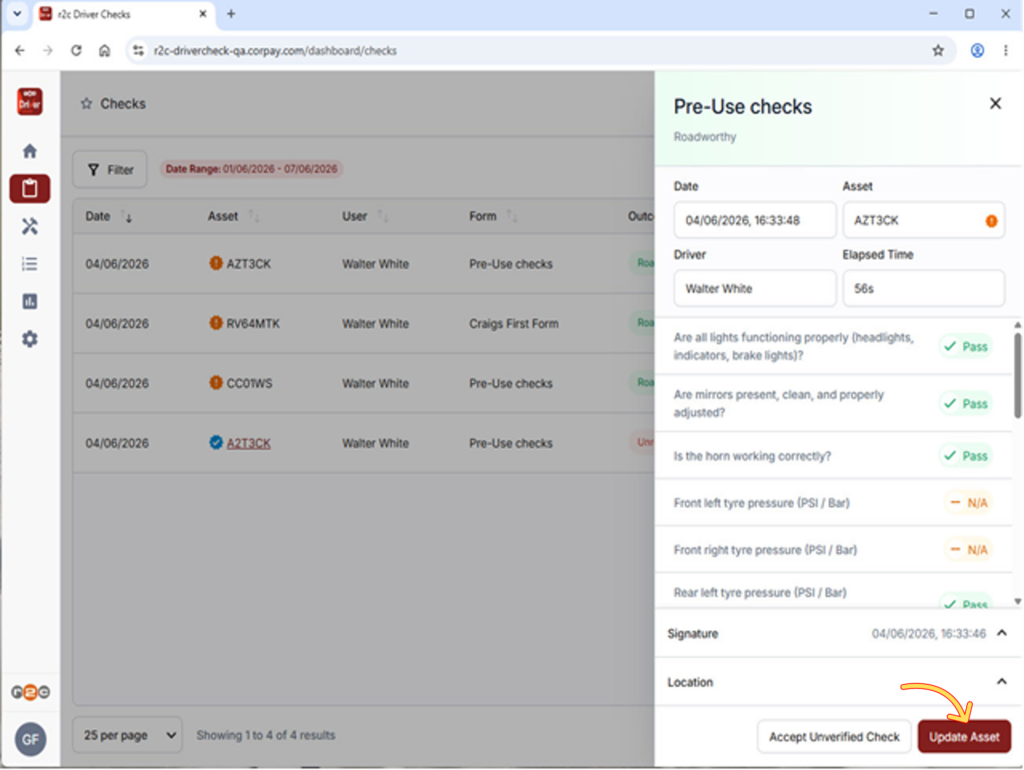
Step 2 - Tap 'Update Asset'
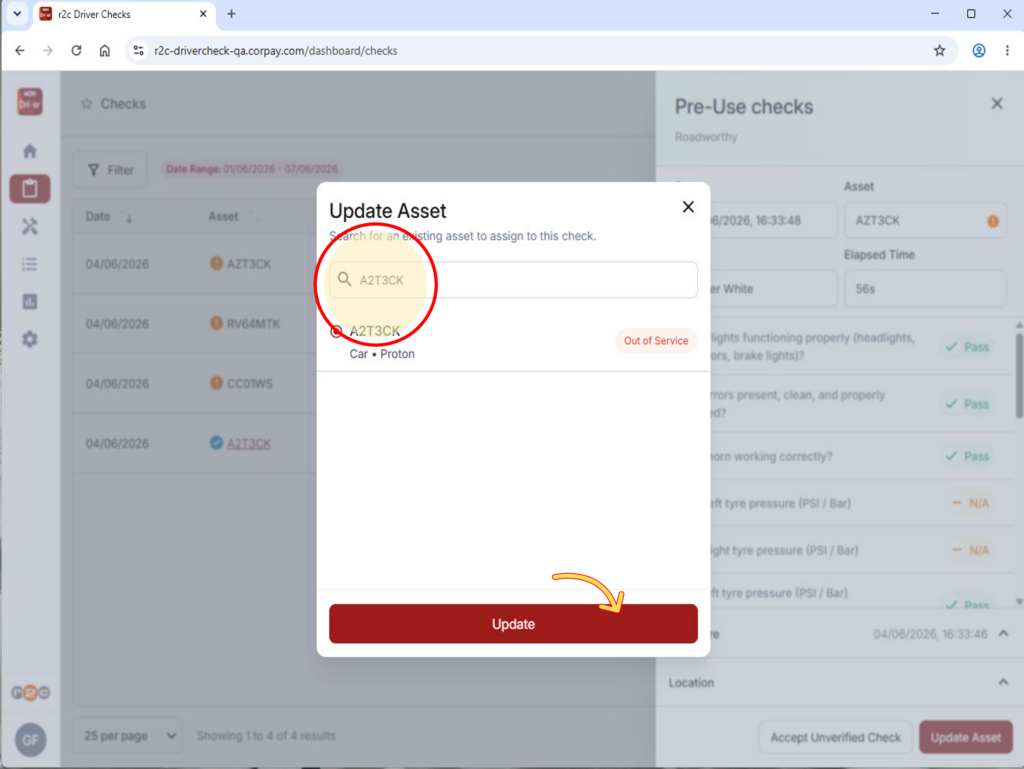
Step 3 - Search for the correct asset, select the match and then click the 'Update' button.
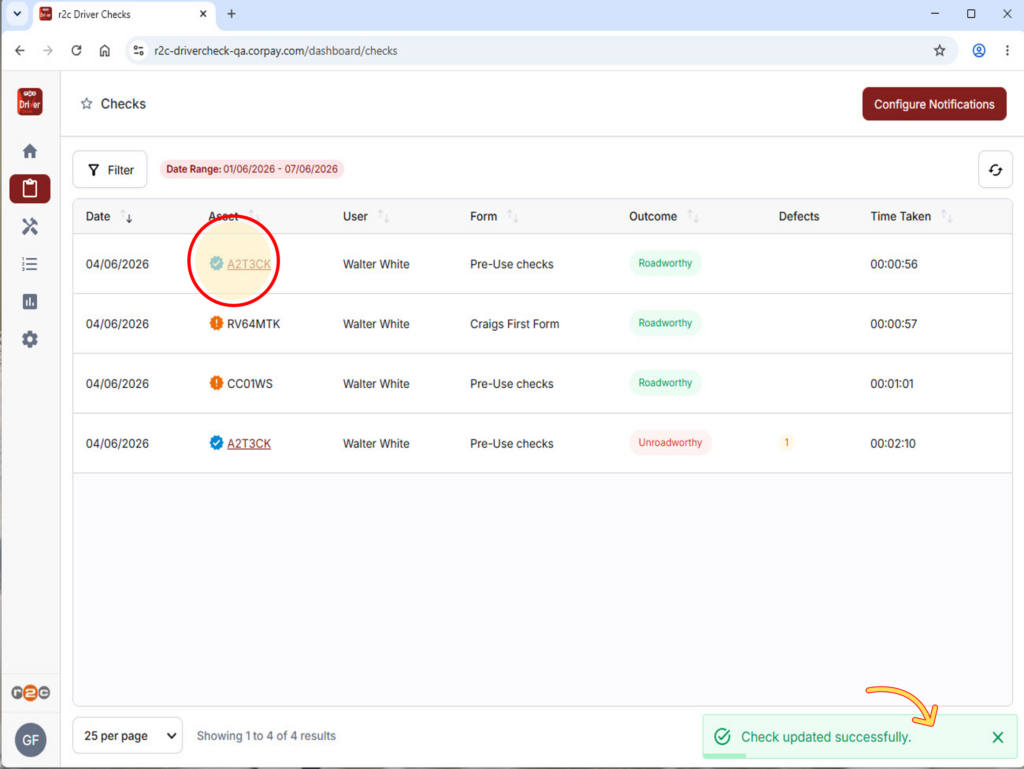
Step 4 - The asset icon has updated to verified successfully and the check has been reassigned to the correct vehicle.
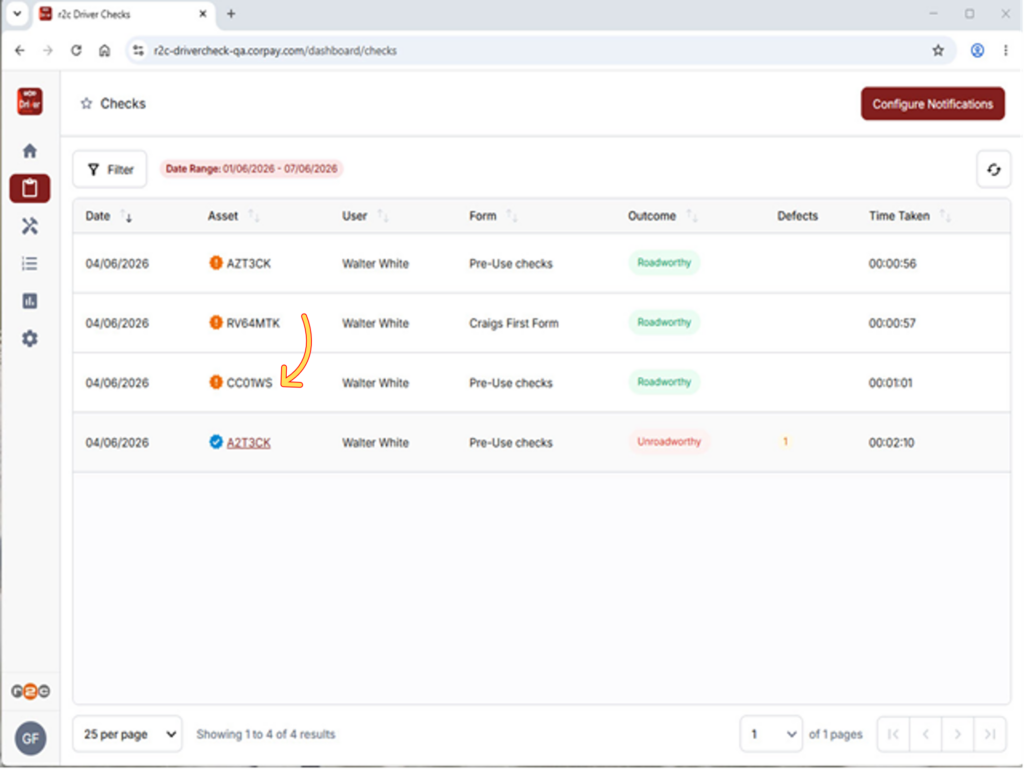
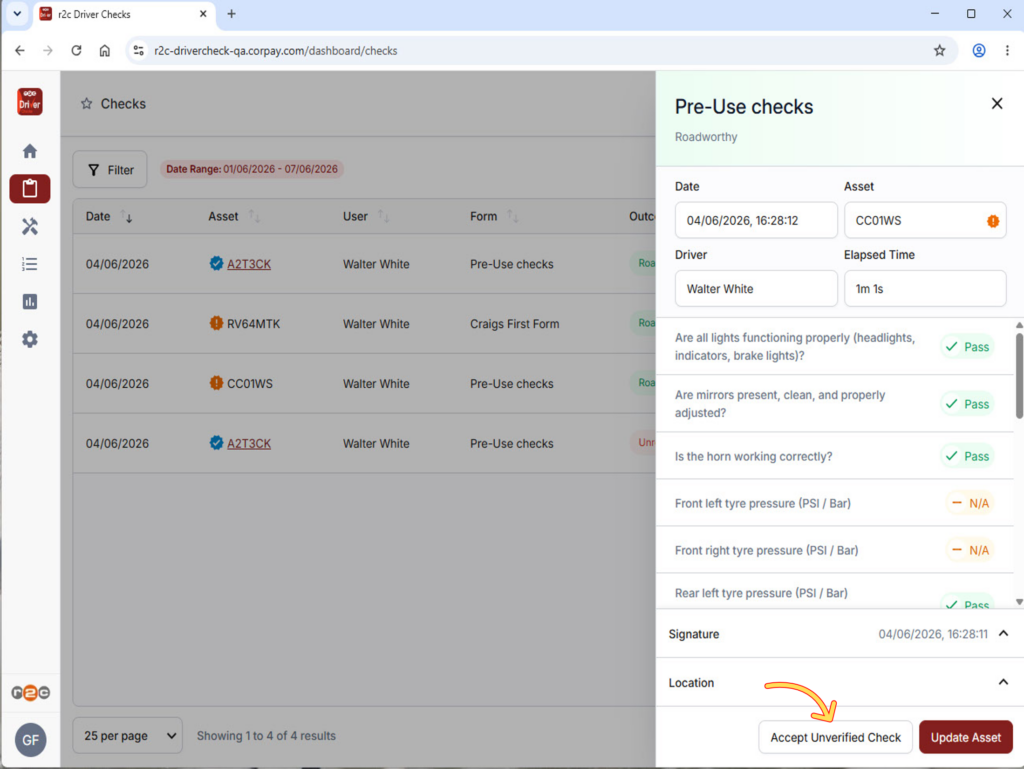
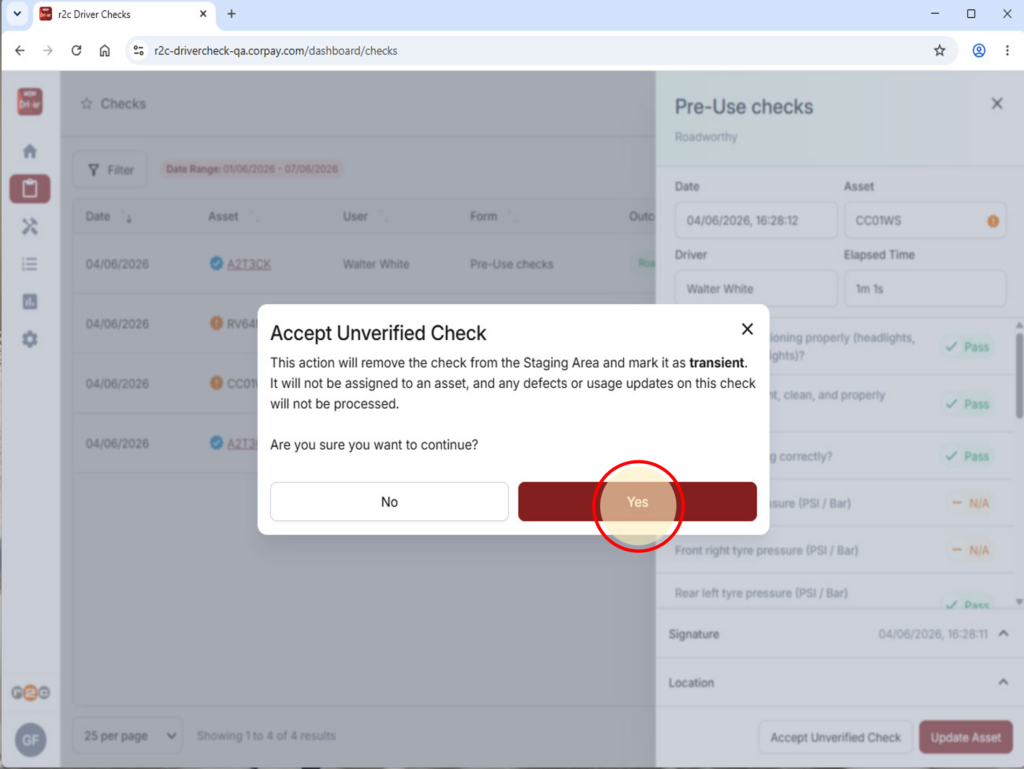
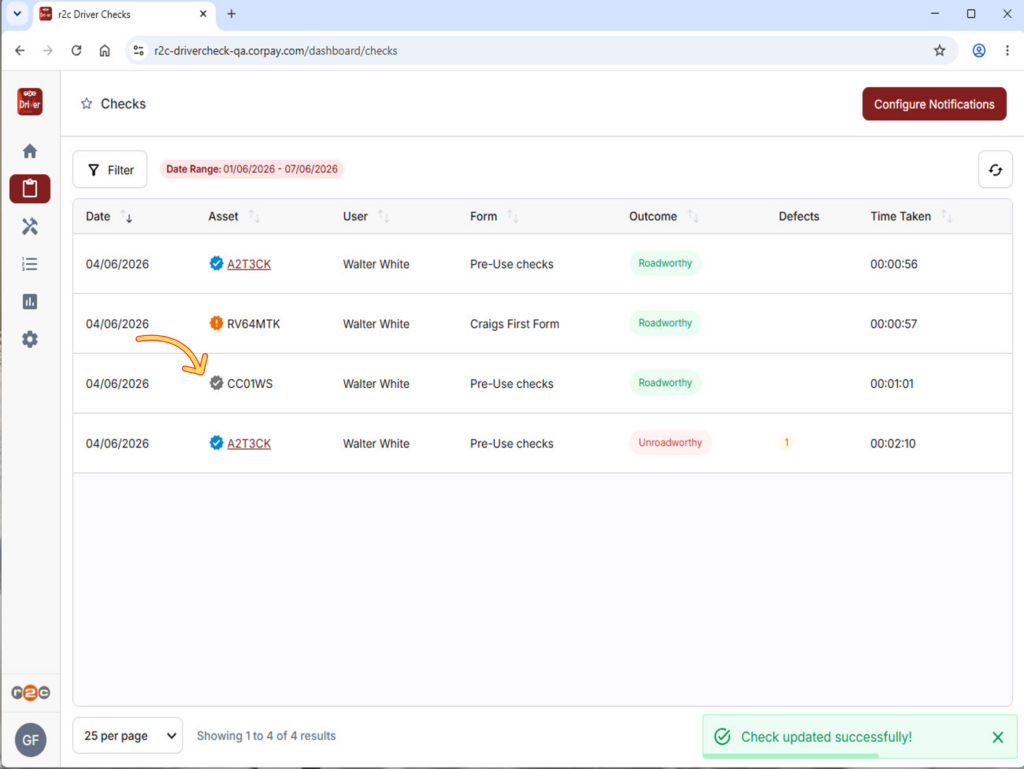
Accepting unverified Assets – Accepting a completed check for a transient asset that is not on the fleet list.
Step 1- Select a completed check from the list that is showing as unverified.
Step 2 - Click the 'Accept Unverified Check' button
Step 3 - Confirm you are happy to accept the check as a transient fleet asset
Step 4 - The asset will now show a grey tick icon and the completed check will be available to view in your records.
Driver check sheet forms
Viewing Forms
Admin users can view the questions and associated settings for each driver check form.
Please note: This is a read-only view and forms cannot be edited directly. If you require a new custom form or changes to an existing form, please contact your Account Manager. Depending on your contract, form creation and amendments may be available.
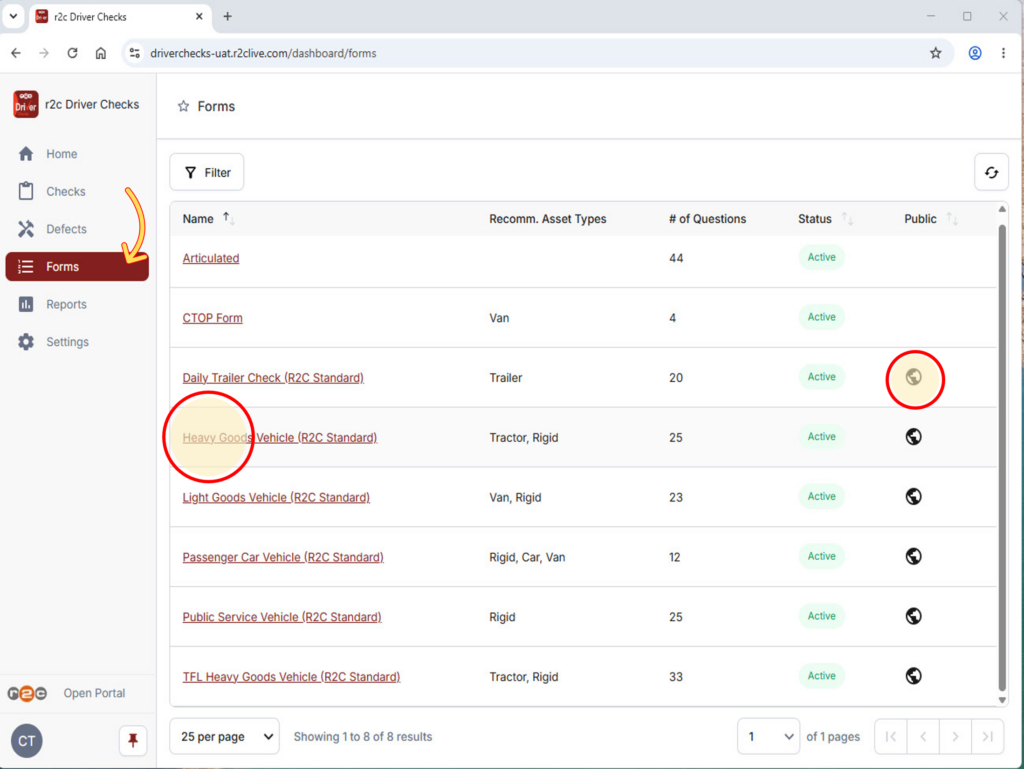
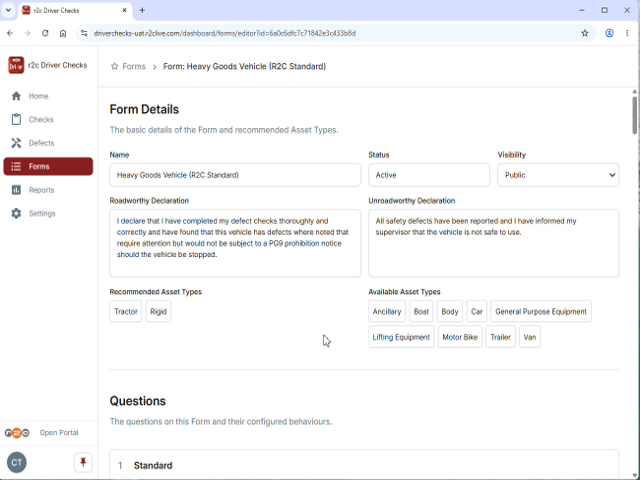
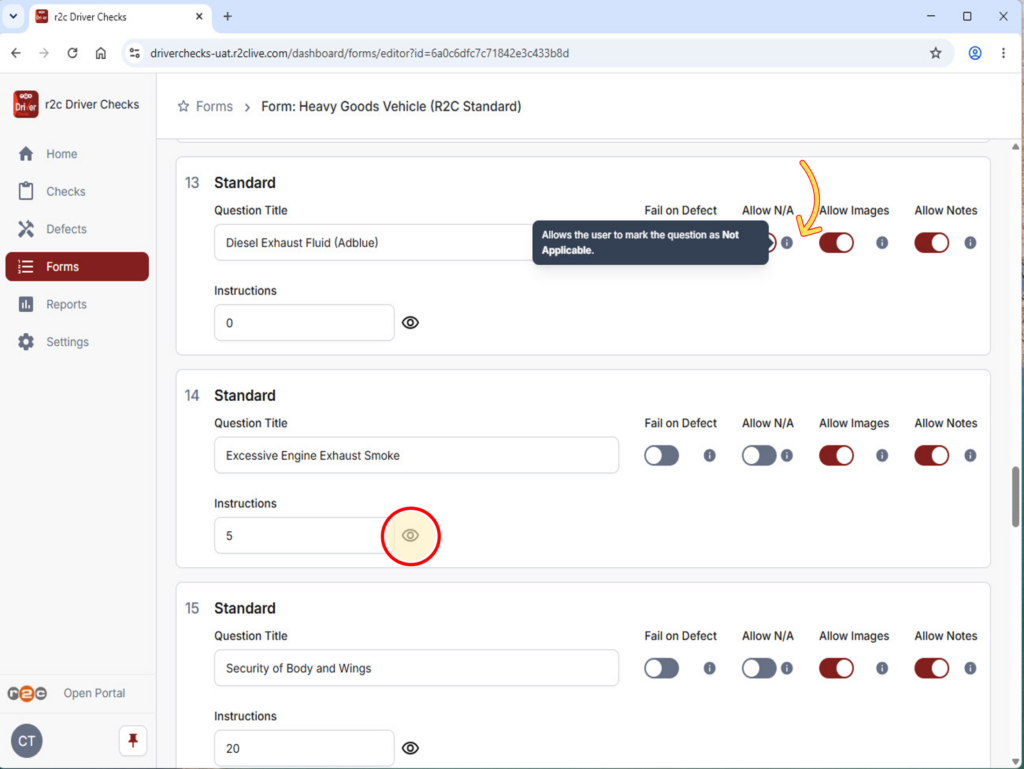
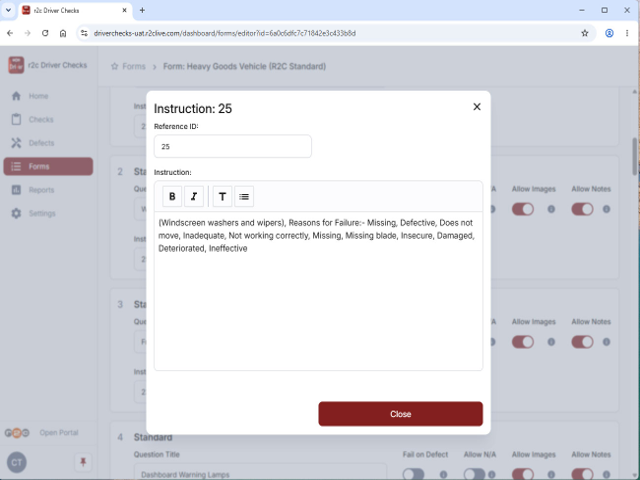
Viewing Forms – Follow the four steps below to view the questions and settings for a specific driver check form.
Step 1 - Click the forms menu and then select a form from your list to view. A globe icon denotes the form is public and open for all to use. Private forms are those that have been created bespoke to your account ( subject to contract T&C'S)
Step 2 - First, you will see the declarations related to the selected form.
Step 3 - Next, you can see the questions included in the form and their respective settings e.g. can a user select N/A. as an option. Click the 'eye' symbol to view any addtional instructions for a question.
Step 4 - The instructions will show in a pop-up window for you to view. Tap close to return to the form view.
Managing public forms
Public forms are standard driver check sheets that are available to all r2c customers.
If your organisation uses bespoke forms, or if some of the default public forms are not relevant to your fleet, you can hide these forms and control which driver check forms are available for your drivers to complete.
You can manage public forms using the following options:
Global controls – Allow or block all public forms across all accounts and sites.
Account/Site controls – Allow or block all public forms for a specific account or site (for example, an individual depot).
Form visibility controls – Configure the visibility of individual public forms for each account or site.
Forms can also be viewed, allowing admin users to view the questions and their respective settings.
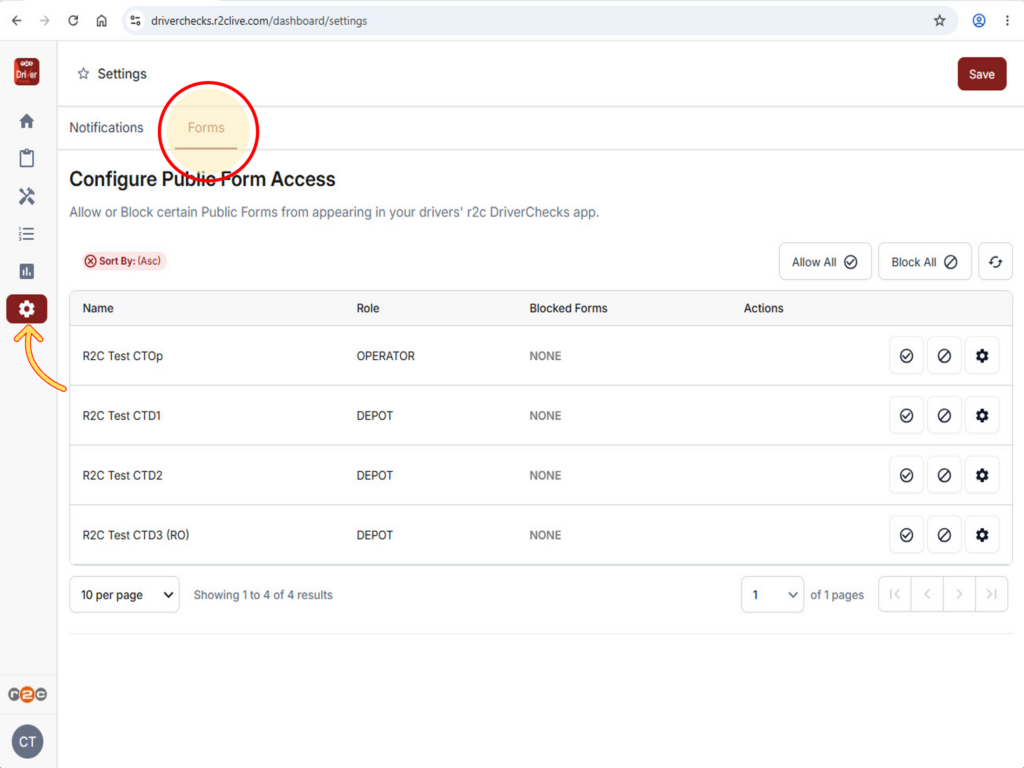
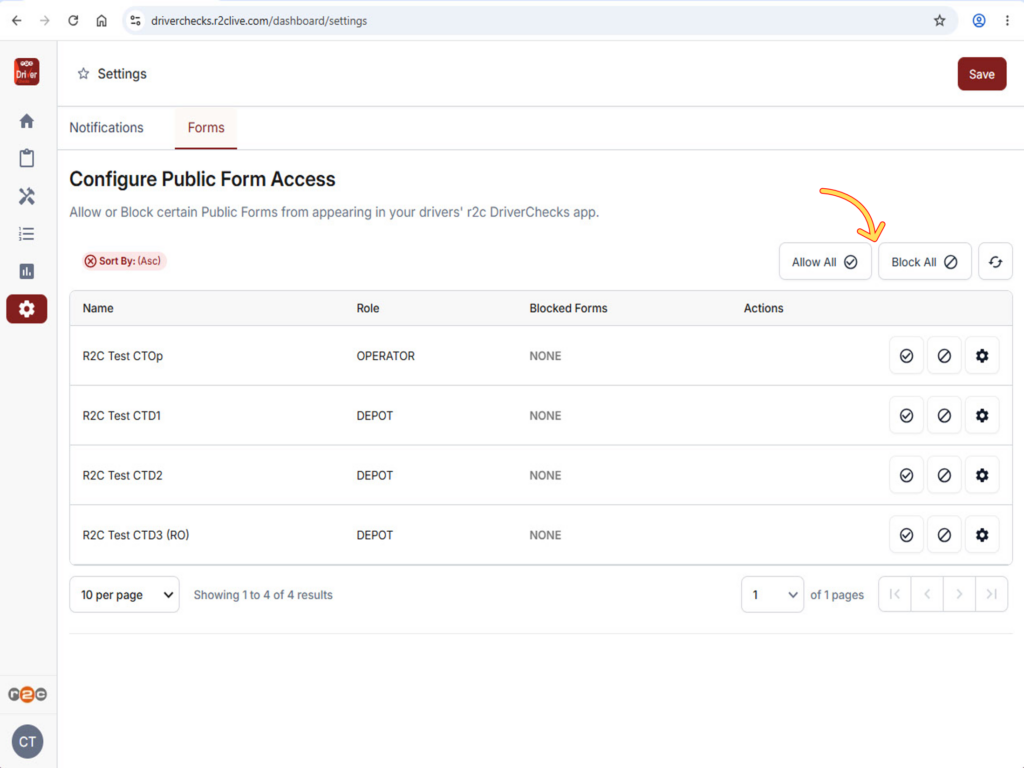
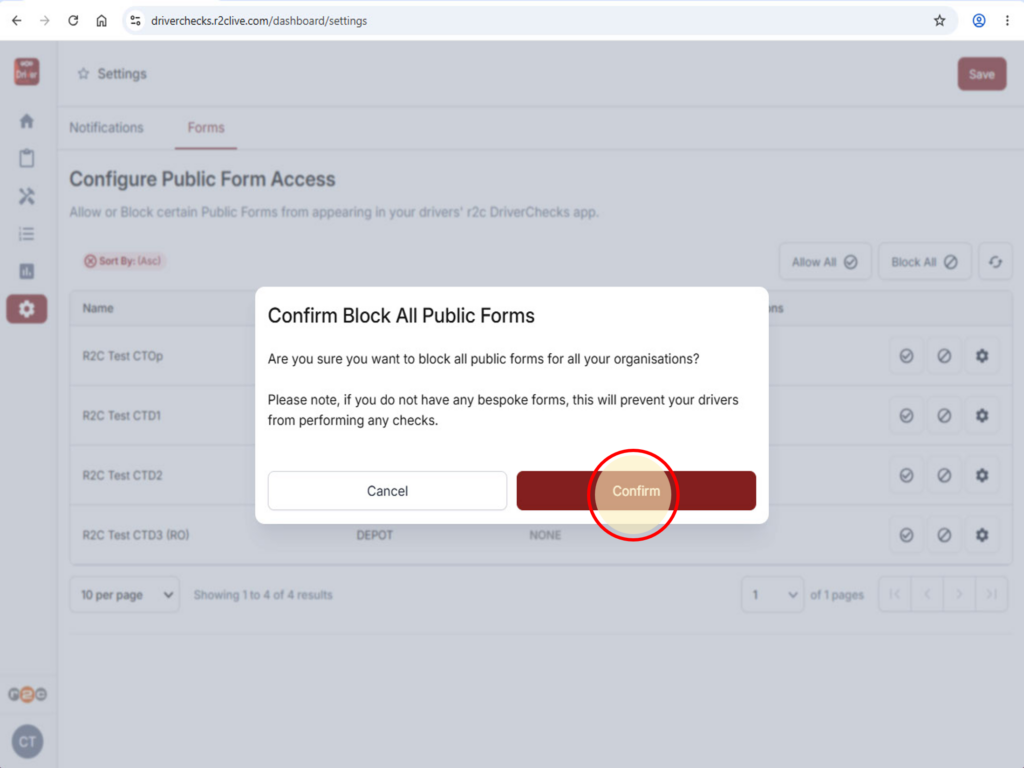
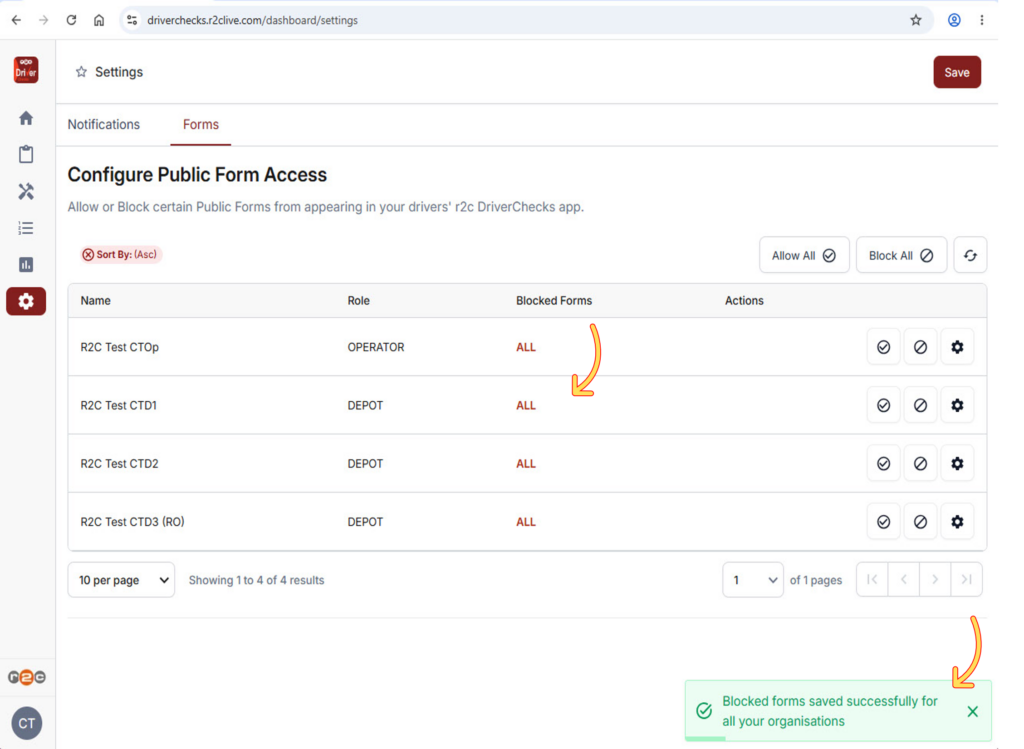
Global controls – Follow the four steps below to update form visibility across all sites.
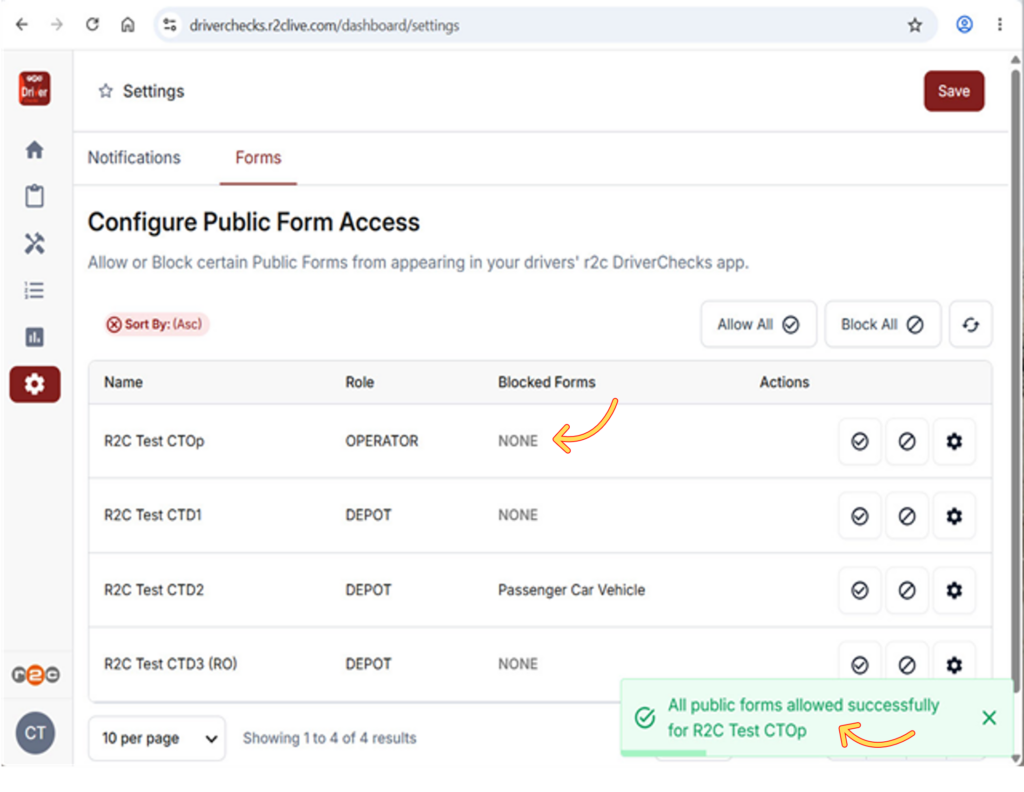
Step 1 - Once changes have been saved, a confirmation message will show. In this case all public forms have been allowed for the operator level.
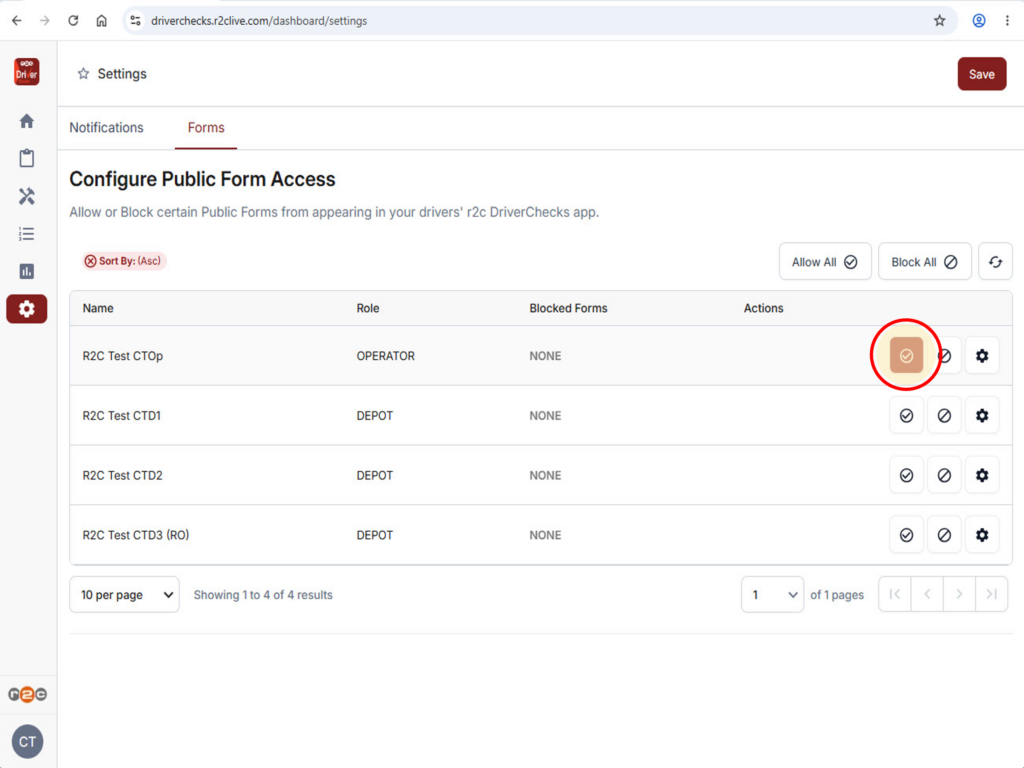
Step 2 - Use the Allow all or Block all buttons to apply changes to forms across all sites.
Step 3 - Use the Allow all or Block all buttons to apply changes to forms across all sites.
Step 4 - Use the Allow all or Block all buttons to apply changes to forms across all sites.
Account/Site controls – To see how to allow or block form visibility for a specific location e.g. 1 depot. Click or swipe through the 4 steps below.
Step 1 - Once changes have been saved, a confirmation message will show. In this case all public forms have been allowed for the operator level.
Step 5 - Use the Allow all or Block all buttons to apply changes to forms across all sites.
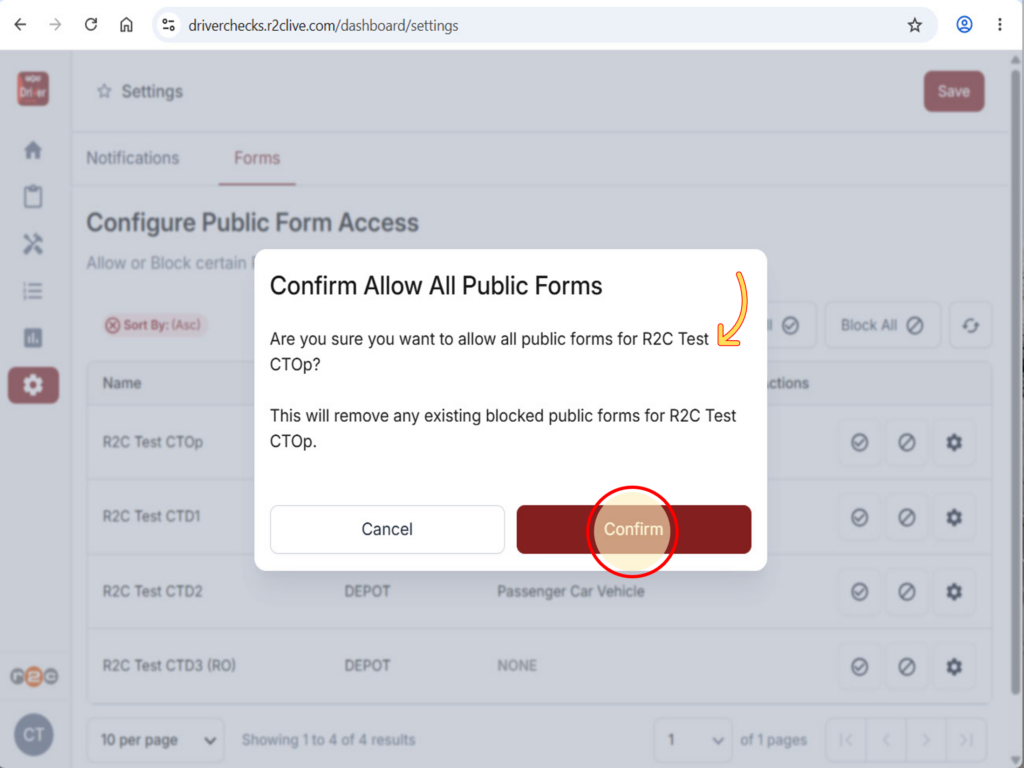
Step 3 - Next, confirm the changes.
Step 6 - Use the Allow all or Block all buttons to apply changes to forms across all sites
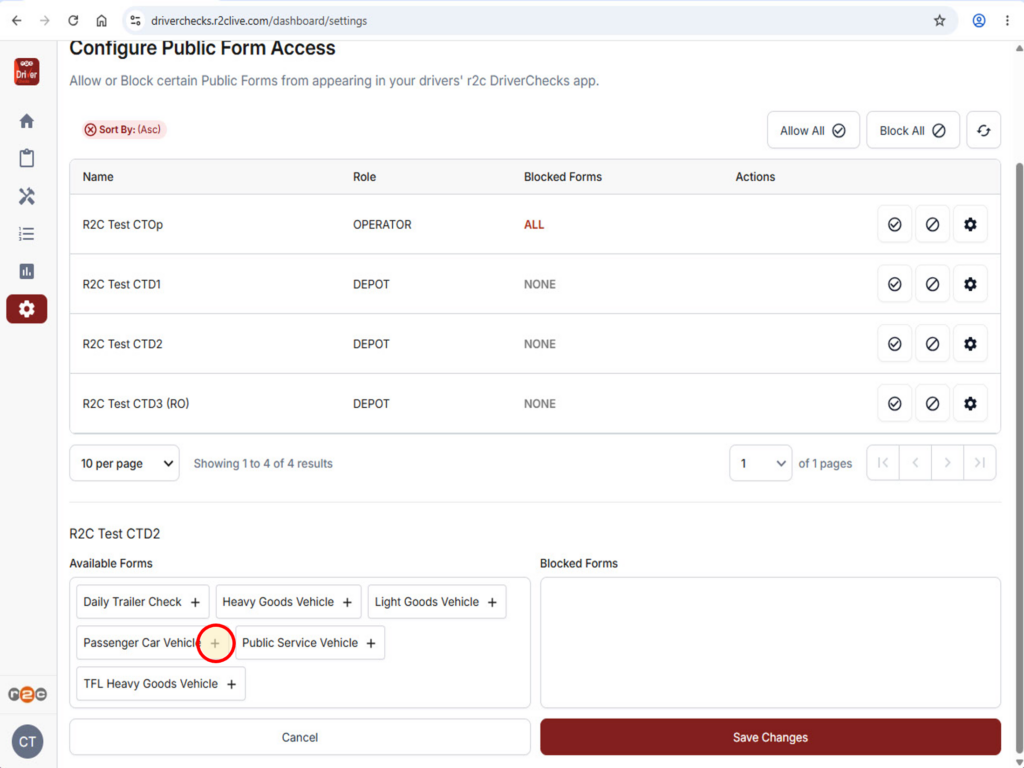
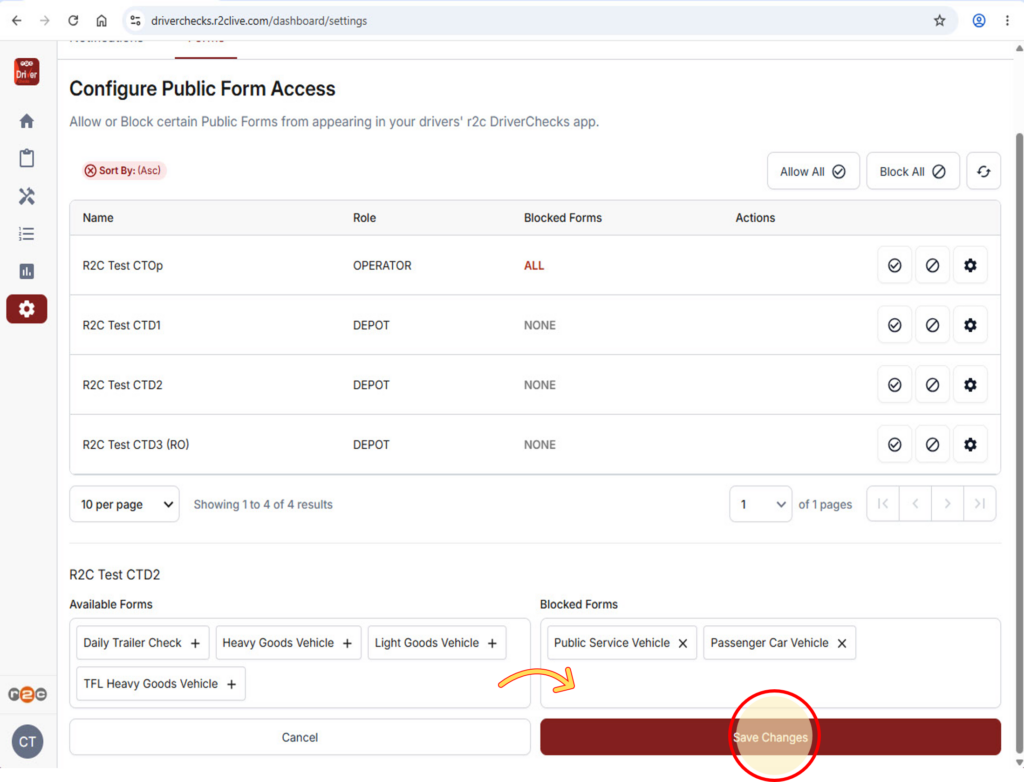
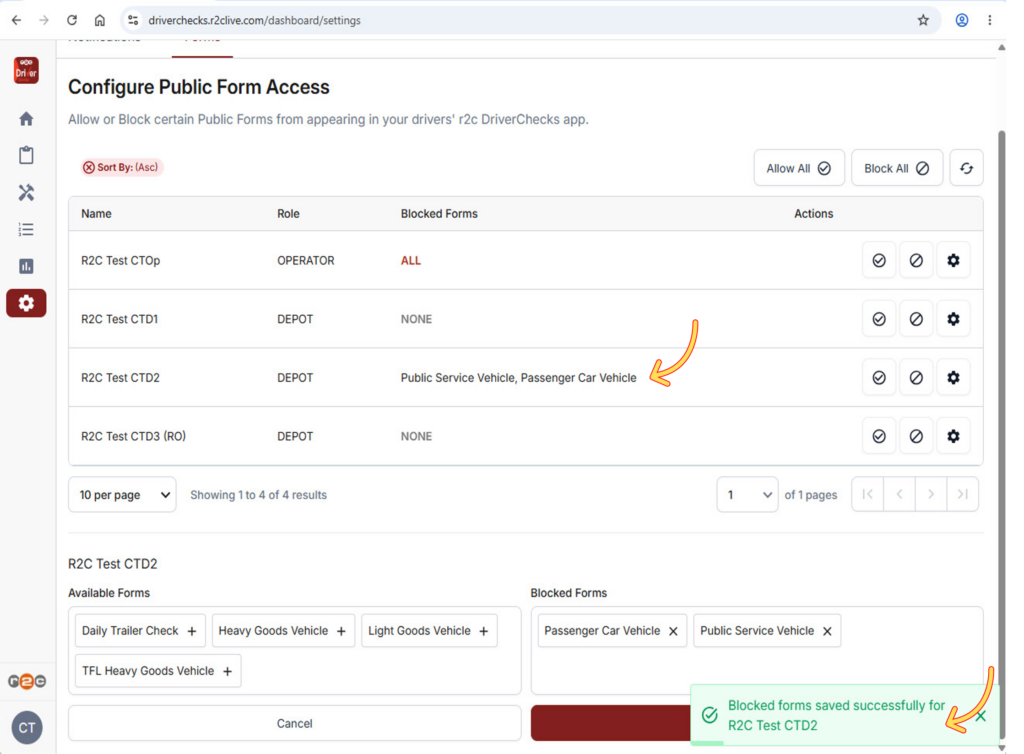
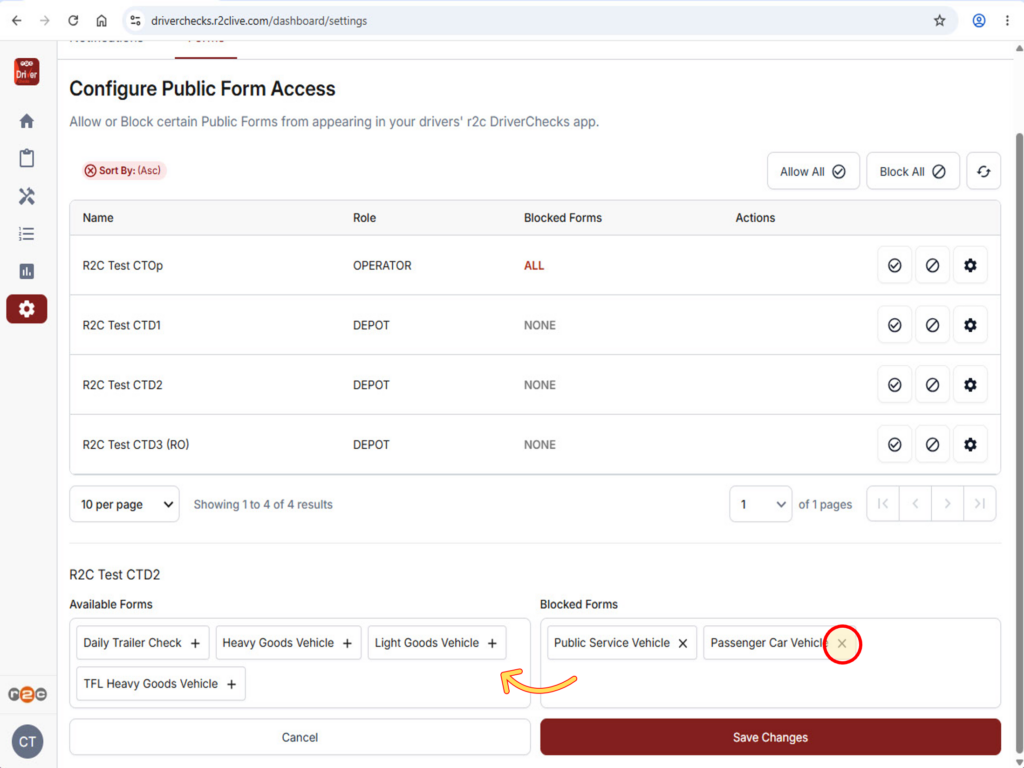
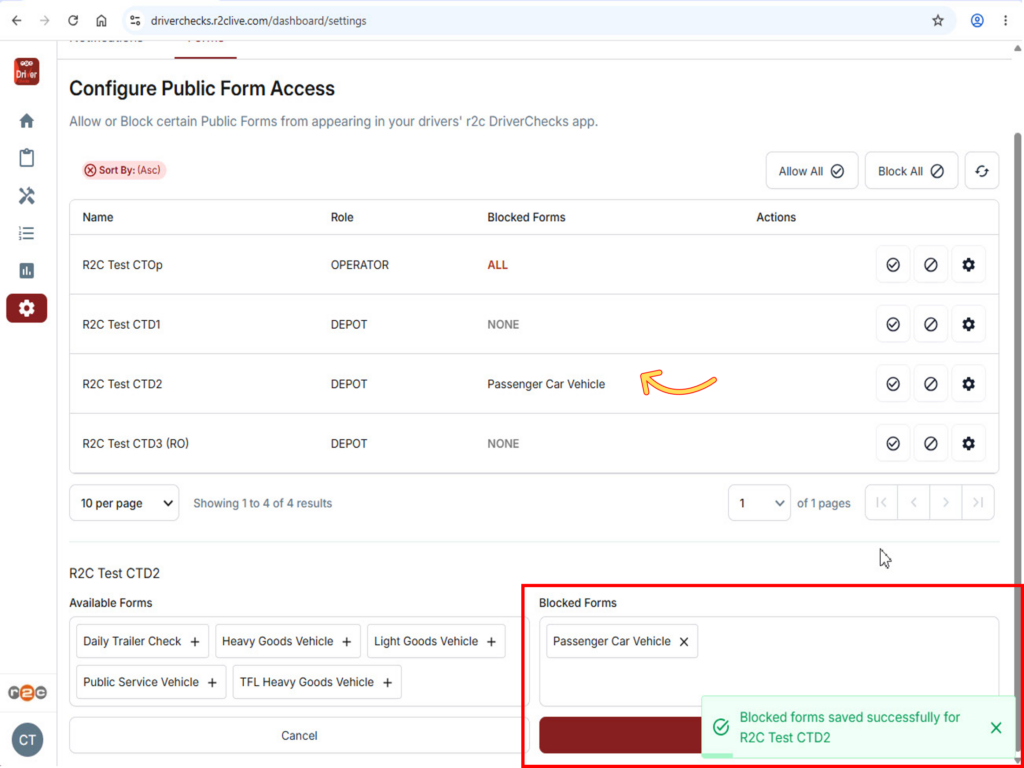
Form visibility controls – To see how to allow or block individual form visibility for a specific location e.g. Allow specific forms per depot. Click or swipe through the 4 steps below.
Step 1 - Once changes have been saved, a confirmation message will show. In this case all public forms have been allowed for the operator level.
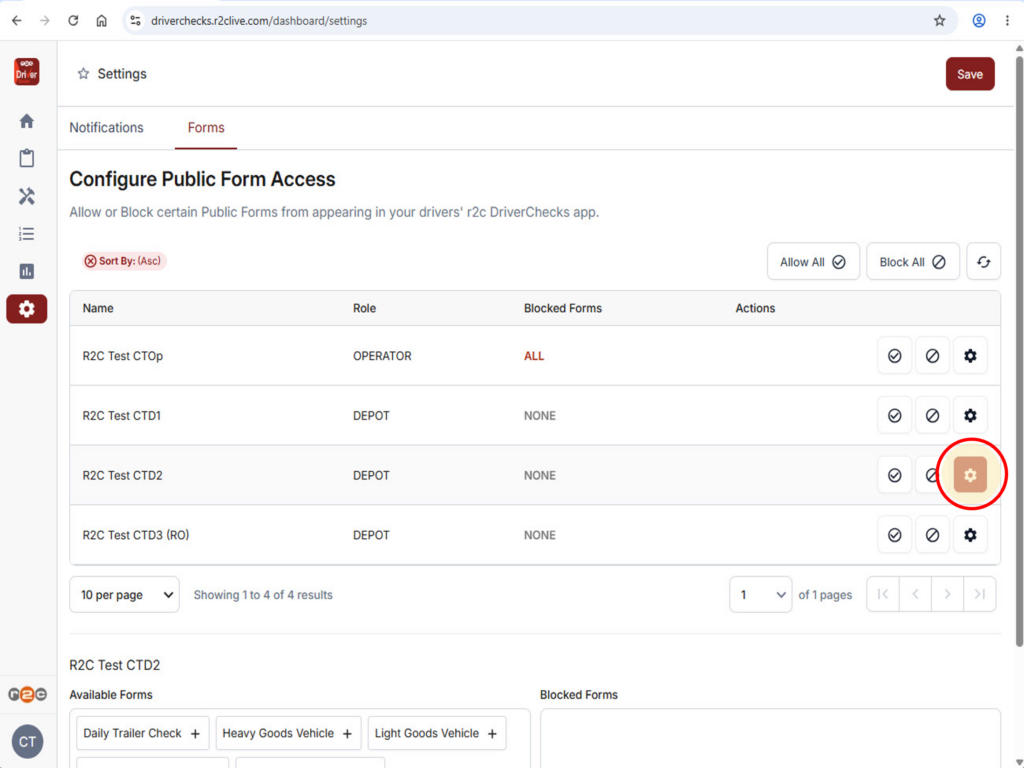
Step 2 - Click the Cog Wheel icon for a specific site/account.
Step 3 - From the list of forms, click the '+' plus symbol to add a form to the blocked category. Repeat this for any individual public forms you want to block.
Step 4 - Once the forms have transferred, click 'save'
Step 5 - The list will update to show any specific blocked forms, and a confirmation message will show.
Step 6 - To remove a form fro the blocked category, click the ' X' cross symbol to move a single form back to the allowed category.
Step 7 - Once cleared, and saved the list will update with a confirmation message.
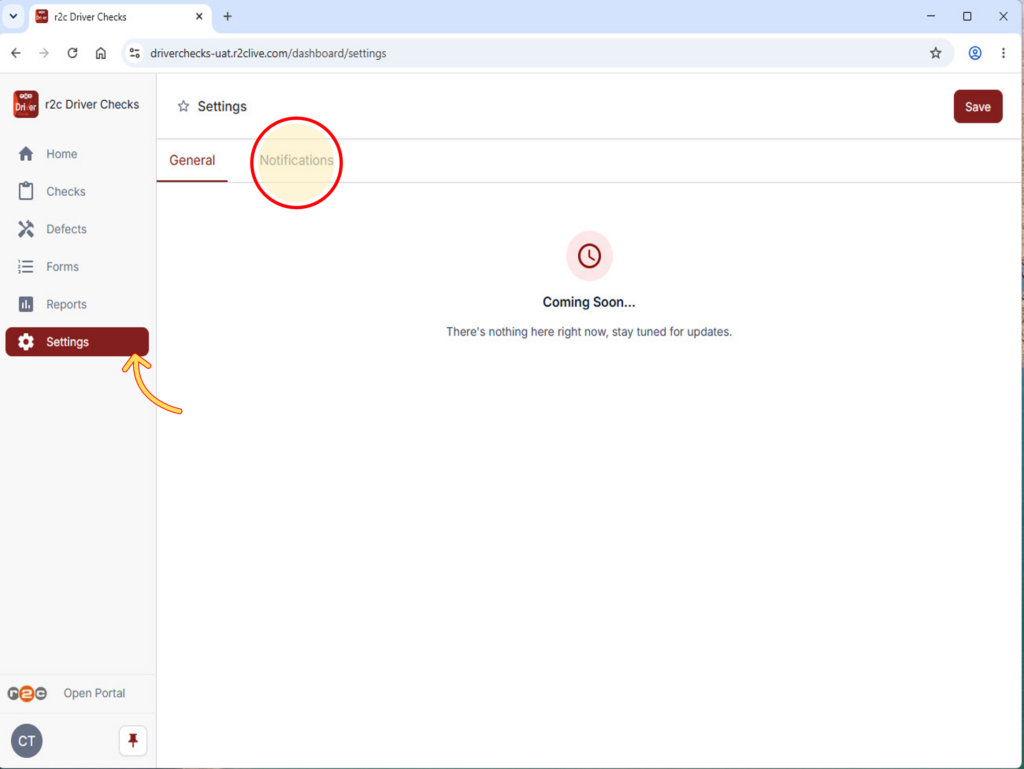
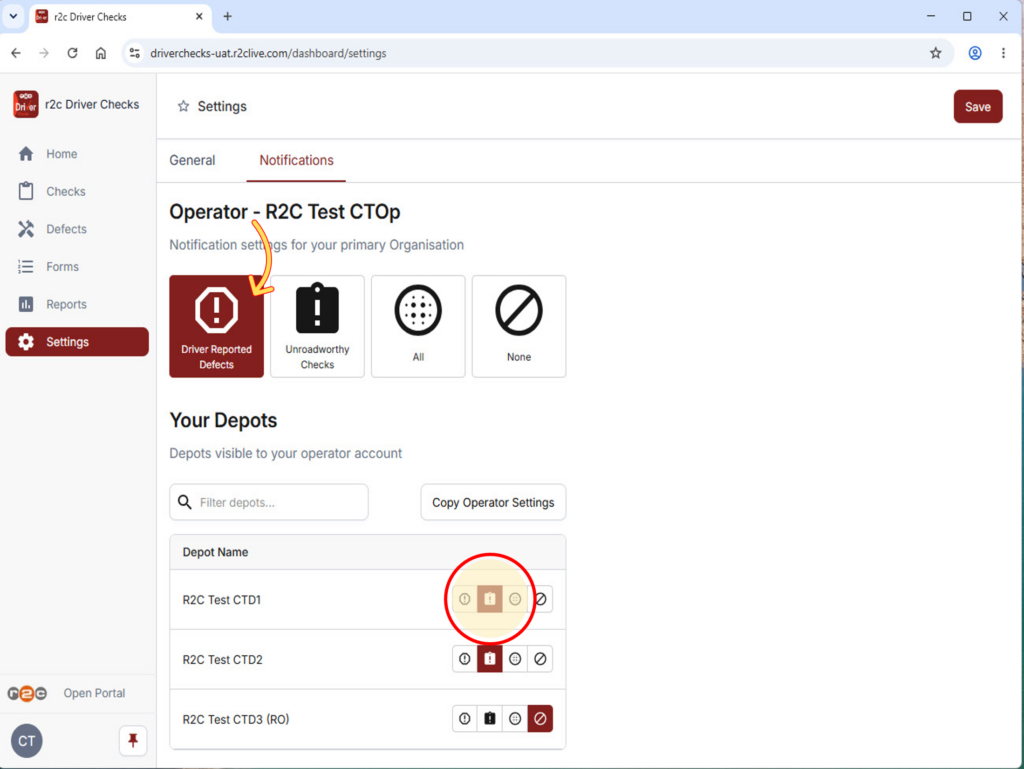
Notifications- To see how to manage your email notification preferences, click or swipe through the 2 steps below.
Step 1 - Click settings and then notifications to update your email preferences
Step 2- Here you can turn on email notifications for defects only, unroadworthy checks only or both. You can also choose to enable or disable these by depot. Click the notifications you would like to opt-in for and then click 'Save' from the top corner.
Driver Checks App Instructions
You can view the user guide below or download a PDF copy to save and refer to later
A green outline on the account type icon signifies the guide is applicable whereas a red outline signifies it is not applicable to the the respective account type.