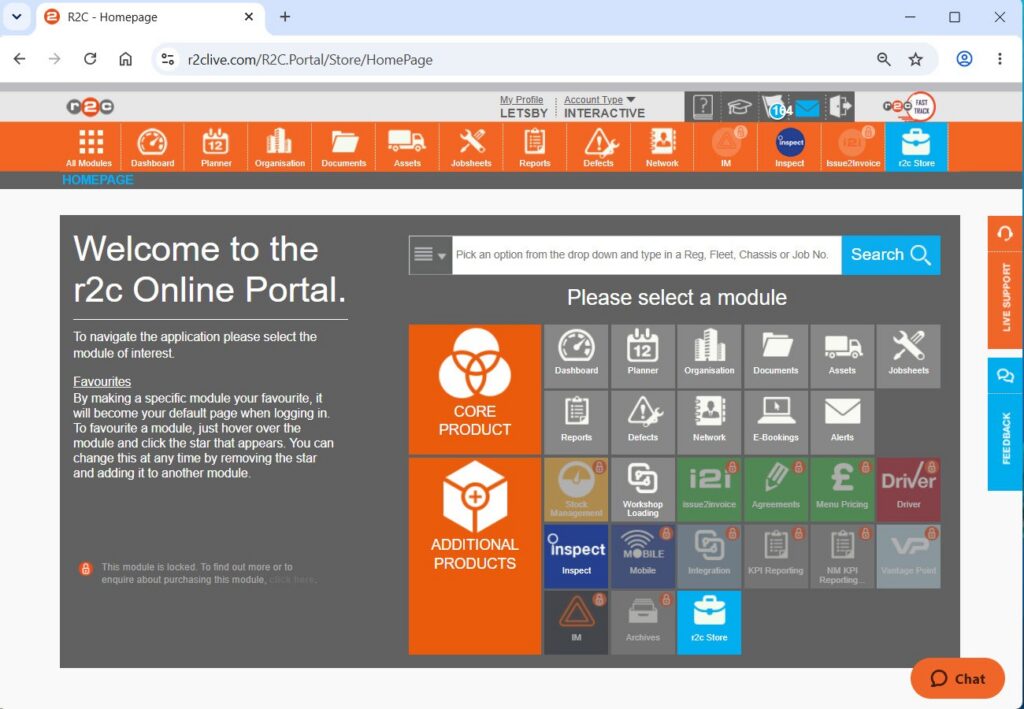
Two-Factor Authentication (2FA) provides an additional layer of security by requiring users to enter a One-Time Passcode (OTP) during login, alongside their standard credentials. These settings can be selectively enforced for specific users or across the whole organisation by designated admin users.
This guide explains how 2FA admin users can configure, manage user settings, and support users during the login process.
Step by Step
Admin Use Only – Enable 2FA for Your Organisation
Once the module has been activated, admin users with designated 2FA permissions must enable the settings before 2FA can be used.
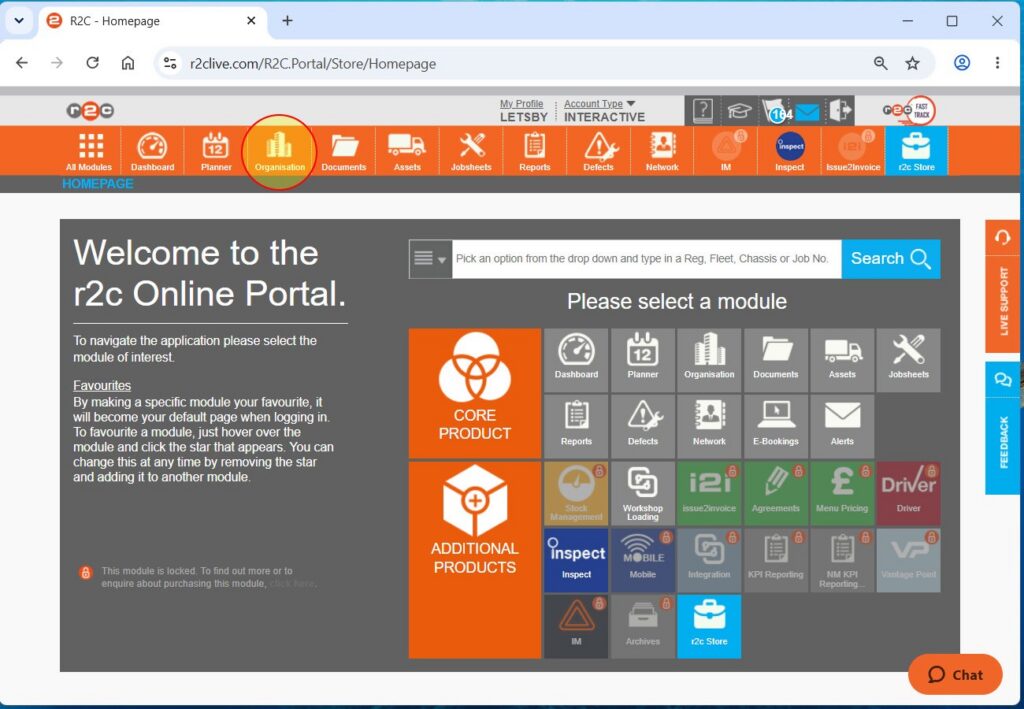
To enable two-factor authentication (2FA) for Portal users on your R2C account, click or swipe through the five steps below.
Step 1: Click Organisation from the header menu.
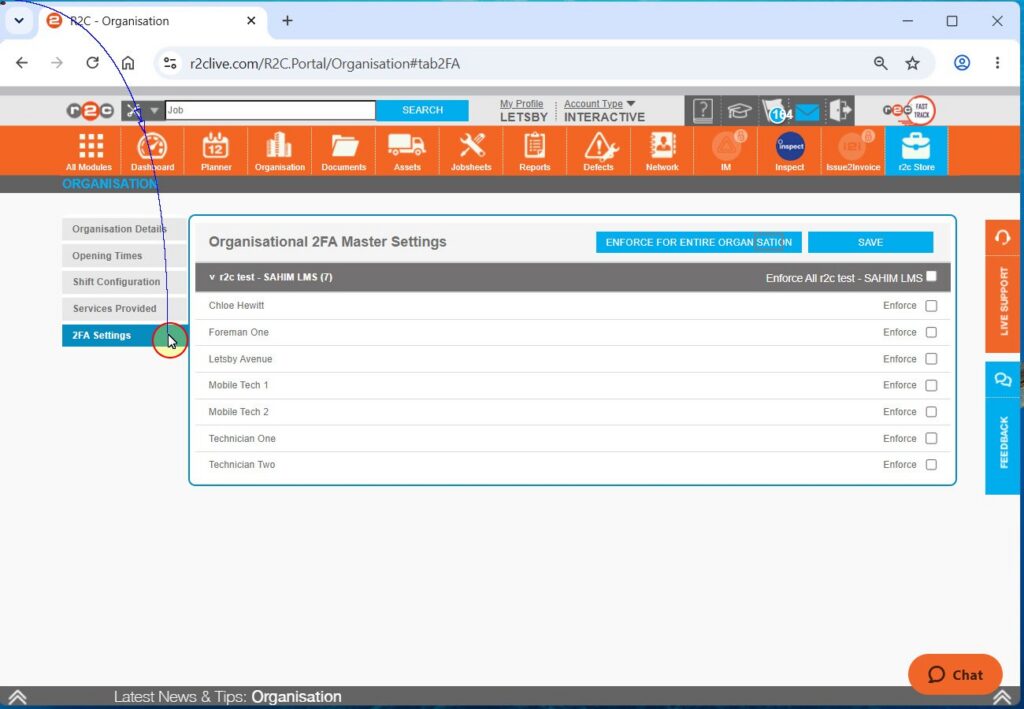
Step 2: Select the 2FA tab.
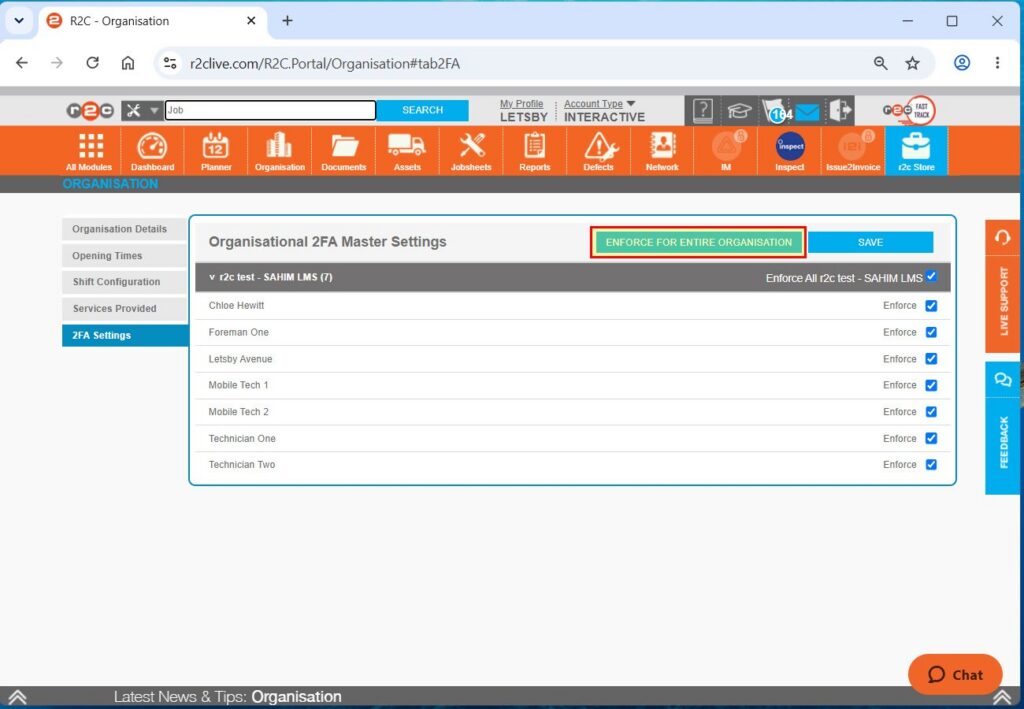
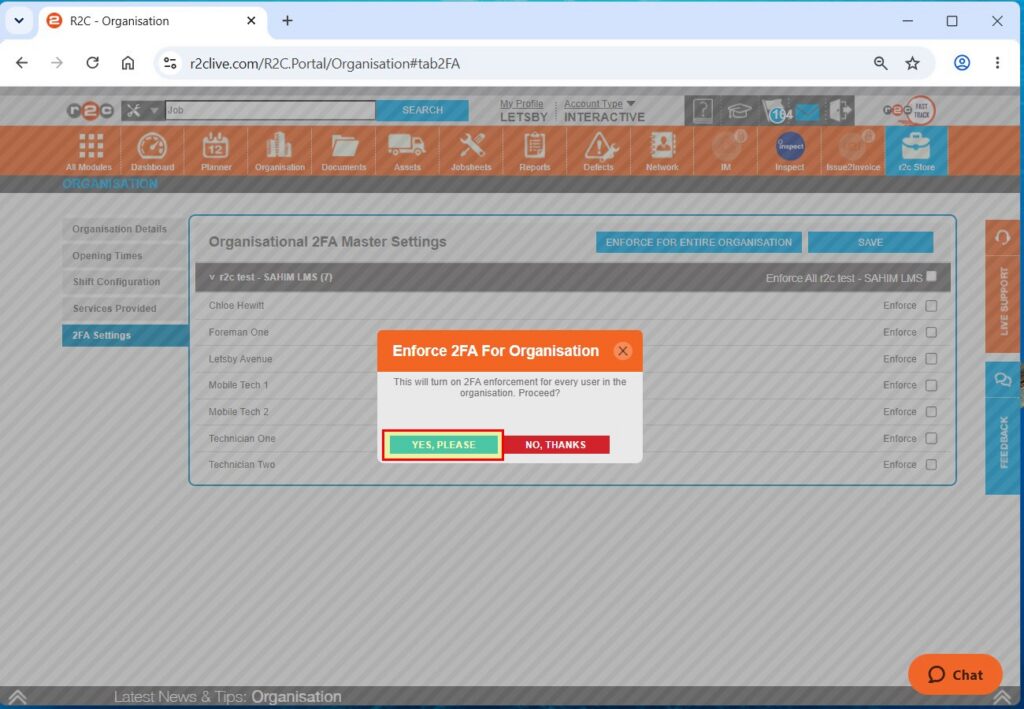
Step 3: To enforce 2FA for all current users, click ENFORCE FOR ENTIRE ORGANISATION.
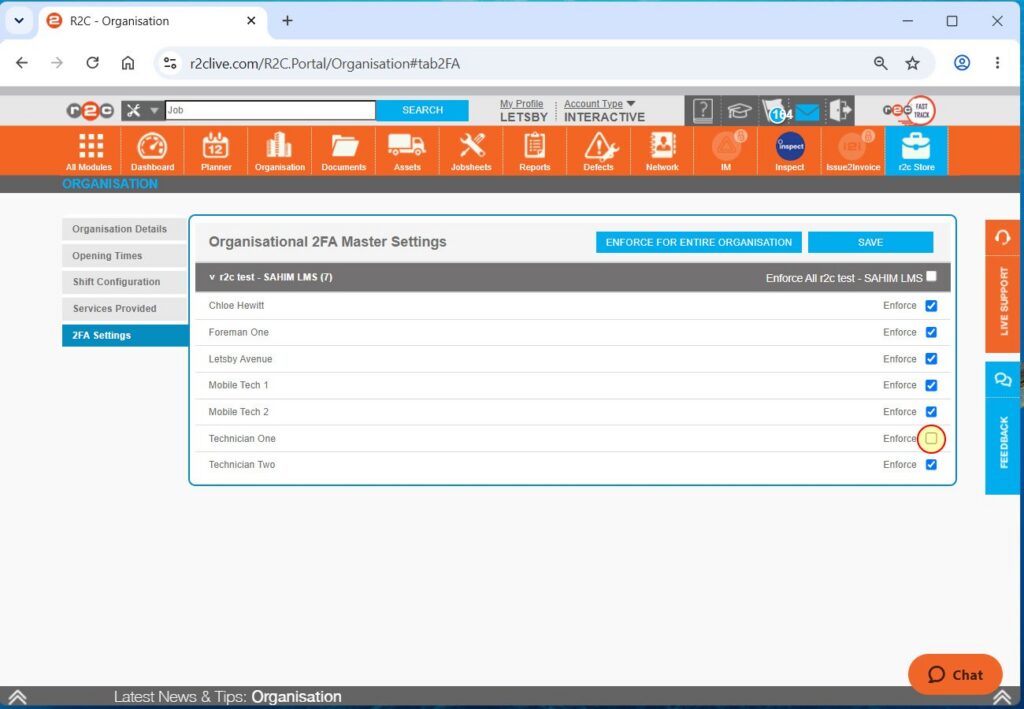
Step 4: Alternatively, you can enable or disable 2FA for individual users by selecting or clearing the relevant checkboxes.
Step 5: Click SAVE, then confirm by selecting YES, PLEASE.
Logging In with 2FA Enabled
Once 2FA has been enabled for your account, the following process will apply each time a user logs in to Portal.
Click or swipe through the 5 steps below.
Step 1: Enter your Username, Password, and Site ID as usual, then click LOGIN.
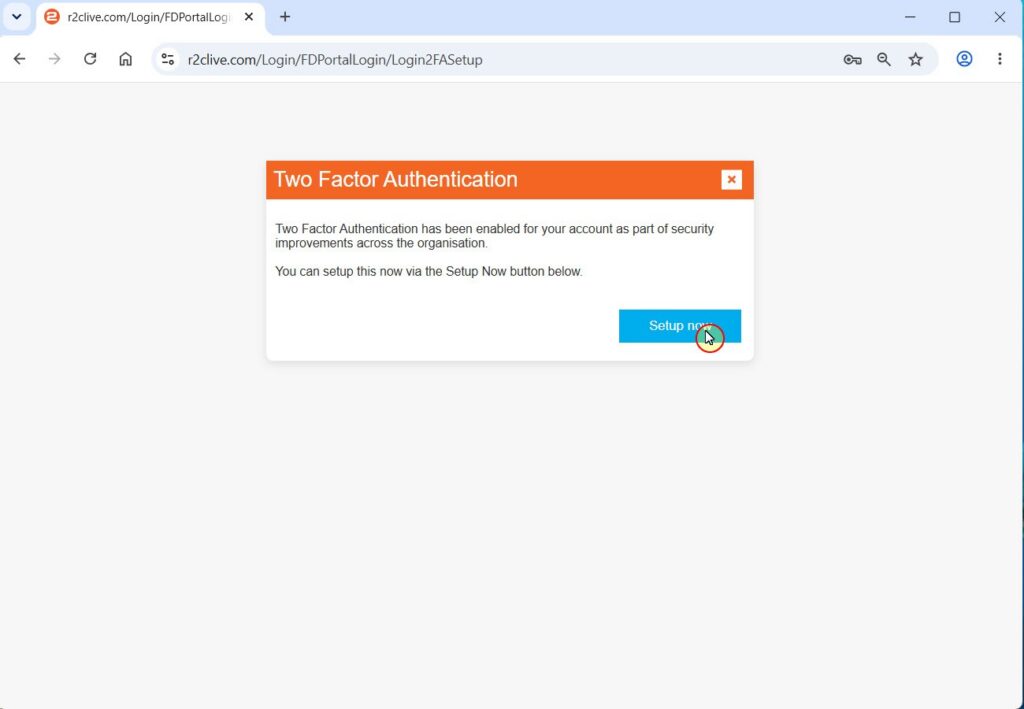
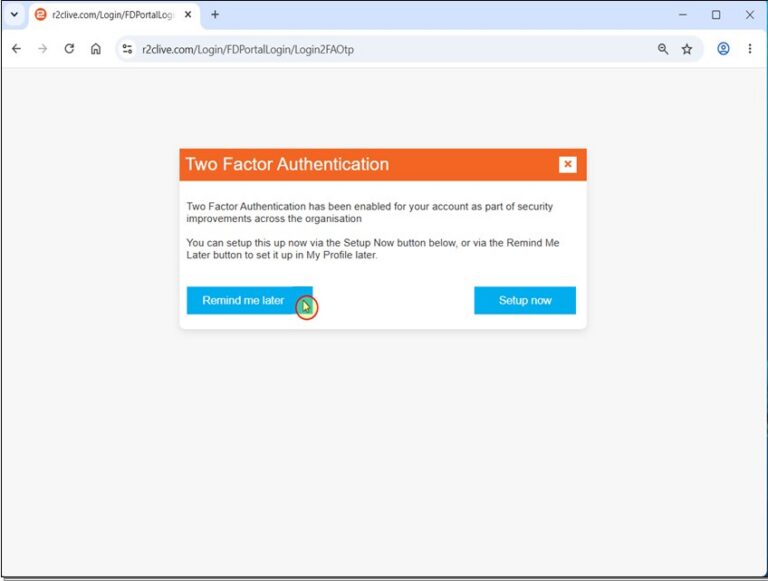
Step 2: Click Setup Now to begin the 2FA setup process.
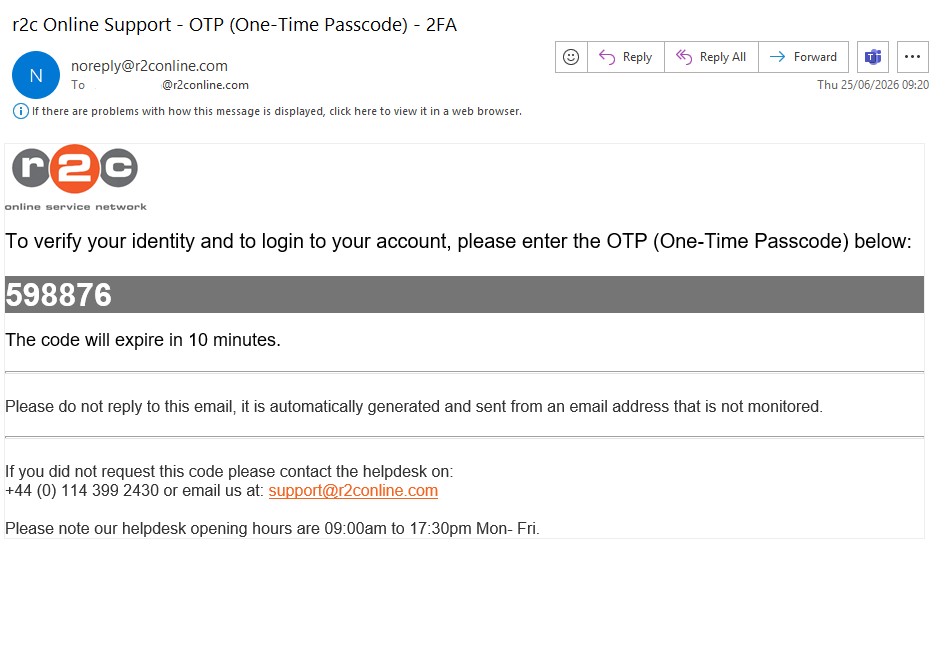
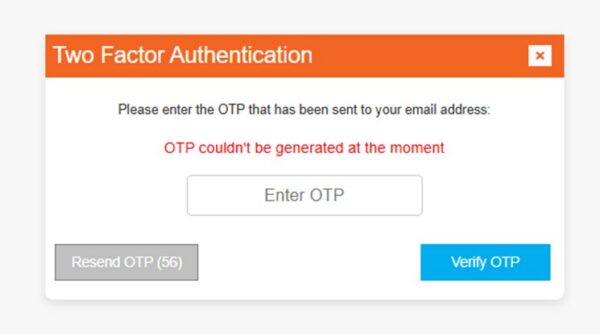
Step 3: A One-Time Passcode (OTP) will be sent to your registered email address.
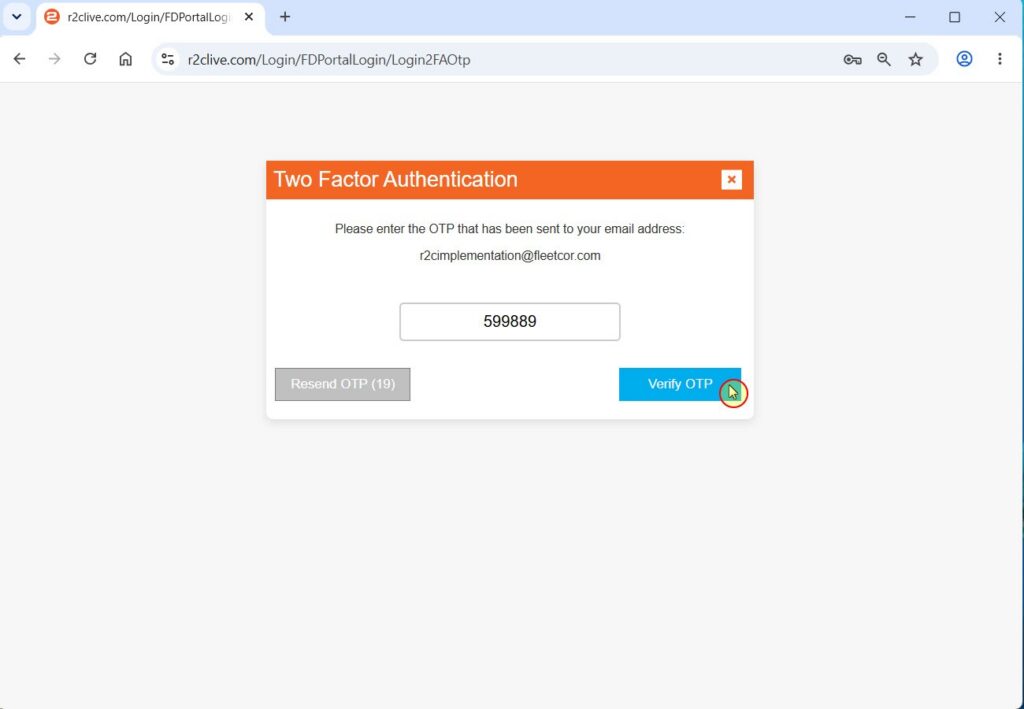
Step 4: Enter the OTP in the verification field and click Verify OTP.
Step 5: Once the code has been successfully verified, you will be logged in to your account. Note: This verification process must be completed each time you log in.
Additional Notes
Users who have been excluded from the 2FA requirement
If 2FA has been enabled for your organisation but is only required for selected users, users who are not currently required to use 2FA will have the option to bypass setup by clicking Remind Me Later during login.
Technical Info & Self Help
I am unable to set upmy account
Missing or Invalid Email Address
2FA relies on a valid email address being stored against the user’s profile. If no valid email address is available, the user will be unable to complete the verification process and an error message will be displayed.
In this situation, an administrator can update the user’s email address via the Organisation page. Once a valid email address has been added, the user can attempt to log in again.
I havenot receivedan OTP code
OTP codes are generated and sent automatically from a noreply email address.
Please check your Junk/Spam folder and review any email forwarding rules or filters you may have in place, as these could be preventing the email from reaching your inbox.
A green outline on the account type icon signifies the guide is applicable whereas a red outline signifies it is not applicable to the the respective account type.