Introduction
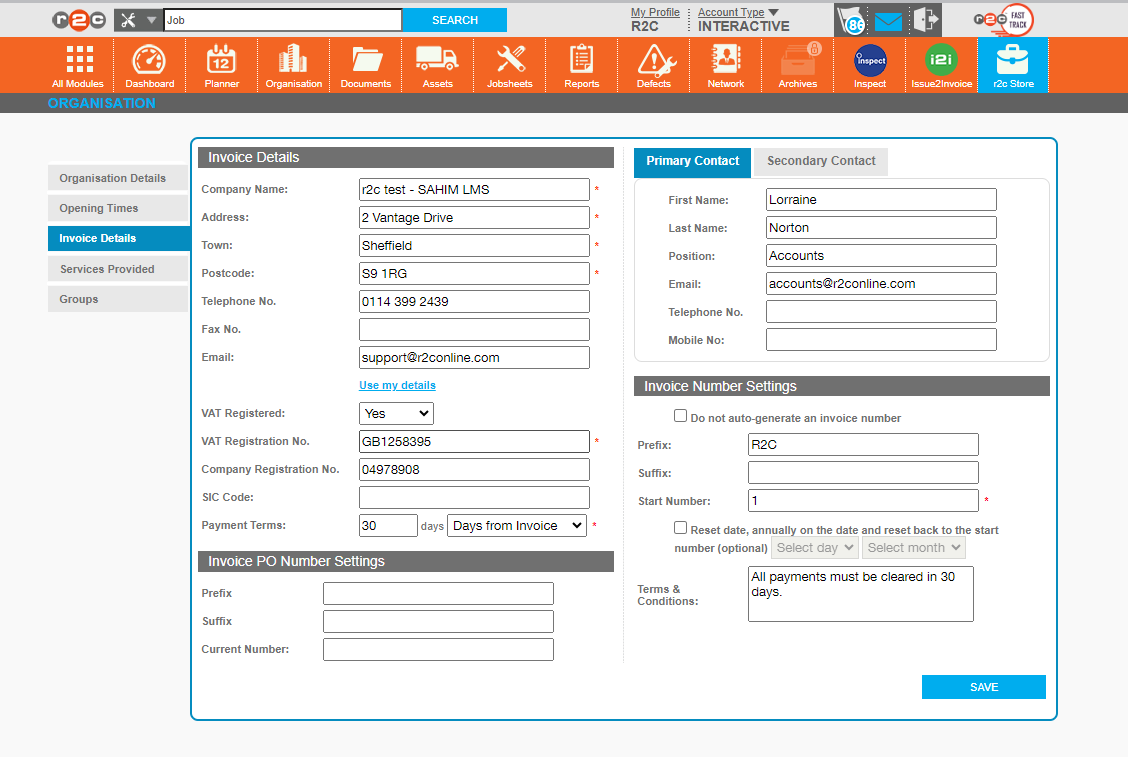
Before you can start to use the i2i module and generate your first invoice. The invoice settings must be configured on the Organisation page. These will then be used to populate all invoices going forwards.
Address Details - If you want to use an alternative address for the invoices, you can manually enter it here.
Alternatively, click 'Use my details' to auto fill this with your stored address from the Organisation Page.
Use my details - Click here to pull through the saved address details from your organisation page.
T&C's- Enter your general Terms and Conditions here, these will be included on all invoices.
Manual Invoice numbers- Tick this box to disable automatic invoice numbers. This means that users will need to enter an individual invoice number manually on each job.
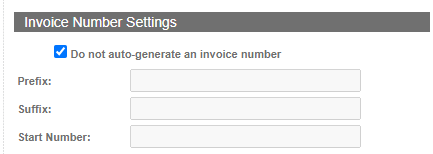
Invoice Number Settings - The system can auto generate an invoice number. These fields can be used to customise the format and start number.
PO Number - The PO number settings are available to Operators and R&M's to auto-generate PO numbers on Jobsheets.
Example Invoice
Invoice PDF – Below is an example invoice that can be generated using the i2i module. This is visible within the portal for both parties when i2i is enabled,
Technical Info & Self Help
Can all my customers view the Invoice?
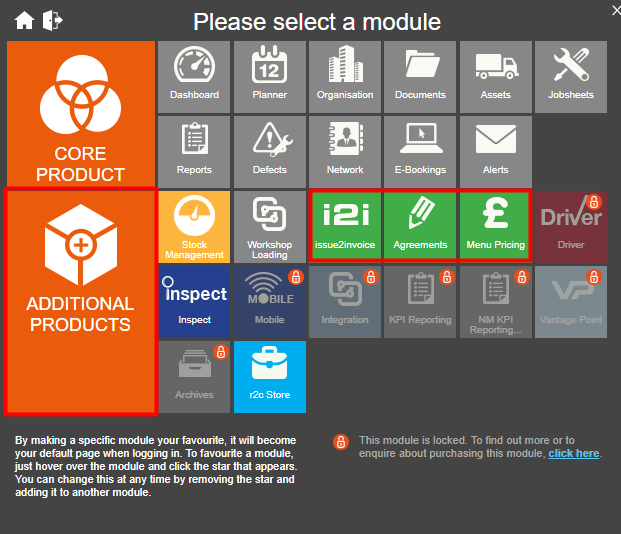
As i2i is an additional module for interactive accounts to purchase. Only interactive customers who have the i2i module enabled, will see the invoice details in portal.