
N/A
Home » Guides » Completing a Jobsheet (non-digital) Workshop

Completing a Jobsheet (non-digital) Workshop

These steps for non-digital jobs are only applicable to workshops. For guidance on on-digital Jobsheets for Operator and R&M accounts please click here.

Table of Contents

Introduction

 When a jobsheet does not need to be carried out using the Inspect system a non-digital job can be completed instead. These jobs can be updated within portal, with scanned documents attached where applicable.

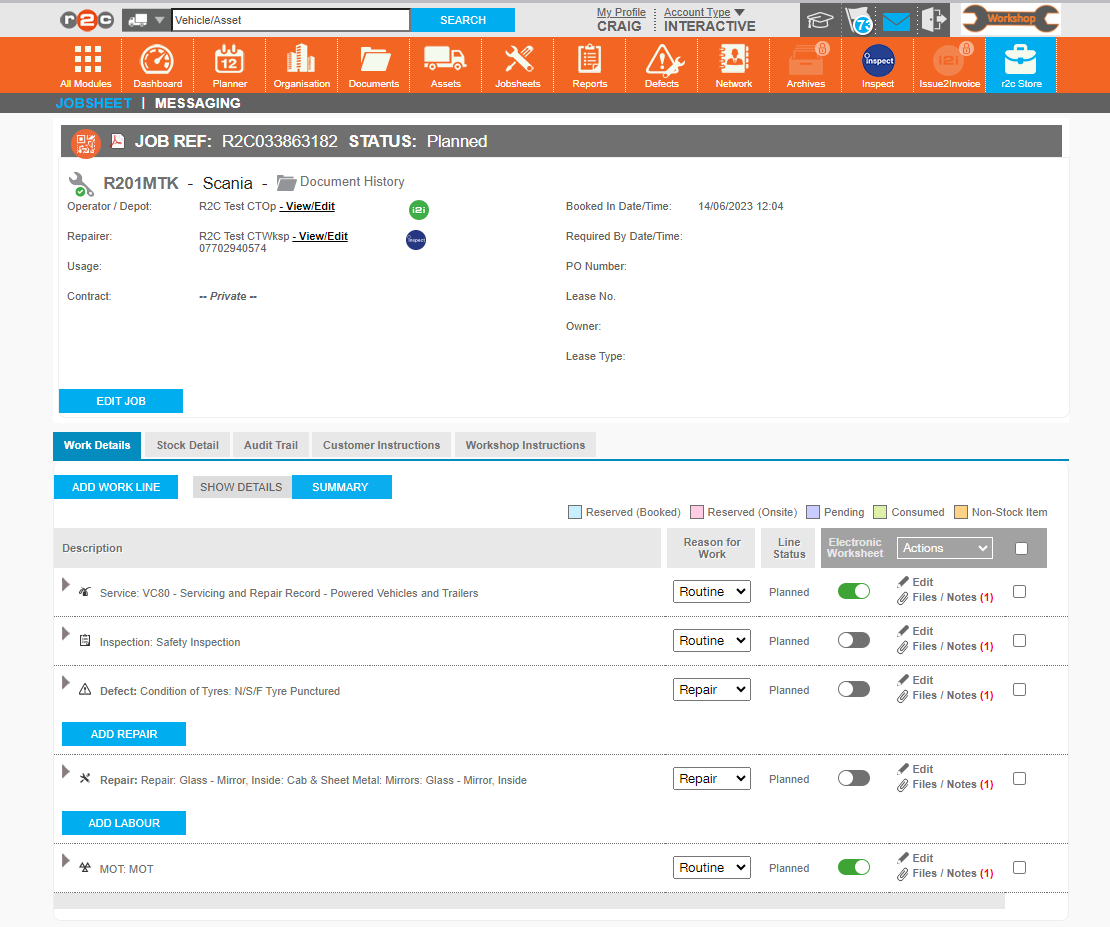
Jobsheets can be made up both digital and non-digital lines. use the hotspots below to explore the differences.   

This column shows whether a task is digital or non-digital. Where a task is digital the Toggle Icon will display as on. These lines must be completed using the Inspect system. 
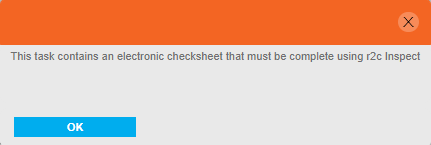
Note: The toggle cannot be switched off for digital lines except for MOT tasks. 

This service line is digital so can only be completed in Inspect. To complete a job inspect please refer to the Inspect Guide. 

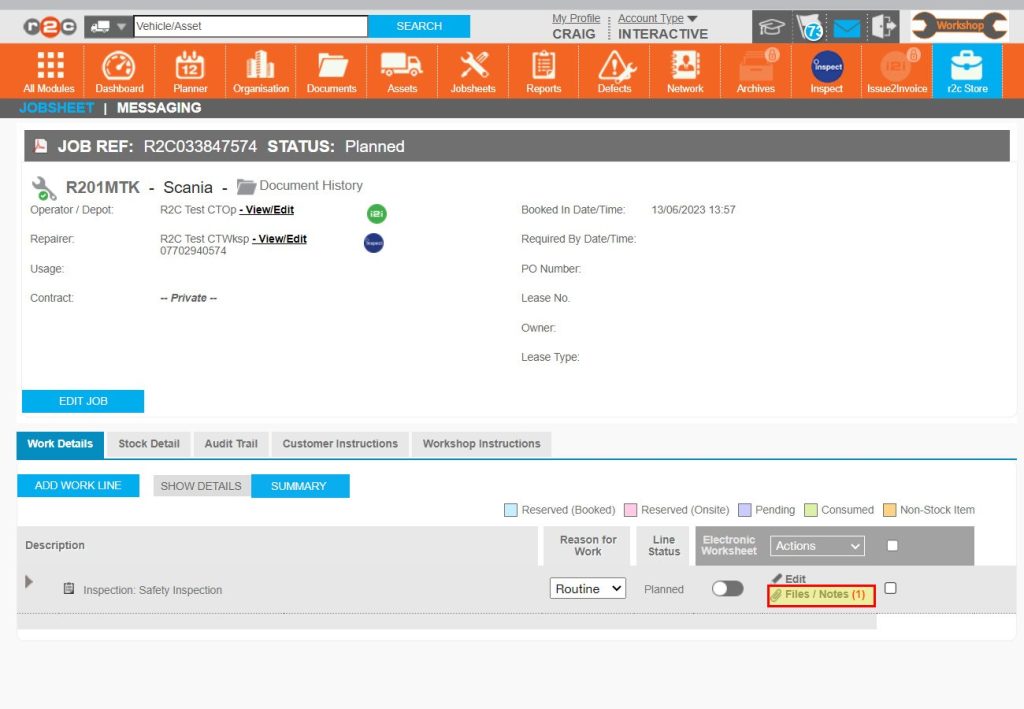
This inspection is non-digital, so can be marked as completed using the steps below.

Defect and repair lines have the option to be completed in Inspect on a digital service sheet or as non-digital within portal. This will depend on your business processes. 

MOT inspections can be done in inspect or converted to a non-digital line using he Toggle.  See the MOT Jobs guide for more details. 

Step by Step

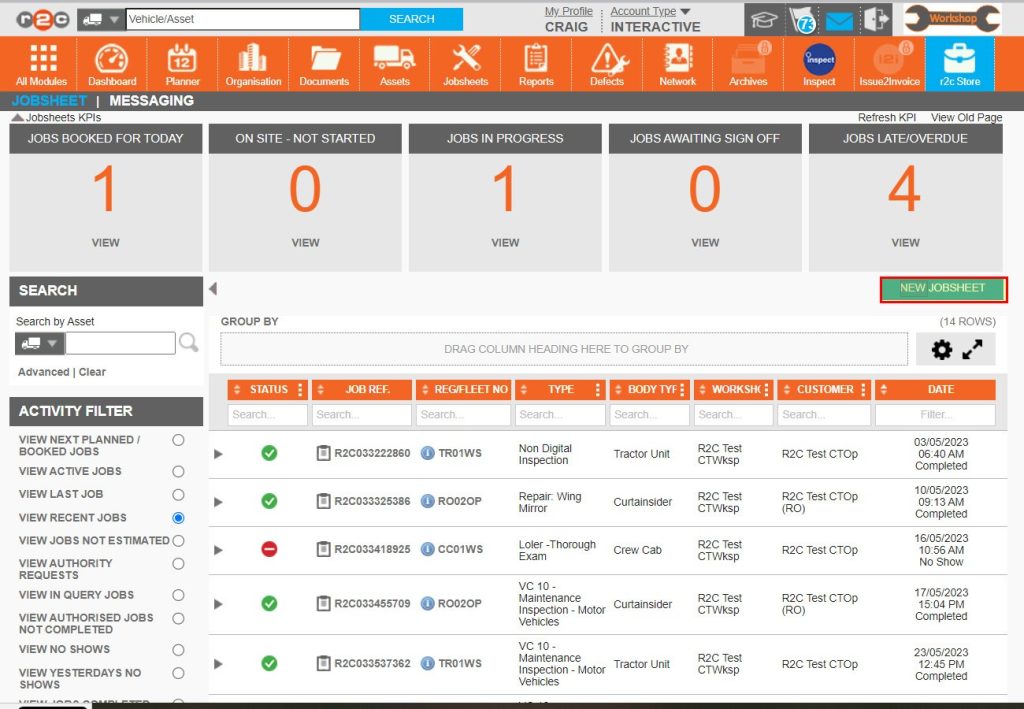
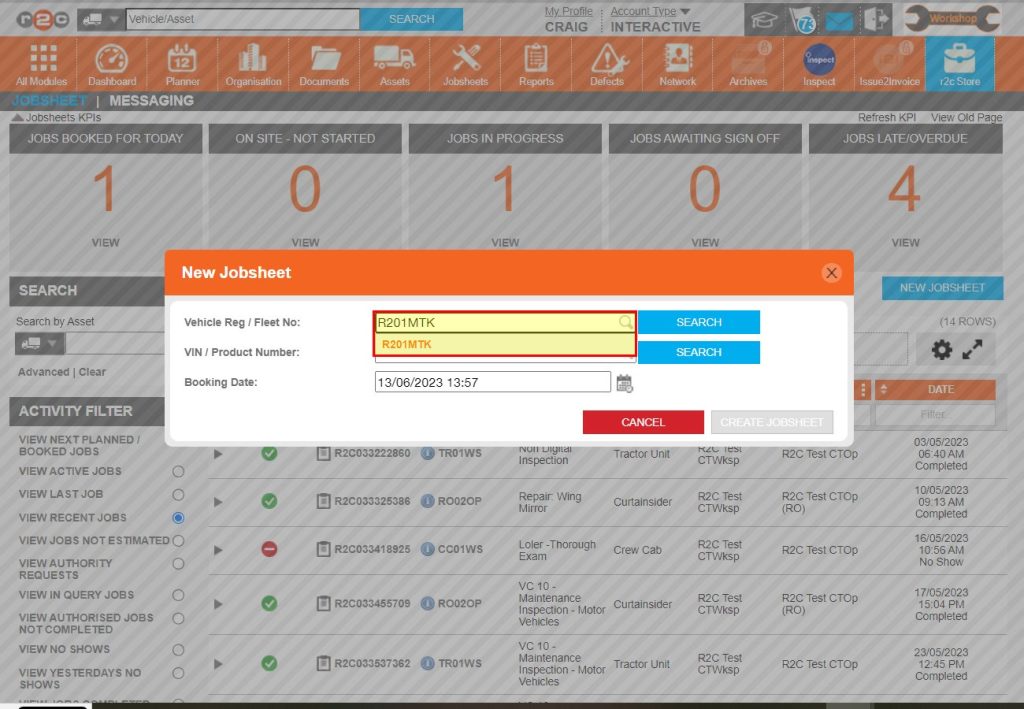
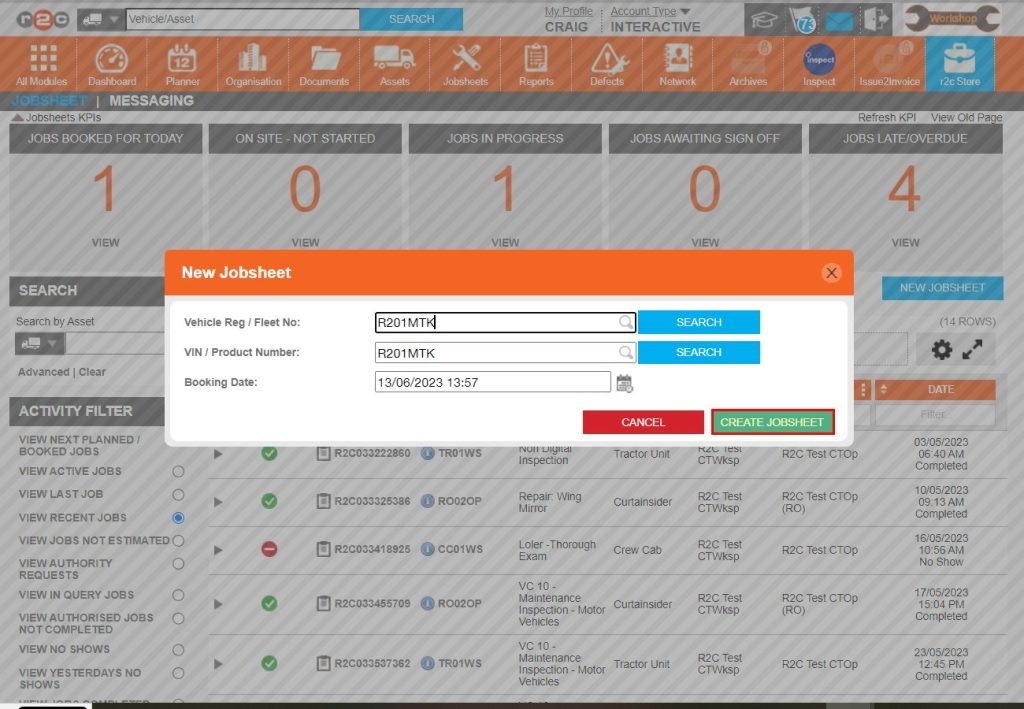
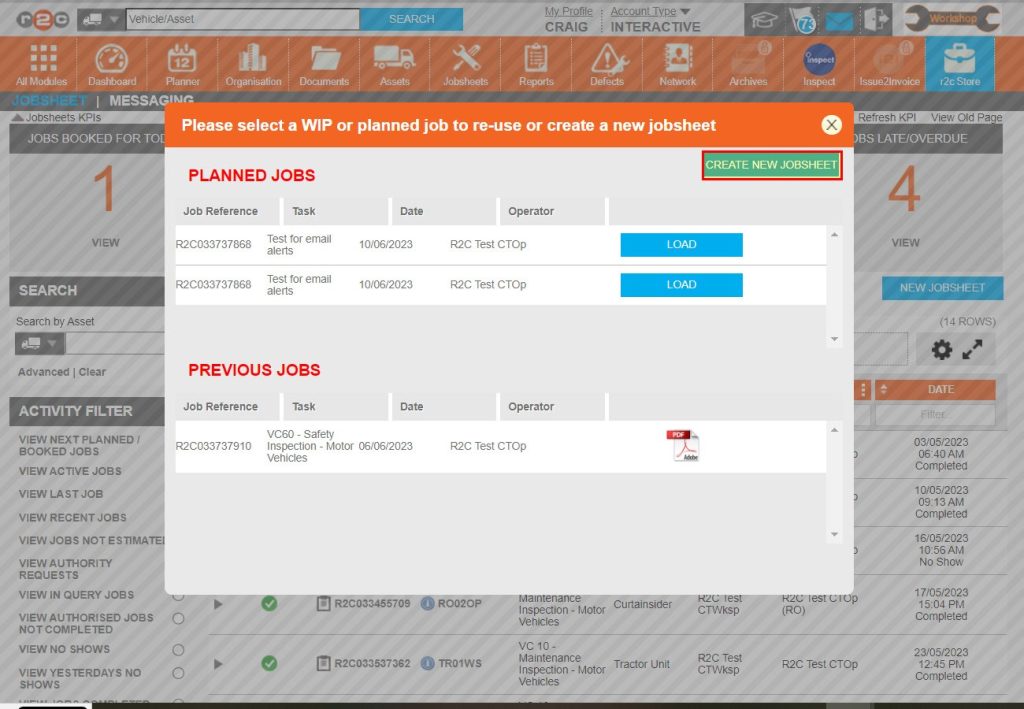
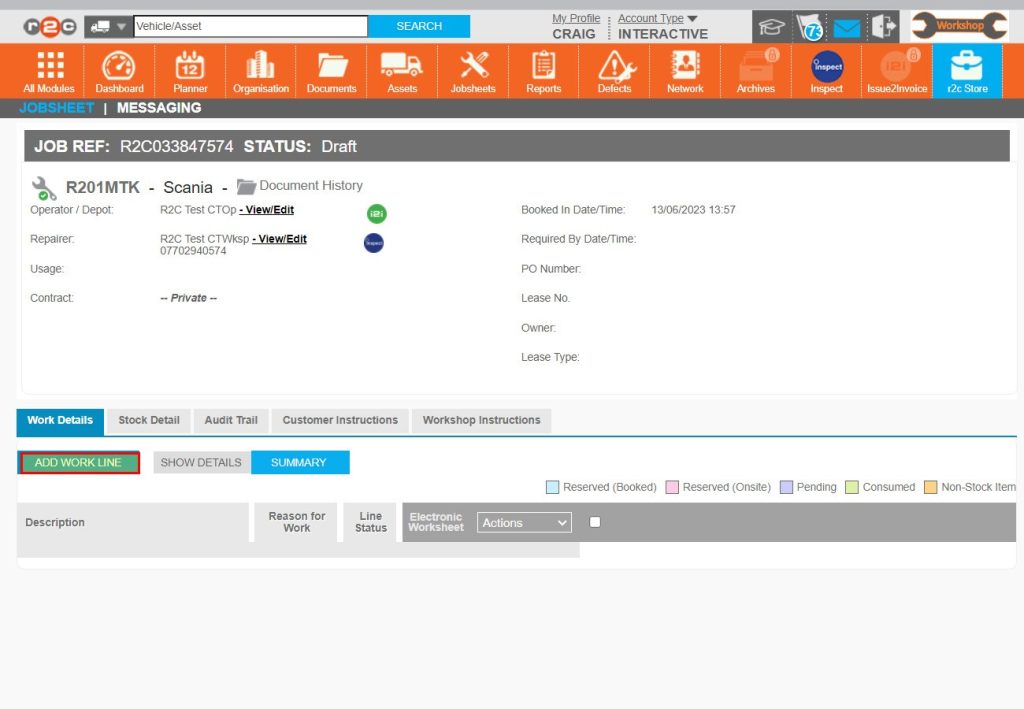
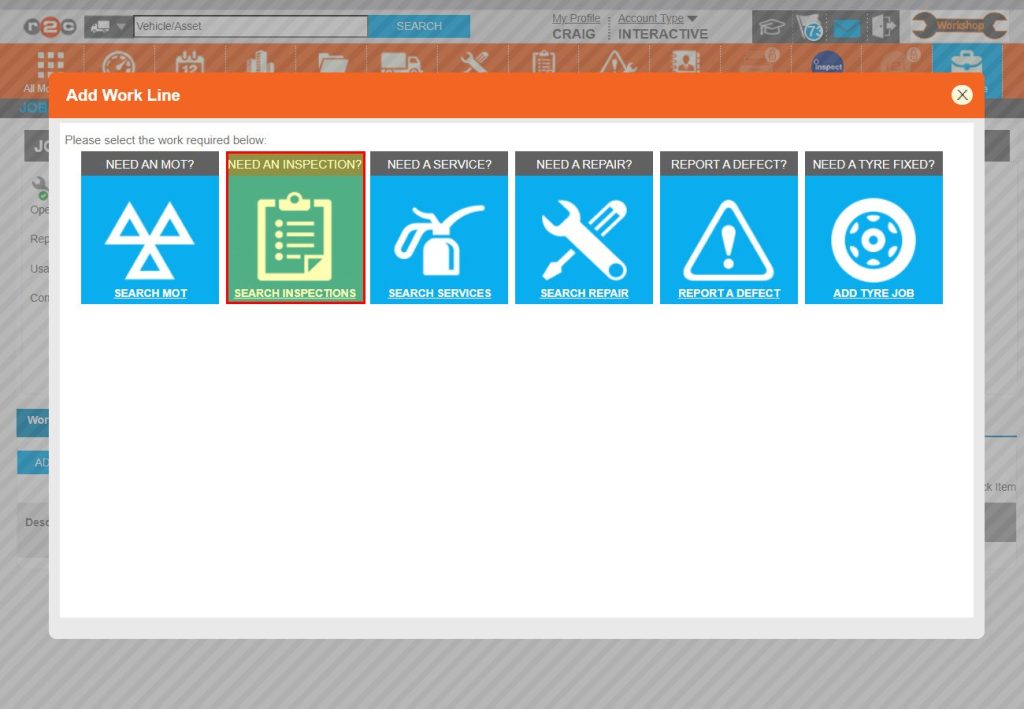
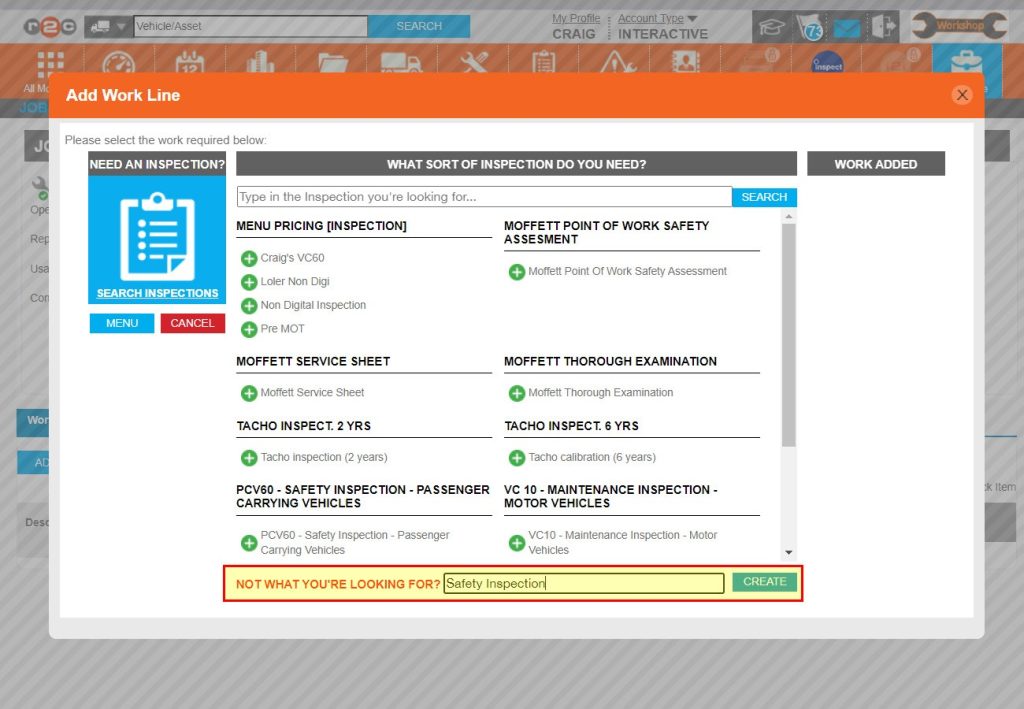
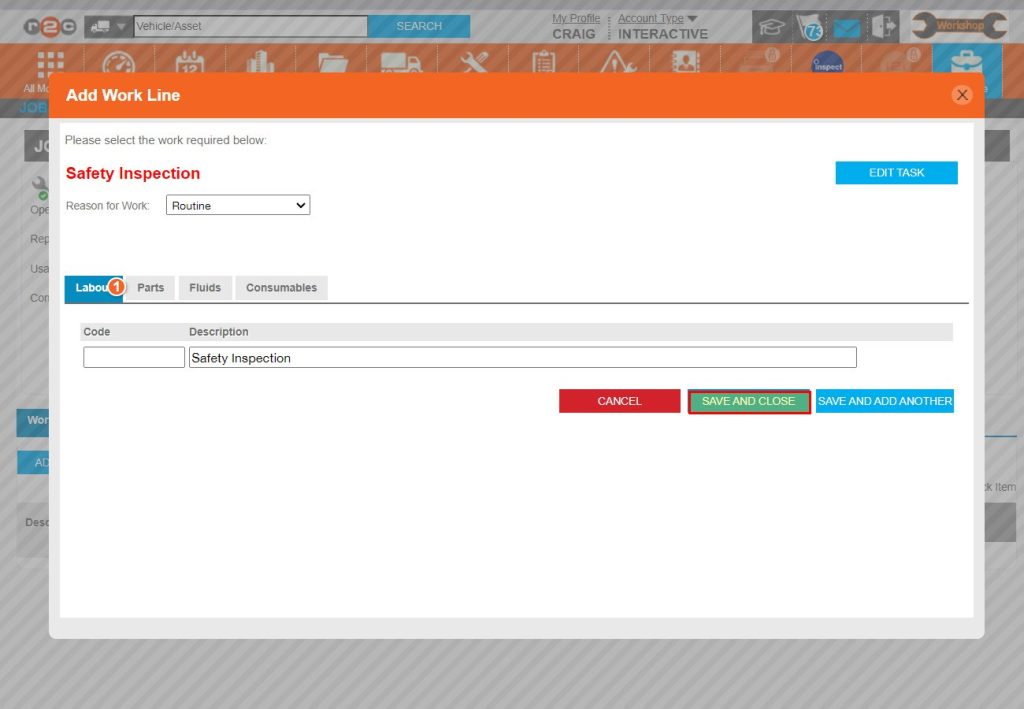
Create a non-digital job- To create a non-digital job, click or swipe through the 8 steps below.

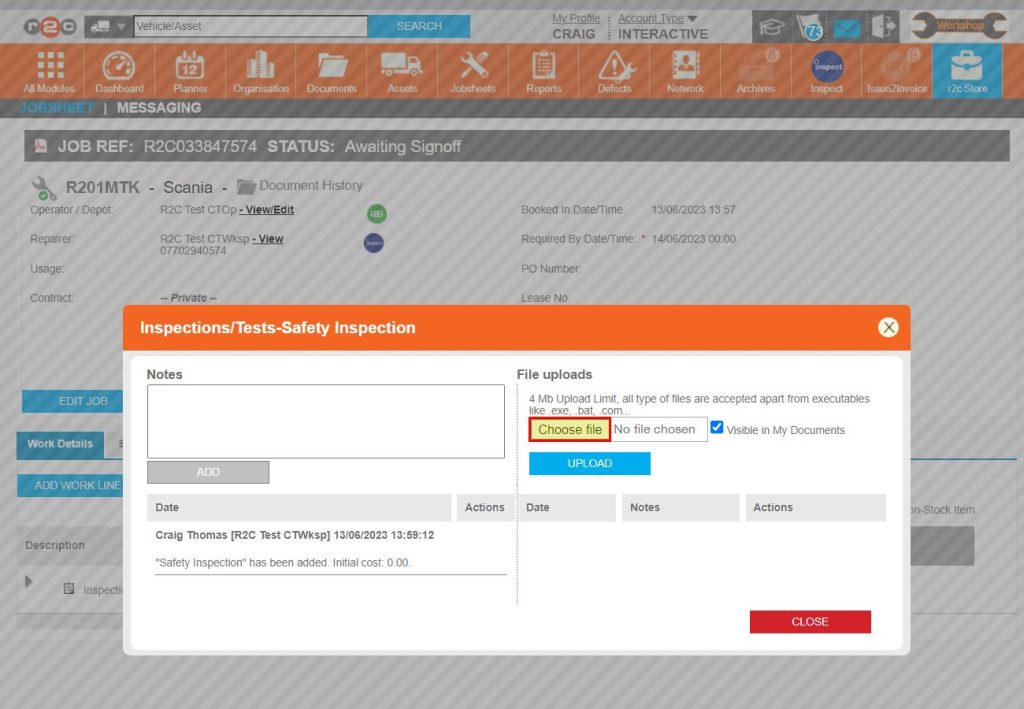
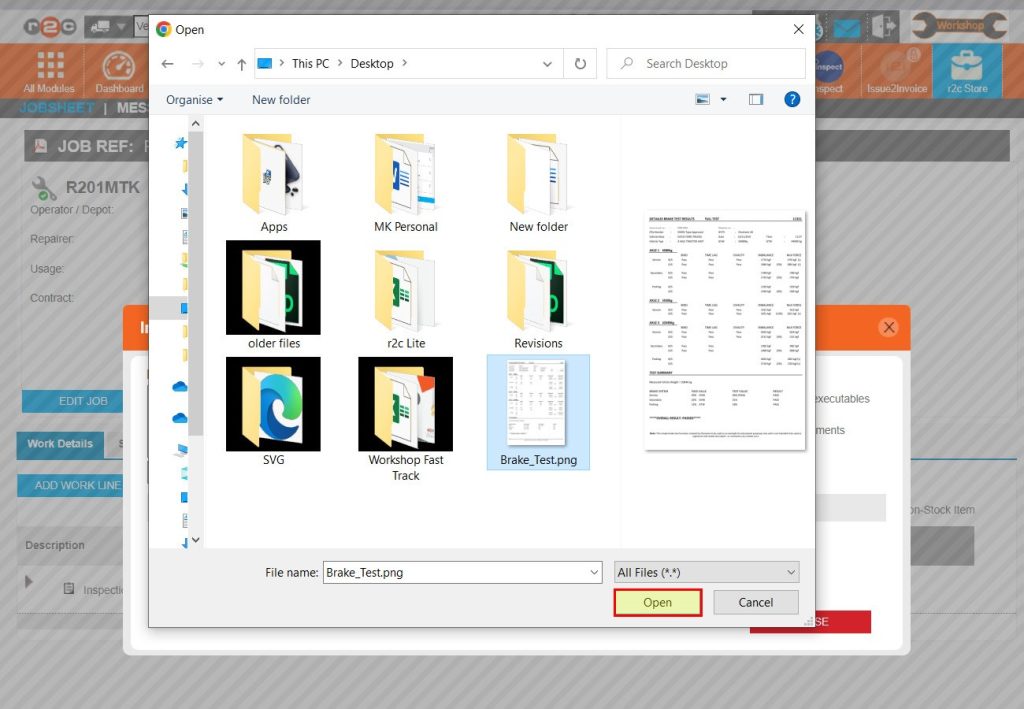
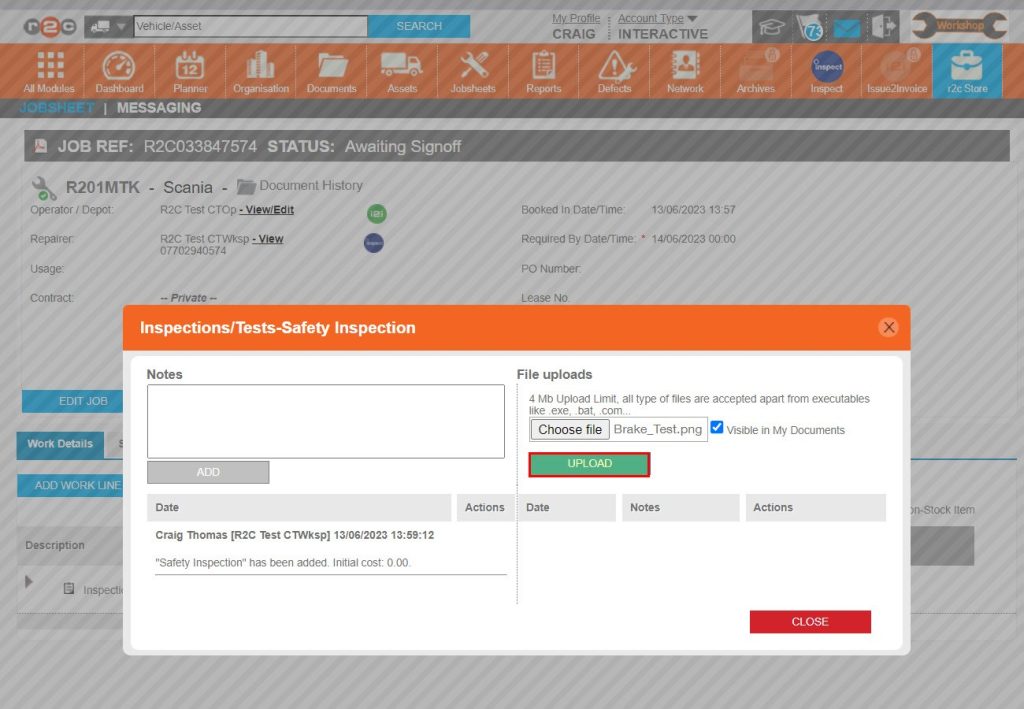
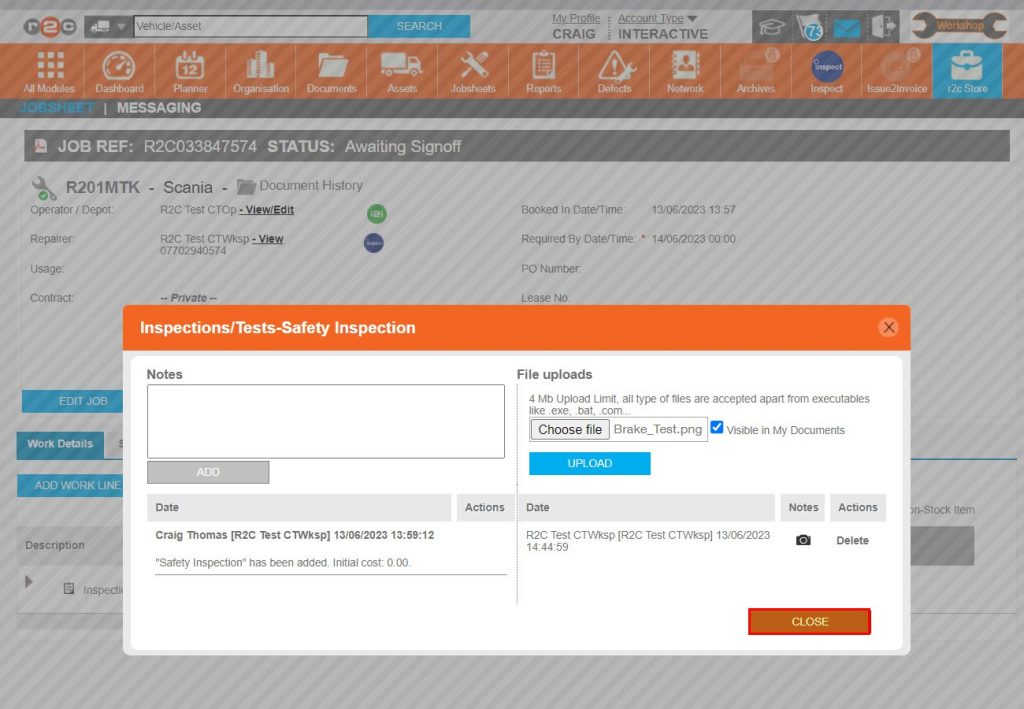
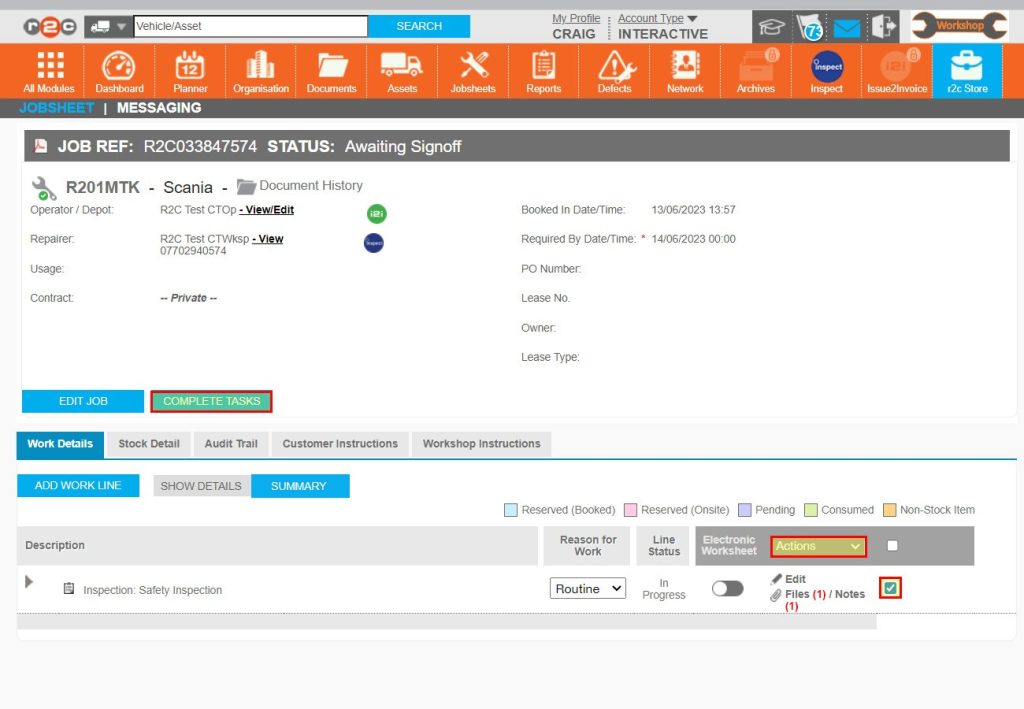
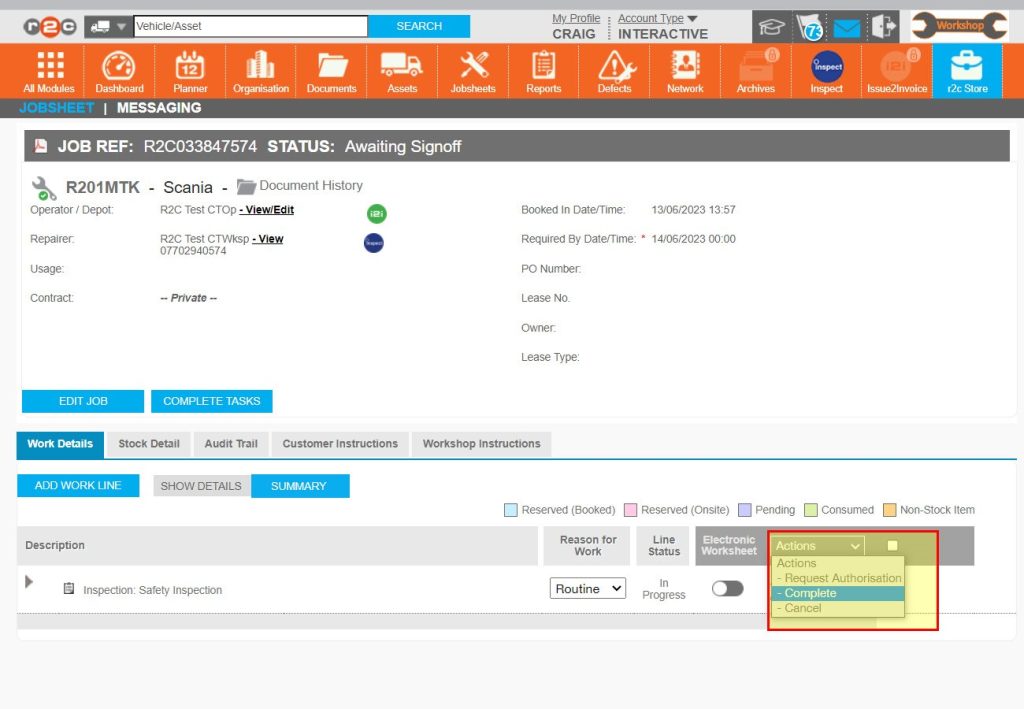
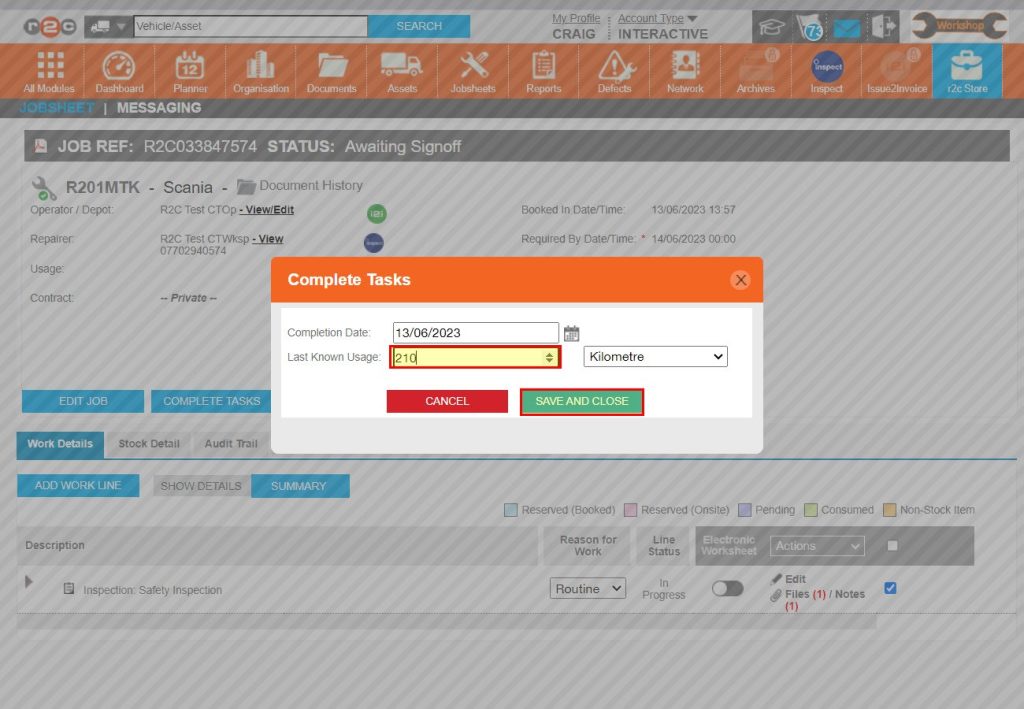
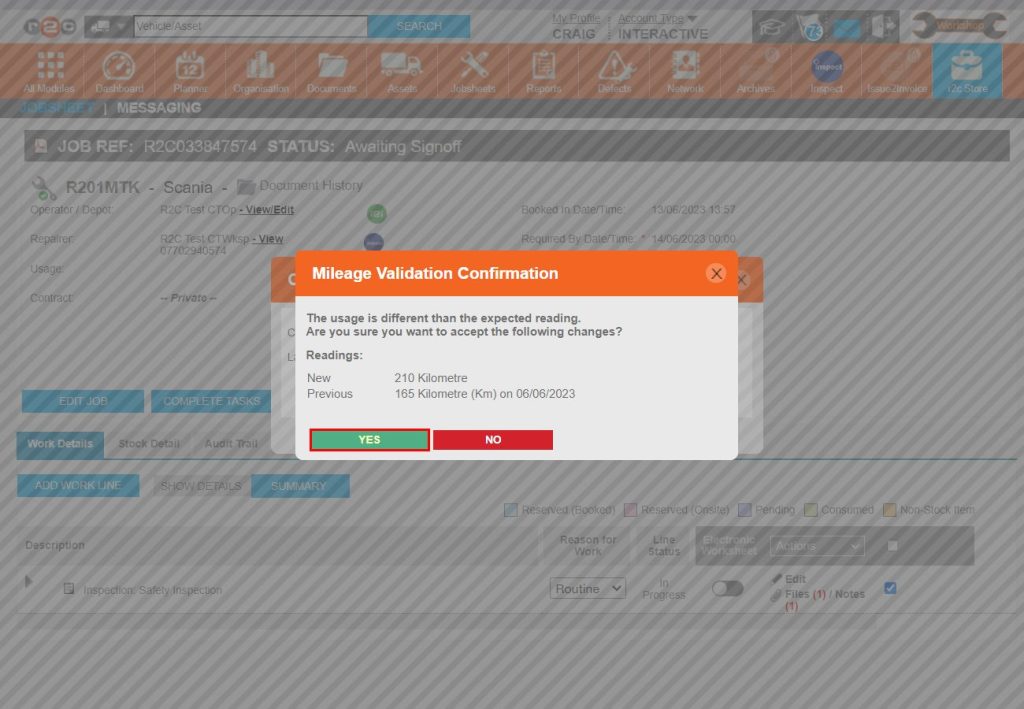
Complete a job- To complete a non-digital job, click or swipe through the 9  steps below.

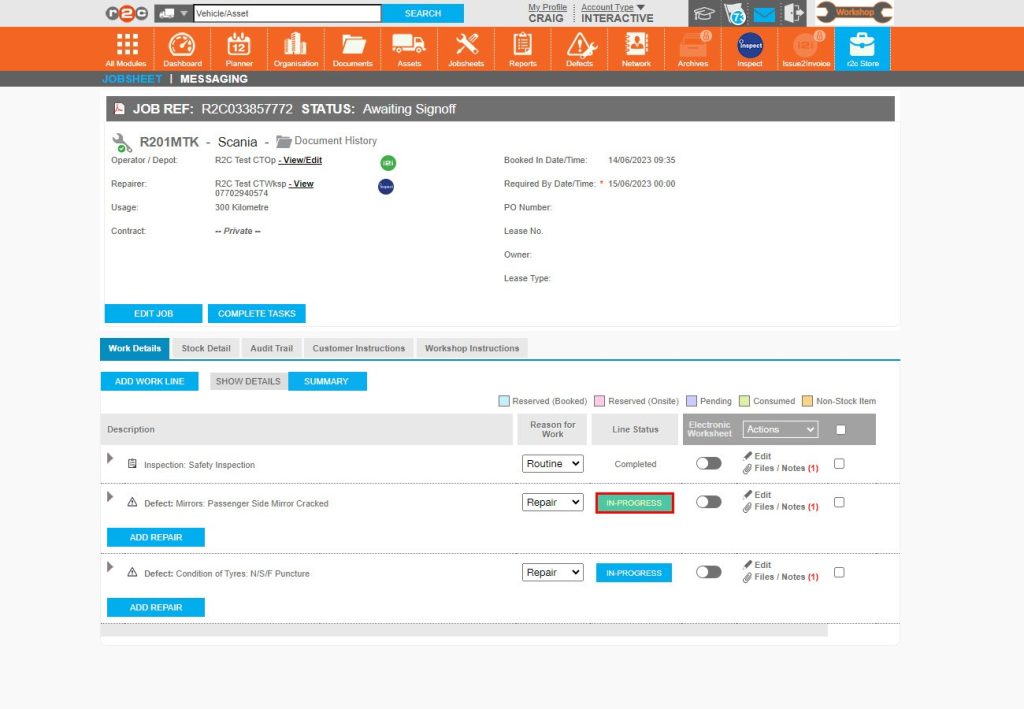
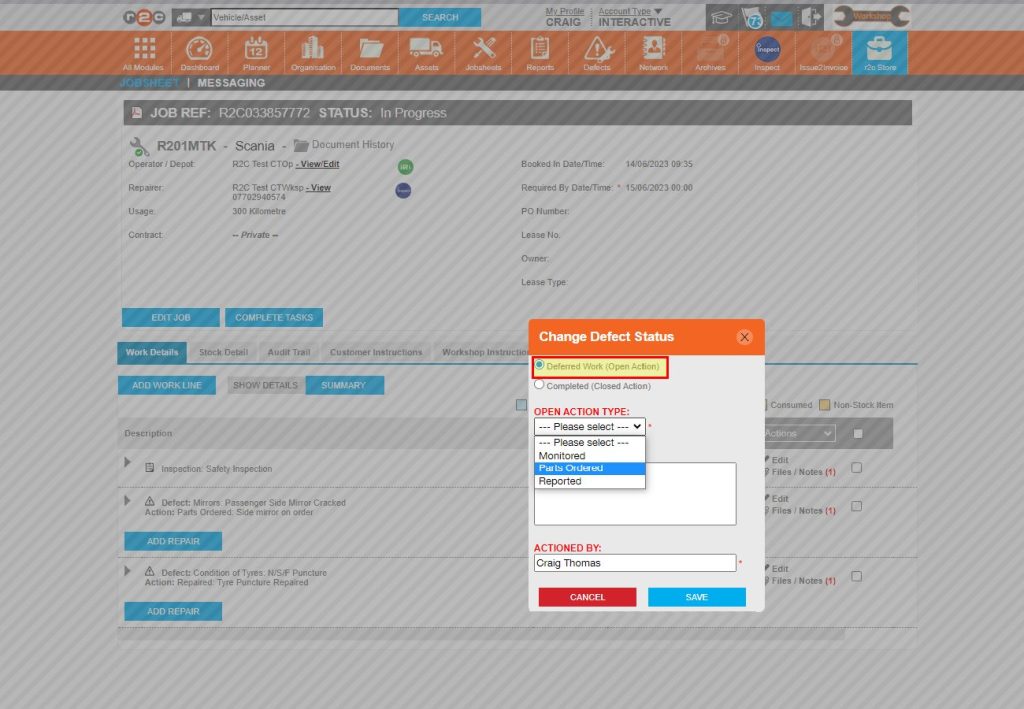
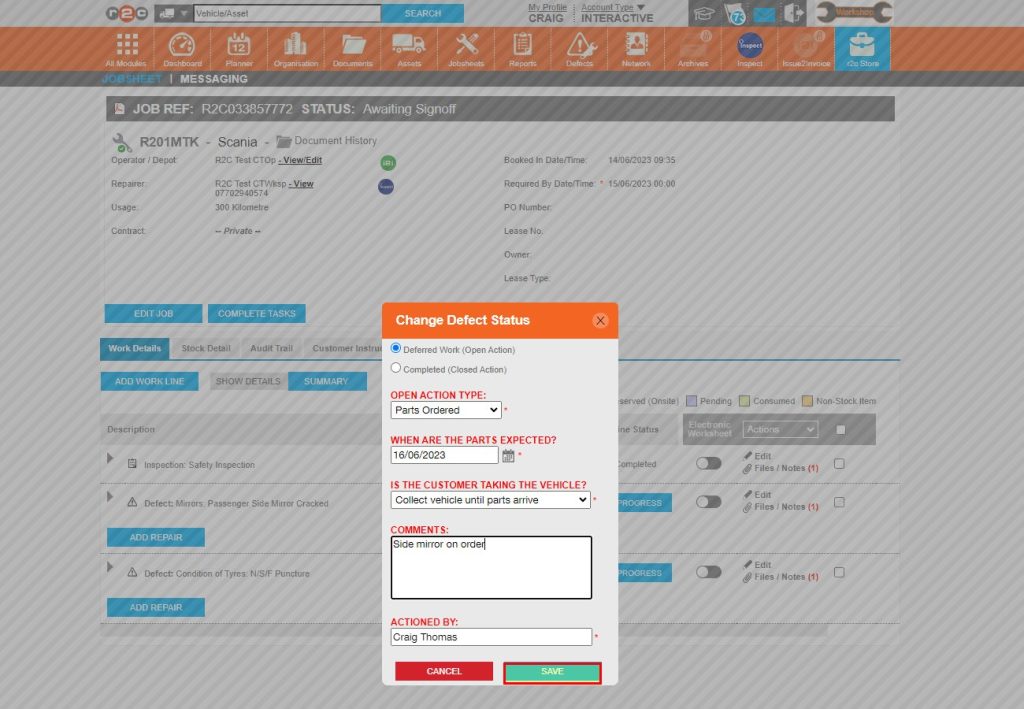
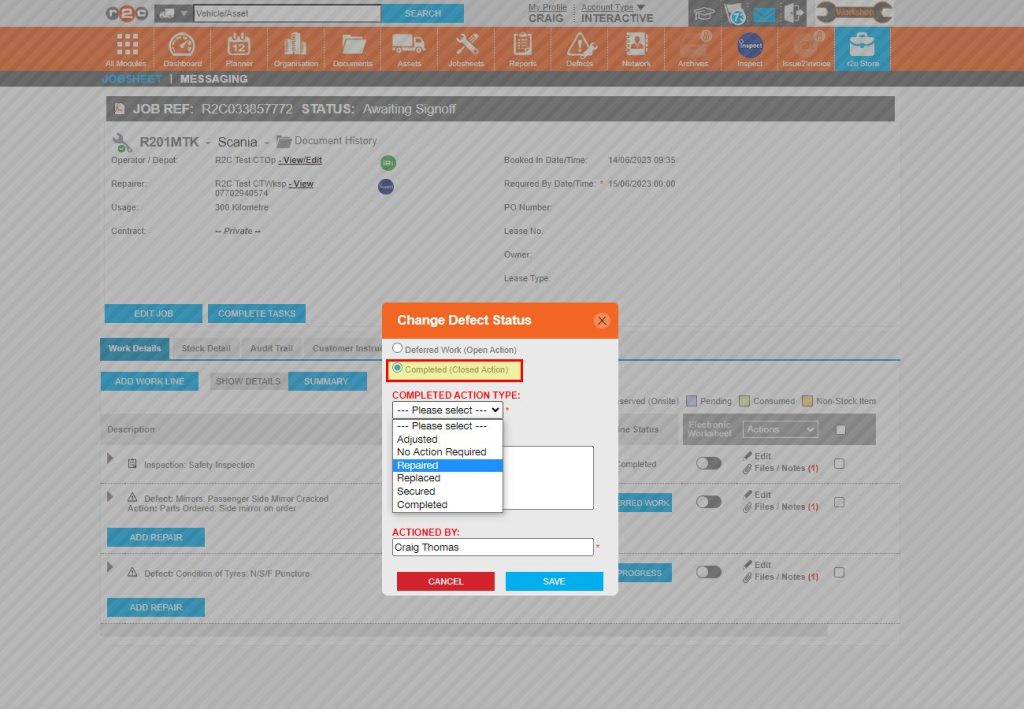
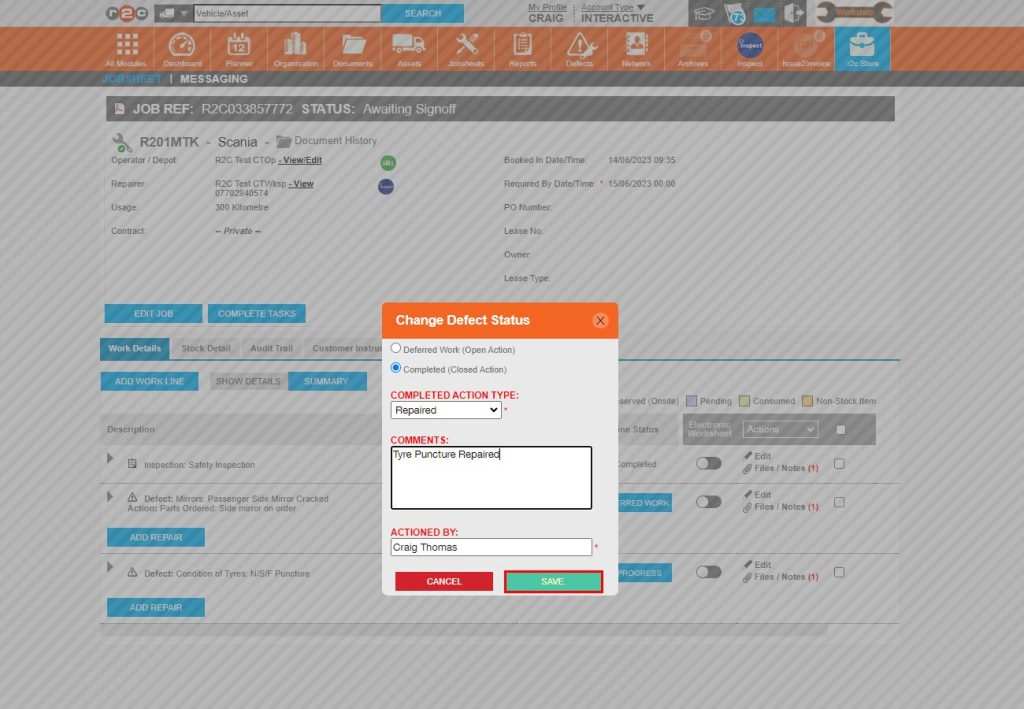
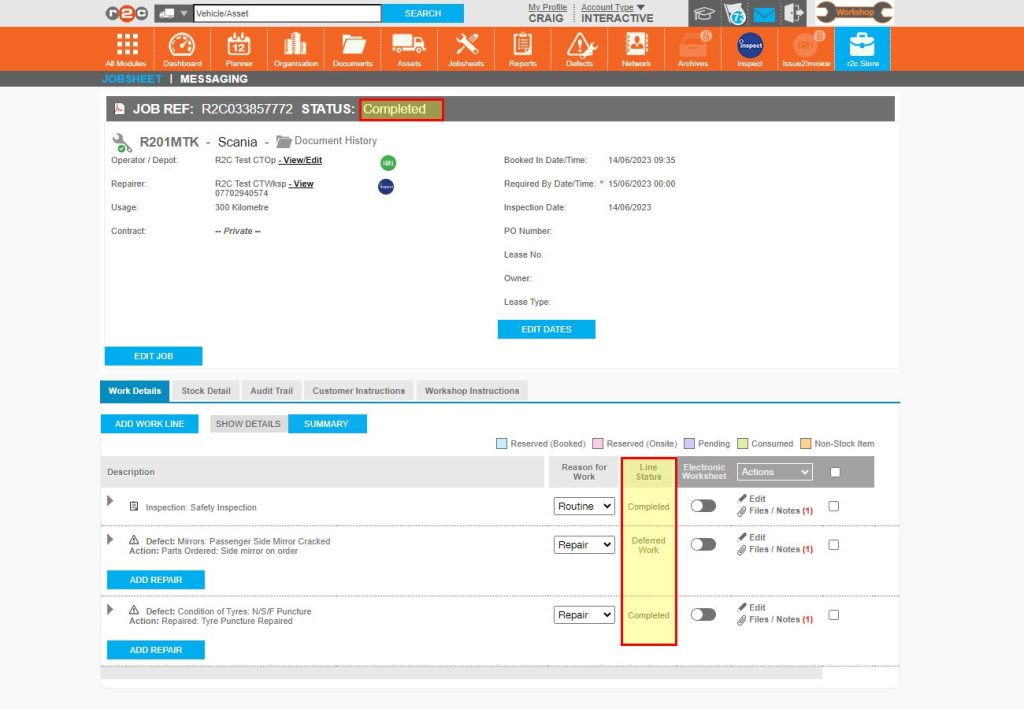
Completing Defect lines – To see the steps taken to complete defect lines within portal, click or swipe through the 6 steps below.

Technical Info & Self Help

Why can't I complete a Non Digital Jobsheet?

In order for a stock movement to occur the job status has to be in progress first. For this reason, the Complete Tasks button is not initially available.

To complete a job, first set the jobsheet status to In Progress, this action will then show the COMPLETE TASKS button for non-digital tasks.

Did you find this page useful?

Overall did you find what you were looking for?

Page Rating
Radio Buttons

Account Icon Key

A green outline on the account type icon signifies the guide is applicable whereas a red outline signifies it is not applicable to the the respective account type.

Repair and Maintenance Provider

Operator

Workshop

Is something broken or missing?

Let us know here

Report an Issue Form