The Transient Fleet function allows for the use of assets by any internal depot whilst ensuring that all relevant locations receive the driver’s checks.
Driver Check Visibility Rules
The operator of the asset will always receive the check.
The driver’s home location will also receive the check (the home location is the Site ID the Driver logs into).
Where applicable, the asset’s assigned location will also receive the check. (assigning assets to depot locations is optional)
Example One - Unassigned Assets
Driver Check
If Depot 1 has a driver who performs a check on an asset that is not assigned to a depot, the check will be visible to the Operator and Depot 1 but no other Depot. -
The defect will only appear at parent location.
Operator
The check and any defect is visible to the operator as the asset's parent.
Depot 1
Only the check is visible to Depot 1 as it's the driver's home location.
Depot 2
Example Two - Assigned Assets
Driver Check
If Depot 1 has a driver who performs a check on an asset assigned to Depot 2, it is visible to the Operator, Depot 1 and Depot 2. - The defect will appear at the assigned Depot and the operator account.
Operator
The check and any defects are visible to the operator as the asset's parent.
Depot 1
Only the check is visible to Depot 1 as it's the driver's home location.
Depot 2
The check and any defects are visible to Depot 2 as the asset is assigned here.
Technical Info & Self Help
What if I have a mixture of assigned and unassignedassets?
Both of the above examples would apply providing separate checks are carried out. For example, when a driver is carrying out a check on an assigned tractor unit and an unassigned trailer, the checks would need to be independent of each other.
What isassigned and unassigned?
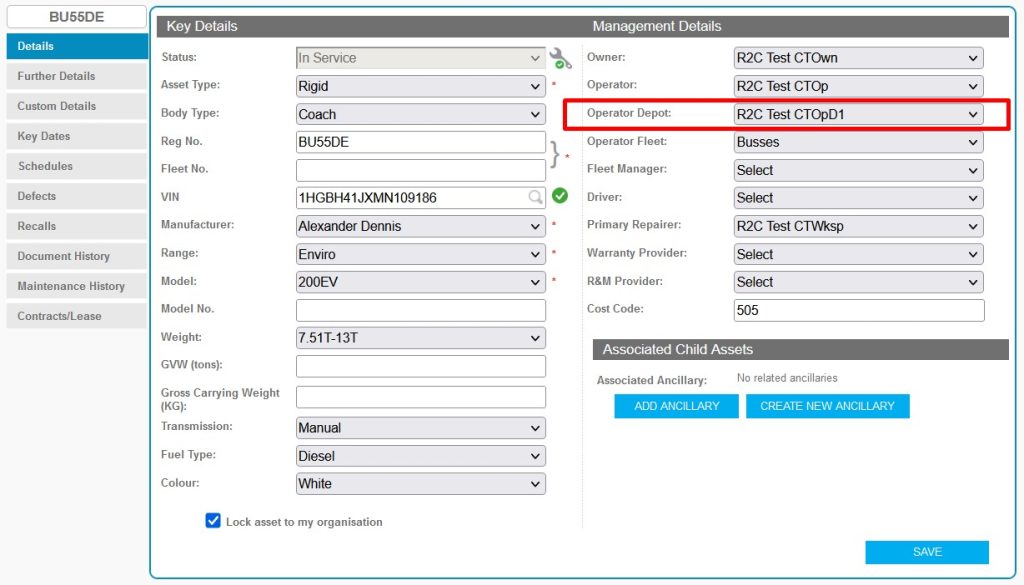
An asset can be assigned to a depot in order to monitor its location at any given time. Assigning an asset is achieved by selecting the depot location from the ‘Operator Depot’ drop-down list in the asset details.
A green outline on the account type icon signifies the guide is applicable whereas a red outline signifies it is not applicable to the the respective account type.