Introduction
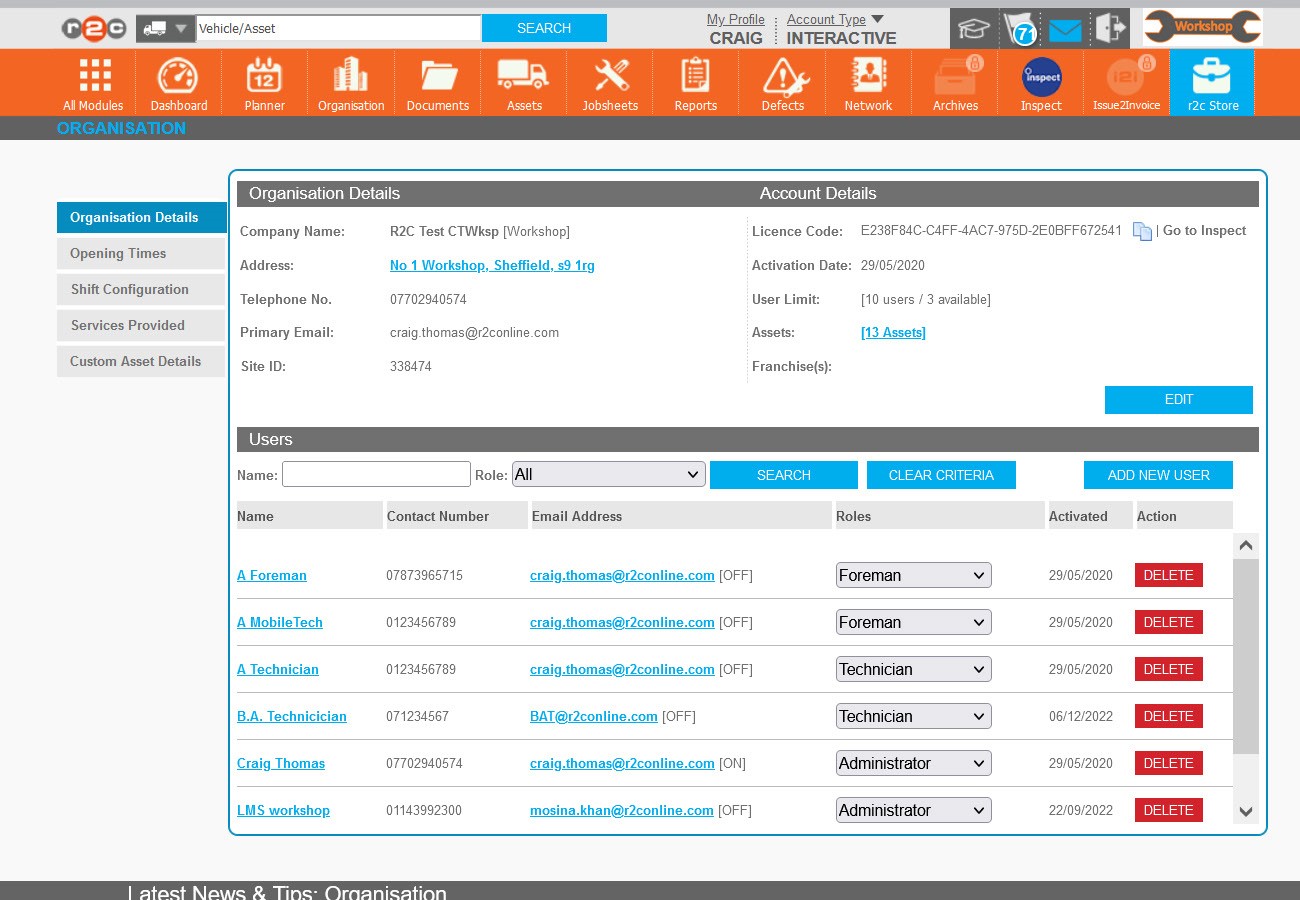
Individual users can access and update their details from the My Profile Link. However, the complete user list can be managed by local administrators from the organisation page .
Step by Step
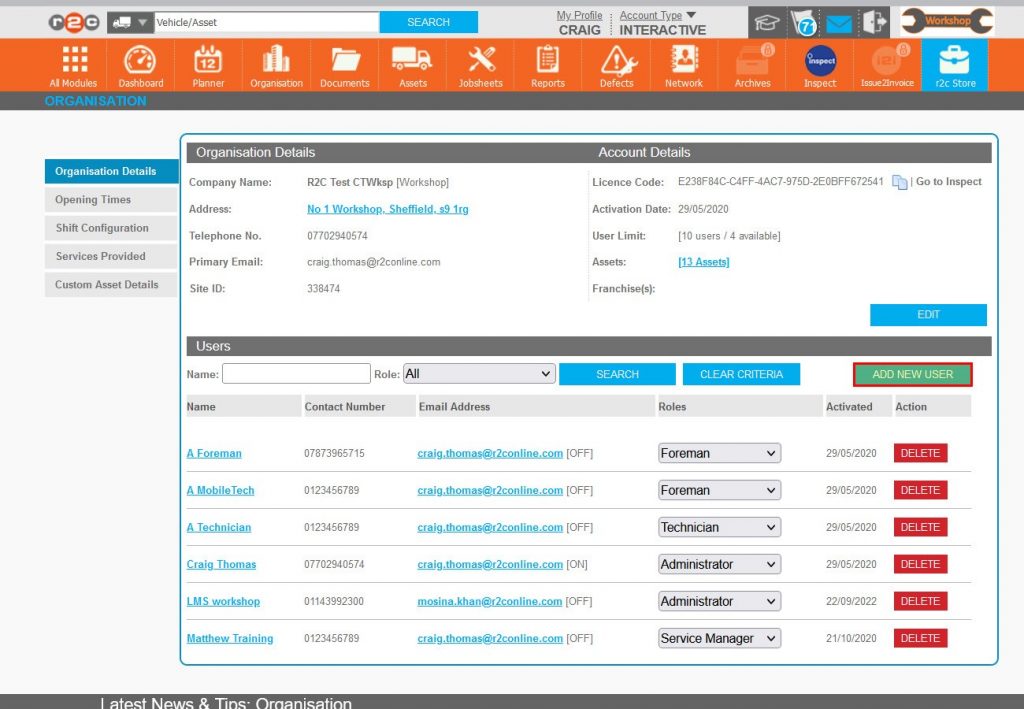
In order to add users to r2c, there must be an availability, if the ADD NEW USER button is not displayed it could be because you have reached your user limit. To request an increase in your user limit, contact r2c support.
The Add New user button will only display for Administrator users. To see more information on user role permissions, see Workshop User Roles
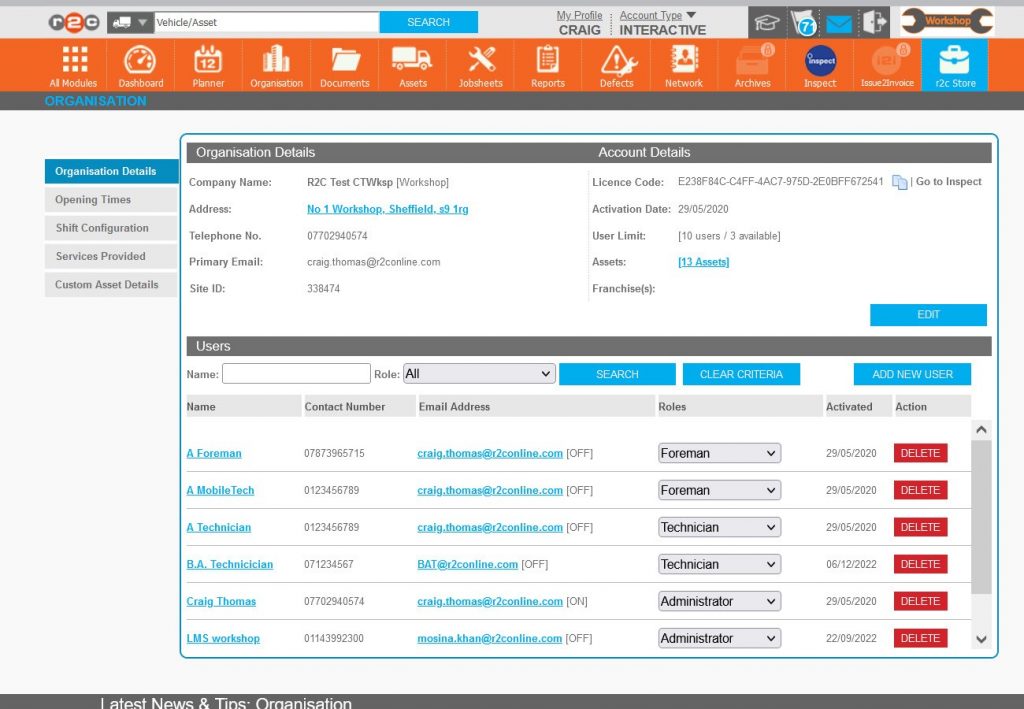
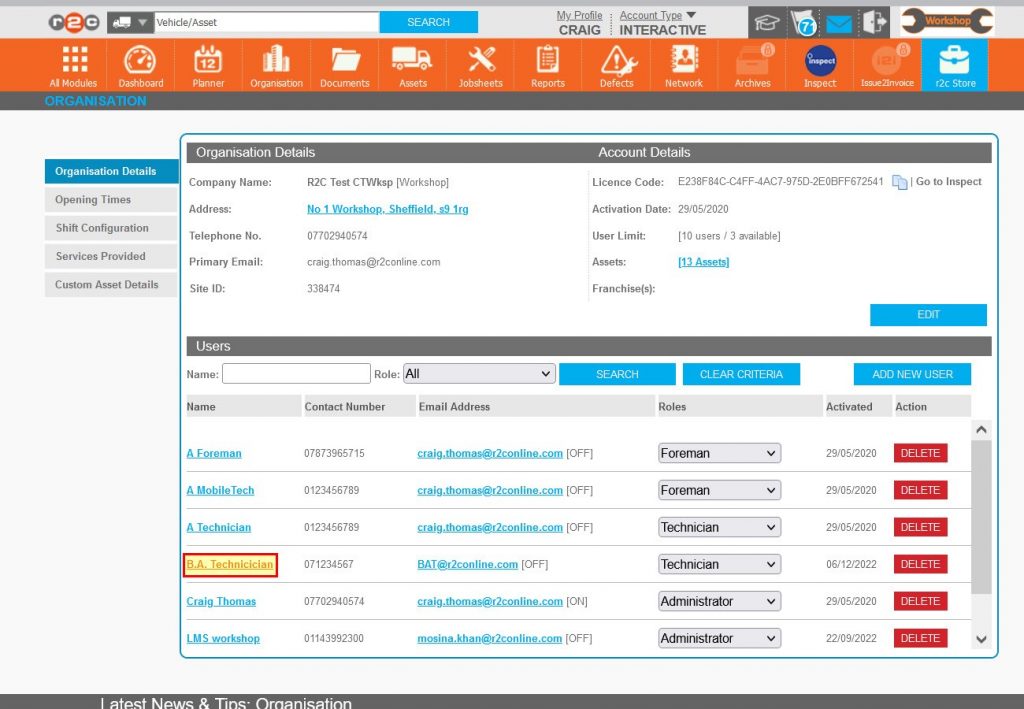
All user accounts can be managed from here by clicking on the user name.
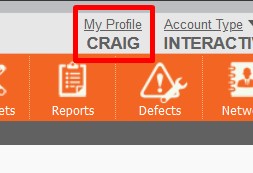
To manage your individual login details and preferences click 'My Profile'
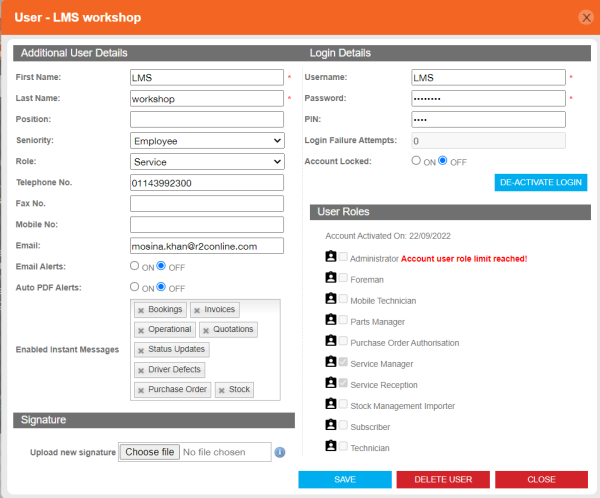
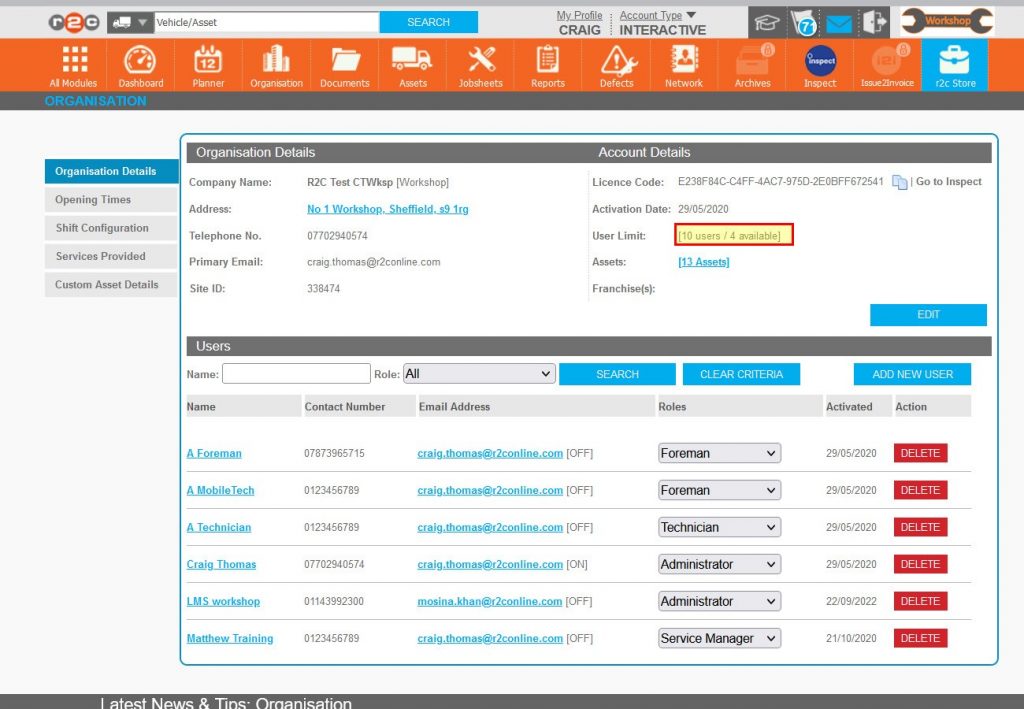
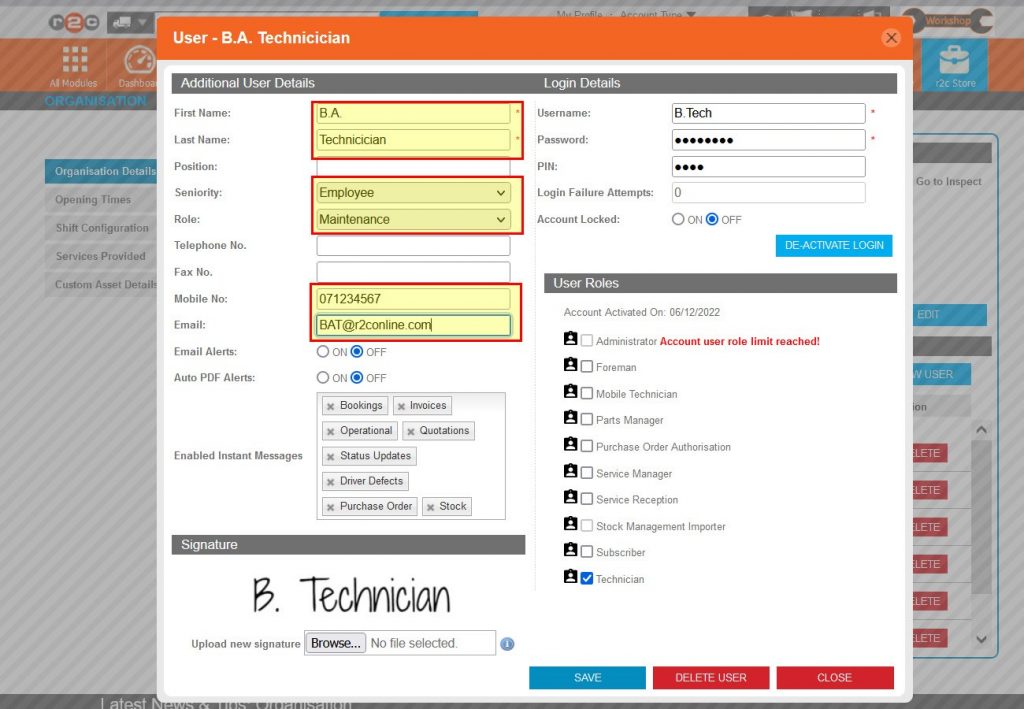
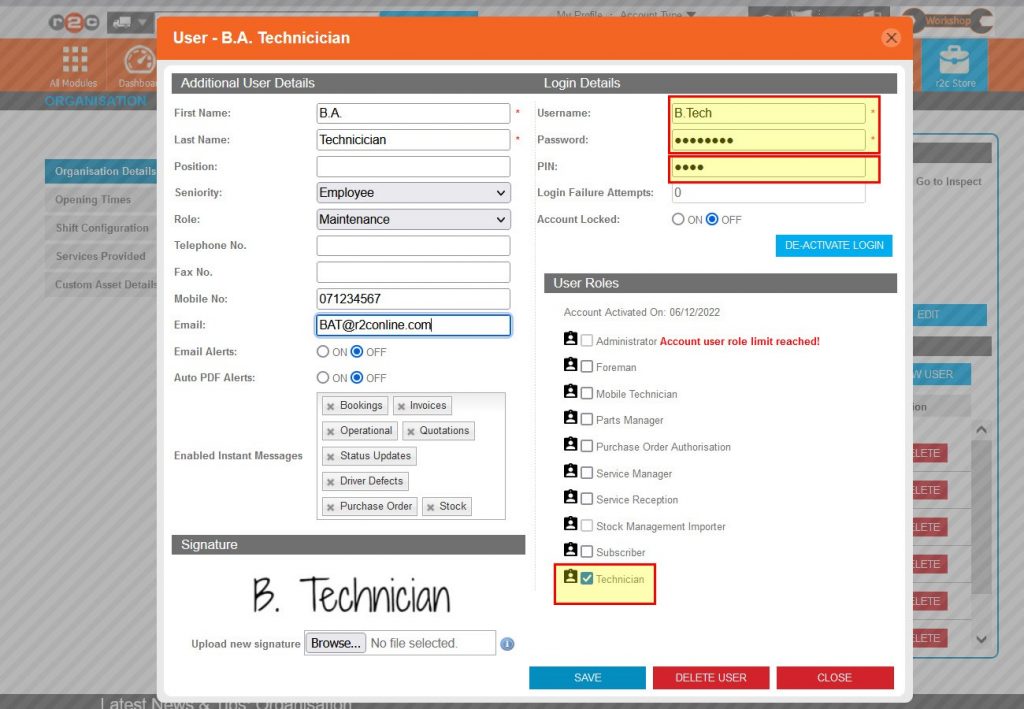
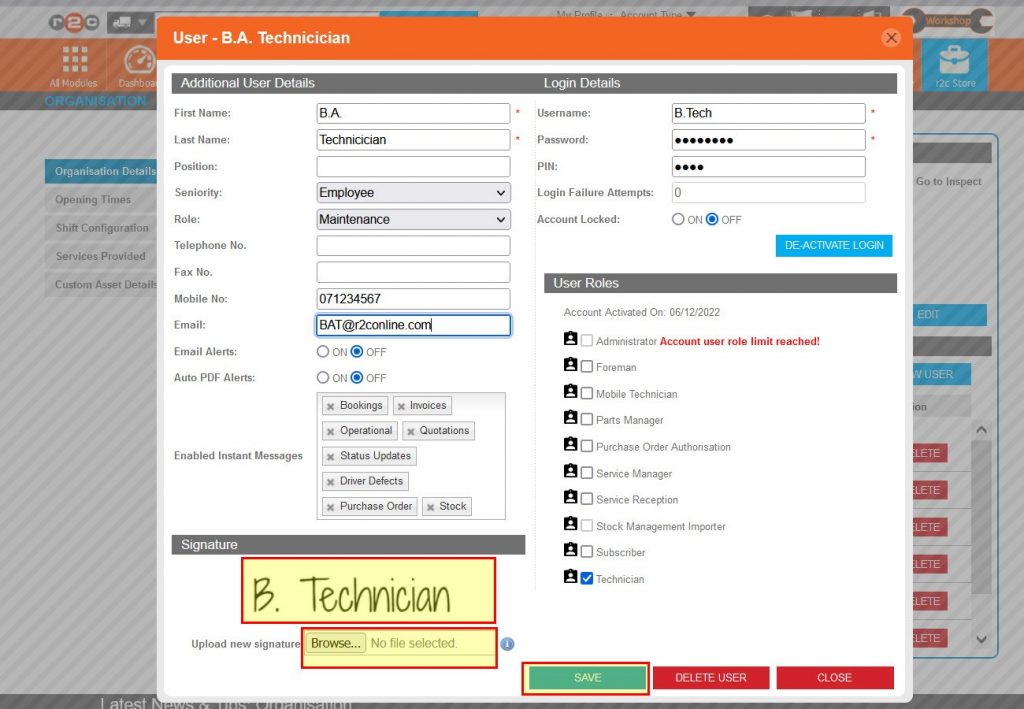
Add a New User – To see the steps taken to create a User Profile, click or swipe through the 6 steps below.


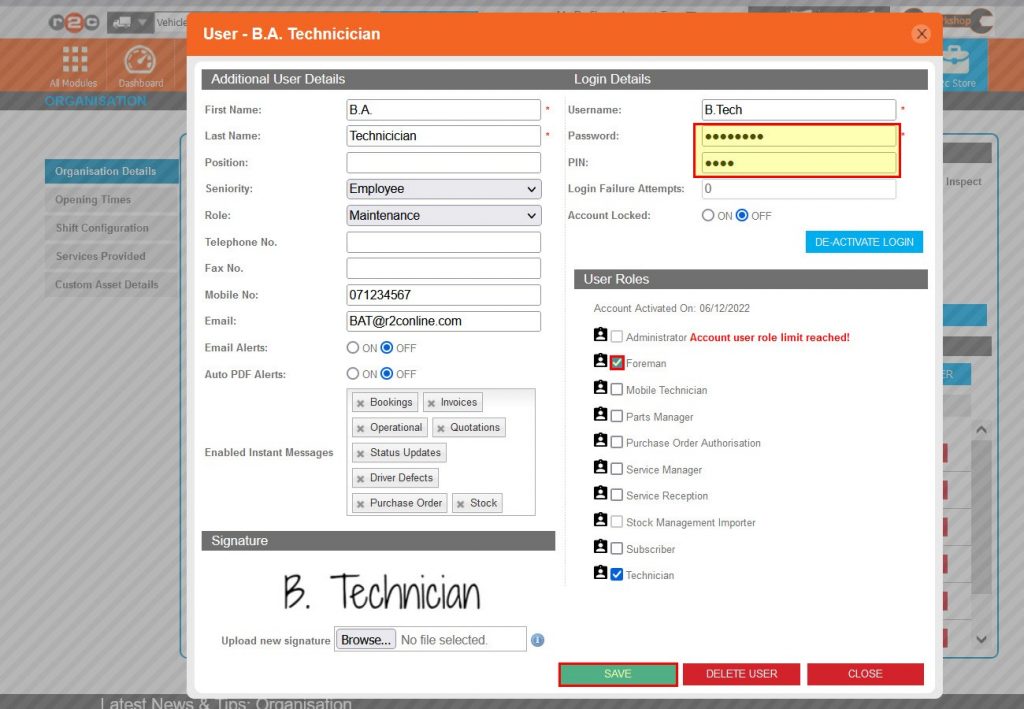
Amend an Existing User’s Details – To see the steps taken to amend a user’s profile, click or swipe through the 2 steps below.


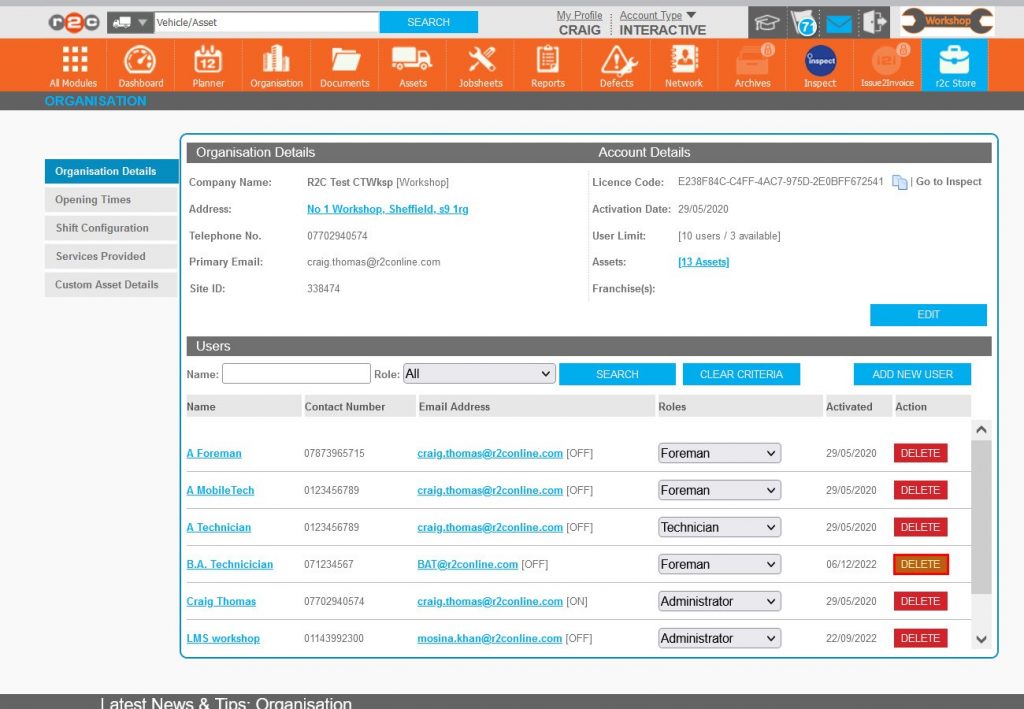
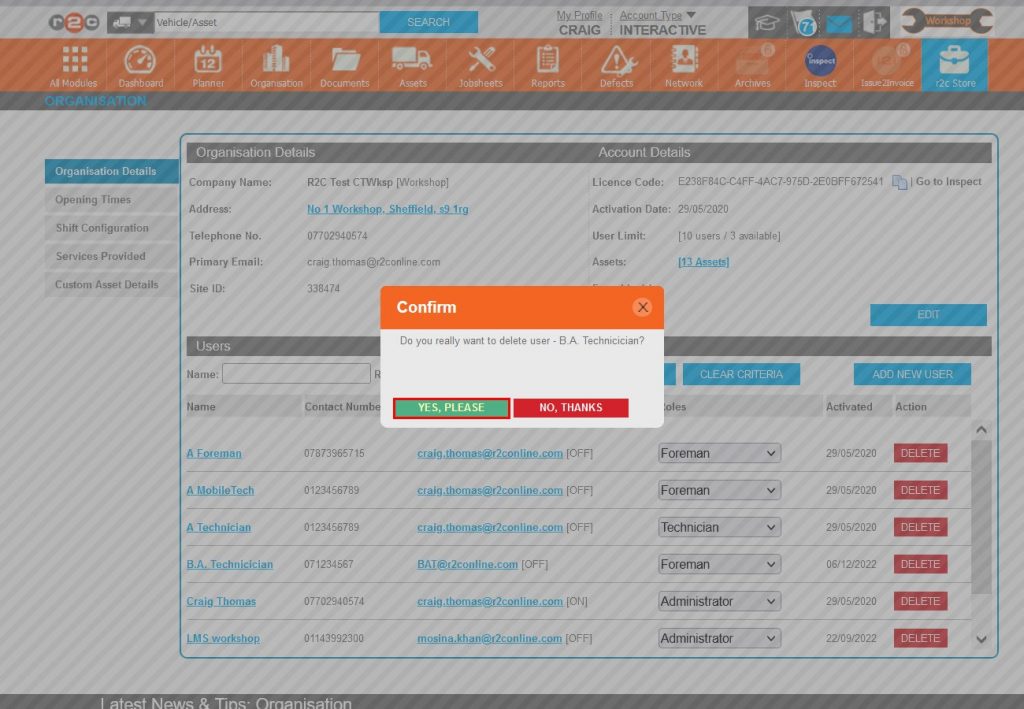
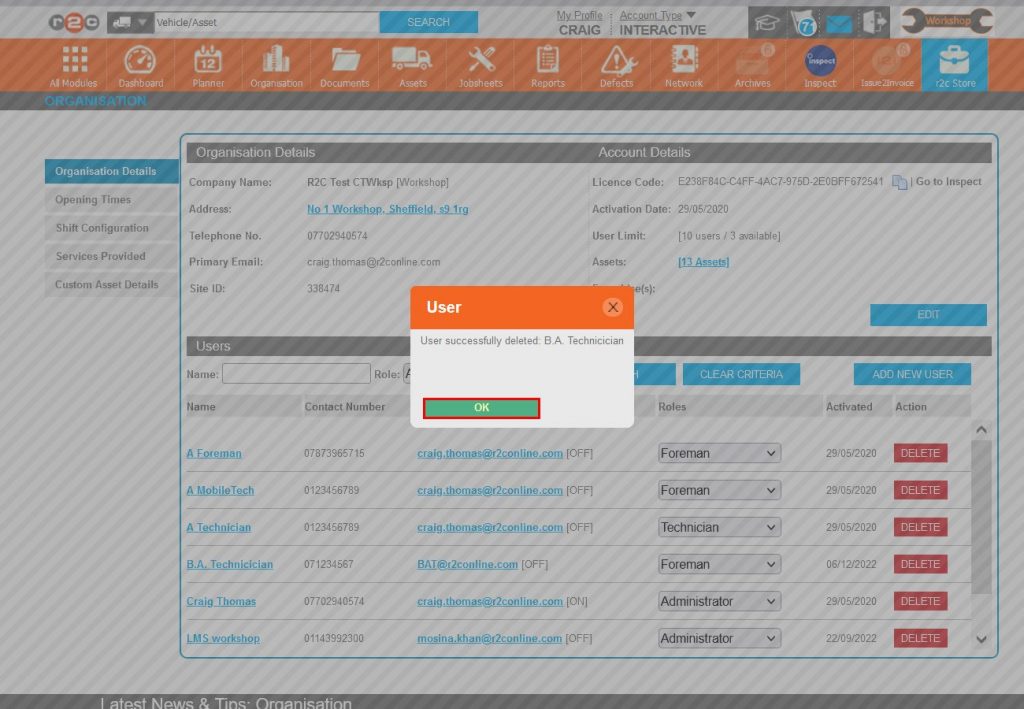
Removing an Existing Profile – To see the steps taken to remove a user’s profile, click or swipe through the 3 steps below.


Technical Info & Self Help
What User Role should I use
How can I access my own profile
My Profile – is available to all users of the platform, this allows them to update contact details, or amend their login information, users cannot give themselves additional role functionality unless they themselves are administrators.
How do I upload a Signature
Any hand written signature can be uploaded to a users profile providing it fits within the size limits specified here. Signatures are only relevant to technicians’ and foremen profiles.