Agreements can be used by all interactive customers with the the i2i module . This is an additional module and is not part of the core product. Please note, your r2c contract may affect this as well as user role permissions.
The use of agreements depends on your objectives for managing jobsheet interactions. Agreements allow you to streamline processes by automatically applying pre-set information, such as labour rate tariffs and menu pricing, to jobs. You can further enhance these agreements by adding work types, rules, and terms to automate the authorisation process and minimize the need for manual approval, tailoring everything to suit your business needs.
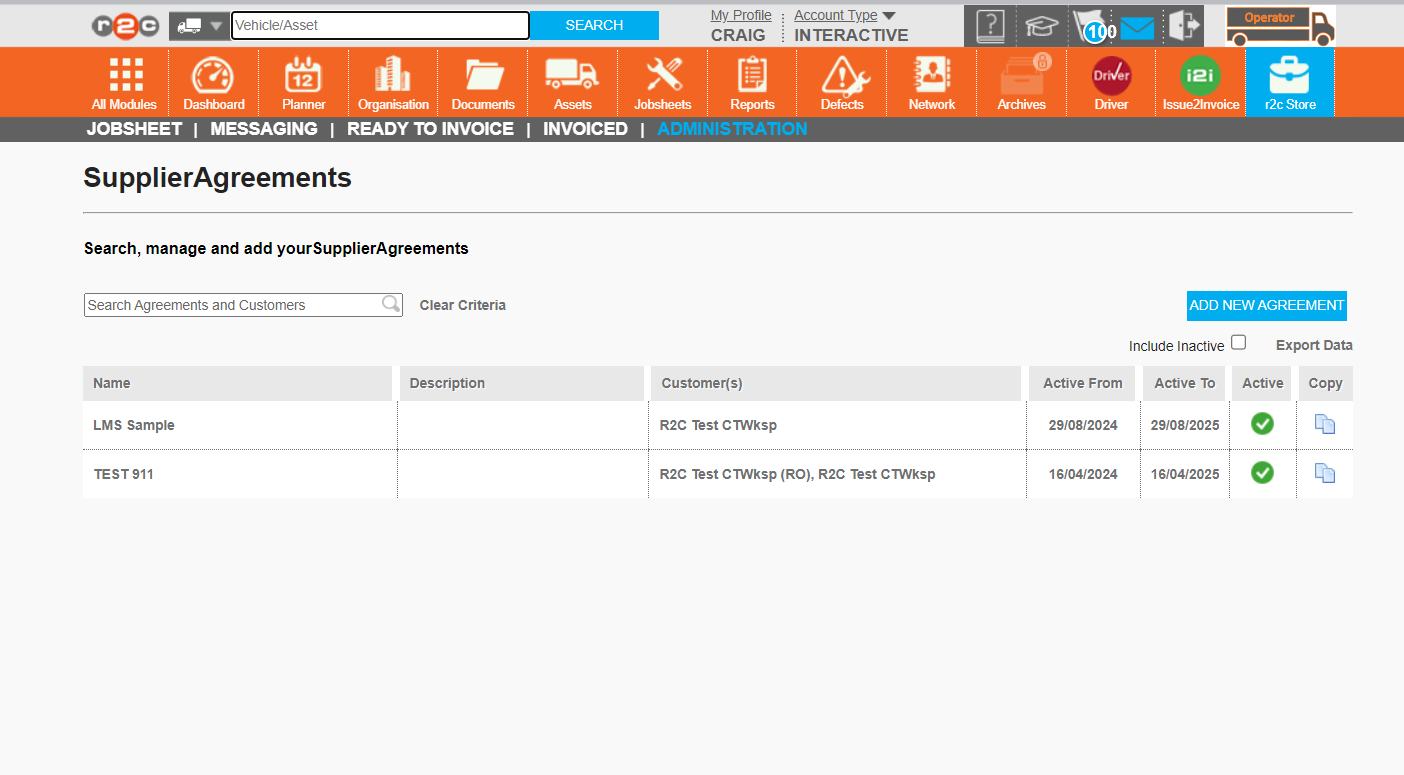
On the i2i agreements home page the Operator can:
Create new agreements for suppliers e.g. their R&M providers, so that they can set their agreed rates and terms. Or view agreements that have been set up with them by their suppliers who also use i2i. They can then add in elements needed such as the terms.
Create agreements for their suppliers e.g. workshops to set up the agreed labour rates and terms.
Amend existing agreement they have previously created
R&M Providers can:
Create agreements for their suppliers, the workshops that use i2i to set up the agreed labour rates and terms.
Create new agreements for their customers, the operators. Or view agreements that have been set up with them by their customers who also use i2i.
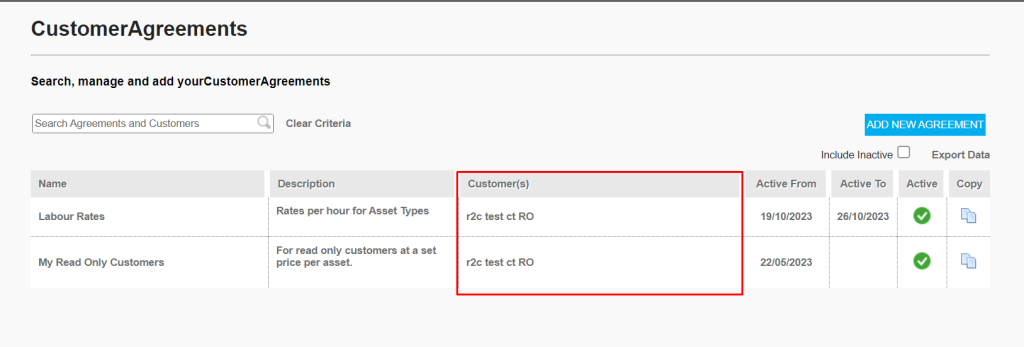
To open an agreement, click it's name.
Agreements can be cloned and then amended using the copy icon.
Use this button to begin creating a new agreement.
Tick this check box to view expired agreements.
Step by Step
Stage 1 – To see the steps taken to create agreements with labour rates click or swipe through the 9 steps below. This allows you to make a basic agreement with your agreed rates for suppliers.
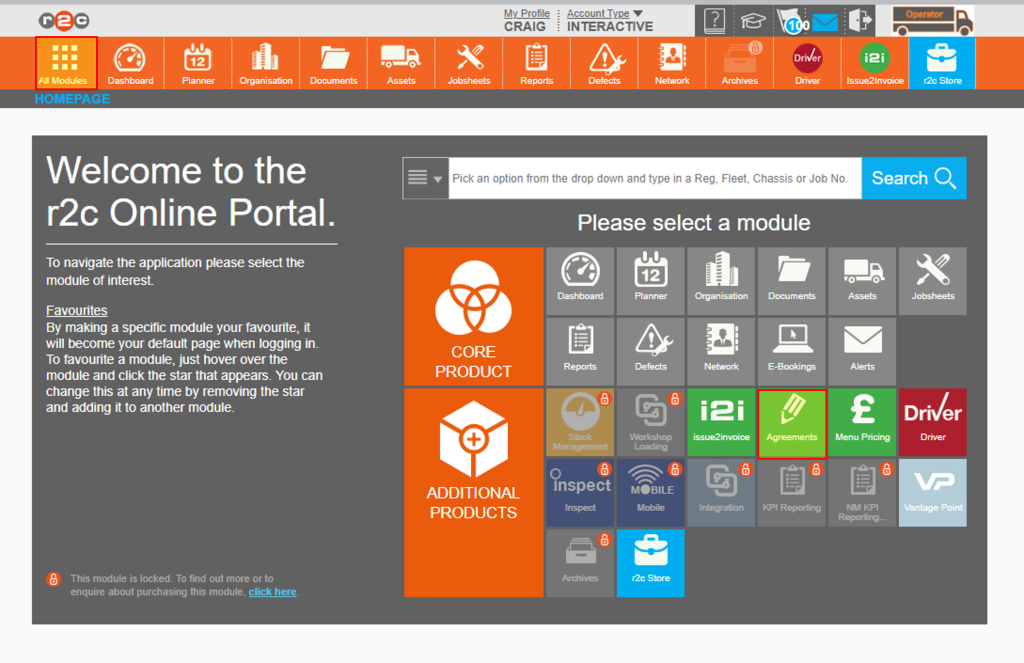
Step 1 - To access the agreements section start by clicking the ‘All Modules’ icon from the header bar and then click 'Agreements'.
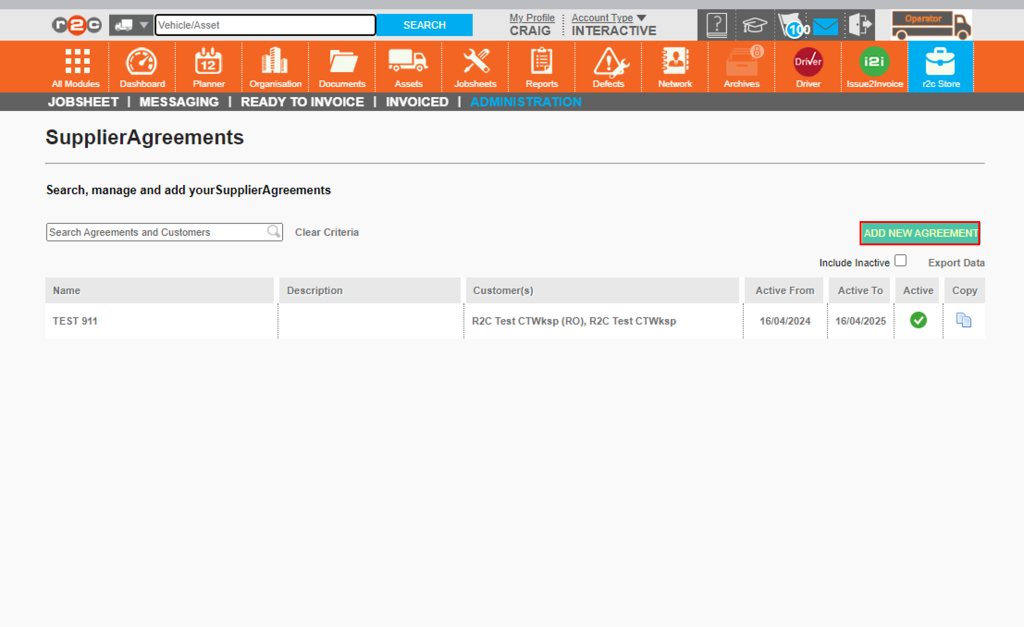
Step 2 - First, you will see any agreements already set up by yourselves or interactive customers that you do jobs for. To start creating a new one click ‘ADD NEW AGREEMENT’.
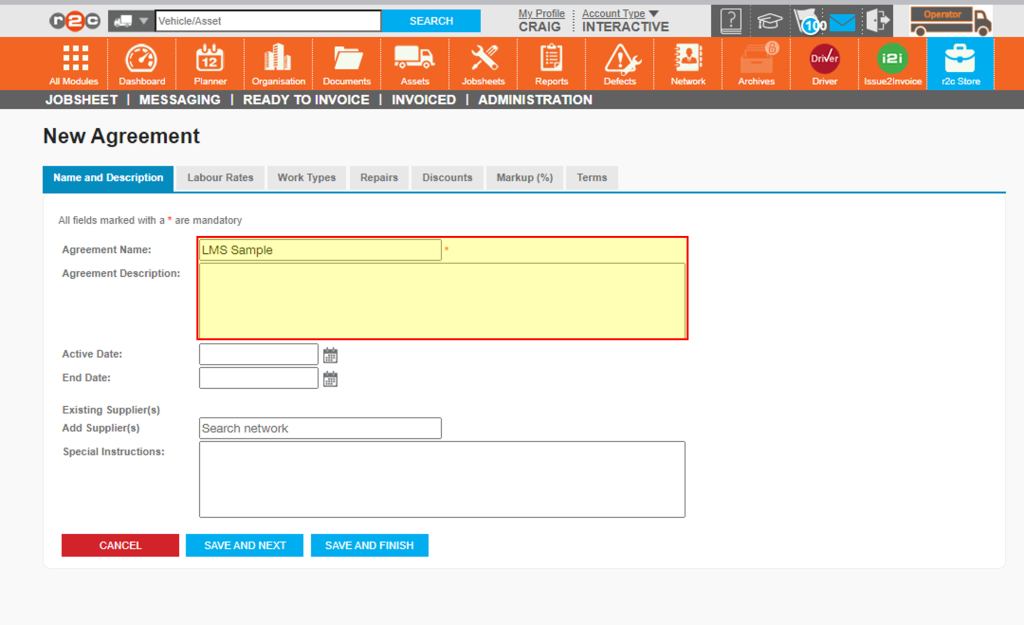
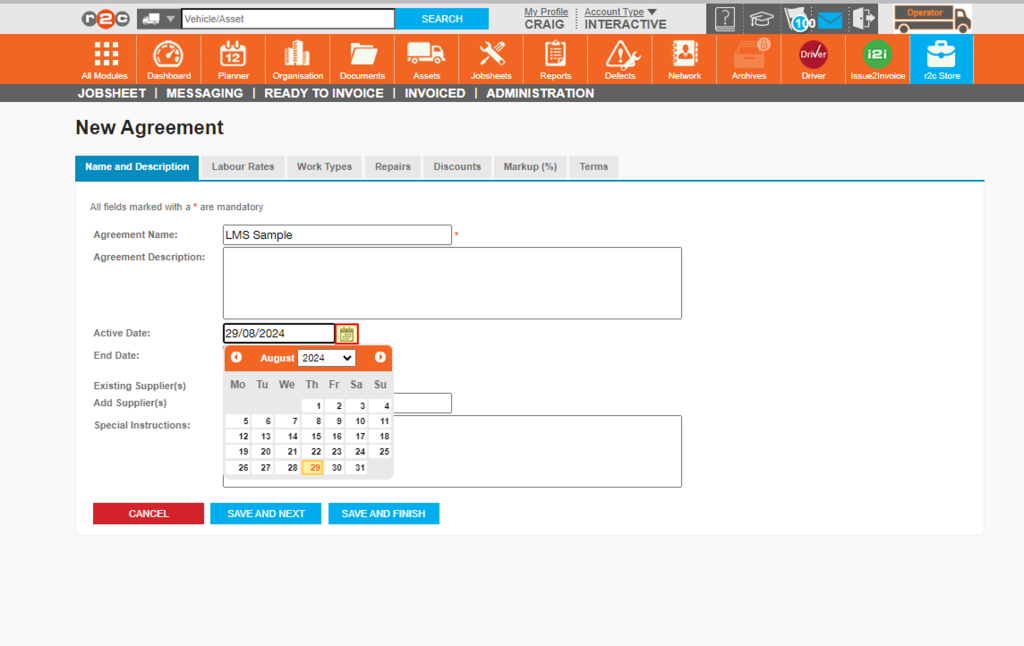
Step 3 - Start by naming the agreement and adding a description if required.
Step 4 - Next, choose the start date for when the agreement should be valid from. The end date will default to one year but, this can be extended if needed.
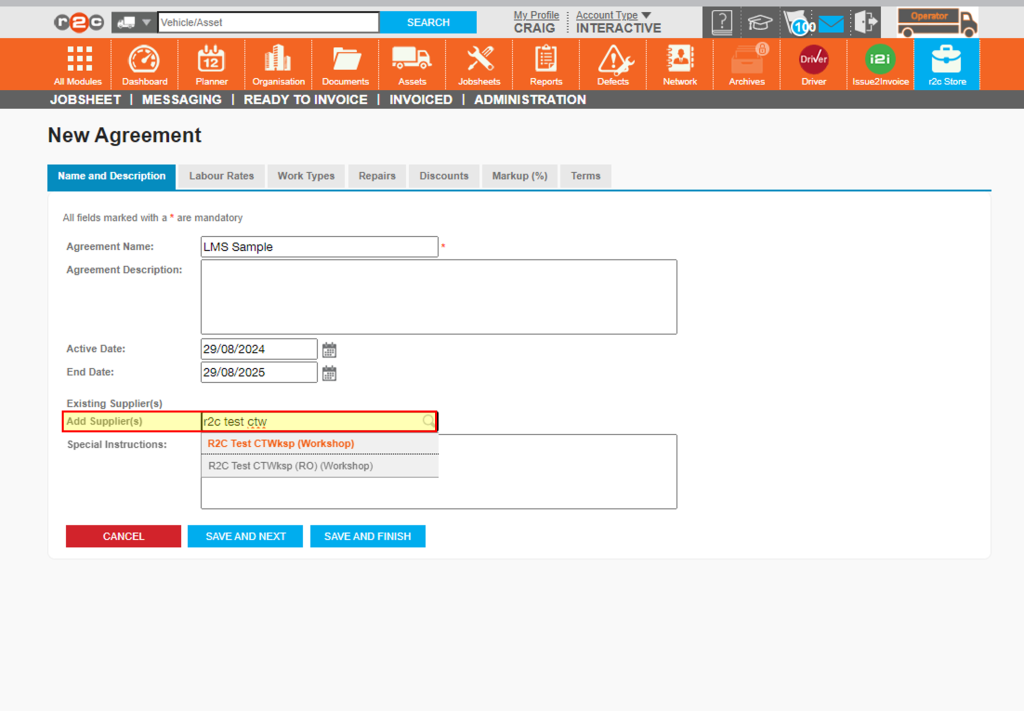
Step 5 - Next, enter the suppliers name that this agreement is applicable to. Select the suppliers name from the list. If these rates apply to multiple workshops, more than one supplier can be added to the list. click ‘SAVE AND NEXT’ once done.
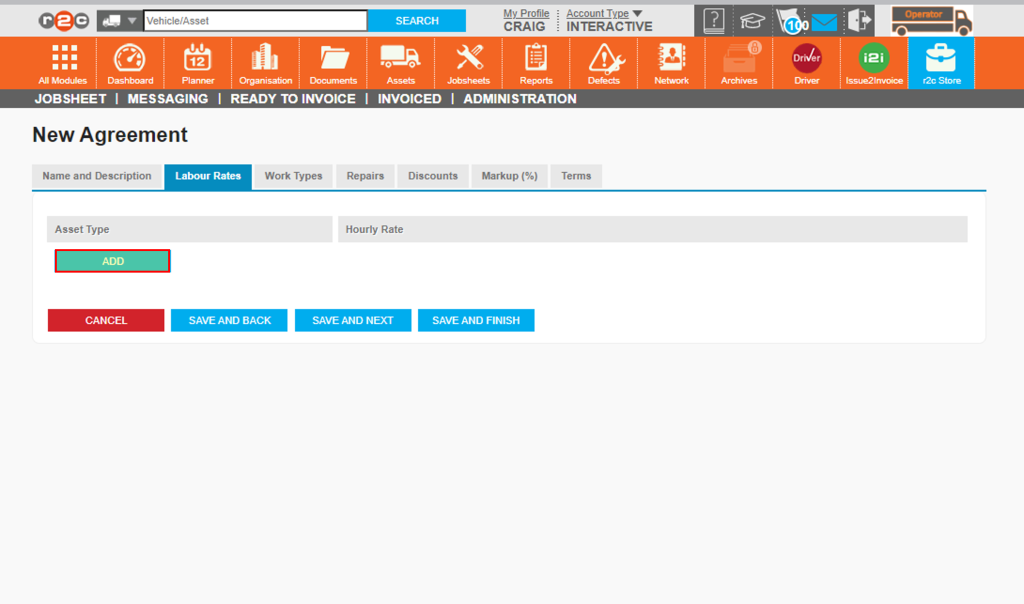
Step 6 - Once the agreement details have been filled in, you can then specify the labour rates for the different types of assets they service and repair. Start by clicking ‘ADD’
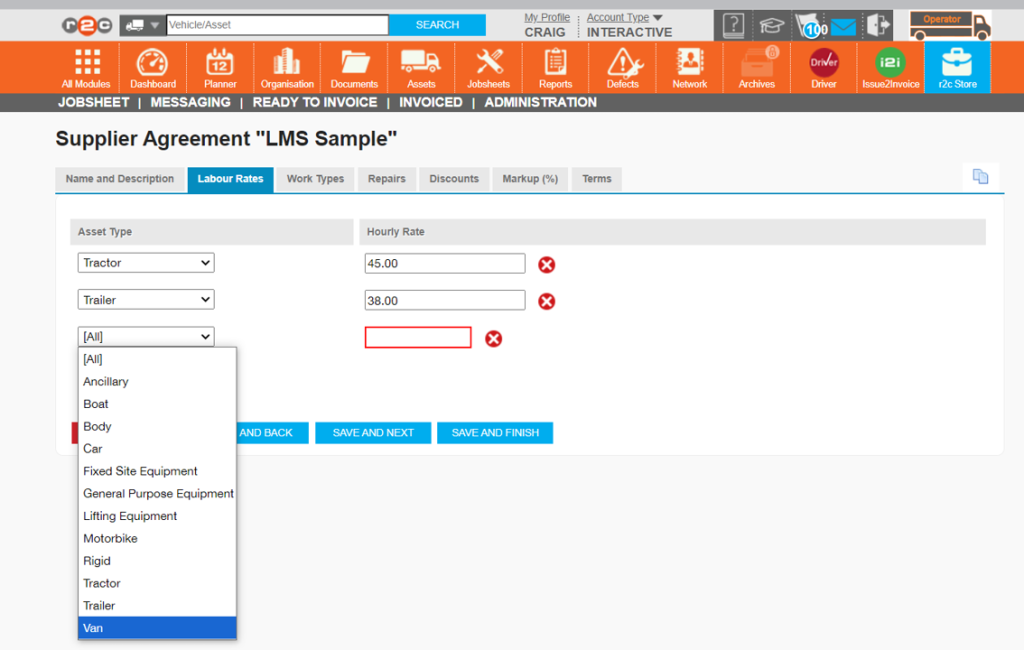
Step 7 - Next, choose an asset type from the list and then the rate. In this case a charge of £45 per hour will apply on work done on Tractors and £38 for Trailers for this workshop’s jobs. You can continue to specify asset types and labour rates using the ‘Add’ button. Then click ‘SAVE AND FINISH’ once done.
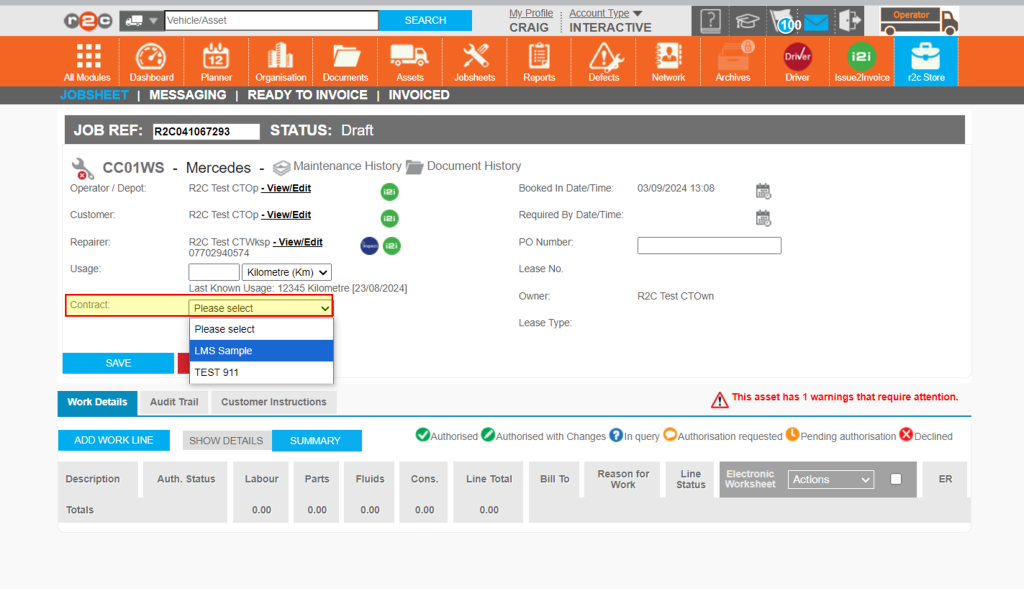
Step 8 - When creating a new job if an agreement is available this will be added by default to the job. If more than one agreement exists for the same workshop, then you will need to choose which agreement to use
Stage 2 –To see the steps taken to create agreements with specific work types click or swipe through the 5 steps below. This allows you to build more detail into your agreements.
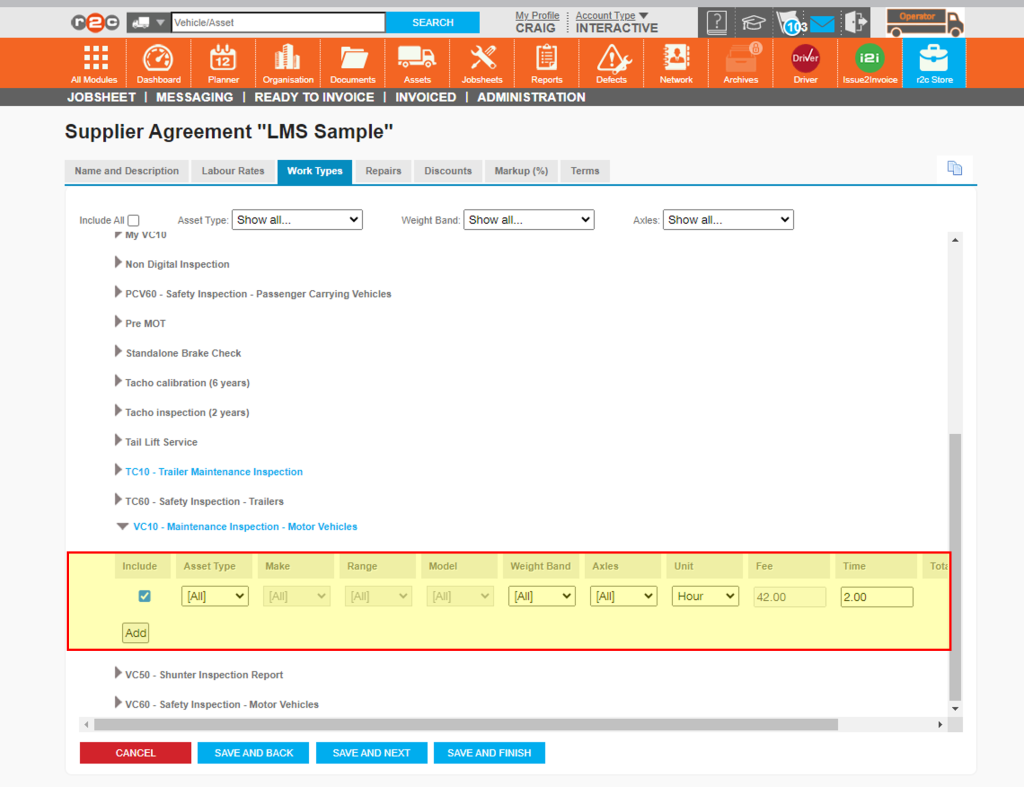
Step 1 - After clicking 'SAVE AND NEXT' on the Labour rates tab, you can move onto the Work Types Tab. Here you can select the items you want to include and add pricing for. You can enter the amount of hours taken for a specific Service/Inspection. Which will be used with the labour rates set previously.
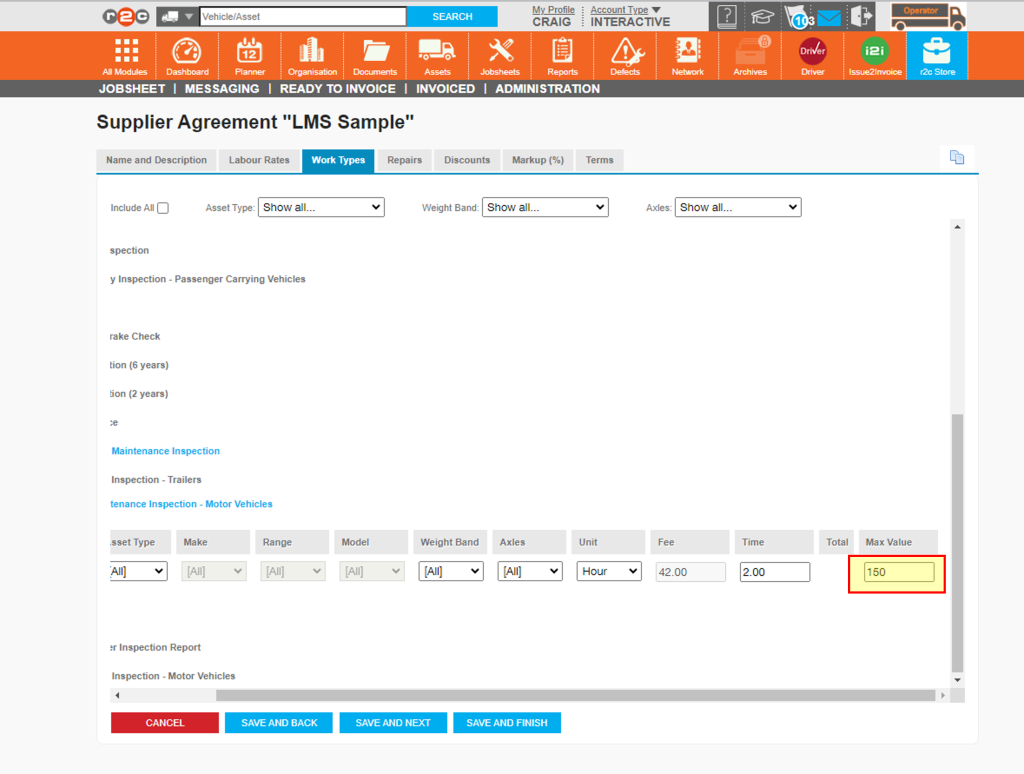
Step 2- Enter a 'Max value ' for an upper limit to how much the work would be expected to cost.
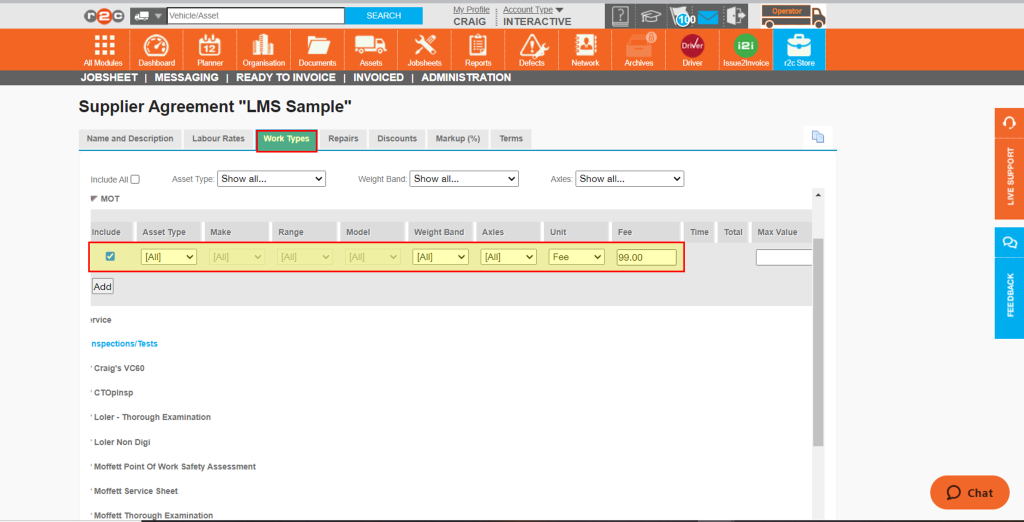
Step 3- Item can also be set to 'Fee' instead of 'Hour' in which case a fixed fee will apply regardless of labour rates set.
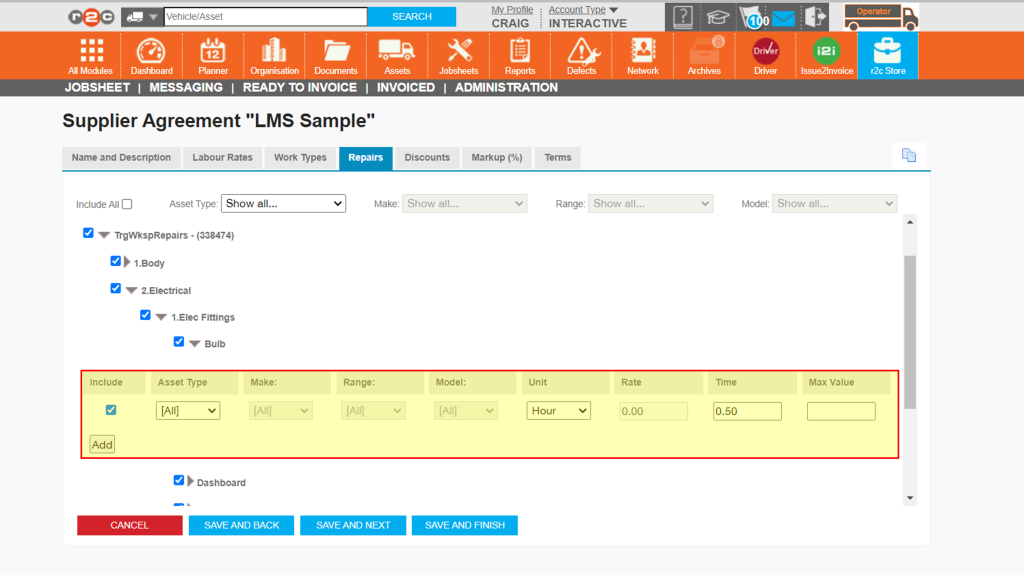
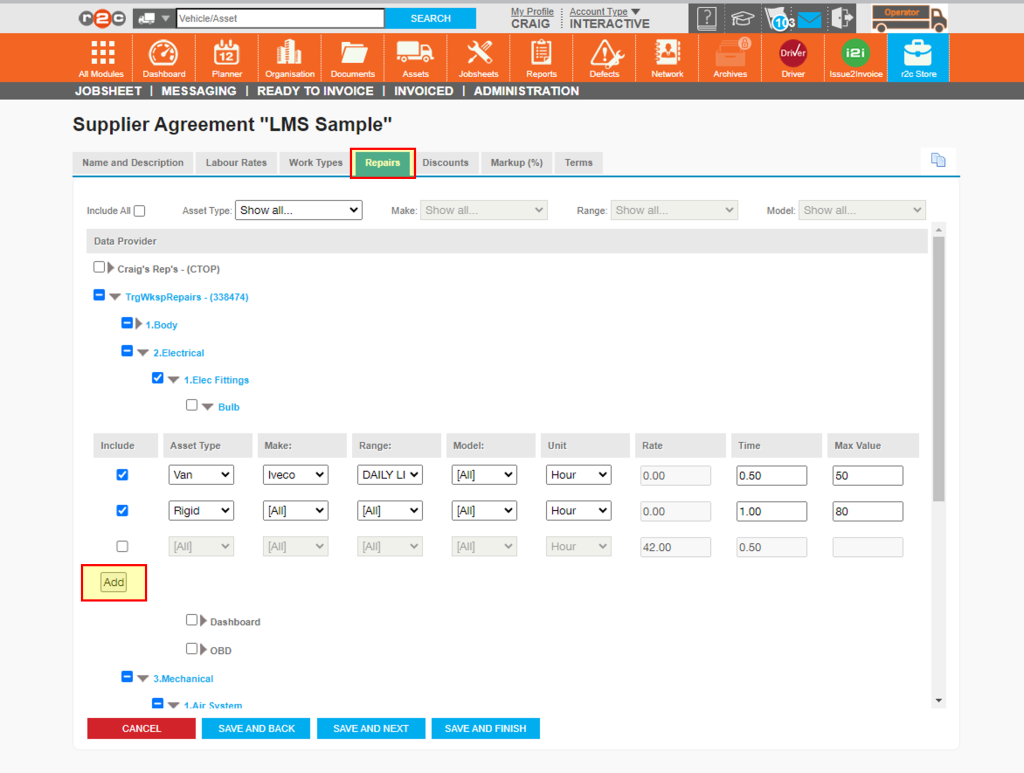
Step 4 - The repair tab also allows you to set hours, a Max value or a fixed fee. for specfic repair types in the same way.
Step 5 - Both work types and repair types can be further customized by setting different prices based on asset types and specific models.
Stage 3 –The next two tabs are the settings for Discounts and Mark-ups.
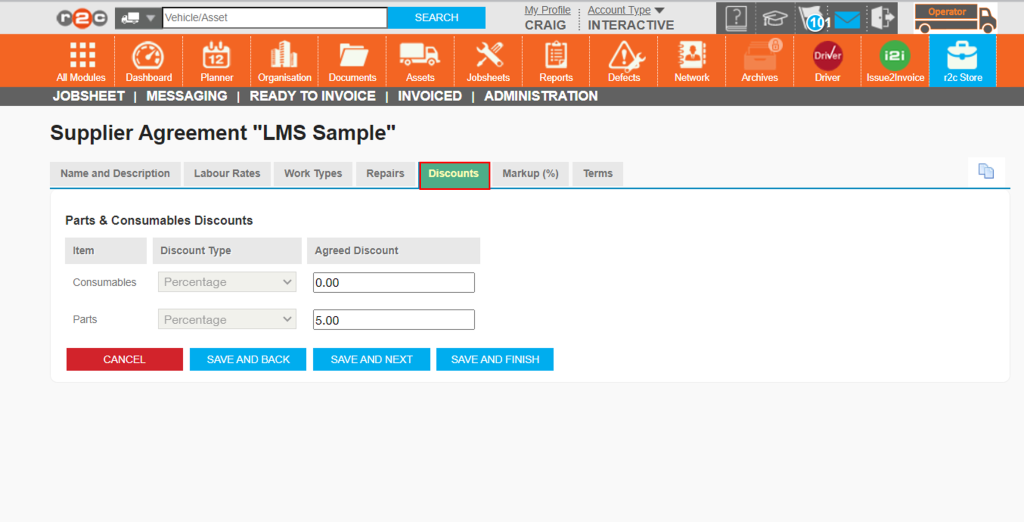
Discounts – At a high level you can include an agreed overall discount percentage to parts and consumables
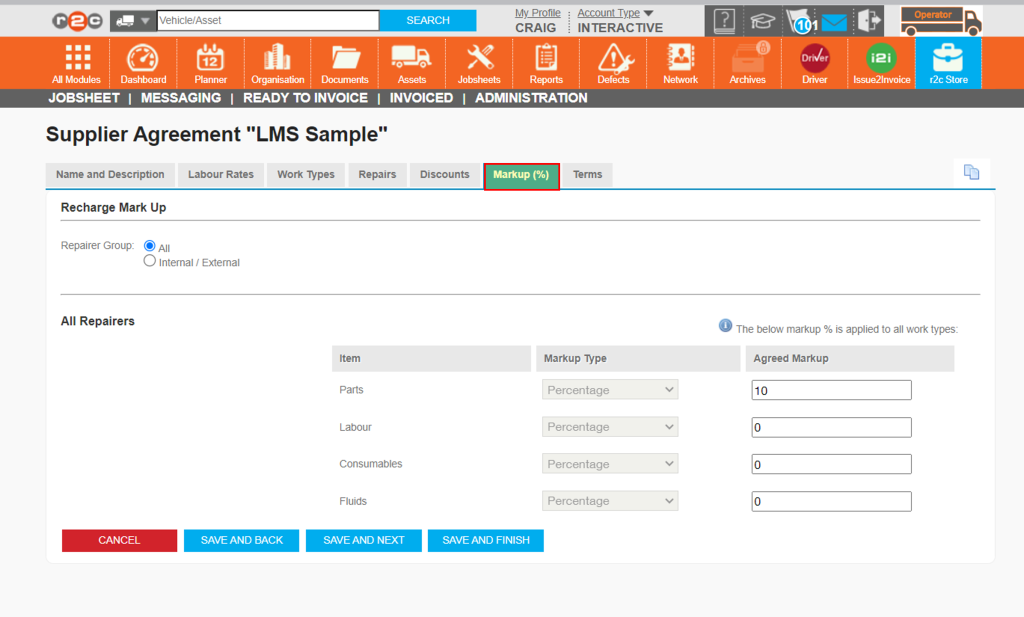
Mark-ups – To enable you to control agreed mark-ups the agreement will allow you to record a percentage value that will be automatically added to any tasks. For example, this enables the supplier to record the cost price of a part and the system will automatically add the relevant mark-up. Please note this is only applicable to R&M providers who use the re-charge function.
Discounts Tab- Enter a value if applicable, and click 'SAVE AND NEXT' please note this must be entered to 2 decimal points.
Mark up Tab - This can be used by R&M providers to add a mark up on recharge items.
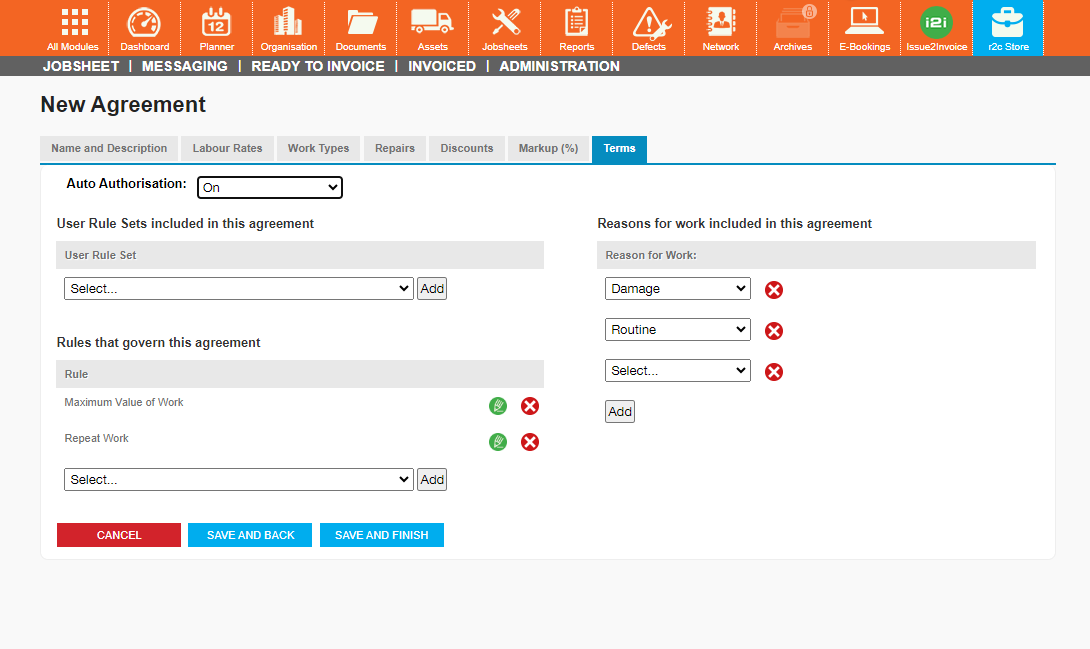
Stage 4 –The final settings that can be applied to agreements is ‘Terms’. This allows you to set rules that enable requests to be auto authorised if the criteria are met.
In the below example a few basic requirements have been set to allow some requests to auto-approve.
Maximum Value Work e.g. Authorise all work for any asset type up to the value of £300.
Repeat work e.g. Do NOT Authorise work for All vehicle types, if a specific Repair or (all repair types) has been carried out in the last 3 weeks.
Reasons for work – The type of work lines that can be governed by this agreement e.g. Damage and Routine.
Click here to choose whether to have auto authorisation on or off. You can also choose simulate, which does not authorise the work but does give you a message to show if the request has met your terms criteria for you to then manually review.
Click here to add and configure the rules for your agreements. In this case two rules have been added.
Add the categories of work that work can be approved for. These are required as a minimum.
Technical Info & Self Help
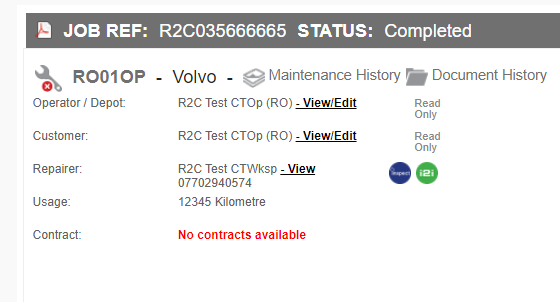
Why can't I see the agreementon the job?
If you are unable to see an agreement in the list or the jobsheet says ‘no contract available’. Check that the customer has been selected on the agreement and that it also matches the customer on the jobsheet itself.
Can I use agreementswithoutauto authorisation?
Yes, by default, all agreements are created with auto authorisation switched off but you have the ability to turn on auto authorisation or switch the agreement to ‘Simulate’. Simulation will allow you to use the authorisation rules you have created without the system actually automatically authorising the tasks. Instead the jobsheet will show you a message to indicate if the work item passes the criteria you have set.
Please note, to ensure your agreement settings are saved whilst progressing through the various tabs. It is important to use the inbuilt navigation buttons shown below.
A green outline on the account type icon signifies the guide is applicable whereas a red outline signifies it is not applicable to the the respective account type.