The Driver Module is a bolt-on module and can only be managed by interactive operators, please note, this module is not designed for defect management. Your r2c contract may affect this as well as user role permissions.
The Driver module allows fleet managers to monitor their drivers checks as they are submitted and have the ability to look back in time to view historic checks, defects and unroadworthy checks can be seen within the driver module allowing for decisions to be made to keep the fleet moving. The fleet manager may wish to set the Driver module as a favourite in order to view this information at the beginning of their shift.
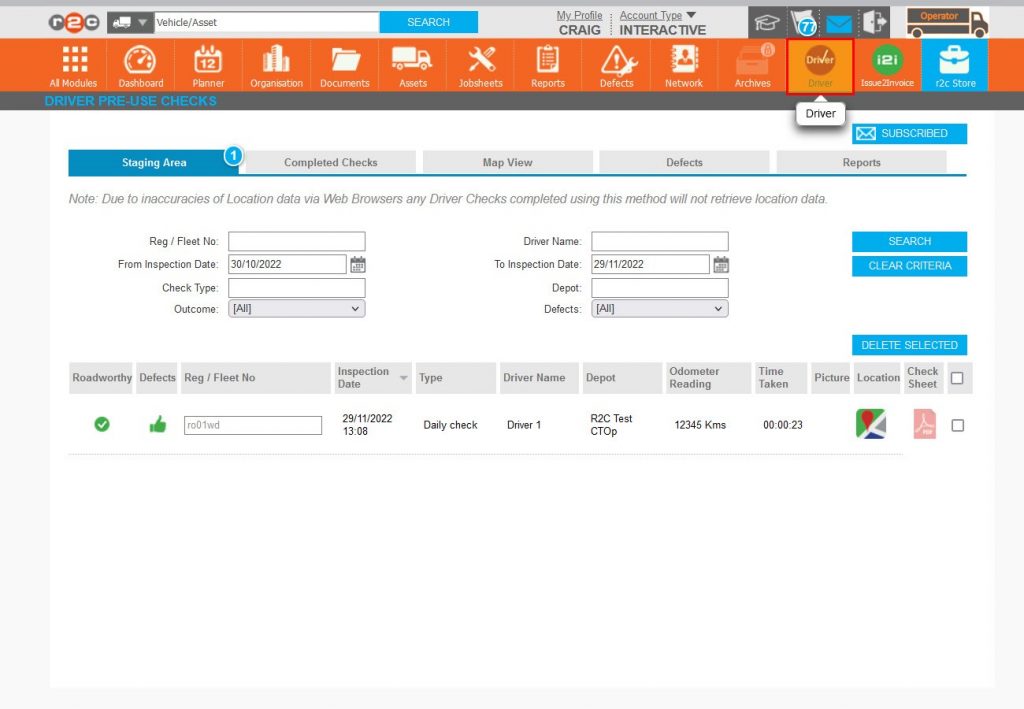
The staging area is the initial page to view which will highlight any driver checks with issues that require confirmation.
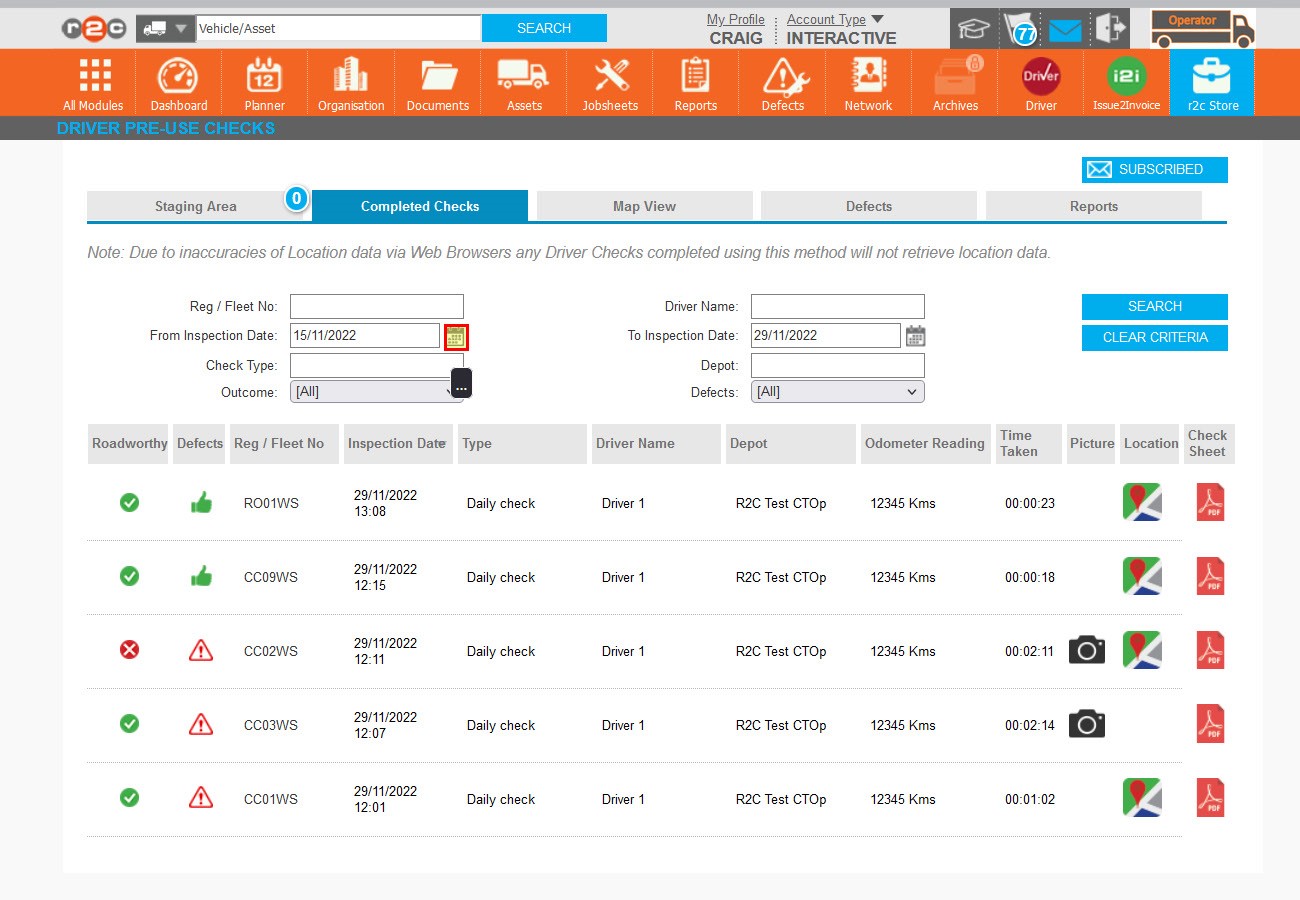
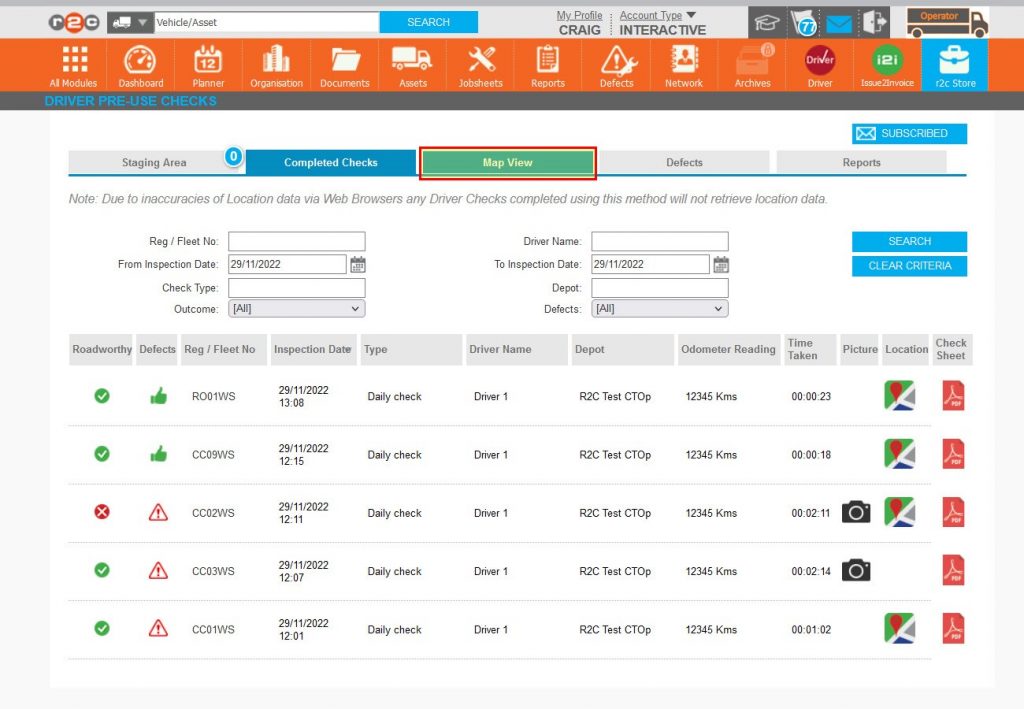
Completed checks is the main page and will display the last 14 days worth of checks by default.
The last three tabs contain additional tools to assist in managing the driver checks.
The filters can be used to look for historic checks or limit to just todays checks.
Step by Step
Driver Checks – To see the steps taken to monitor driver checks, click or swipe through the 14 steps below.
Step 1 – When opening the Driver Module page, the Staging Area is initially displayed, this is to highlight any incorrectly reported checks. In this example the Reg/Fleet No has not been recognised as indicated by the box around it.
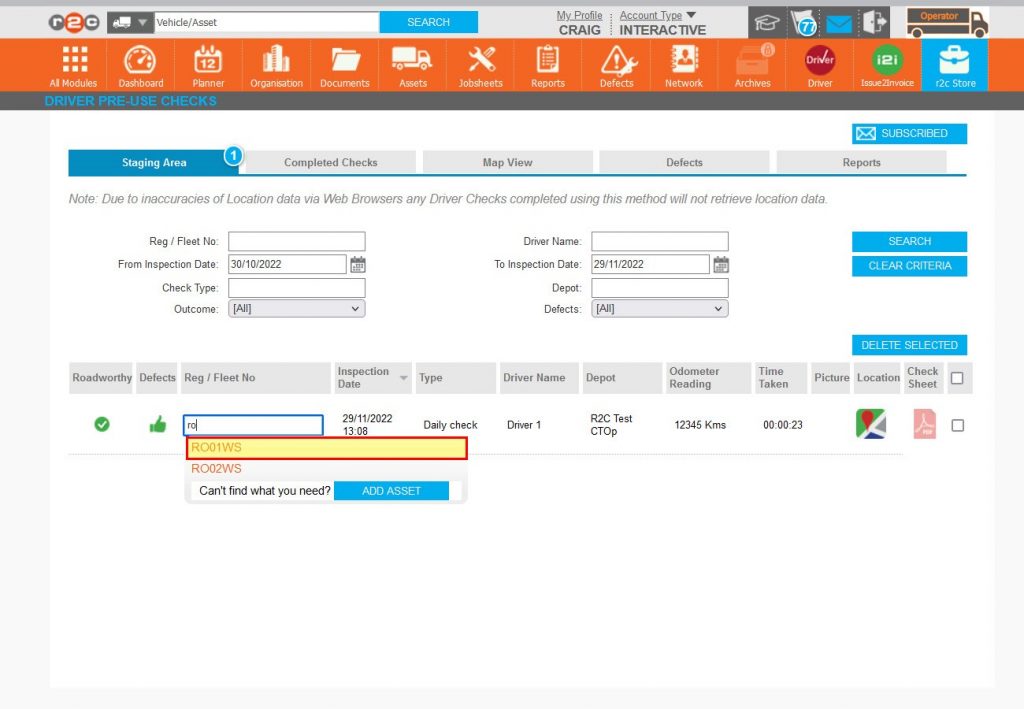
Step 2 – To rectify the issue, select the Reg/Fleet No and begin to type the correct asset ID, the correct ID can then be selected from the drop-down list.
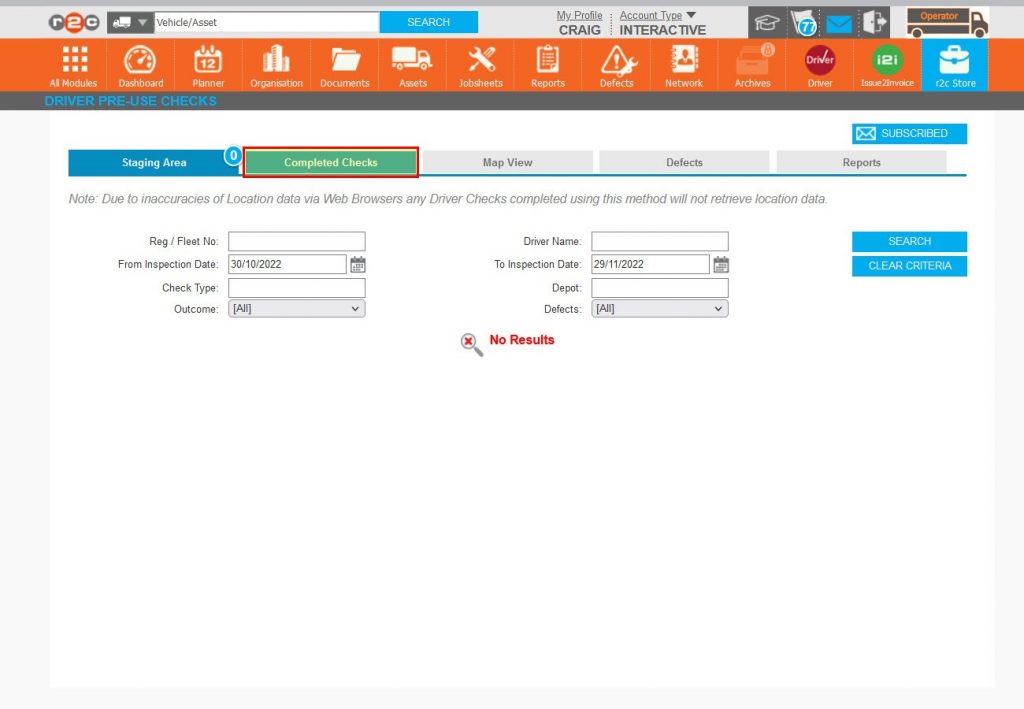
Step 3 – Rectifying the staging issues will move those checks into the Completed Checks area, Click the Completed Checks tab.
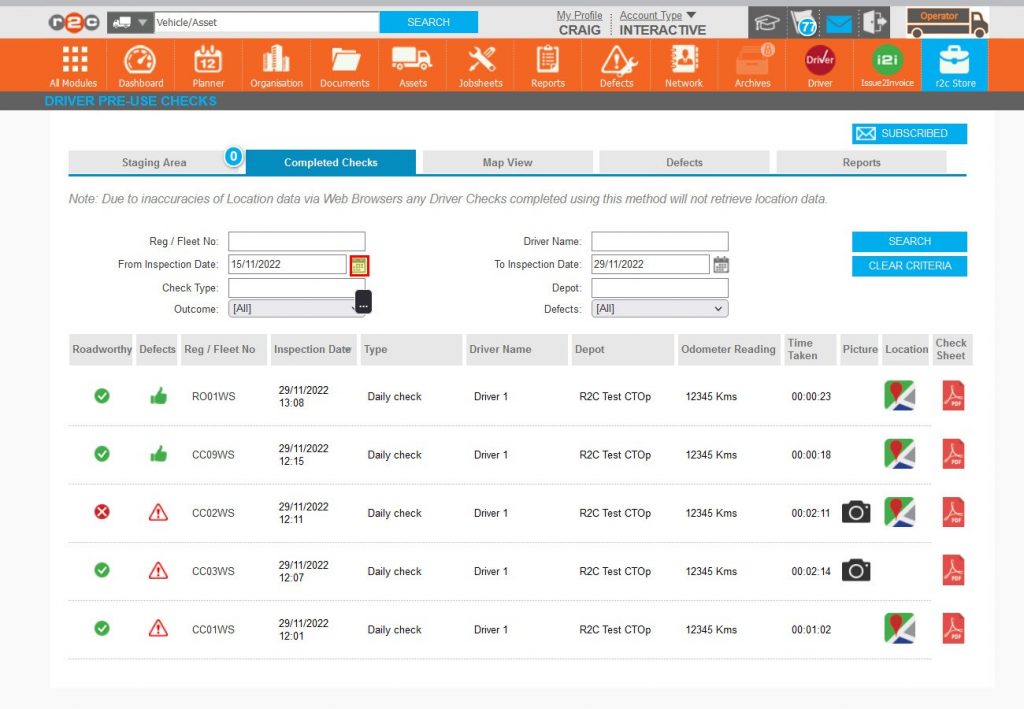
Step 4 – To monitor just the checks received today, amend the ‘From Inspection Date’ to today and Click Search.
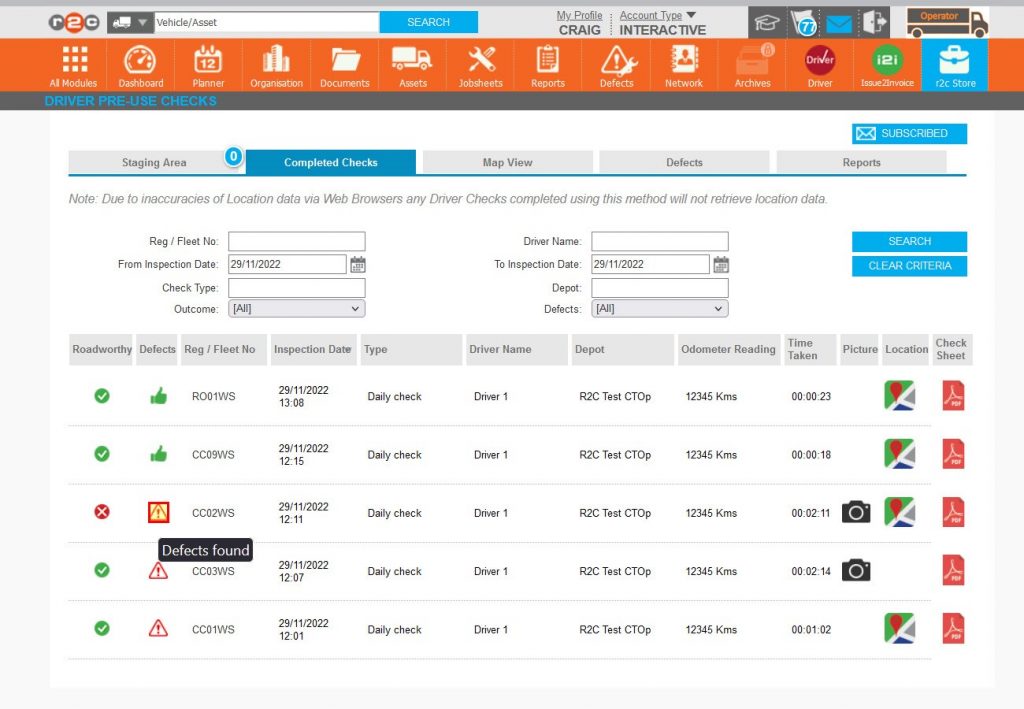
Step 5 – Although the driver module is not designed to manage driver reported defects it can be used as an indicator of what defects have come in. For further information see the Defect Management Guide. Click the defect warning icon.
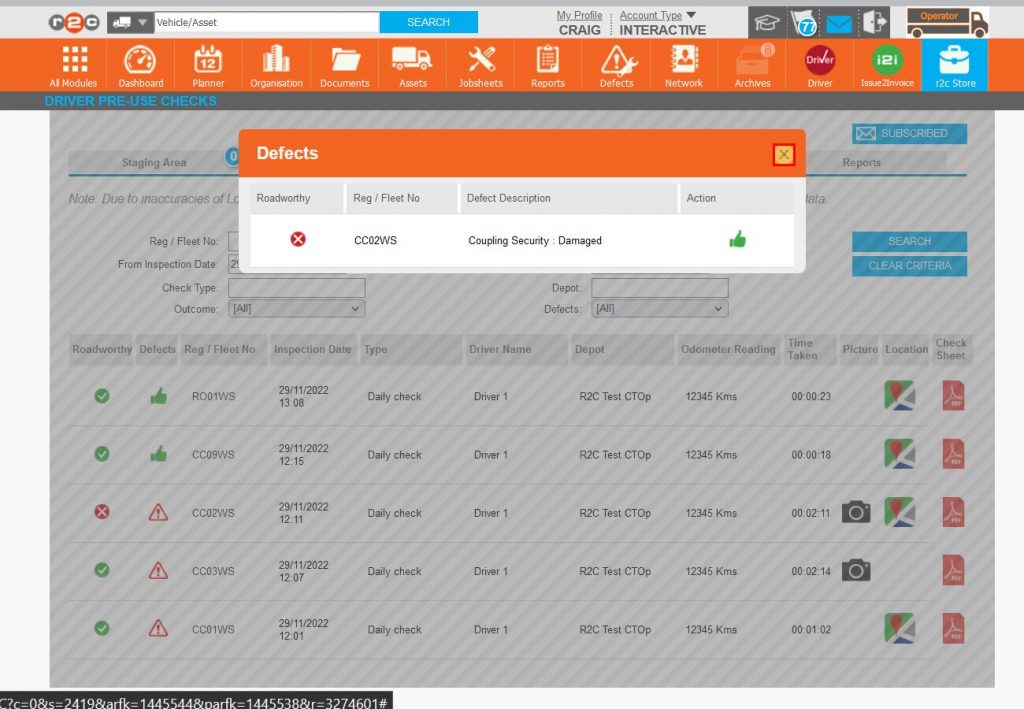
Step 6 – The free text entered by the driver can now be reviewed, additionally, if multiple defects were raised during this check, they would display in a list view.
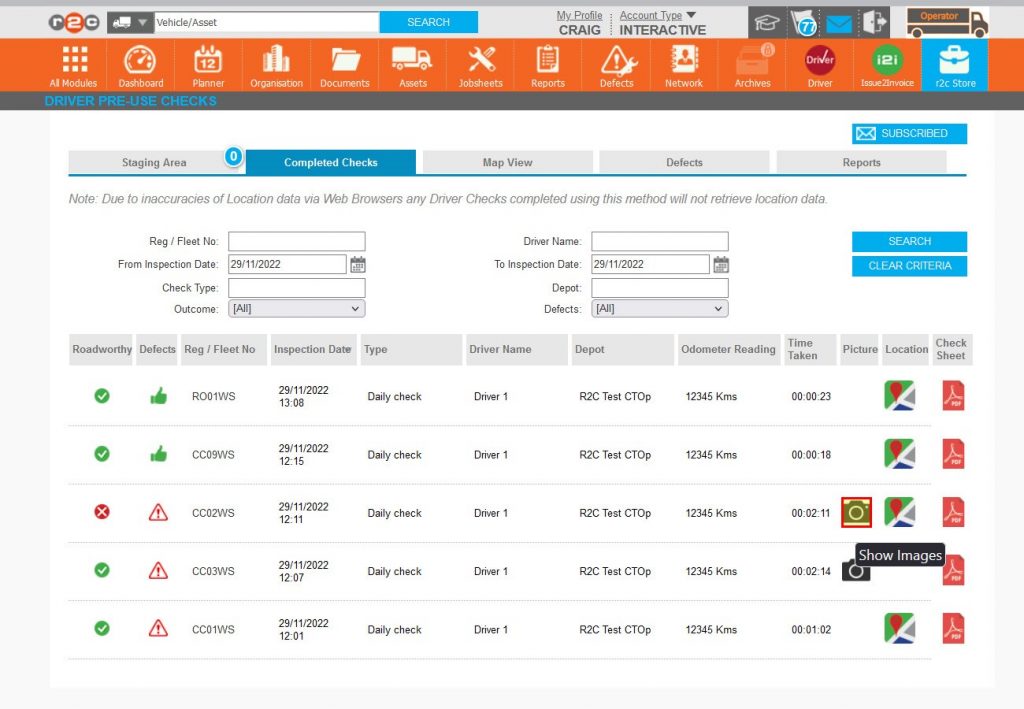
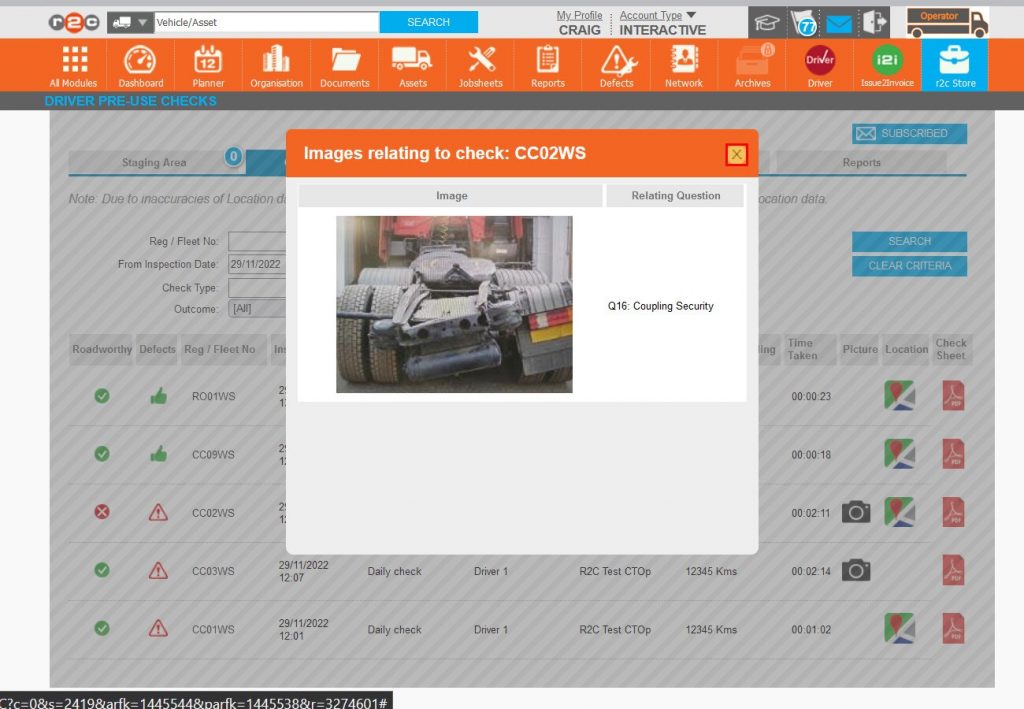
Step 7 – Where the driver has provided additional evidence, in the form of a photo, the camera icon will populate. Click the camera icon.
Step 8 – The photo evidence can now be reviewed along with the question it relates to.
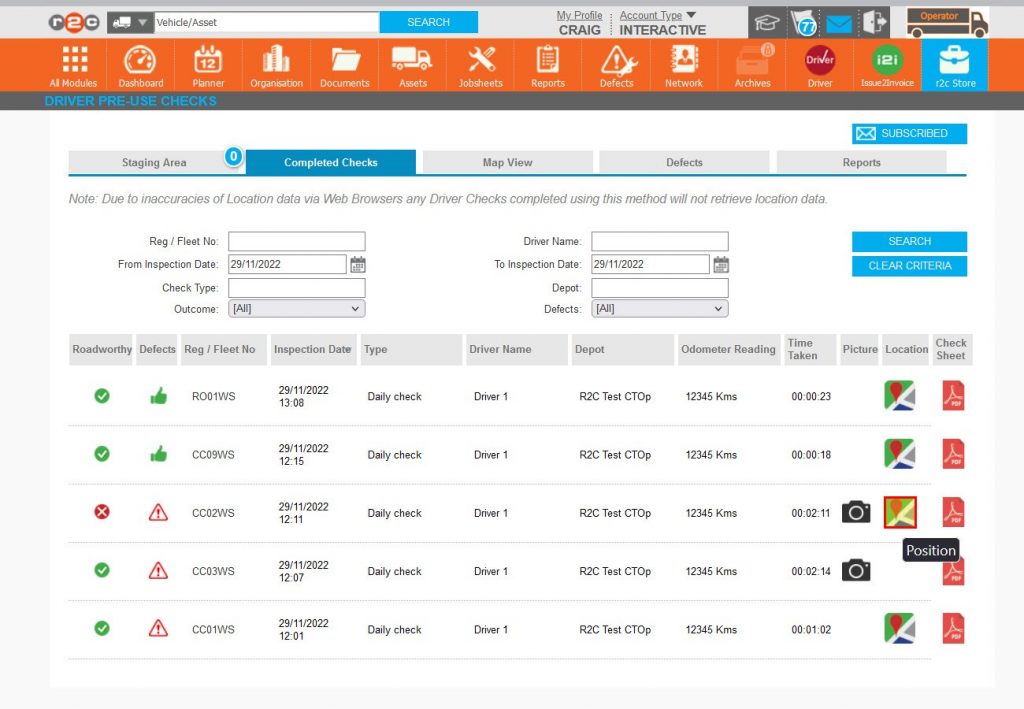
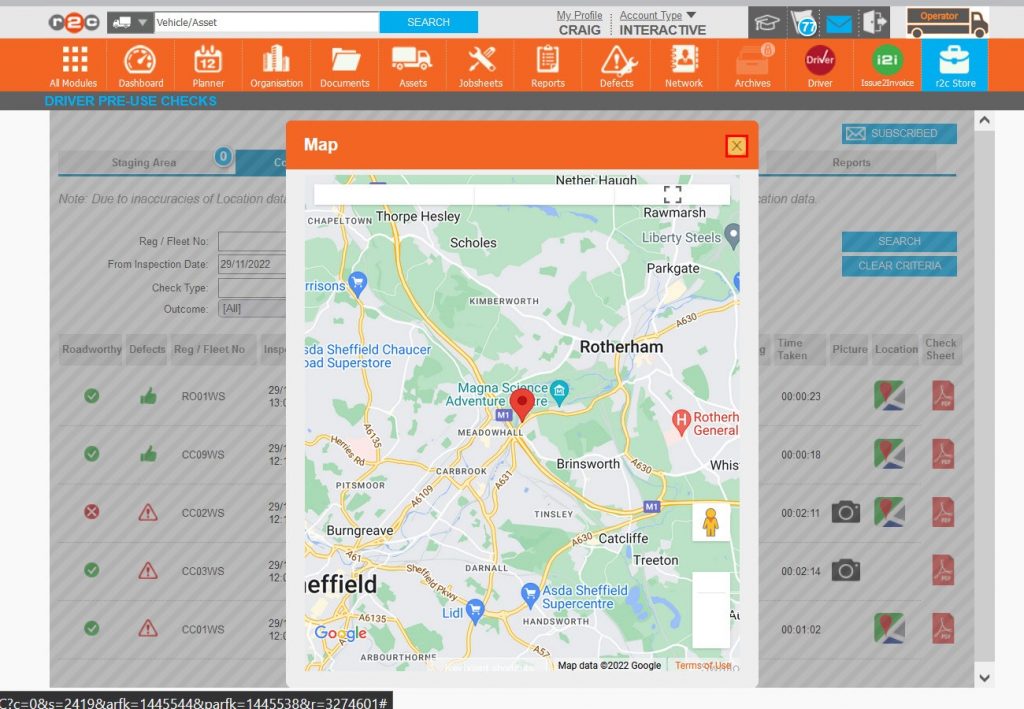
Step 9 – Where the driver is reporting an issue where their location is required i.e. a breakdown, location reporting can be used, Click the map icon.
Step 10 – The map has the Google functionalities of, full screen view, zoom and street view.
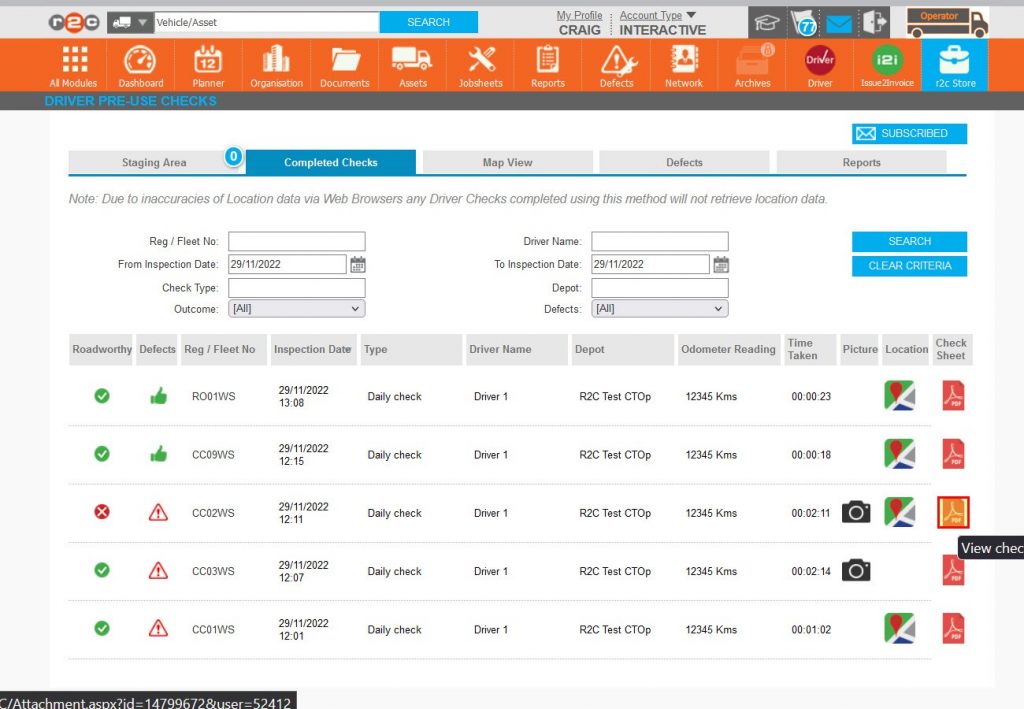
Step 11 –The PDF icon can be clicked to download a copy of the completed check if required.
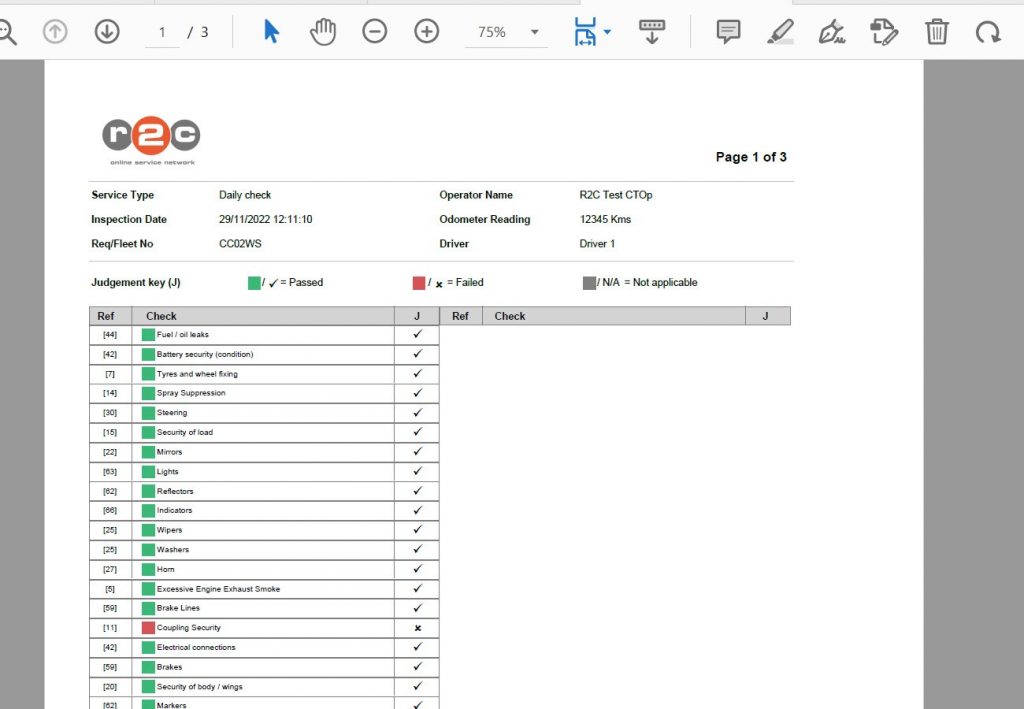
Step 12 – The pdf’s generally consist of three pages depending on the number of defects reported. The first page is the check itself.
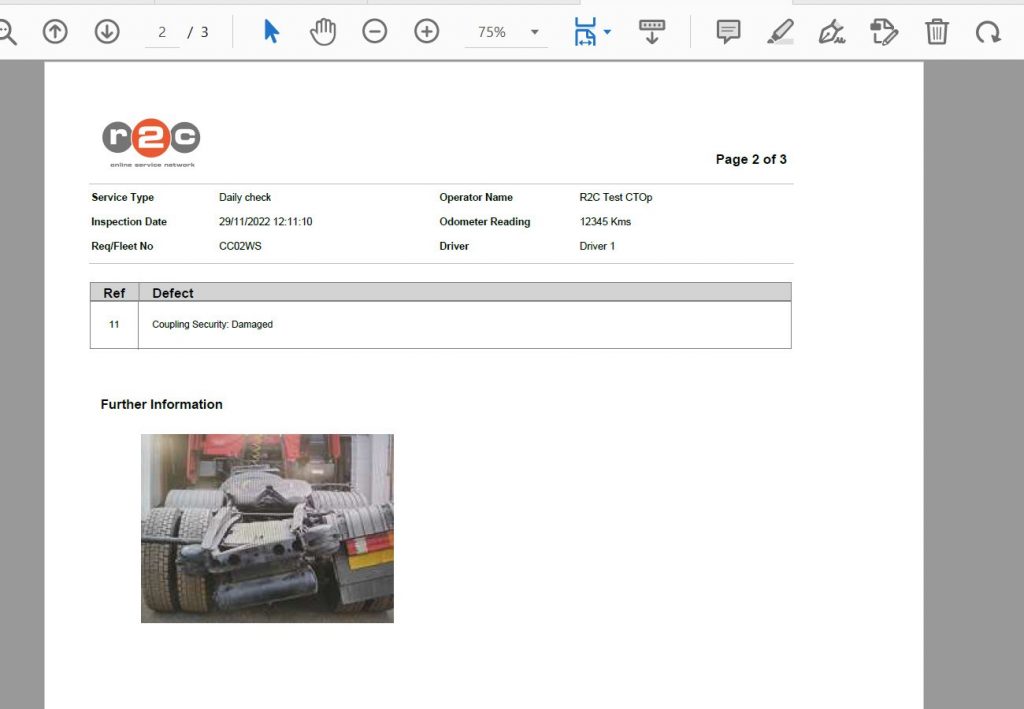
Step 13 – The second page will highlight the defects and any photo evidence.
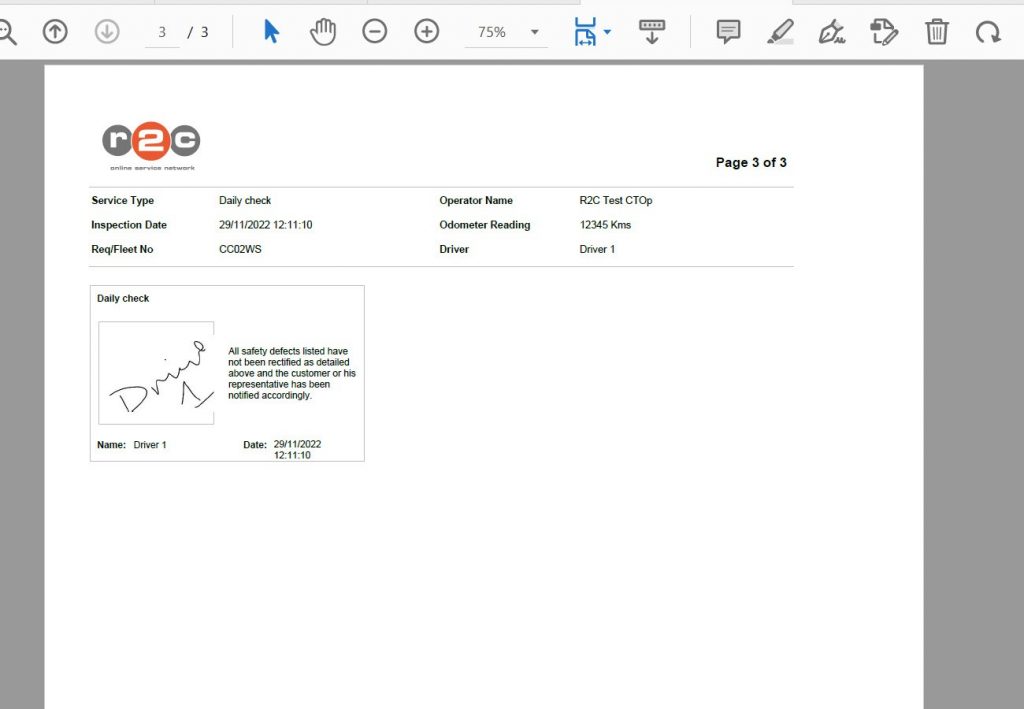
Step 14 – The final page will hold the drivers signature with declaration and date/time stamp.
Tools – To see the additional tools within the Driver module, click or swipe through the 8 steps below.
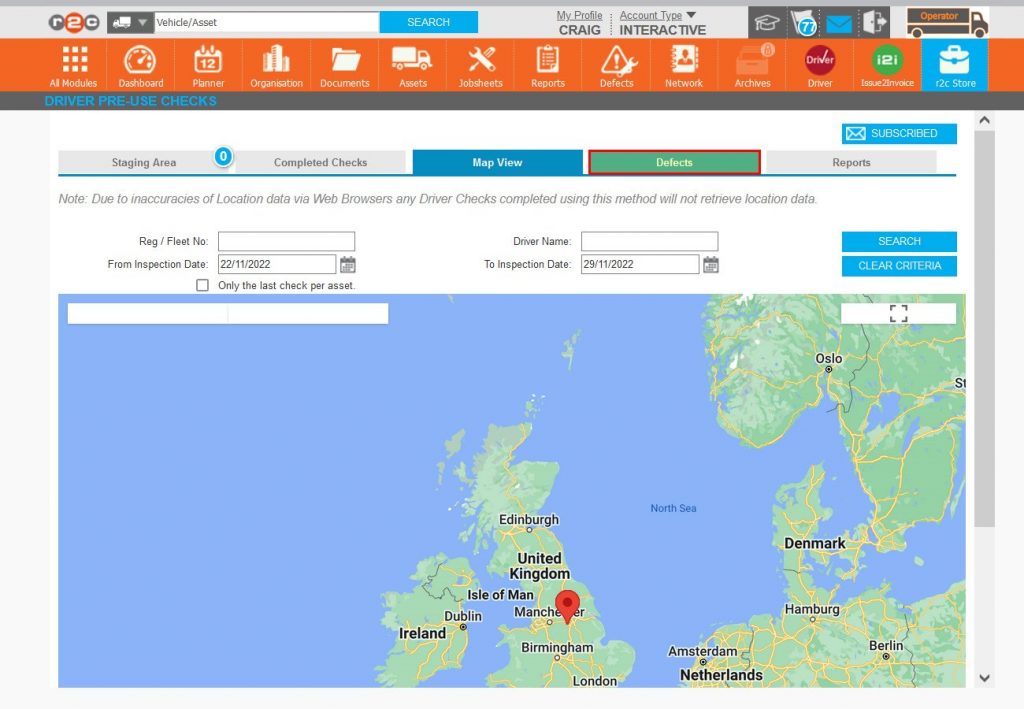
Step 15 – The Driver module also consists of a number of smaller tools, the first of which is the Map View.
Step 16 – The map view relies on location data being sent by the drivers device and can be filtered by asset, driver or/and date period. Click the defects tab.
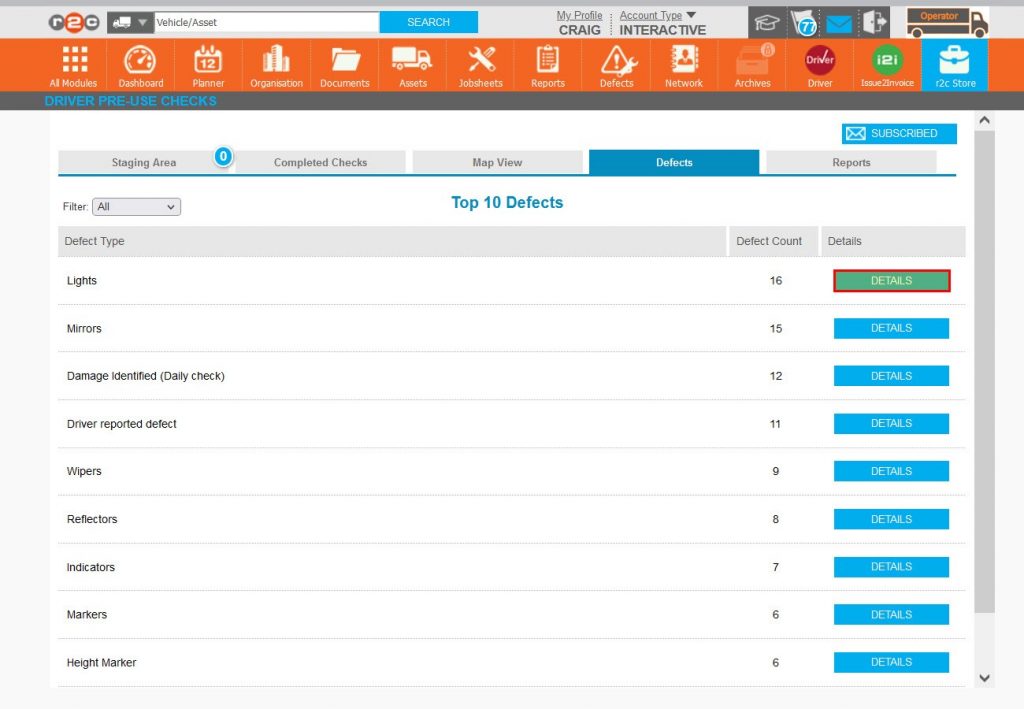
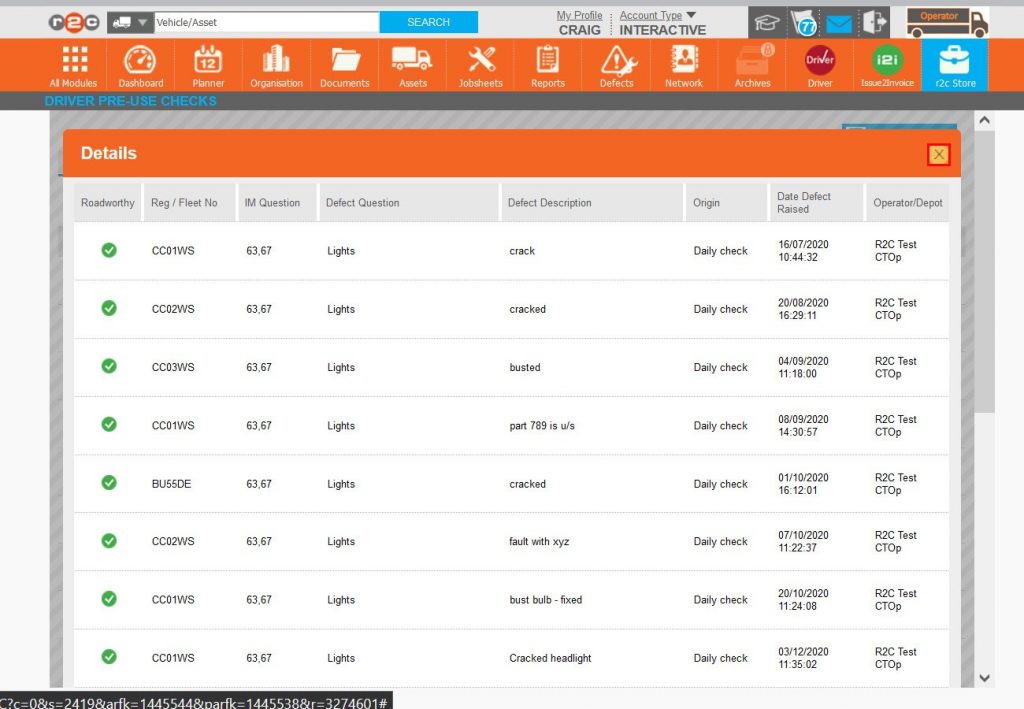
Step 17 – The defects tab has no relation to defect management but instead allows for very low-level analytics, the page groups driver defect together and displays the top 10 types. Click details against a defect type.
Step 18 – Analysing the data assists in determining whether other, off platform, work is required.
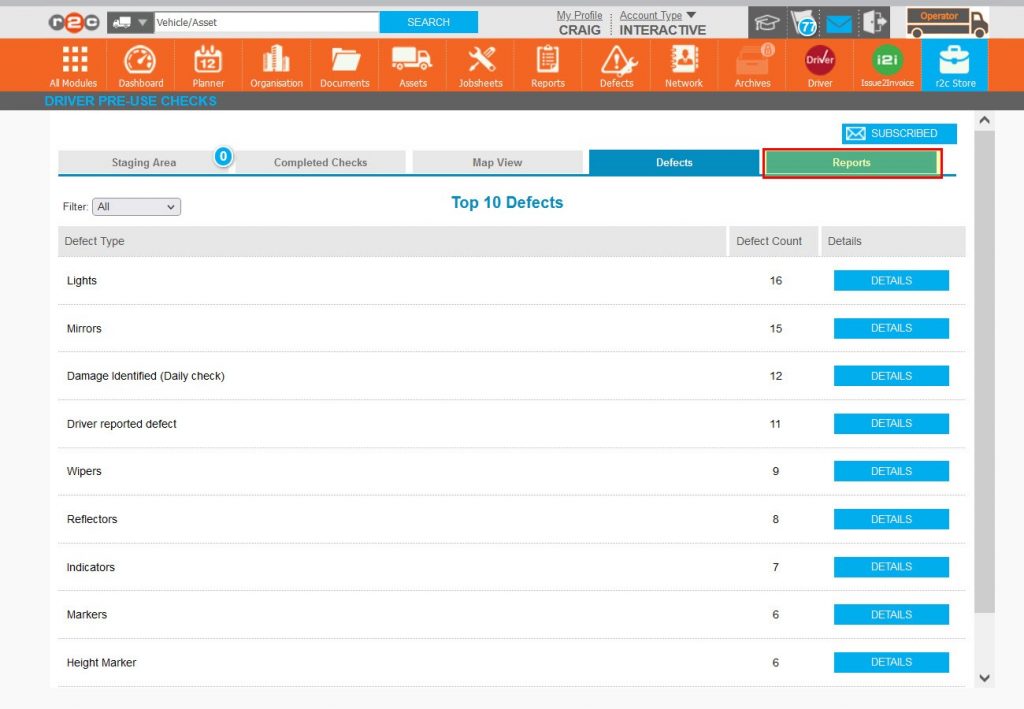
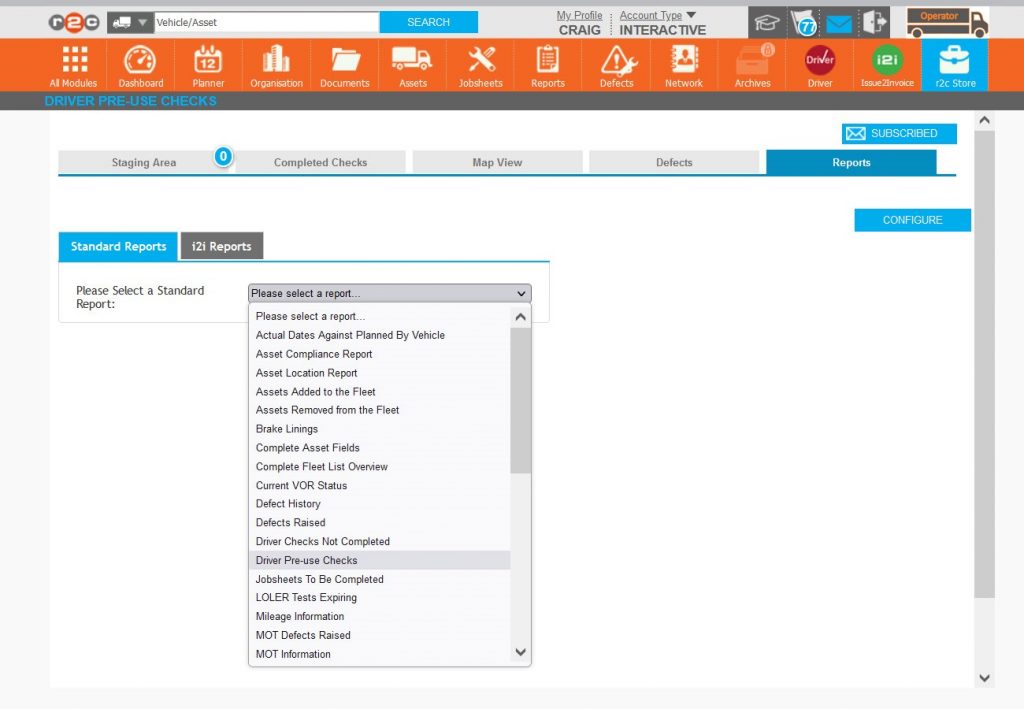
Step 19 – Click the final tab, Reports.
Step 20 – The reports tab is the same as the main reports page but exists for two specific reports, ‘Driver Checks Not Completed’ and ‘Driver Pre-use Checks’.
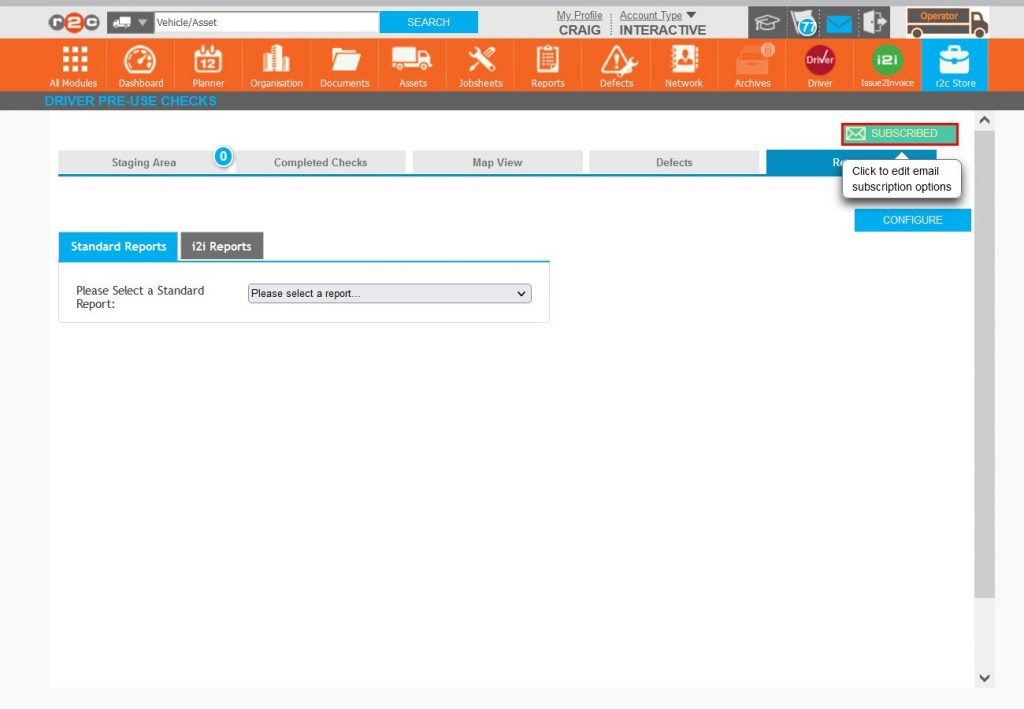
Step 21 – General email notifications can be switched on via ‘My Profile’ but these do not include the more specific to role, driver defect email notifications. To turn these notifications on Click SUBSCRIBED.
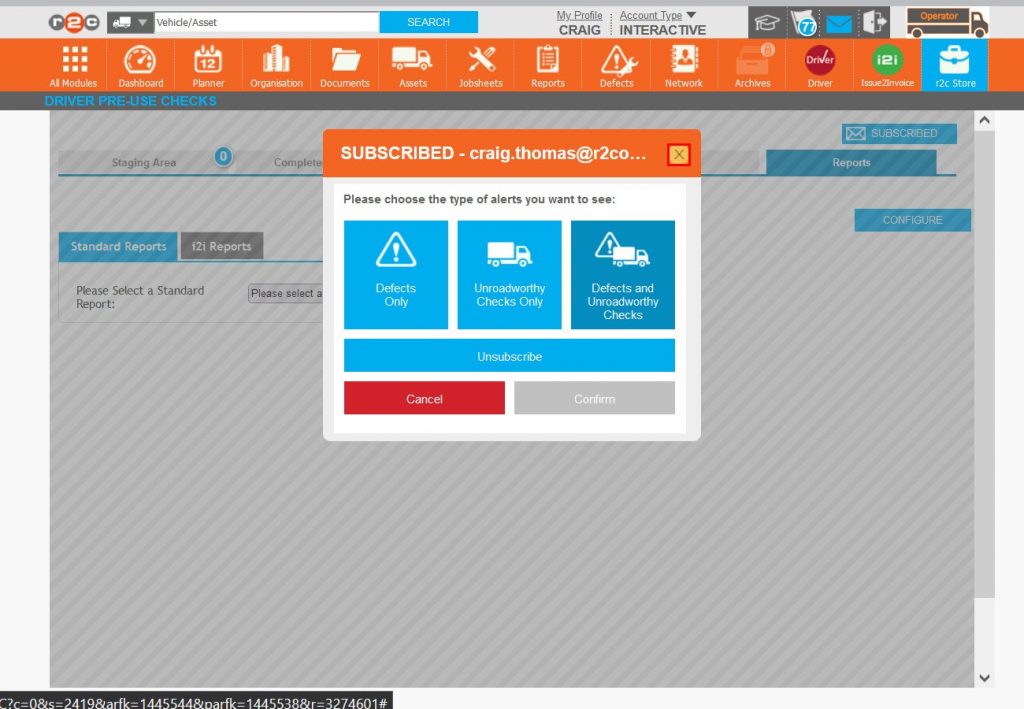
Step 22 – There are three levels of subscription available, Defect Only, Unroadworthy Only or Defects and Unroadworthy checks. Once the alert type has been selected, emails will be triggered to the registered email account.
Technical Info & Self Help
Why can't I see thelocation icon?
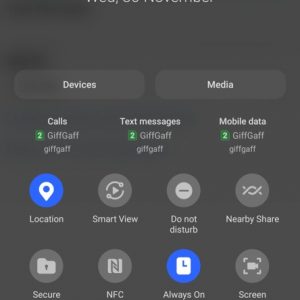
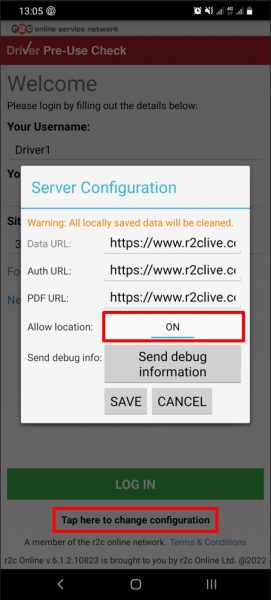
Location reporting depends entirely on the device from which the check is being sent, there are two areas that should be checked;
1, The devices settings/Location
2, The Driver App/Configuration/location
Where can I get instructions for the Driver App?
For a basic user guide for the Driver App click the link below.
A green outline on the account type icon signifies the guide is applicable whereas a red outline signifies it is not applicable to the the respective account type.