
Introduction
Here you’ll find guidance on how to complete the data sheet templates that are required when importing bespoke sheets to your account. This guide will cover the below templates:
Inspection Sheets: This template is used to create a bespoke inspection/service sheet to be used on r2c Inspect by interactive Workshops. Although this sheet is primarily used by Workshops. Operators can also use this template when setting up sheets for their suppliers to pick up.
Driver Check Sheets: This template is used to create bespoke sheets to be used in the r2c Driver pre-use check App. This sheet is for Operators using the driver module add-on only.
Inspection Sheet Template
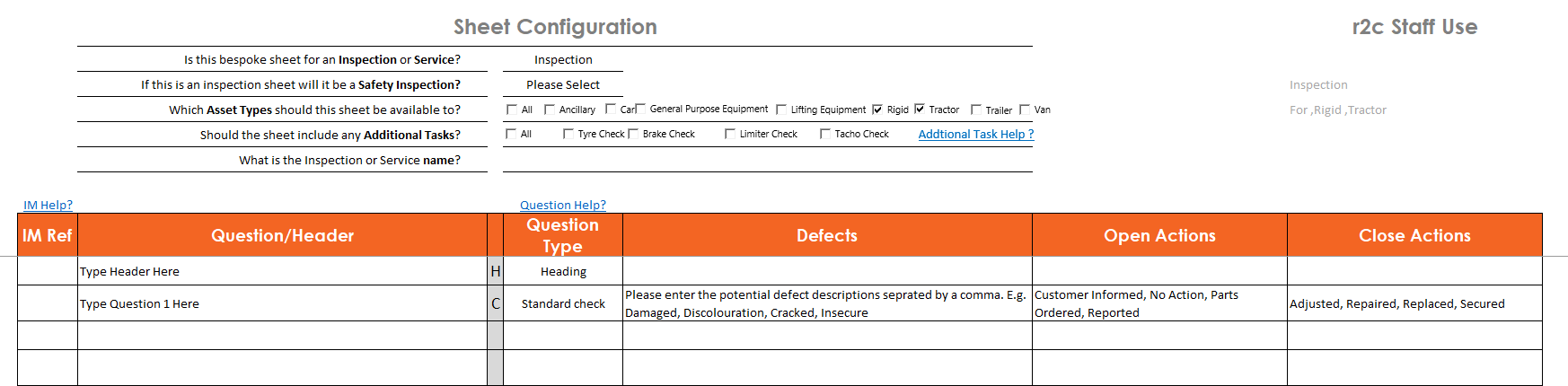
To see the guidance for competing the Inspection sheet template please click on the hotspots to learn more about each section. You can see a detailed breakdown for each part of the template below.
Sheet Configurations - Sheet requirements are specified here e.g. asset types and additional tasks.
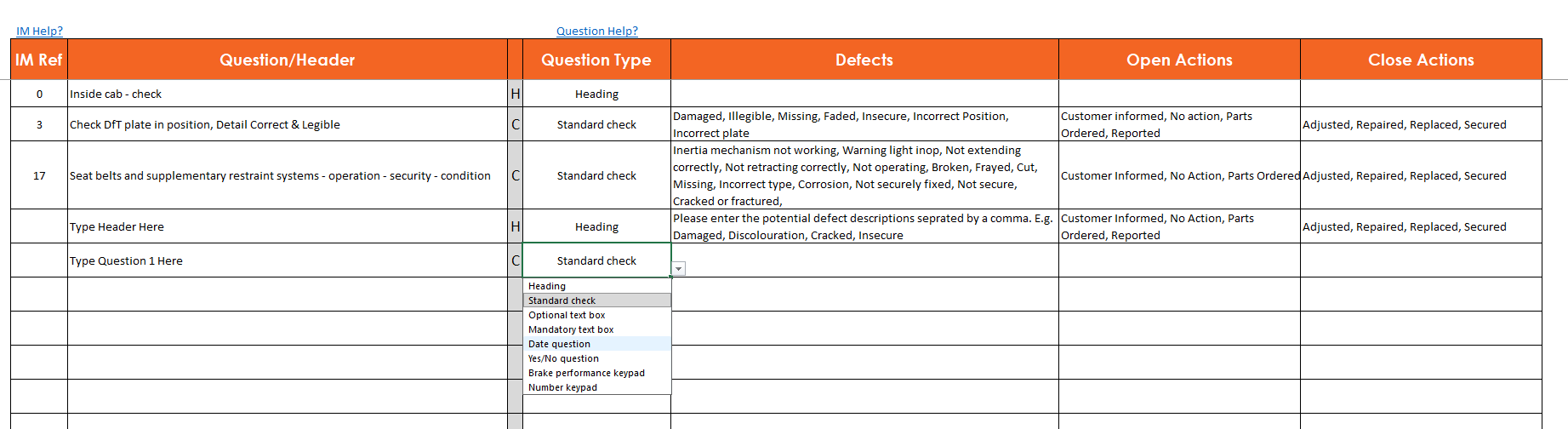
Use the drop down list to specify the question type. E.g. 'D' denotes that the user will need to input a date.
The main section of the template is where you can enter the headings, questions and associated defects for specific questions.
Sheet Configuration – The first part of the template includes a form for you to complete. Here you can specify the additional settings sheet requirements. Click on the hotspots to learn more.
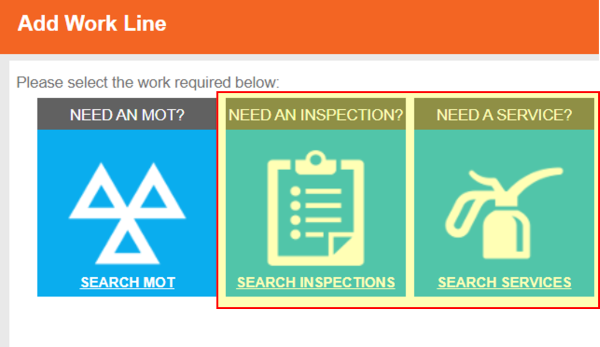
You can choose for the sheet to be classified as an Inspection or a service here. This will dictate which section the sheet shows in when a user is adding work to a job.
Specify if this sheet is the main PMI, that will be used for regular checks.
Here you can restrict the sheet so it can only be selected for work on specific asset types. Tick the asset types that do apply for the sheet.
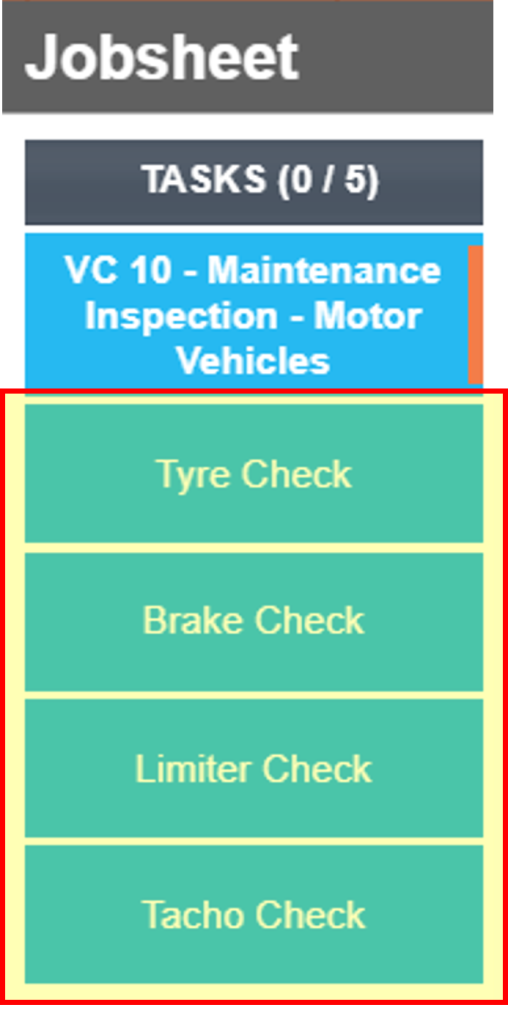
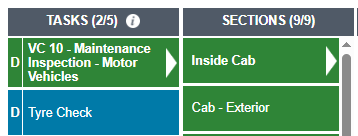
You can also add a combination of additional tasks to sheets including a Tyre Check, Brake Check, Limiter Check and Tacho Check or all 4 items if required. See exmaples of these tasks here.
Enter the name here e.g. r2c trailer inspection
Question Types – These are the question types you can choose from when completing the template.
Use the links below to see examples of how these question types display in Inspect, when completing a task.
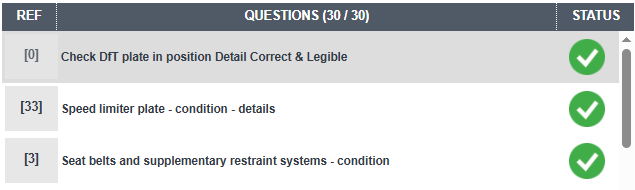
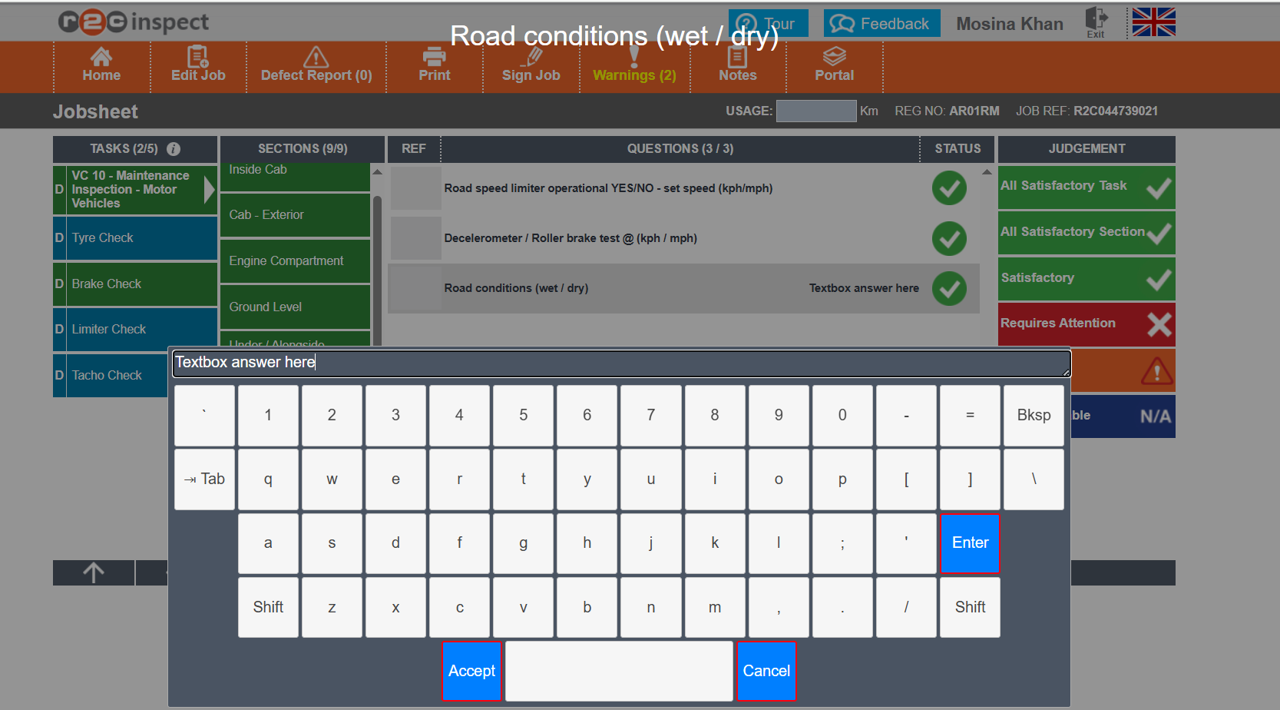
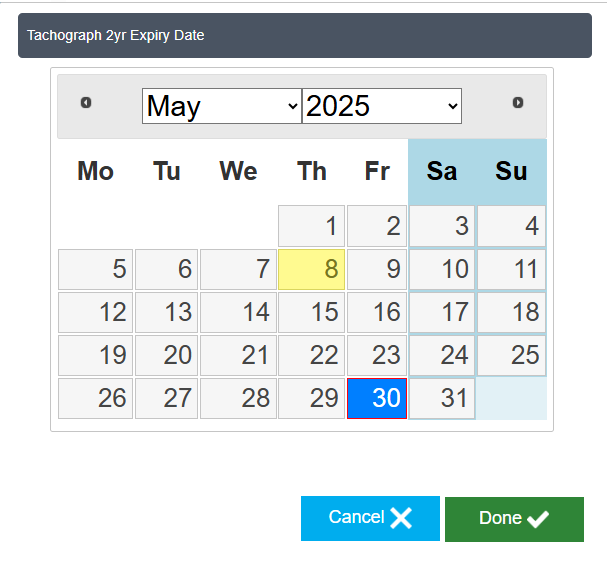
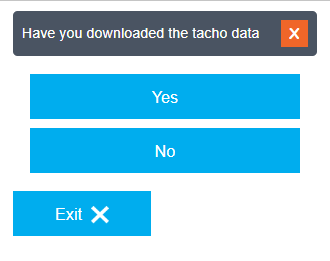
| Type Click on a question type to see an example. | Description |
|---|---|
| H | Heading Items set to 'H' for Heading will be used to create separate sections within the Inspection or Service. e.g. Inside Cab and Cab exterior |
| C | Standard Check questions that are 'Satisfactory' display as a simple check tick option. |
| O | Optional Text Box Items are questions that are answered using a text entry box. |
| M | Mandatory Text Box Items set to 'M' are questions that are answered using a text entry box. |
| D | Date question types are answered using a visual calendar/date picker. |
| Y | Questions marked with a 'Y' display as a yes or no option for the user to choose a response from. |
| N | Number Keypad |
Main Section – Here you can input the section headings, inspection/service sheet questions and defect settings for each question. click on the hotspots to learn more.
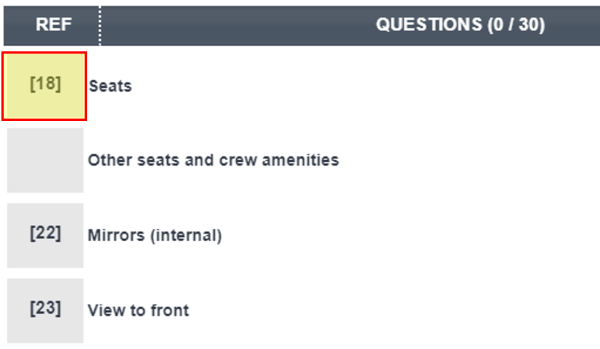
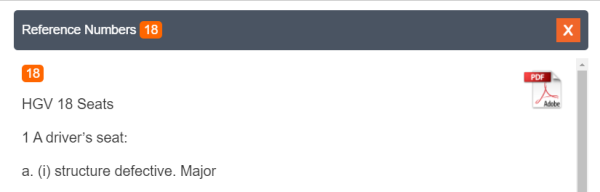
If an IM Ref is added here, the Inspection manual guidance will be available to users completing the inspection sheet in digital and pdf format.
Enter the question wording here.
Select the question type
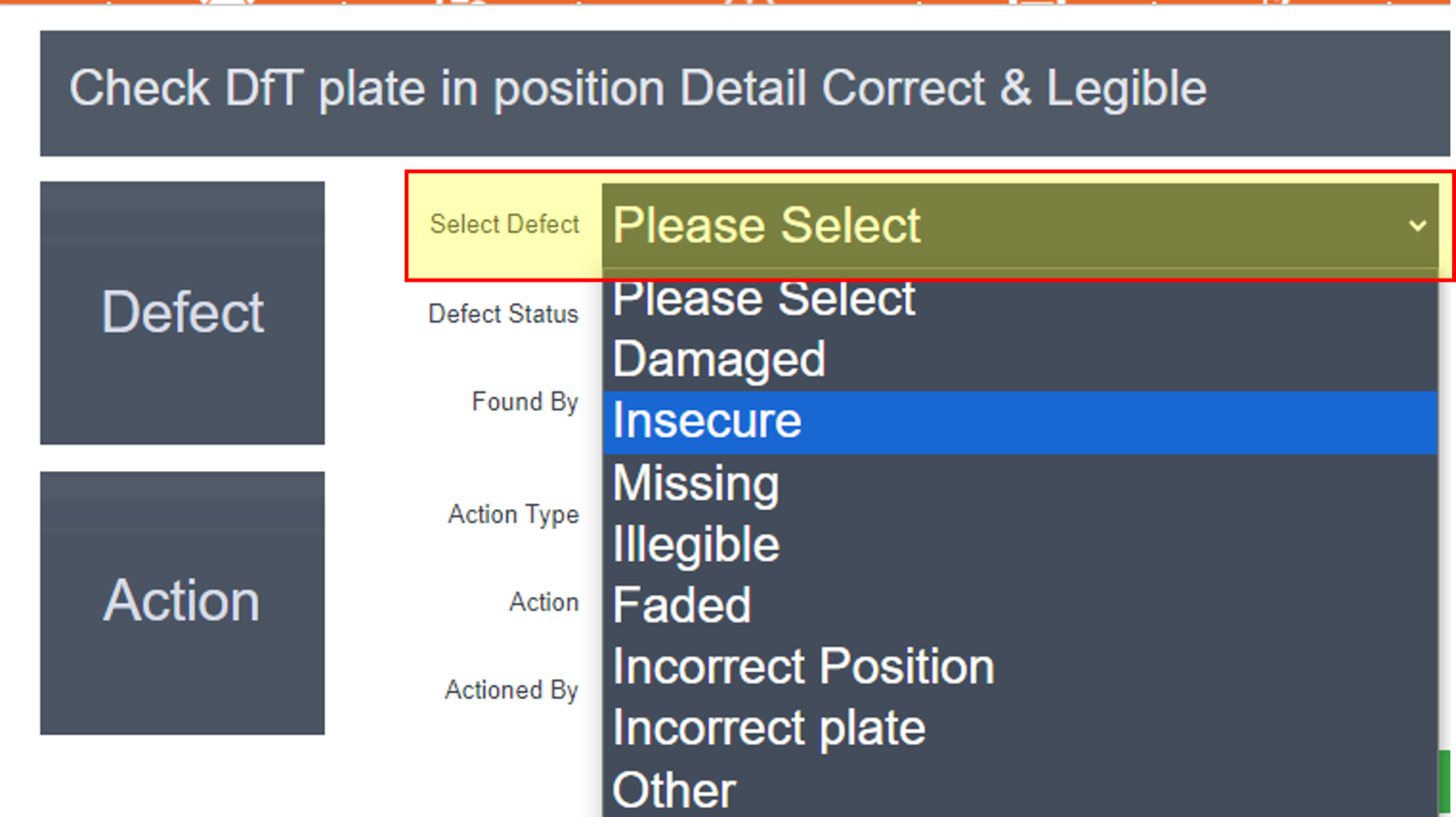
Enter specific defect descriptions for each question here. See examples below.
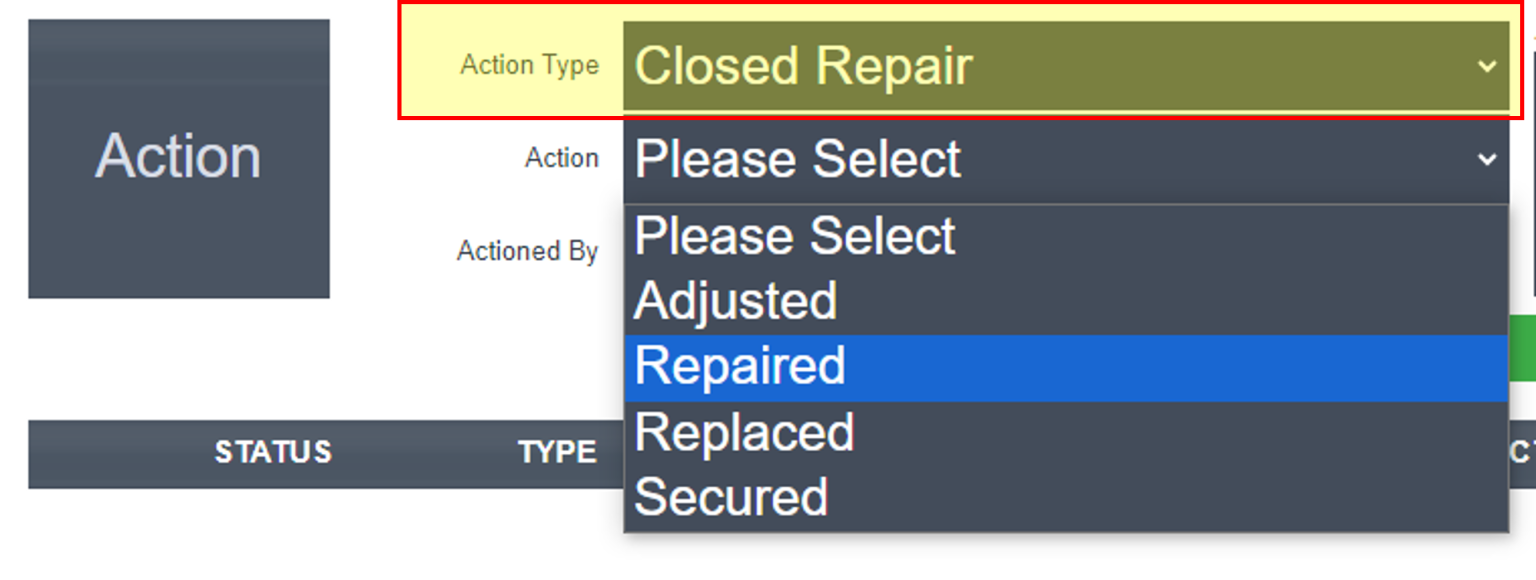
The open and closed actions related to a defect go here. See examples below.
Defects and open/closed actions- Here you can input the types of defects that a user can raise against a specific question as well as the open or closed actions that the technician may take. Please note, all sheets will still have the option to raise custom defects independent to questions.
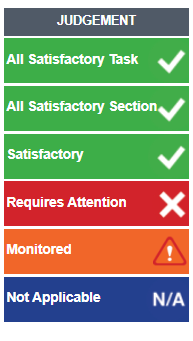
All jobs in Inspect are completed using the standard judgment buttons available regardless of question type.
The requires attention button is used to raise both safety and non-safety defects against a specific question.
This corresponds to the defect column on the template above where the defect descriptions can be specified. e.g. Damaged, Insecure, Faded etc.
Alternatively, you can use the default format of ‘reported defect‘.
The open and closed actions will be what the user can select from when updating a defect. These can be left as the default or amended.
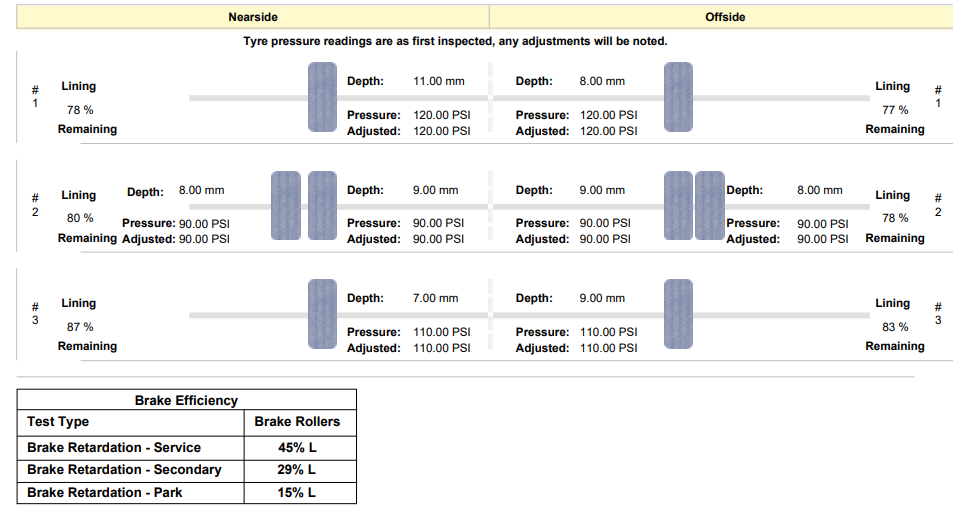
The spawned tasks chosen will show as additional tasks for the user to complete. If included, these will simply be added to the PDF in the same format as the inspection sheet questions. However, the Tyre check and Brake test also generate a wheel plan diagram and table as shown below.
Spawned Tasks listed in Inspect.
Driver Check Sheet Template
To see the guidance for competing the Driver Check sheet template please click on the hotspots to learn more.
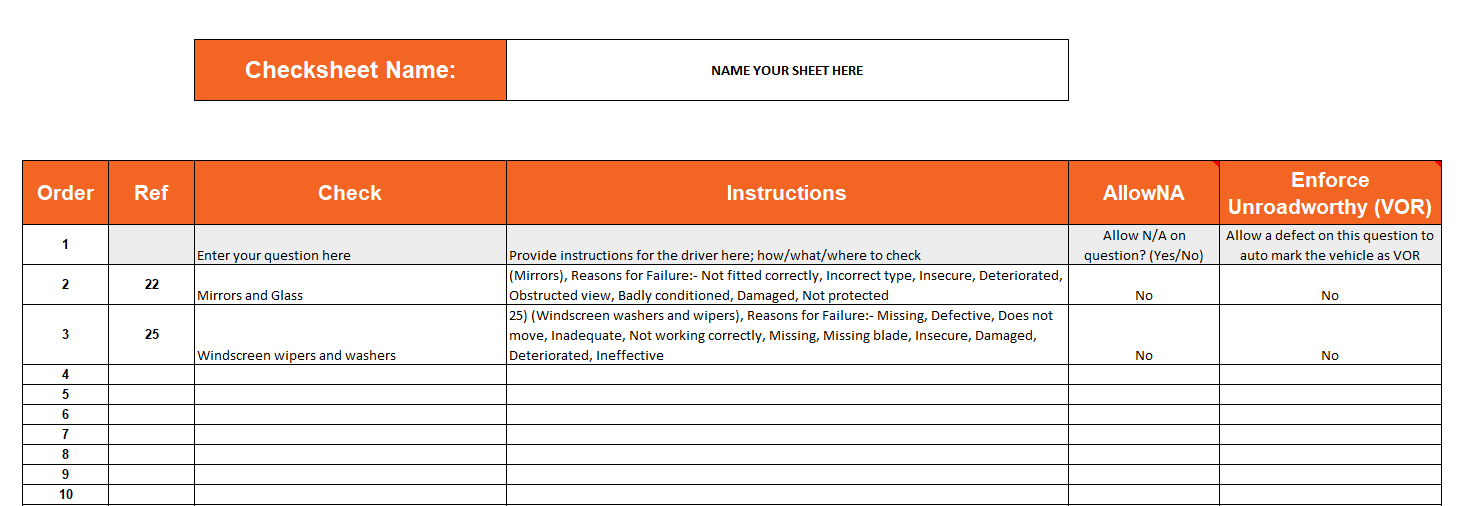
Template – The first part of the template includes an example and then a ‘create your own’ tab which requires you to name the check sheet followed by the check questions and their individual settings.
Enter the question wording here.

Specify if a defect raised on this question should force a driver to mark the vehicle as unroadworthy.
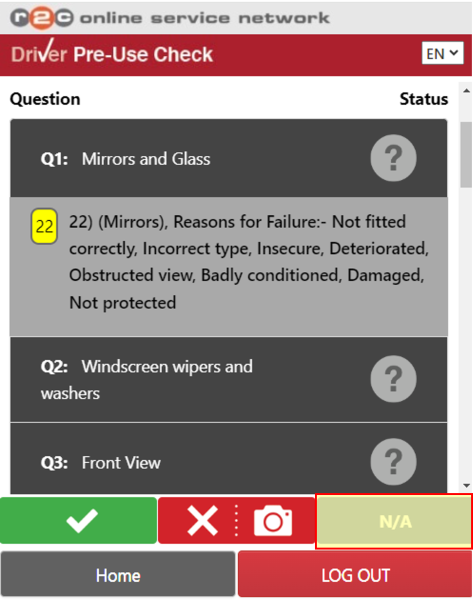
Specify if a user should be able to mark a question as 'N/A'
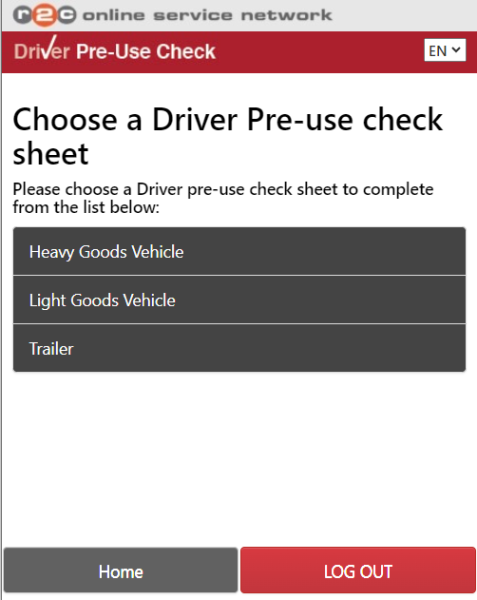
Enter the name of the sheet as you would like it to show on the app for drivers to select.
Provide instructions for the driver here; how/what/where to check if required. 
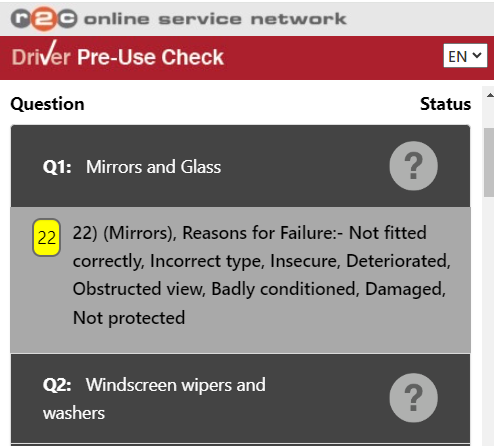

If the instructions added are related to an IM Ref it can be added here.
Technical Info & Self Help
Example Inspection PDF
Example Driver Checksheet PDF
Character Limits
Inspection Sheets or Defect Sheets can be found in inspect up to the point of completion and in multiple locations in the portal, Jobsheets/inspection sheets are never removed from r2c.
Inspection Sheets
| Section | Character Limit |
|---|---|
| Sheet Name | 100 |
| Headings | 70 |
| Questions | 200 |
| Defect Descriptions (Each option) | 200 |
Driver Check Sheets
| Section | Character Limit |
|---|---|
| Sheet Name | 150 |
| Questions | 150 |