


Introduction
When a jobsheet does not need to be carried out using the Inspect system a non-digital job can be completed instead. These jobs can be updated within portal, with scanned documents attached where applicable.
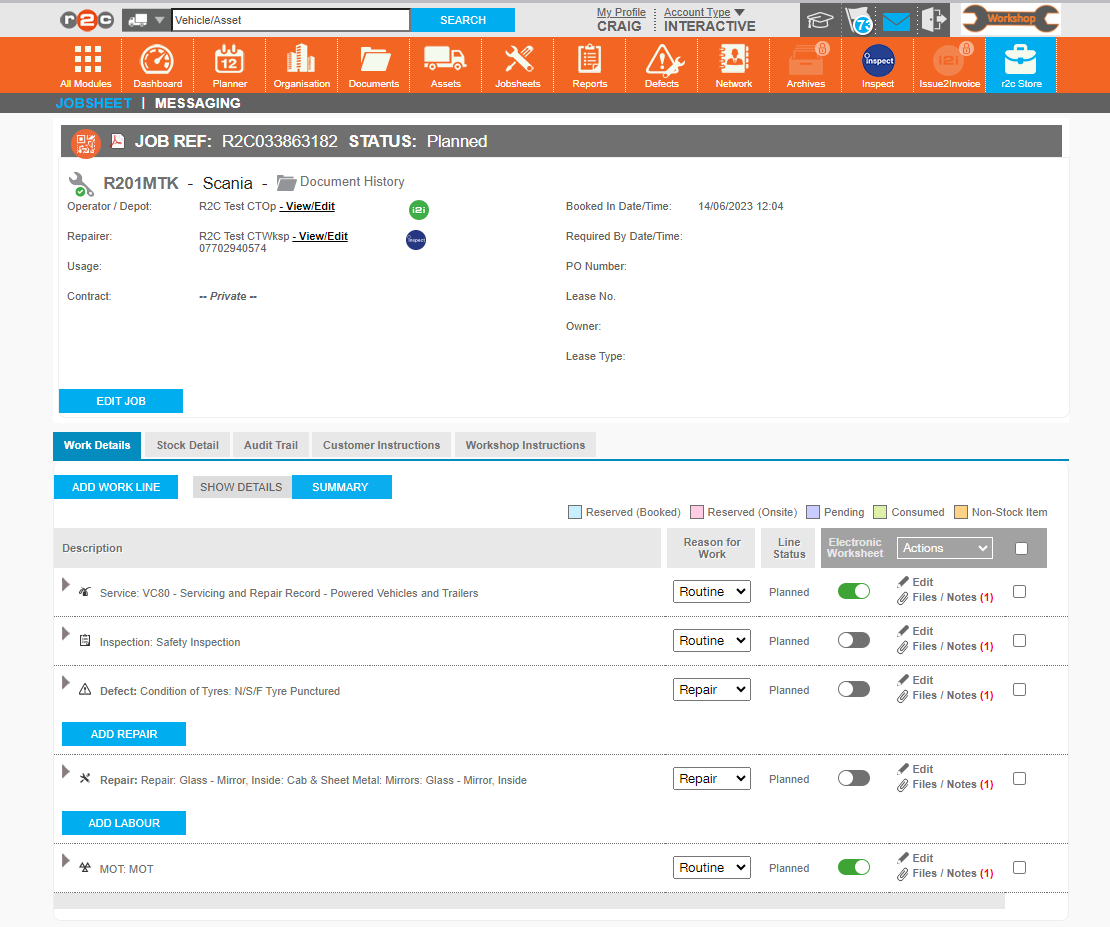
Jobsheets can be made up both digital and non-digital lines. use the hotspots below to explore the differences.
This column shows whether a task is digital or non-digital. Where a task is digital the Toggle Icon will display as on. These lines must be completed using the Inspect system.
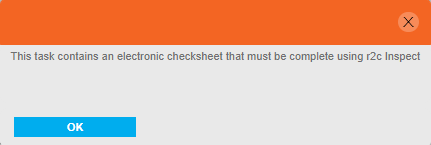
Note: The toggle cannot be switched off for digital lines except for MOT tasks.
This service line is digital so can only be completed in Inspect. To complete a job inspect please refer to the Inspect Guide.
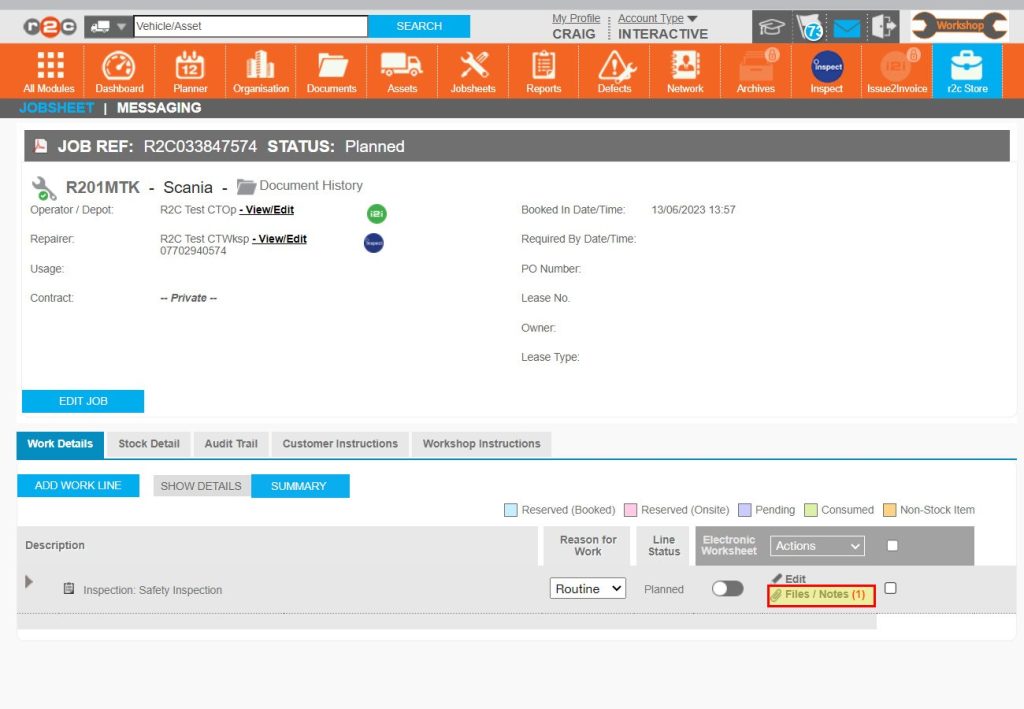
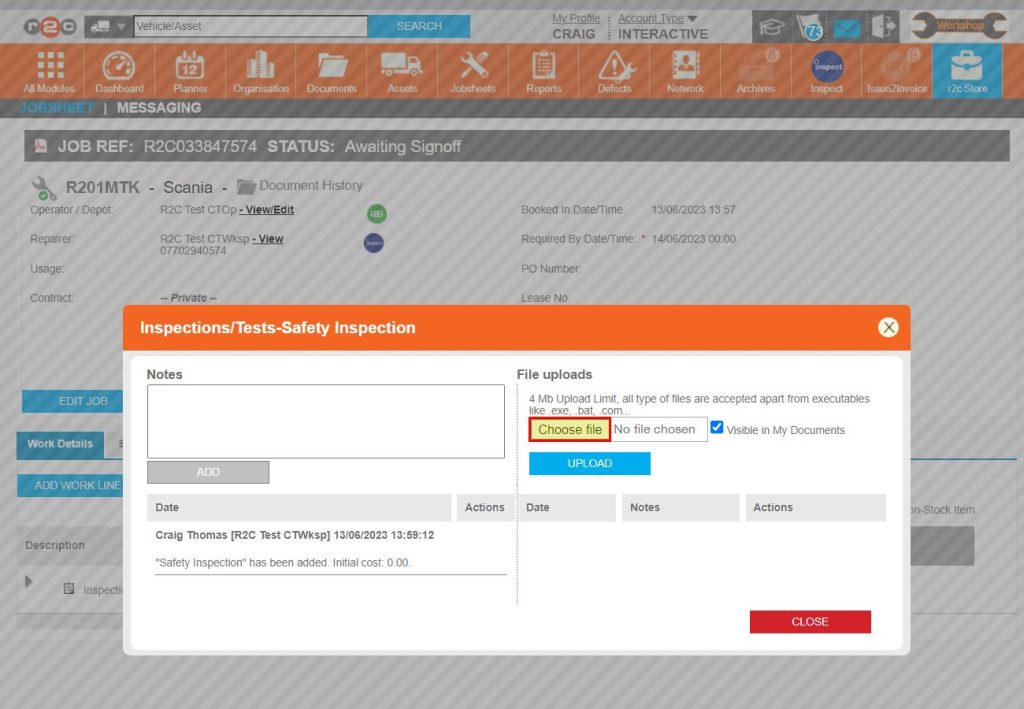
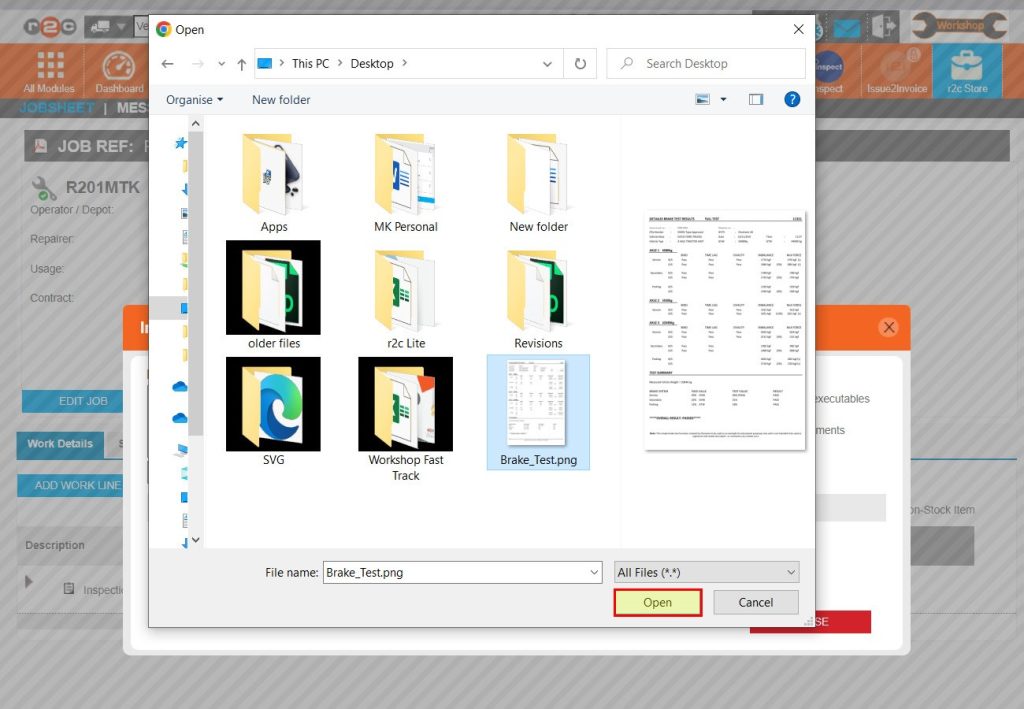
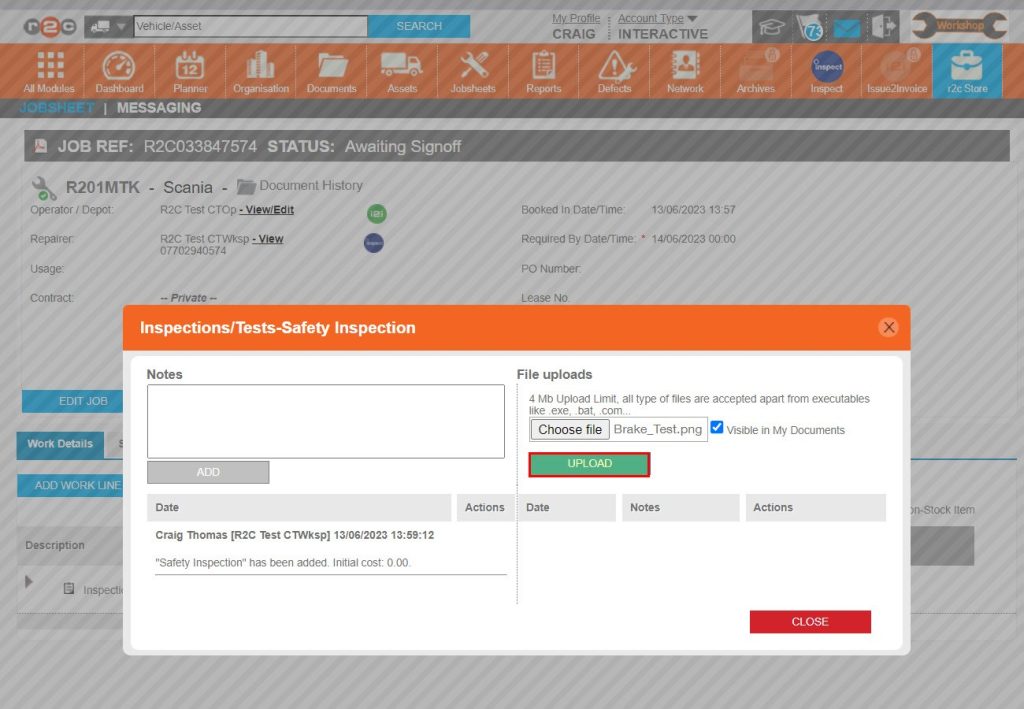
This inspection is non-digital, so can be marked as completed using the steps below.
Defect and repair lines have the option to be completed in Inspect on a digital service sheet or as non-digital within portal. This will depend on your business processes.
MOT inspections can be done in inspect or converted to a non-digital line using he Toggle. See the MOT Jobs guide for more details.
![]()
Step by Step
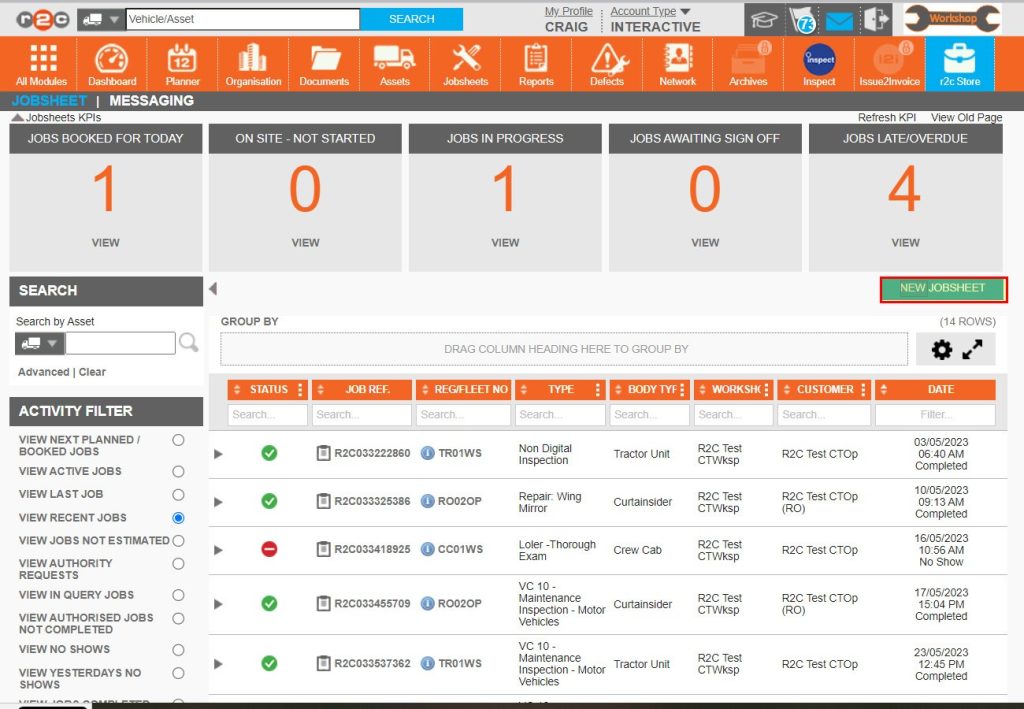
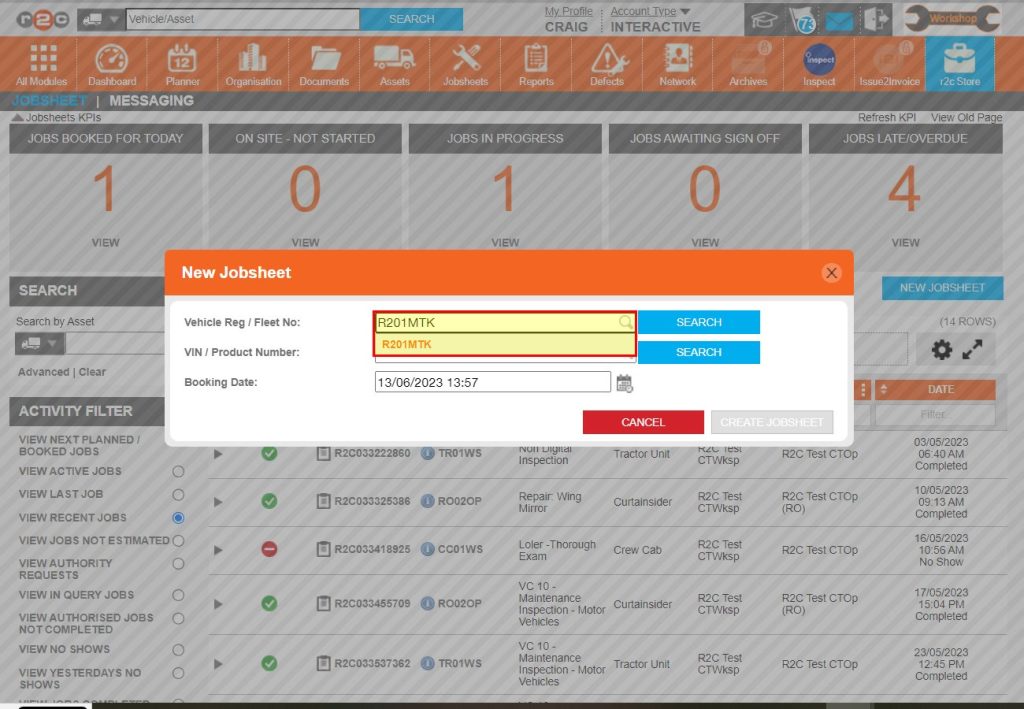
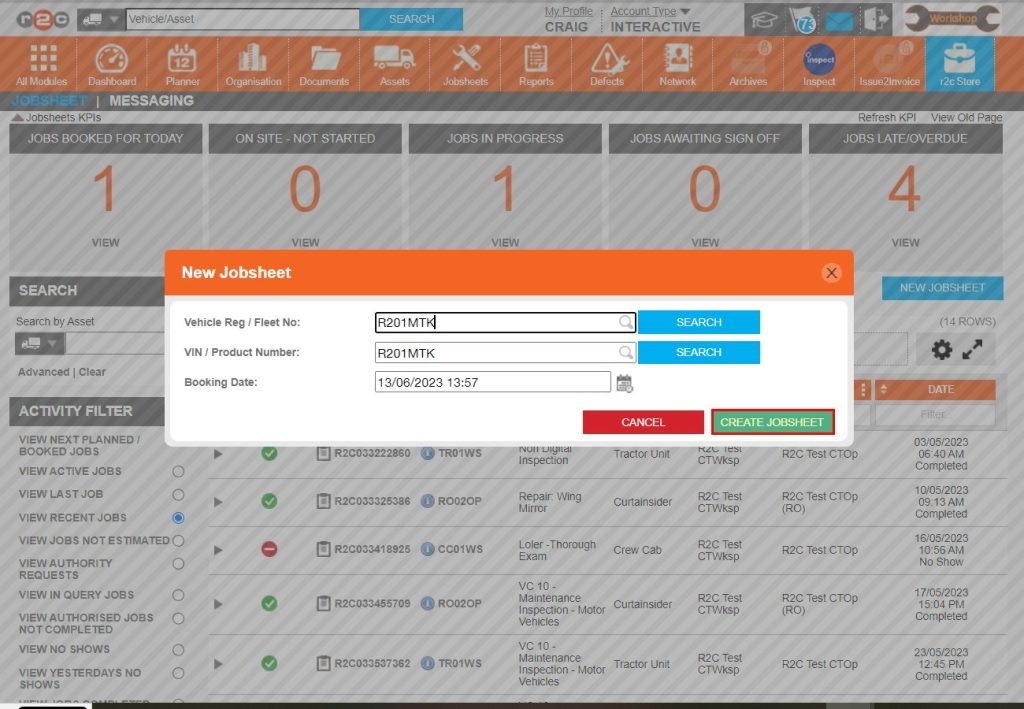
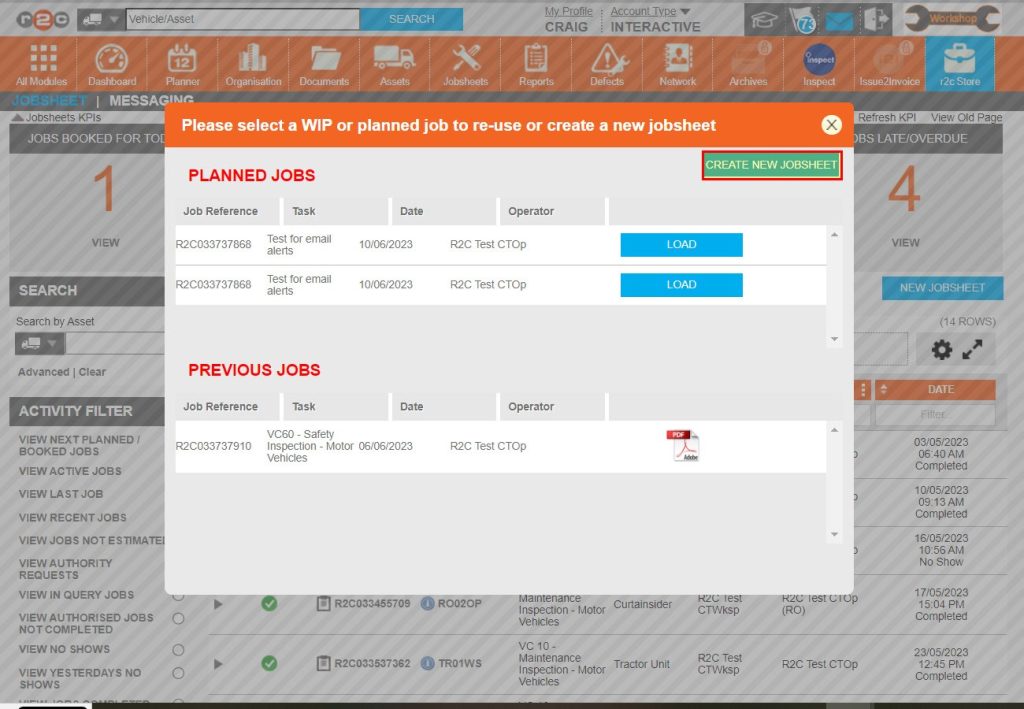
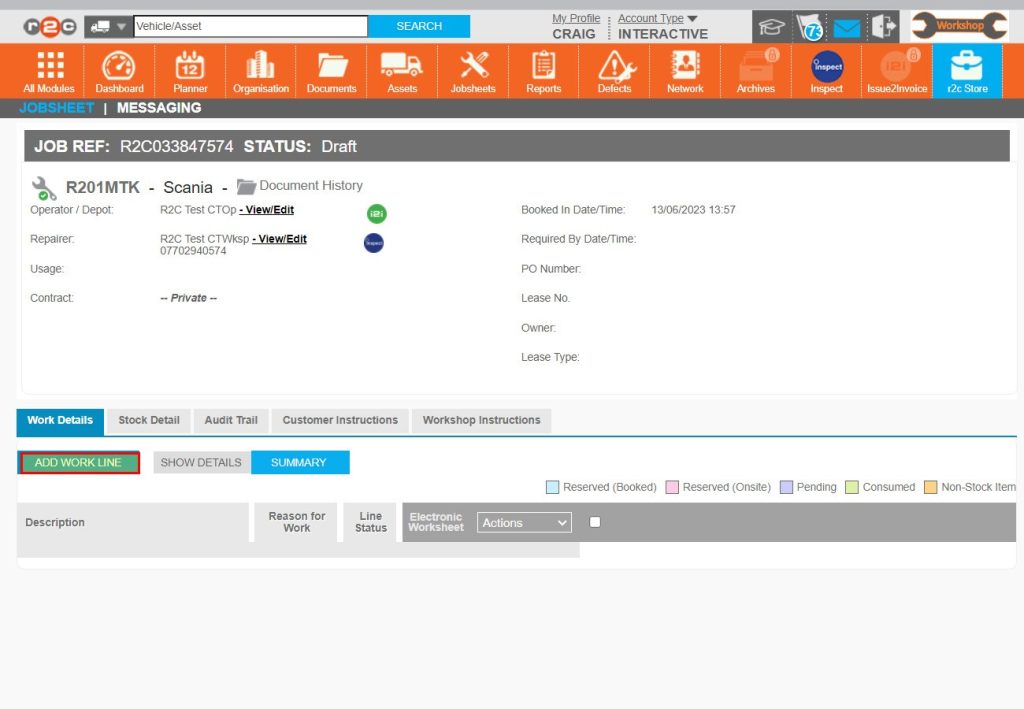
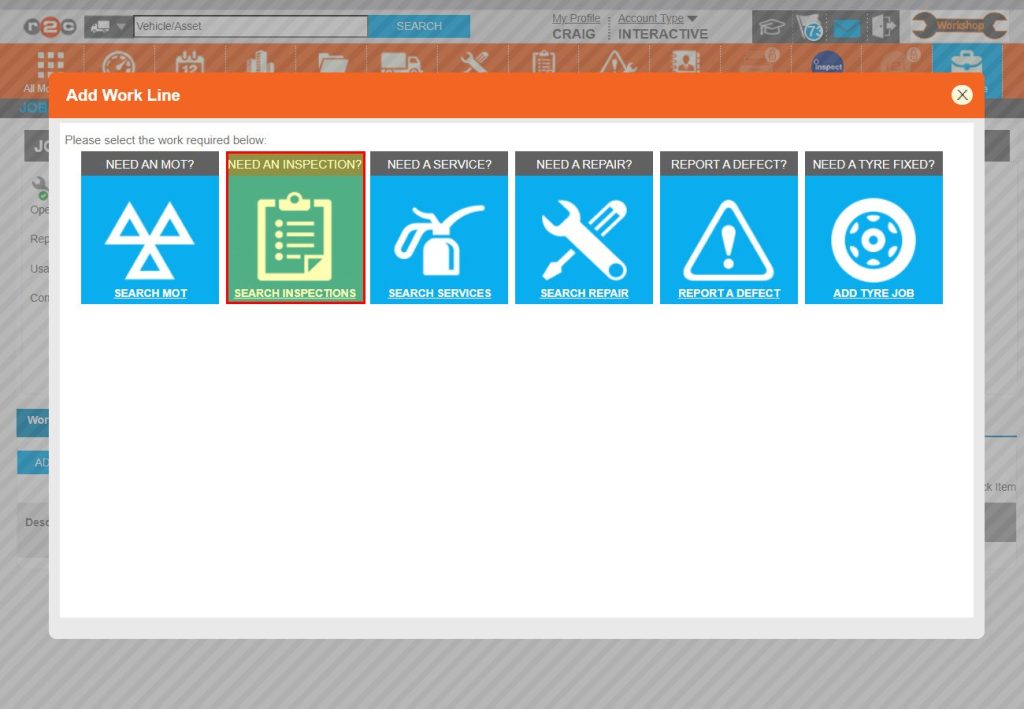
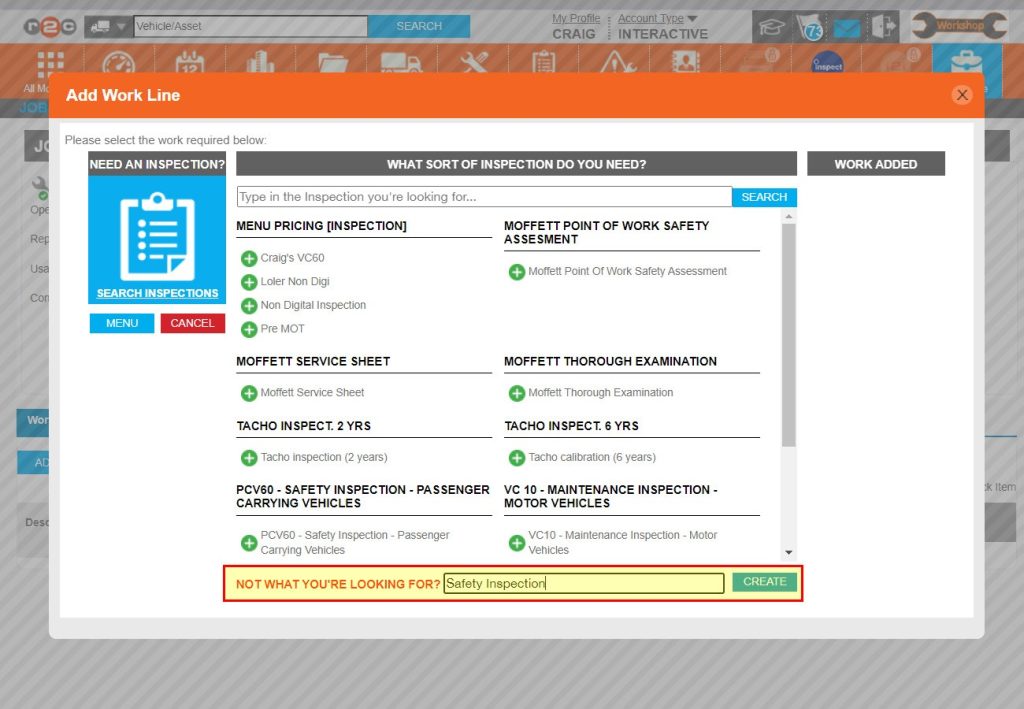
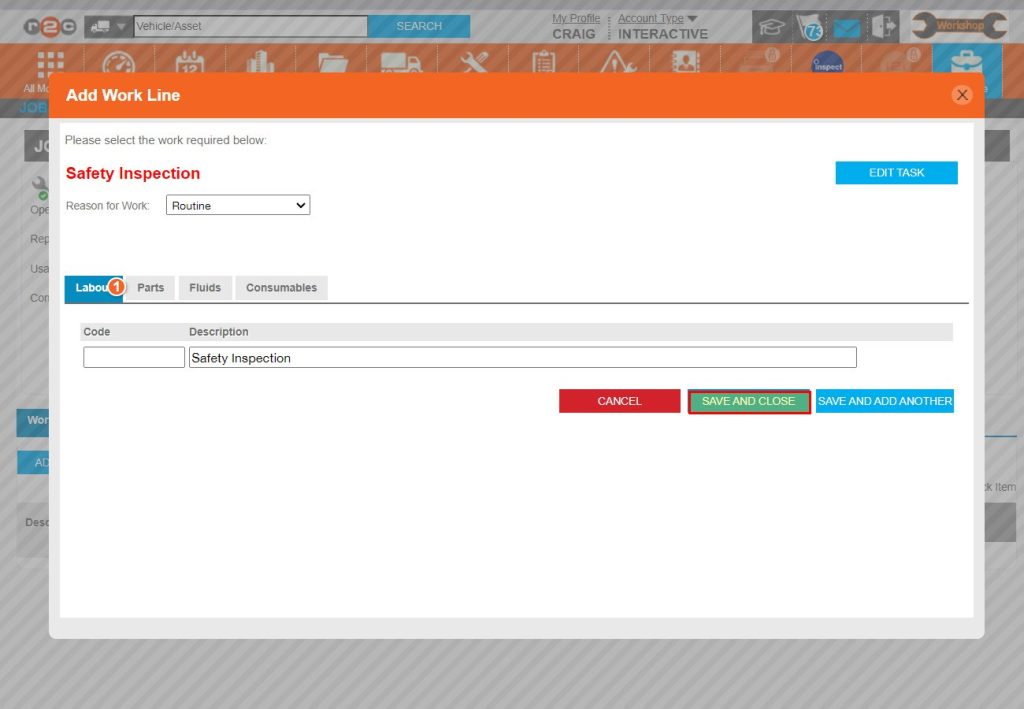
Create a non-digital job- To create a non-digital job, click or swipe through the 8 steps below.


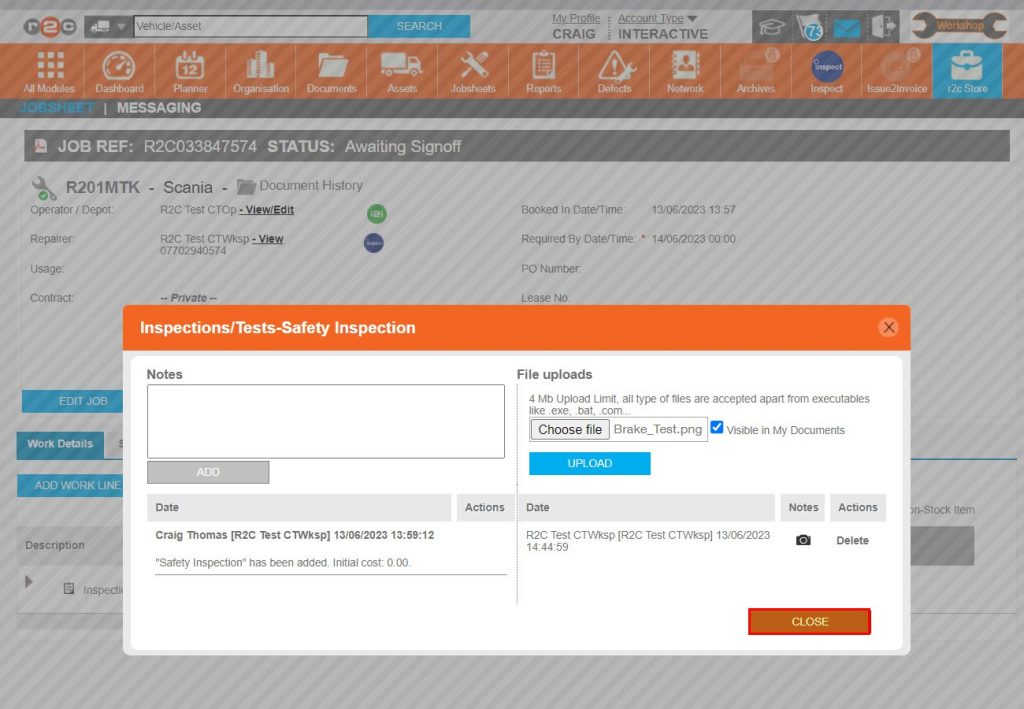
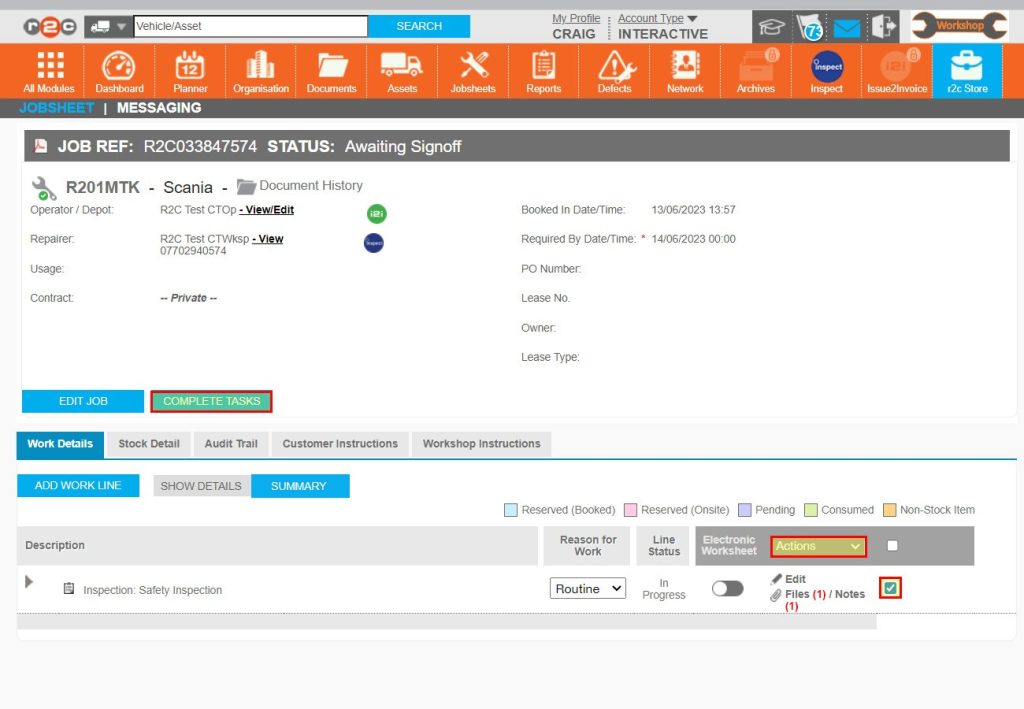
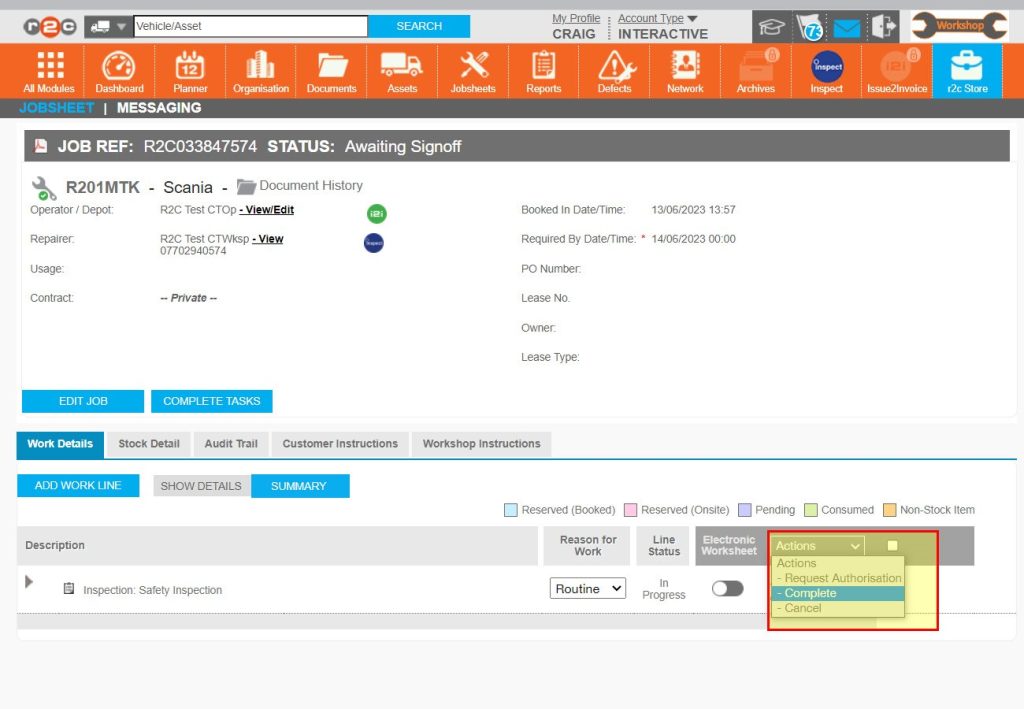
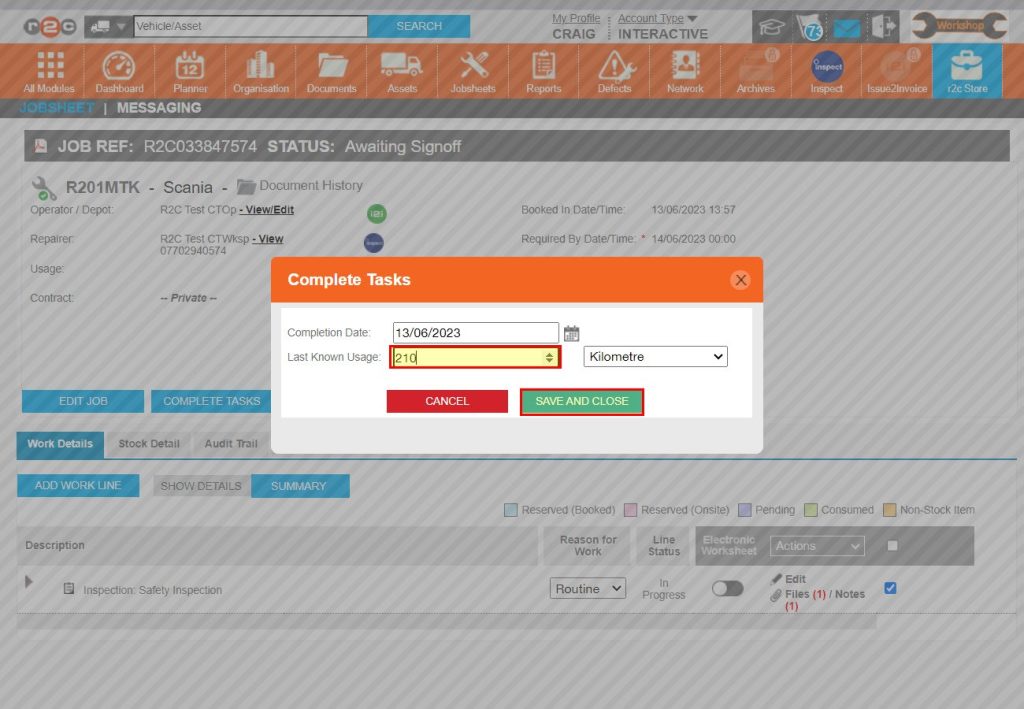
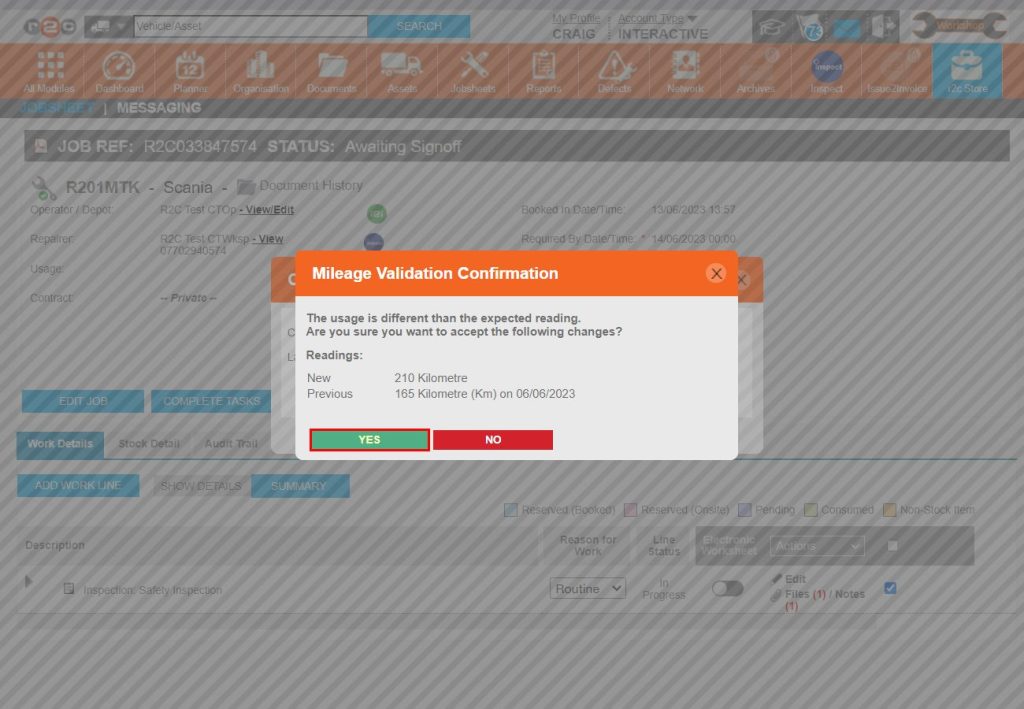
Complete a job- To complete a non-digital job, click or swipe through the 9 steps below.


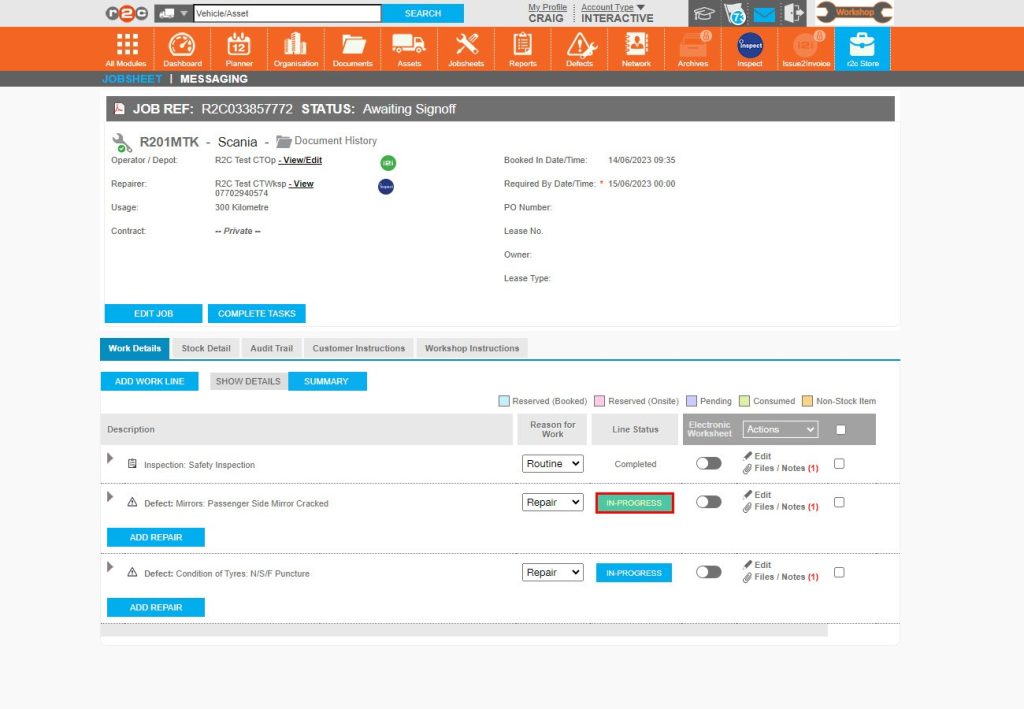
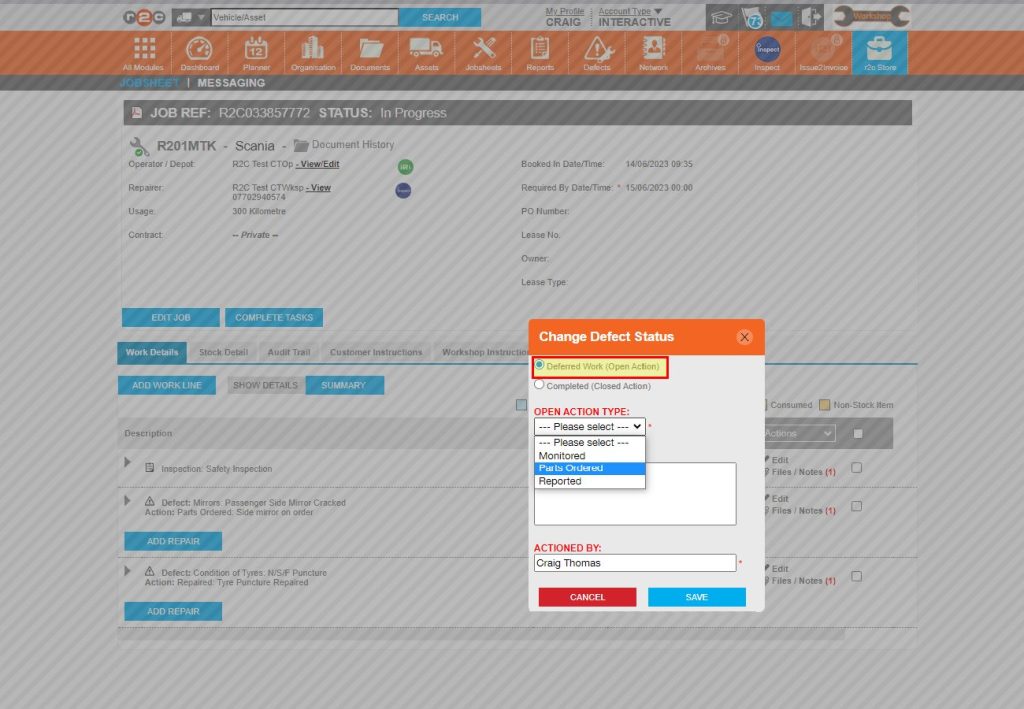
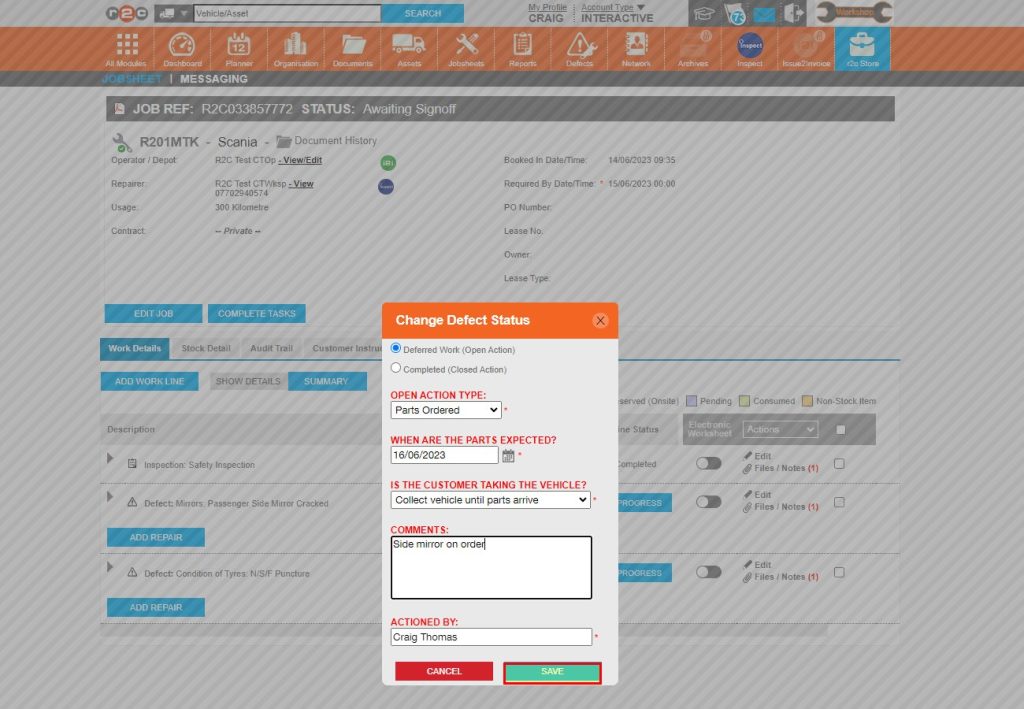
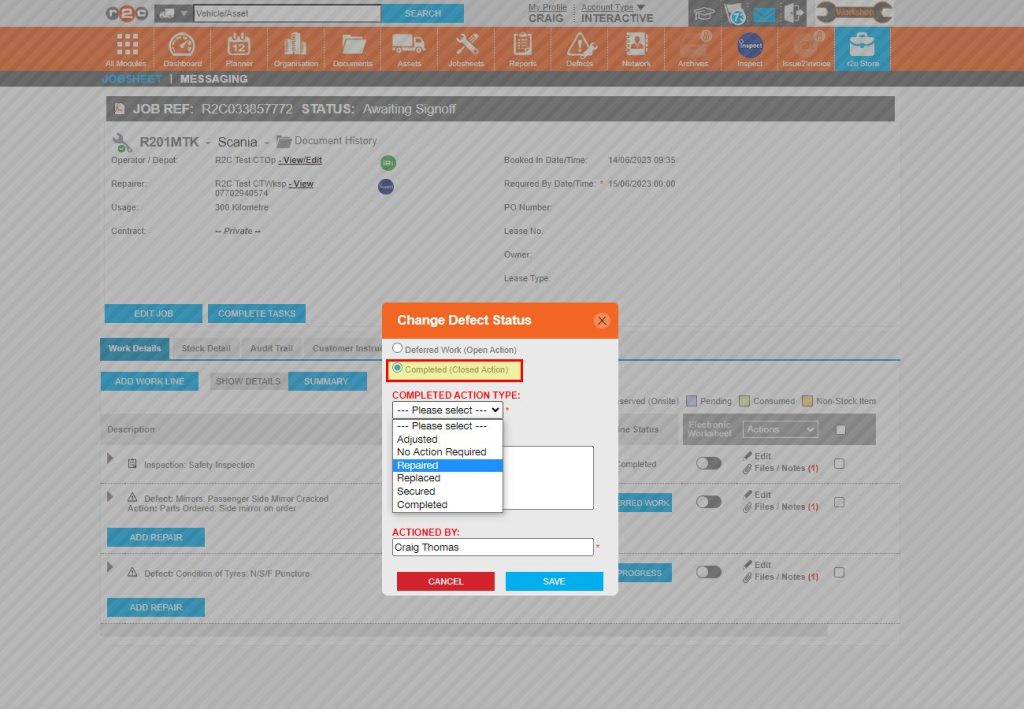
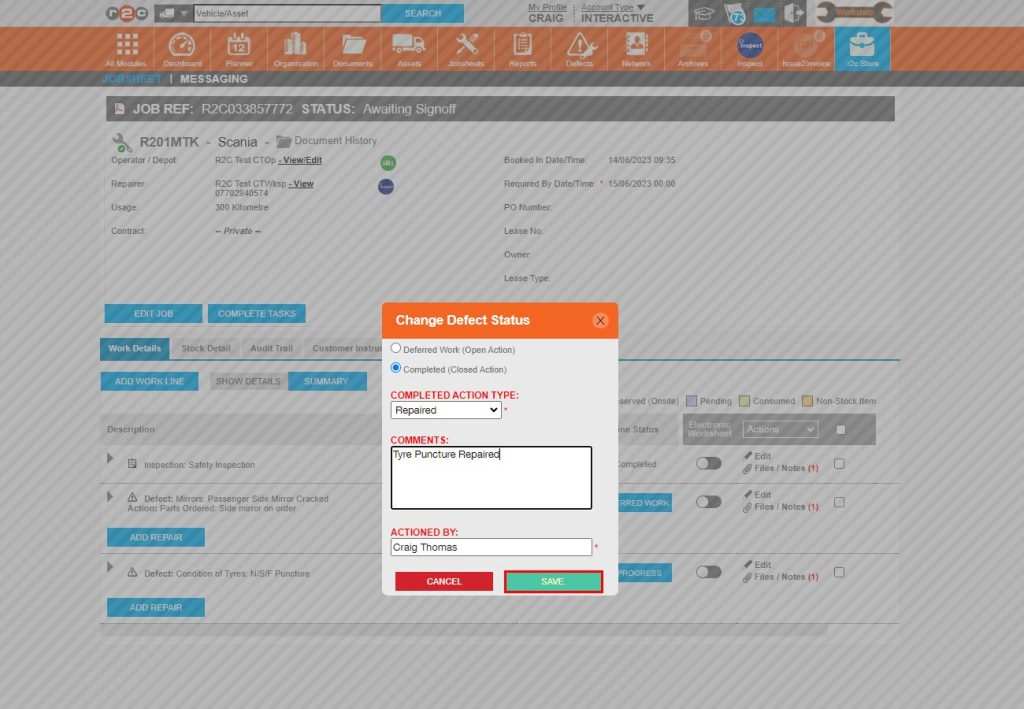
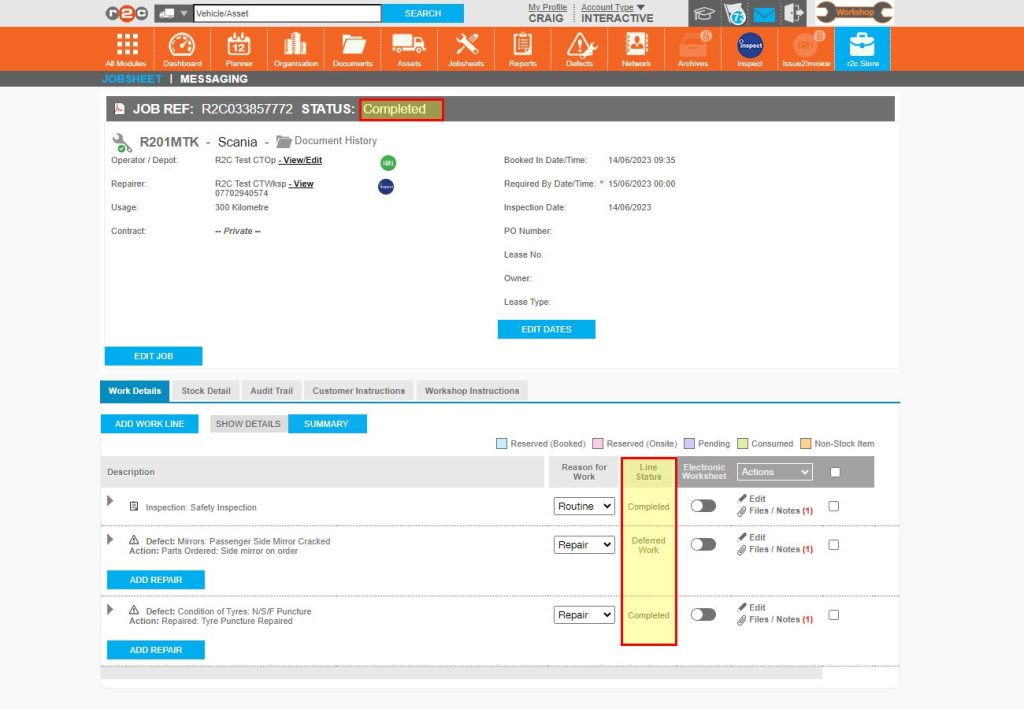
Completing Defect lines – To see the steps taken to complete defect lines within portal, click or swipe through the 6 steps below.


Technical Info & Self Help
Why can't I complete a Non Digital Jobsheet?
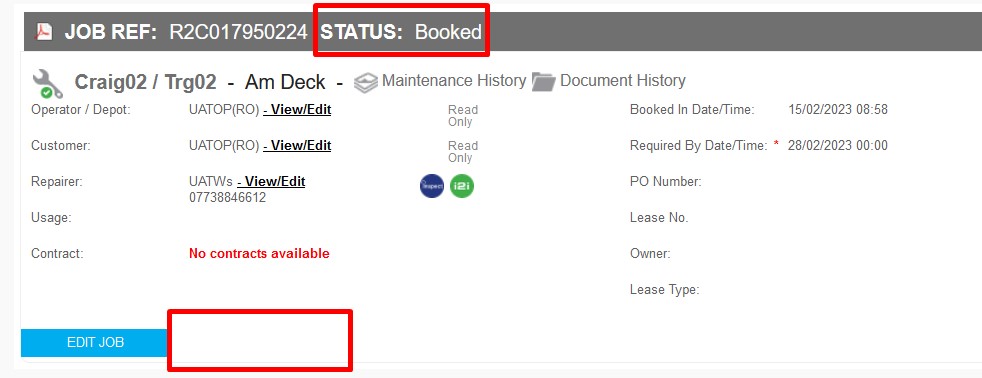
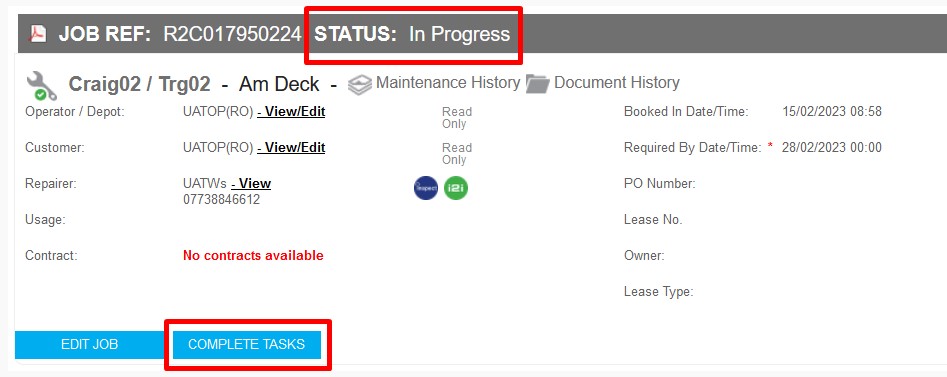
In order for a stock movement to occur the job status has to be in progress first. For this reason, the Complete Tasks button is not initially available.
To complete a job, first set the jobsheet status to In Progress, this action will then show the COMPLETE TASKS button for non-digital tasks.