N/A
Home » Guides » Adding Costs to a Jobsheet

Adding Costs to a Jobsheet

These steps for only applicable to interactive workshop accounts that have the i2i module enabled. Please note, your r2c contract may affect this as well as user role permissions.

Table of Contents

Introduction

With the i2i module workshops can add costs to the jobsheet and send these for approval to the customer. Once the job is completed and approved, the jobsheet can then be invoiced. This allows all parties to track the process within the r2c portal in real-time.  

Please note, this interaction is only possible when both the customer and the workshop have the i2i module add-on. 

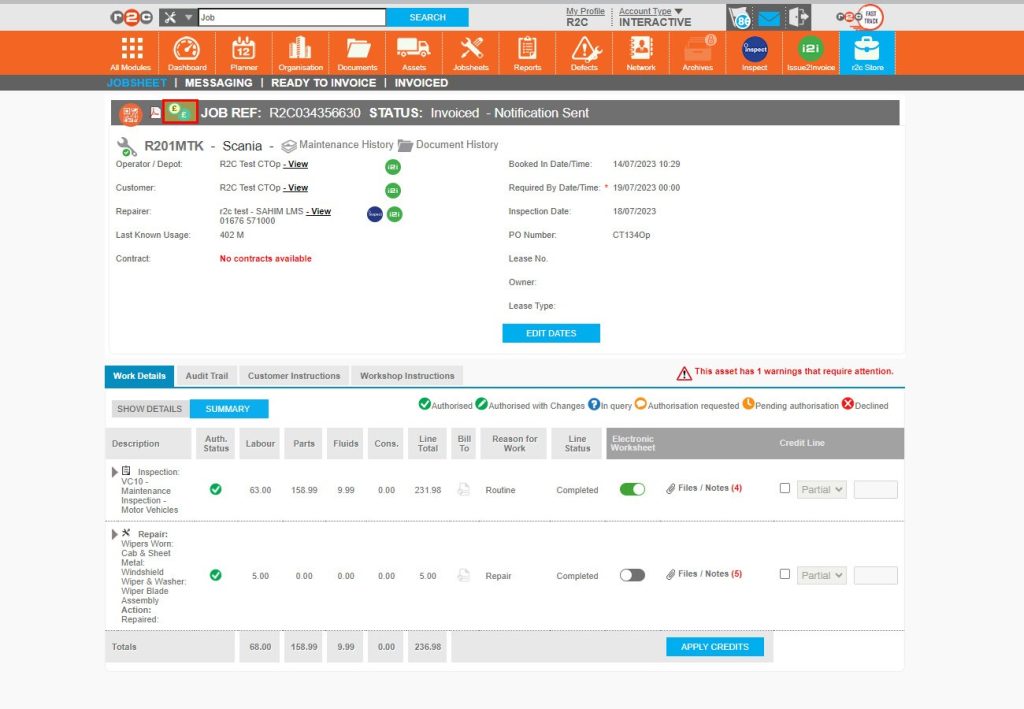
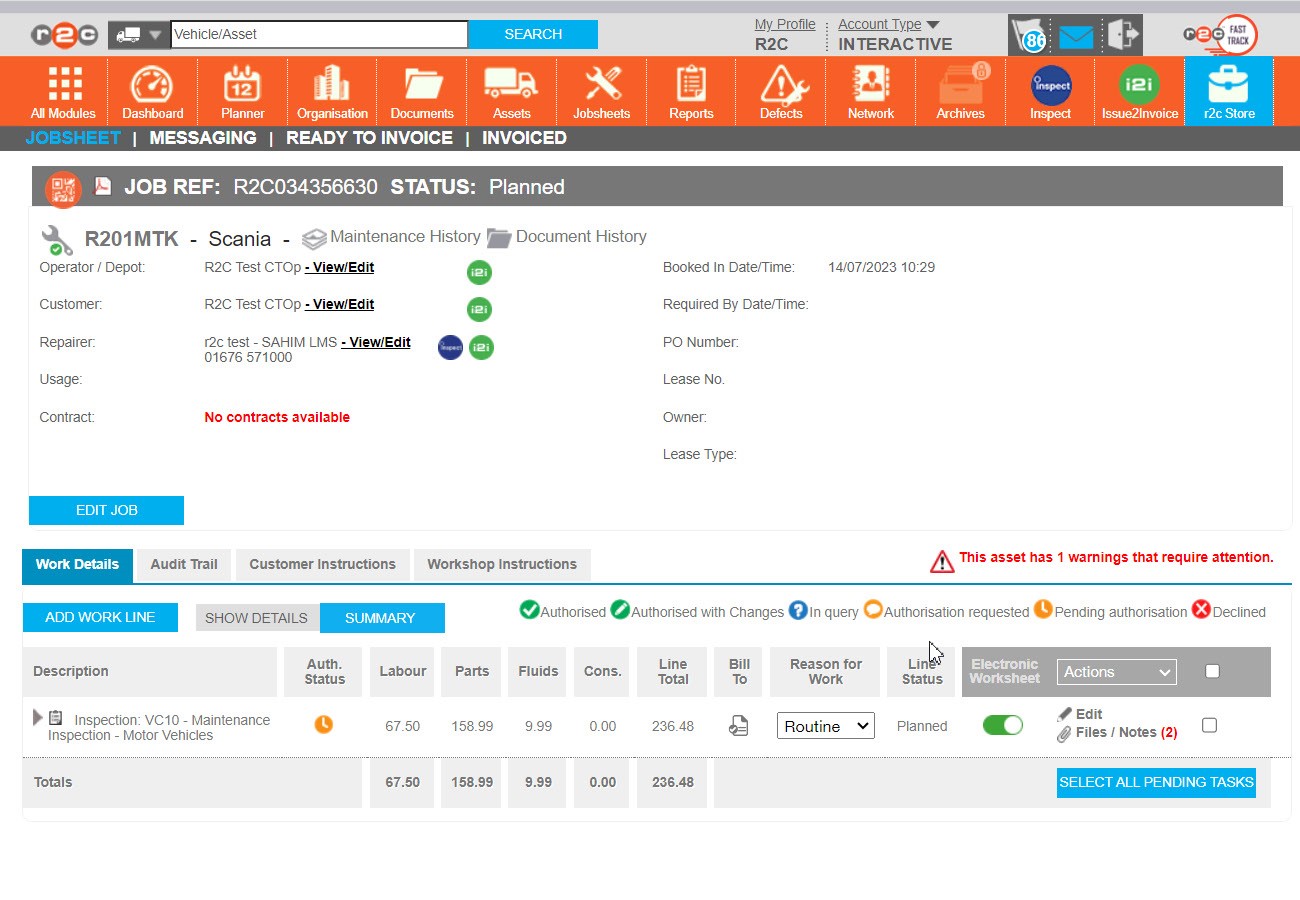
When customers have additional modules. The icons are displayed here. In this example all parties have the i2i module enabled.  

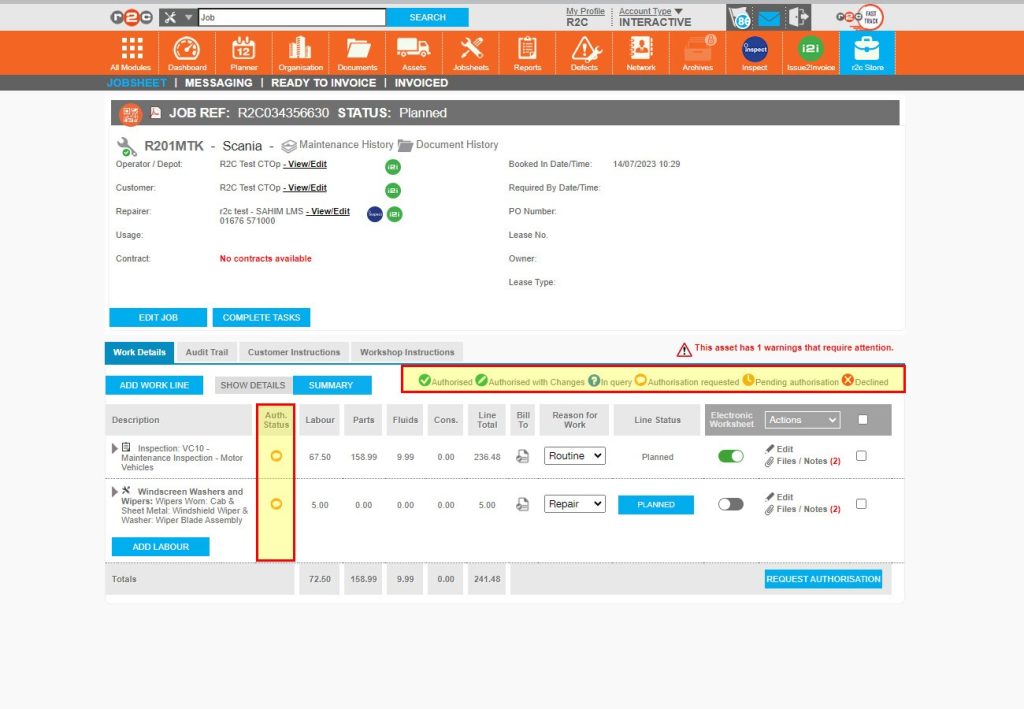
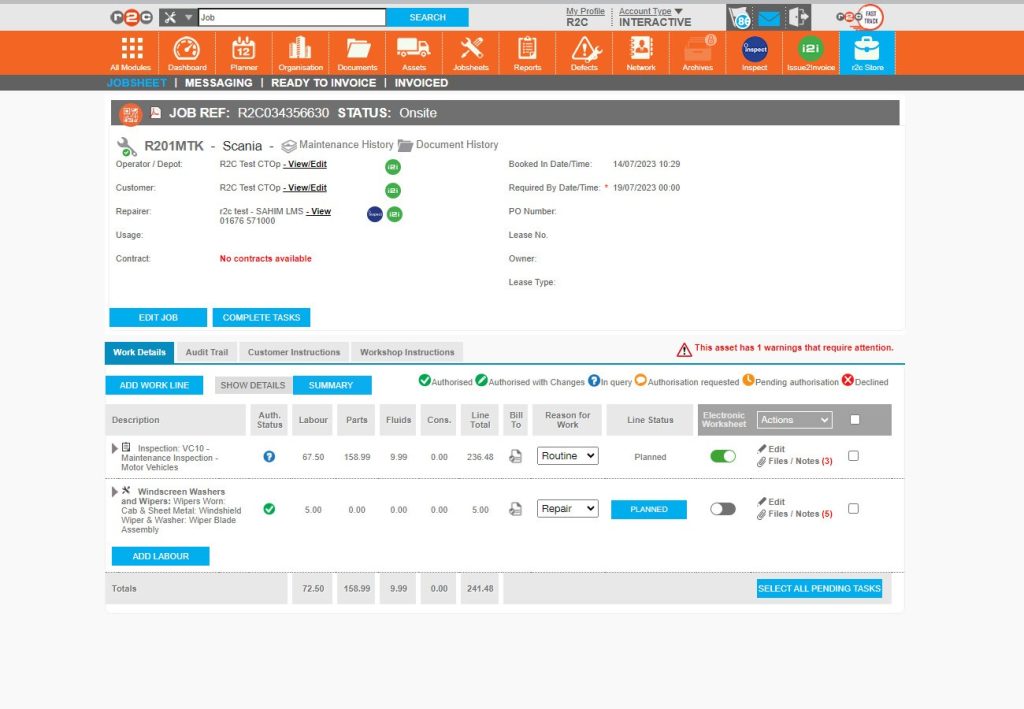
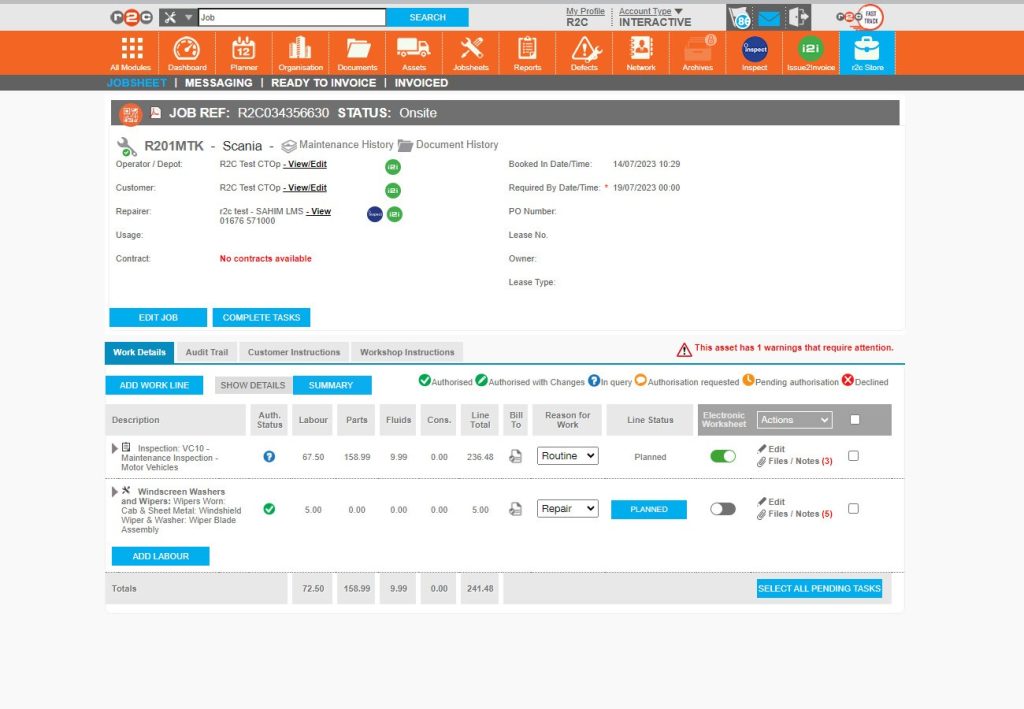
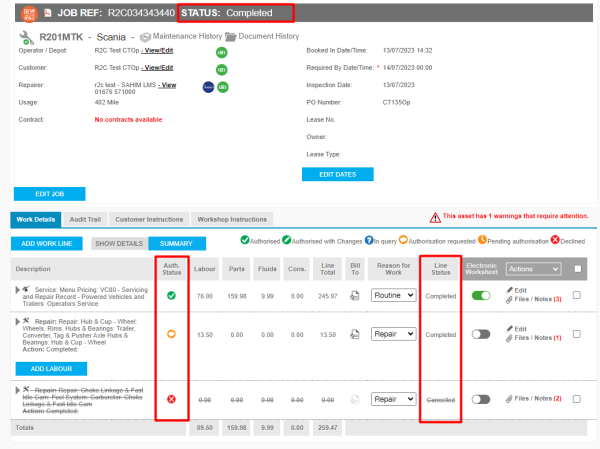
The Authorisation status of a line is shown through these colour coded symbols. 

The current Authorisation status of a line is shown here. 


Step by Step

Jobsheet i2i

  • Stage 1: Add Costs to the jobsheet
  • Stage 2: Request Authorisation from the customer
  • Stage 3: Invoice the completed job

Stage 1

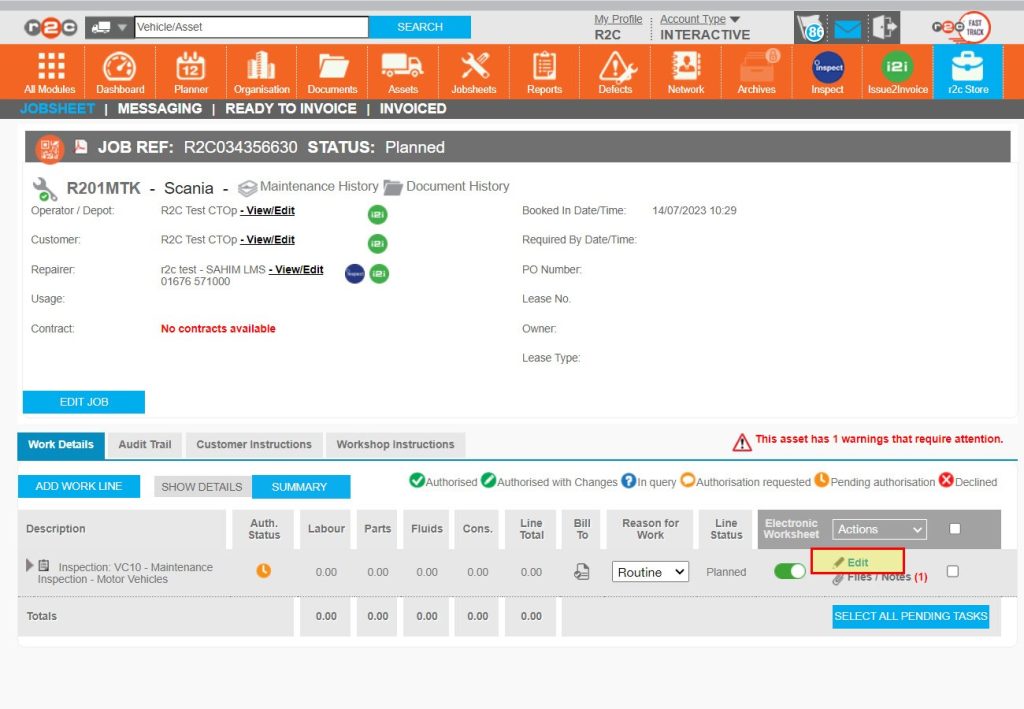
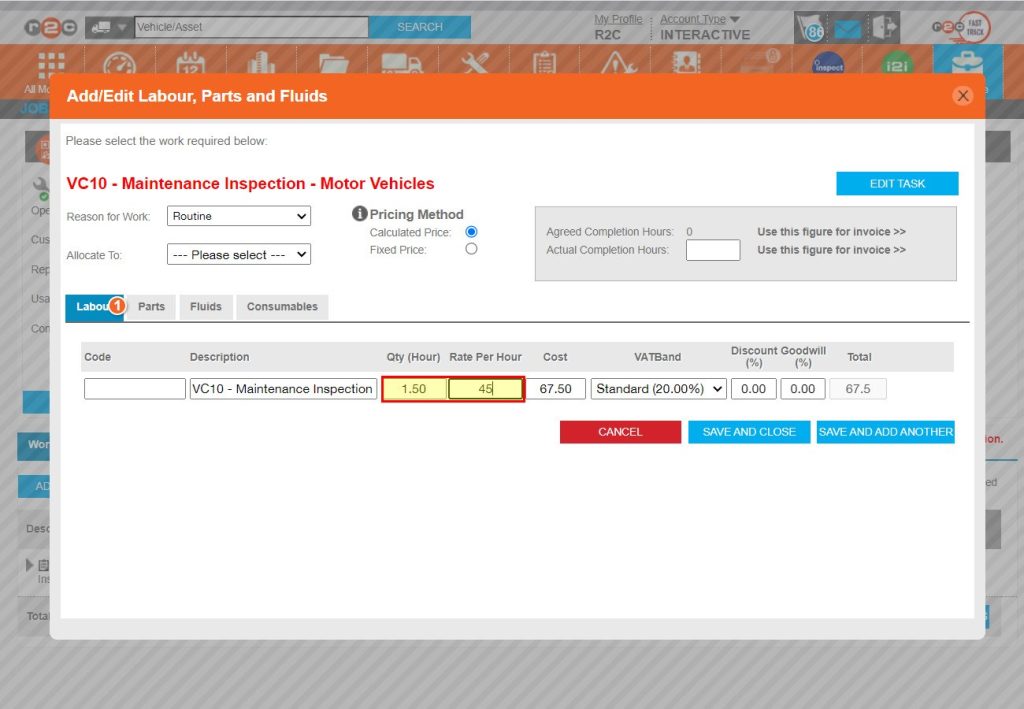
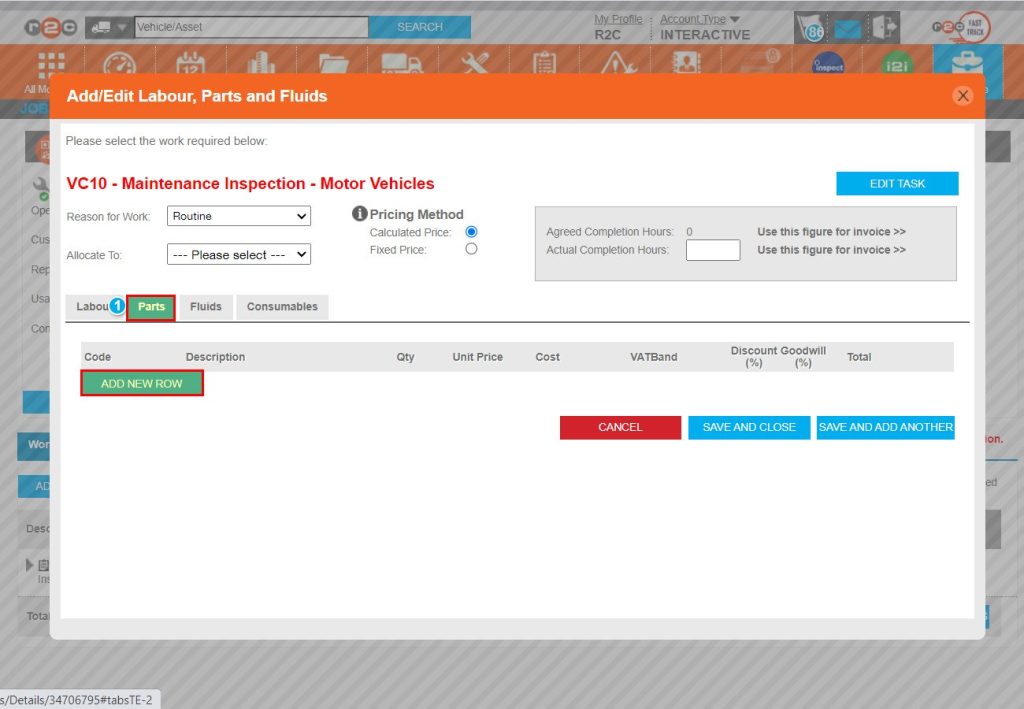
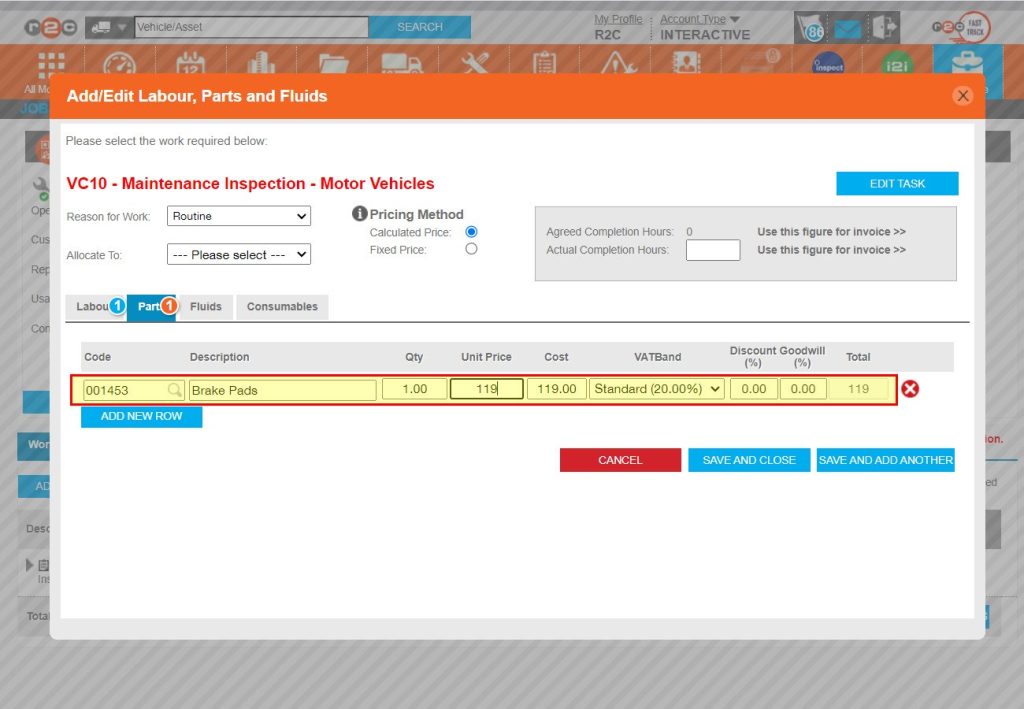
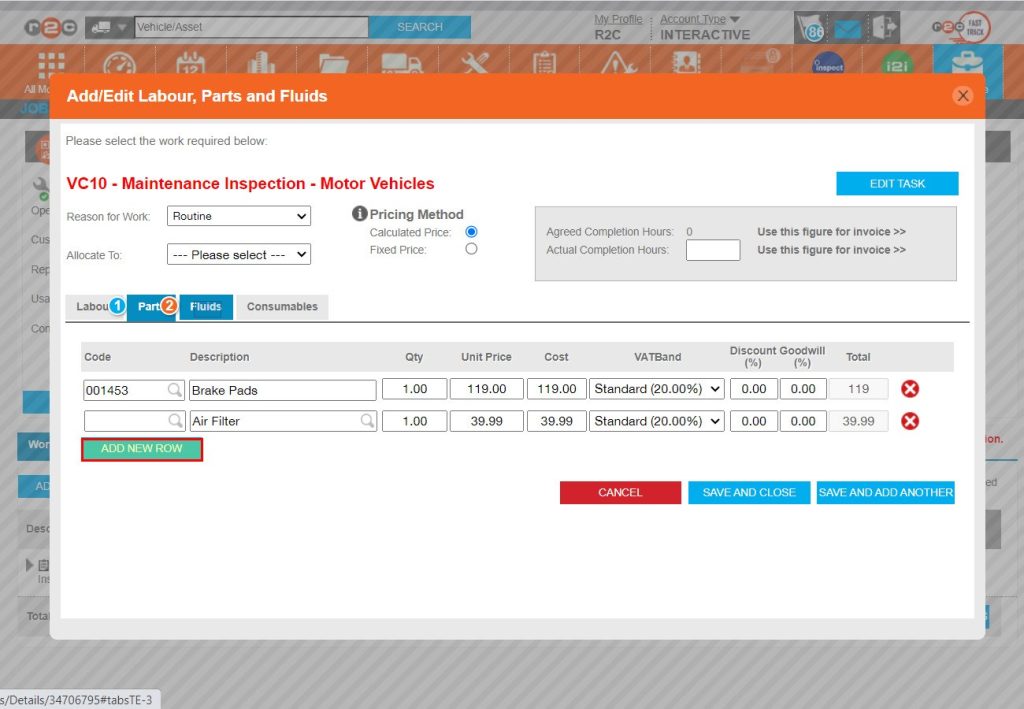
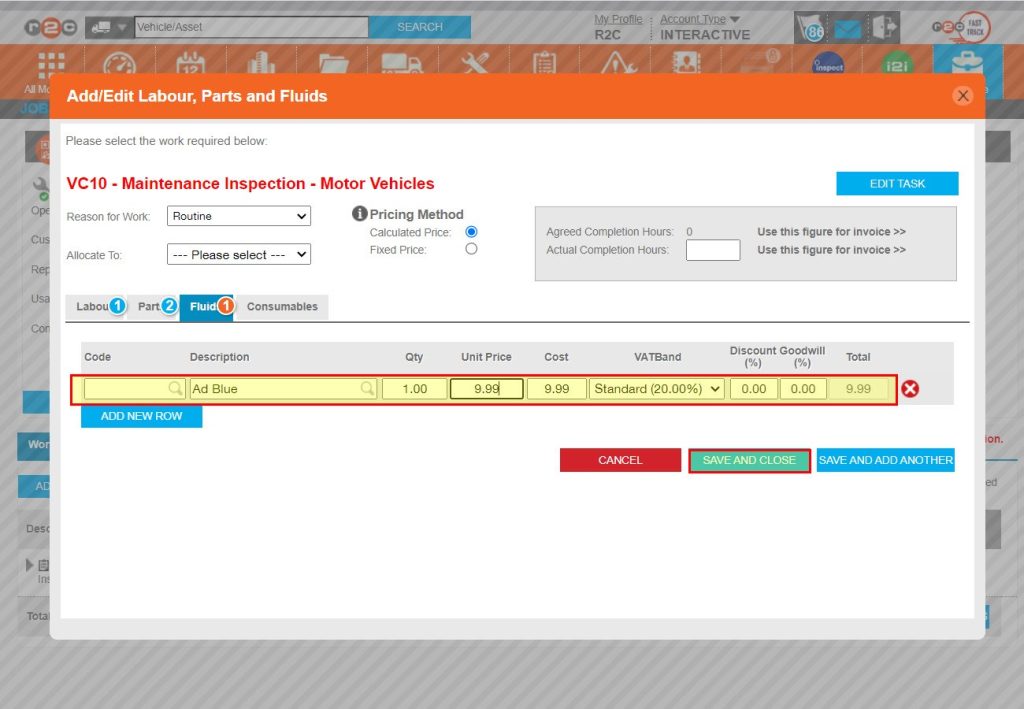
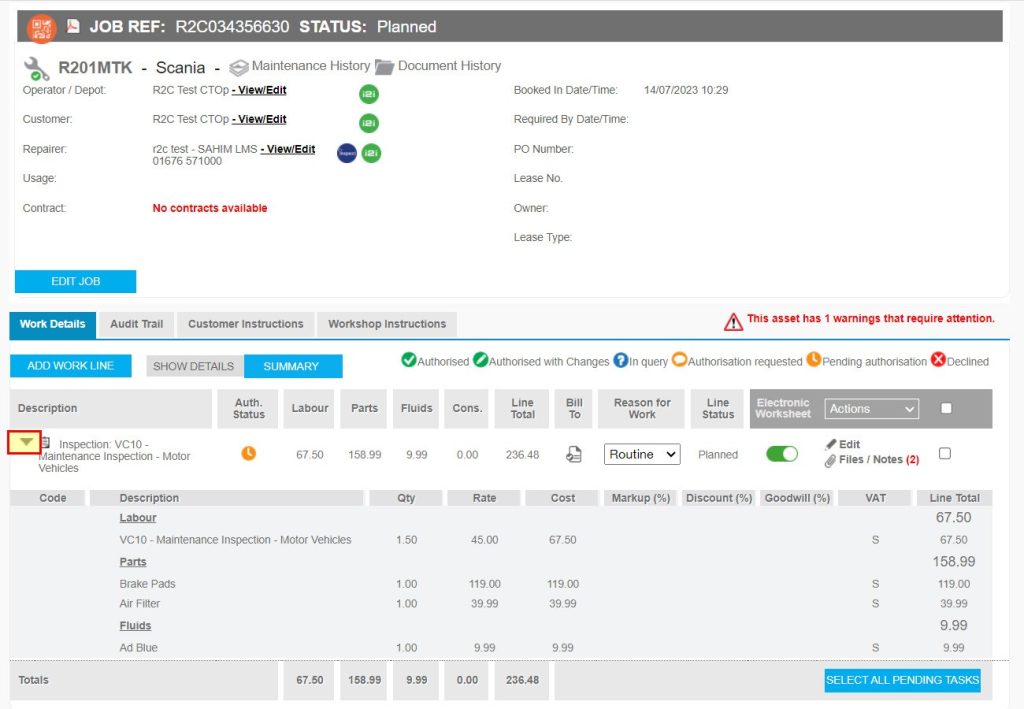
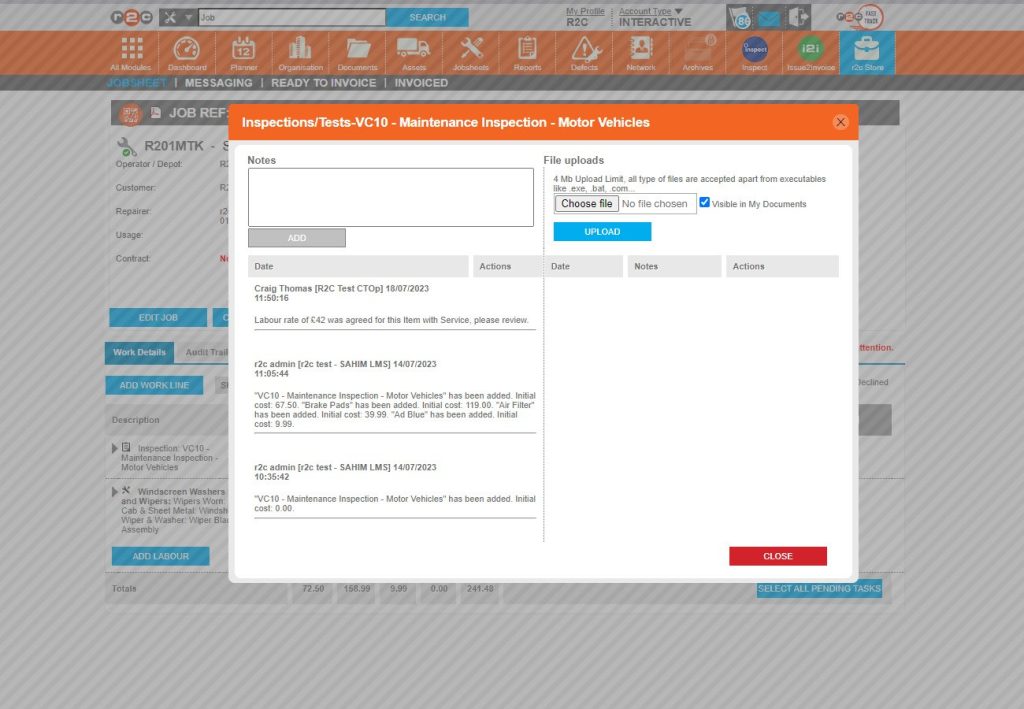
Adding Costs to a Job- To add cost to an inspection or service , click or swipe through the 7 steps below.

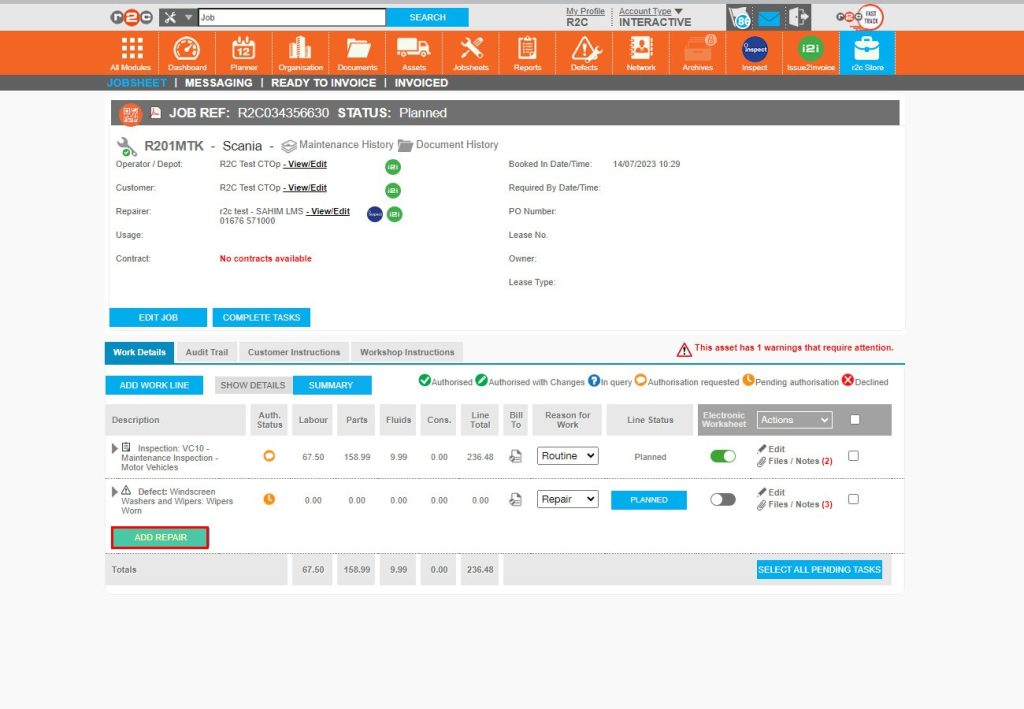
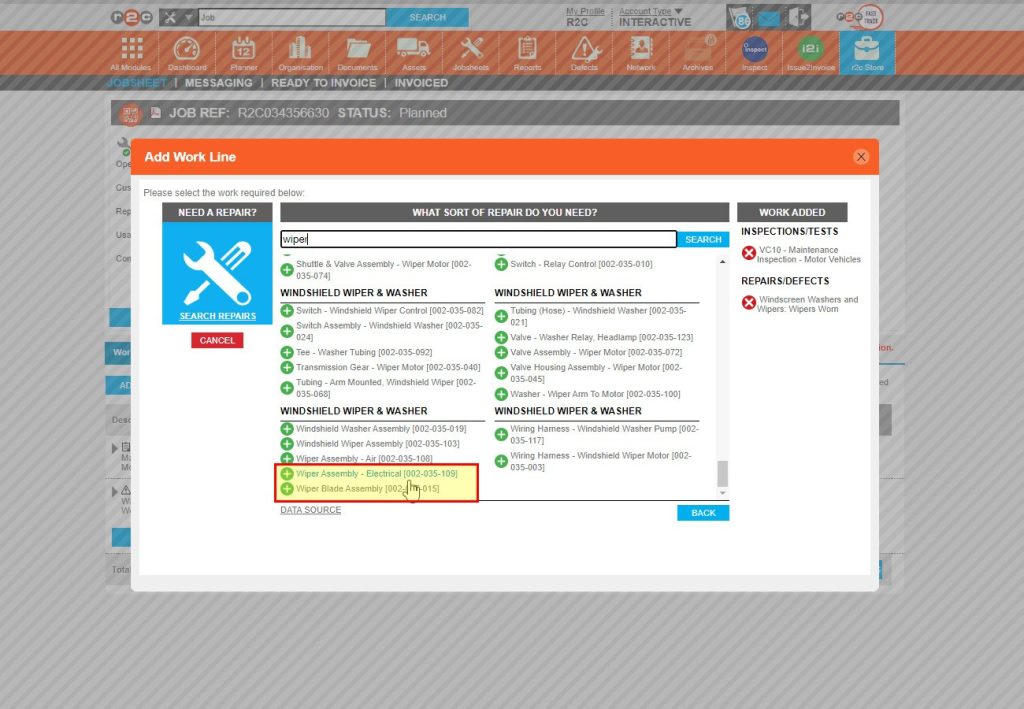
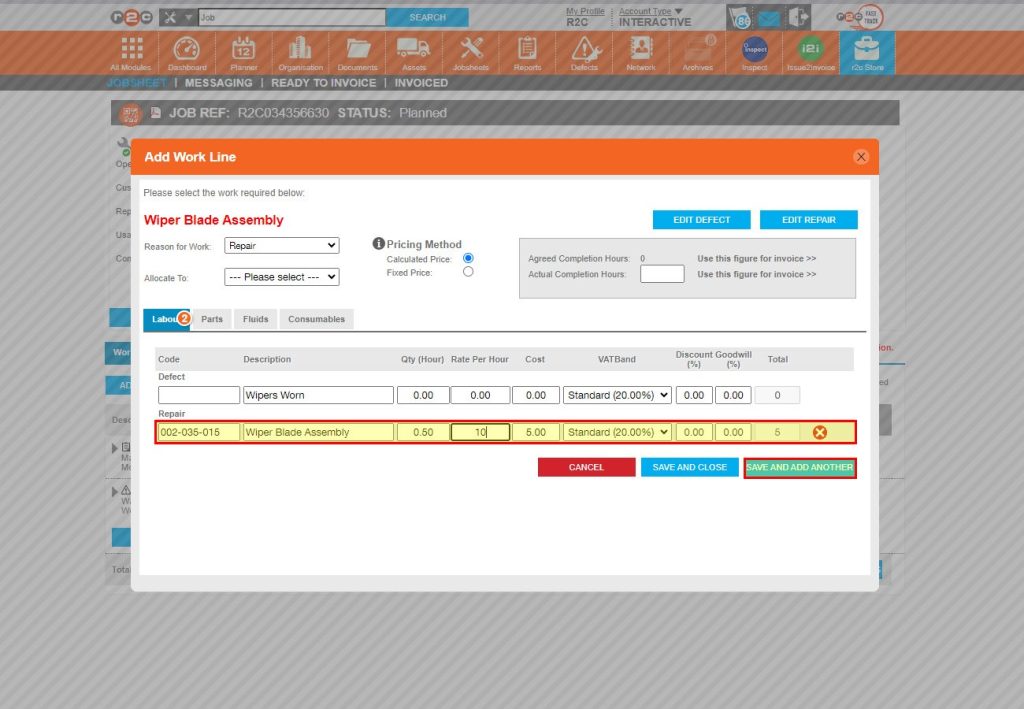
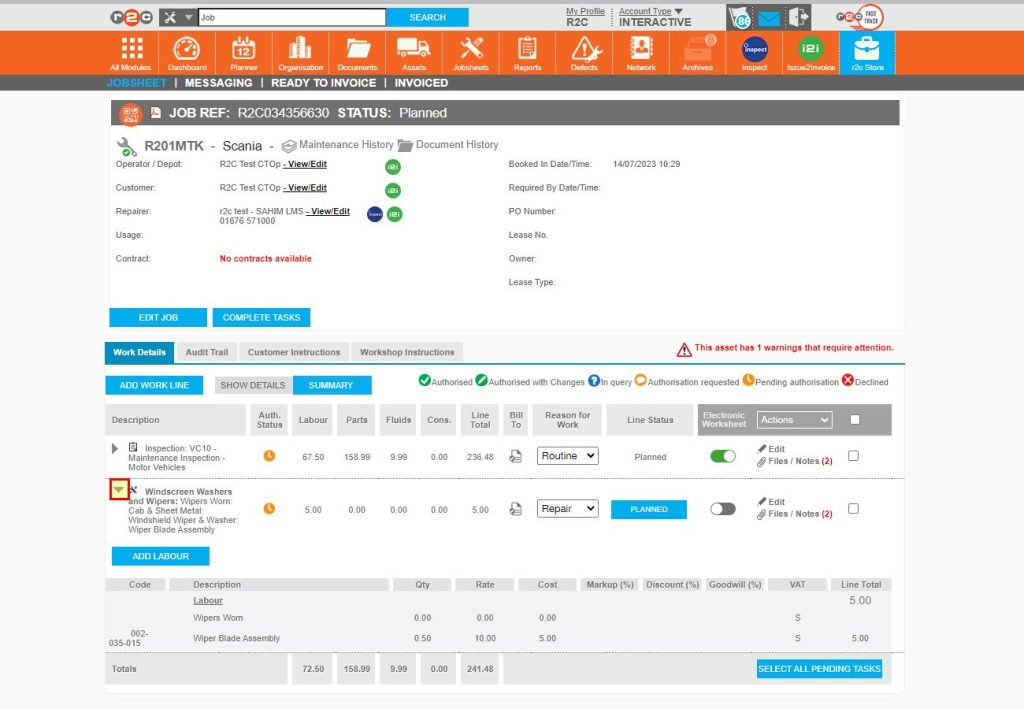
Adding costs to a defect line- When adding costs for a defect, it is good practice to use a repair line to the record the labour for the actual repair work rather than the defect on the vehicle.

 Click or swipe through the 4 steps below.

Stage 2

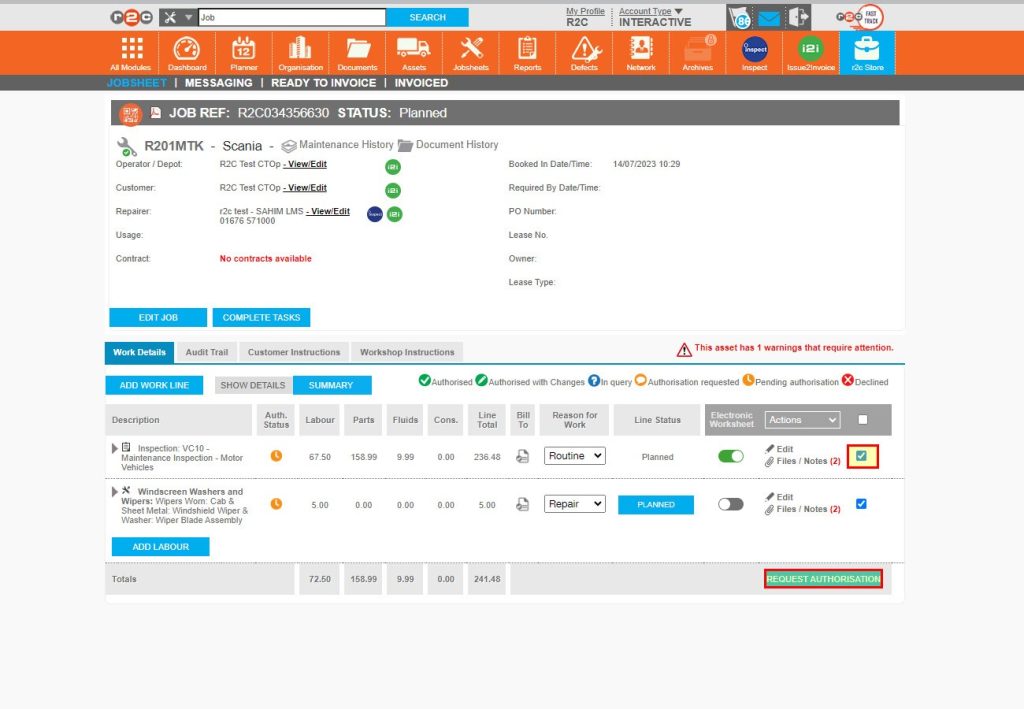
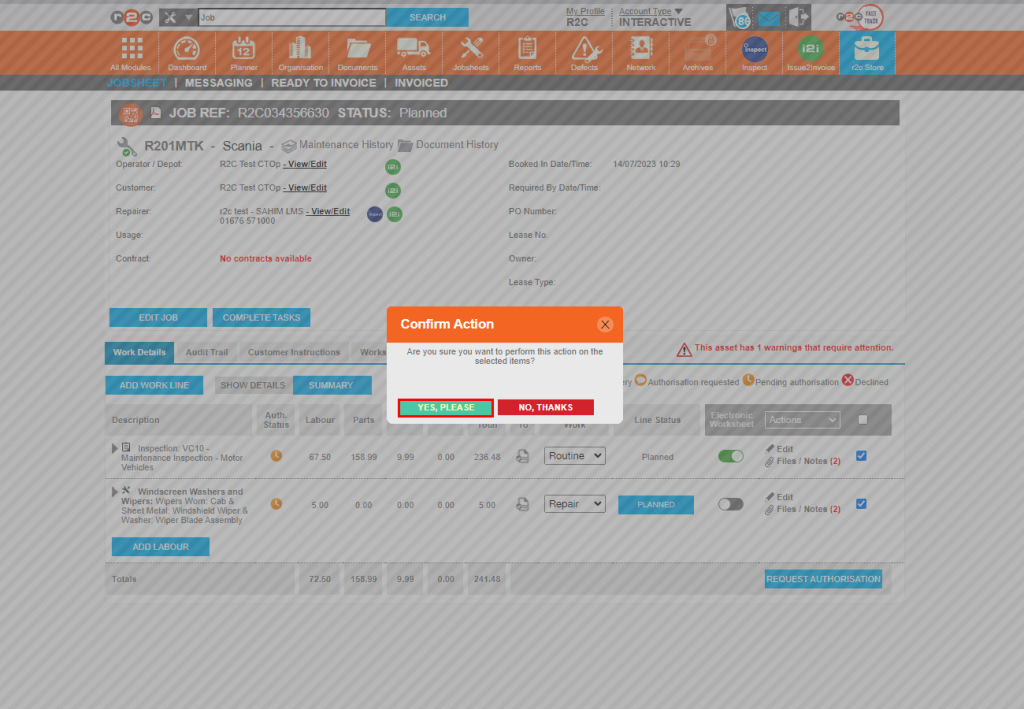
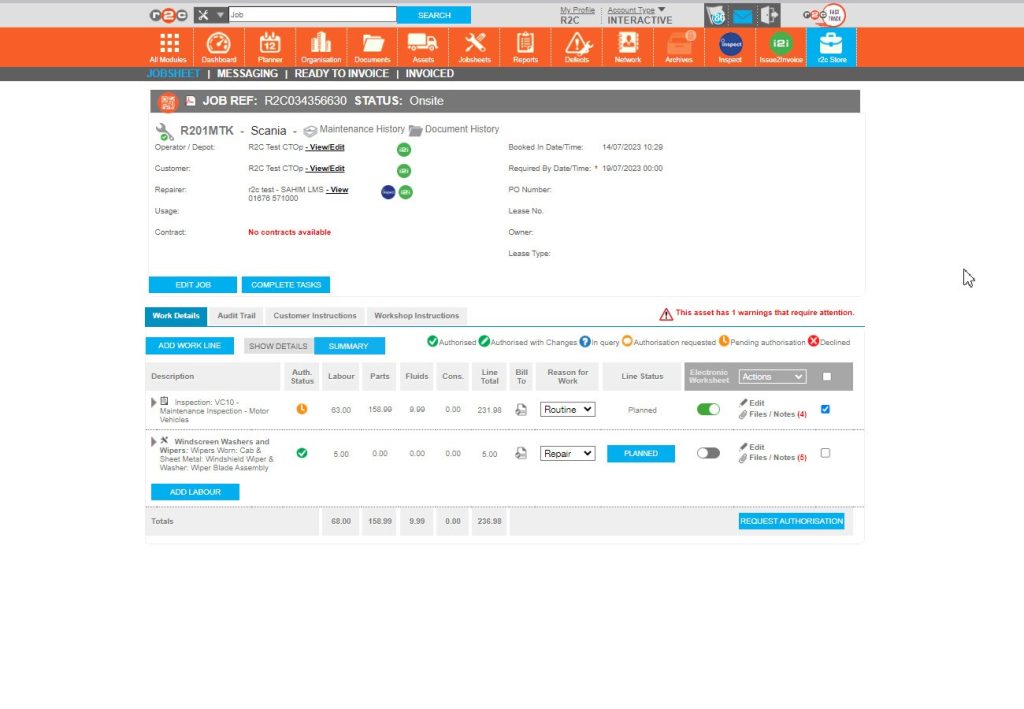
Requesting Authorisation-Once costs have been added, the job can be sent for review to your customer.

Click or swipe through the 7 steps below.

Stage 3

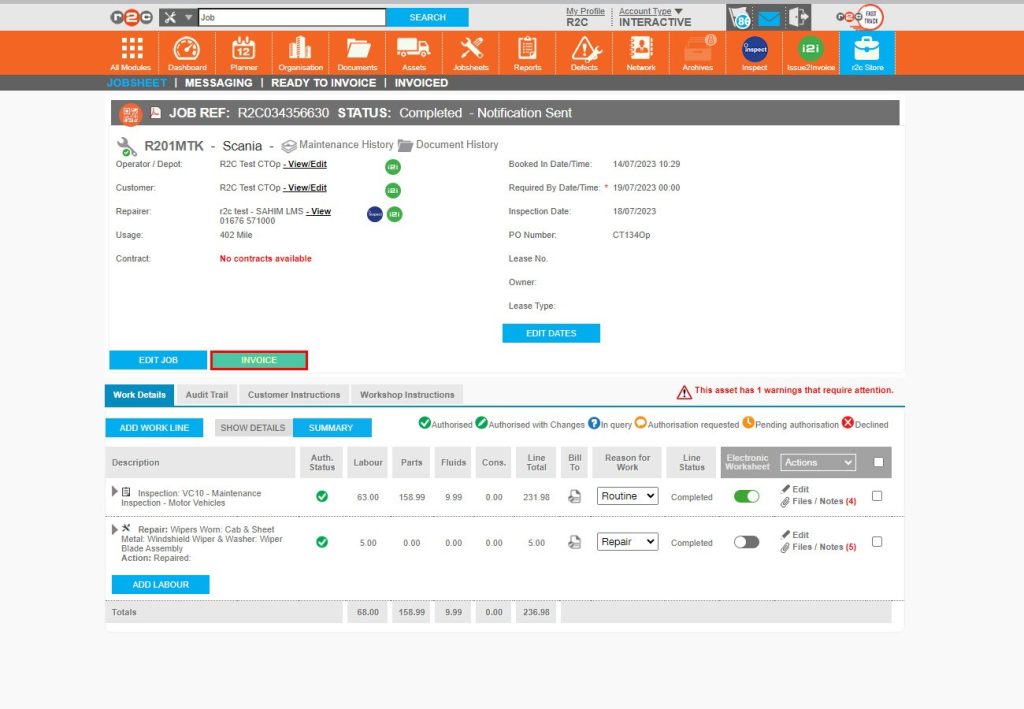
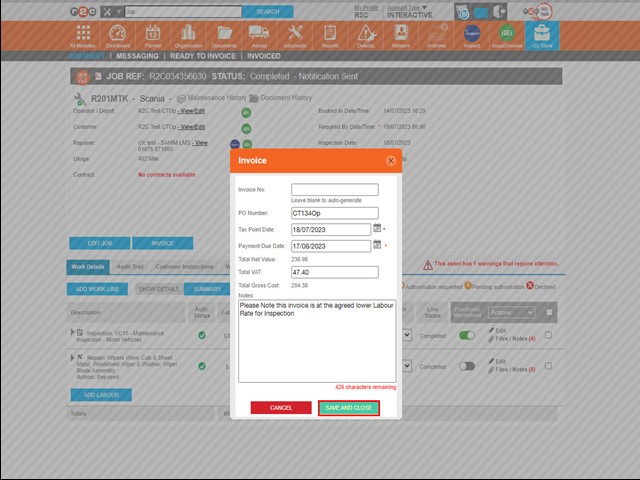
Invoicing a completed Jobsheet – To invoice a job, click or swipe through the 3 steps below.

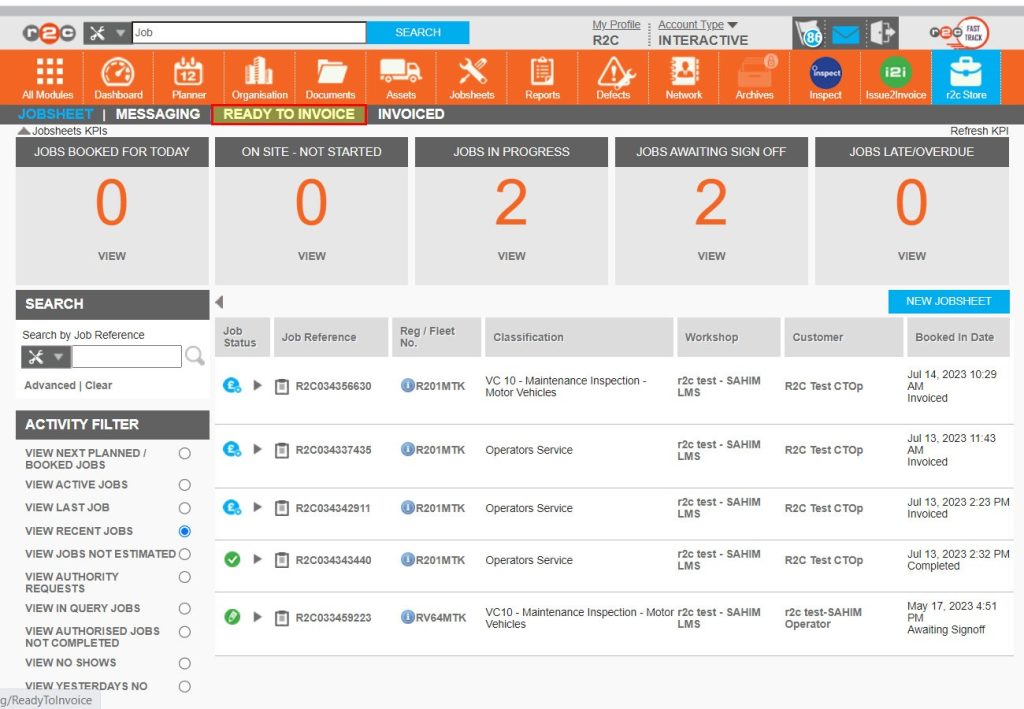
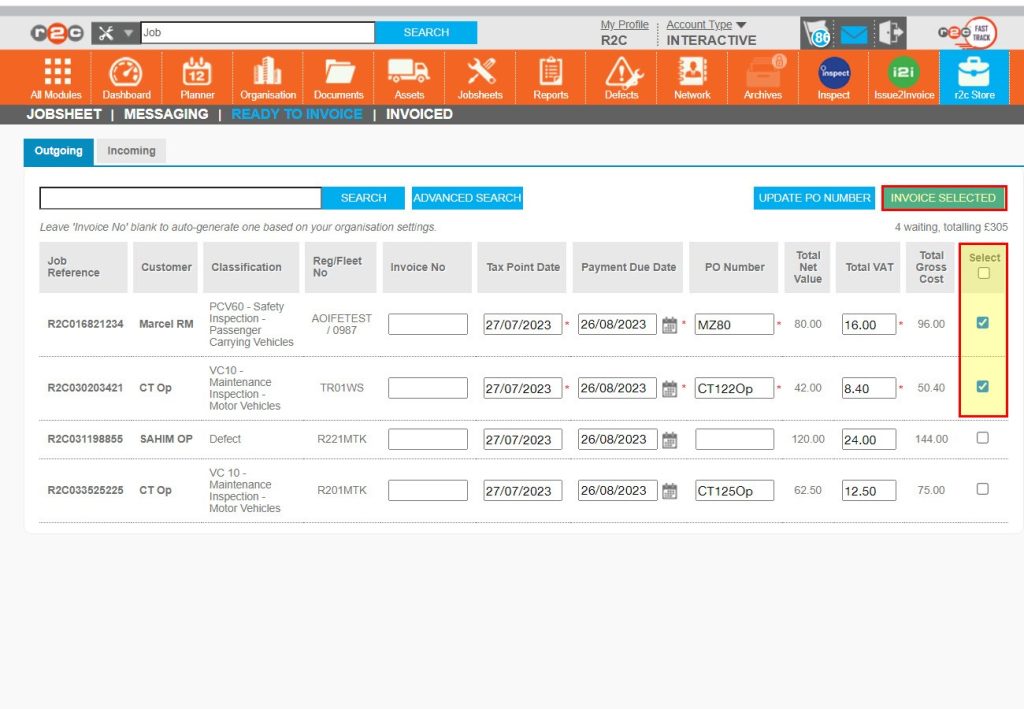
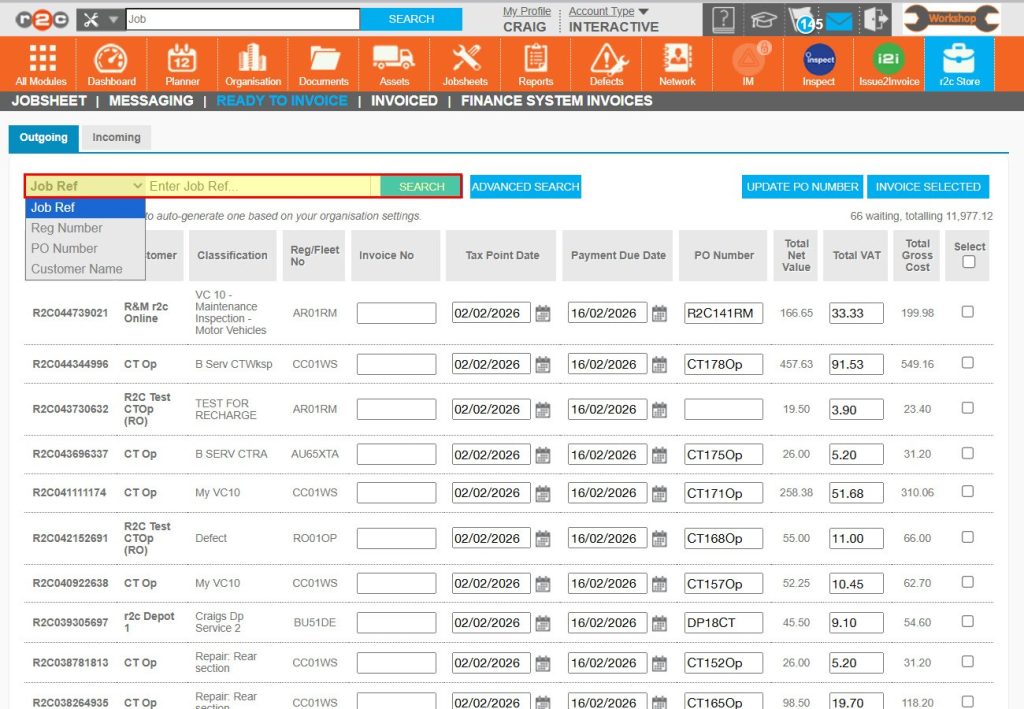
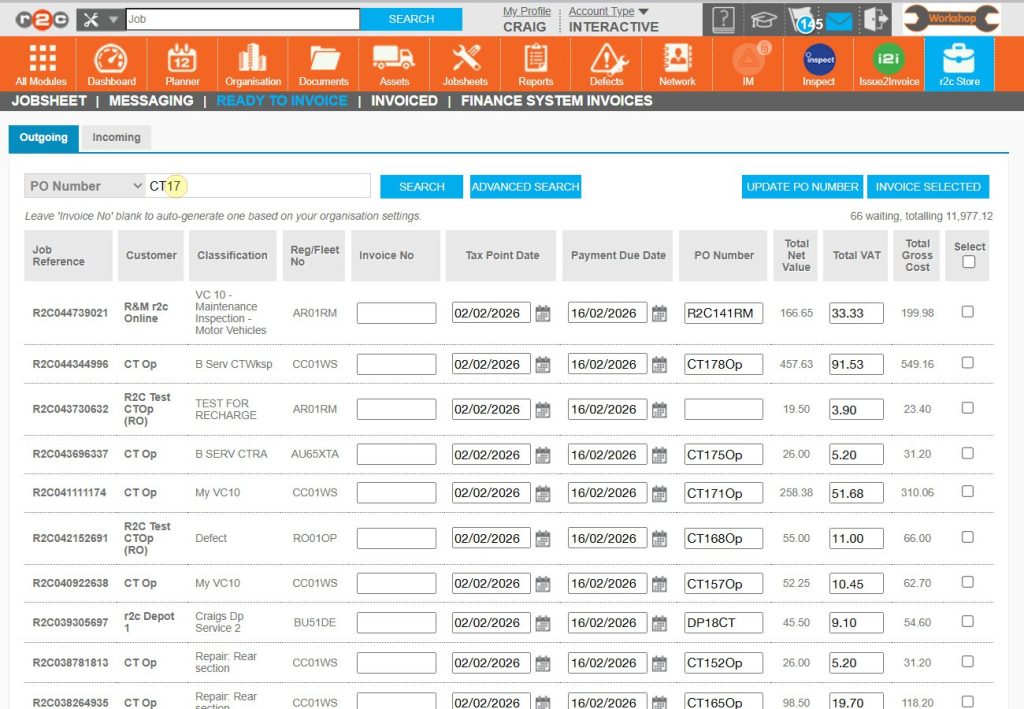
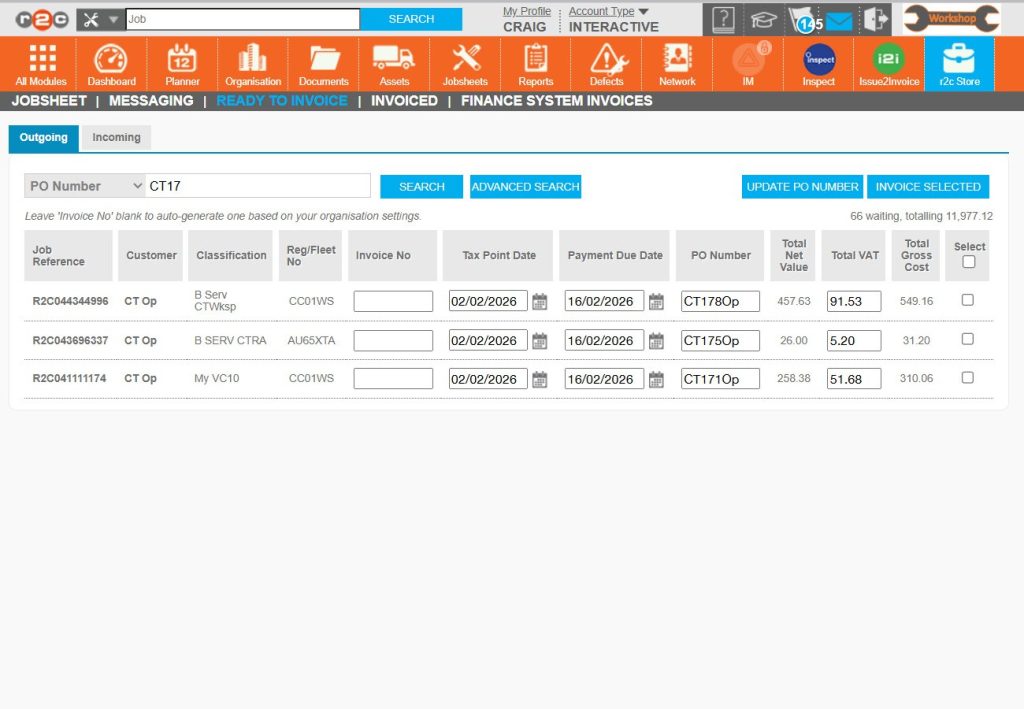
Invoicing multiple Jobsheets – On the ready to invoice screen  you will see a list of jobs that are completed and authorized and so are ready to invoice.  This list can be accessed from the jobsheets page or the i2i page.

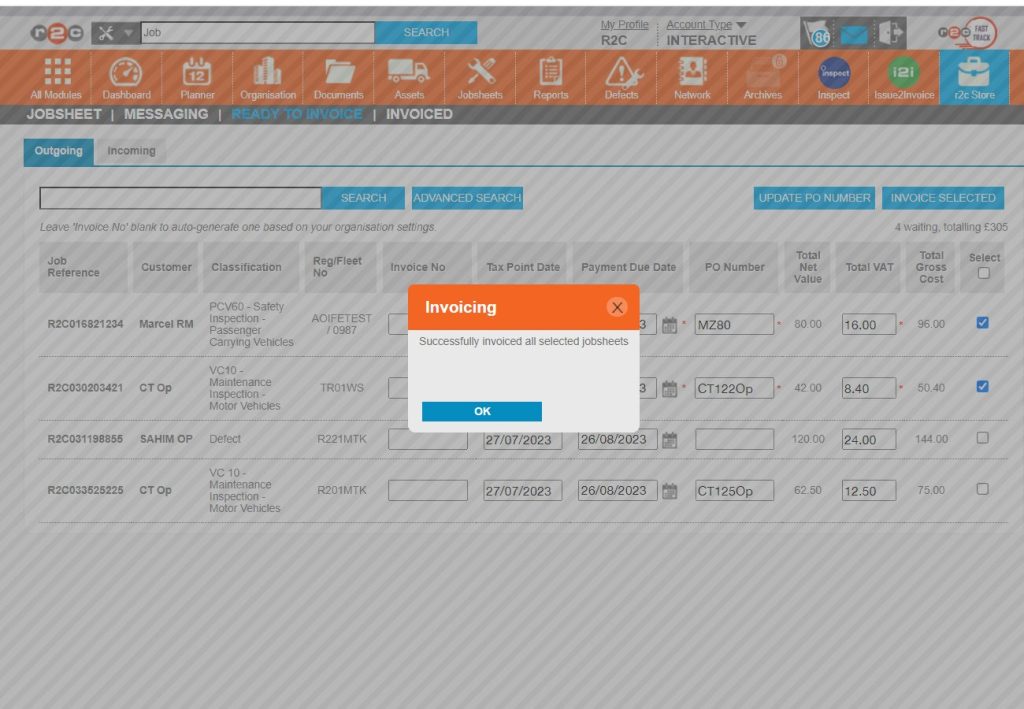
To invoice multiple jobs from this page a click or swipe through the 3 steps below.

Technical Info & Self Help

Why don't I have an Invoice Button?

In order for the invoice button to become available the following criteria must be met: 

  1. The jobsheet must be completed, so all tasks must be complete or marked as cancelled if no longer needed, 
  2. All costs must be marked as authorised or declined. Costs cannot still be pending or in query etc.  
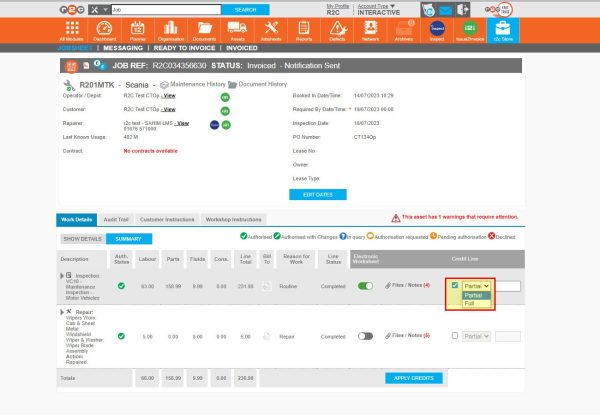
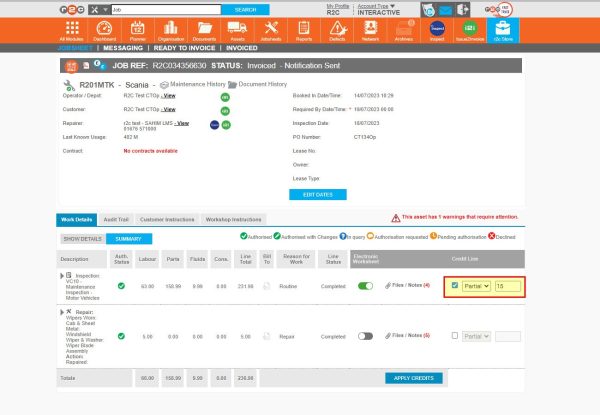
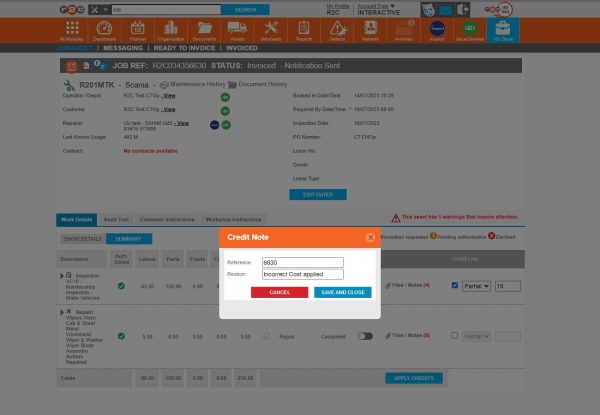
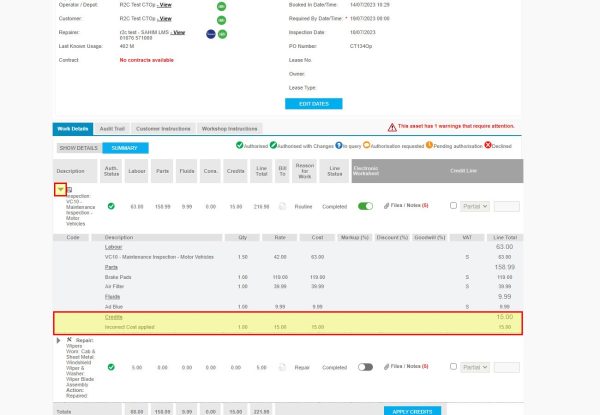
How do I Credit a job?

In order for credit a job, click or swipe through the 4  steps below. 

Did you find this page useful?

Overall did you find what you were looking for?

Page Rating
Radio Buttons

Account Icon Key

A green outline on the account type icon signifies the guide is applicable whereas a red outline signifies it is not applicable to the the respective account type.

Repair and Maintenance Provider

Operator

Workshop

Is something broken or missing?

Let us know here

Report an Issue Form