


Introduction
Used by all roles in the workshop, Stock is either utilised at the user level i.e. adding parts to jobsheets in order to carry out work, or by the management level in order to maintain the stock system.
Stock replaces i2i parts, where i2i parts is a menu only setup, Stock holds menu pricing and maintains stock quantities.
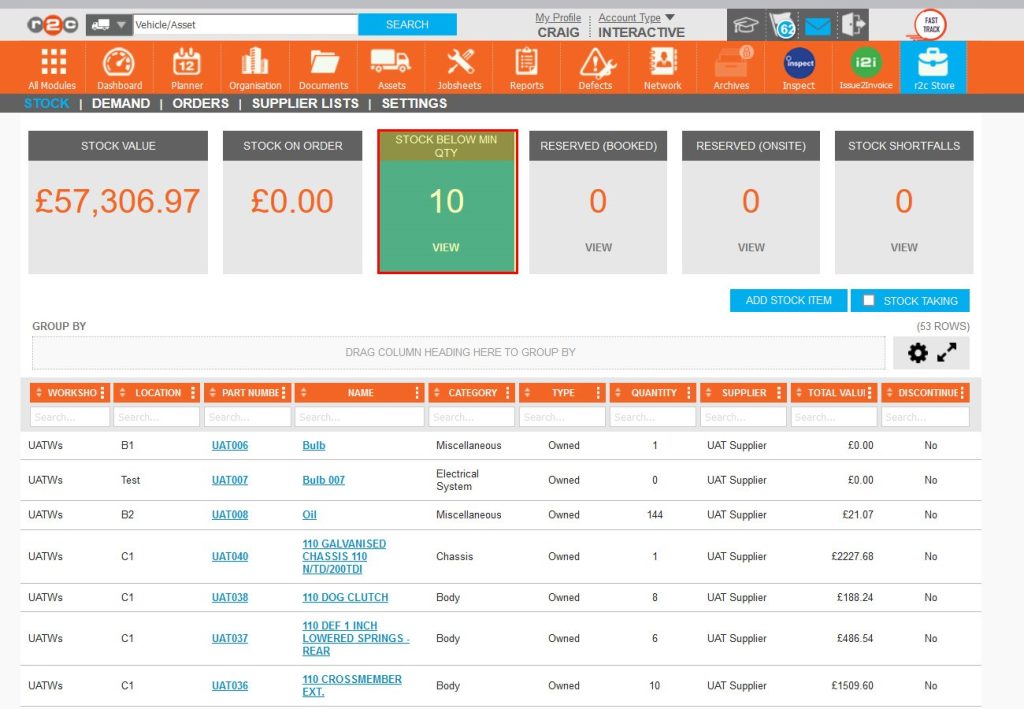
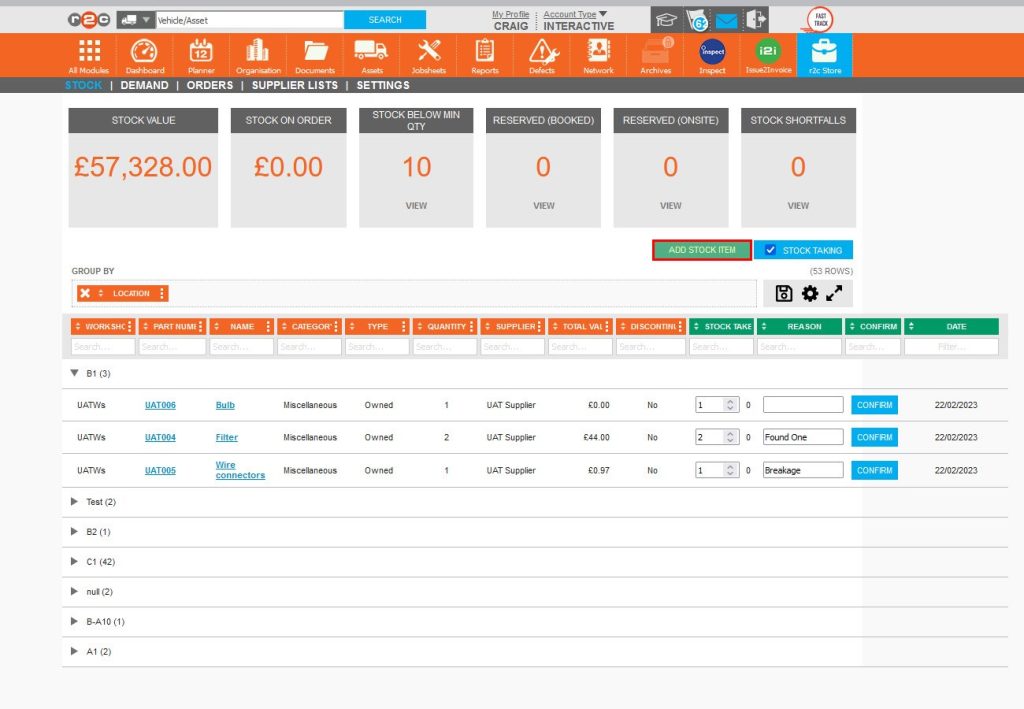
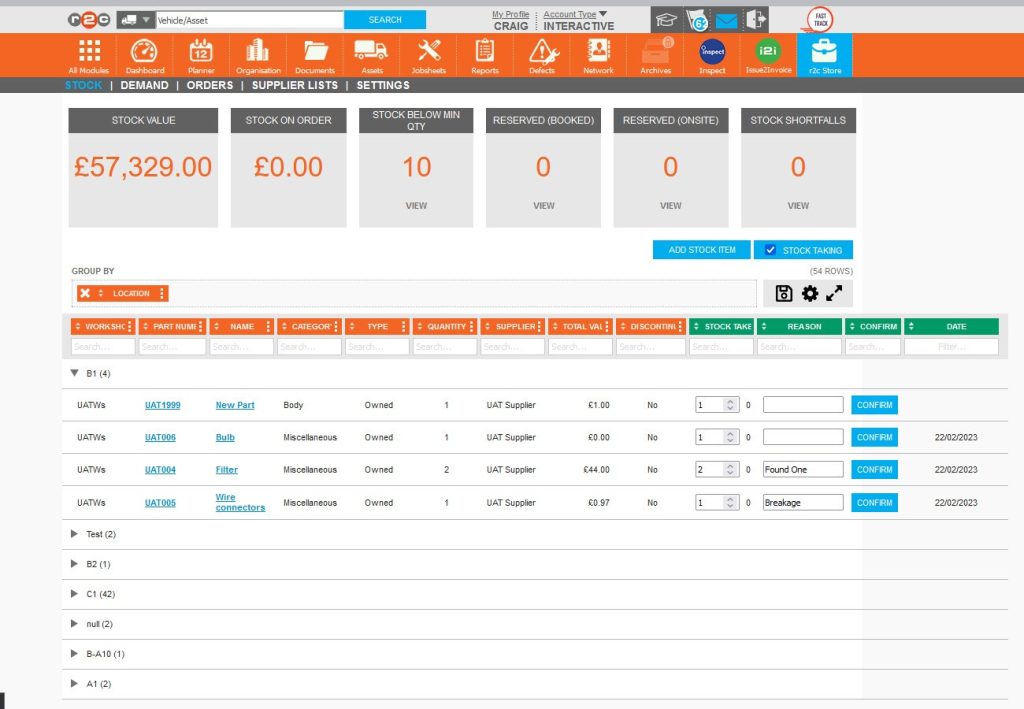
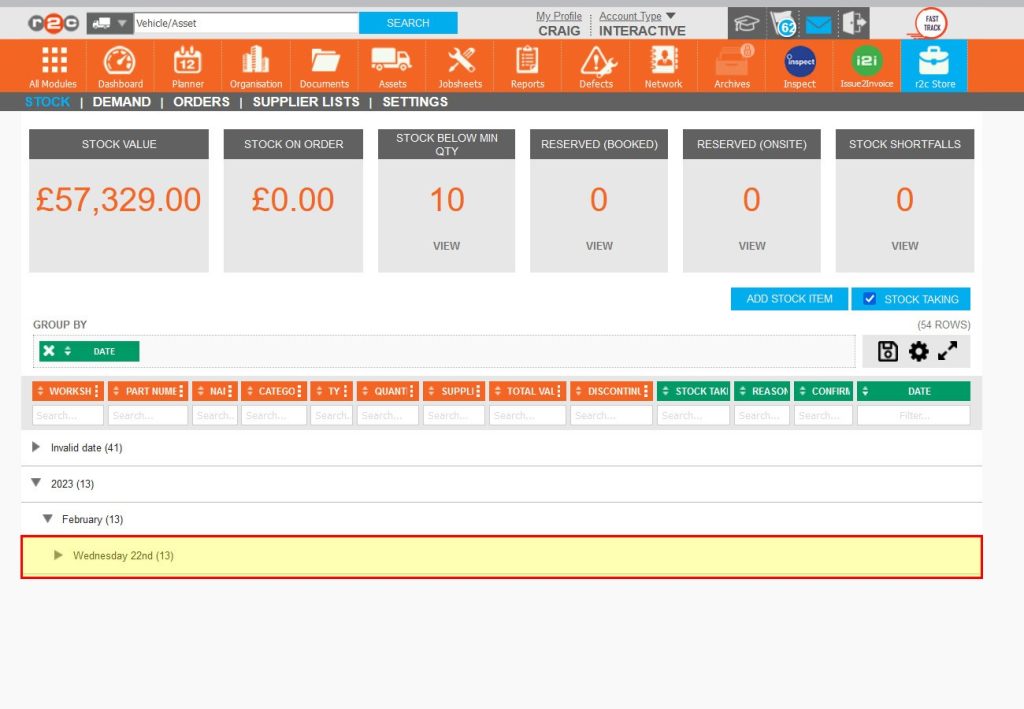
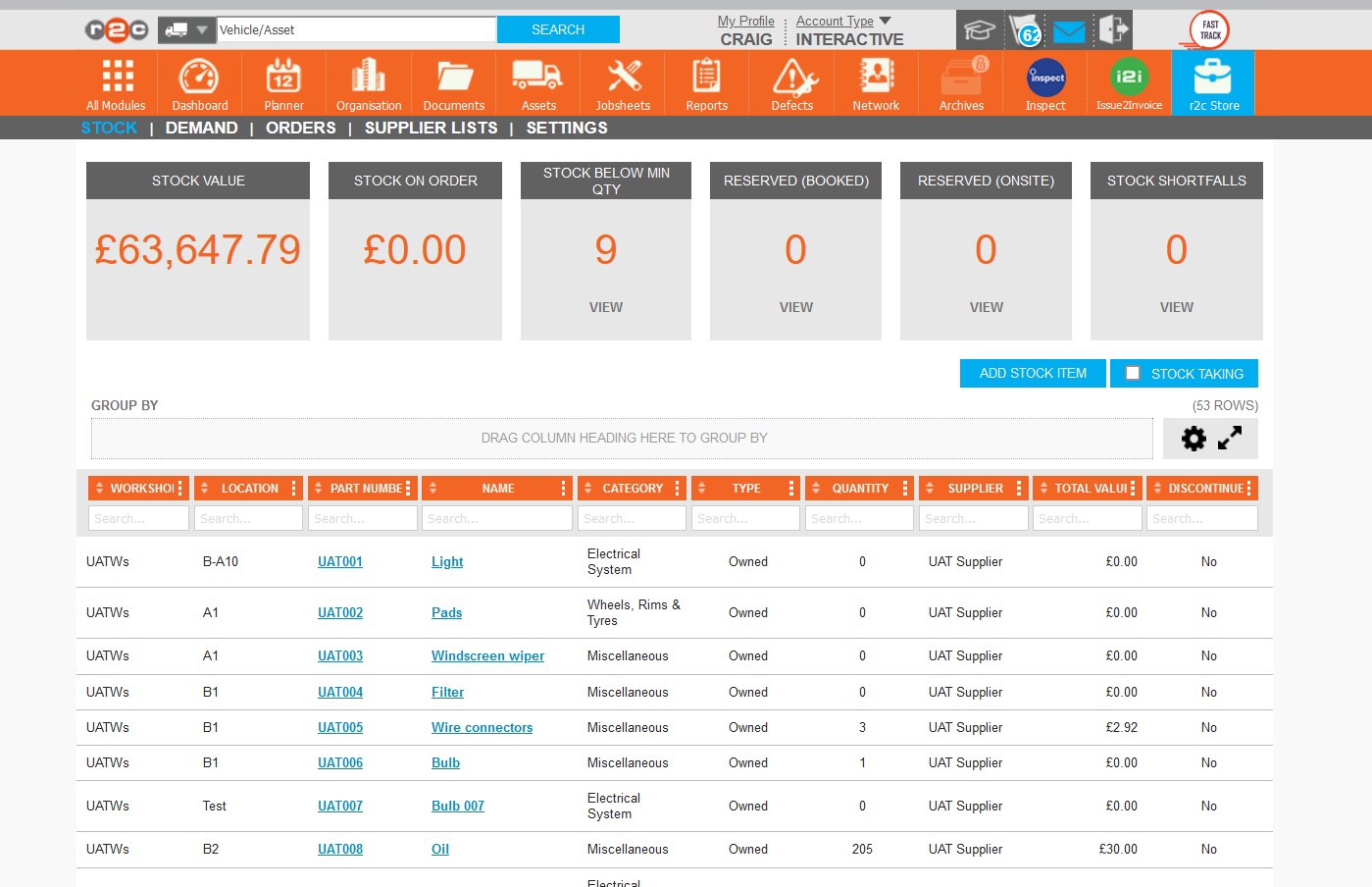
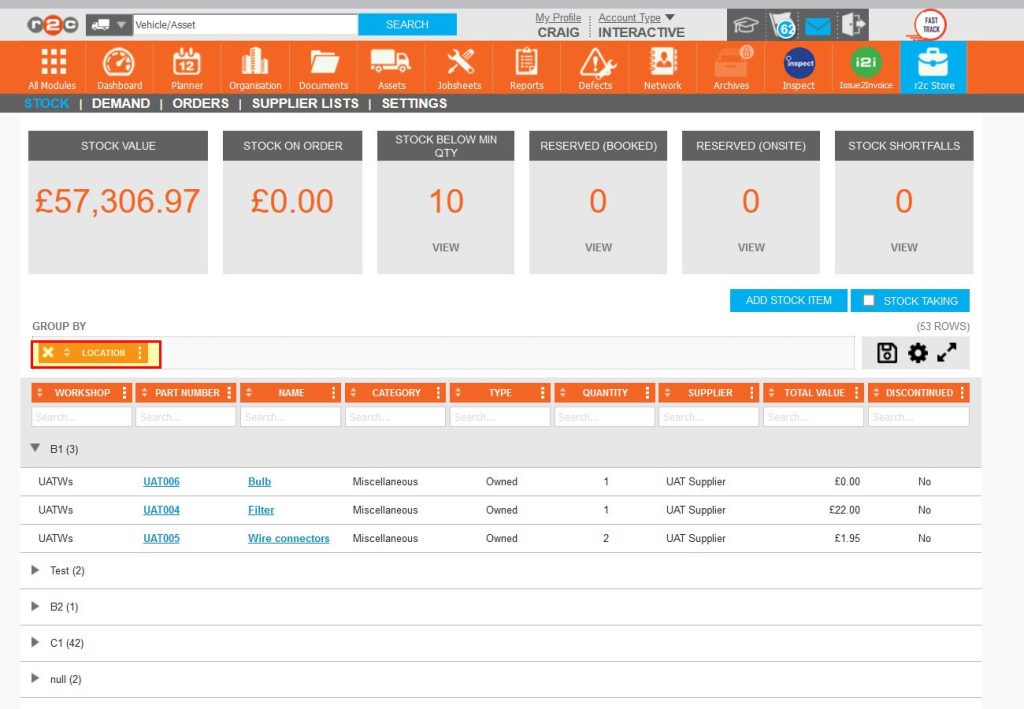
Stock consists of 4 pages, the main stock page as shown here, the Demand page, Orders, Supplier Lists and Settings.
The STOCK VALUE KPI initially displays the total value of stock, however this figure will change depending on the filters applied to the current view.
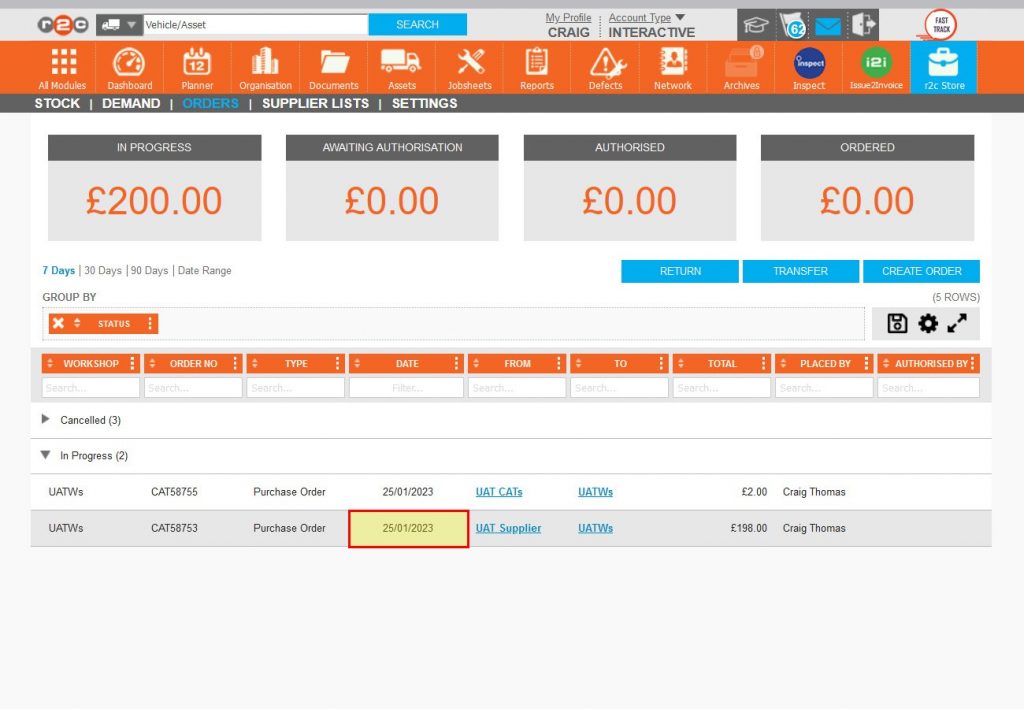
The STOCK ON ORDER KPI is a total value of orders currently on the ORDERS page.
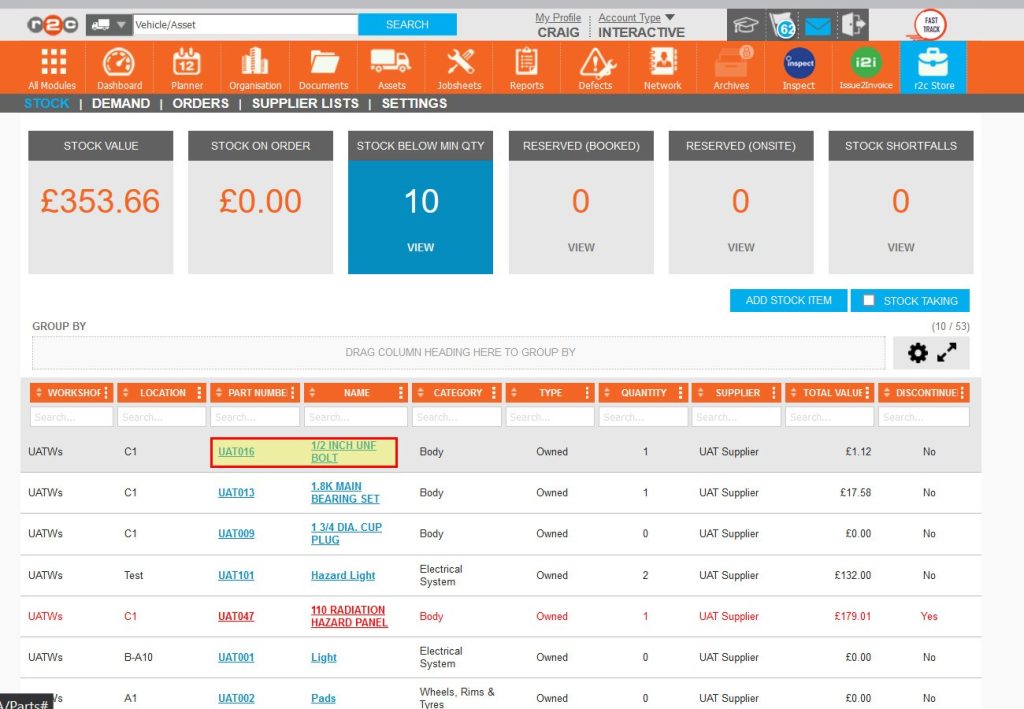
STOCK BELOW MIN QTY is one of the primary indicators that a stock order may be needed. This KPI is also a filter allowing the stock list to be filtered to those specific parts.
The RESERVED KPIs are also filters and will display the stock parts currently reserved/on a future jobsheet, at the status of BOOKED or ONSITE. These KPIs are only relevant if parts are loaded to jobsheets prior to being in progress.
STOCK SHORTFALLS is the primary indicator that a stock order is needed. This KPI works in conjunction with the RESERVED KPIs indicating that there is not enough stock to cover future jobsheets. This KPI is also a filter allowing the stock list to be filtered to those specific parts.
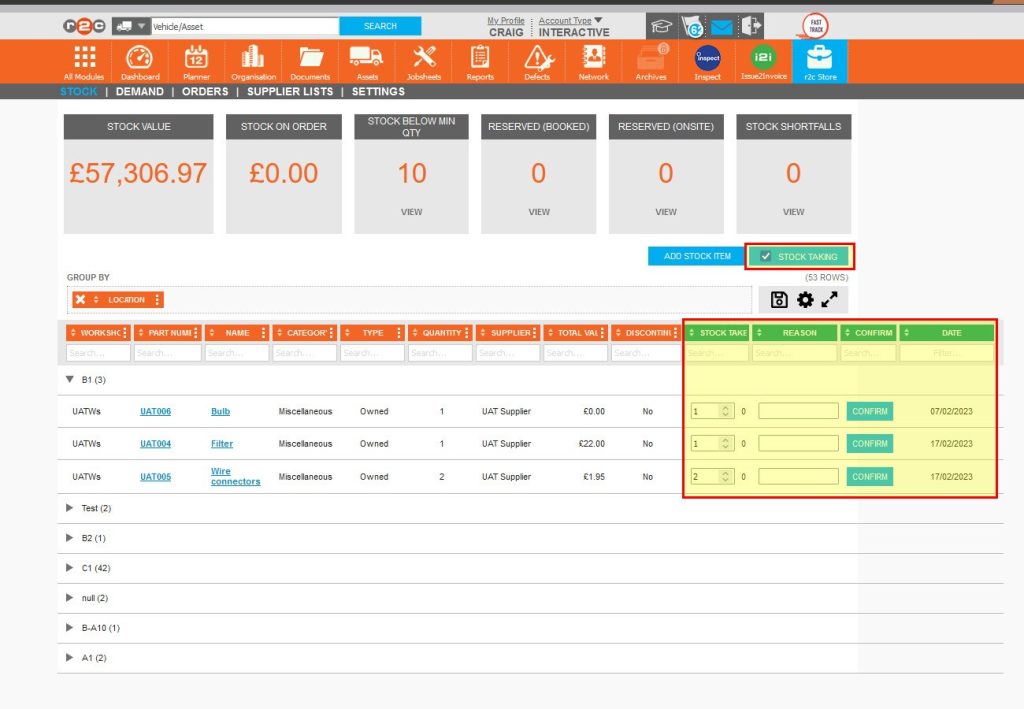
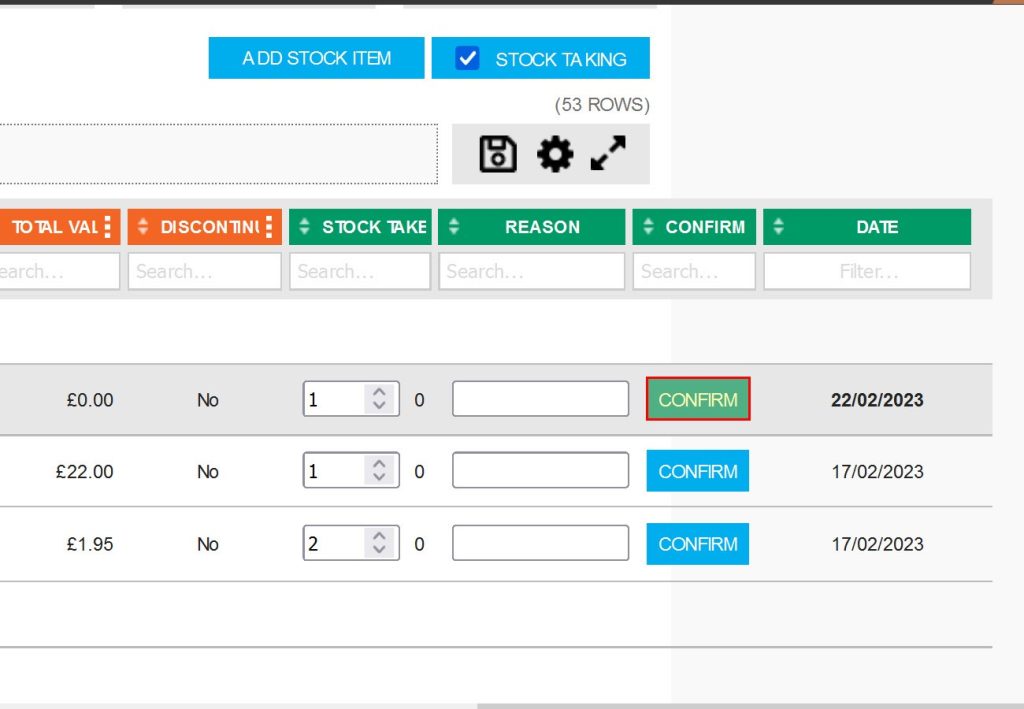
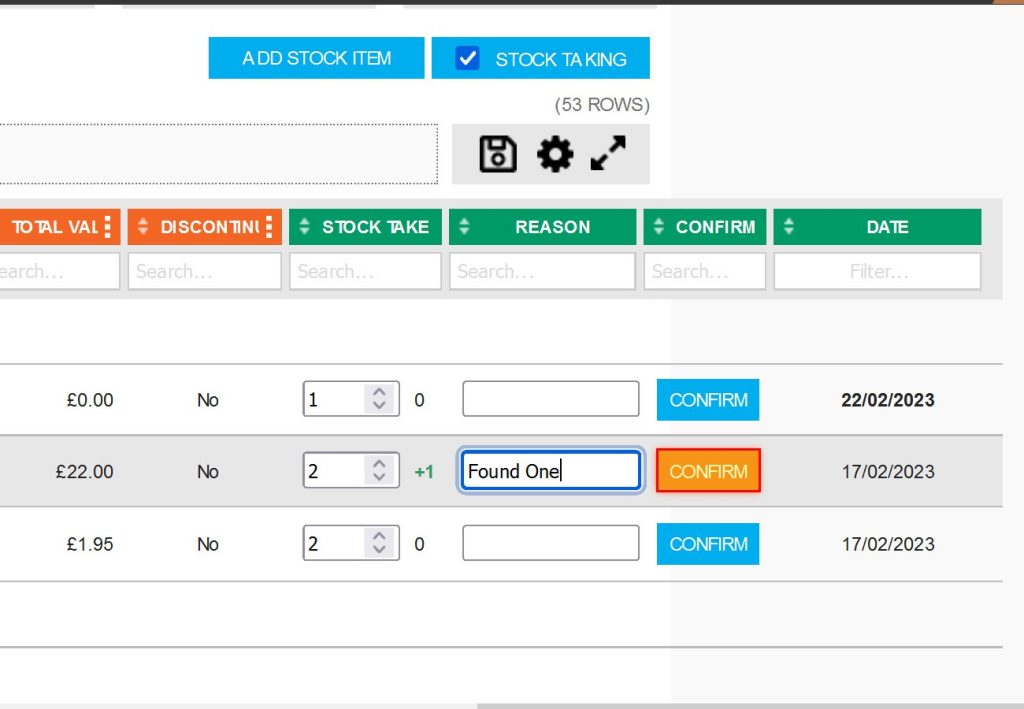
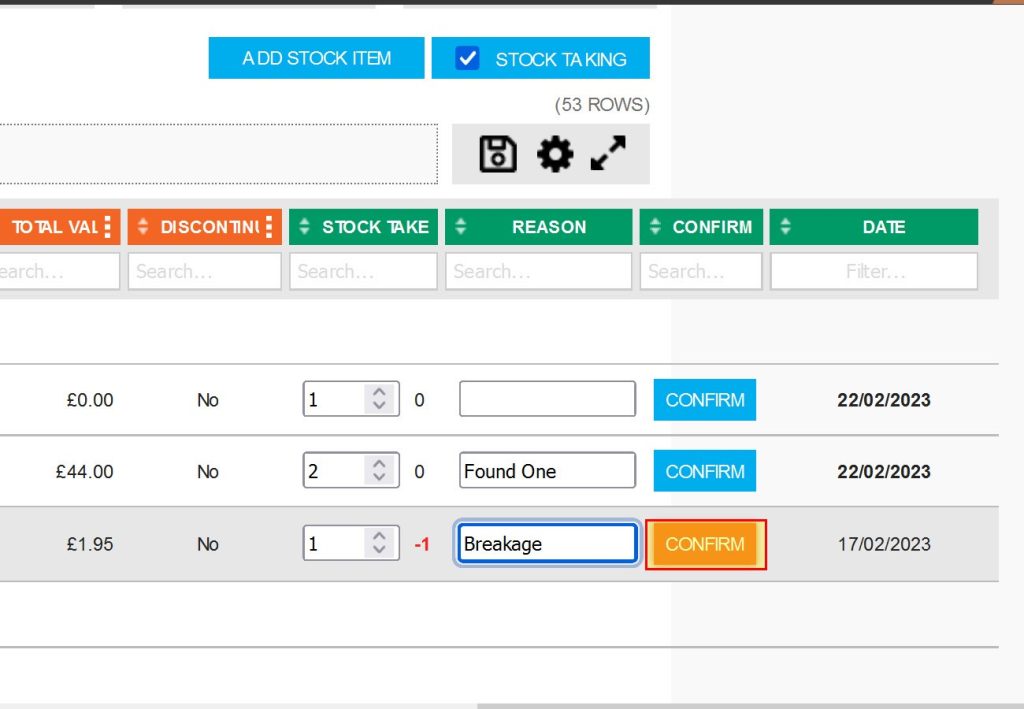
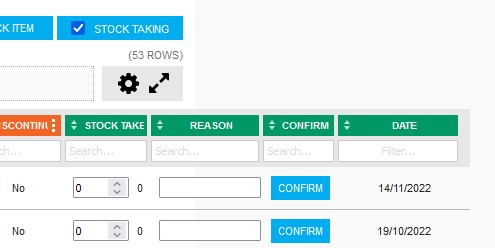
The Stock page can quickly be turned into a STOCK TAKING page. Four additional columns are added to the stock list to enable stock taking. 
Step by Step
User Configuration – In order to maintain the Stock module, additional roles are required to be allocated to the appropriate users. This does not prevent other user roles from accessing or maintaining stock but instead restricts specific processes. For further information on user roles see Managing Workshop Users The additional roles are;
• Parts Manager: General management of the Stock module e.g. carrying out a stock take and creating new parts. This role is needed for access the demand page.
• Purchase Order Authorisation: Authorises all orders, transfers and returns. These users are also required to be added to an authorisation group.
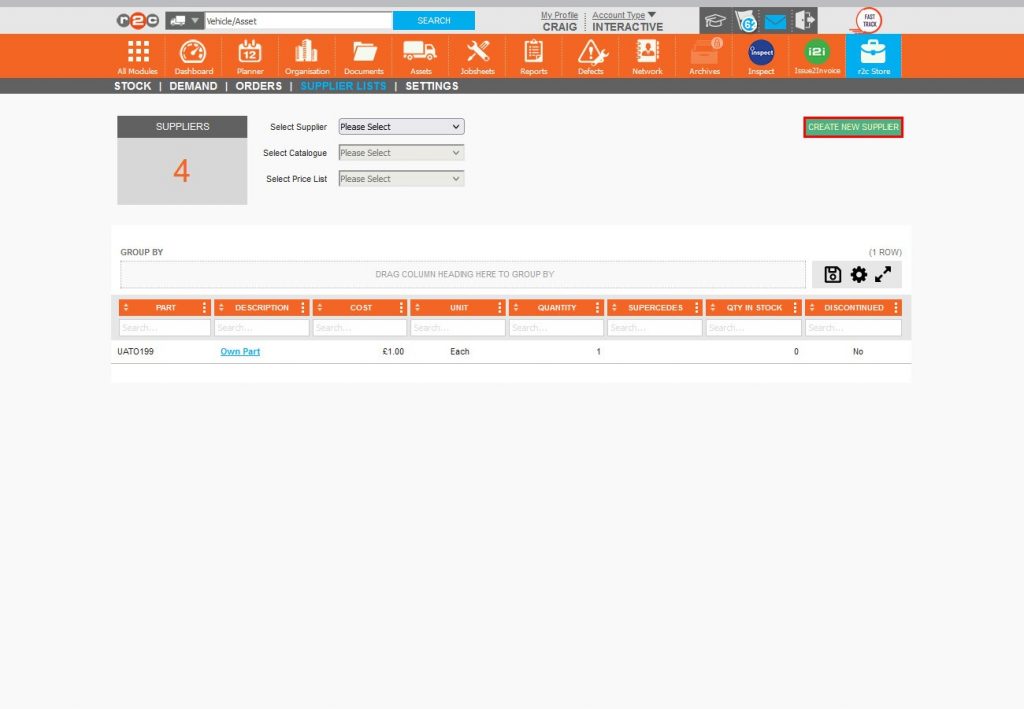
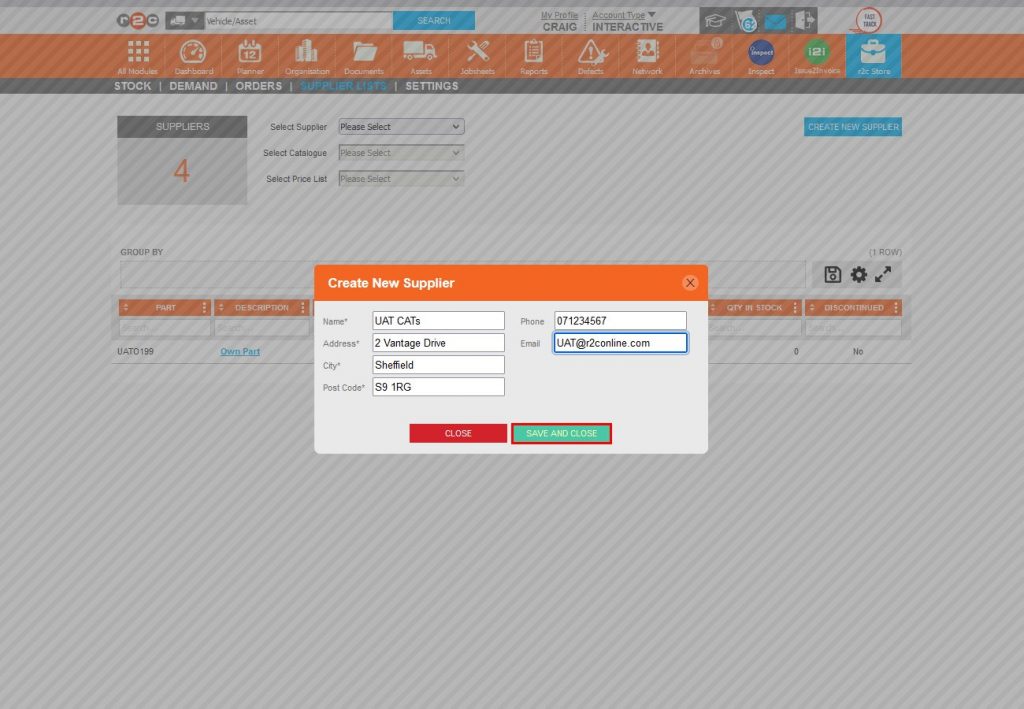
• Administrator: Although not a new role, some functions within Stock are limited to administrators such as adding new suppliers.
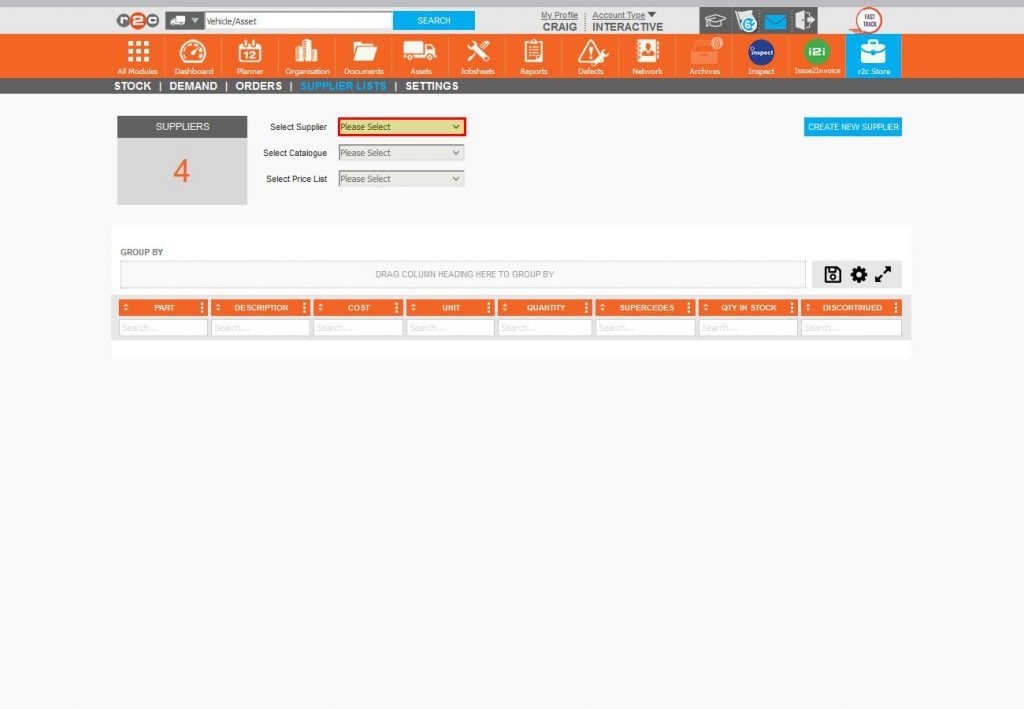
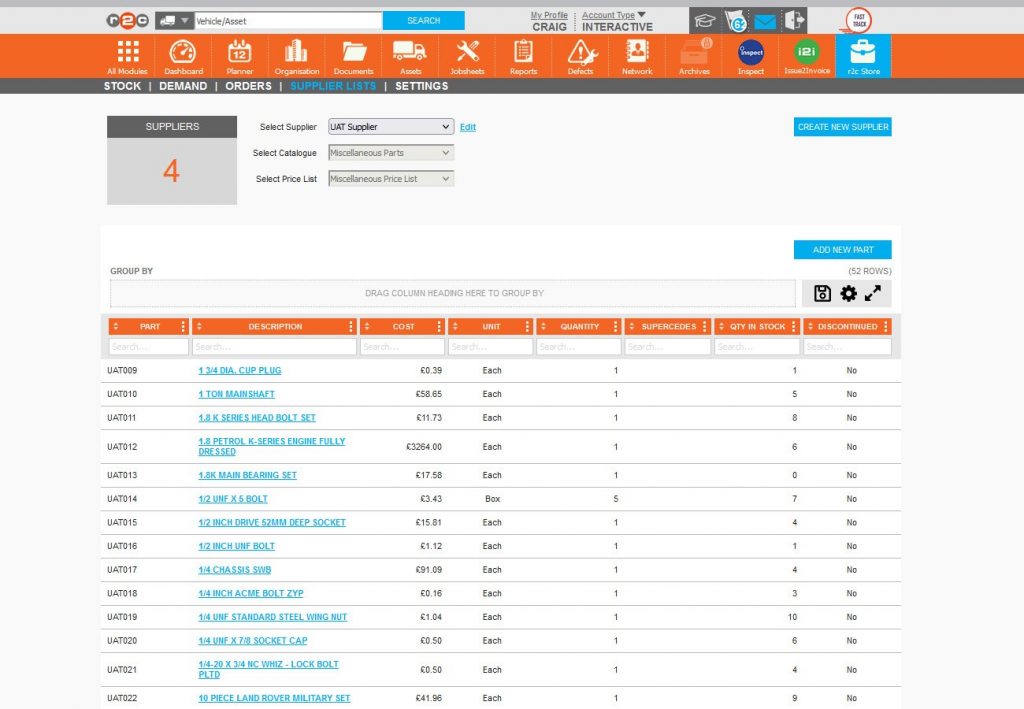
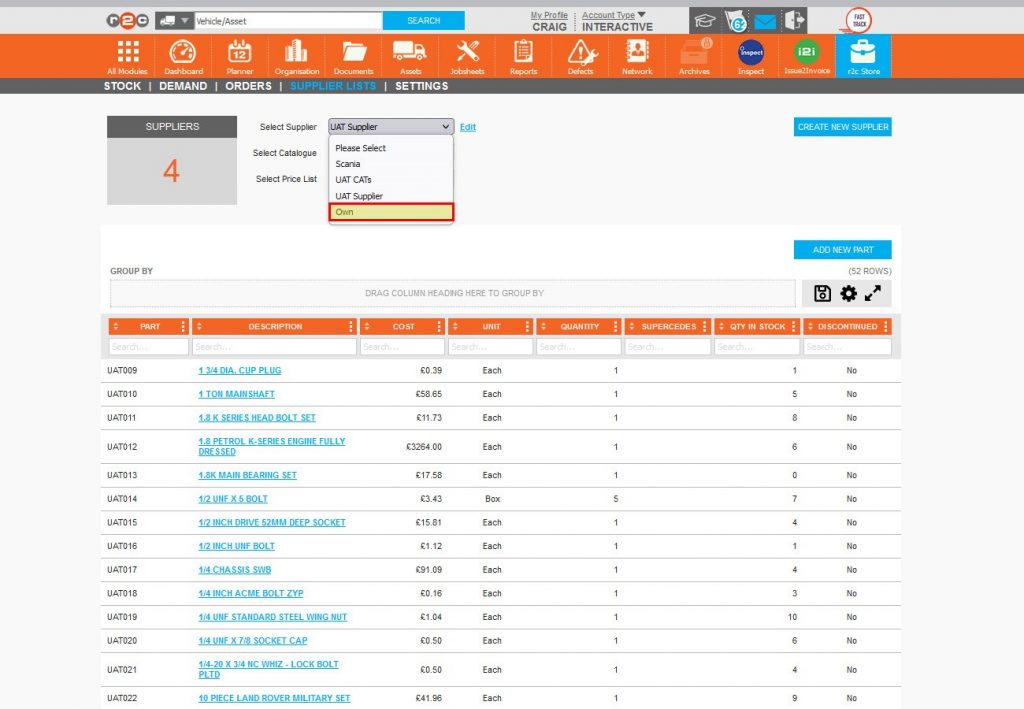
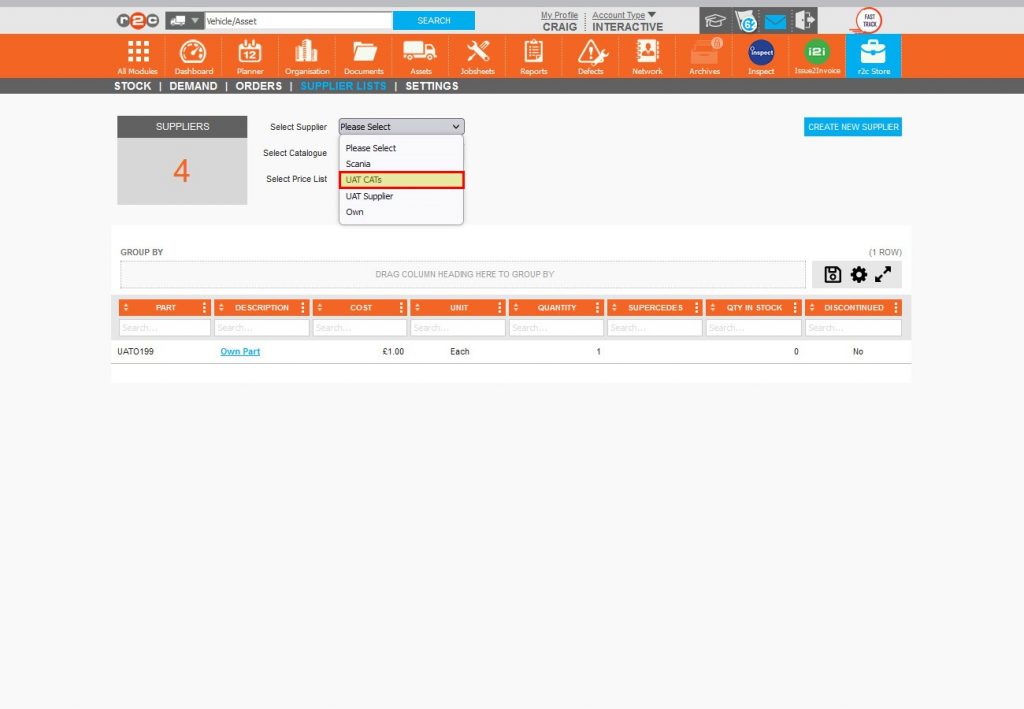
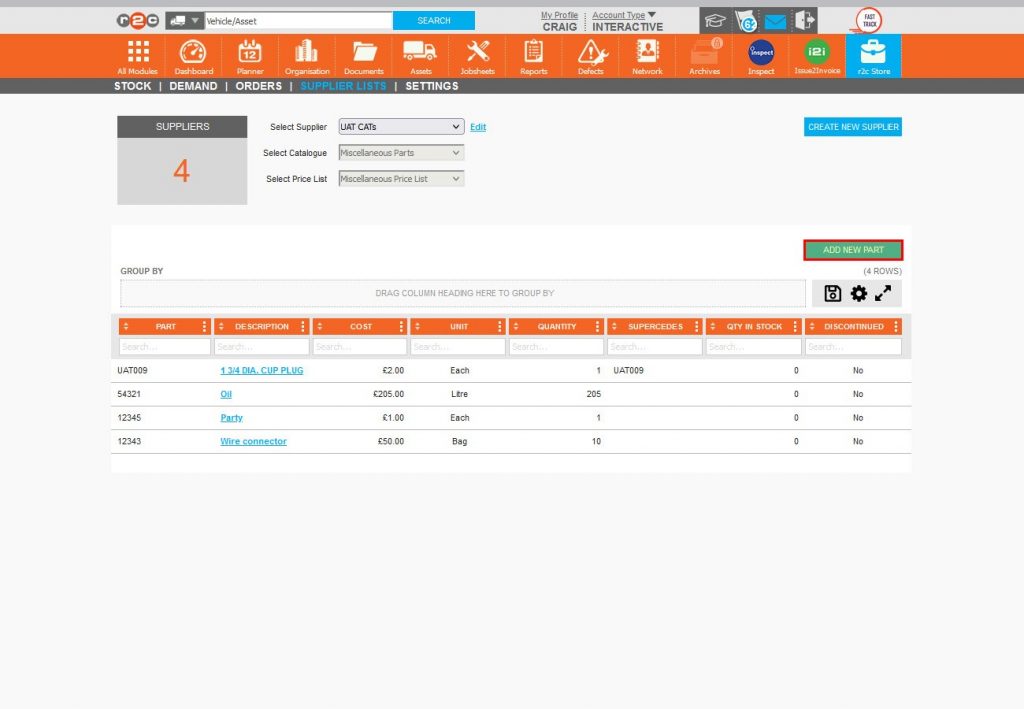
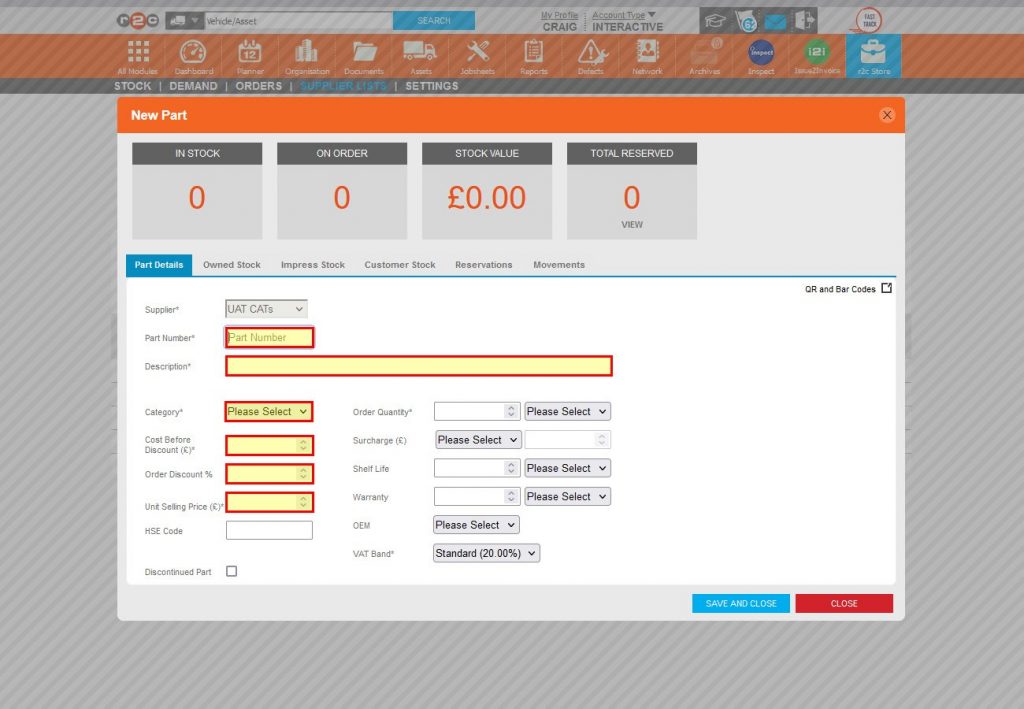
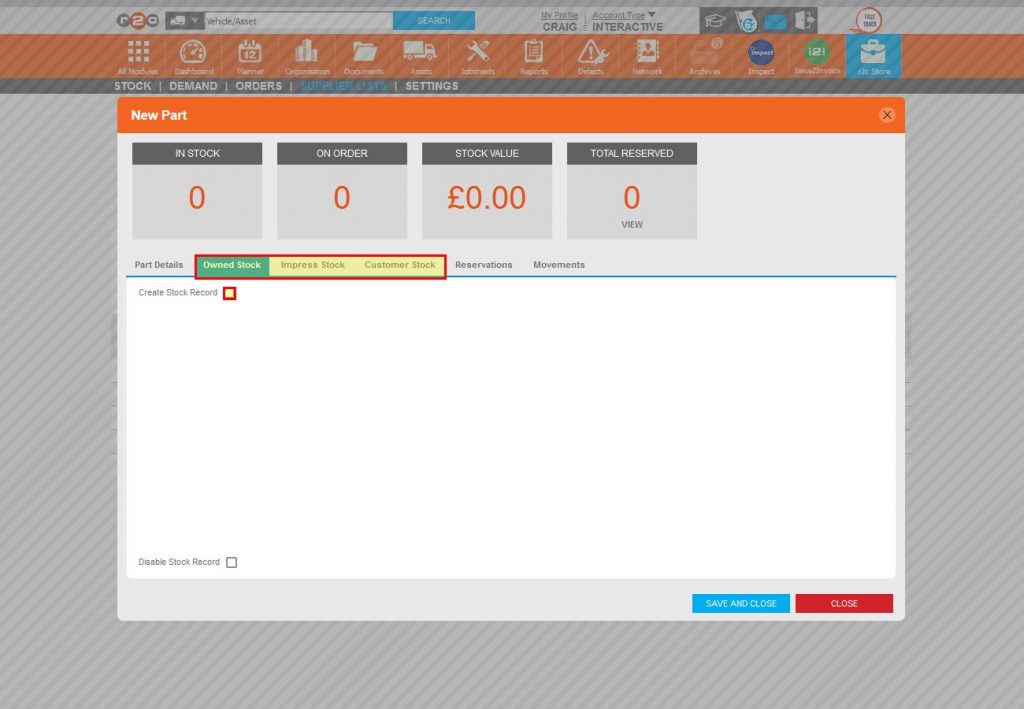
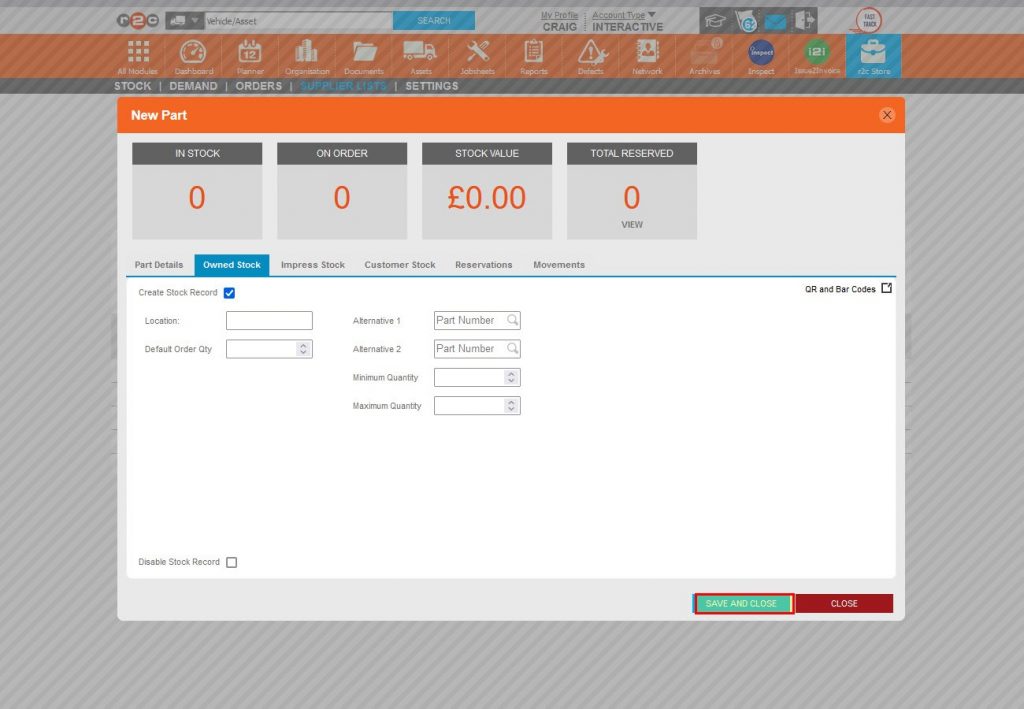
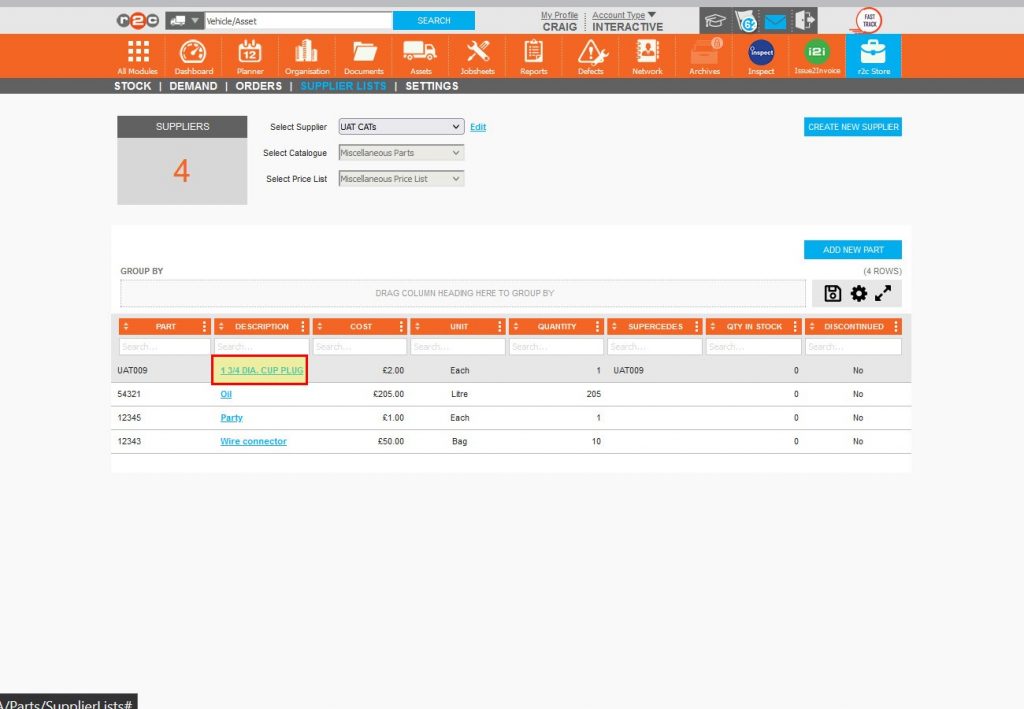
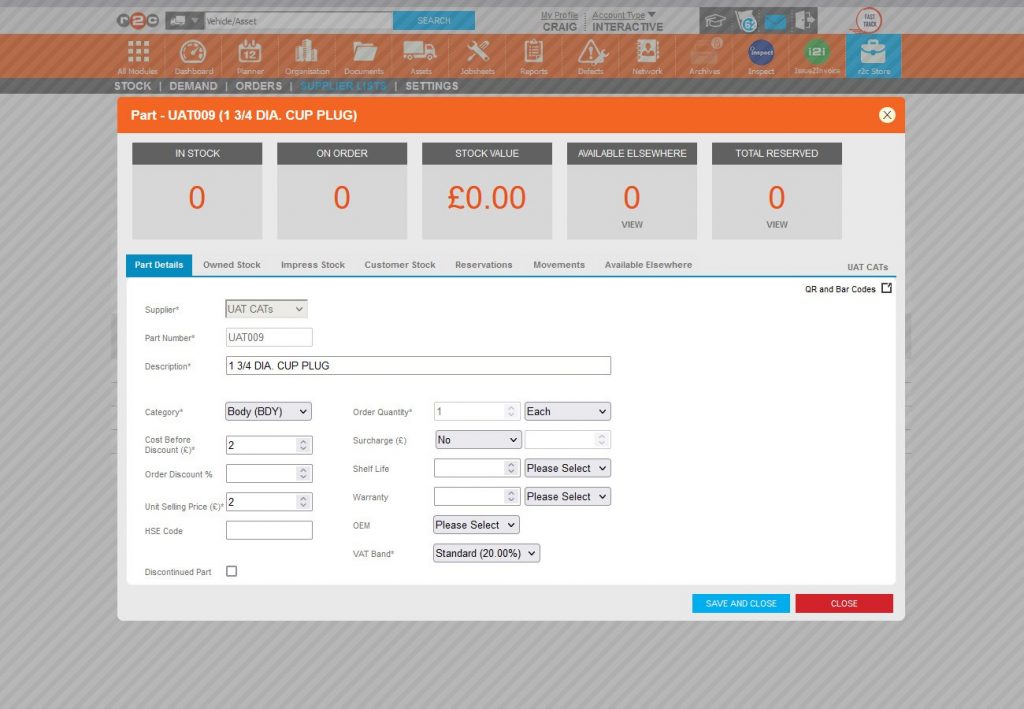
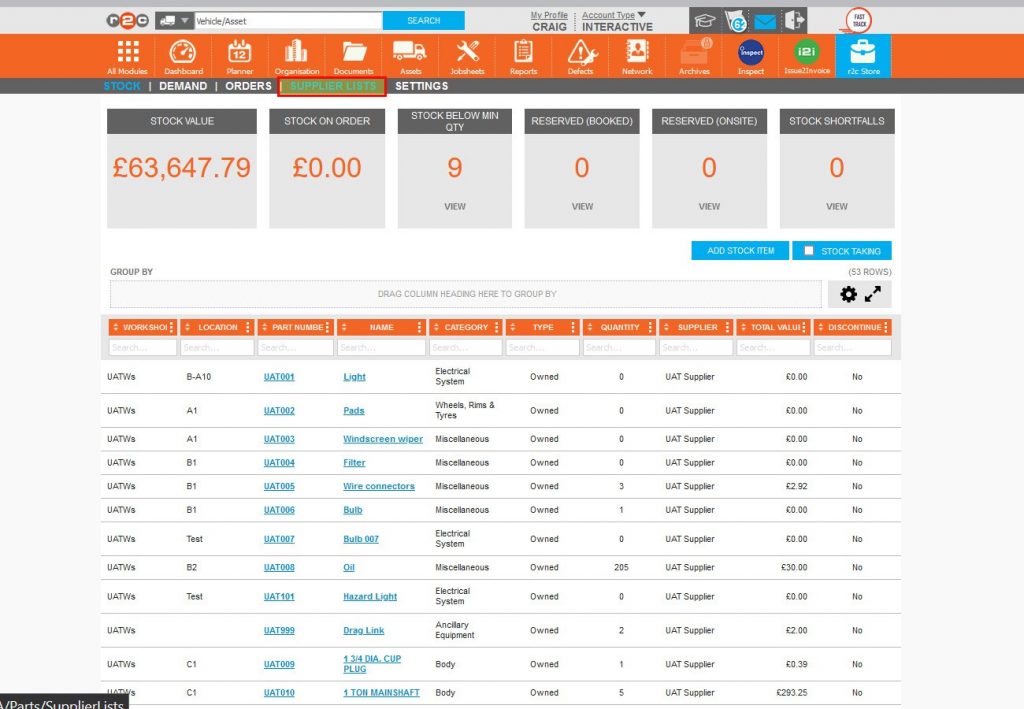
Supplier Lists – To see the steps taken to view or add suppliers and add parts to supplier lists, click or swipe through the 13 steps below.


Creating Purchase Orders (POs) – To see the steps taken to create a PO from different locations, click or swipe through the 8 steps below.


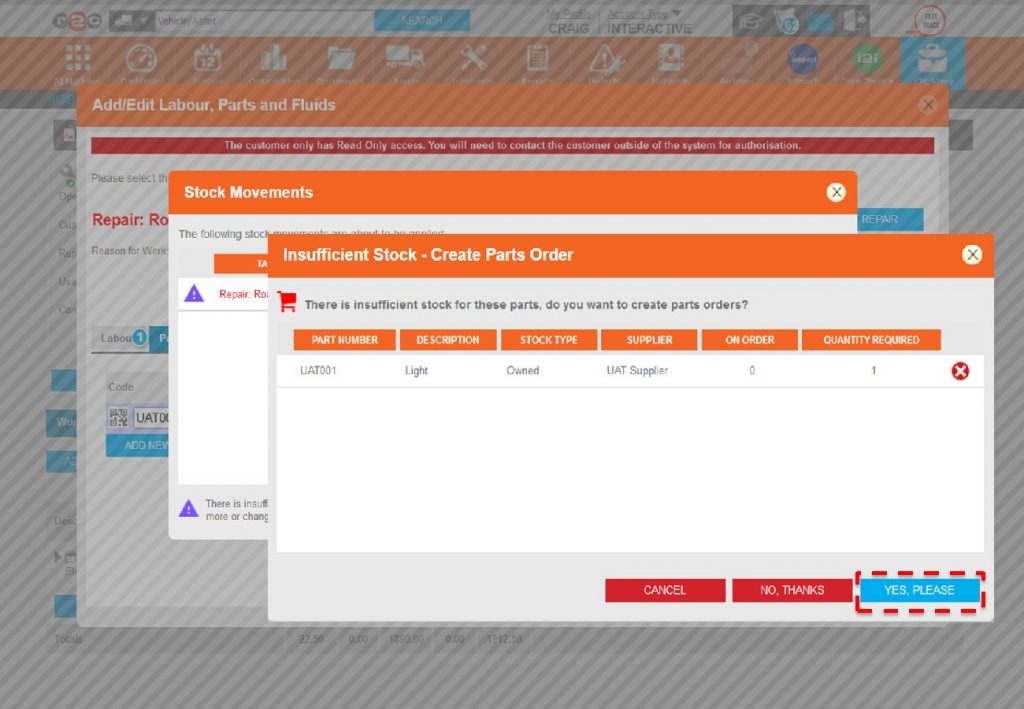
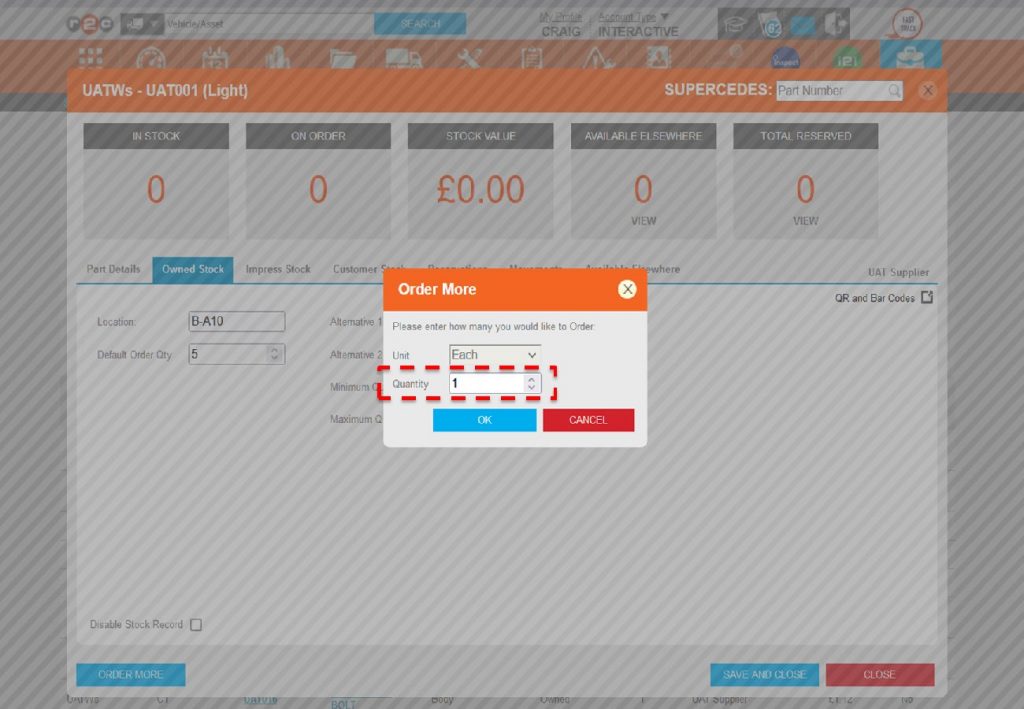
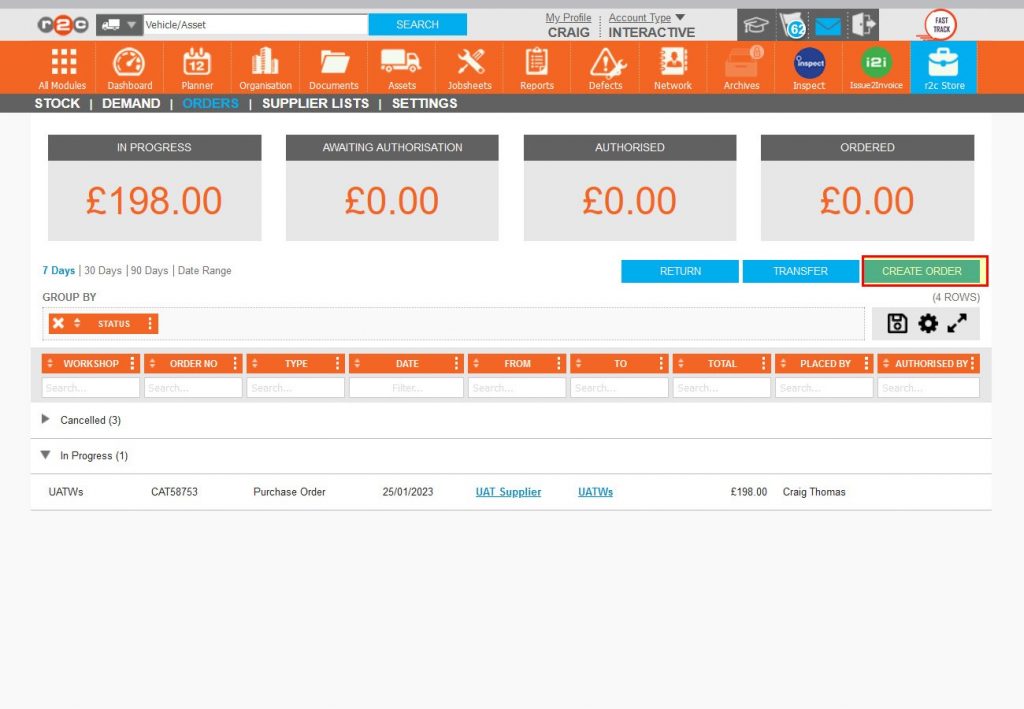
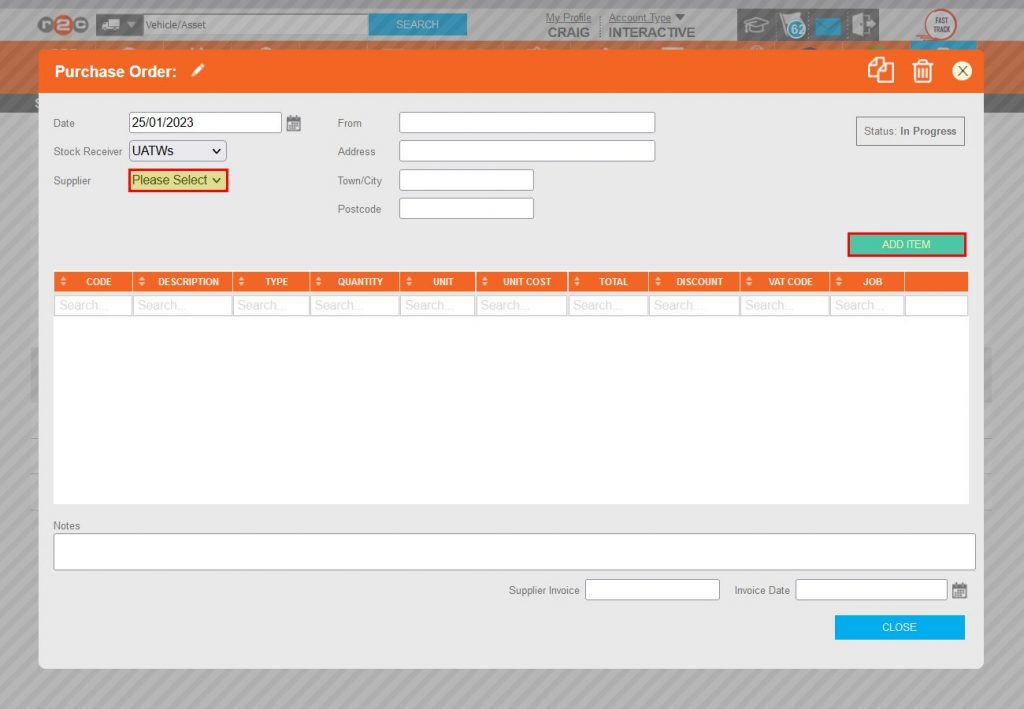
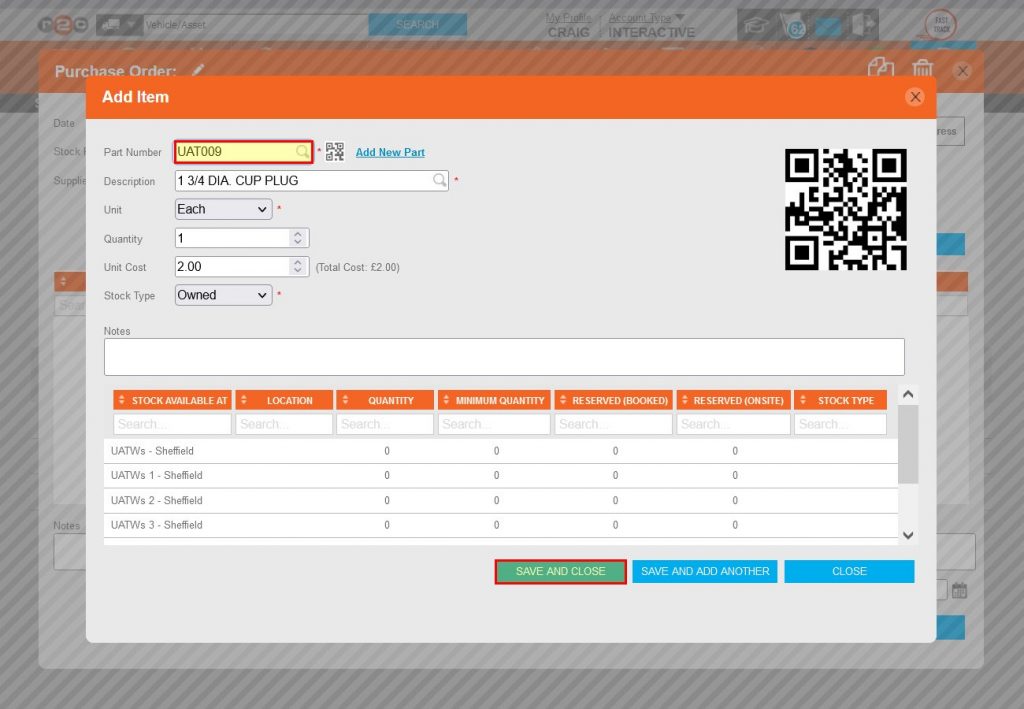
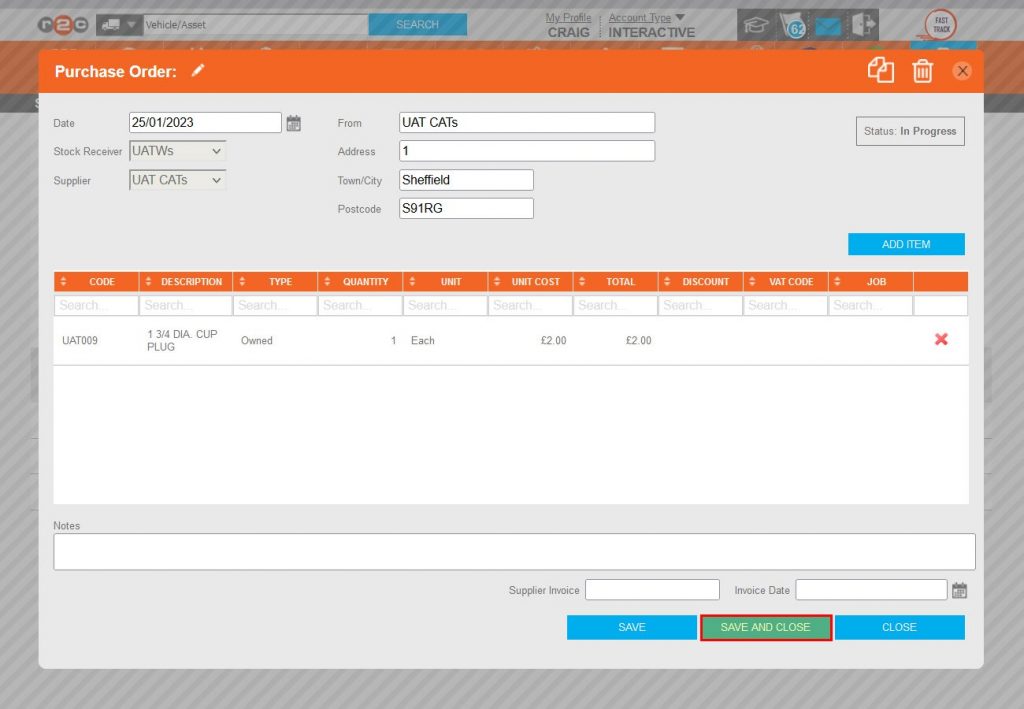
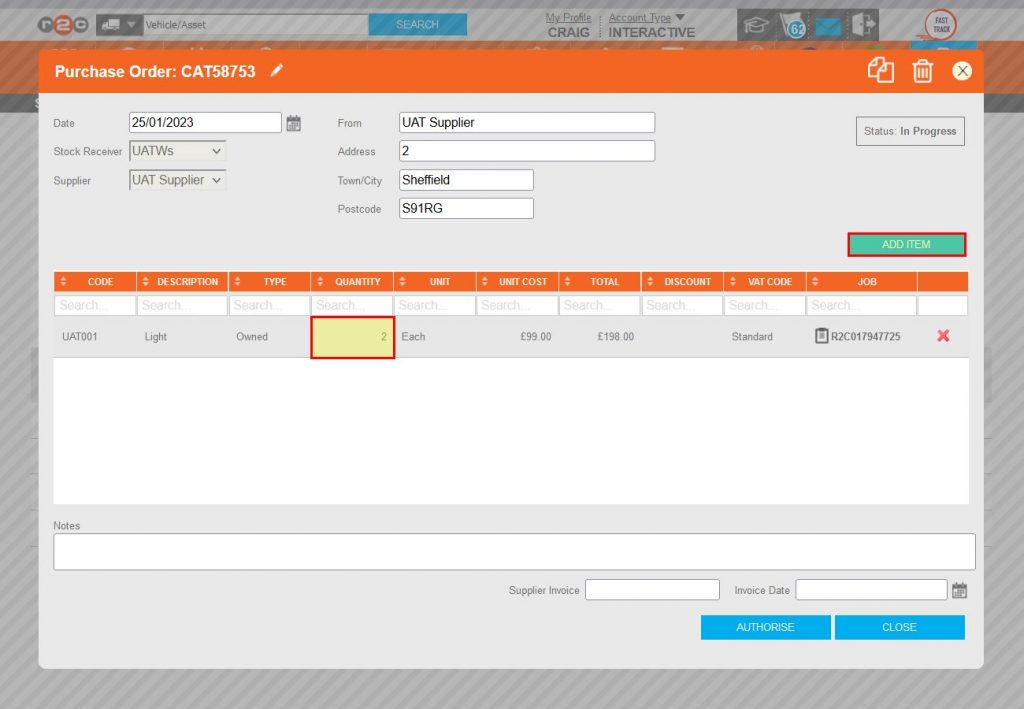
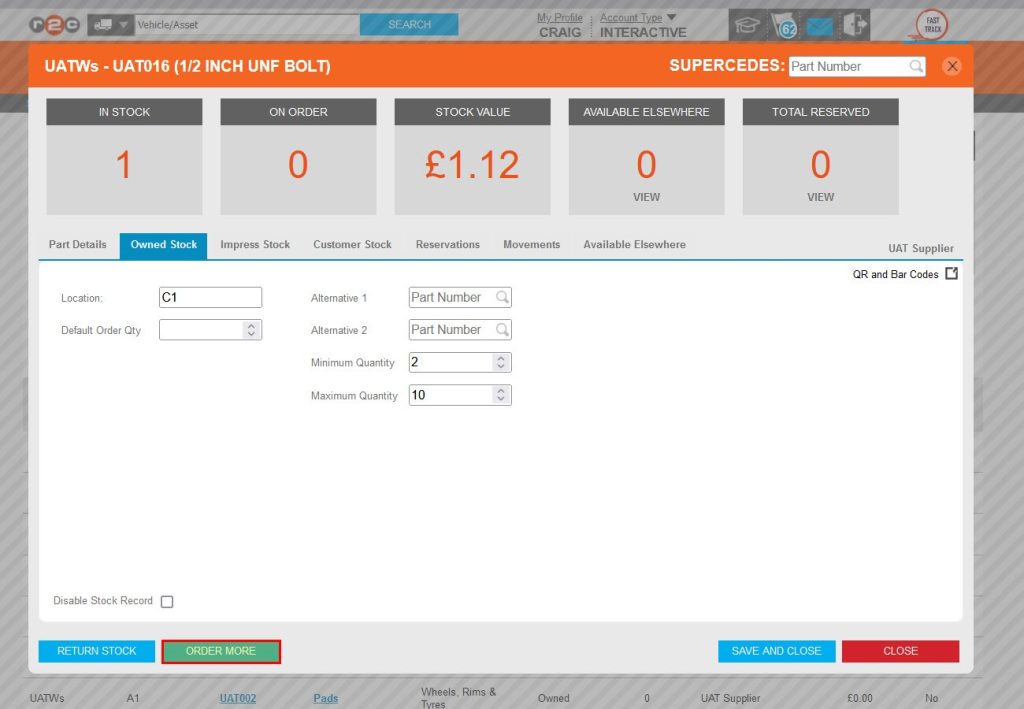
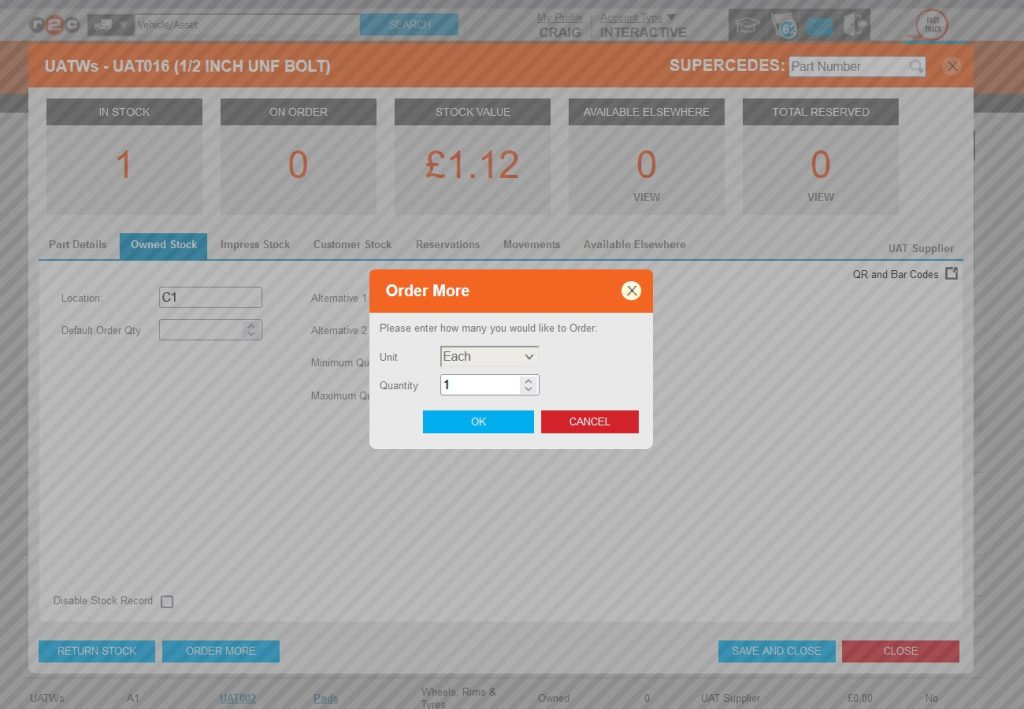
Creating Purchase Orders (POs) from the Stock Page – To see the steps taken to create a PO, click or swipe through the 4 steps below.


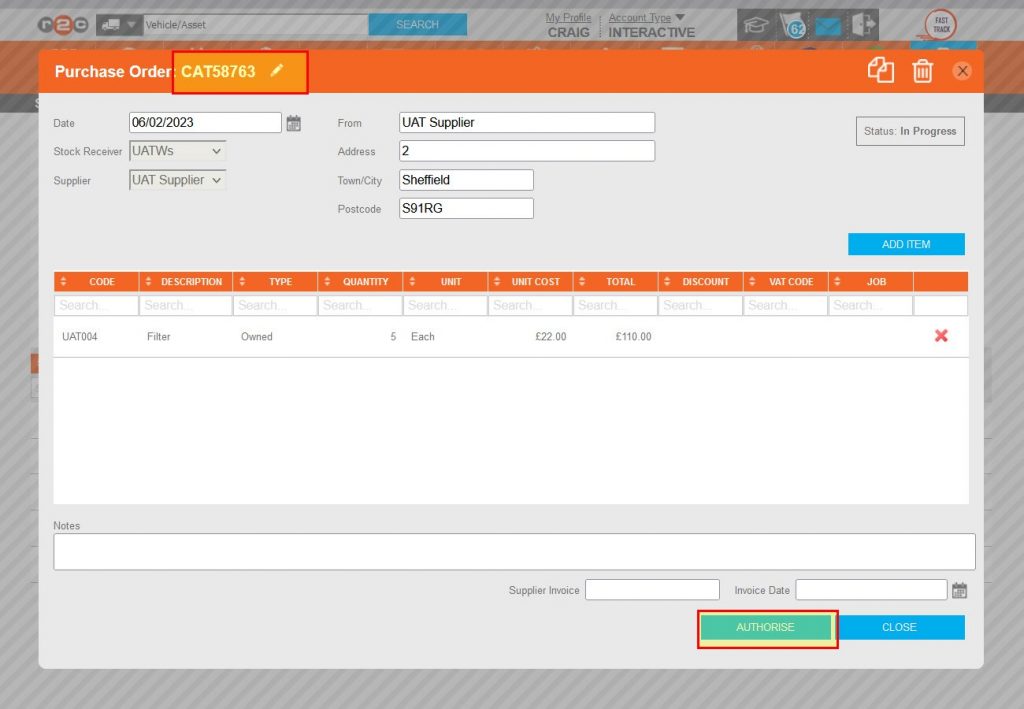
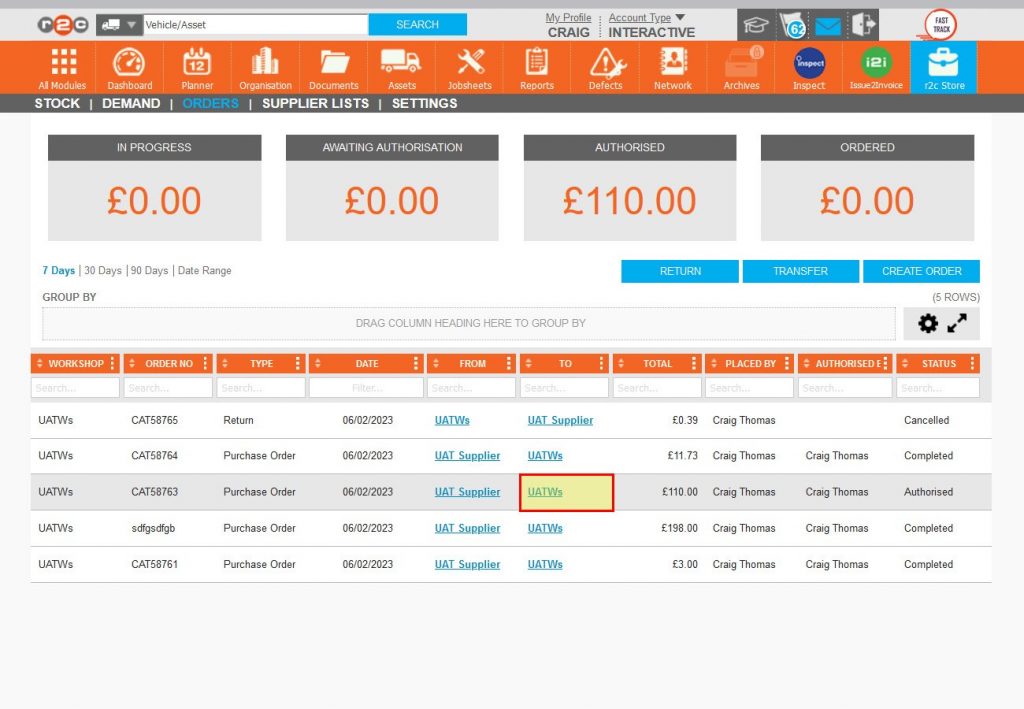
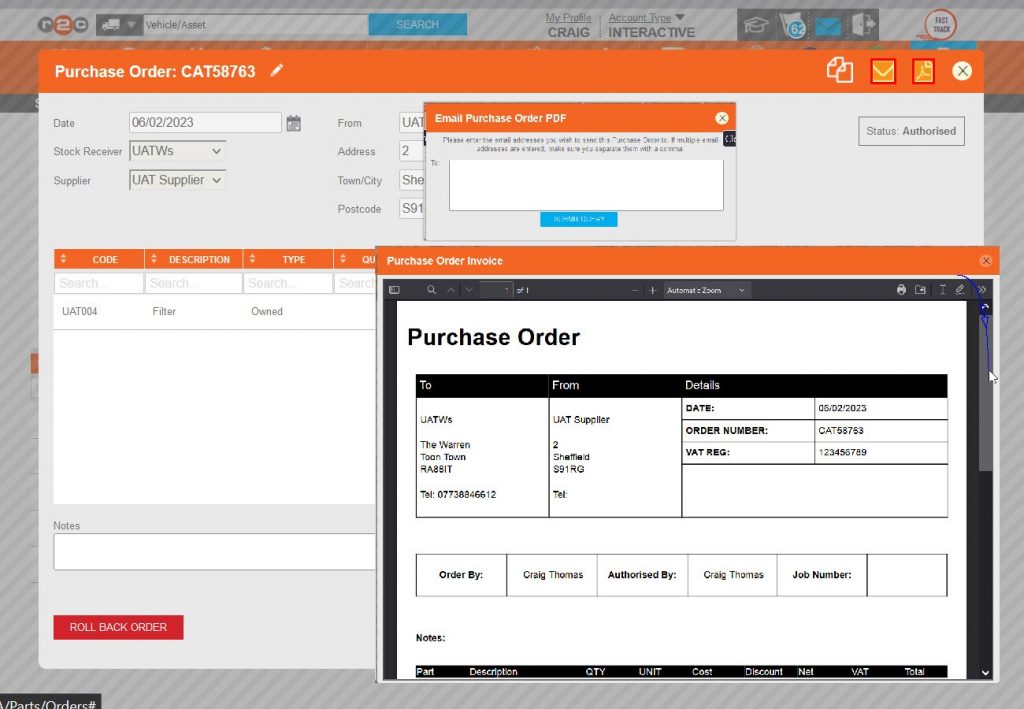
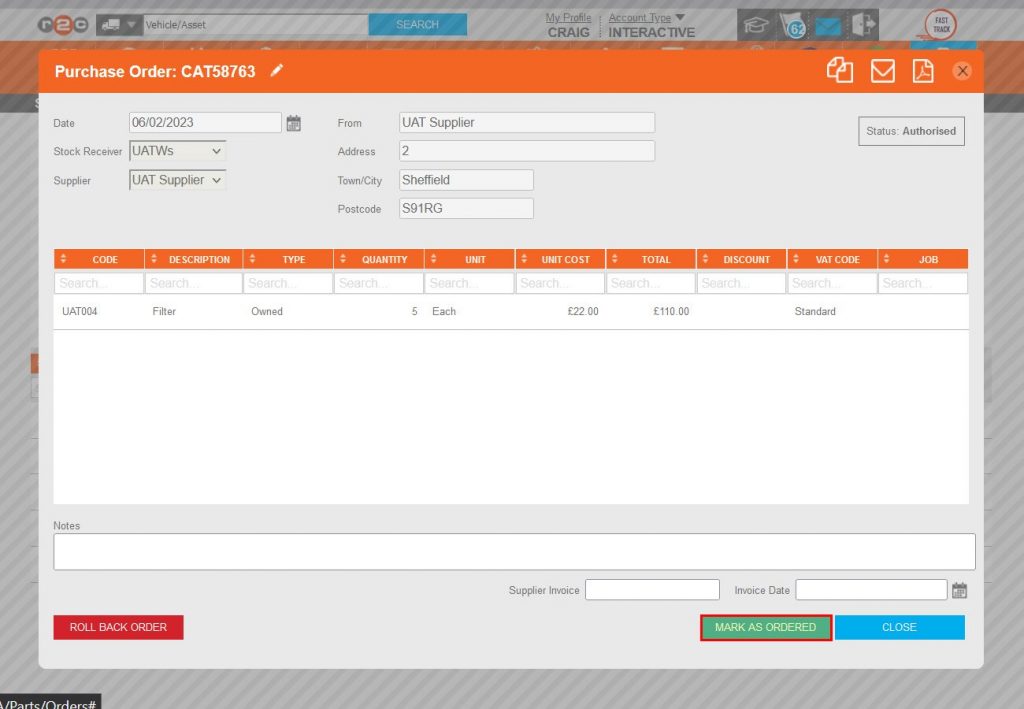
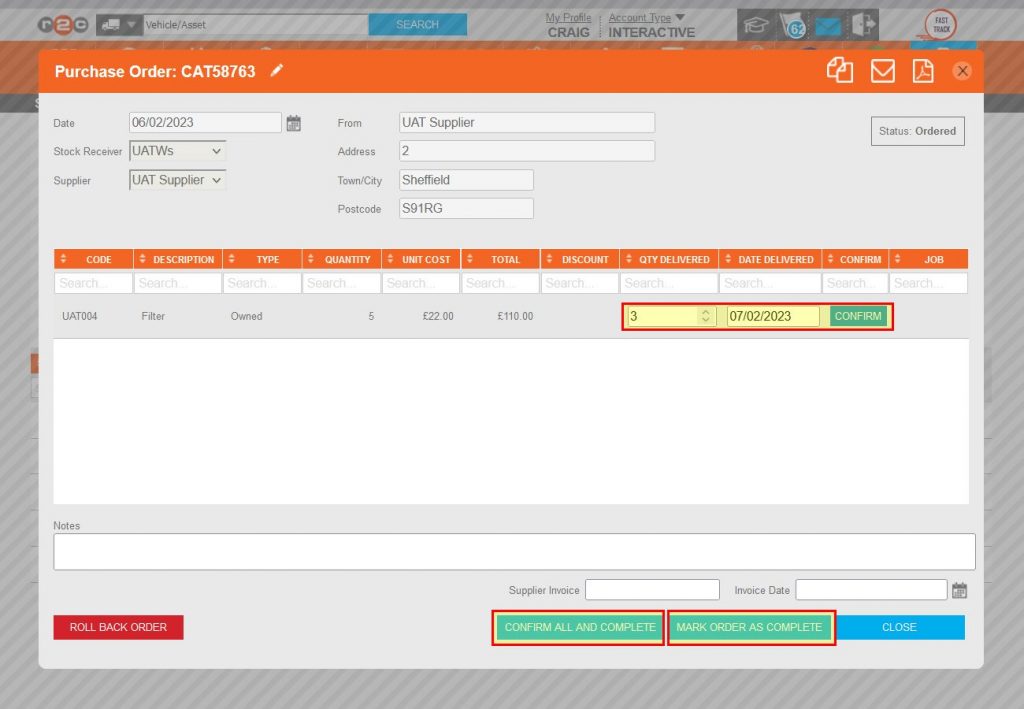
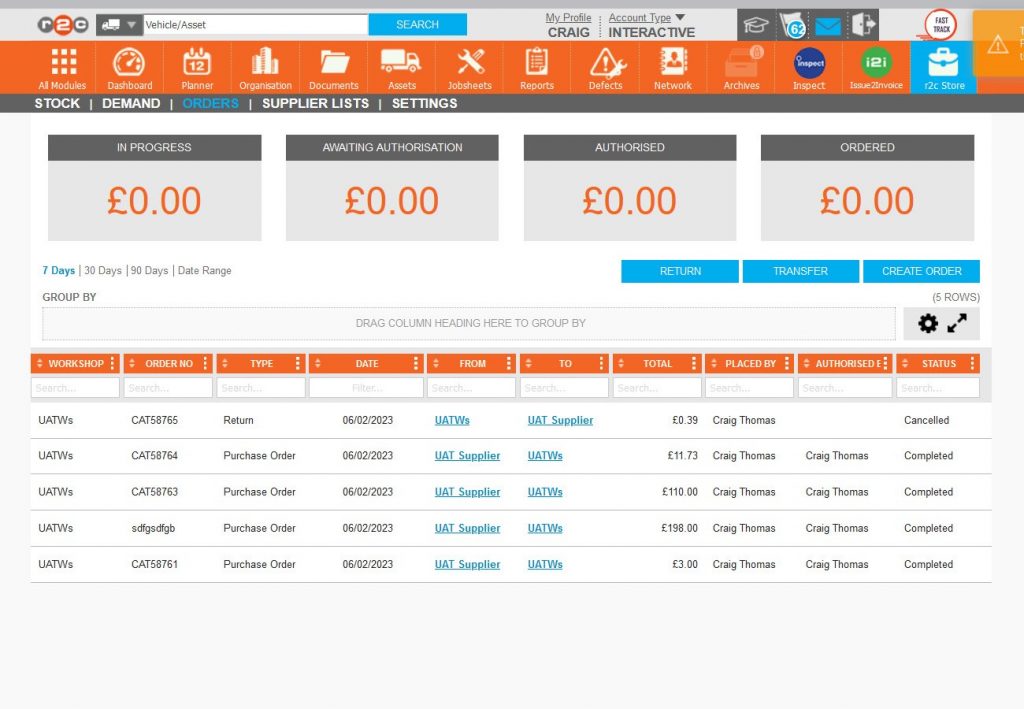
Processing and Completing PO’s – To see the steps taken to process orders to complete, click or swipe through the 6 steps below.


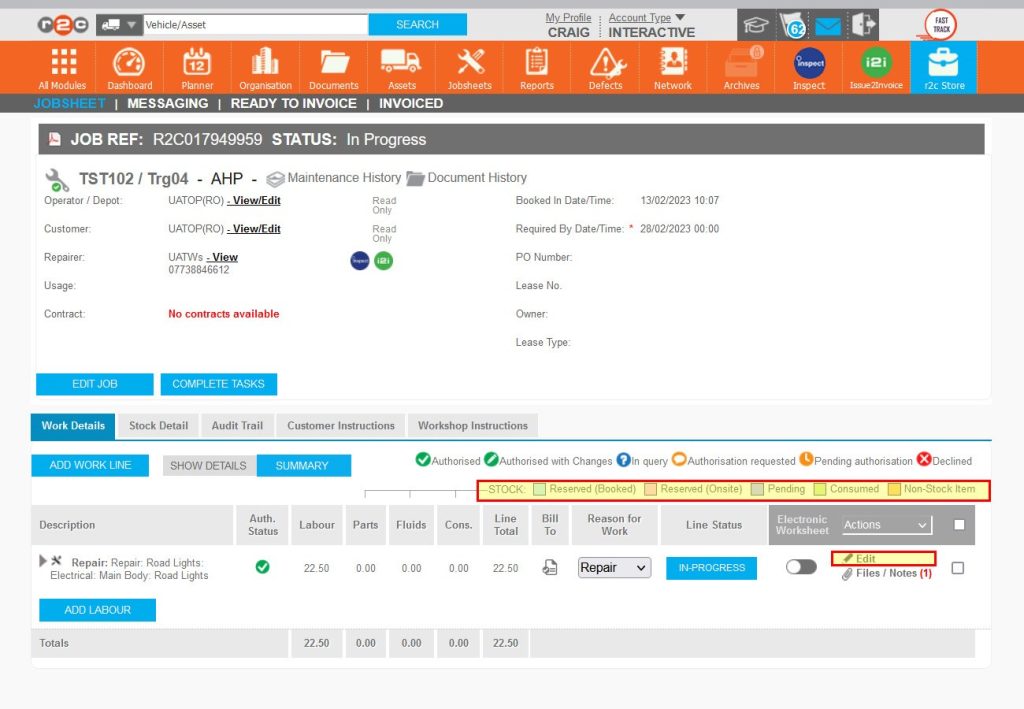
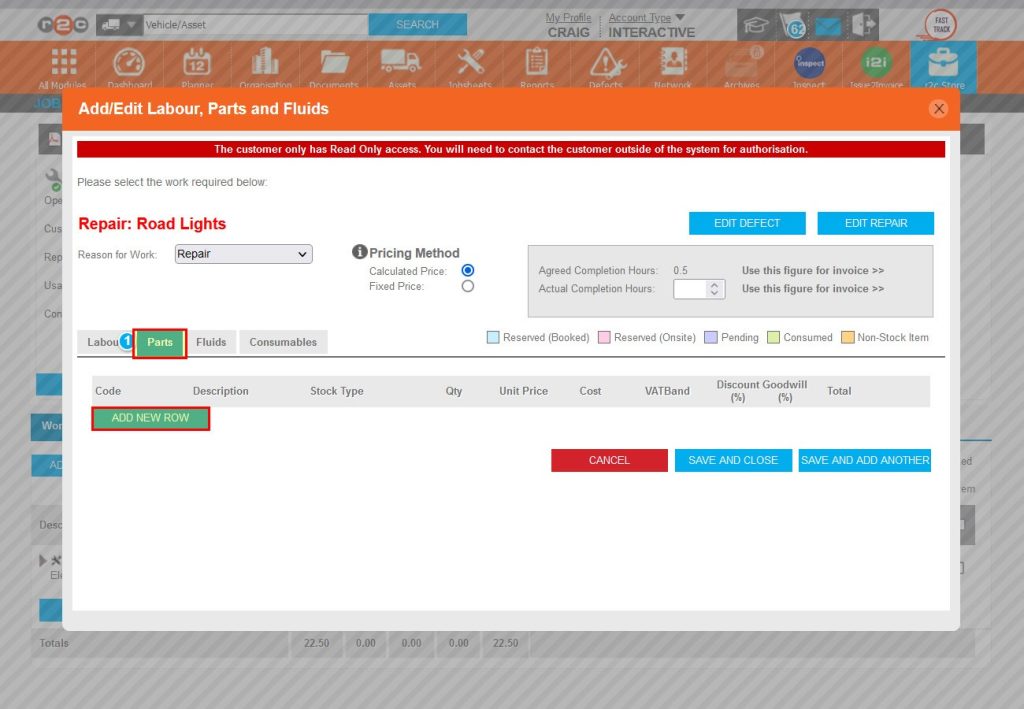
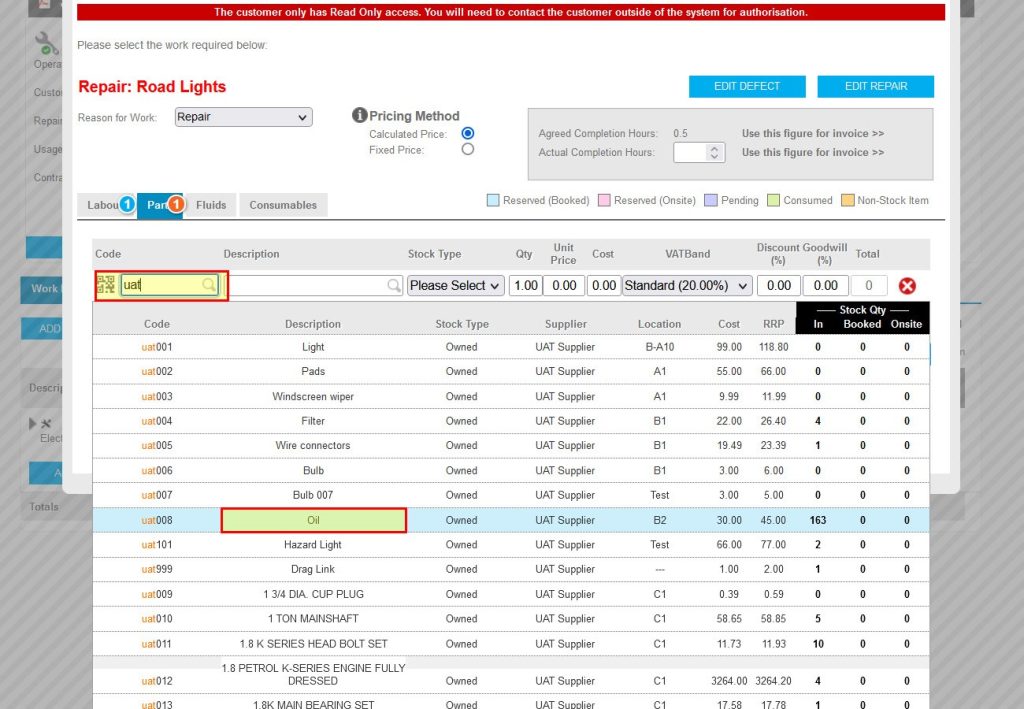
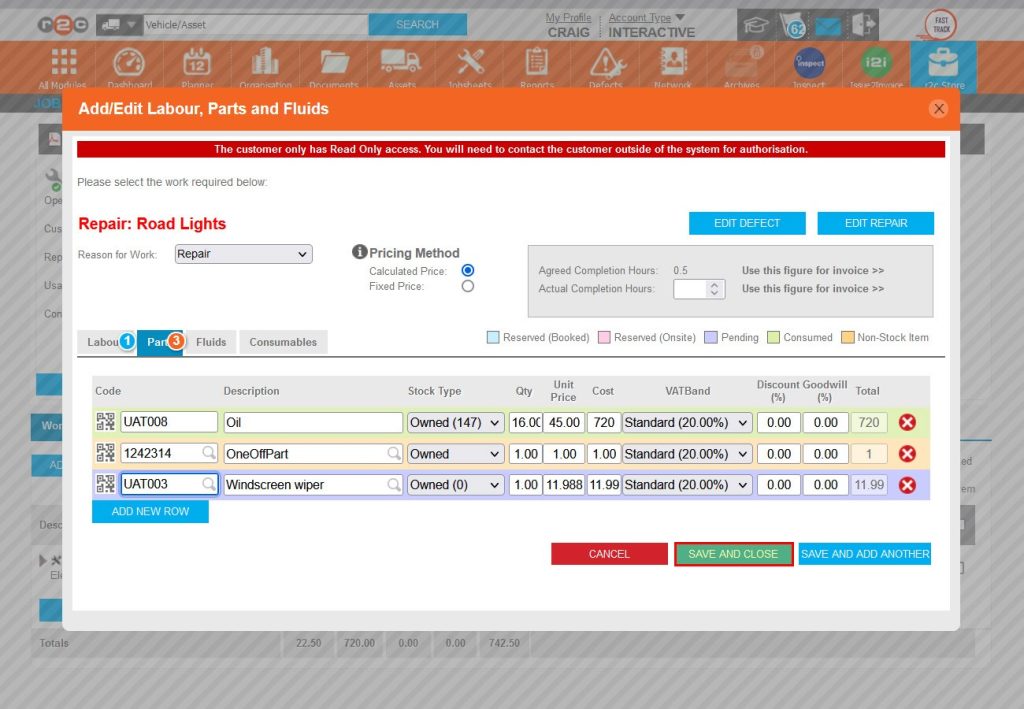
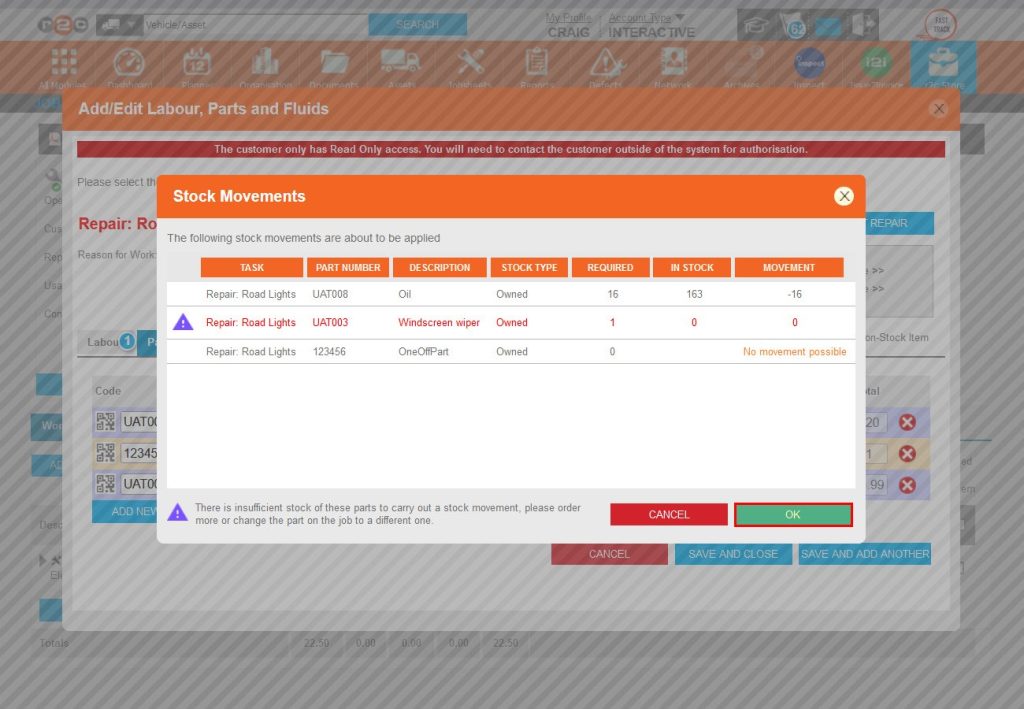
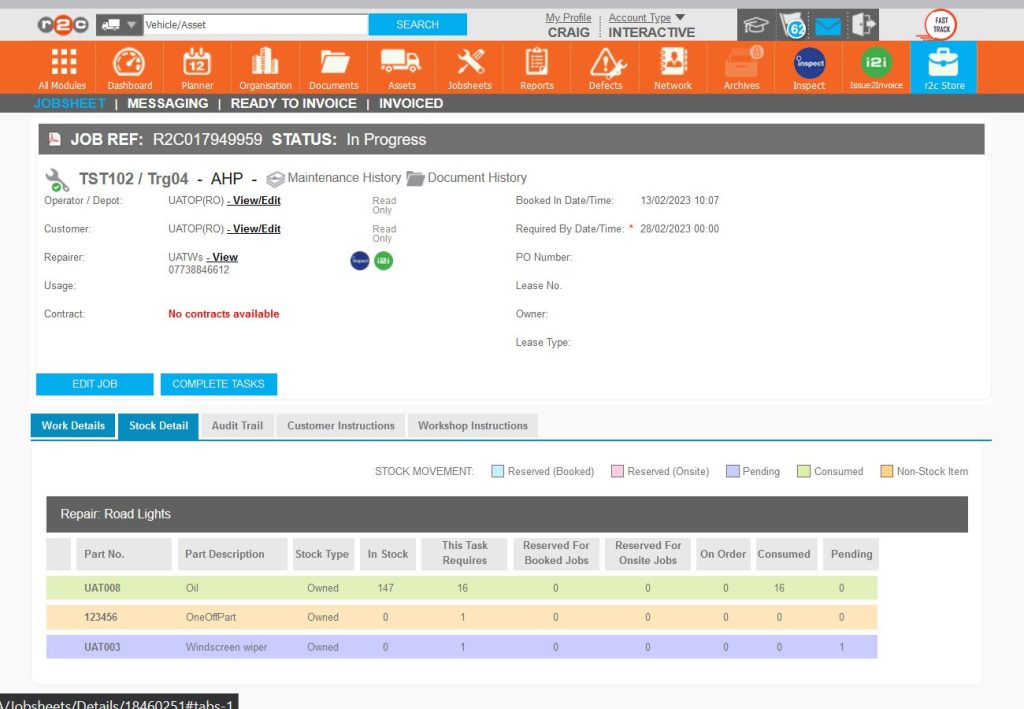
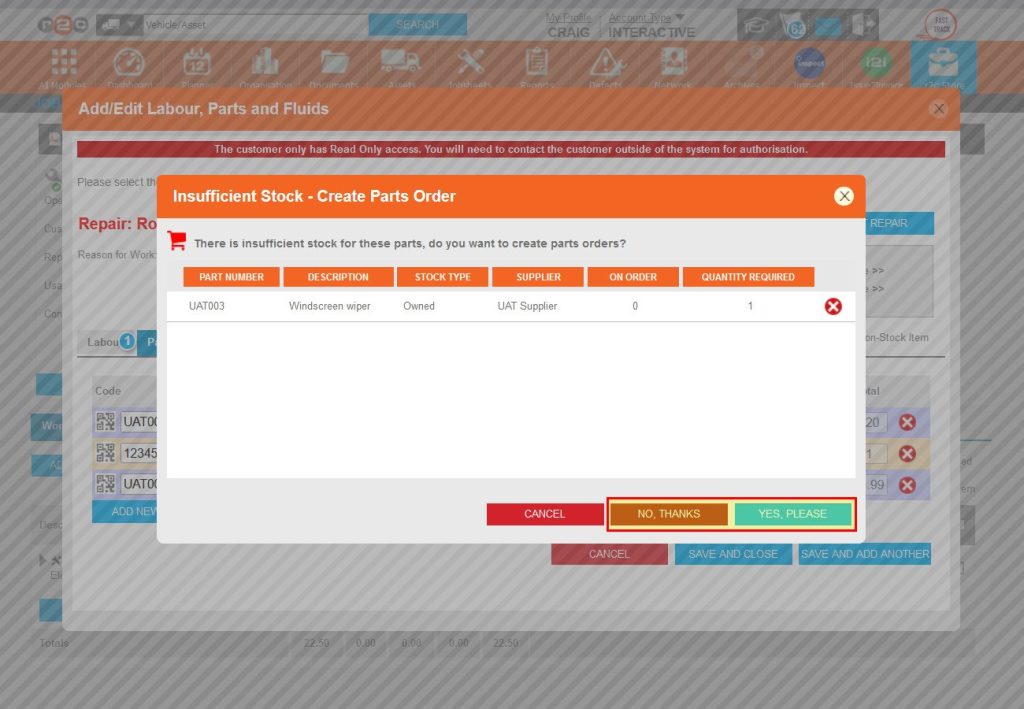
Adding Stock Parts to a Jobsheet – To see the steps taken on stock-enabled jobsheets, click or swipe through the 10 steps below.


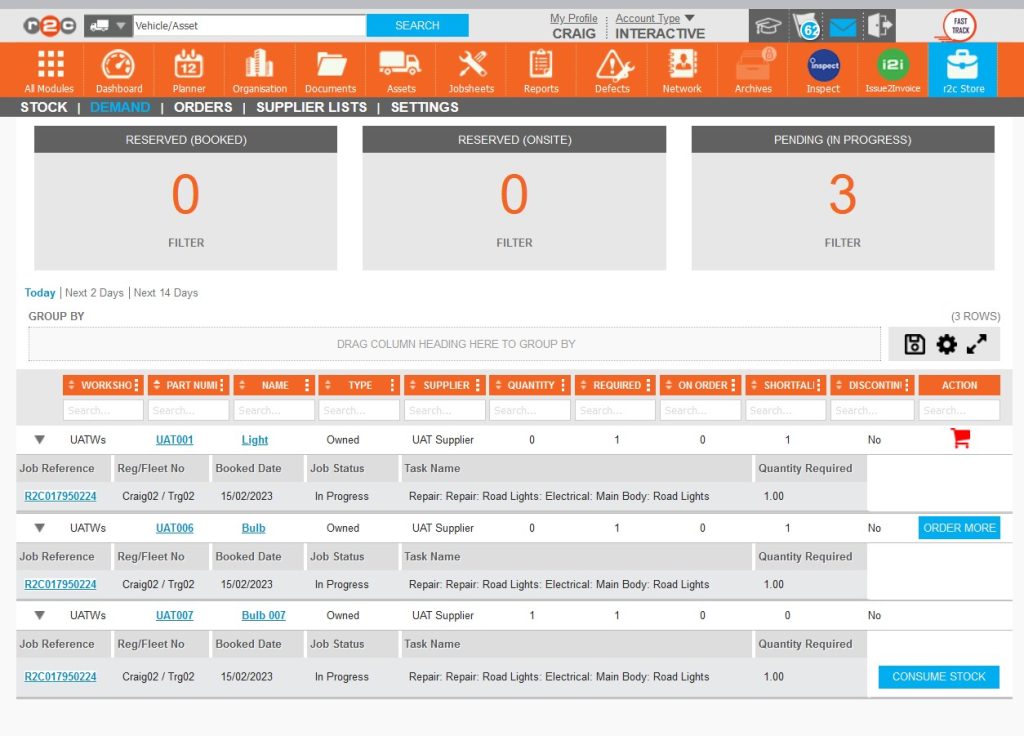
Parts Held in Demand – The primary function of the Demand page is to track and process parts pending on jobsheets. From here parts can be;
- Ordered with the use of order more.
- Tracked and processed with the use of the Shopping Trolley.
- Consumed back to the pending jobsheet with the use of the Consume Stock button.
Parts Pending on jobsheets are displayed here on the Demand page, in an ideal world, all demands would be fulfilled where this filter would be set to zero and the list below would be empty.
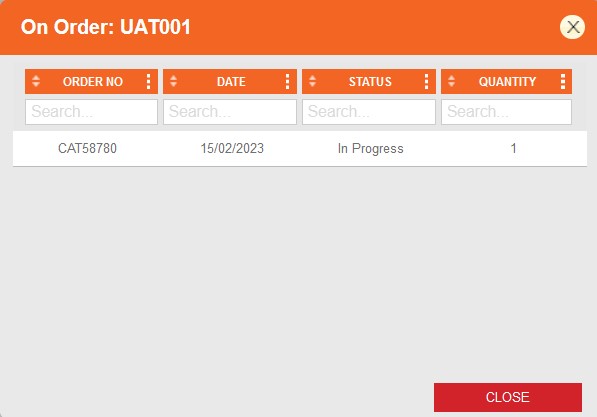
The Shopping Trolley is displayed when the part in demand is currently on order, by clicking this trolley a popup will display the PO number which is a direct link to that PO. See Processing and Completing PO's for more info.
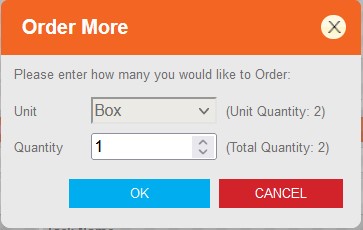
The Order More button is displayed when the part in demand is not currently on order, by clicking this button a popup allows for a PO to be created with the additional function of being able to set a quantity. See Processing and Completing PO's for more info.
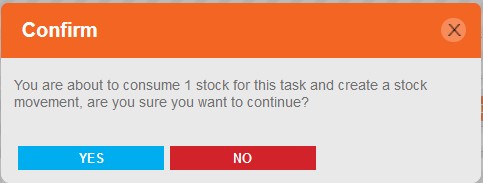
The Consume Stock button is displayed when the part in demand has been received and the PO is at the completed status. Although the part is now in stock it is not automatically allocated to the jobsheet. The Consume button should be used to allocate the part to the pending jobsheet. 
Part Pending & Demand Process
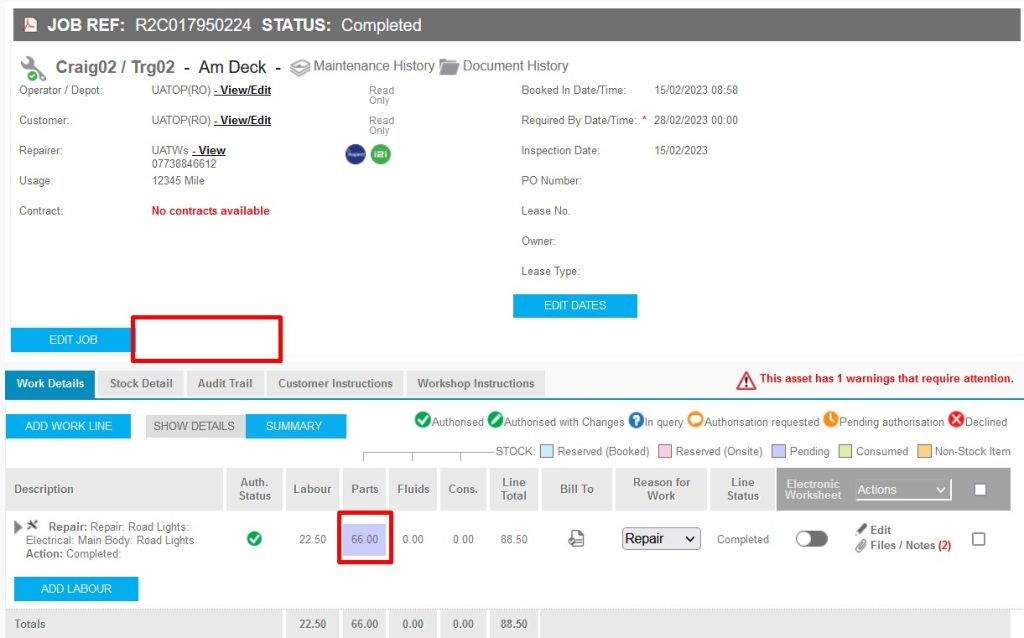
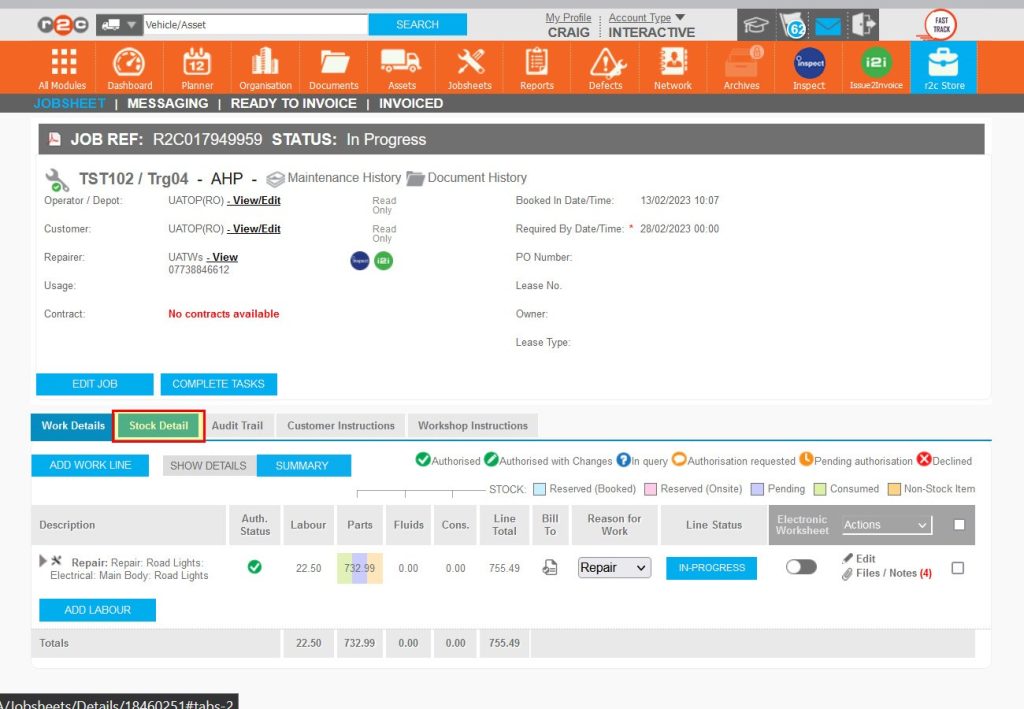
The jobsheet is displaying a purple row for the part not in stock, if the part has been placed on order it will now display a trolley icon.
The demand page displays all parts required for in progress jobsheets, these will be in 1 of 3 statuses, 'on order', 'order more' or in stock waiting to be consumed.
A new PO can be generated from here if more are required.
Once on order, the PO can be found by clicking the trolley.
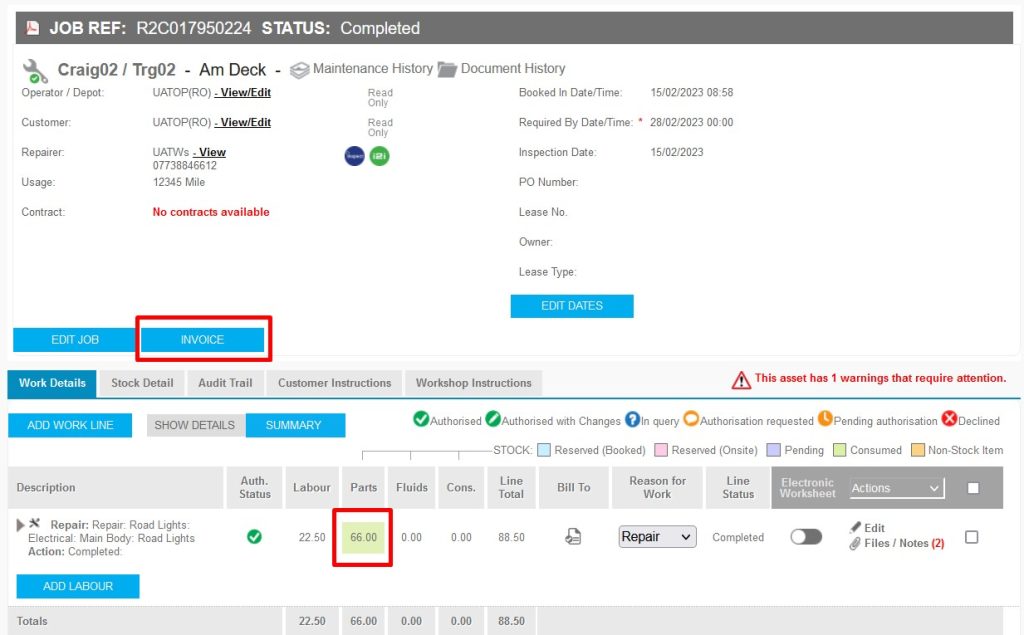
When the parts have been received and the PO complete, the part can be consumed to the pending jobsheet.
The order more popup will auto fill with the default quantity, this can be amended here.
The on order popup provides the ability to navigate directly to the PO which needs to be completed before moving to the next step. See Processing and Completing PO's
The confirmation popup will push the part to the pending jobsheet which will now show as consumed.
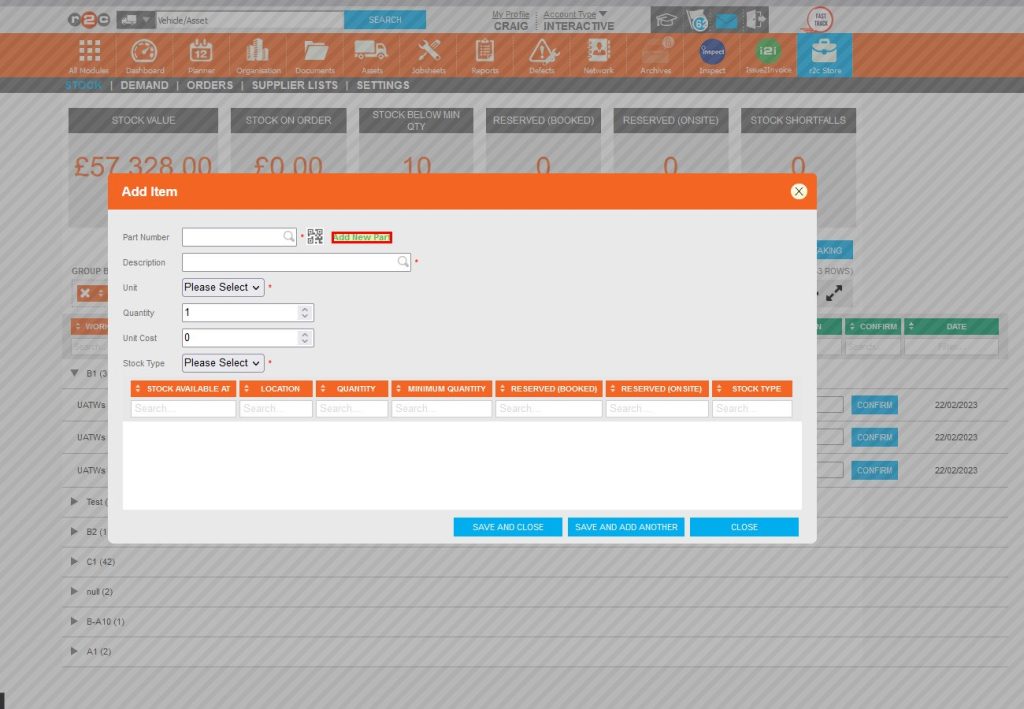
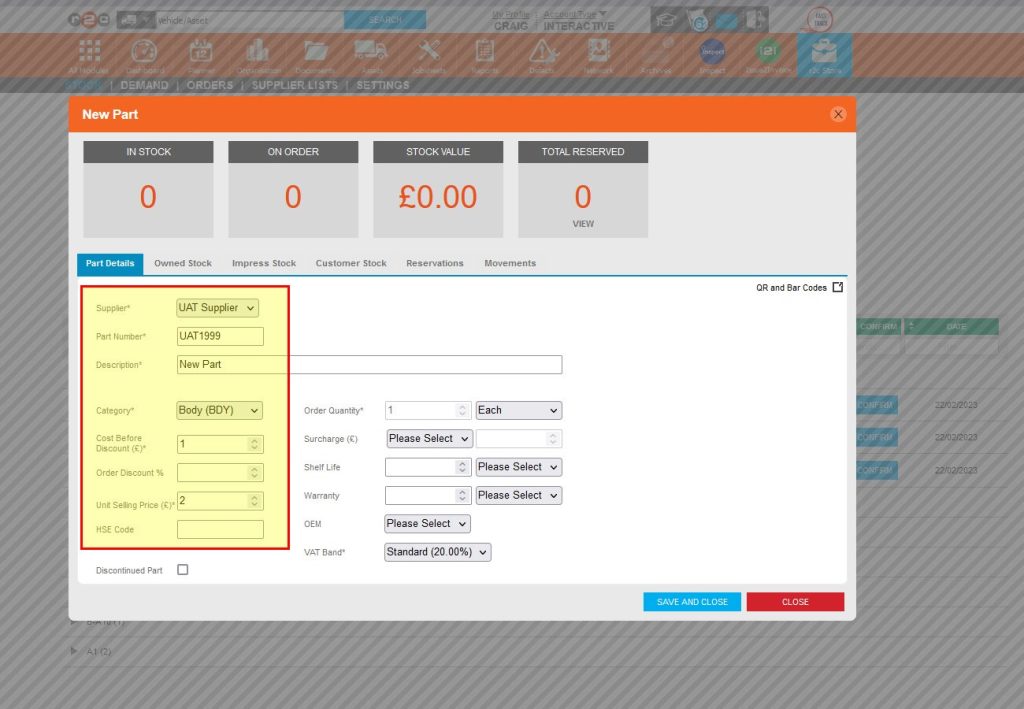
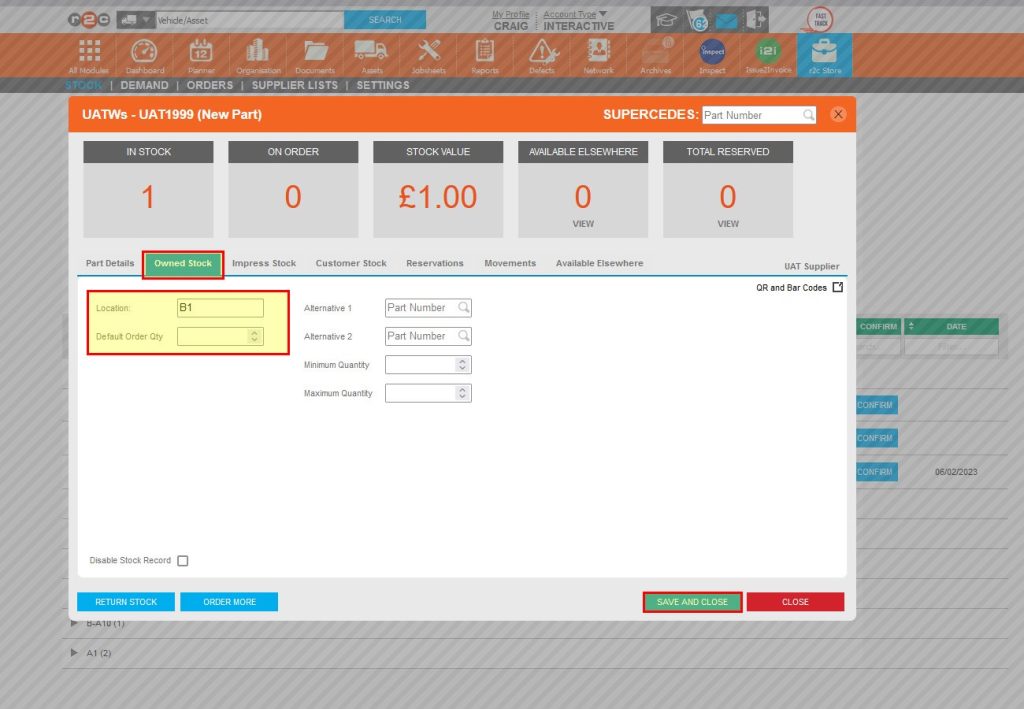
Stock Page – To see the steps taken when carrying out a stock take, click or swipe through the 11 steps below.


Technical Info & Self Help
How do I set default Order Quantities?
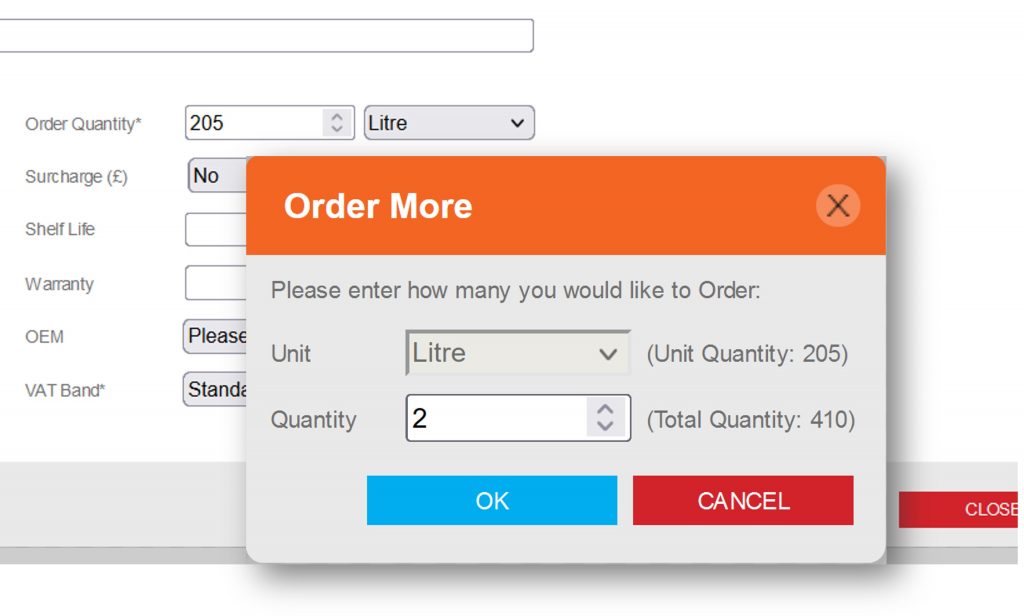
Default Order Quantities can be set within the part record, where a quantity is a multi-pack i.e. Bag, Pallet, Litres, etc. when creating the order, a Qty of 2 could equate to 410 liters.
Can I use QR codes?
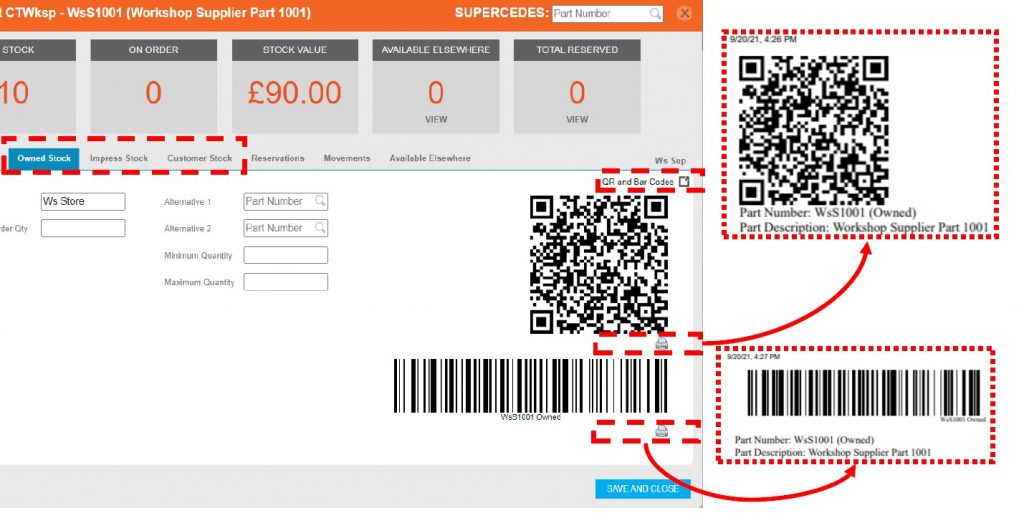
QR/Barcodes can be generated for ease of accounting, these can be pre-printed directly from the part’s record screen by selecting the ‘QR and Bar Codes’ link and then selecting the print button against the desired format. Where a large number of QR’s or Barcodes are required, a request can be made via r2c Customer Support.
Why can't I complete a Non Digital Jobsheet?
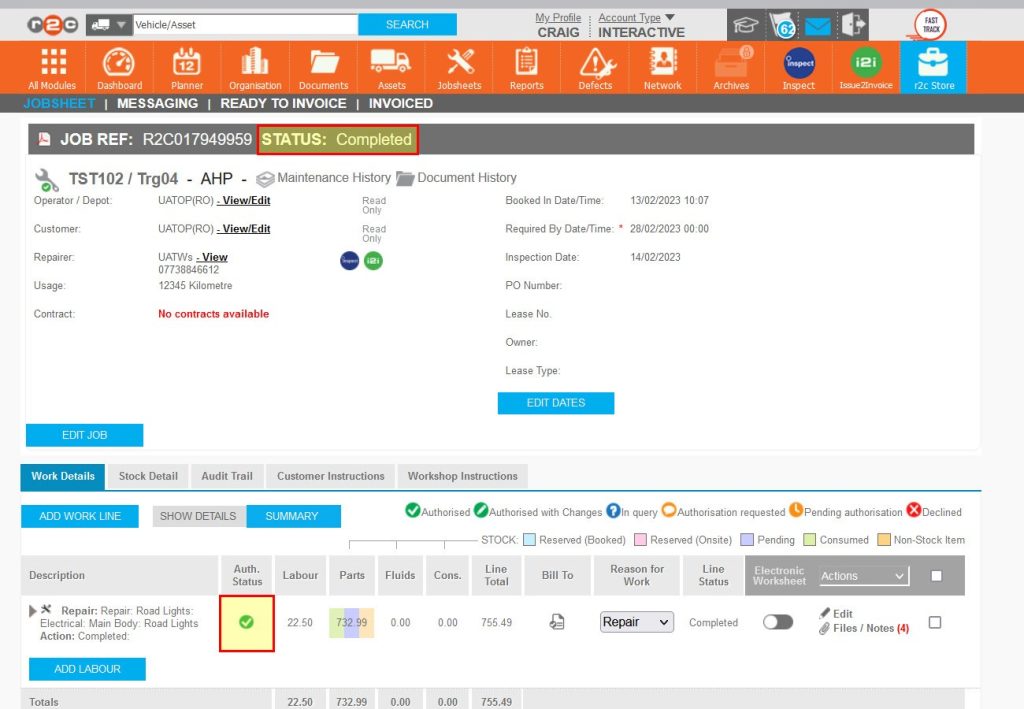
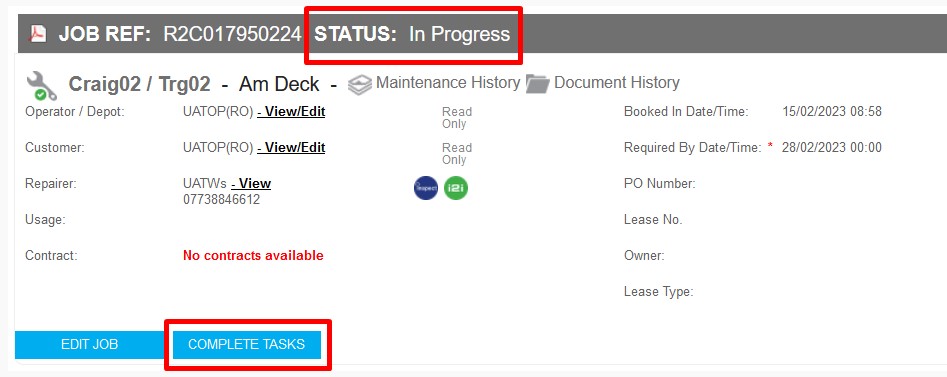
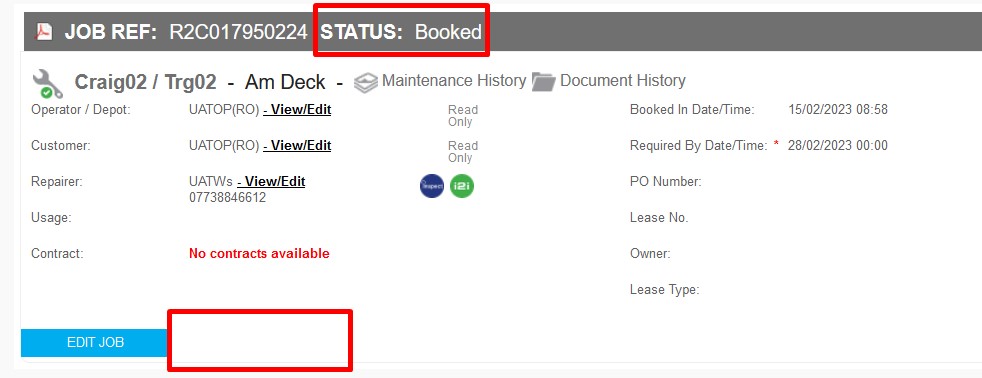
In order for a stock movement to occur the job status has to be in progress first. For this reason, the Complete Tasks button is not initially available.
To complete a job, first set the jobsheet status to In Progress, this action will then show the COMPLETE TASKS button for non-digital tasks.
Why can't I Invoice a jobsheet?
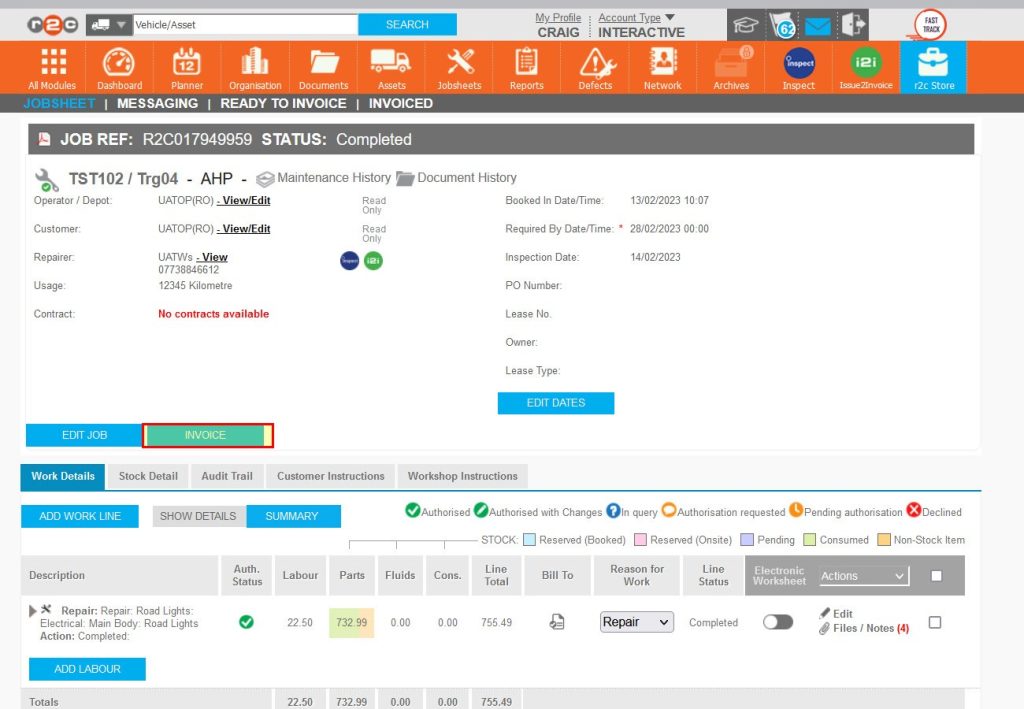
Any Pending parts on a jobsheet will prevent it from being invoiced, all stock parts should be consumed to the jobsheet in order to see the INVOICE button. See Parts Held in Demand for more details.
Where can I find the Import Templates?
The Supplier Catalogue should be completed per supplier potentially resulting in multiple sheets.
The Stock Template should contain all suppliers’ parts on hand, resulting from a stock take.
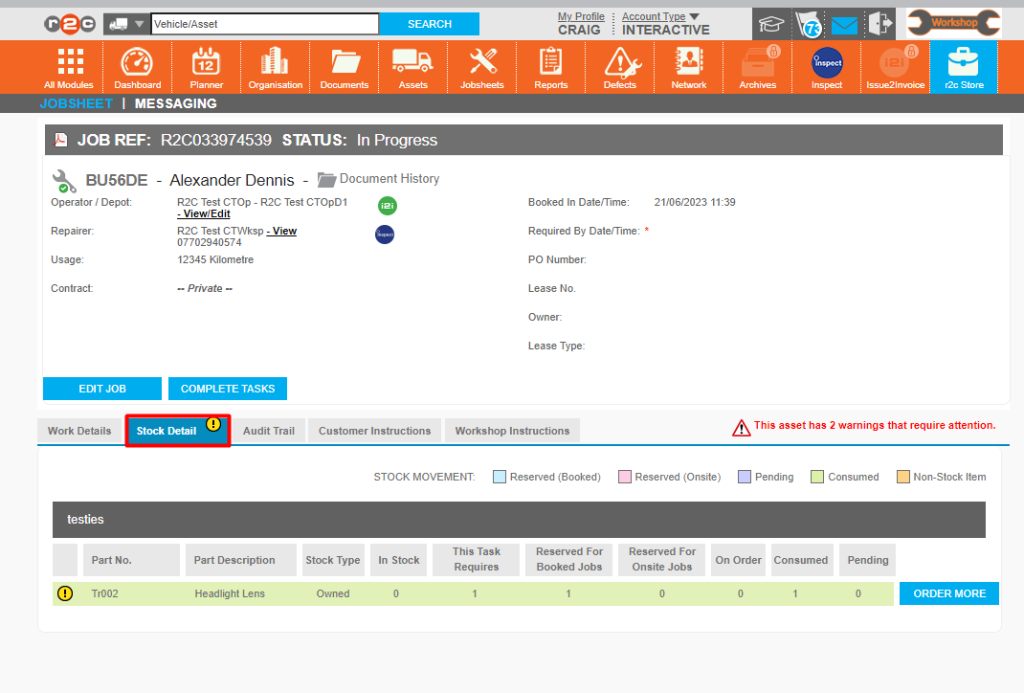
Why do I have a exclamation symbol if the part has been consumed?
When a part has been consumed but, was also reserved for a booked job. The exclamation symbol will show to highlight the shortfall for the upcoming booked job.
The Order More button can be used to replenish the stock item ahead of the booked job.