


Introduction
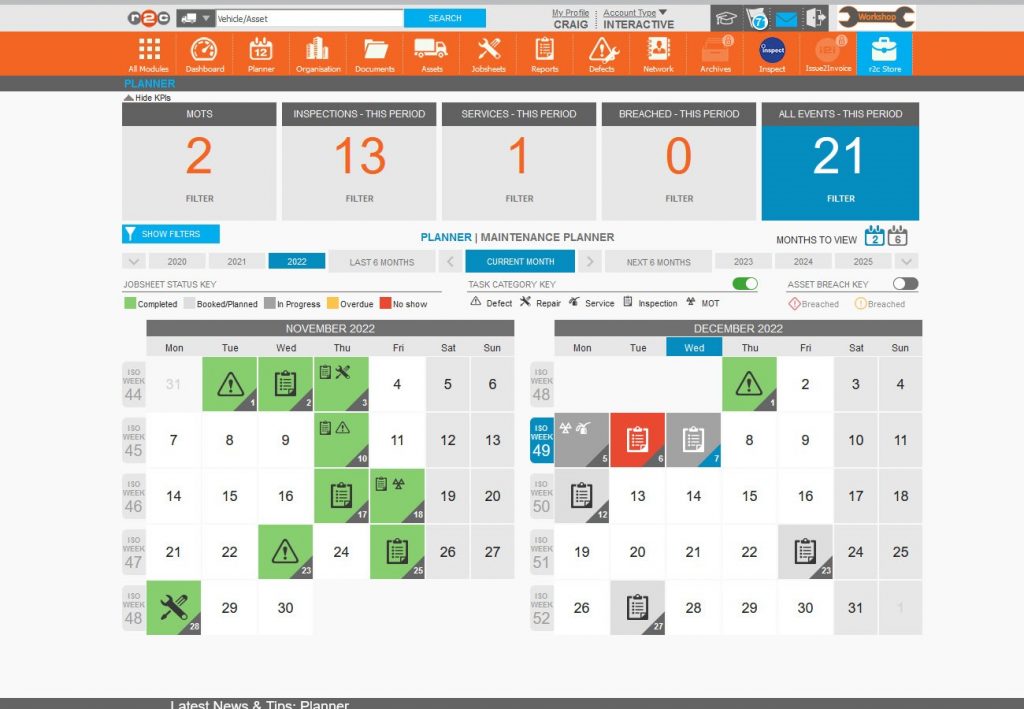
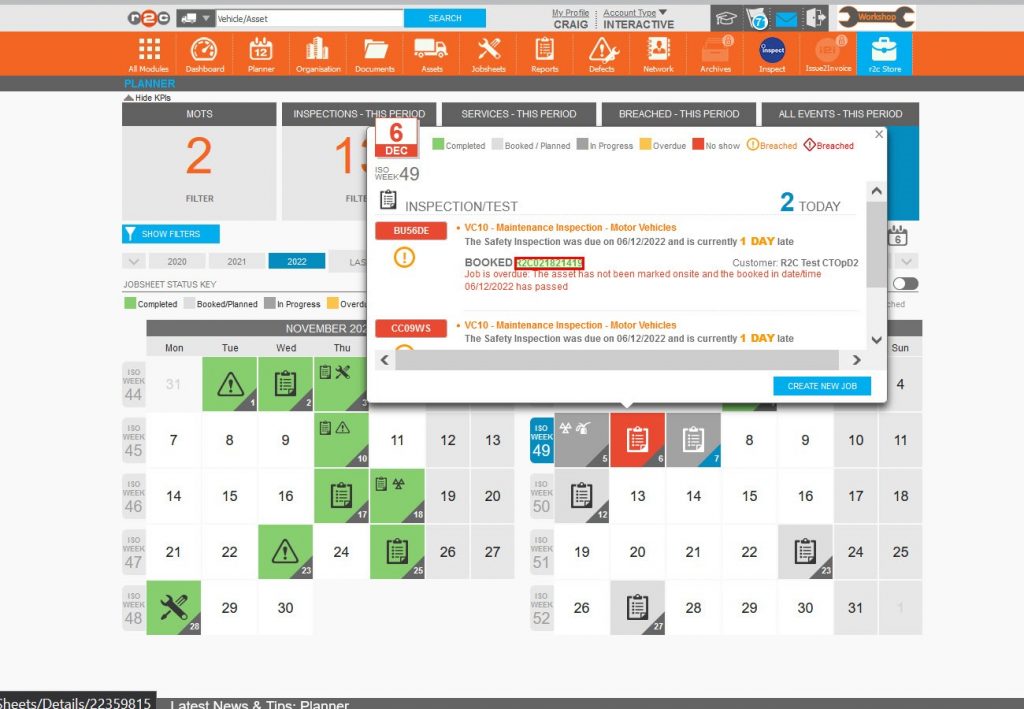
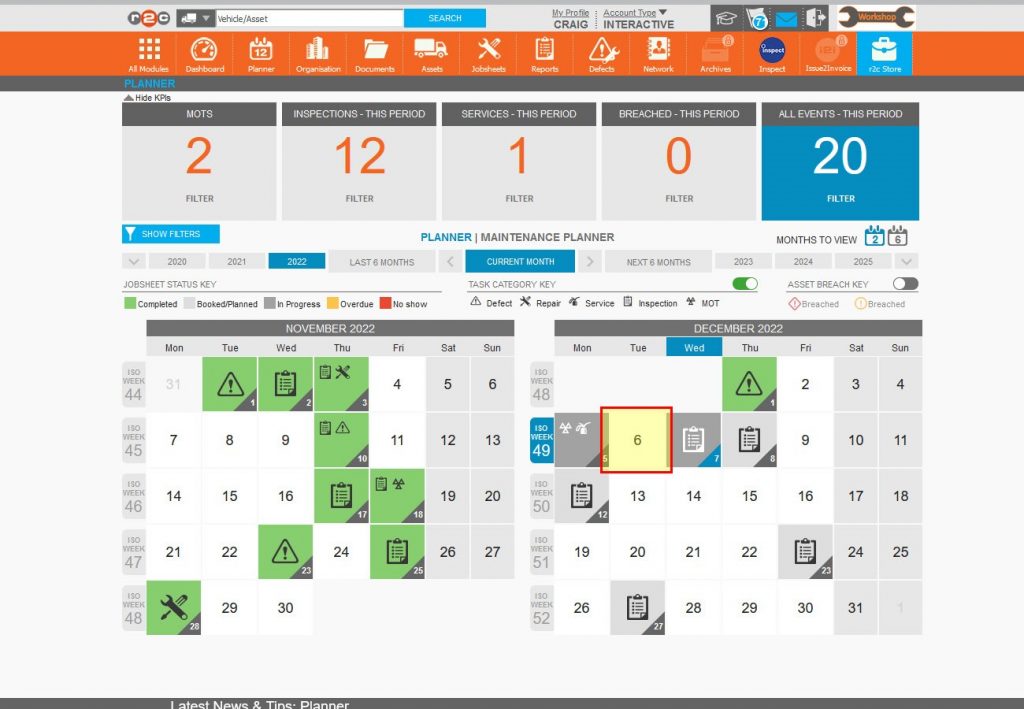
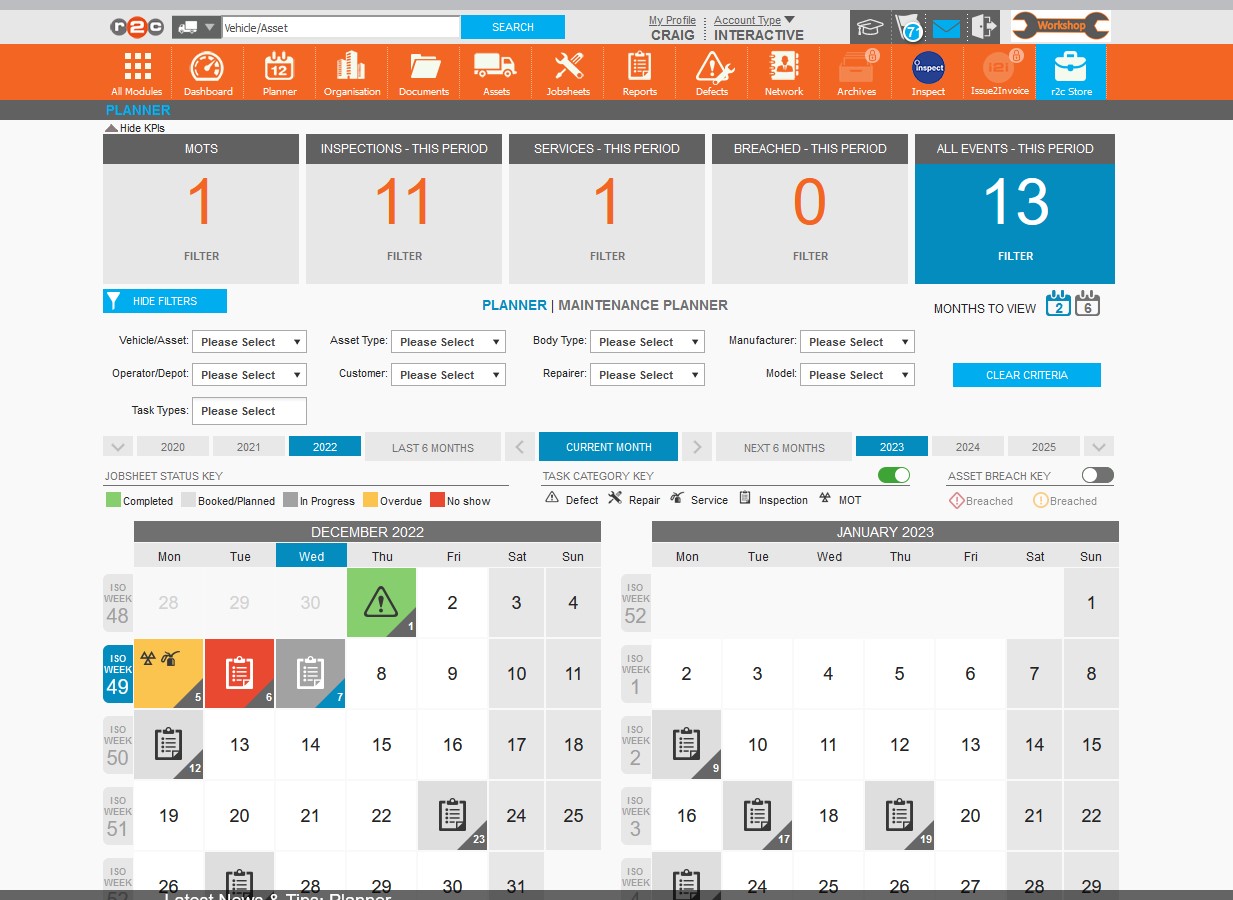
The Planner Page provides a visual overview of your organisation’s schedule of all due and previous work whether complete or missed. The planner can assist with forward planning however the main bulk of forward planning should still be carried out from the Jobsheets page. The Planner really assists with missed or overdue jobs.
The KPI filters can be used to filter the planner view to MOTs, Inspections, Services or Breached jobs.
The additional filters allow the planner to be filtered on a more granular level. Where the asset filter is used, the planner will display the same view as the asset schedule view.
The timeline can be used to view a specific period. By default, a 2 month view is displayed. The MONTHS TO VIEW filter (upper right corner) can be used to switch to a 6 month view.

![]()
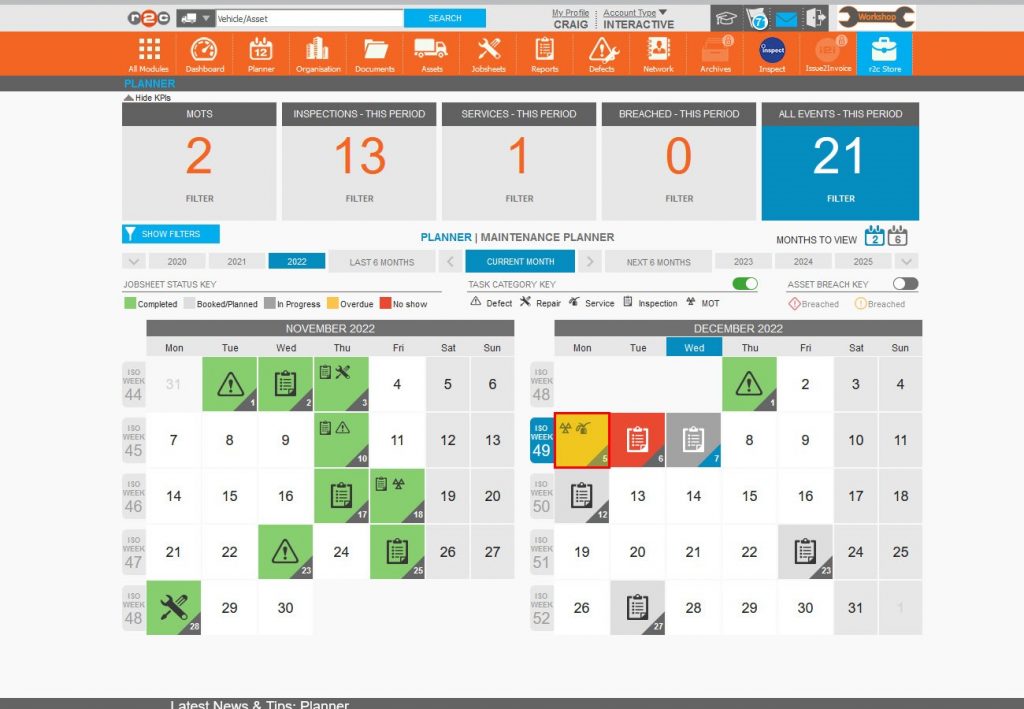
The planner tiles are colour and task symbol coded, the keys sit just above the planner.
The toggle will switch the date tiles between Task types and numbers of jobs.
The Maintenance Planner will produce the same information displayed in a linear view with the asset id's on the left and the ISO weeks along the top.

Step by Step
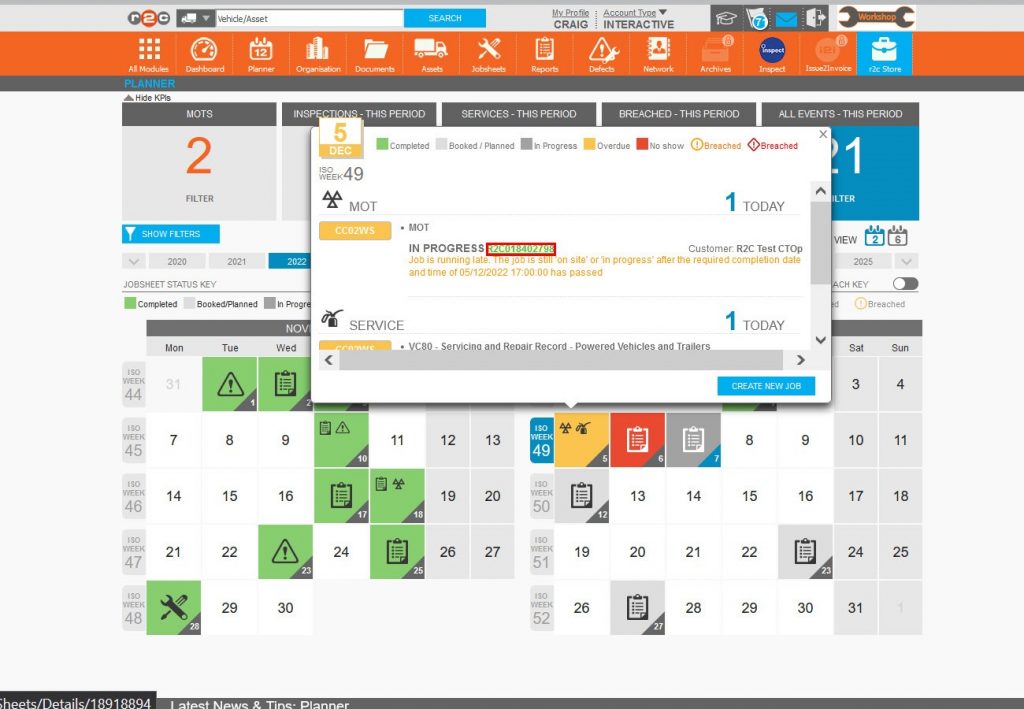
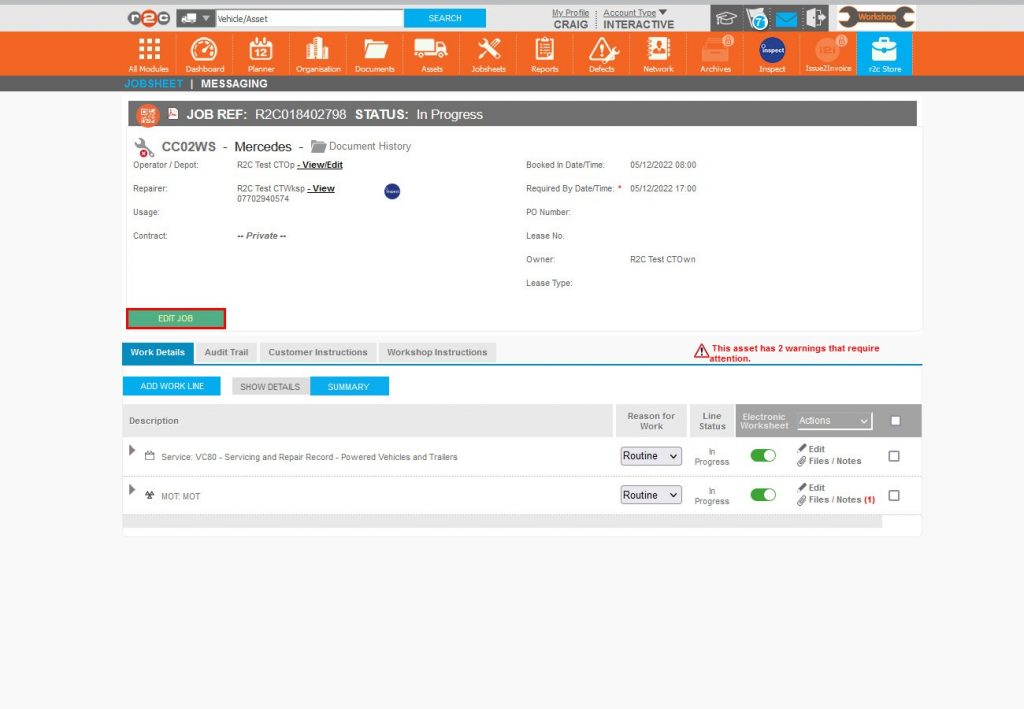
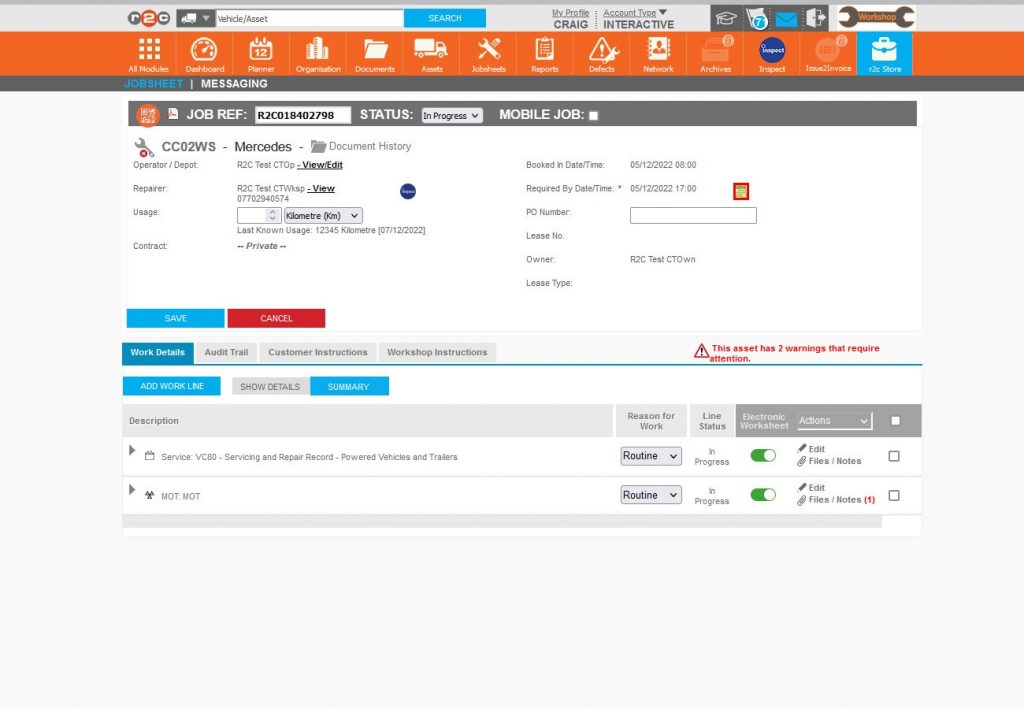
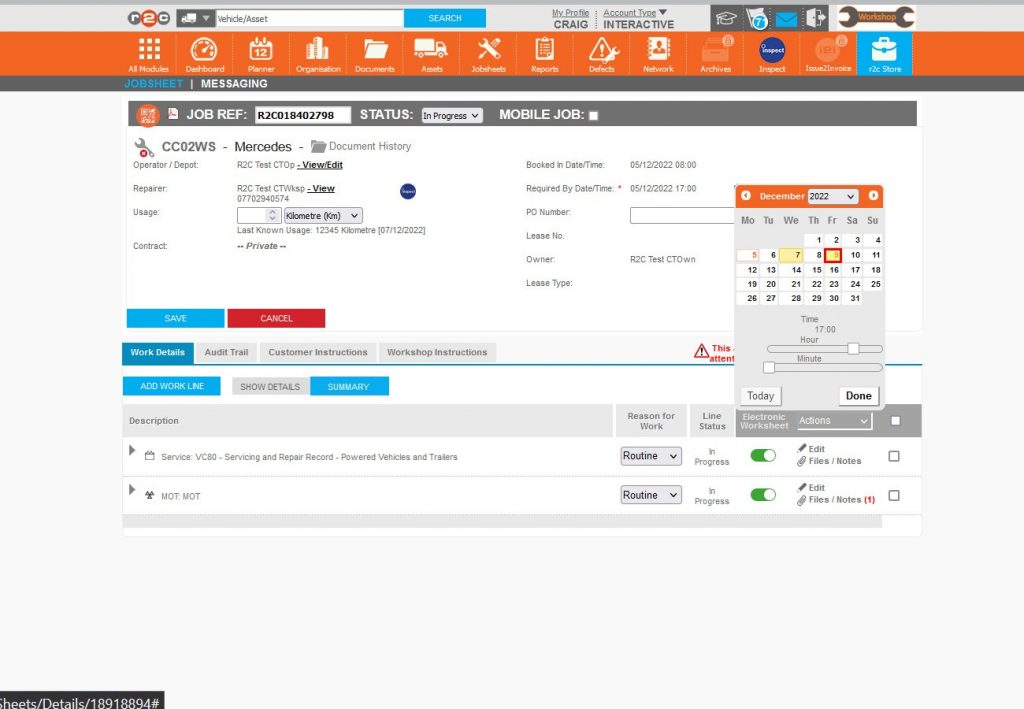
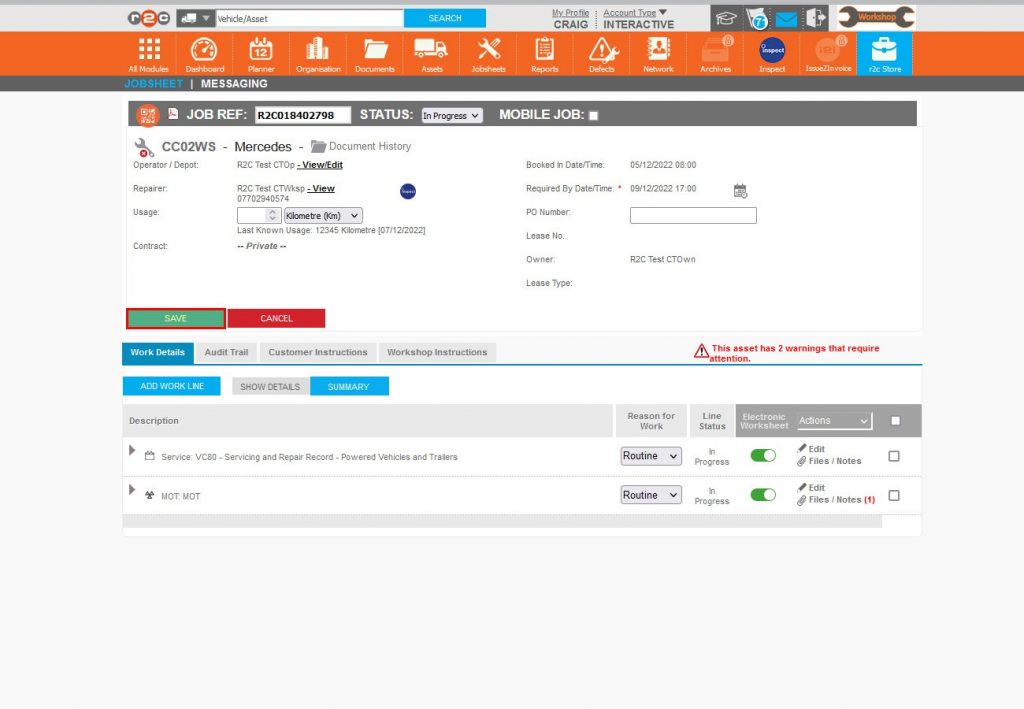
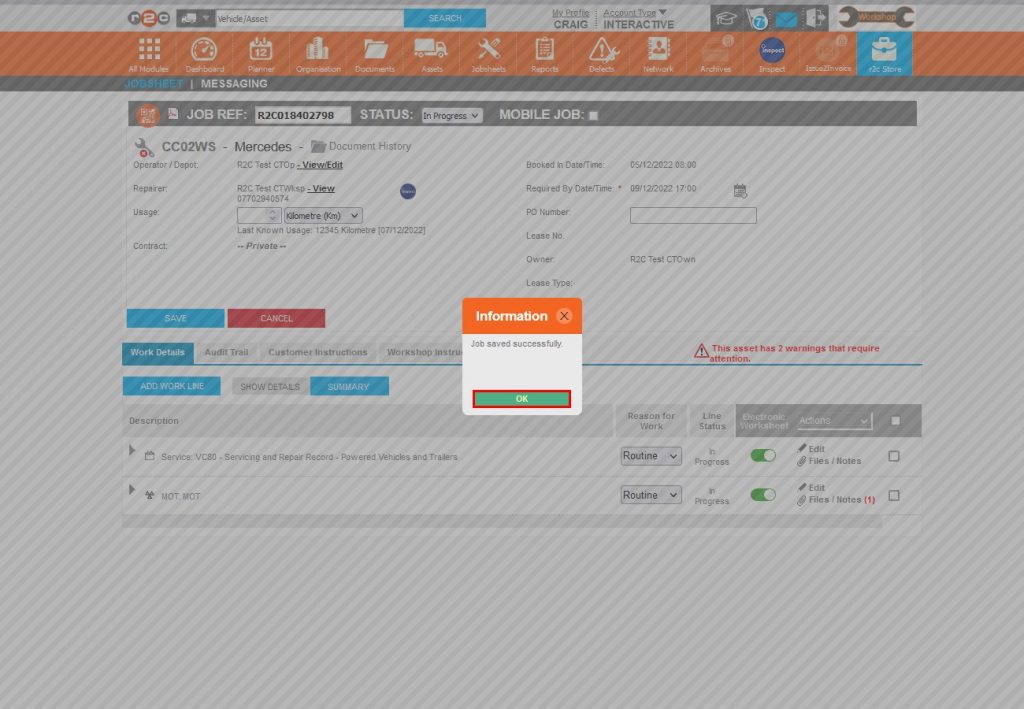
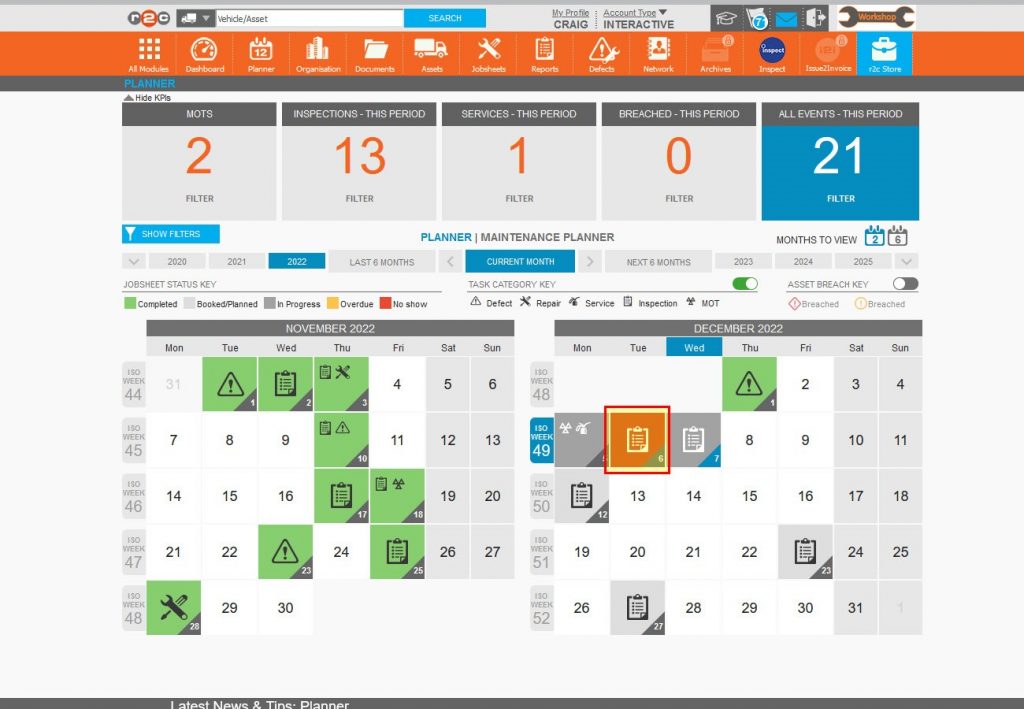
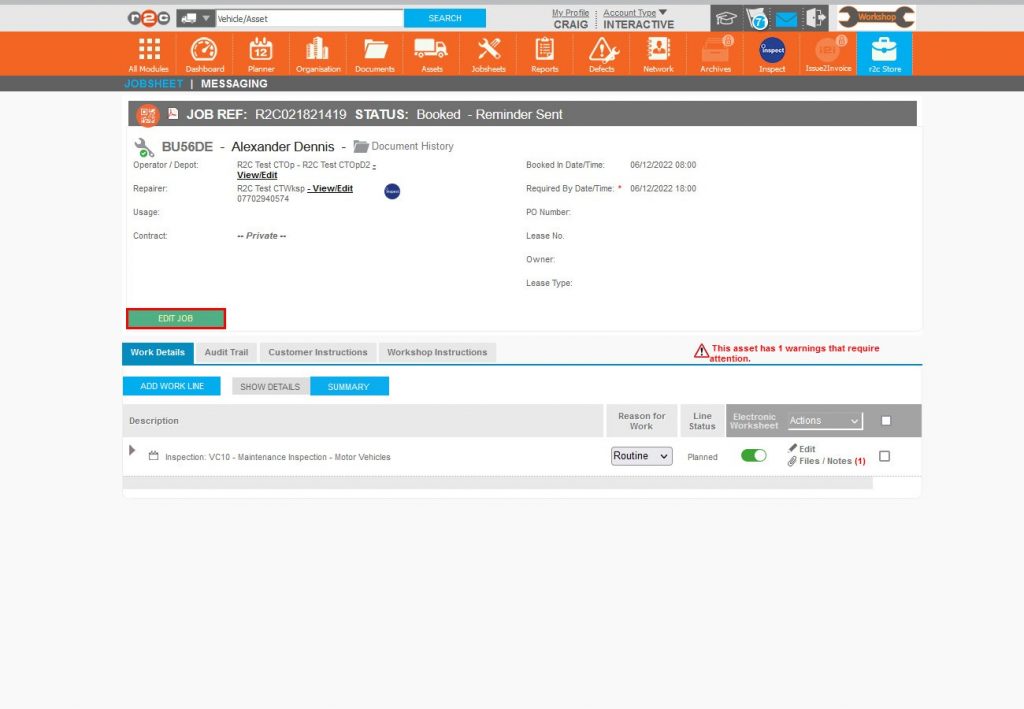
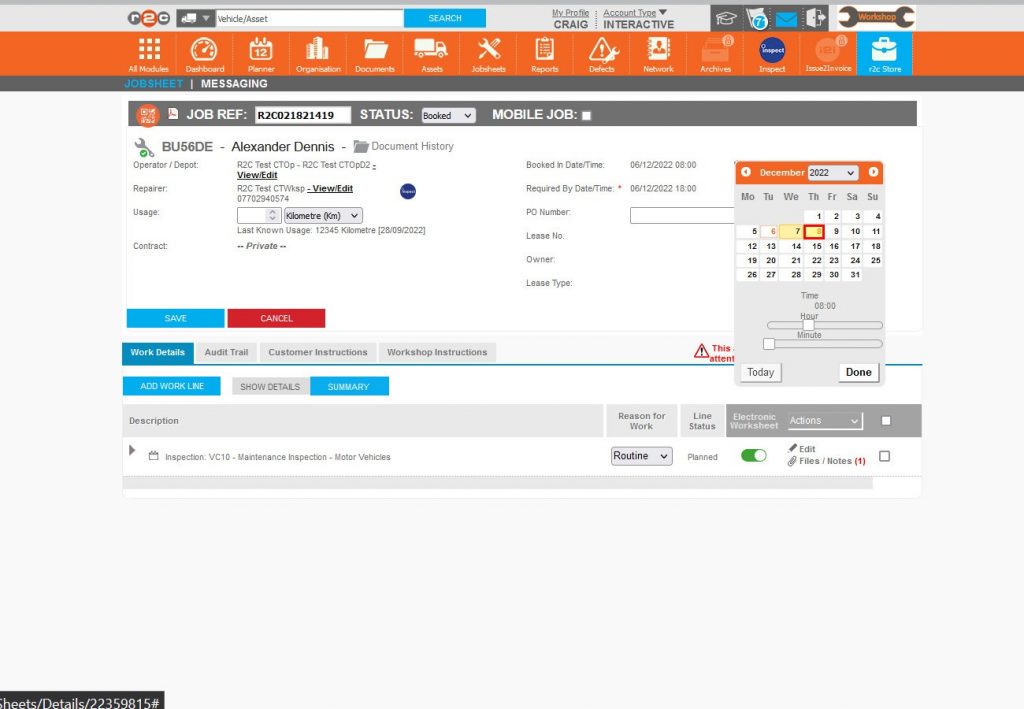
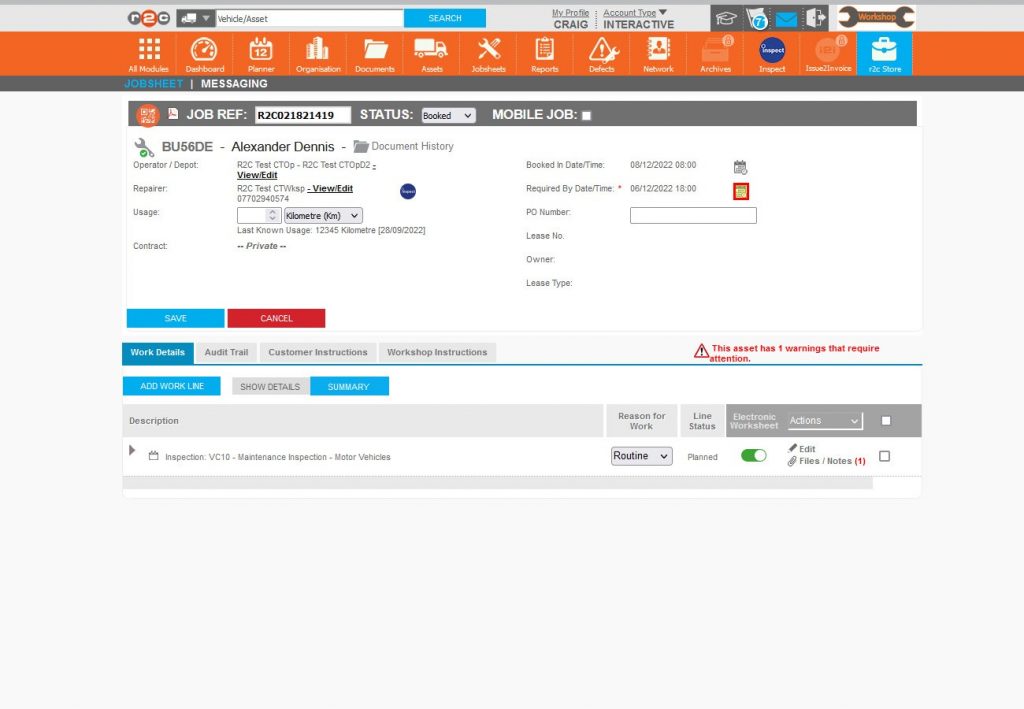
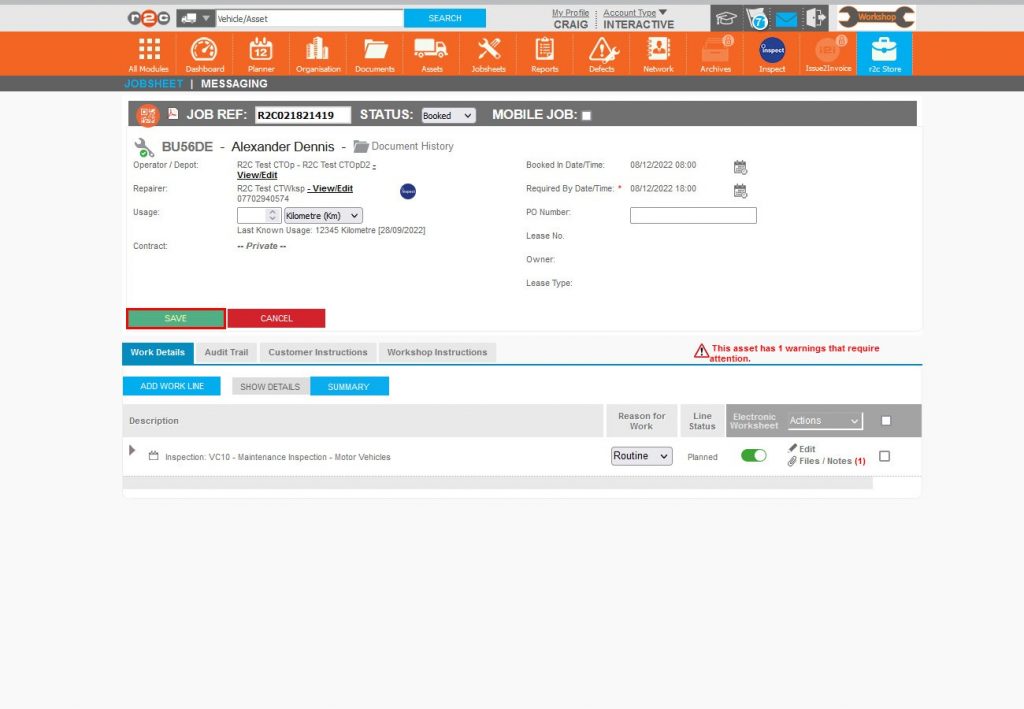
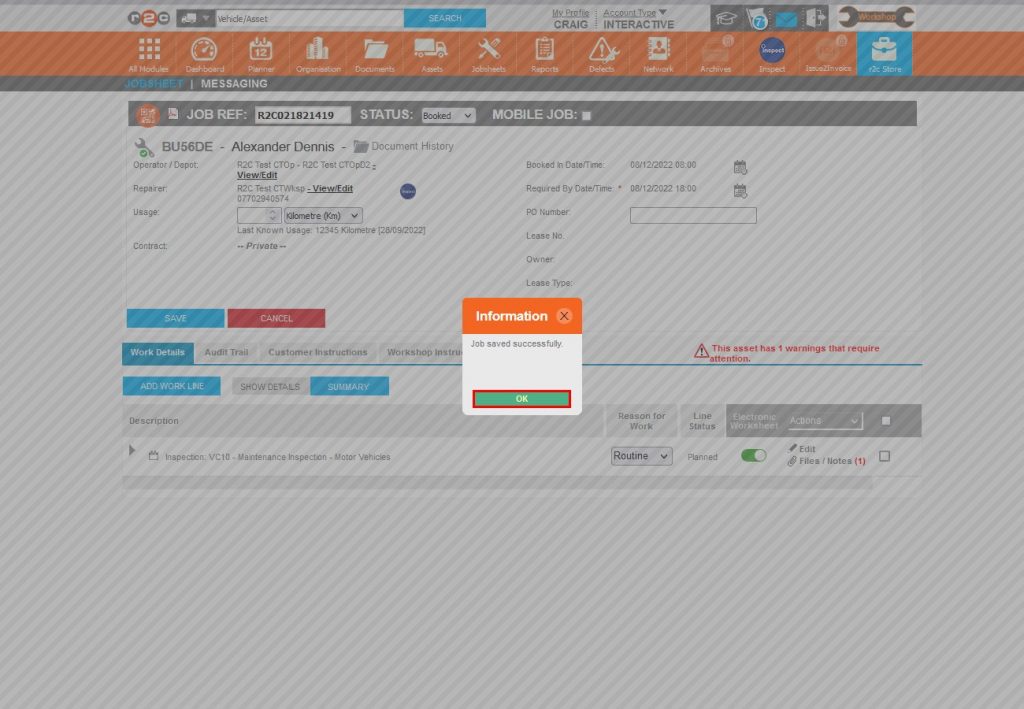
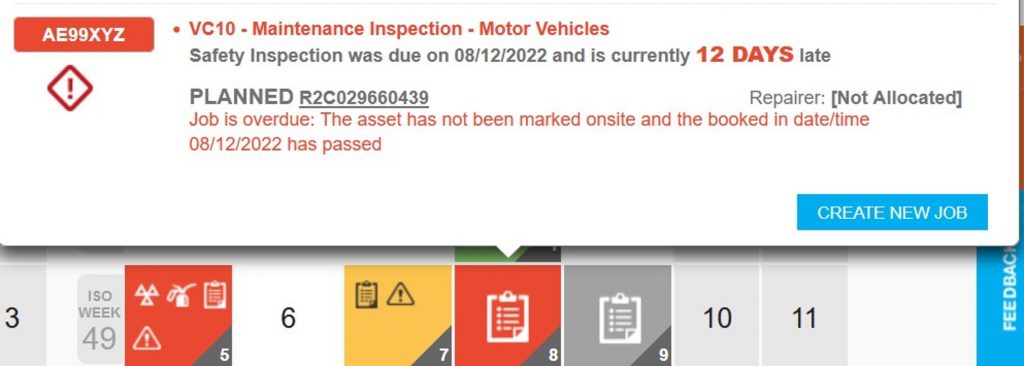
Overdue Jobs – To see the steps taken to rectify an overdue job, click or swipe through the 8 steps below.


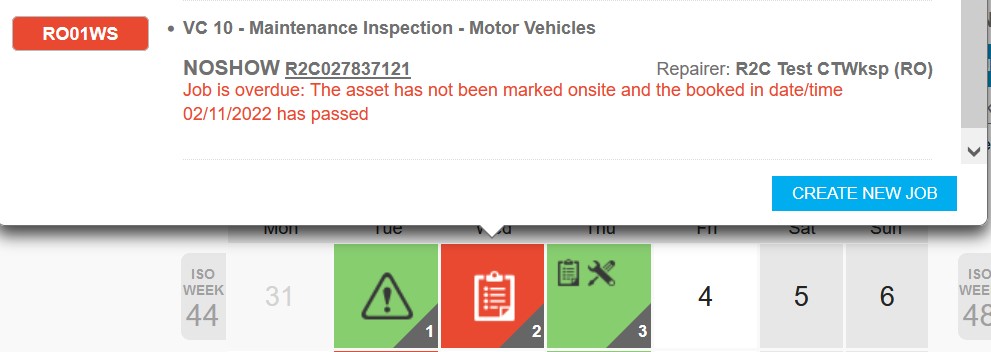
No Show Jobs- To see the steps taken to reschedule a missed job, click or swipe through the 9 steps below.


Technical Info & Self Help
How can I Print the Planner?
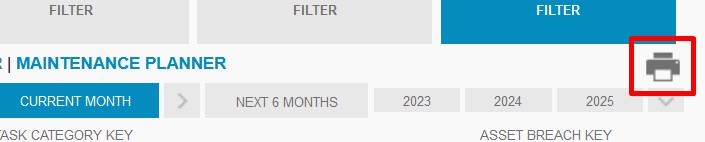
The planner can be printed from the Maintenance Planner with the use of the print icon followed by the PDF symbol.
When is a No Show Not a No Show?
The planner displays all missed jobs in red. This happens when the booked in date of a job has passed but, the job has not been updated or started. If the job remains this way without any updates the job will automatically change to a ‘No show’ status after 14 days. Alternatively, the job can be marked as a No show by a user manually.