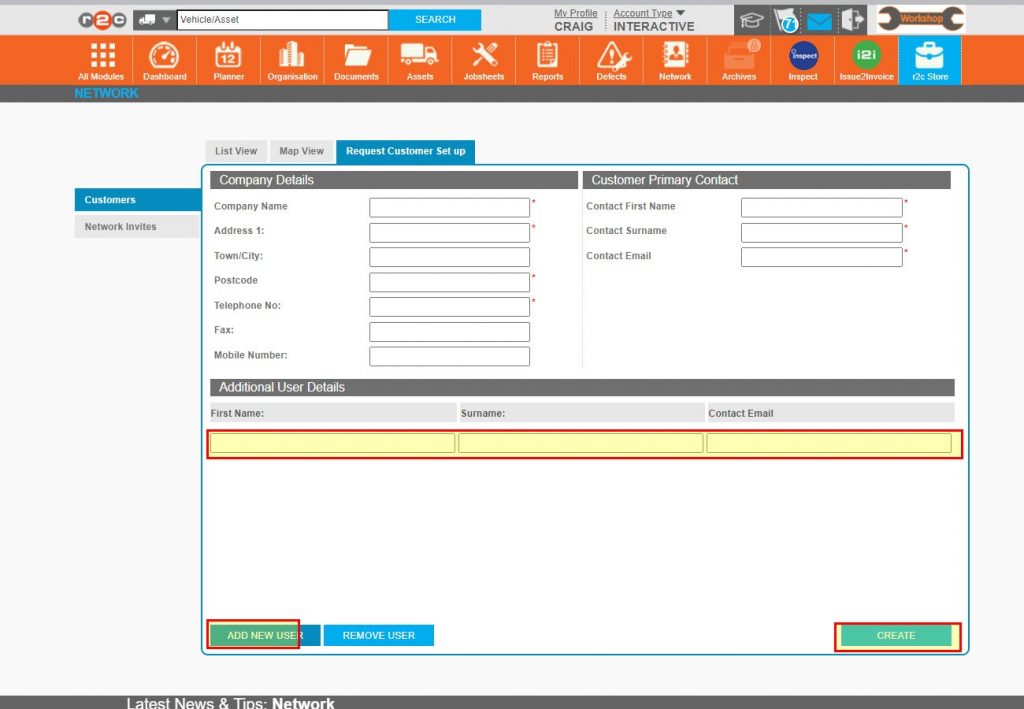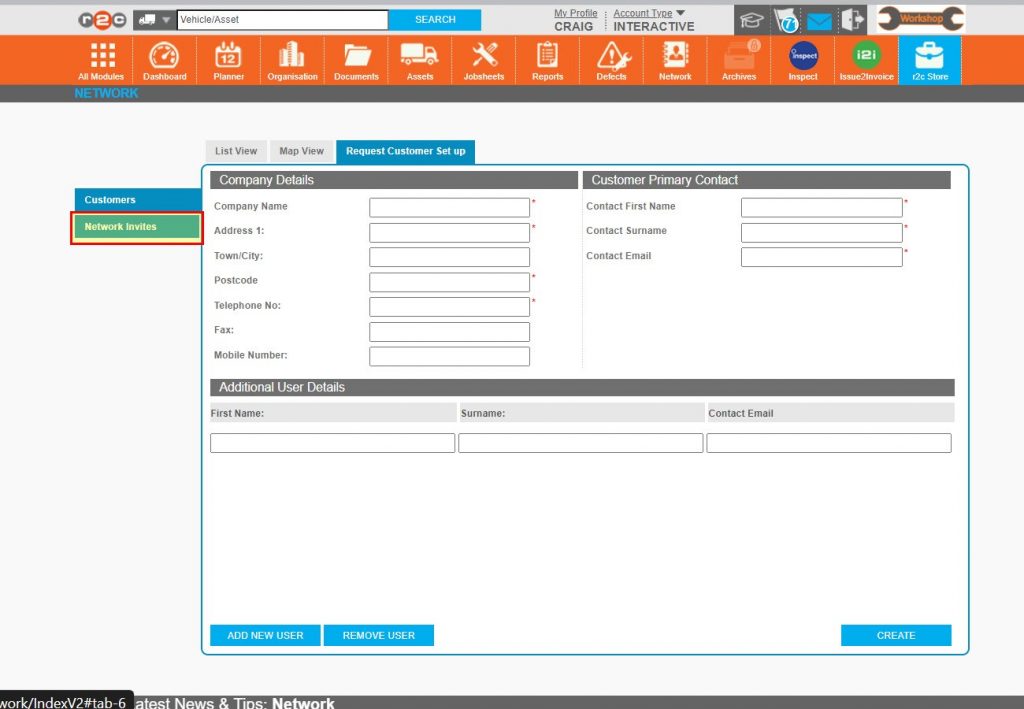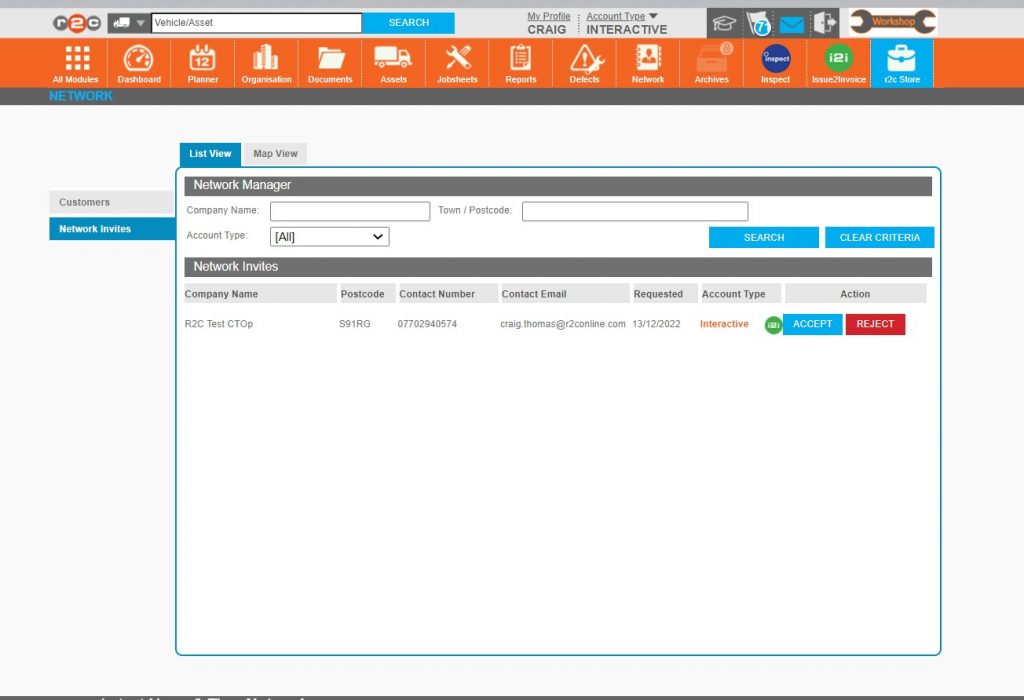



 Search Criteria
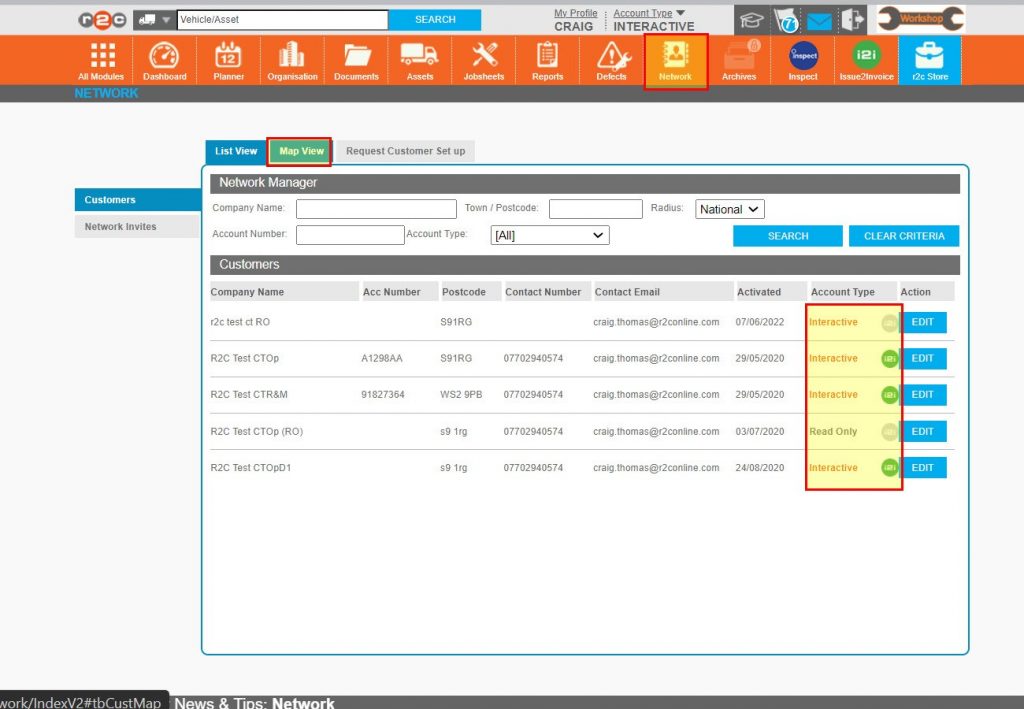
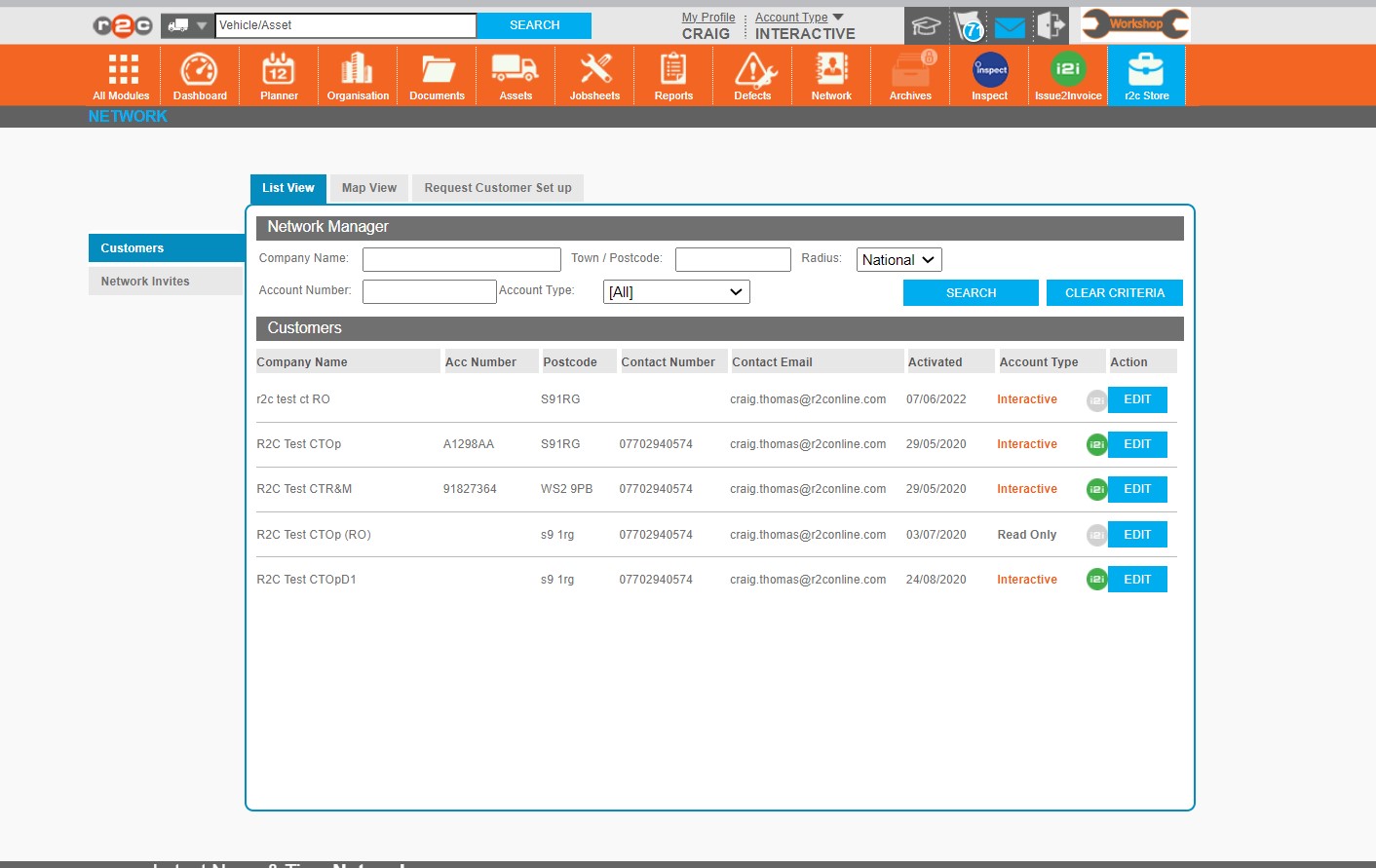
Company Name allows you to search for a specific repairer, either via a full or partial search.
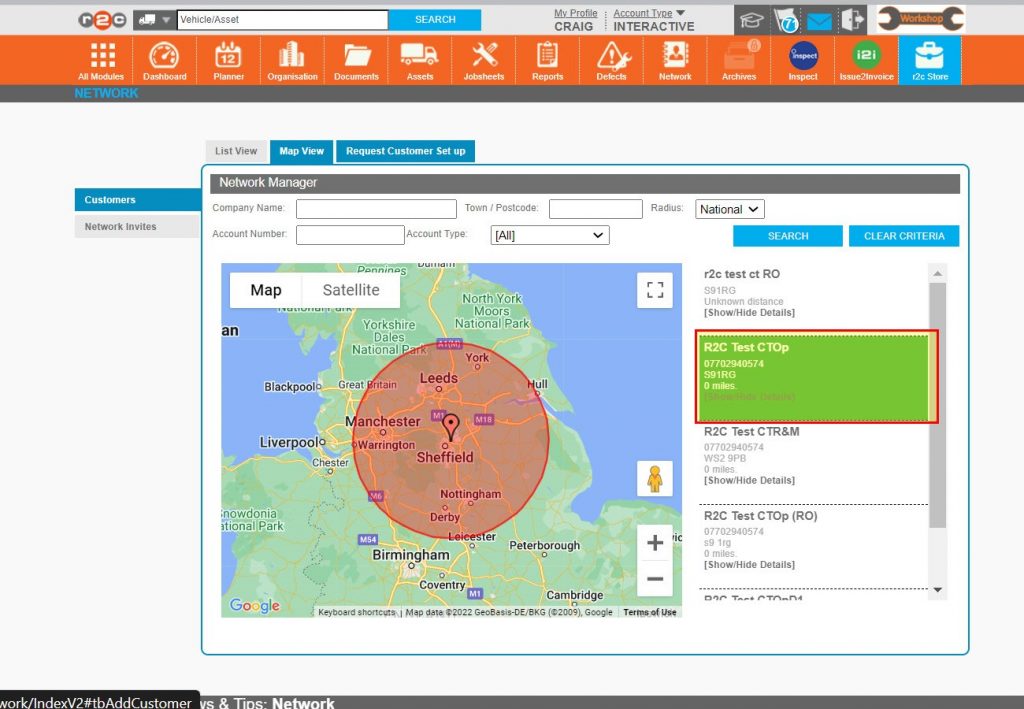
Town / Postcode allows you to search for a location which then displays the nearest 25
repairers to that destination.
Account Number allows you to search for an account number that has been stored against
the network relationship.
Account Type allows you to filter the results in order to view a specific type of repairer. The
options are currently Read-Only; Interactive and Interactive with i2i.
Workshop Type allows you to search for a specific level of interactivity.
 Account Type - The differing levels of interaction on r2c will affect the amount of effort required. A read-only account requires the most effort as they are unable to generate, update or amend any information on r2c.
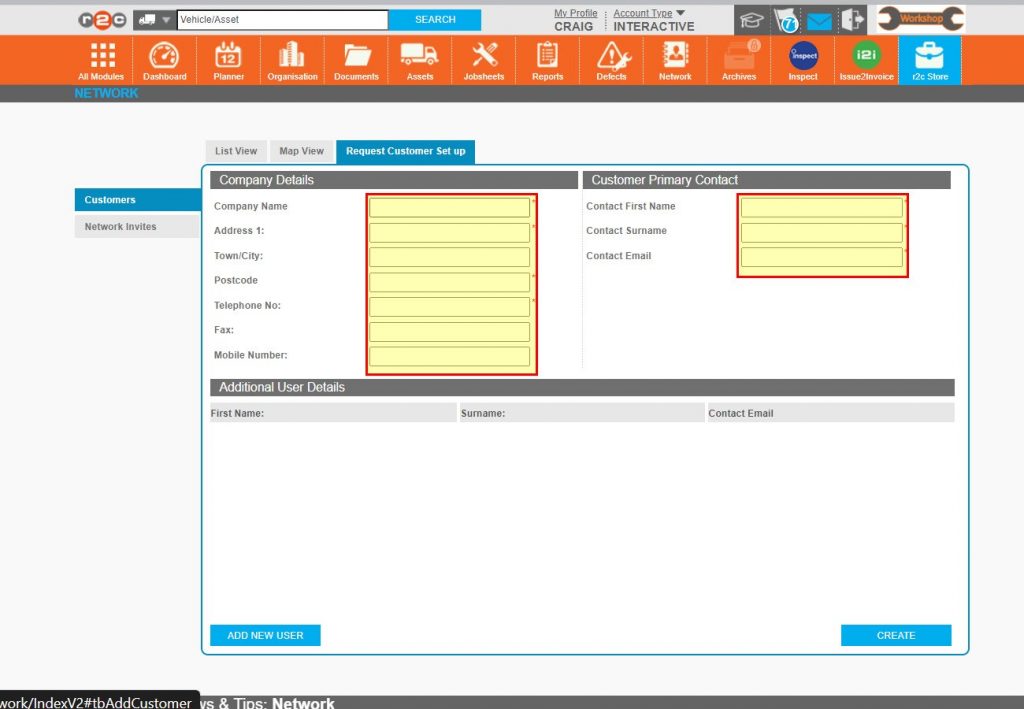
 EDIT - Once the customer has been added, their details cannot be edited, only the repairer info (your company contact details) and account number are editable.