Operator accounts have the option to split their fleet into separate depot locations This means users at individual depots will only see information related to assets relevant to their site. The main operator account will always have access to the whole feet list and users here can also filter their view to the different depot levels, manage depot details and user lists as well as create new locations.
Please note local administrators that login directly to the depot can also maintain these details.
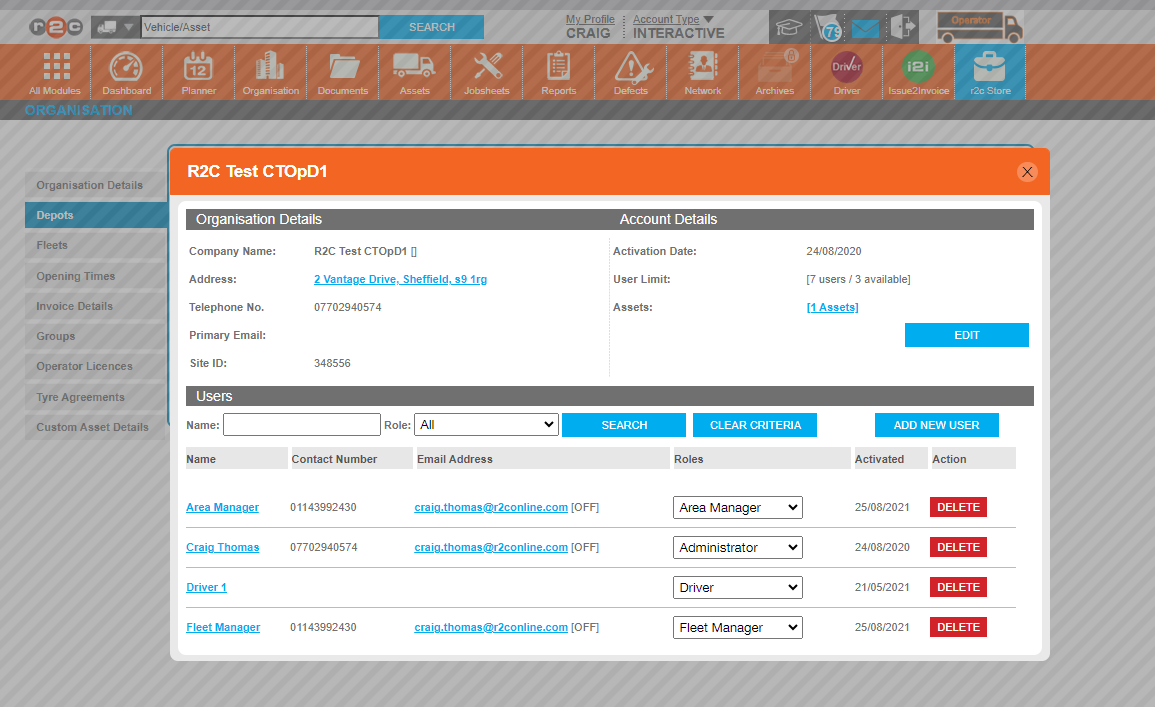
Current User limit and availability - In order to add users to r2c, there must be an availability, if the ADD NEW USER button is not displayed it could be due to a zero availability. To resolve a zero availability, contact r2c support.
The Delete user button may not display depending on user role limitations, see Operator User Roles
The Add New user button may not display depending on user role limitations, see Operator User Roles
All user accounts for the depot can be managed from here by clicking on the user name.
Step by Step
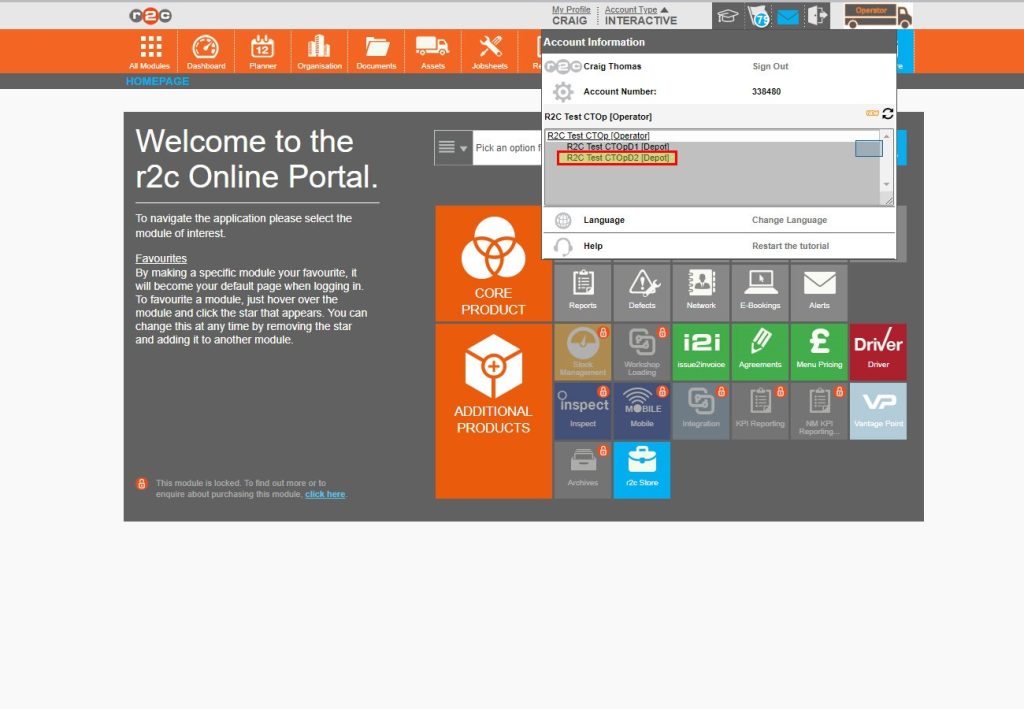
Accessing Depot accounts- To switch to a depot view in Portal click or swipe though the 4 steps below.
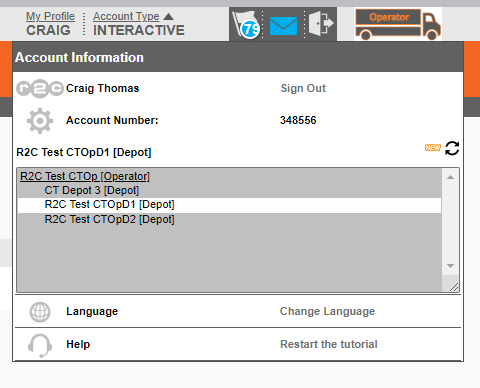
Step 1 - Click the Account Type Menu to open your depot list.
Step 2 - Next, click and choose a depot location from the list.
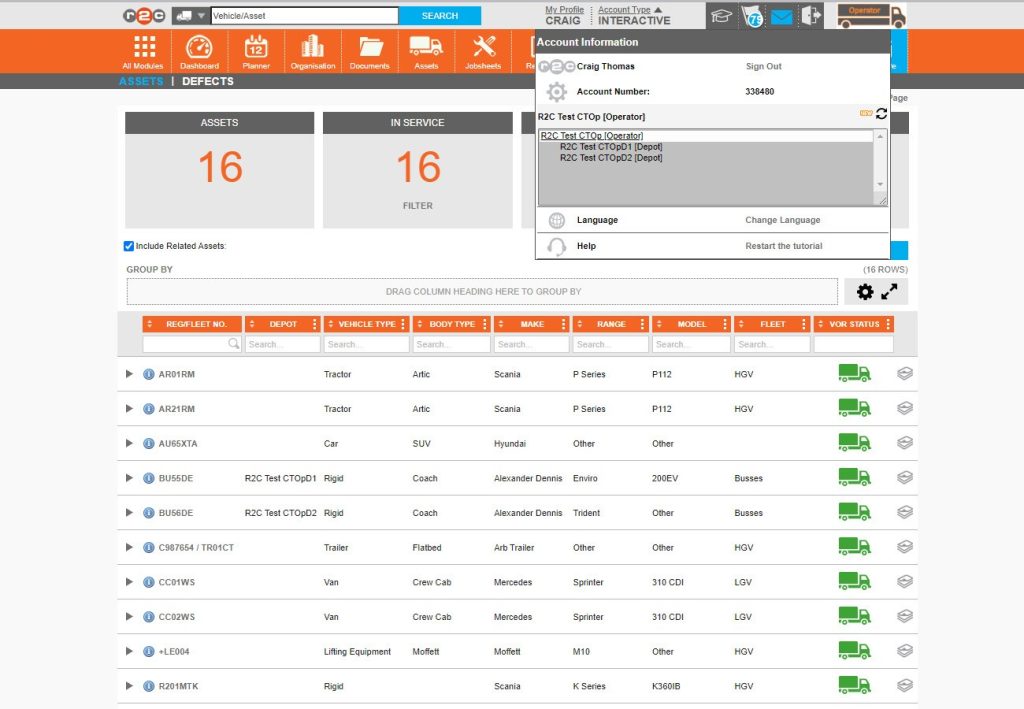
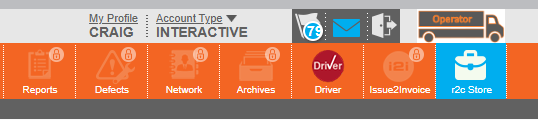
Step 3 - This menu is available on all pages and once a location is chosen pages will show a filtered view of assets and jobs for the specific depot.
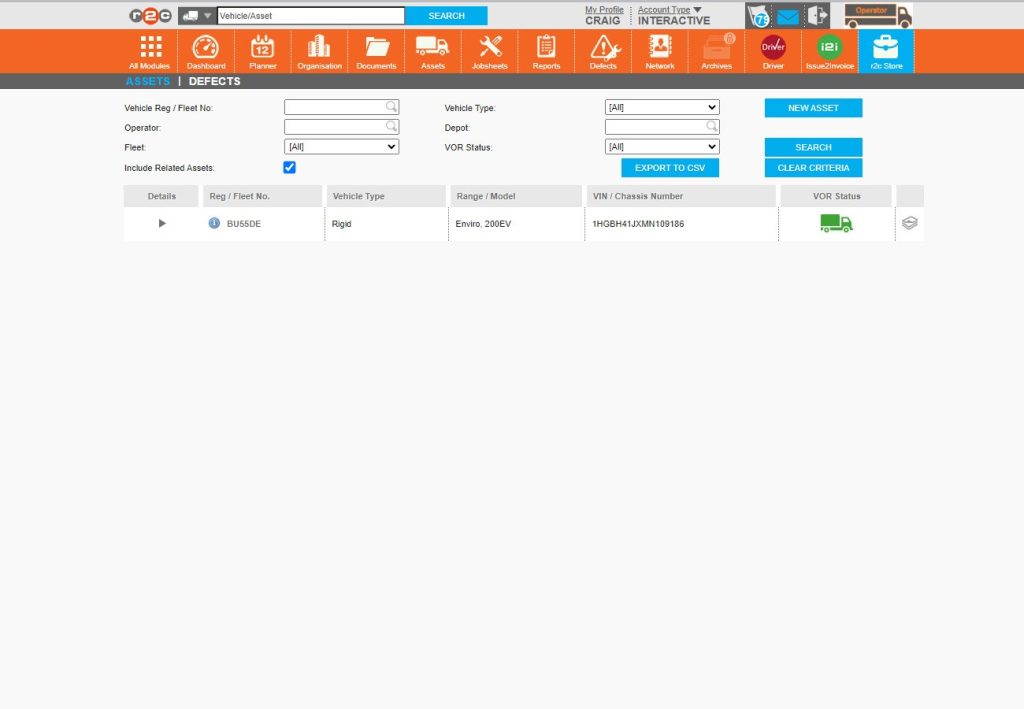
Step 4 - In this example the assets page has filtered from the full fleet list to just assets that are assigned to the selected depot.
Adding a new depot location – To see the steps taken to add a new depot location click or swipe through the 5 steps below.
When a depot is first created, the user limit defaults to 0. This will need to be upgraded by our support desk before you can begin adding new users for this site. Once processed you will be able to add users as normal via the organisation page.
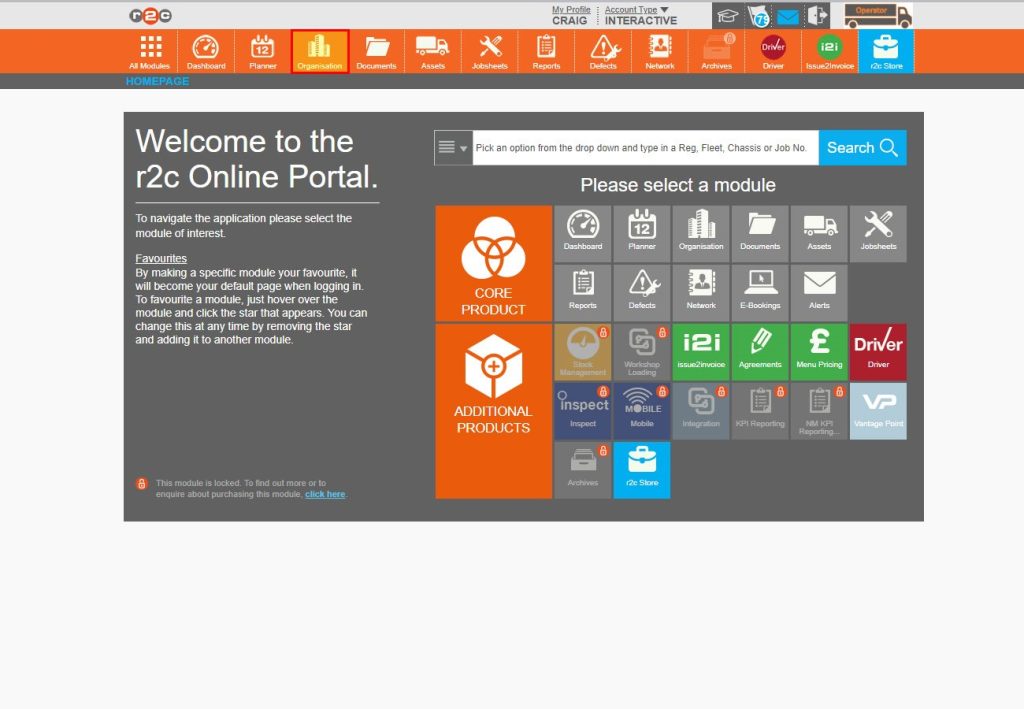
Step 1 - Start by clicking the organization page
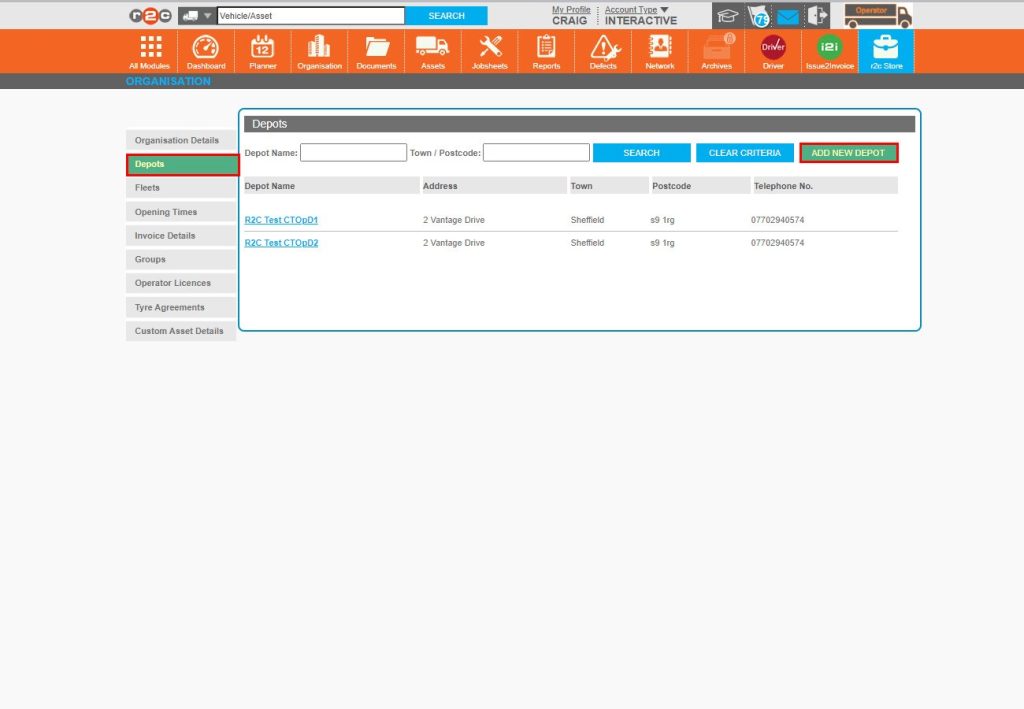
Step 2 - Click the ‘Add New’ button
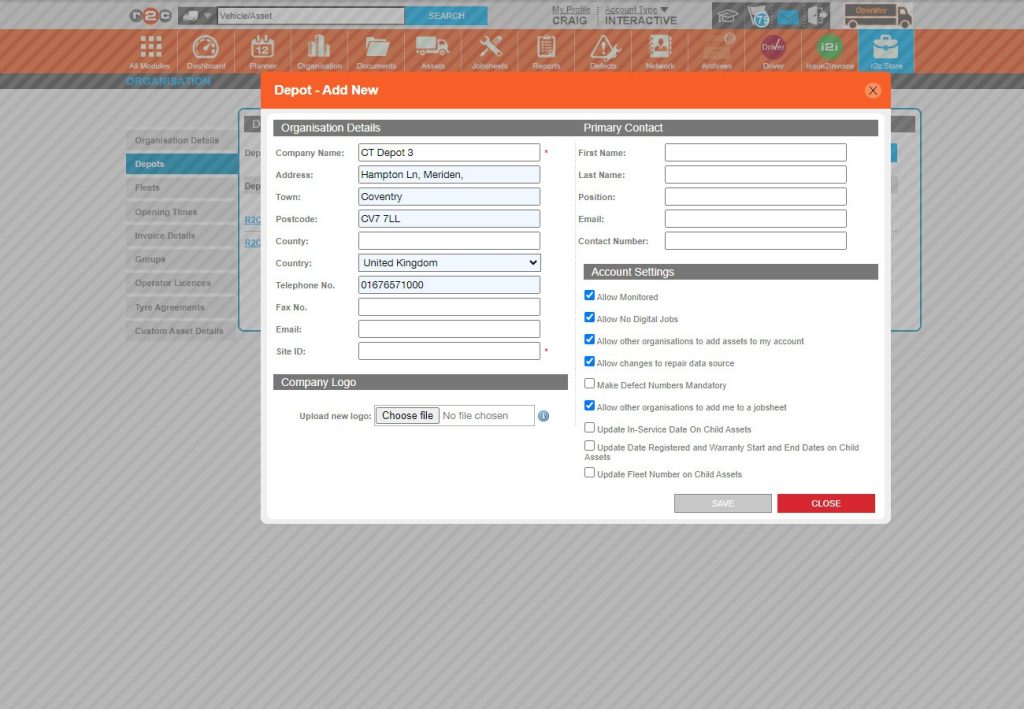
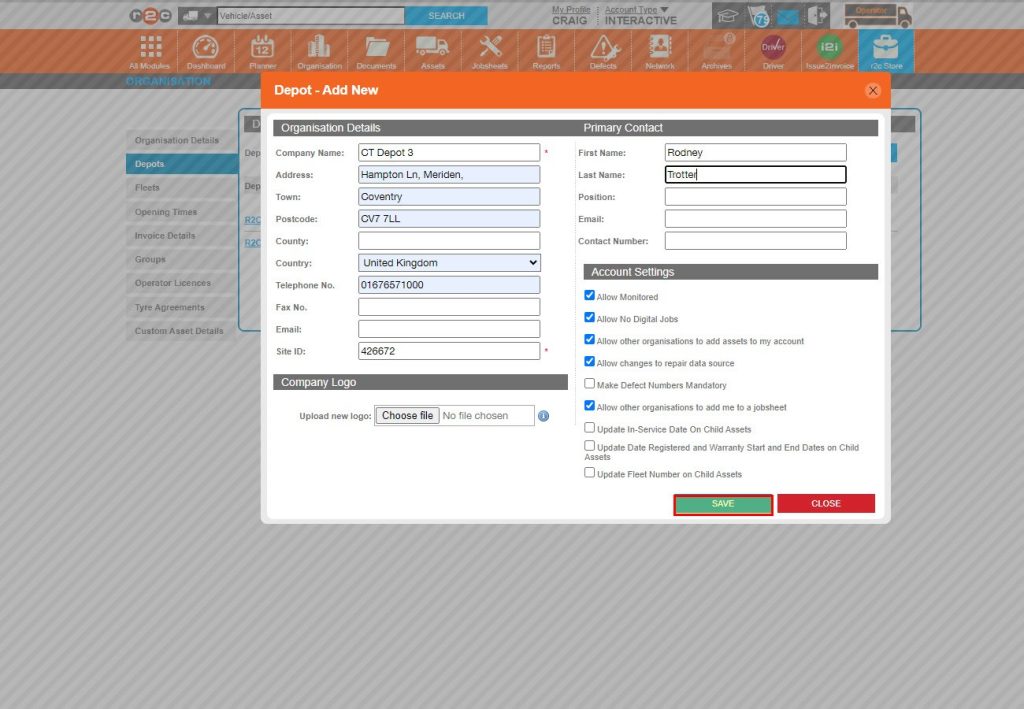
Step 3 - Start by entering the depot address details and giving it a name.
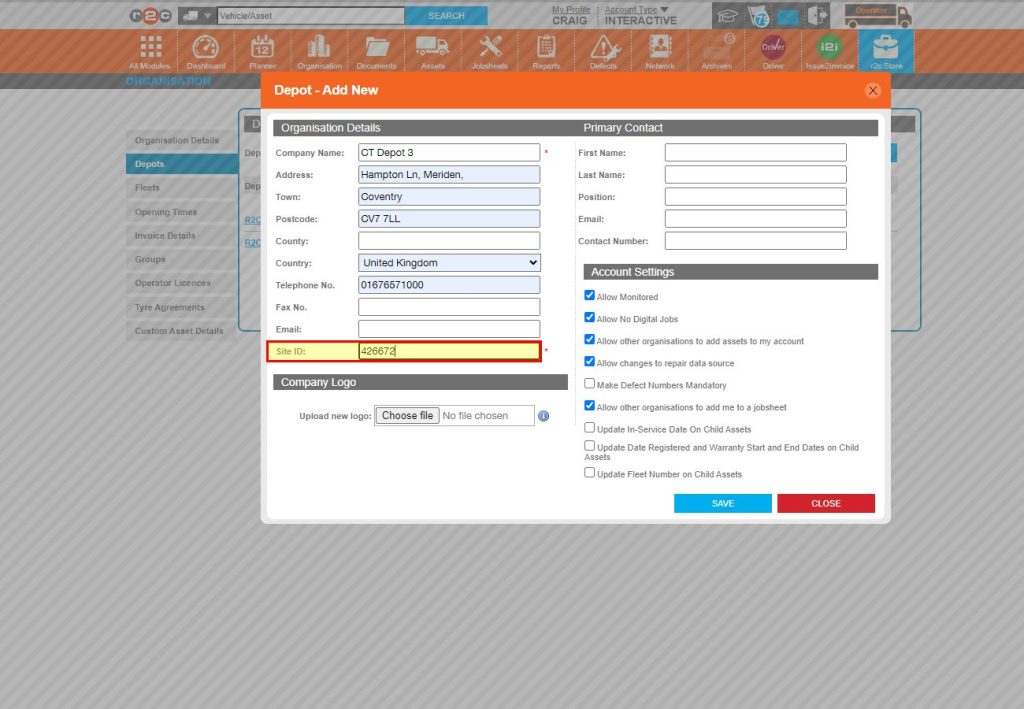
Step 4 - You will also need to create a site ID, This should be a unique 6 digit number. It will be required by all users and drivers to login at depot level.
Step 5 - Once all the details have been added, click Save.
Managing existing depot locations- To see the steps taken to access and update the details on an existing depot location click or swipe through the 3 steps below.
Step 1 - Start by clicking the organization page
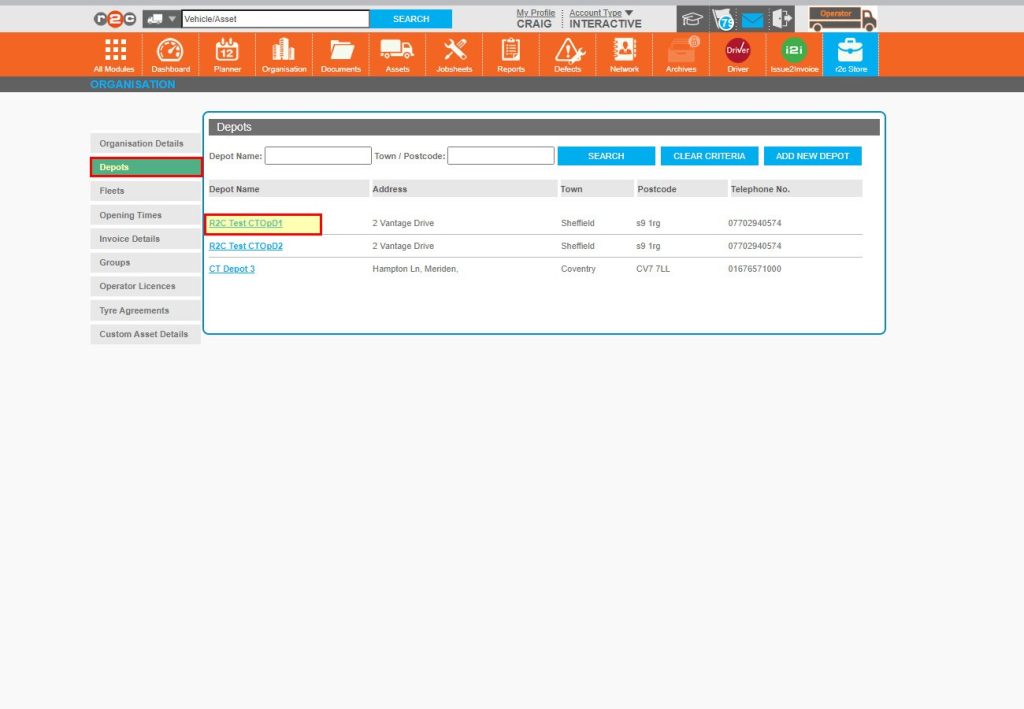
Step 2 - Then click the depot tab and then the name of the depot.
Step 3 - You can now add/remove users and update address and contact details for the site.
Assigning assets to a depot – To see the steps taken to assign assets to a depot location click or swipe through the 2 steps below.
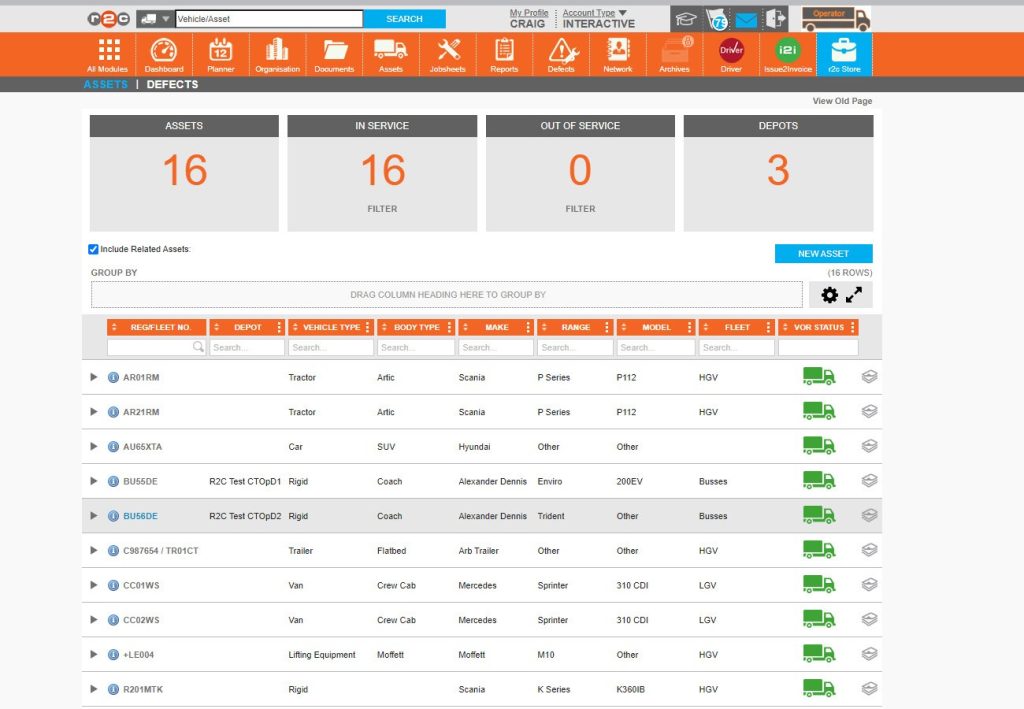
Step 1- Search for or select an asset from the list.
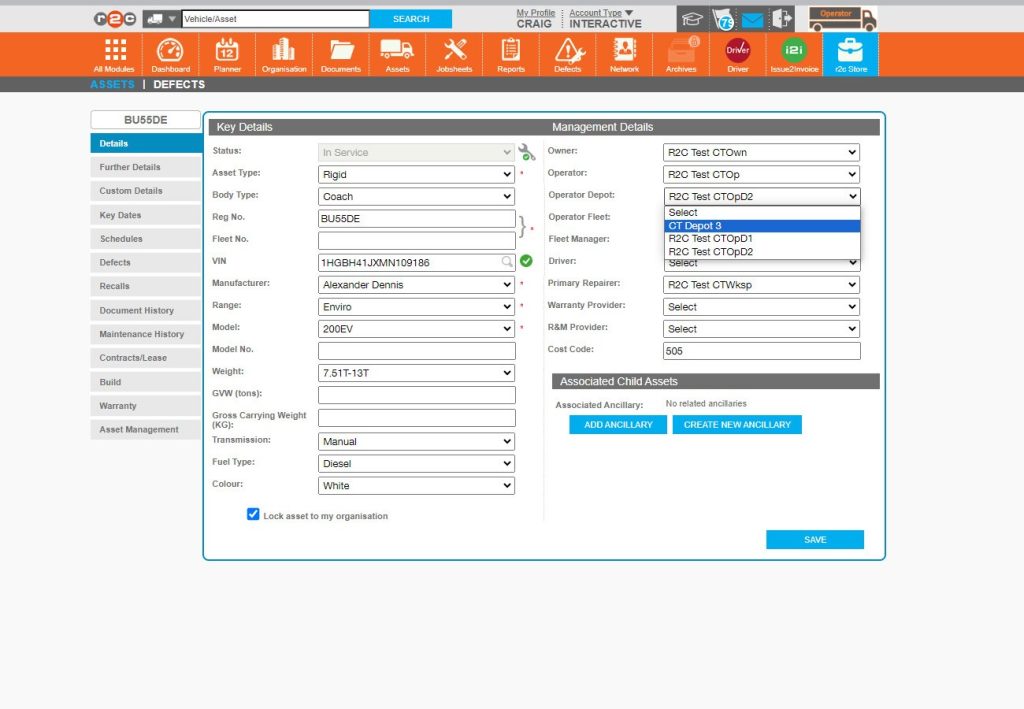
Step 2 - From the Operator Depot drop down list, simply choose the location and then click save. Note: To remove an asset, set this field back to select instead.
Technical Info & Self Help
Why can't Iseemy full asset list?
If the asset list is not showing as you expected, check that you have returned back to the Operator view from the account type menu. This will display all assets regardless of the depot location.
Why can't Iaddnew users?
If your depot account is showing 0 users available or has been newly created. We will need to increase the user limit on your account. This can be requested from the support team. Once processed, the ‘add New User’ button will become available. See how to add users here
Why do my modules show aslocked?
If you find that modules display the lock symbol. Please log out, and clear your cache before logging back in. If this does not resolve the issue, contact the support desk to have your account settings reviewed.
A green outline on the account type icon signifies the guide is applicable whereas a red outline signifies it is not applicable to the the respective account type.