



N/A
Home » Guides » Dashboard – Workshop

Dashboard – Workshop

Introduction

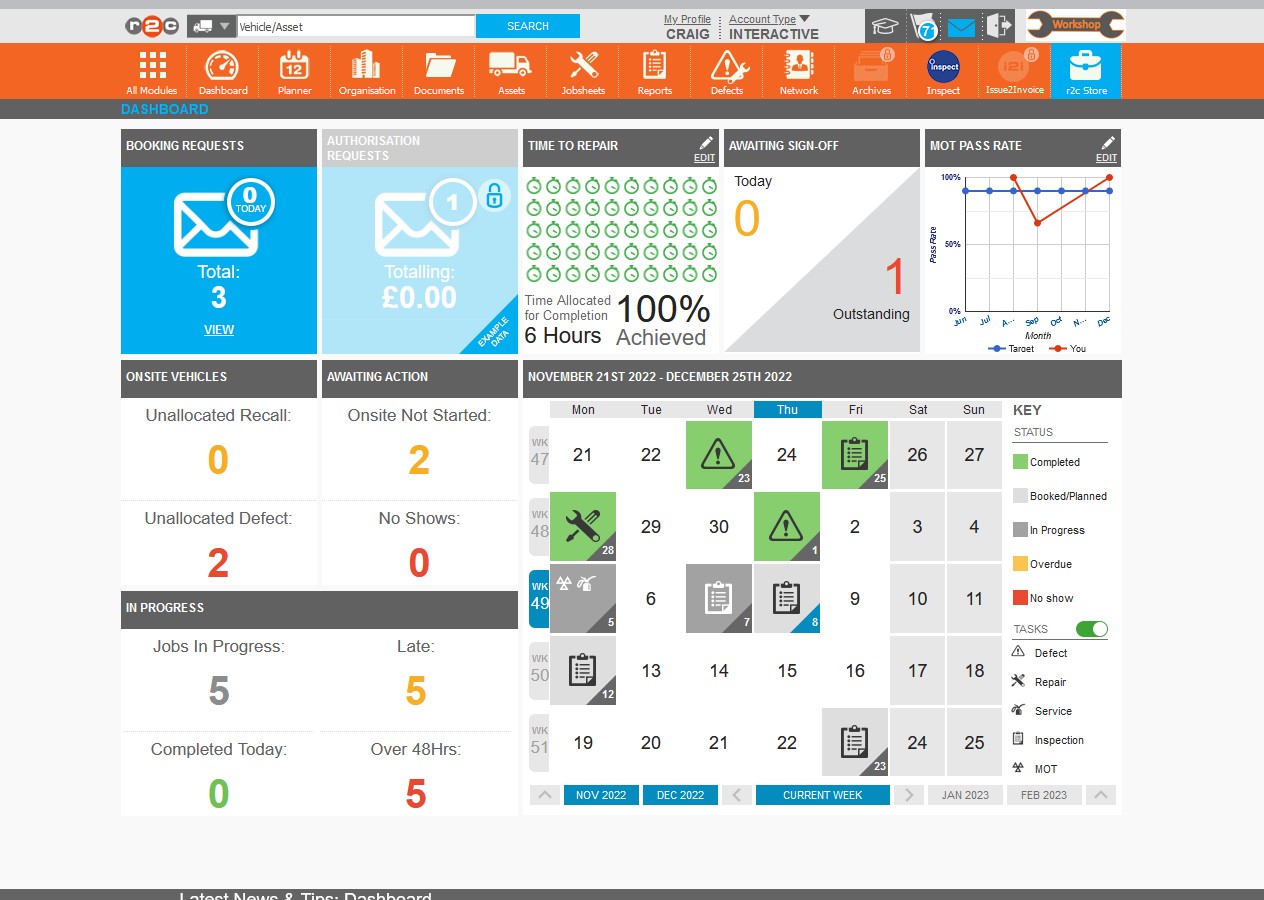
The Dashboard provides an overview of the status of jobs, booking requests, authorisation requests, your assets schedules, any defects that have been found on the assets, and various common KPI’s (Key Performance Indicators) including pre-use checks, fleet availability, and MOT pass rates.

Booking Requests - The tile will include all booking requests that have not been accepted. 

Note: Selecting View will direct the user to the Unactioned-Booking Requests tab within Messages.

Authorisation Requests - i2i users only. 

This tile will include all outstanding authorisation requests.

Note: Selecting View will direct the user to the Pending Authorisation tab within Messages.

Time to Repair - This displays the percentage of jobs completed within the target time. This can be customised
to suit your operational requirements by all users that have administrator rights.

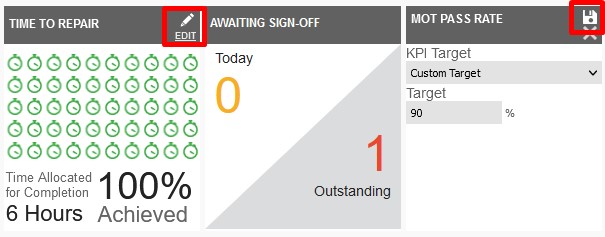
Note: Selecting this tile will expand the tile to include the detail behind the result. Editing this tile will allow the user to customise the KPI target.

Note: Selecting WITHIN and OTSIDE TARGET buttons will direct the user to the Jobsheets page with filters applied.

Awaiting Sign-Off - This tile displays the number of Jobs awaiting Sign Off. 

Note: Selecting this tile will expand the tile to include the detail behind the result. 

Note: Selecting VIEW INPORTAL will direct the user to the Jobsheets page with filters applied, selecting VIEW IN INSPECT will open the inspect login page.

MOT Pass Rate - This tile will display the MOT first time pass rate for the current month and the previous 6 months..

Note: Selecting this tile will expand the tile to include the detail behind the result. Editing this tile will allow the user to customise the KPI target.. 

Note: Selecting any of the VIEW buttons will direct the user to the Assets page with filters applied.
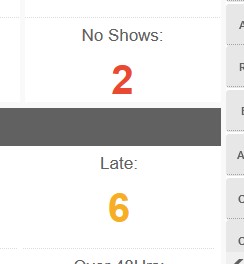
Outstanding Defects, Awaiting Action and In Progress KPI's - These KPIs are all clickable links directing the user to the relevant page and information.

Planner Preview - This view displays a 5 week planner which shows the current status of Jobs. Click here to see more details on the full Planner Guide

Technical Info & Self Help

What is the difference between a Late job and a No Show.

This No Show KPI relates to recently missed jobs that have not been started.  This Tile will take you to a list of jobs that are potentially No Shows. A job can be changed to a No Show by a user or a missed job older than 14 days will automatically change to a No Show by the system.

The Late KPI relates to Jobs that have been started, or marked as Onsite, but are ongoing passed their Required By date.

Can anyone Edit the Local Tile info.

No – Only administrators can edit these targets which can be achieved by clicking EDIT and ensuring to click the save icon. These targets will reflect locally within the organisation.

Did you find this page useful?

Overall did you find what you were looking for?

Page Rating
Radio Buttons

Account Icon Key

A green outline on the account type icon signifies the guide is applicable whereas a red outline signifies it is not applicable to the the respective account type.

Repair and Maintenance Provider

Operator

Workshop

Is something broken or missing?

Let us know here

Report an Issue Form