The details of an asset make up half of the overall asset information, although normally the responsibility here would fall to the operator of the asset, it may fall to the R&M or even the workshop assuming the role of an R&M.
The additional details of an asset make up the second half of the asset’s information.
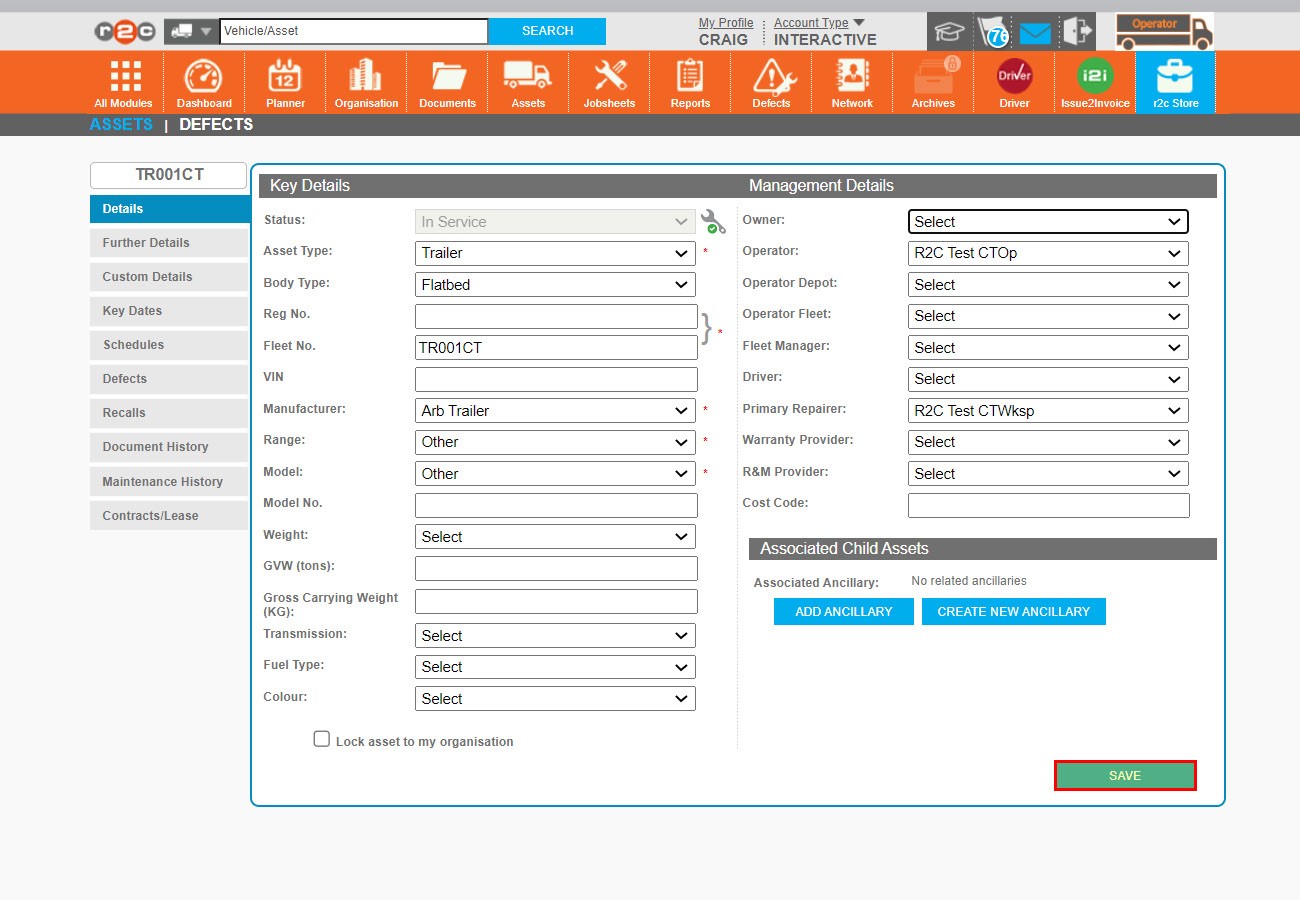
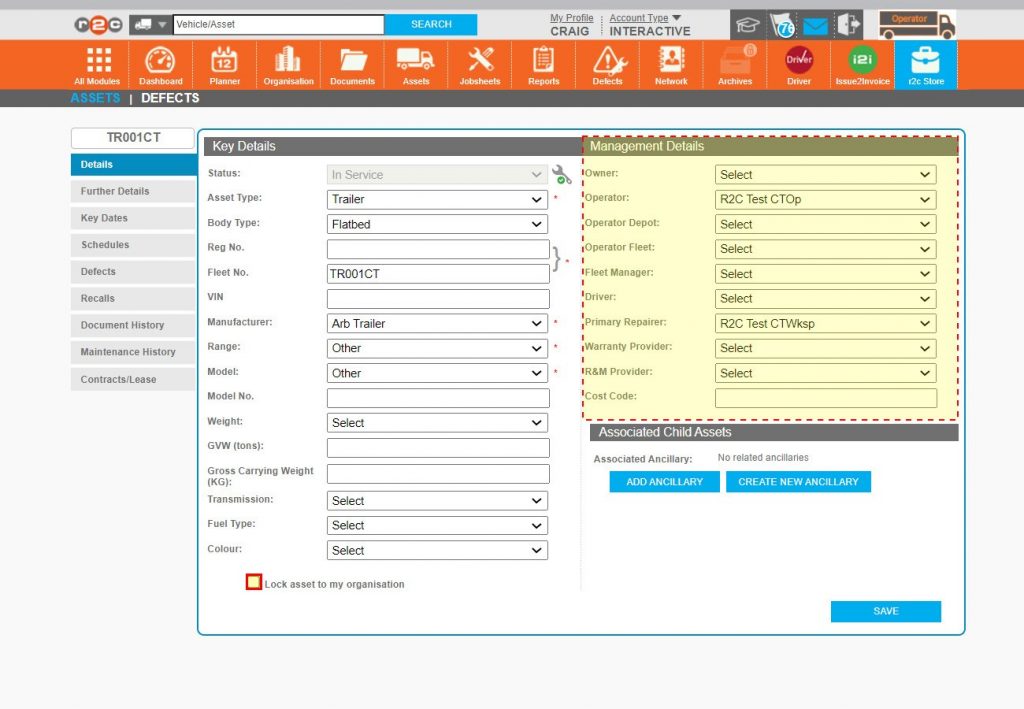
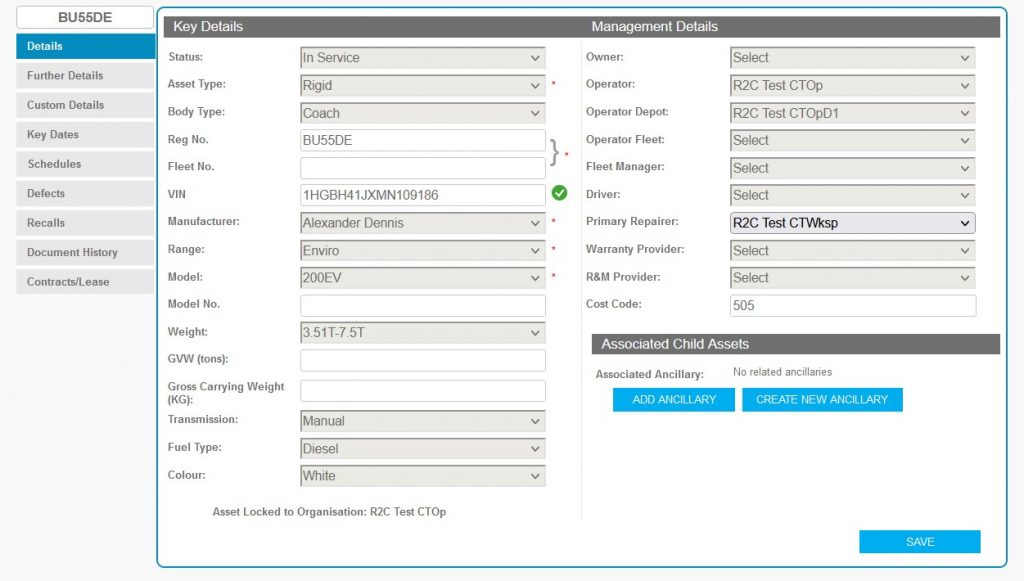
Asset Details - The main Details tab contains the Key Details of the asset and the Management Details.
Care should be taken here as amending these fields will reallocate the asset.
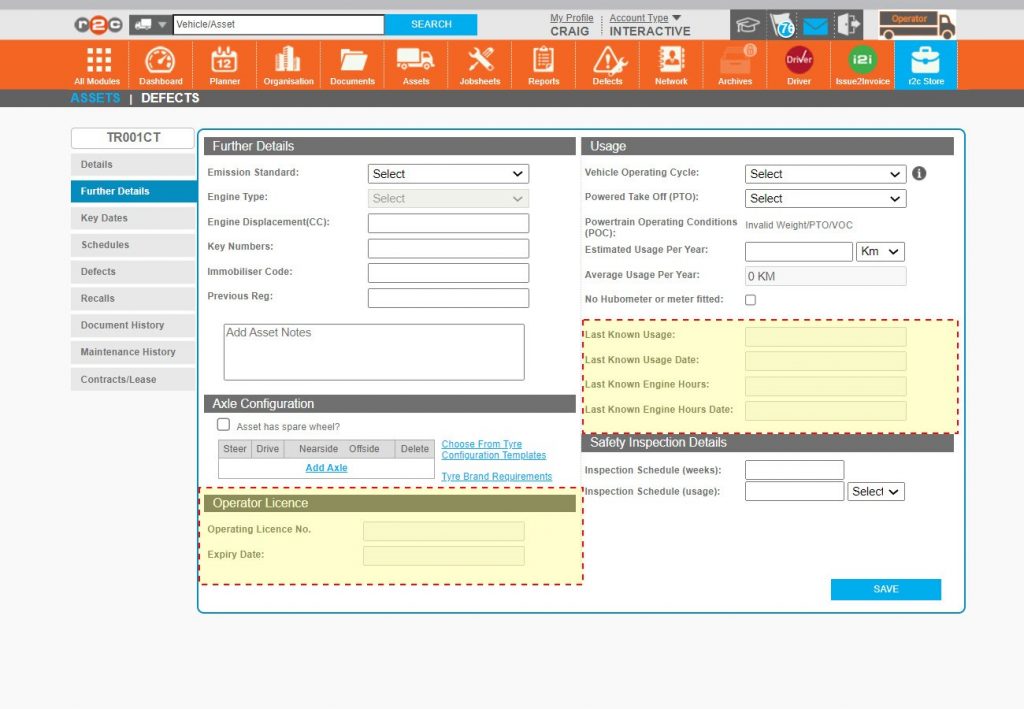
Further Details - Further Details consists of further optional information which includes the last reported mileage, any 'O' licence details and the ability to add free text amongst other items.
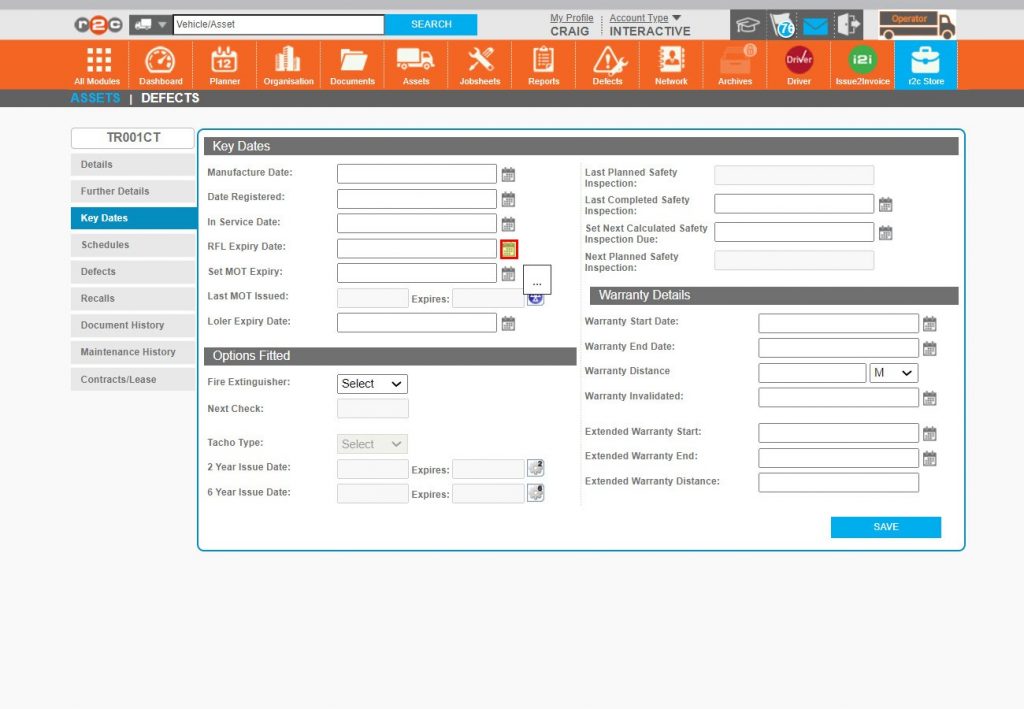
Key Dates - Key Dates holds the compliance date information. Some of which is automatically updated via the jobsheet, the two fields needing manually updating are the LOLER expiry date and the RFL expiry date if required.
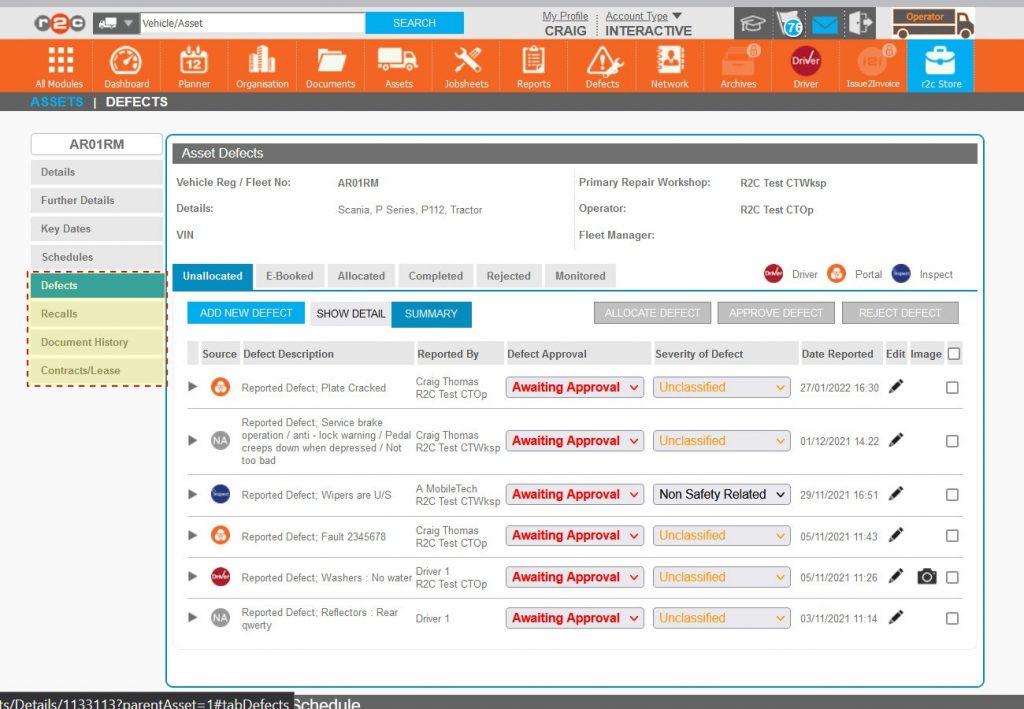
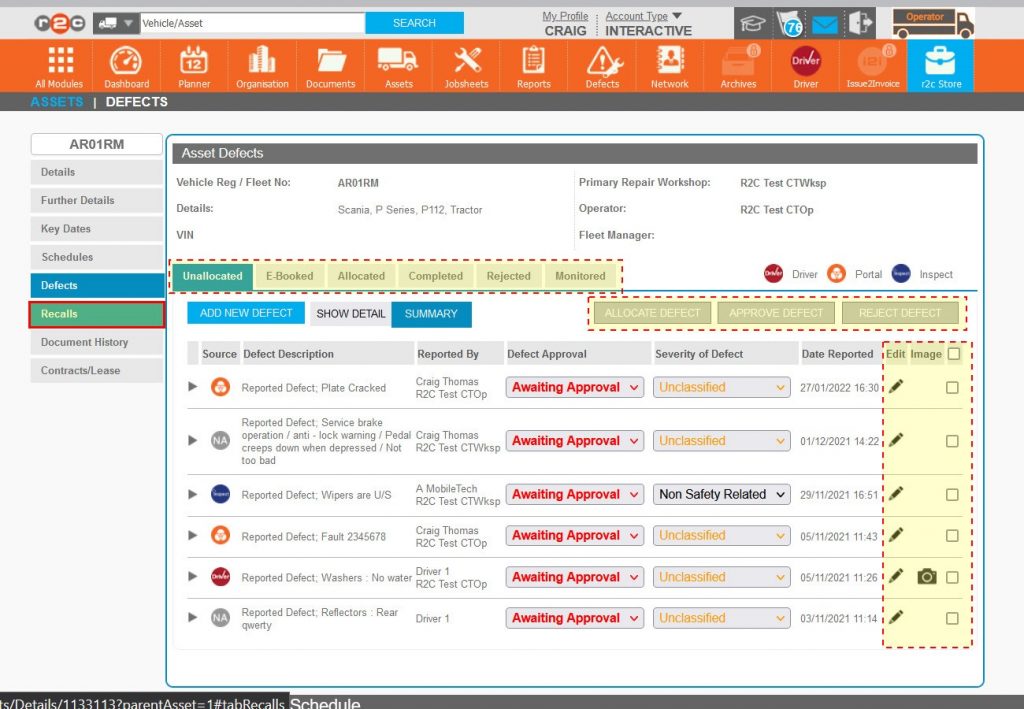
Defects Tab- The Defects tab provides the ability to filter, approve/reject or allocate defects.
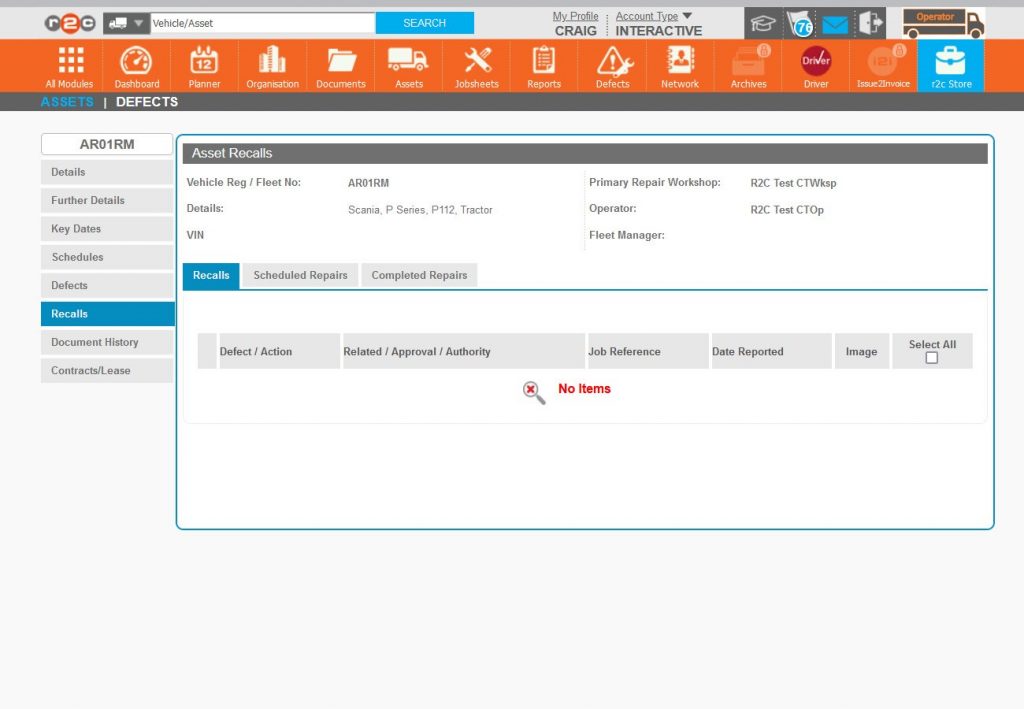
Recalls Tab- The Recalls tab is available for manufacturers to share information. the Contracts/Lease tab would only be used where applicable and will produce the most relevant info on any Jobsheets.
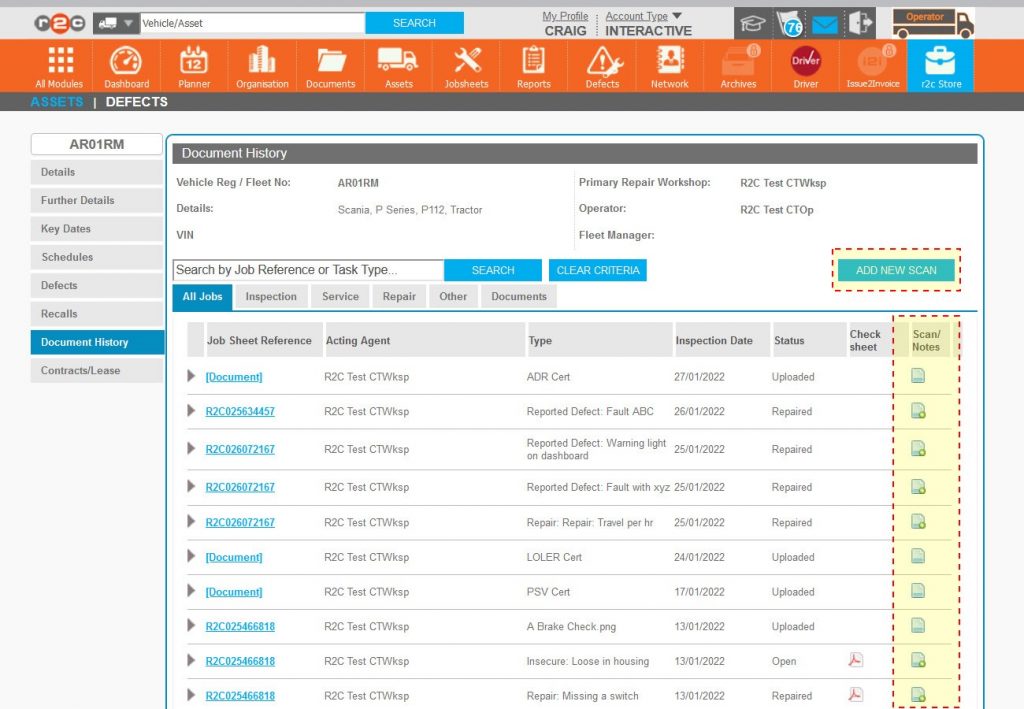
Document History Tab - The document history of an asset will follow the asset around during it's lifetime, once the asset leaves the organisation this history can be found in the main Document page as an historical reference.
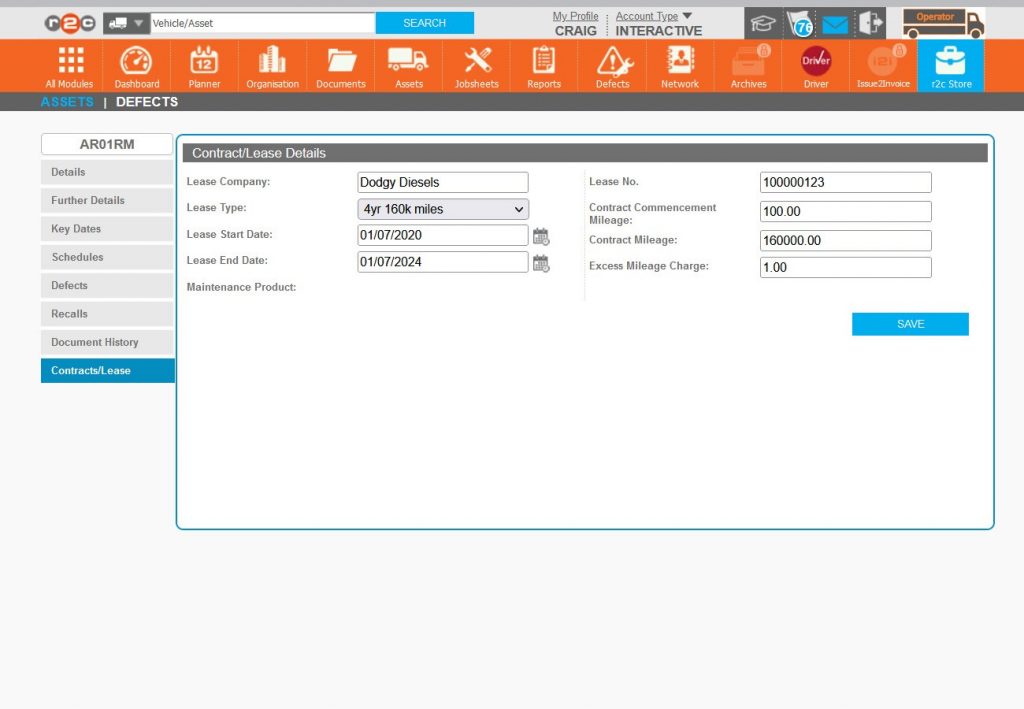
Contracts/Lease Tab- The Contracts/Lease tab would only be used where applicable and will produce the most relevant info on any Jobsheets.
Where management of the asset is required to be restricted to your organisation, the 'Lock asset to my organisation' should be selected. This action does not stop other parties from being able to view its details but simply restricts their ability to amend certain details.
Step by Step
Asset Details – To see the tabs that make up the main details of an asset. Click or swipe through the 7 steps below.
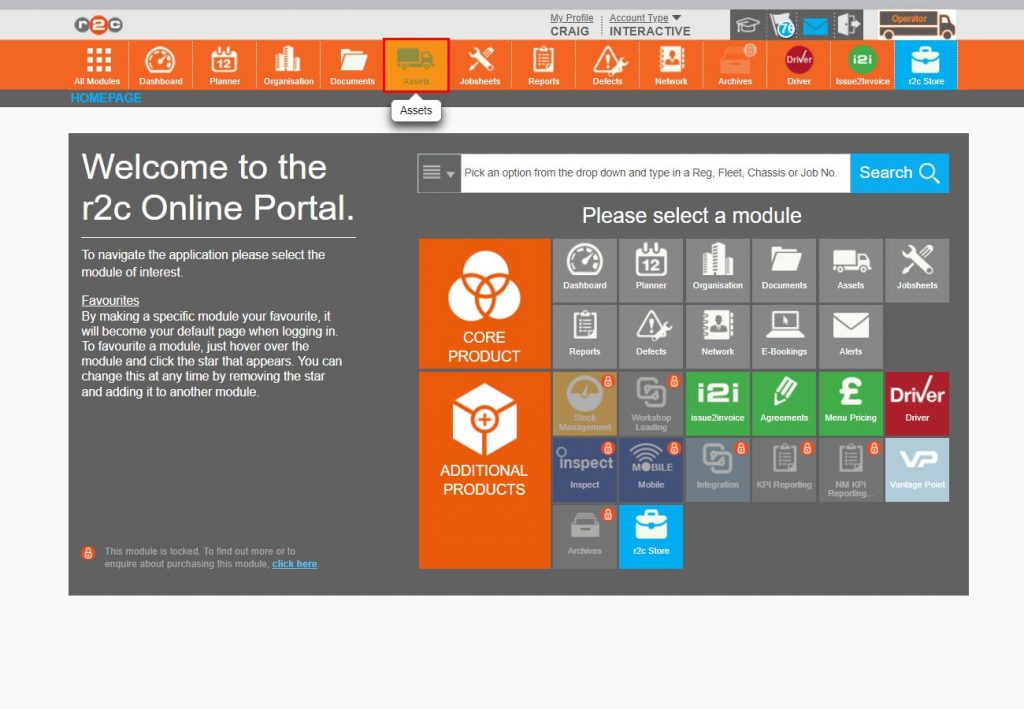
Step 1 – To view or edit an asset’s details first open the assets page.
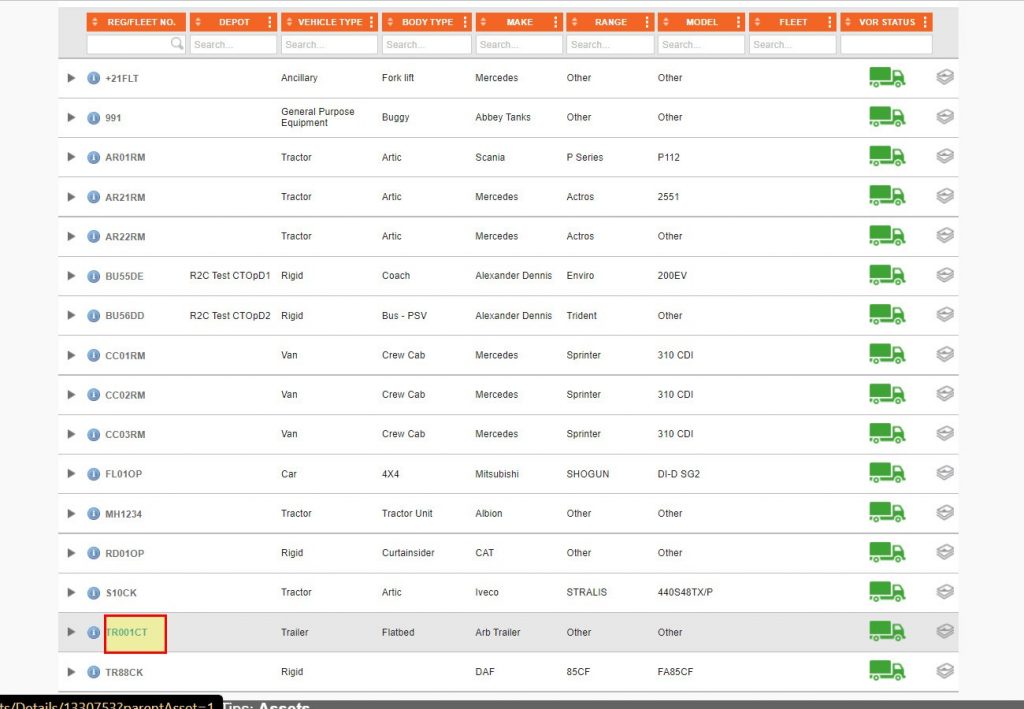
Step 2 – Click the asset’s ID ‘REG/FLEET NO.’
Step 3 – The first tab displays the Key Details and the Managements Details of the asset. It is important to keep the management details up to date. The organisations assigned here will be given the same access to the asset record. To limit their ability to amend selected data, click ‘Lock asset to my organisation’ followed by SAVE.
Step 4 – The ‘Further Details’ tab consists of fields that are updated automatically and some optional fields that can be manually updated. The ‘Operator Licence’ is populated from the organisation screen and the usage is primarily updated by the jobsheet.
Step 5 – The ‘Key Dates’ tab, also has some auto updated fields, depending on the browser used, these fields might be greyed out. Manual entries can be made by selecting the date picker to the right of the field.
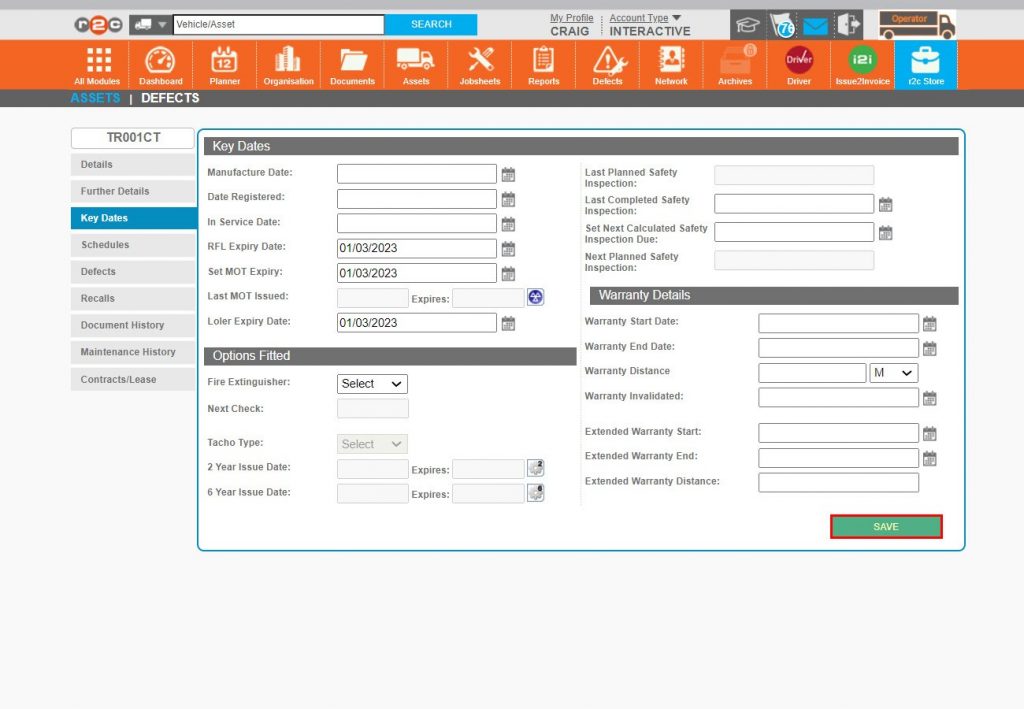
Step 6 – Click SAVE to commit any changes.
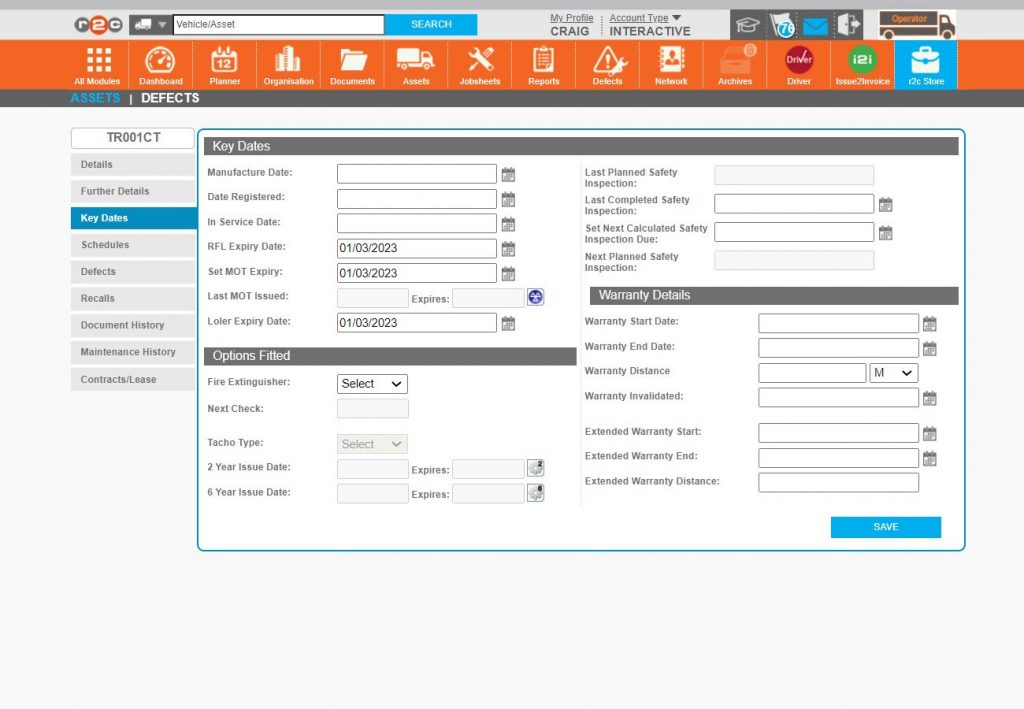
Step 7 – Many of the fields in the asset’s details are optional, however where Earned Recognition is to be utilised, the Manufacture Date, Date Registered and In Service Date should also be completed.
Additional Details – To see the tabs that make up the additional details of an asset, click or swipe through the 5 steps below.
Step 8 – The additional details of an asset consists of Defects, Recalls, Document History and Contracts/Lease tabs.
Step 9 – The Defects tab is a filtered view of the main defects page, it retains all of the same functionality of the main page, with the ability to filter approve/reject or allocate defects. The Unallocated tab is the priority tab here where unallocated indicates that a defect exists against an asset but is not currently allocated to a jobsheet or workshop for rectifying.
Step 10 – Recalls would normally be generated by manufacturers however this function is not widely used as any recalls are still passed via traditional means.
Step 11 – The Document History tab is a filtered view of the main document page, additional documentation can be added from here with the ADD NEW SCAN or ‘Scan/Notes’ function.
Step 12 – The Contracts/Lease tab is available to add any relevant information which can then be monitored via the compliance report.
Technical Info & Self Help
How do Ilock an asset
Locking Assets to an organisation would normally be actioned by the operator to prevent accidental reallocation or amendments to asset details, this may be actioned by the R&M or even the workshop where the operator is read only. This example shows how the asset details are displayed for other interested parties. It would be locked down further still for non interested parties.
How do I remove an assetfrom my fleet
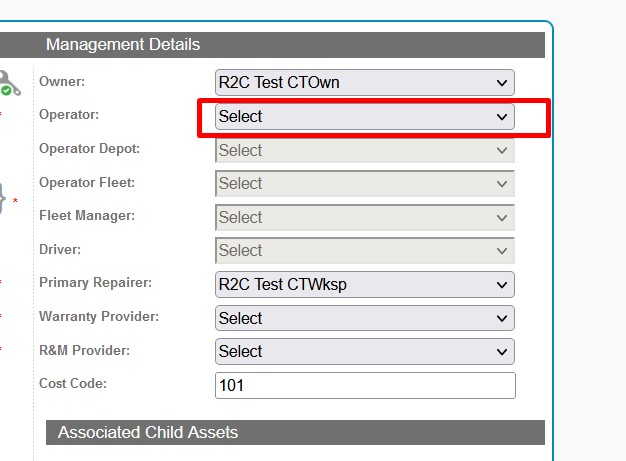
Where an operator wishes to remove an asset from their fleet, this can be achieved by selecting ‘Select’ in the Operator field within the management details of the main details tab. This should be carried out with care as it can only be brought back on the fleet by another party within the management details or by r2c support.
Why would I need Road Tax Expiry date?
Although the Road Fund Licence is not a maintenance requirement, when entered it will be monitored and alerted to when due or breached.
How do I find an assetthat already exists?
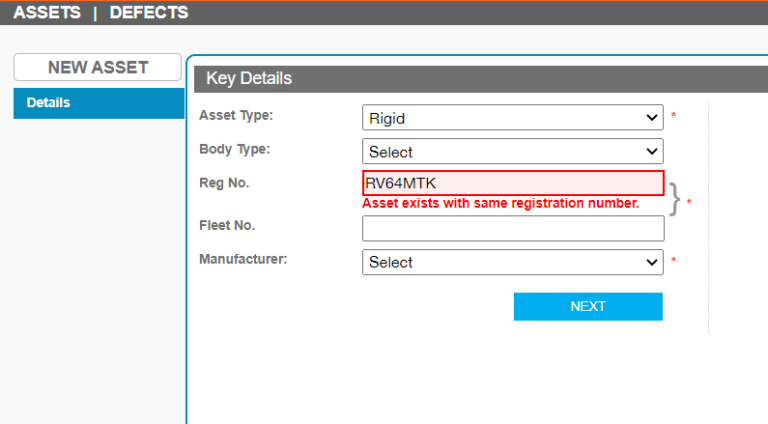
When you try to create a new asset and see a message to say the asset already exists. The system will stop you from creating a duplicate record. In this case, contact the r2c Support team so that they can find the existing asset and update the management details.
Who canaccess anasset?
Asset visibility is dependent on the management details section on the asset details tab. This is where organisations are allocated access to a record.
Operators and R&M providers can only search for and view asset records which are allocated to their fleet.
This is different for a workshop who can search for any asset on r2c and view basic details. However, to access the full record and make changes, the asset needs to be allocated to the workshop as the primary repairer.
A green outline on the account type icon signifies the guide is applicable whereas a red outline signifies it is not applicable to the the respective account type.