Introduction
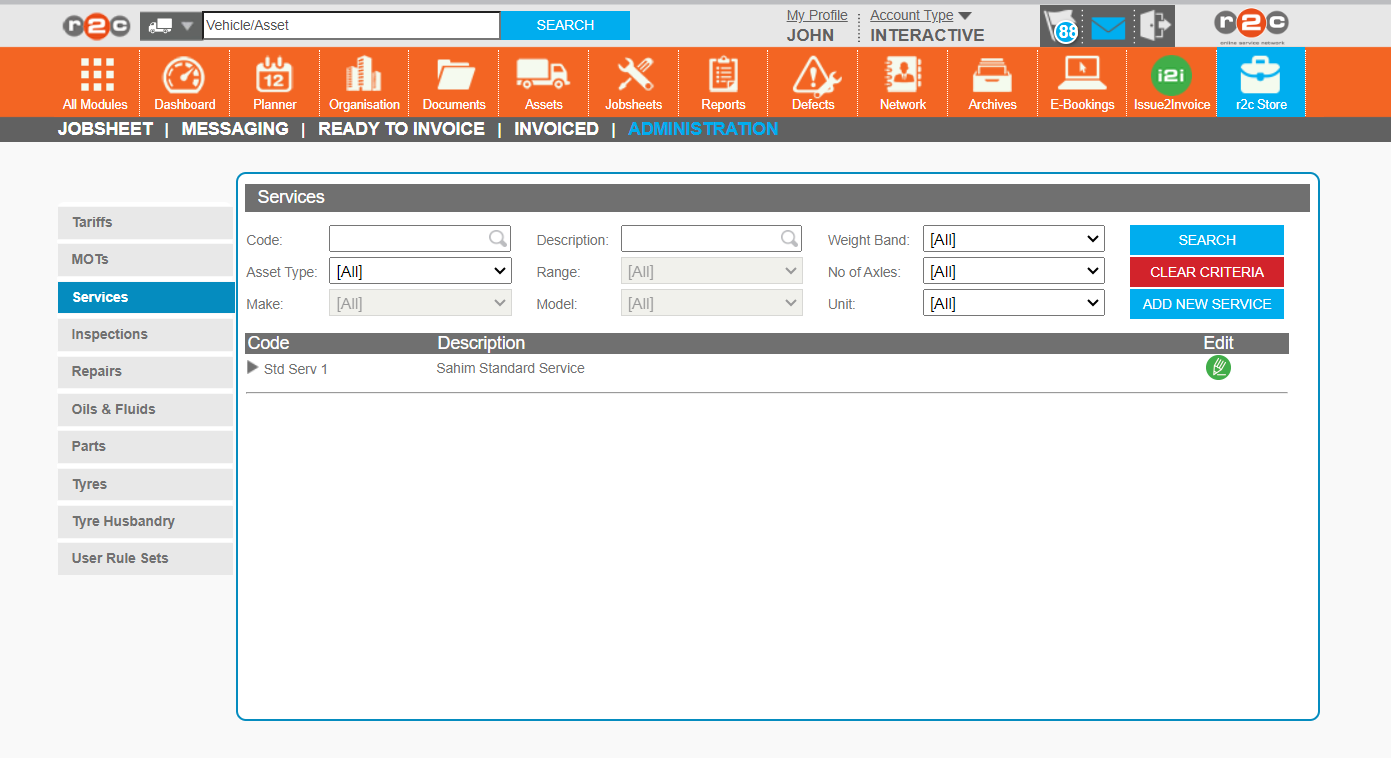
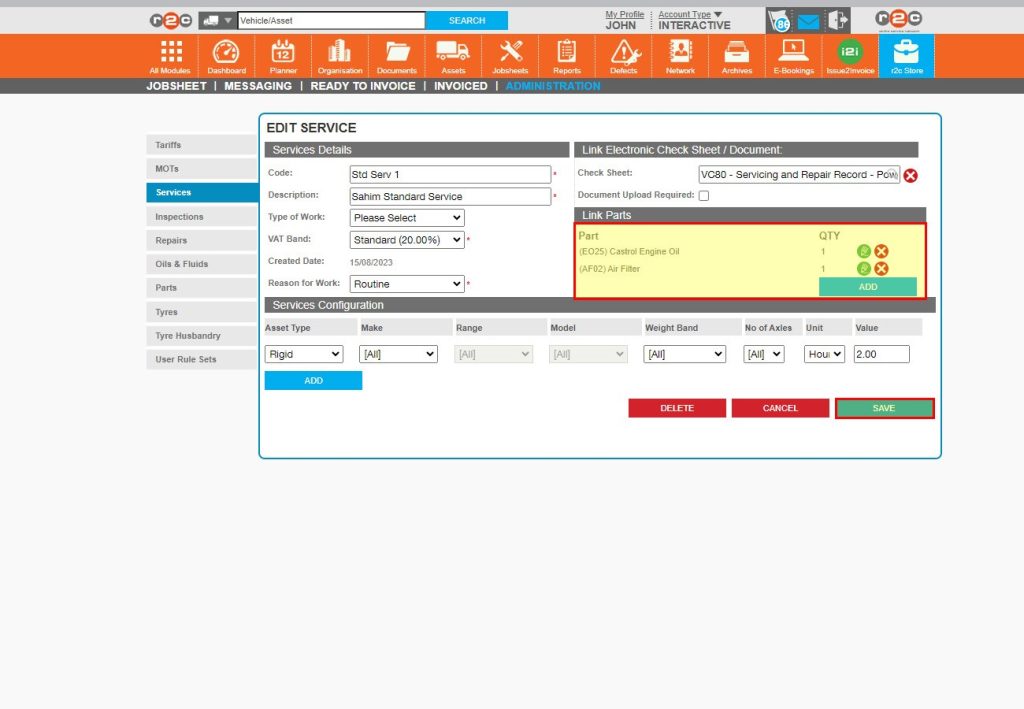
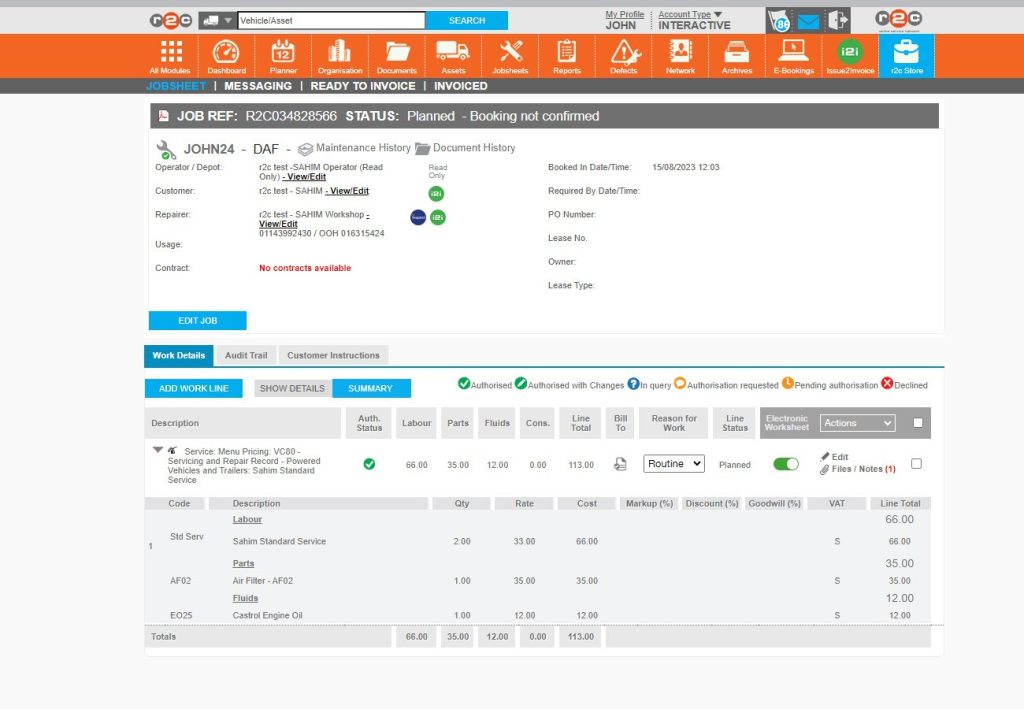
Menu Pricing can be used to create tasks such as services and inspections that contain pre-selected parts and fluids. These bundles can be chosen on jobsheets so that the costs and individual parts and fluids are automatically added. The bundles can be at a general level or made more granular with different services and inspections based on the asset type.
Select a tab here to begin adding menu pricing items to an individual category.
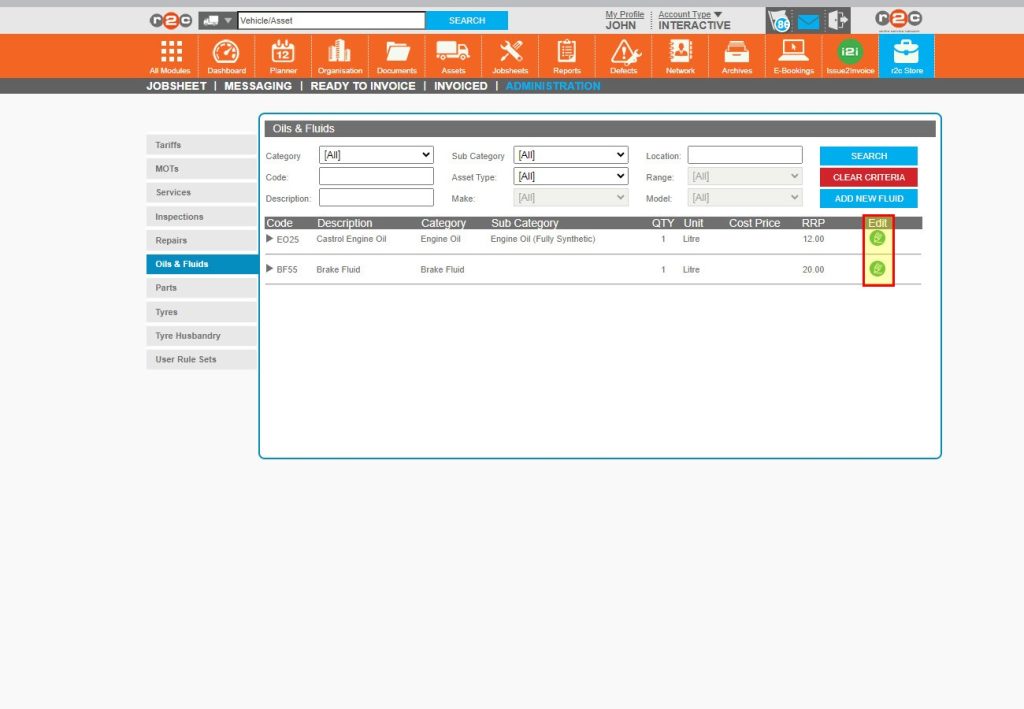
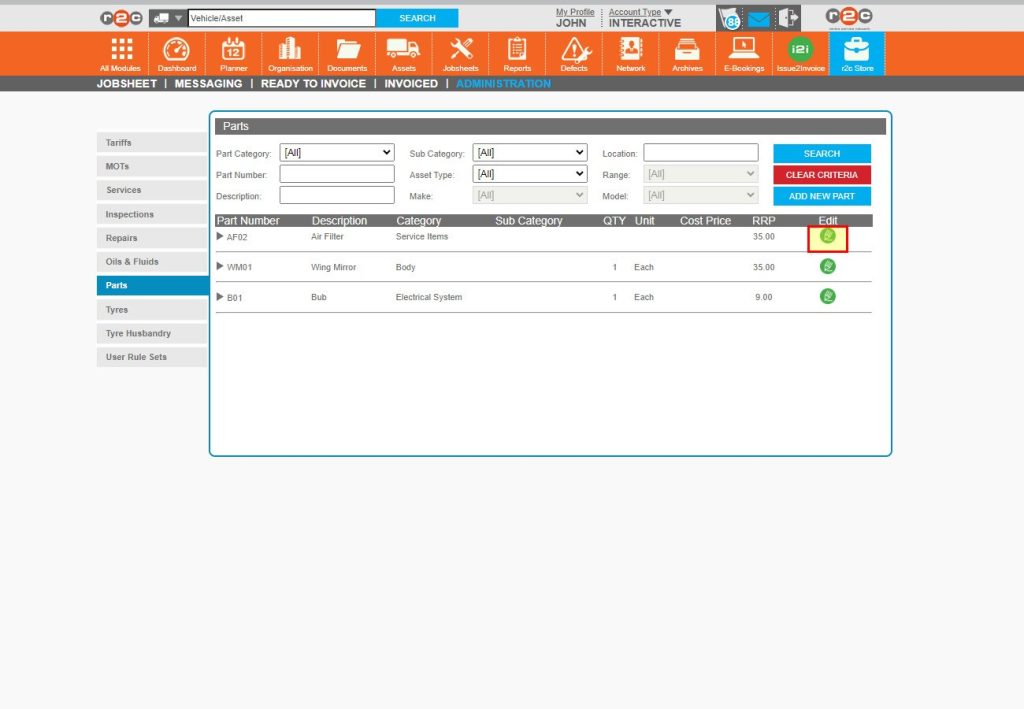
Existing items can be amended using the 'Edit' button.
Any existing items will be listed here for the tab chosen.
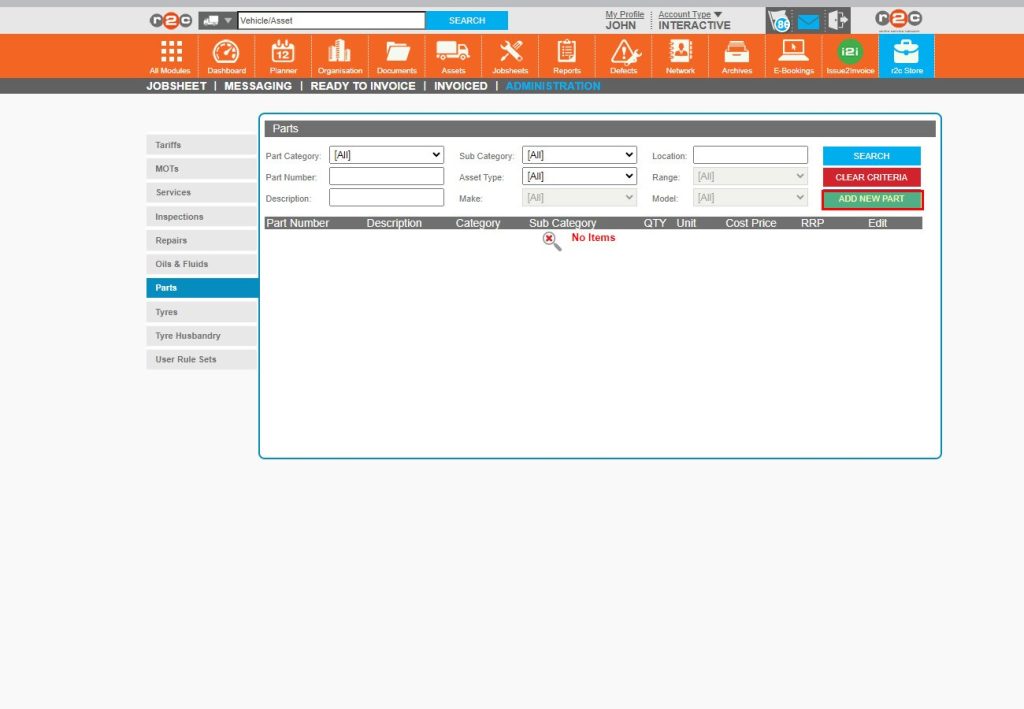
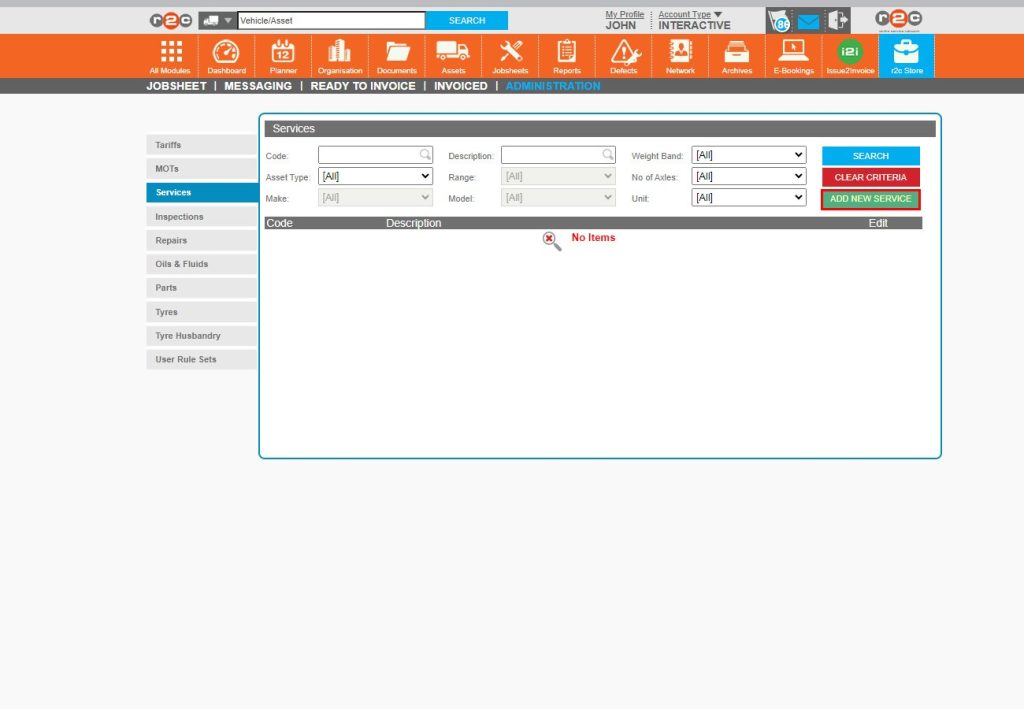
New items can be added using the 'ADD NEW...' button in each tab.
The filters can be used to search through existing items.
Step by Step
Creating Menu Pricing Items – This guide has been broken into the below step by step sections for how to create Menu Pricing Items
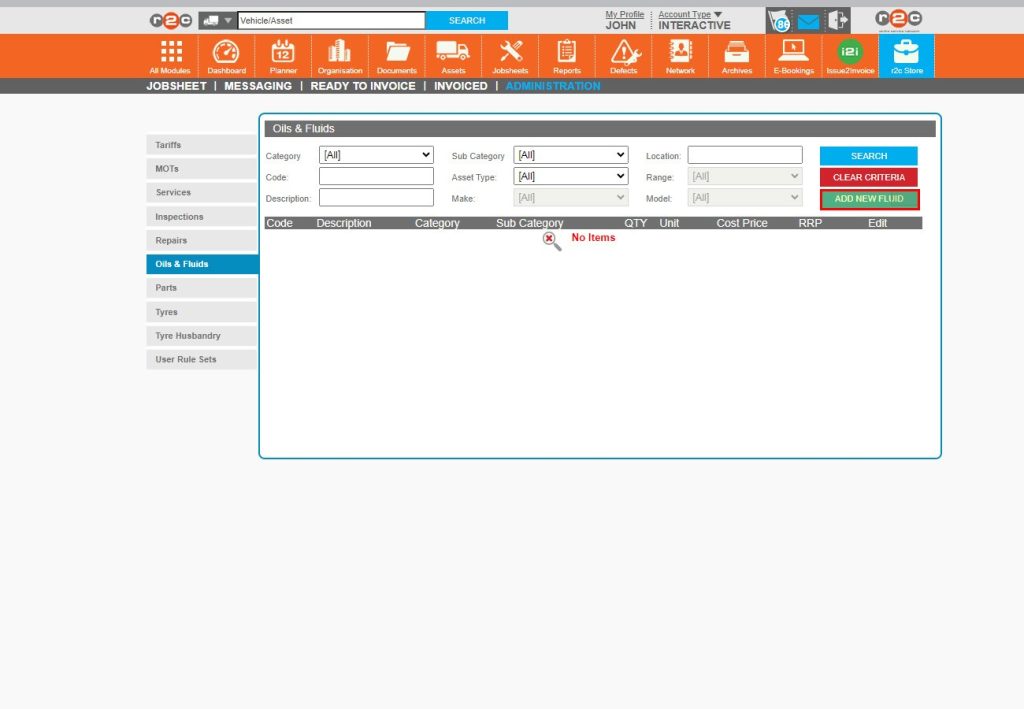
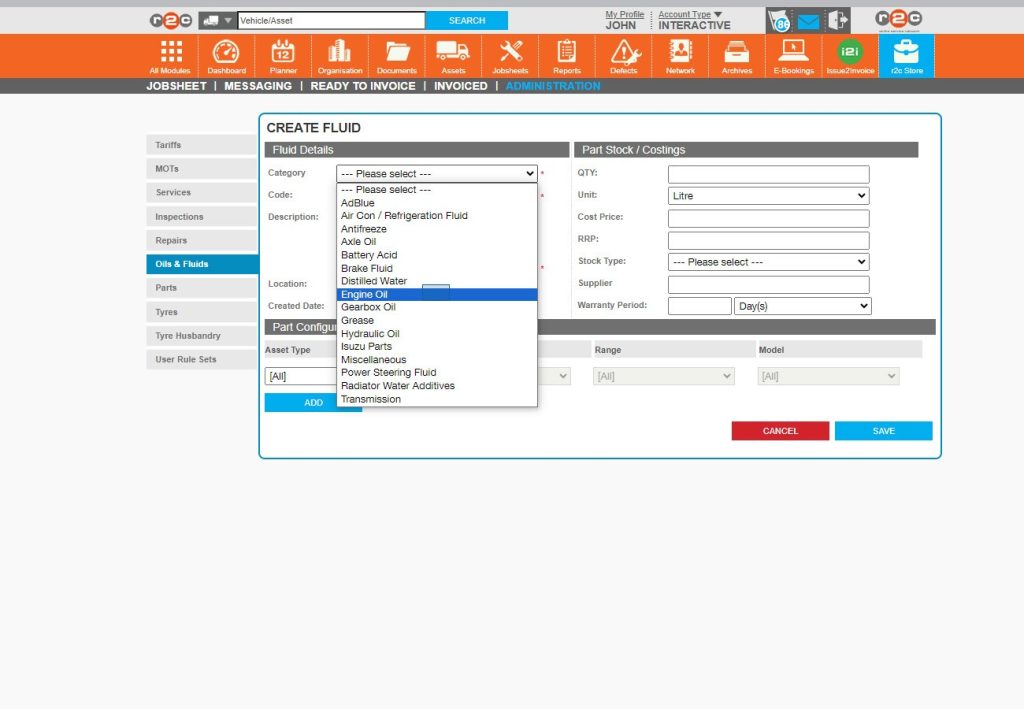
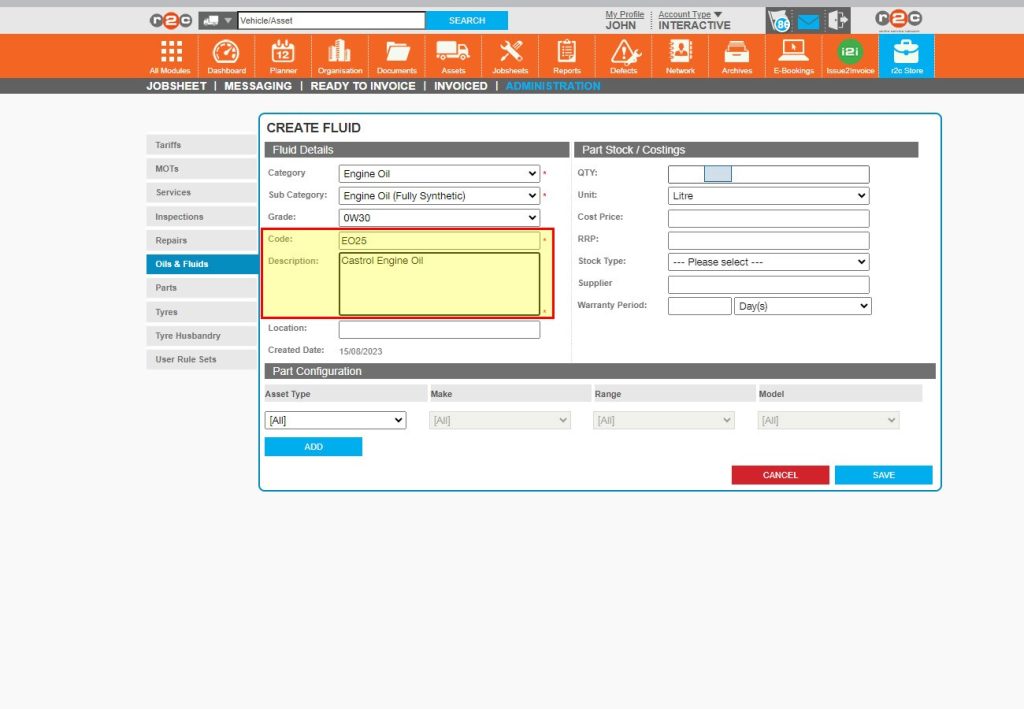
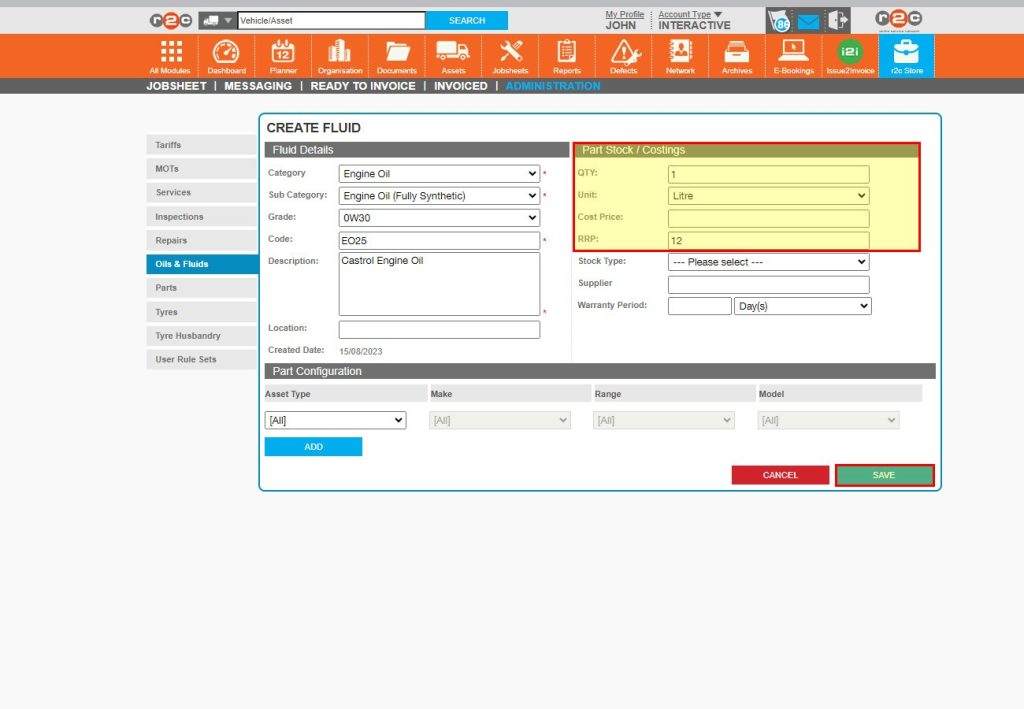
- Stage 1 – Adding Oils and Fluids
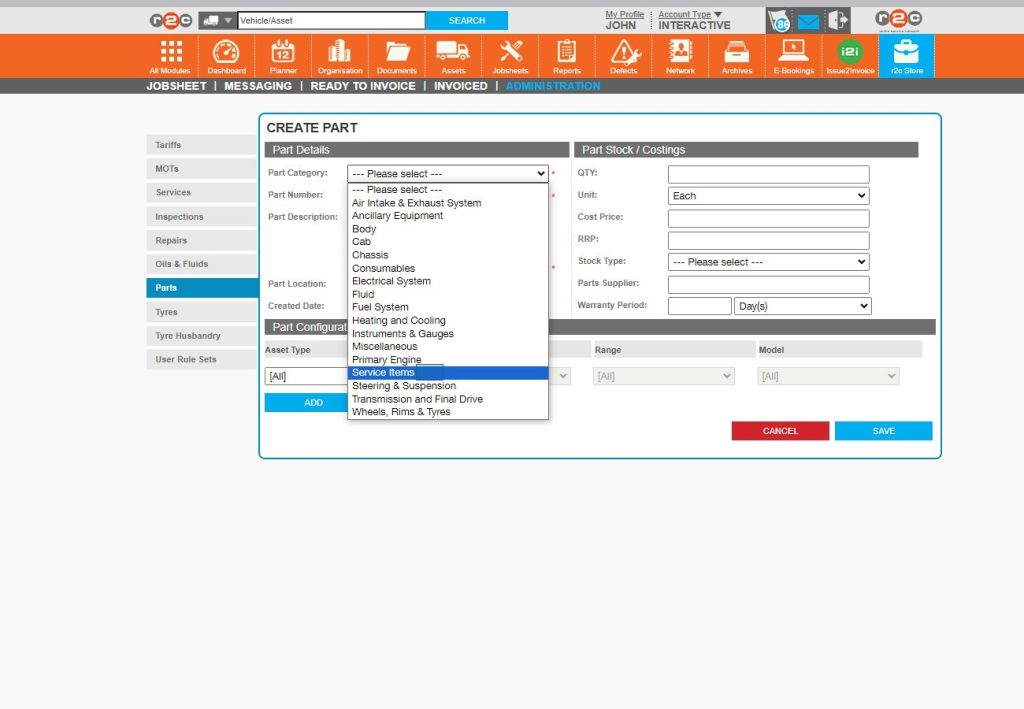
- Stage 2 – Adding Parts
- Stage 3 – Creating a Service or Inspection
- Stage 4 – Linking Parts to the service or inspection
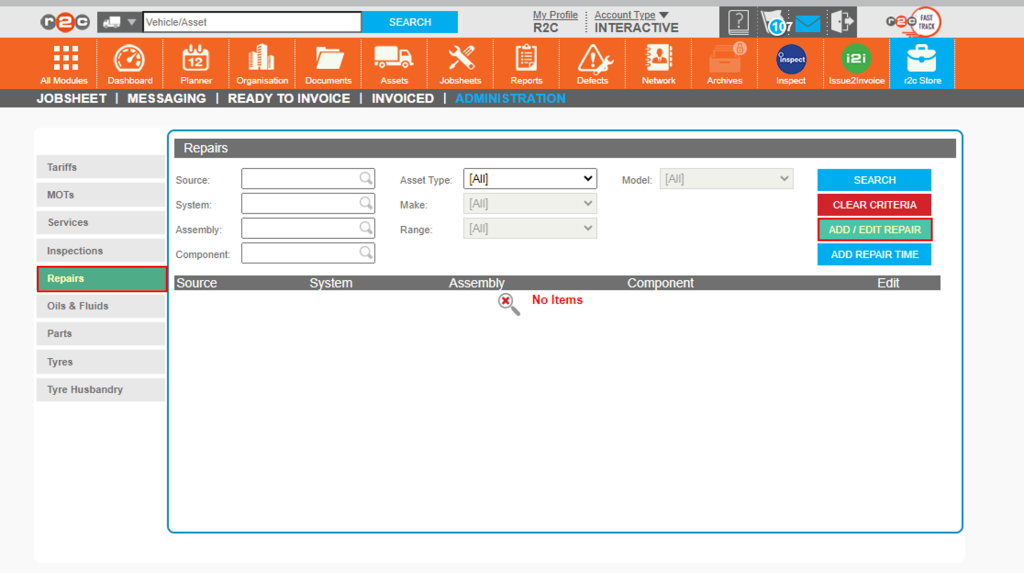
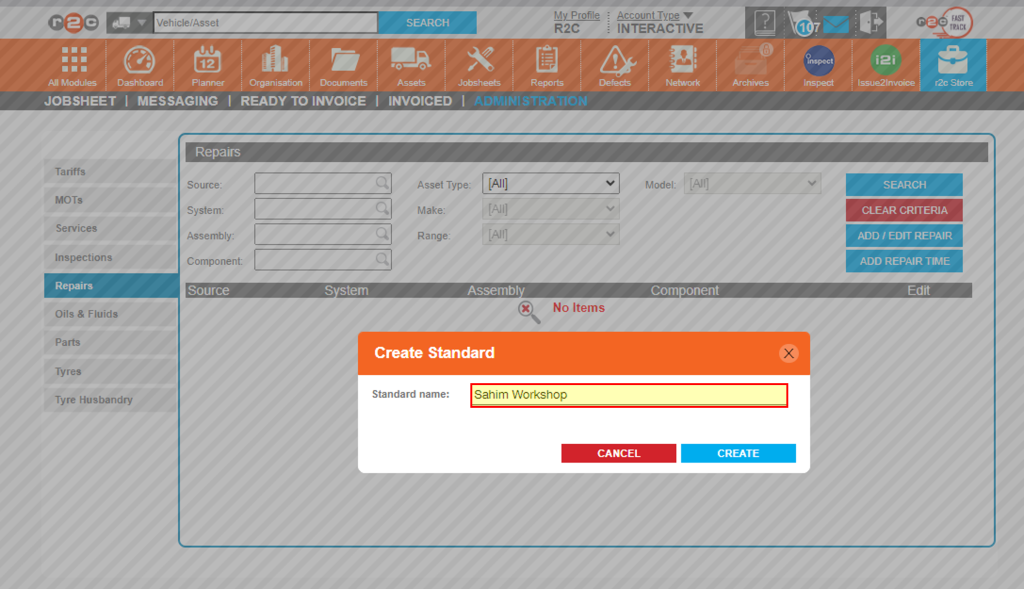
- Stage 5 – Creating a Repair Catalogue
Stage 1 – Adding Oils and Fluids: – To see the steps taken to add oils and fluids to your menu pricing catalogue, click or swipe through the 6 steps below.


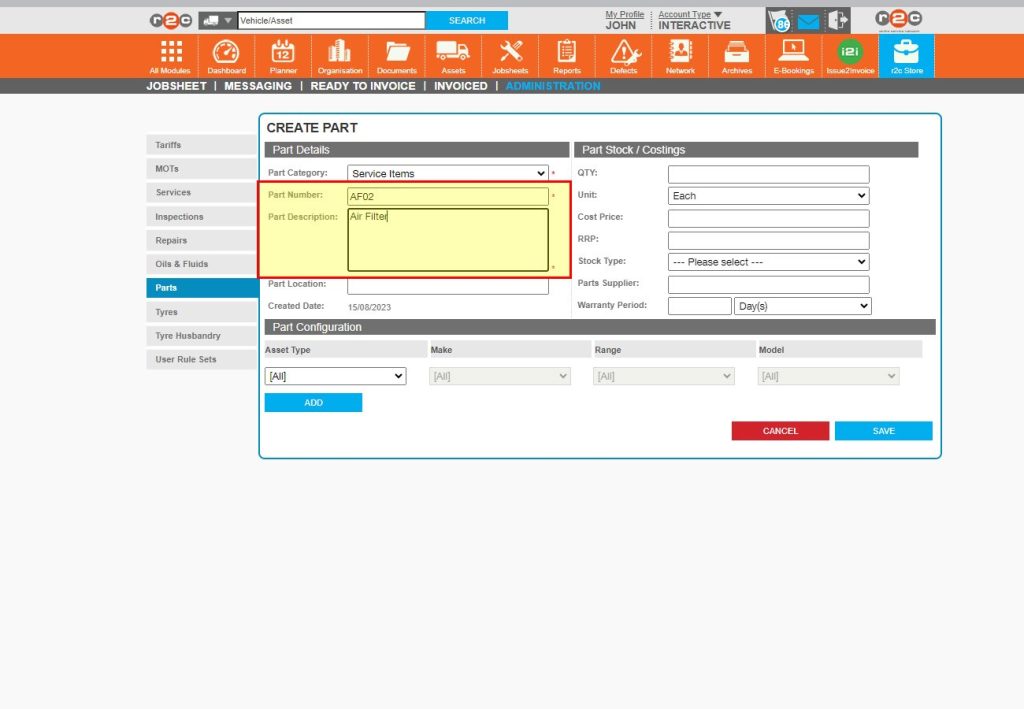
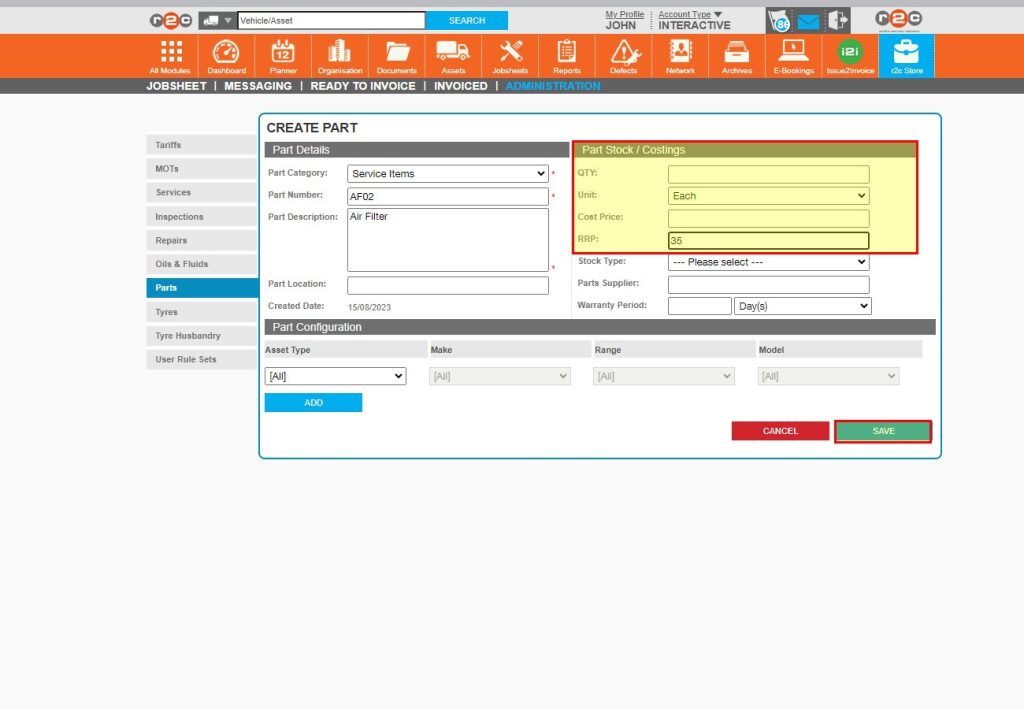
Stage 2 – Adding Parts – To see the steps taken creating a parts catalogue, click or swipe through the 5 steps below.


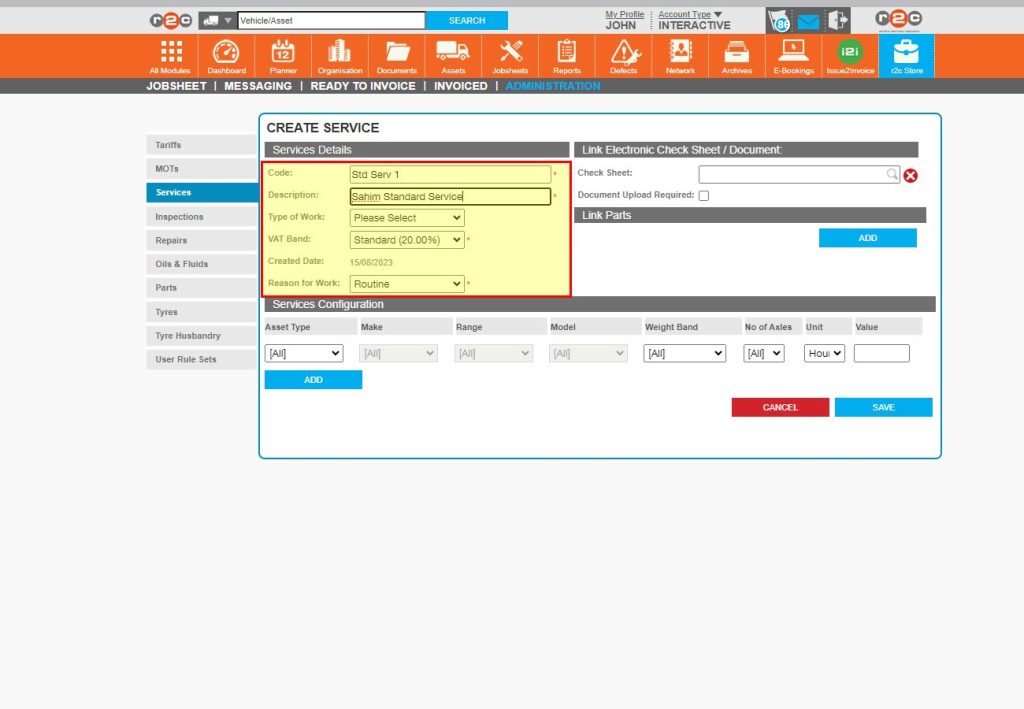
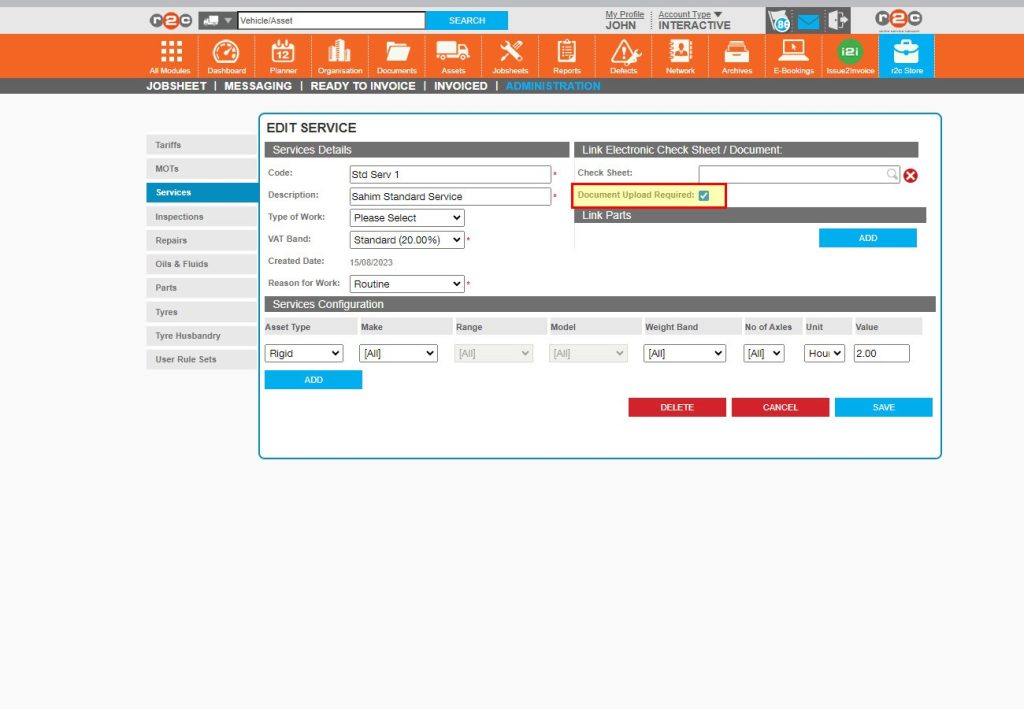
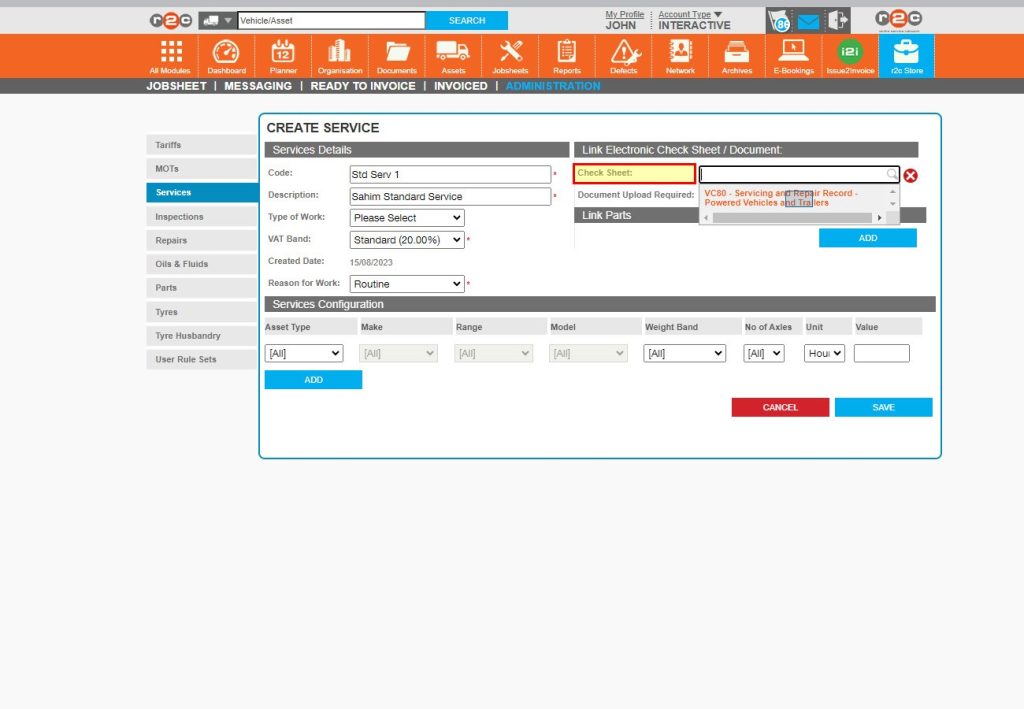
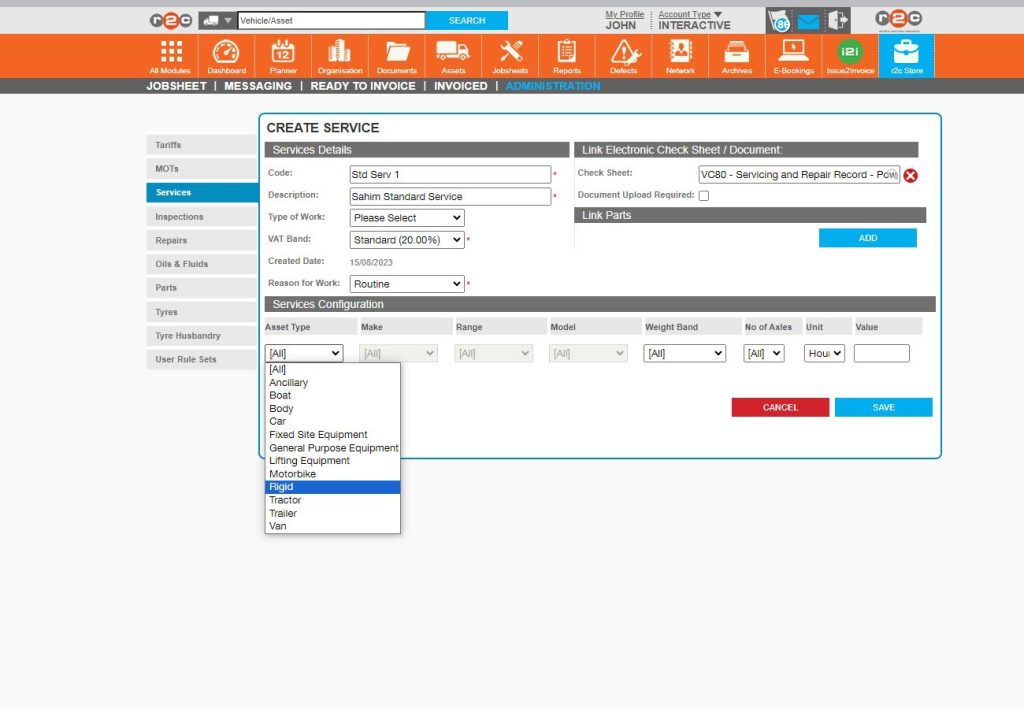
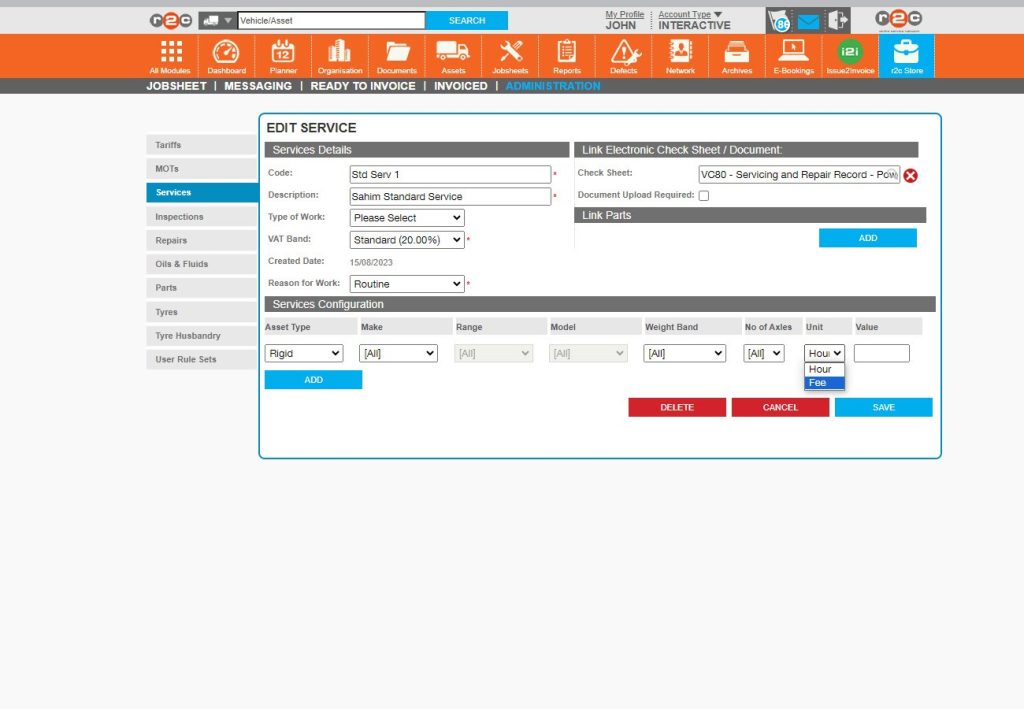
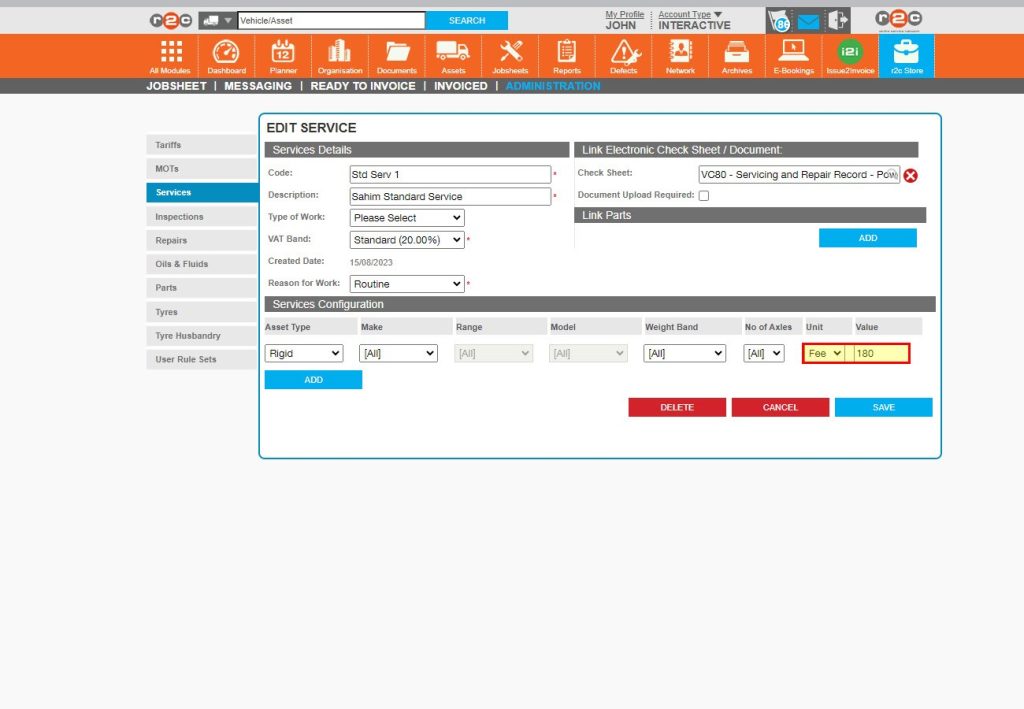
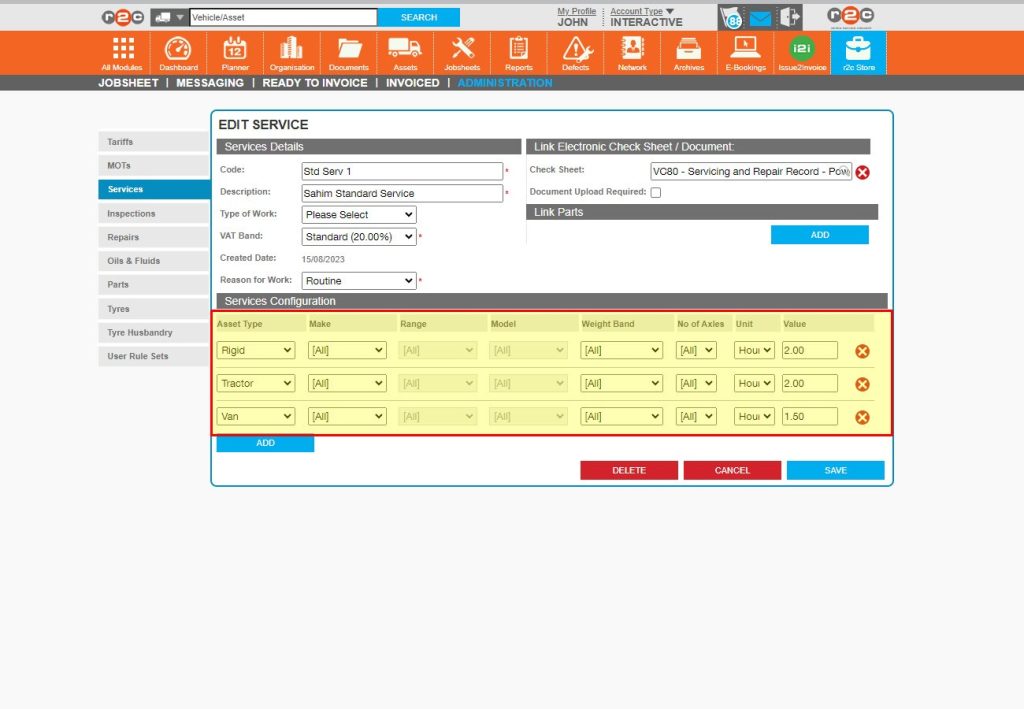
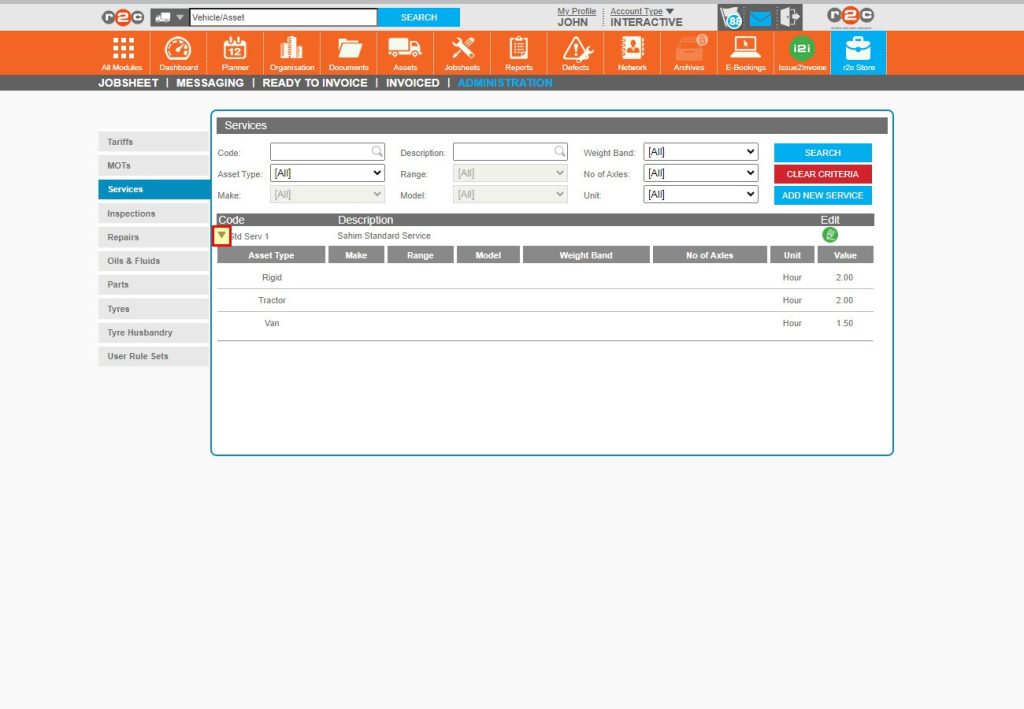
Stage 3 – Creating a Service or Inspection – To see the steps taken for creating a service or inspection, click or swipe through the 9 steps below.


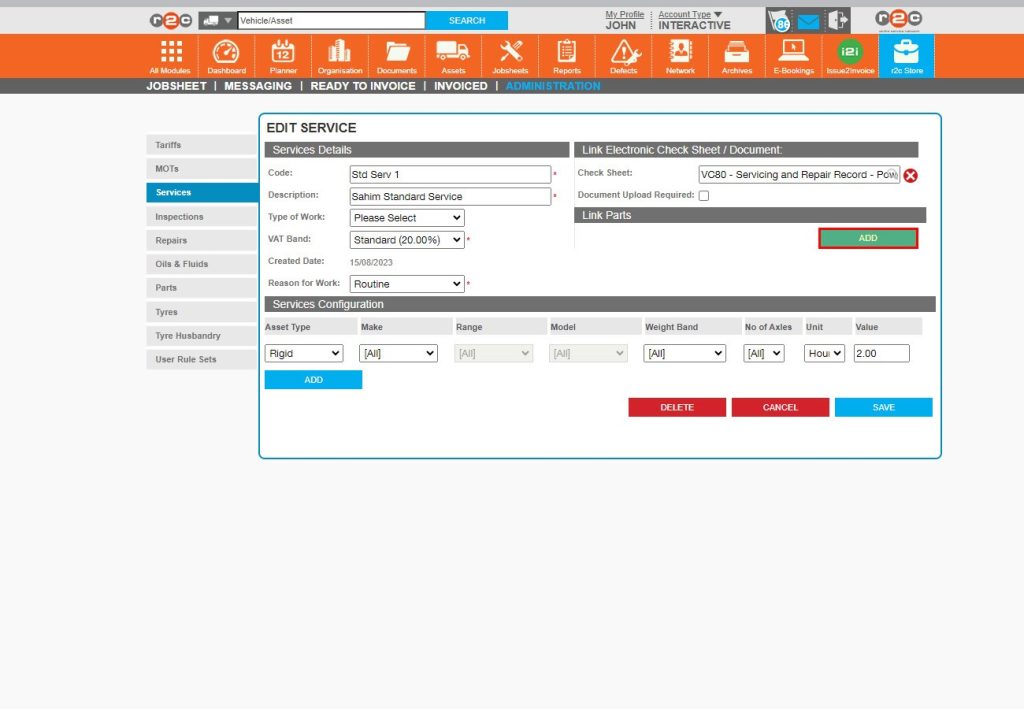
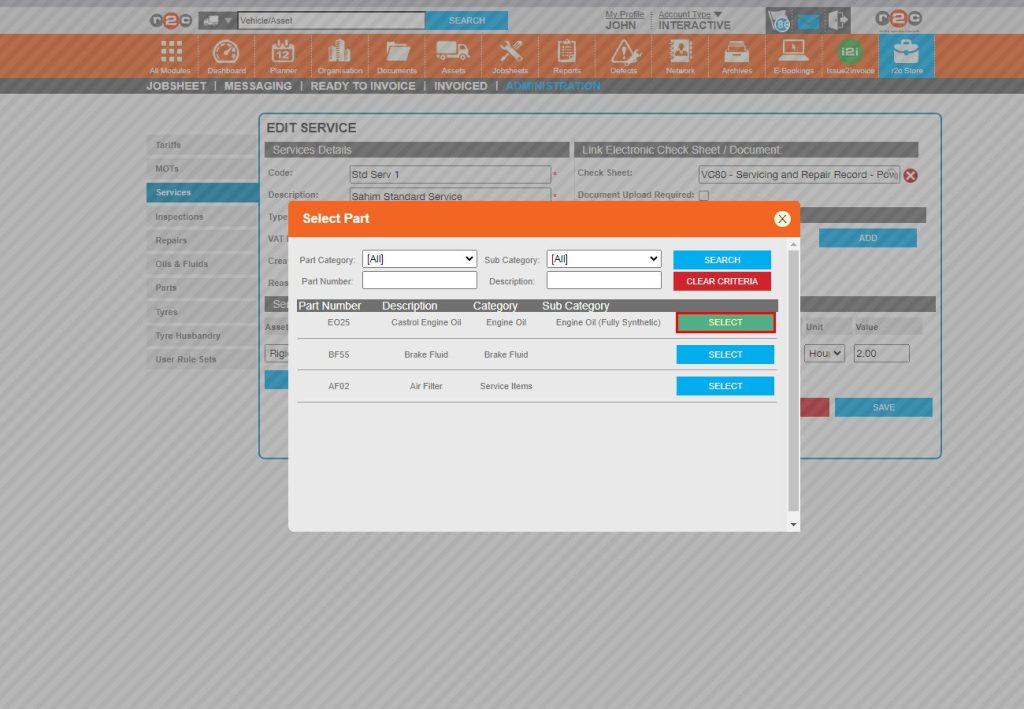
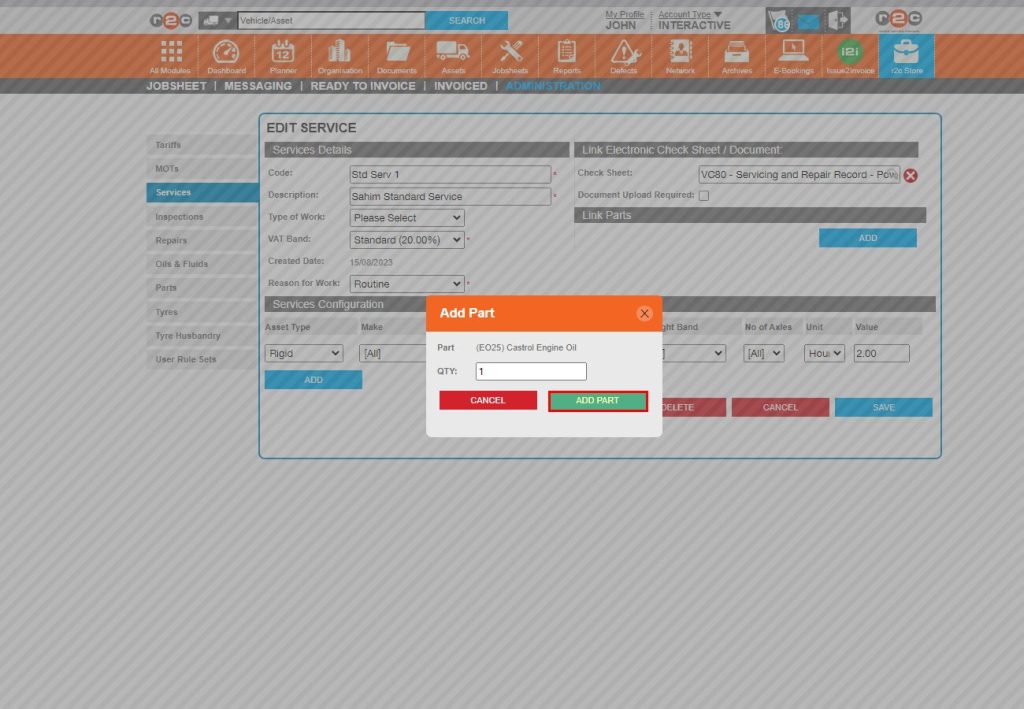
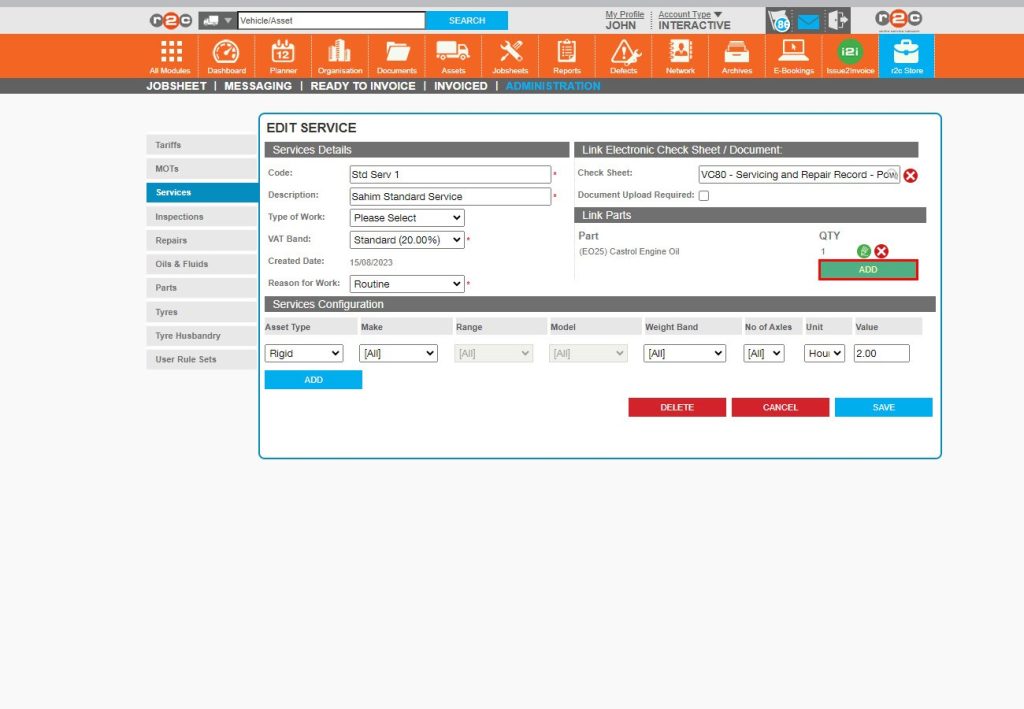
Stage 4 – Linking Parts to the service or inspection – To see the steps taken for adding action responses to defects, click or swipe through the 10 steps below.


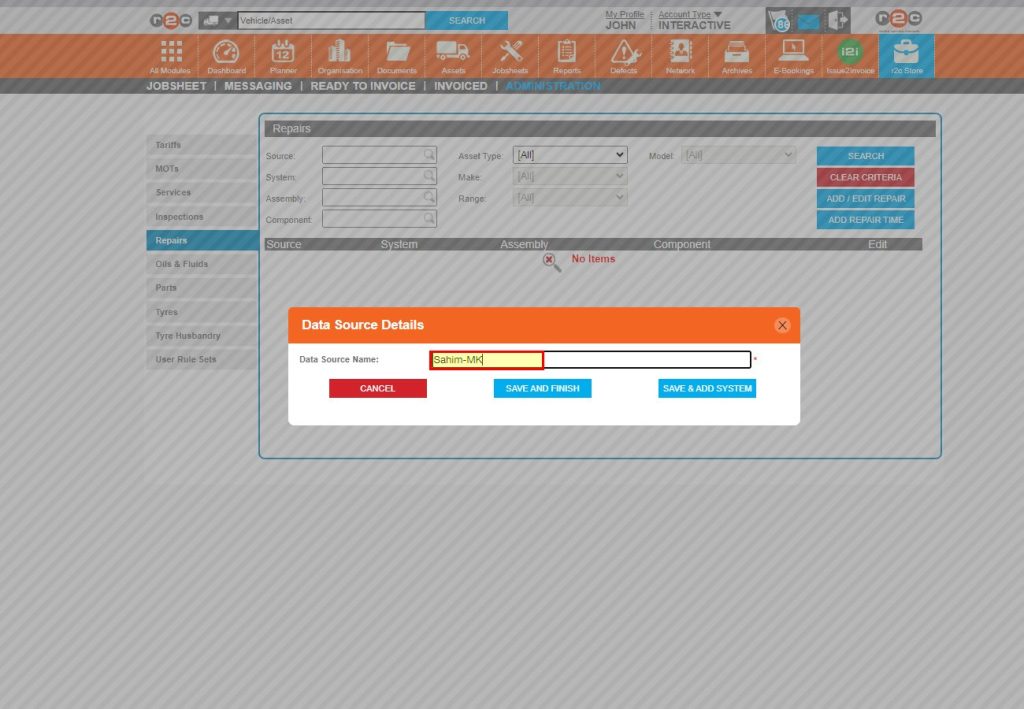
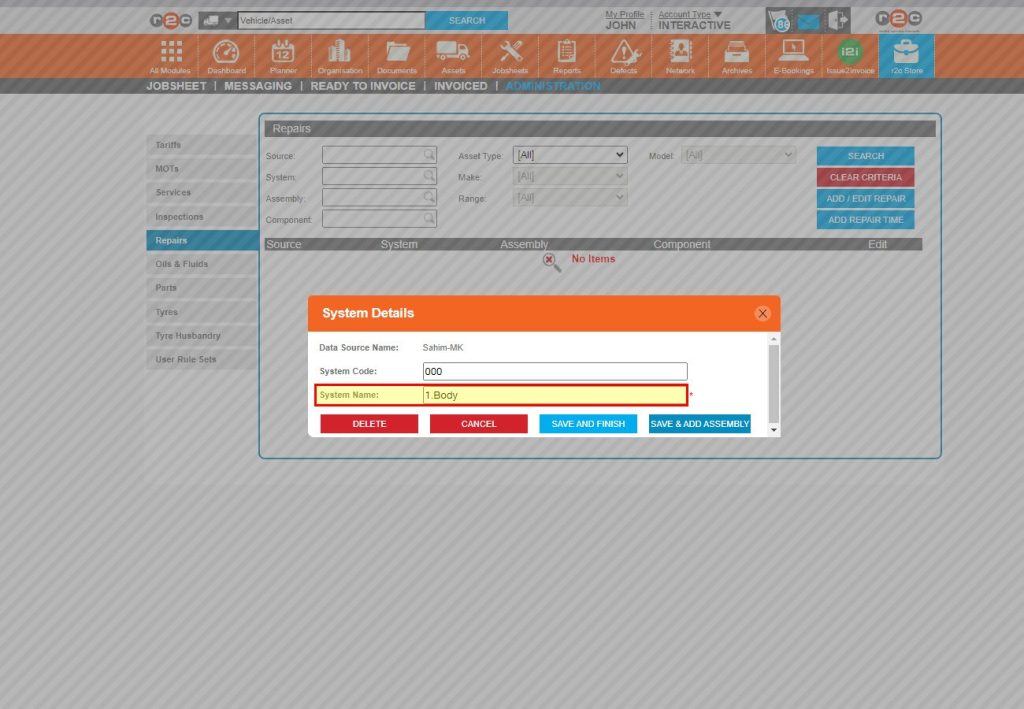
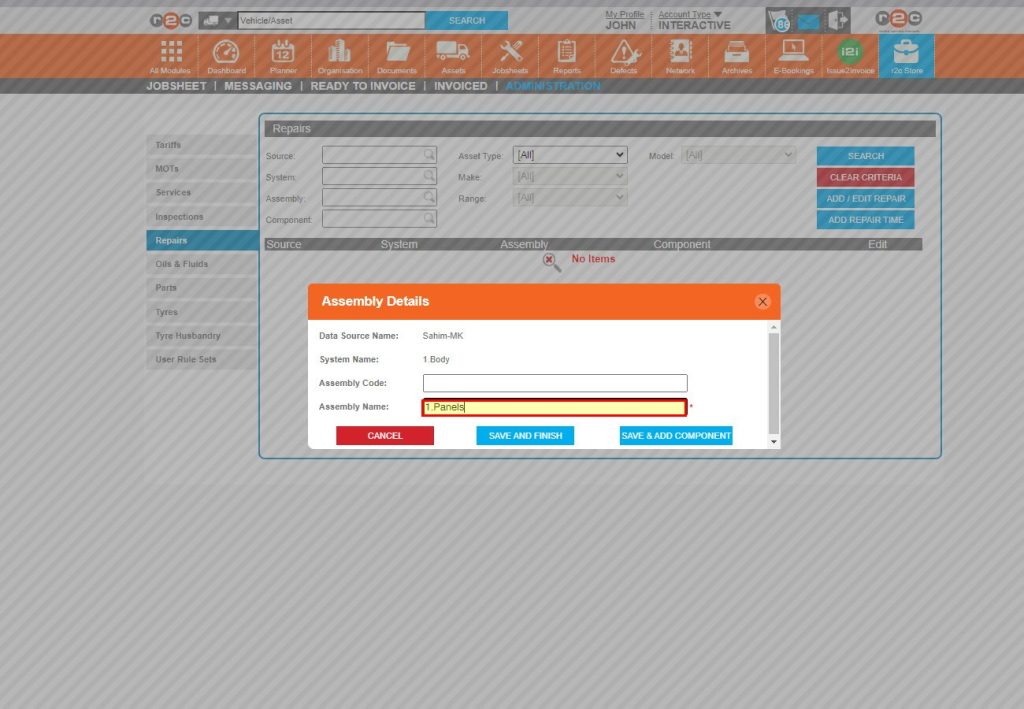
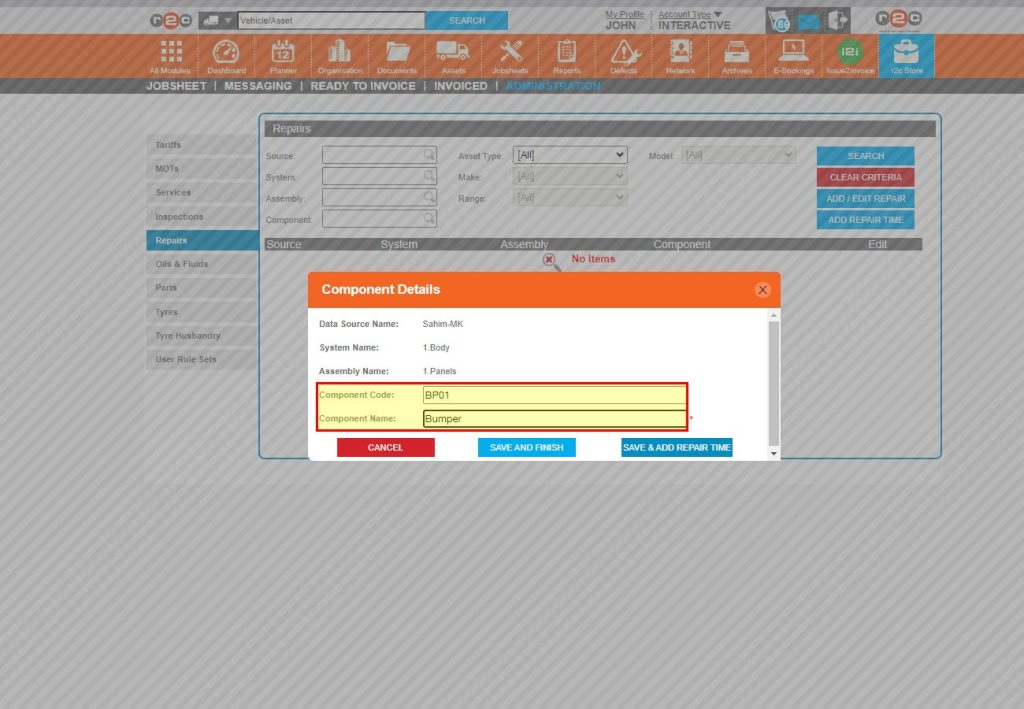
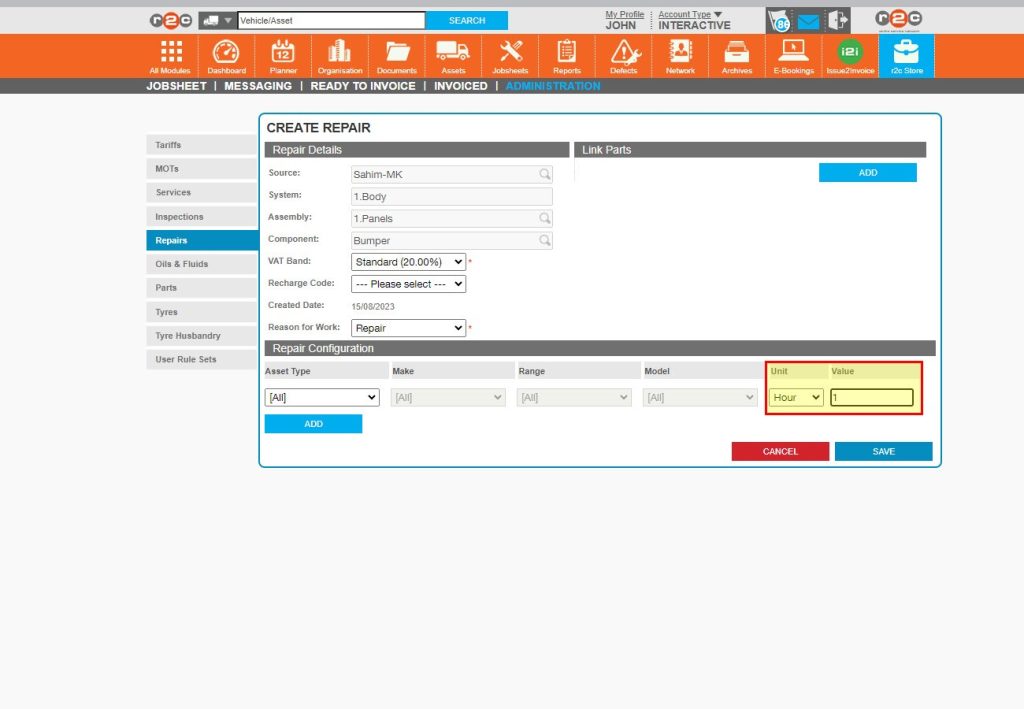
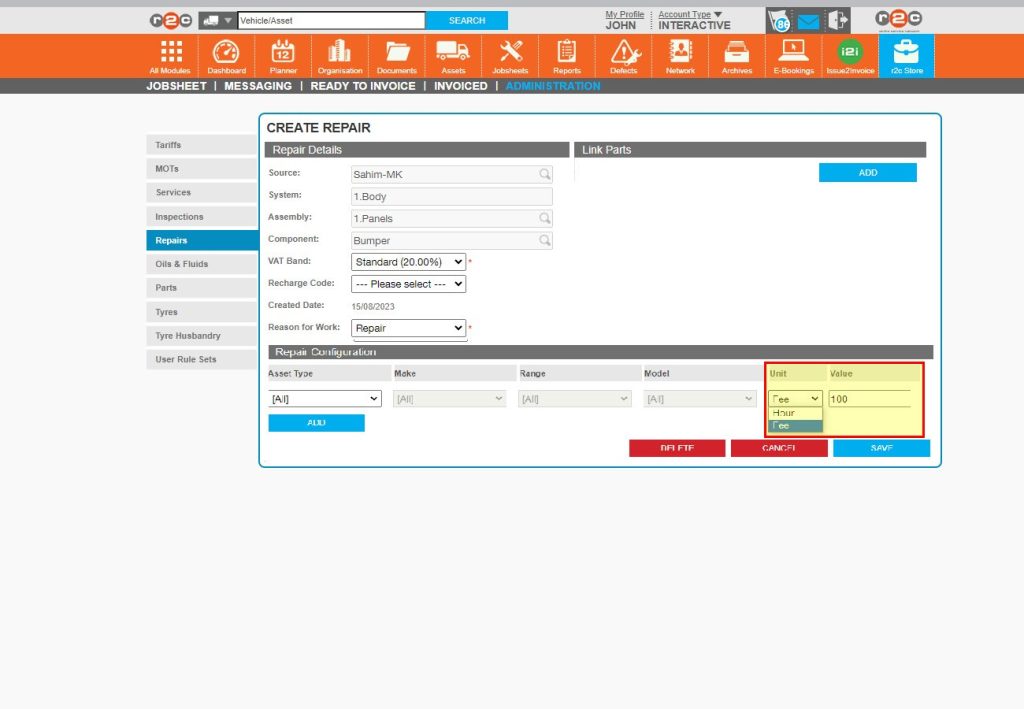
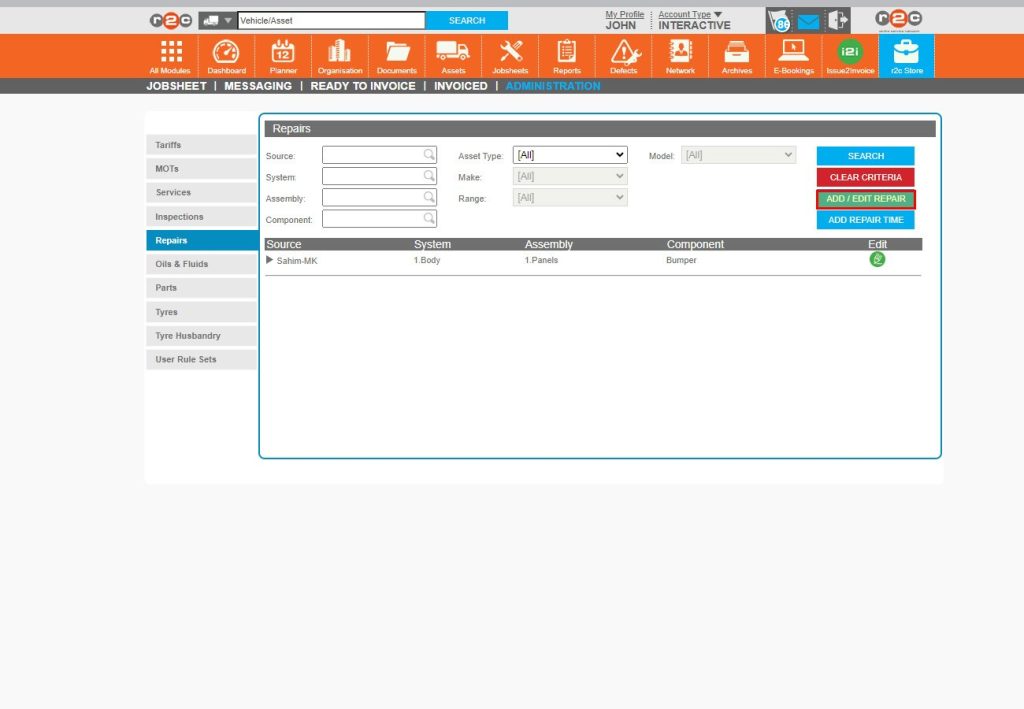
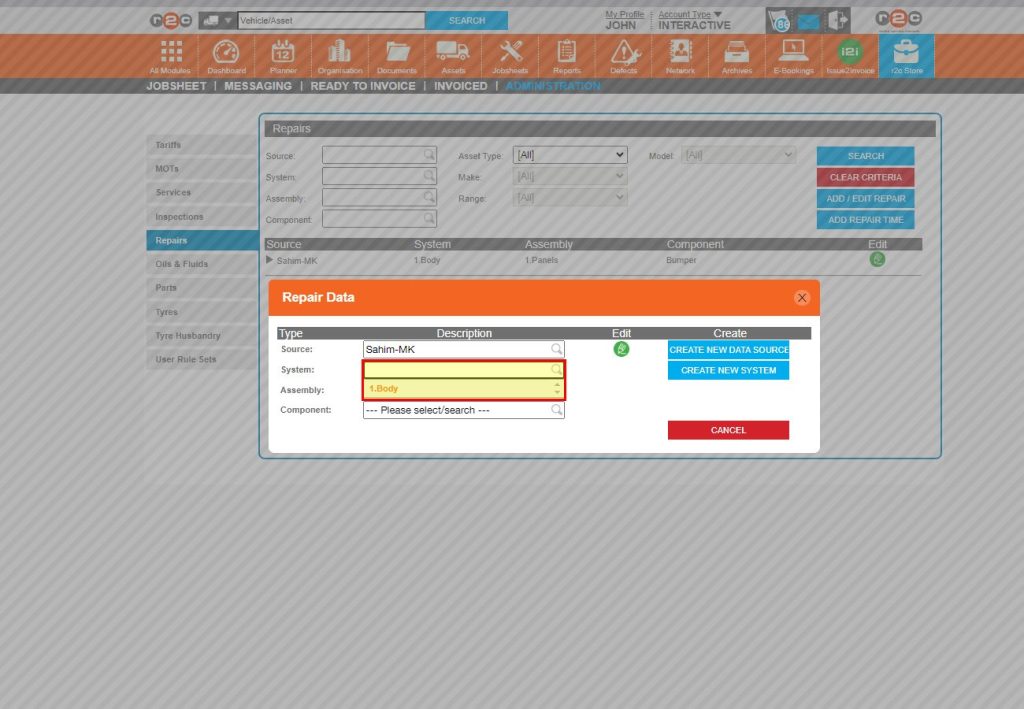
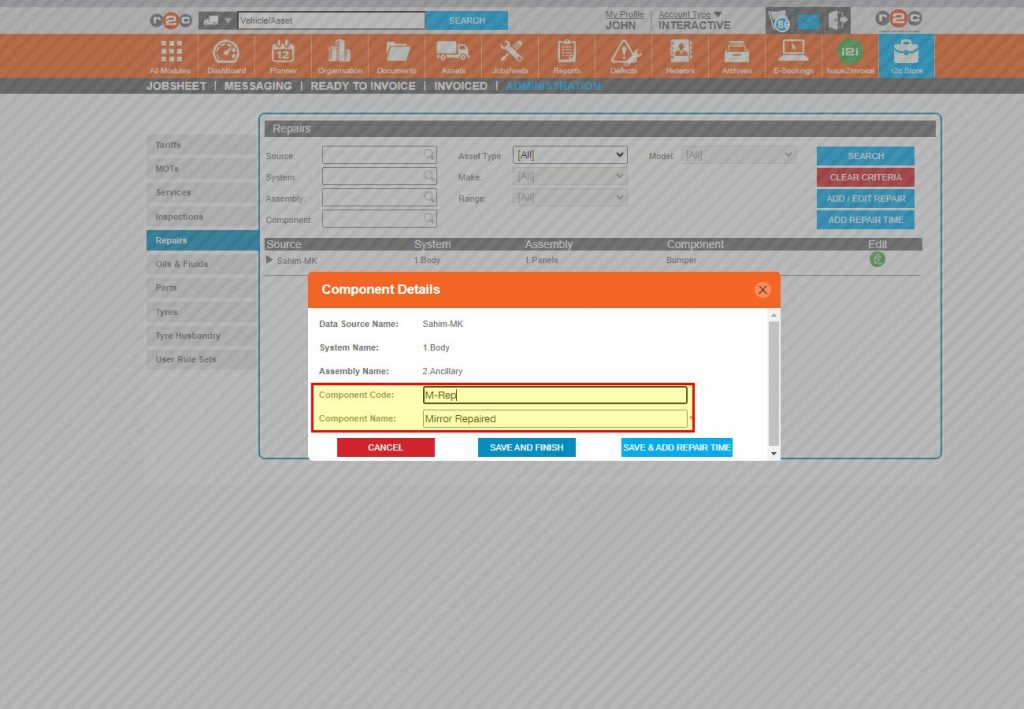
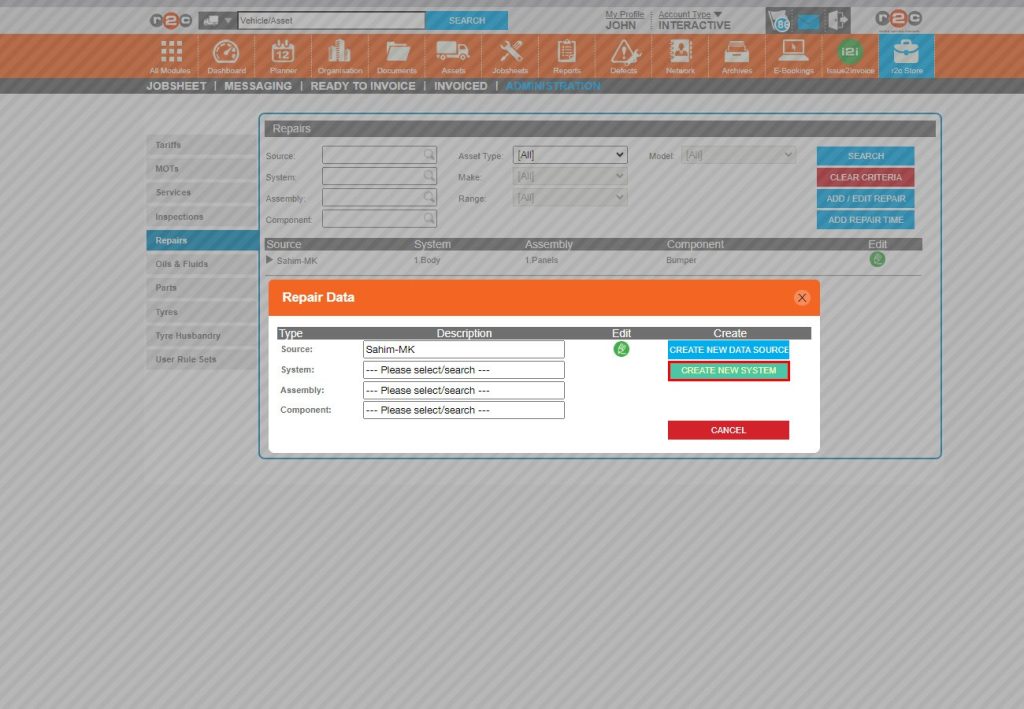
Stage 5 – Creating a Repair Catalogue – To see the steps taken whilst creating a repair catalogue, click or swipe through the 12 steps below.


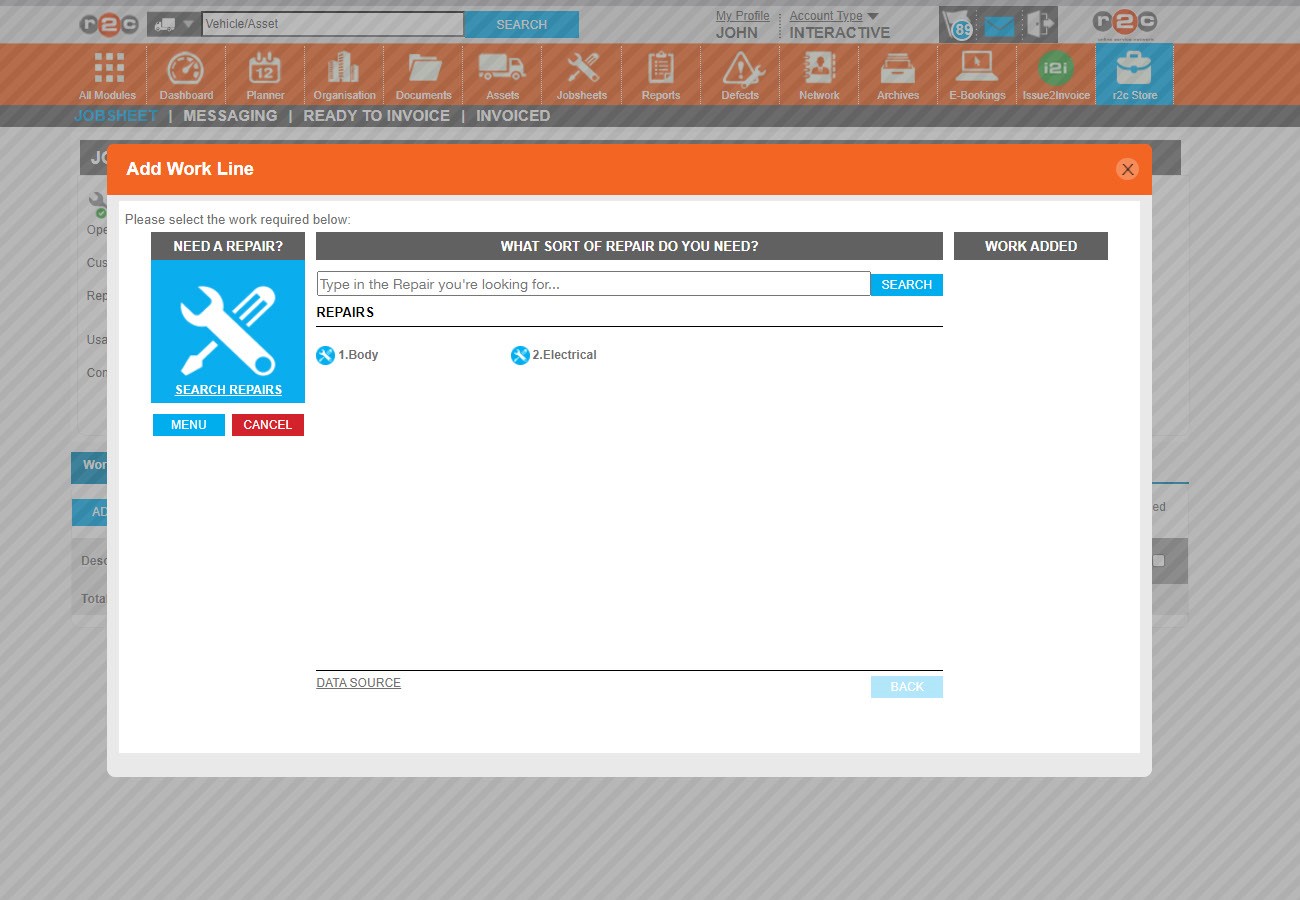
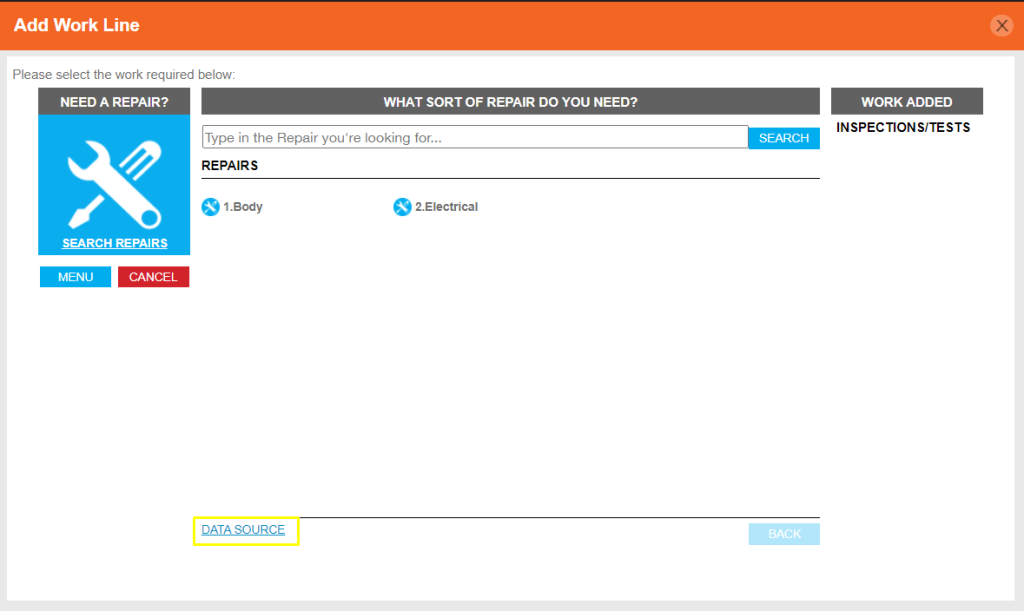
You can search the repair list here.
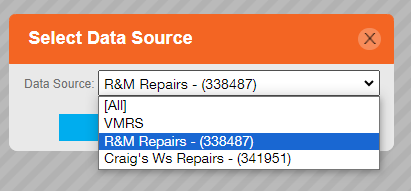
The Data Source can be selected from here.
The top level headings are the System categories set up. Clicking a heading will show the Assembly sub headings and the component list to choose from.
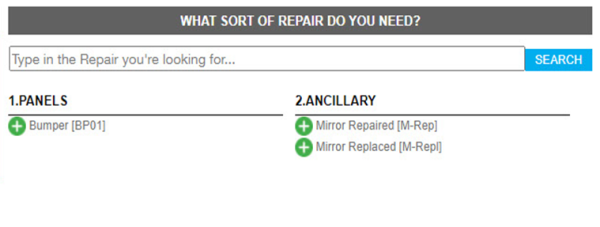
Clicking a heading will show the assembly sub headings and the component list to choose from. 
Technical Info & Self Help
Why can't I see my repair list?
If you are unable to see a specific repair catalogue you have created, please check that you have chosen the correct data source. This is available at the bottom of the repair list menu.
Who else can view my menu pricing items?
Menu pricing items are visible to all interactive parties on the jobsheet. This means customers can see and select from their suppliers menu pricing items and vice versa.